Most people searching for a free AI image agent want the same thing: type a request, get a finished picture, and never see a bill. The catch is that the word "agent" hides two separate jobs. One part thinks: it reads your request, writes a sharper prompt, checks the result, and tries again. The other part paints: a diffusion model that turns that prompt into pixels. You can run both on a home PC for zero dollars a month, but only when the pieces match your graphics card.
This article compares the setups people actually run at home, shows what hardware each one needs, and names a clear winner for most readers. It also points out where a local setup runs out of road, because pretending it never does would waste your weekend.
What an Image Agent Really Is

The Brain and the Brush
A plain image generator takes one prompt and returns one picture. An agent wraps a loop around it. A language model reads your goal ("a product photo of a ceramic mug on a linen cloth, morning light"), expands it into a detailed prompt, calls the image tool, looks at the output, and decides whether to keep it or try again.
For a local build, the brain is usually a small open-weight language model served by Ollama or LM Studio. Good local-sized candidates include IBM Granite 4.1 8B and GPT OSS 20B. The brush is a diffusion model running inside ComfyUI, InvokeAI, Forge, or a similar front end.
Why Free and Local Matters
Running locally removes three recurring annoyances:
- No per-image fees. Your cost is electricity and the card you already own.
- No queue. Nobody else's traffic slows your batch.
- Full privacy. Reference photos, client files, and unreleased products never leave your machine.
💡 Quick test: If you generate fewer than a few dozen images a month, a local stack may cost you more in setup time than it saves. If you generate hundreds, it pays off fast.
The Hardware You Need First
VRAM Decides Almost Everything
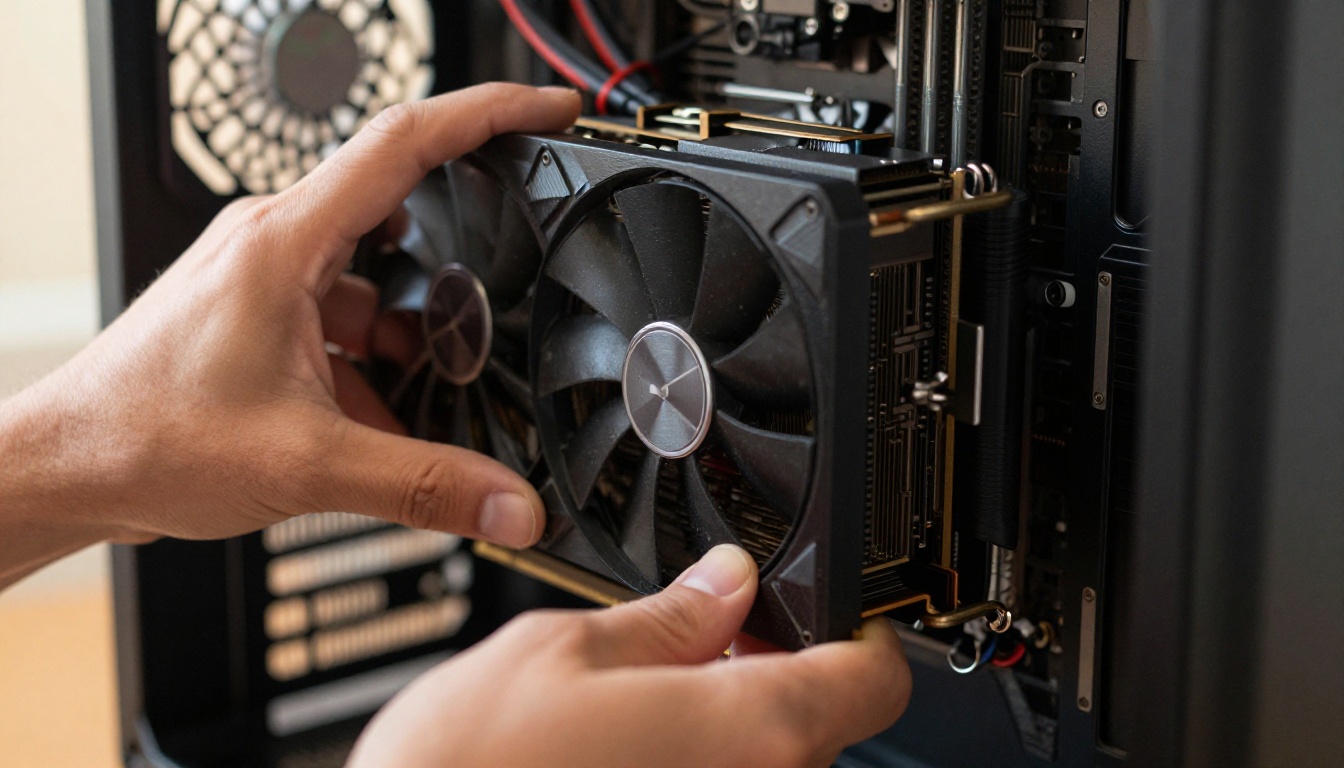
Video memory on your graphics card is the first filter. Processor speed and system RAM matter far less. The table below gives rough, practical tiers. Exact numbers shift with the model version, the quantization level, and the resolution you ask for.
| Video memory | Image models that run well | Language model that fits alongside | What to expect |
|---|
| 4 GB | Older, small models | 3B at 4-bit | Slow, low resolution |
| 6 to 8 GB | SDXL with memory offloading, compact turbo models | 7B to 8B at 4-bit | Usable 1024 px images in under a minute |
| 12 GB | SDXL comfortably, quantized FLUX variants | 8B at 4-bit | Smooth daily work |
| 16 to 24 GB | FLUX 2 Dev and Qwen Image 2512 in reduced precision | 20B class | The best local quality available |
The image model and the language model compete for the same memory. The practical fix is simple: let ComfyUI unload models between steps, and set Ollama's keep_alive value low so the language model leaves memory once it has written the prompt. Ollama keeps a model loaded for five minutes by default, which is far too long on an 8 GB card.
CPU Only and Apple Silicon
No dedicated graphics card? You still have options, just slower ones. Apple Silicon Macs share memory between the processor and the GPU, so a 32 GB machine can hold surprisingly large models. Free apps such as Draw Things are built around that design. A CPU-only PC can run tiny models, but expect minutes per picture instead of seconds.
Best Local Stacks Ranked
Here is the honest ranking, from most capable to most beginner friendly. Every tool below is free to download.
| Stack | Best for | Agent ready | Setup effort |
|---|
| ComfyUI plus Ollama or LM Studio | Power users, repeatable pipelines | Yes, built-in API server | High |
| Open WebUI plus Ollama | Chat-style agent front end | Yes, connects to ComfyUI | Medium |
| InvokeAI | Canvas editing, polished interface | Partly, has an API | Low to medium |
| Forge | Familiar WebUI layout, lower memory use | Yes, with the API flag | Medium |
| Fooocus | First-time users | Limited | Low |
ComfyUI Plus a Local Language Model
This is the best overall pick. ComfyUI is a node-based tool where every step of a generation is a visible block. That sounds intimidating, but it is what makes it agent friendly. Any workflow can be exported in API format and triggered by an HTTP call on the local port (8188 by default). Your language model writes the prompt, fills it into the workflow JSON, posts it, and collects the finished file.
Why it wins:
- It supports the widest range of image models, including SDXL, FLUX, and Qwen Image families.
- Workflows are saved as files, so a good result is repeatable.
- Community-built MCP servers for ComfyUI exist, which lets tool-calling models drive it directly. Check each project's recent activity before trusting one.
💡 Tip: Build and test one workflow by hand first. An agent can only repeat a pipeline that already works.
Open WebUI With Ollama
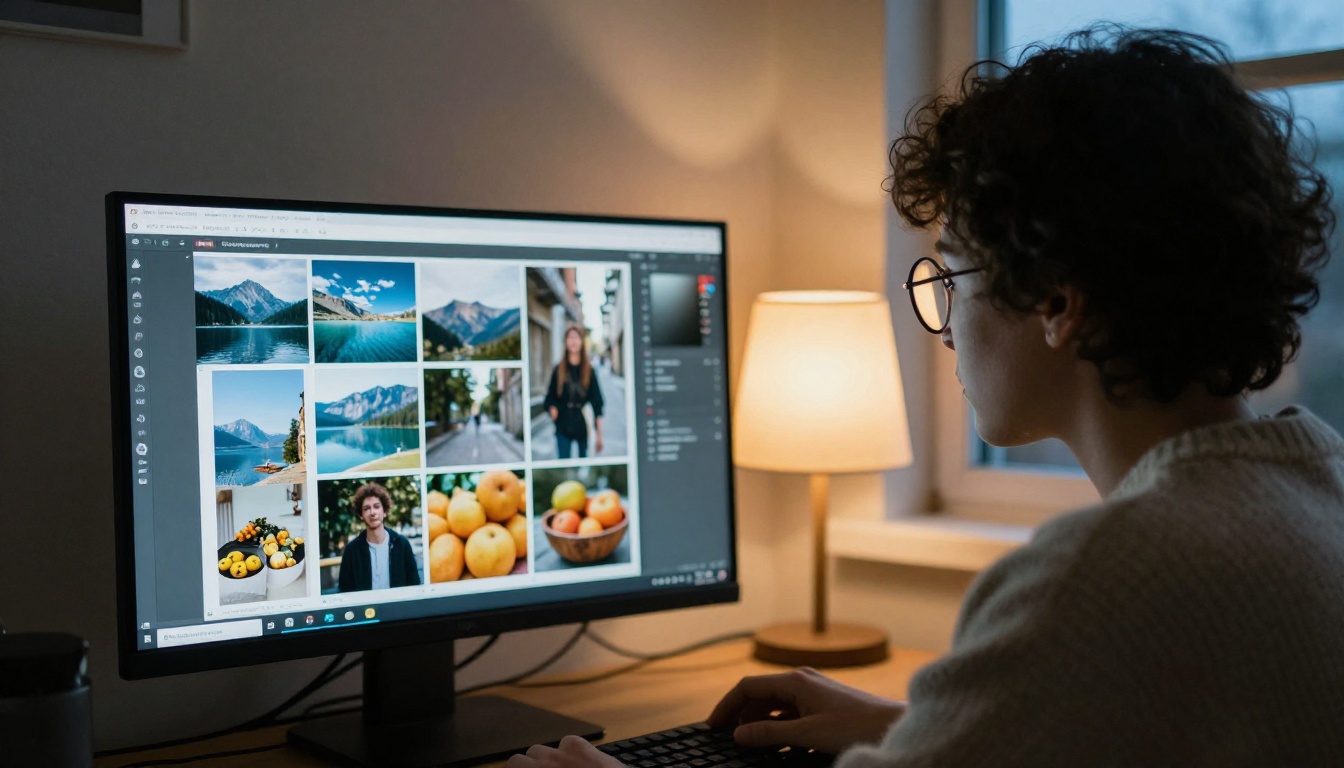
If you want to talk to your agent instead of wiring JSON, Open WebUI is the friendliest path. It gives you a chat interface for local models and can send image requests to ComfyUI or an AUTOMATIC1111 compatible backend. You type "make three variations of a rainy street at dusk" and the chat window handles the rest. It is less flexible than raw ComfyUI scripting, but you can be productive in an afternoon.
InvokeAI for Hands-On Editing
InvokeAI is open source and built around a canvas. You paint, mask, and regenerate regions in place, which suits illustrators and photographers who edit more than they prompt. It is less of a pure agent tool, but its API and clean interface make it a solid second install next to ComfyUI.
Forge and Fooocus for Fast Starts
Forge is a leaner fork of the classic AUTOMATIC1111 interface. It uses memory more carefully, so older cards get more out of it. Fooocus hides almost every setting behind one prompt box, which makes it the gentlest entry point. It sits in a limited maintenance mode, so treat it as a starter tool rather than a long-term home.
Which Image Models to Run
The agent is only as good as its brush. Here is how the common models line up, and each one has a page on PicassoIA where you can try it before you spend an hour downloading weights.
Small and Fast Picks
If your card has 8 GB or less, start with SDXL or Z-Image Turbo. Turbo style models need only a handful of steps, which matters a lot when an agent may ask for four or five attempts per request. A model that takes three seconds a try beats a prettier one that takes ninety.
Quality Picks for Bigger Cards
With 16 GB or more, FLUX 2 Dev and Qwen Image 2512 give the most convincing skin, fabric, and lighting you can run at home. Quantized versions trade a little detail for much lower memory use, and that trade is often worth making.
Read the license card first. "Free to download" and "free for any use" are different things. SDXL ships under a permissive open license. Stable Diffusion 3.5 is free for smaller businesses under Stability's community terms. Open weights of the larger FLUX models often carry non-commercial terms. Check the model card before you sell anything made with them.
Match the Model to Your Card
Here is the short version, by situation:
- 8 GB card, first time: Fooocus or Forge with SDXL, then add Open WebUI once you are comfortable.
- 12 GB card, want automation: ComfyUI with a small tool-calling model such as IBM Granite 4.1 8B.
- 16 to 24 GB card, want the best quality: ComfyUI with FLUX 2 Dev or Qwen Image 2512, and a 20B class language model.
- Mac user: Draw Things for quick work, ComfyUI if you want an agent pipeline.
- No capable hardware: Skip the install and run the same models on PicassoIA.
How the Agent Loop Works
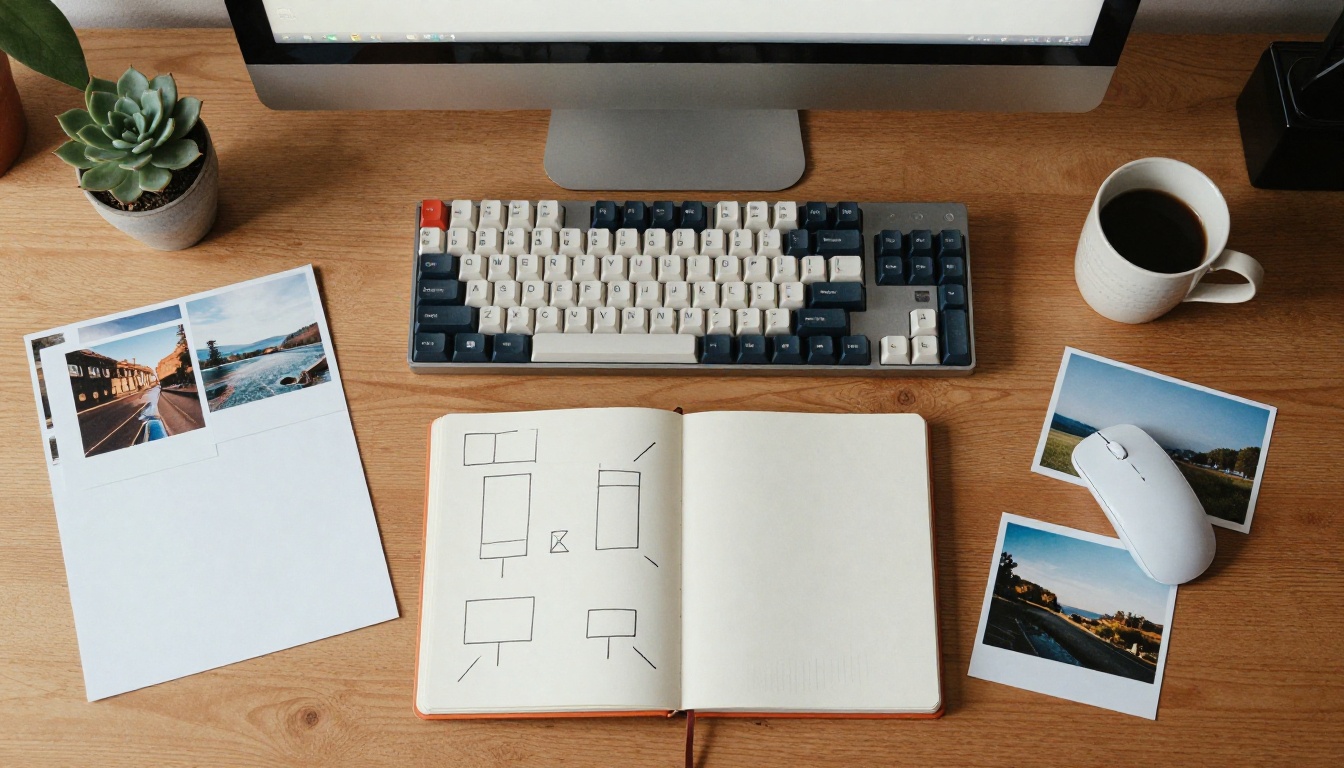
Prompt, Generate, Judge, Retry
Every working image agent repeats four moves:
- Prompt. The language model rewrites your short request into a detailed one: subject, setting, light, lens, mood.
- Generate. It calls the image tool with that prompt and a fixed size.
- Judge. A vision-capable model, or a simple rule set, checks the result for obvious failures such as warped hands or wrong colors.
- Retry. If the check fails, it adjusts the prompt or the seed and runs again, up to a limit you set.
Set that limit. Without a cap of three or four tries, a stubborn request can keep your GPU busy all night.
Wiring Tools Through MCP
The Model Context Protocol gives the language model a standard way to call outside tools. LM Studio can act as an MCP host, and tool-calling models in Ollama can drive similar setups through small bridge scripts. In practice you register one tool ("generate_image") that forwards the prompt to ComfyUI and returns a file path. Keep the tool narrow. A tool that accepts only a prompt, an aspect ratio, and a seed is easier for a small model to call correctly than one with twenty options.
💡 Reliability rule: Small language models fail at long tool schemas. Fewer parameters mean fewer broken calls.
Where Local Falls Short

The Real Cost of Free
Local is free in cash and expensive in attention. Expect an evening of installs, a few broken driver moments, and ongoing upkeep as tools update. Power is a smaller cost than people fear. A 300 W card running for one hour at 15 cents per kilowatt-hour costs about 4.5 cents. Heat and fan noise are the bigger daily irritation, especially in a small room.
Laptops add their own limits. A laptop with a modest graphics chip can run SDXL, but it will throttle when hot and drain the battery quickly. If you work from cafes or trains, a local stack on your home desktop is hard to reach, and the lightweight models on a laptop will not match what a desktop card produces.
The Hosted Fallback
When the job is bigger than your card, or you are away from your desk, a hosted route fills the gap. PicassoIA has a large text-to-image catalog, so you can test FLUX 2 Dev, Qwen Image 2512, P-Image, and Seedream 4.5 without downloading anything. It also hosts an any ComfyUI workflow model, which is useful if you already built a pipeline and want to run it on stronger hardware. Many readers end up with a hybrid: local for drafts and private work, hosted for the final heavy renders.
How to Use Flux 2 Dev on PicassoIA

This is the same loop as a local agent, done by hand, and it is a fast way to see what a model can do before you commit disk space to it.
- Open the model page. Go to FLUX 2 Dev in the text-to-image collection.
- Write the prompt in layers. Name the subject first, then the setting, the light, and the lens. For example: "a ceramic mug on a linen cloth, soft window light from the left, 50mm lens, shallow depth of field, film grain".
- Pick the aspect ratio for the destination. Use 16:9 for blog banners, 1:1 for product shots, and 9:16 for stories.
- Hold the seed. When the composition is right but one detail is off, keep the seed the same and change a single phrase in the prompt. Changing five things at once makes it impossible to see what worked.
- Generate two or three variations and compare. Keep the best, then fix small flaws with an editing model such as Qwen Image Edit 2511.
- Let a language model write your next prompt. Paste your result description into Kimi K2.6 and ask for three sharper prompt variations. That is the "brain" half of the agent, working for you.
💡 Tip: Keep a text file of prompts that worked. It becomes the starter library for your local agent later.
Try It Yourself on Picasso IA
You do not need to settle the local versus hosted question before you start. Open Picasso IA, pick a text-to-image model, and run the same prompt through two or three of them. In ten minutes you will see which style fits your work, which model deserves a download, and how much detail your prompts need. Then build your local agent around the model you already know you like, and keep Picasso IA open for the days when your own card needs a break.
Write a prompt, press generate, and see what your idea looks like.


