Why AI Video Editing Matters for Creators
Video content dominates the internet right now. Every platform prioritizes video, and audiences expect high-quality productions. The problem? Traditional video editing takes forever. You spend hours on cuts, transitions, color correction, and audio mixing. That's where AI changes everything.
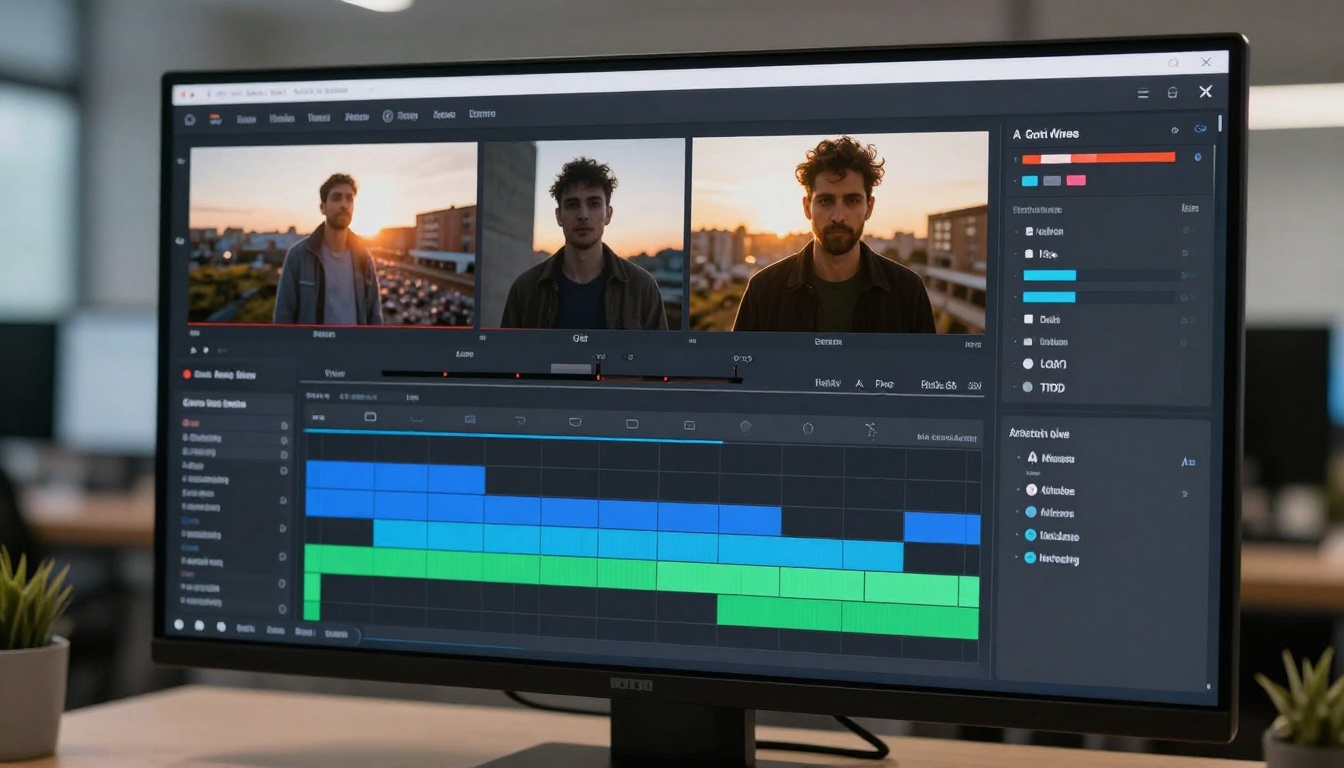
AI-powered video editing tools analyze your footage and make smart decisions automatically. They can identify the best moments, remove awkward pauses, match colors across clips, and even generate transitions that match your style. For creators juggling multiple projects, this technology is a lifesaver.
The beauty of AI video editing isn't just speed. It's about maintaining consistency while you scale up production. When you're creating daily content or managing multiple clients, AI ensures every video meets professional standards without micromanaging every detail.
Text-to-Video Generation
One of the most exciting developments in AI video editing is text-to-video generation. You type what you want to see, and AI creates the video. This technology is perfect for creators who need custom B-roll, animated sequences, or unique visual content that doesn't exist anywhere else.
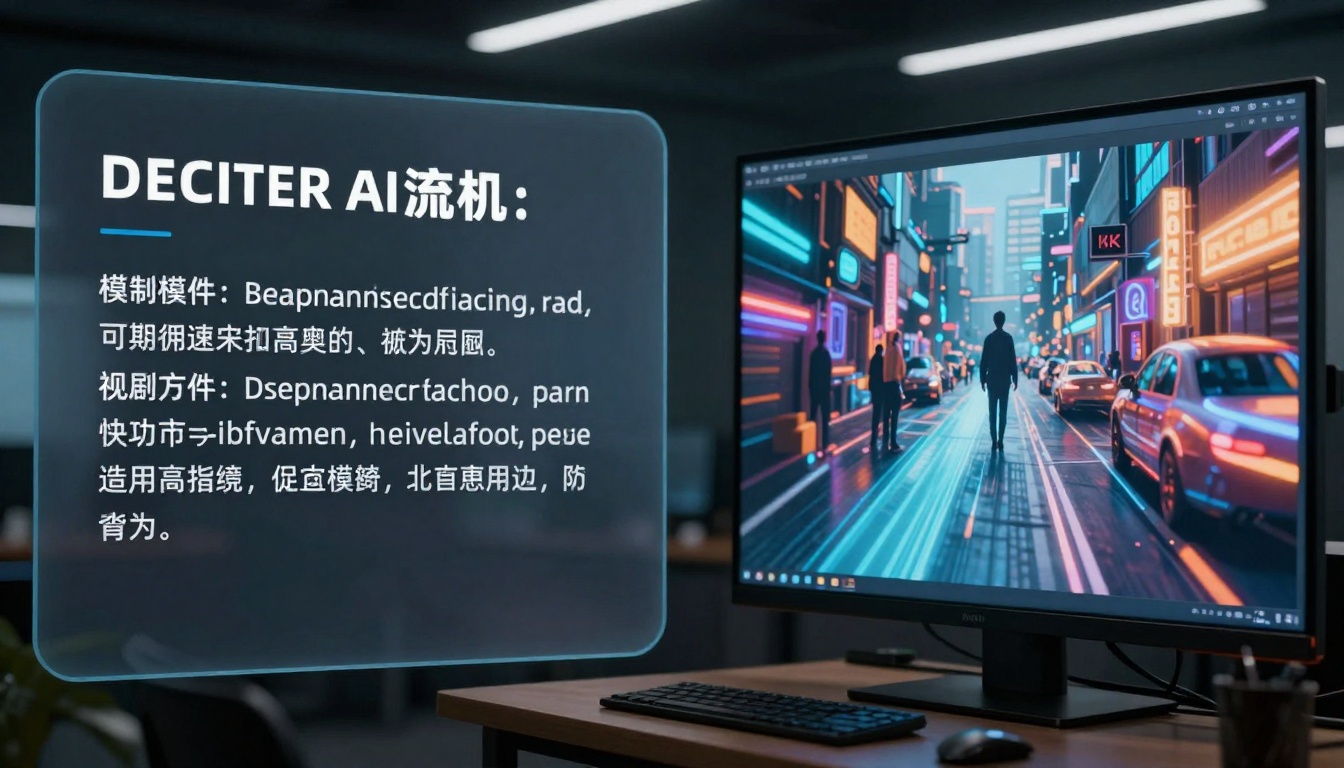
Text-to-video tools excel at:
- Creating custom animations for explainer videos
- Generating B-roll that perfectly matches your narrative
- Producing unique visuals that set your content apart
- Building entire scenes from simple descriptions
The quality has improved dramatically in recent years. Modern text-to-video models understand context, maintain visual consistency, and can even generate audio to match the scene. This means you can create professional-looking content without filming anything.
Popular Use Cases
Content creators use text-to-video for product demos, educational content, marketing videos, and social media clips. The technology shines when you need something specific that's expensive or impossible to film traditionally.
Smart Editing Automation
AI doesn't just generate new content. It makes existing footage better through intelligent automation. These tools watch your videos the way a human editor would, then suggest or automatically apply improvements.
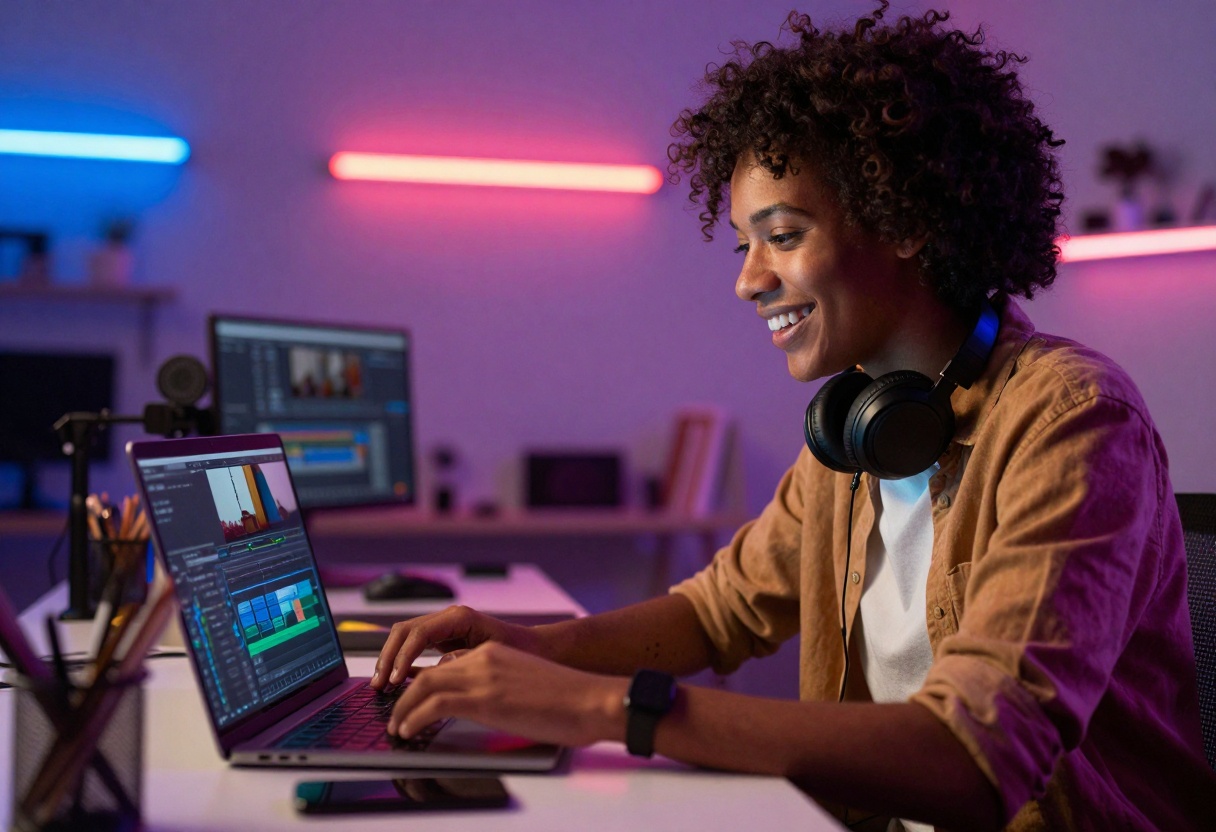
Automatic editing features include:
- Scene detection and intelligent cutting
- Audio ducking and background noise removal
- Face tracking for dynamic framing
- Motion stabilization
- Auto-captioning with high accuracy
The best part? You still control the final result. AI suggests edits, but you approve or adjust them. This hybrid approach combines machine efficiency with human creativity.
Time-Saving Benefits
A 10-minute video that used to take three hours to edit might now take 30 minutes. AI handles the tedious parts like syncing audio, removing silences, and balancing colors. You focus on the creative decisions that actually matter.
Color Grading and Enhancement
Professional color grading used to require years of training and expensive software. AI color tools analyze your footage and apply cinematic looks instantly. They understand lighting conditions, skin tones, and mood to suggest appropriate grades.
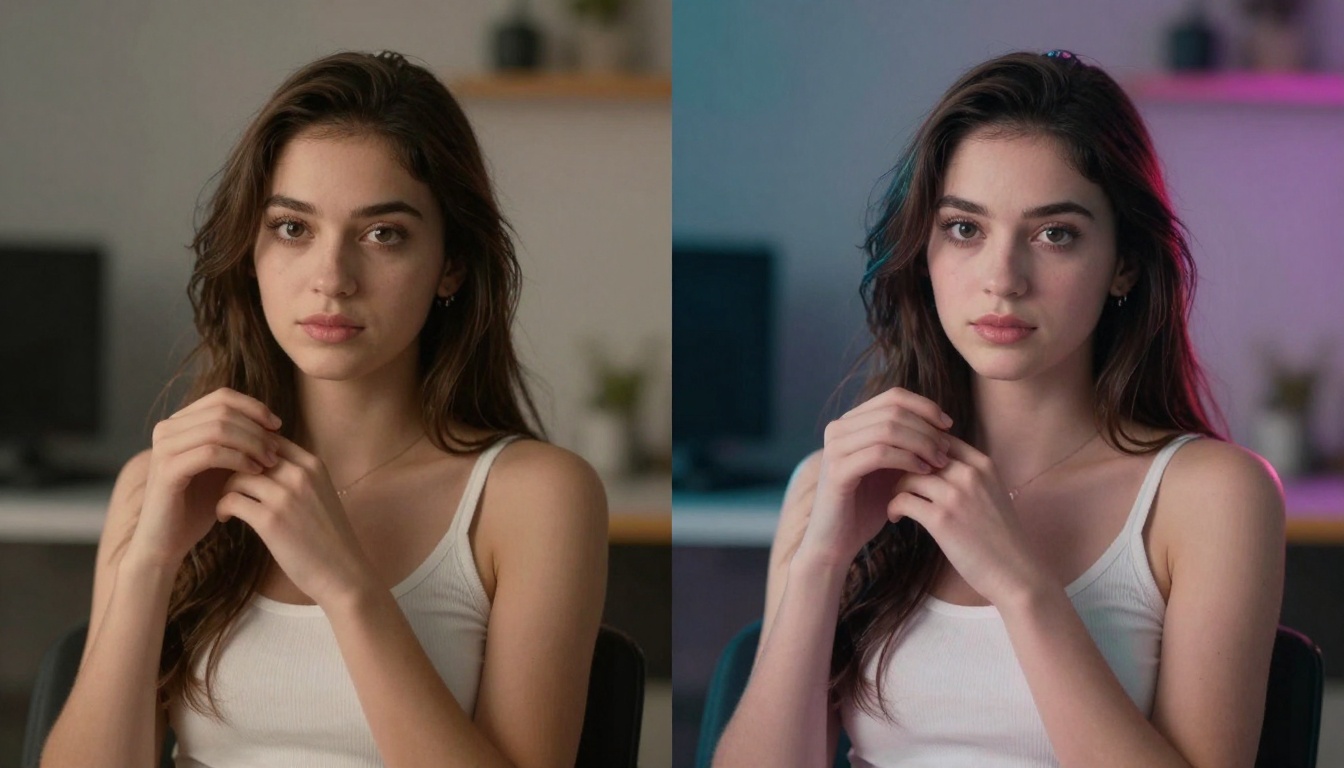
These systems learn from millions of professionally graded videos. When you upload footage, the AI recognizes similar scenes and applies matching color treatments. The results look like you hired a professional colorist.
AI color grading offers:
- One-click cinematic looks
- Automatic skin tone correction
- Consistent color across multiple clips
- Mood-based grading suggestions
- HDR optimization
You can also train the AI on your preferred style. After grading a few videos manually, the system learns your aesthetic and replicates it automatically on future projects.
Audio Processing and Enhancement
Good audio separates amateur videos from professional ones. AI audio tools clean up recordings automatically, removing background noise, balancing levels, and even enhancing dialogue clarity.
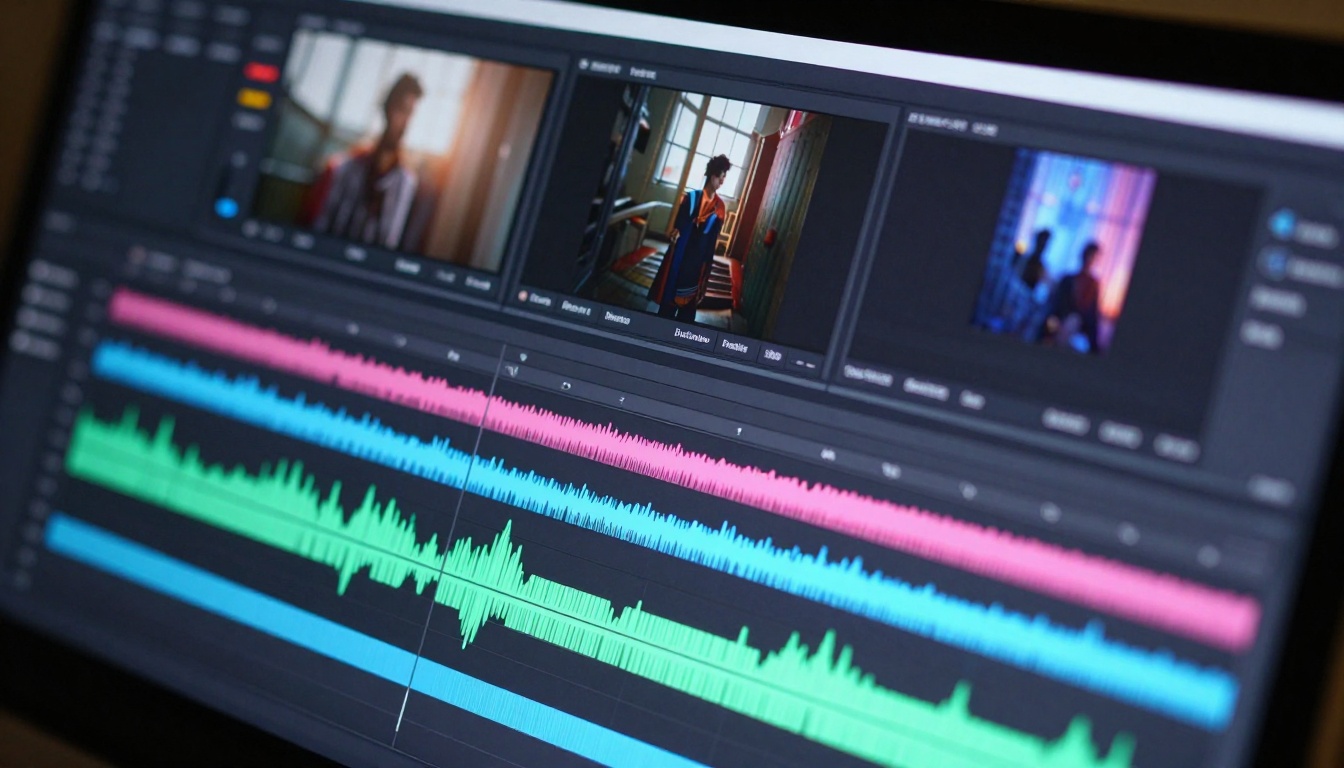
Modern audio AI can separate voices from music, remove echo from room recordings, and normalize volume across different clips. Some tools even generate missing audio elements or suggest background music that matches your video's mood.
Essential audio features:
- Voice isolation and enhancement
- Background noise removal
- Automatic volume leveling
- Music generation and matching
- Sound effect library integration
The technology has become so good that many creators skip expensive microphone setups. They film with basic equipment and let AI handle audio cleanup in post-production.
Different platforms require different video formats. Instagram wants vertical videos, YouTube prefers horizontal, and TikTok needs specific aspect ratios. AI reformatting tools automatically resize and reframe your content for each platform.
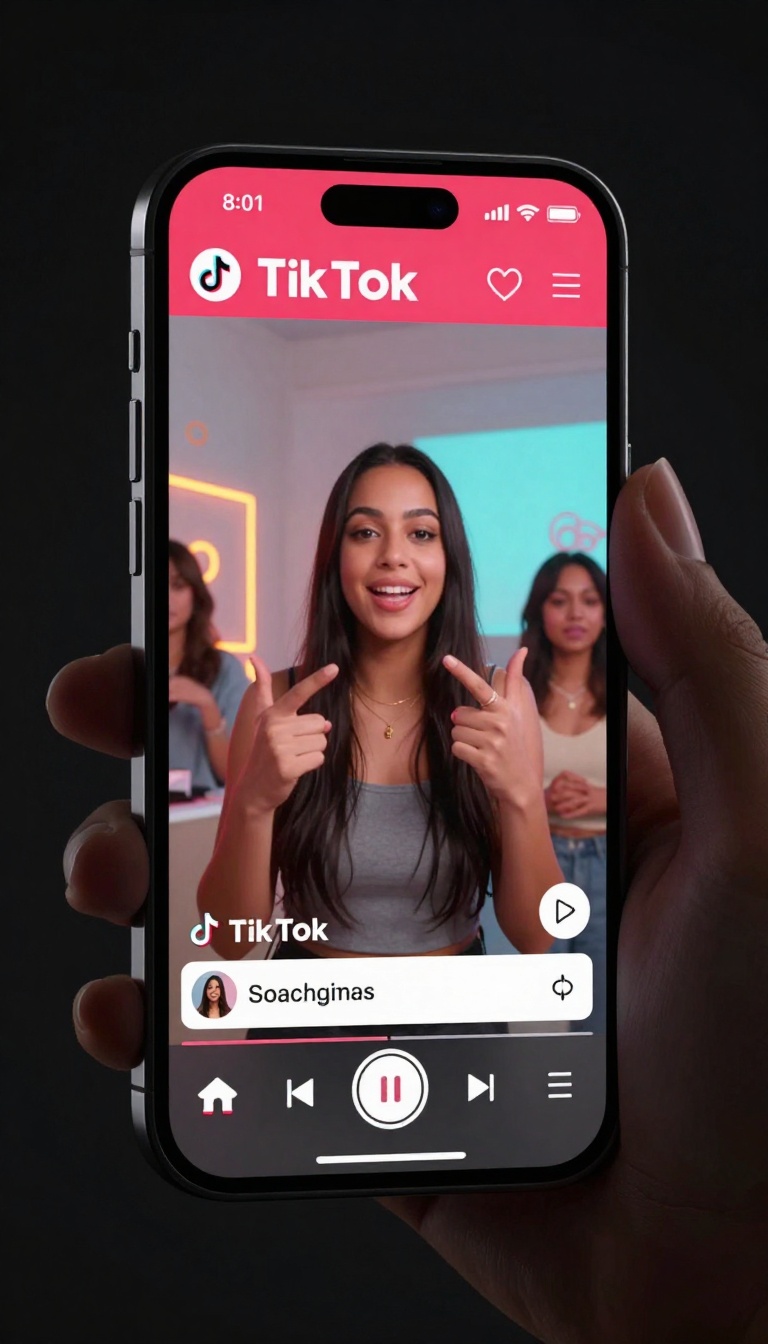
These tools understand composition rules. When converting horizontal to vertical, they identify faces and important elements, then crop intelligently to maintain visual impact. You can post the same video across five platforms without manual adjustments.
Platform optimization includes:
- Automatic aspect ratio conversion
- Intelligent cropping with subject tracking
- Caption placement adjustment
- Thumbnail generation
- Length optimization for each platform
Some advanced systems analyze performance data and suggest edits that improve engagement. They notice patterns like when viewers drop off and recommend ways to hold attention better.
Rendering and Export Speed
Traditional video rendering ties up your computer for hours. AI-accelerated rendering uses GPU power and smart compression to export videos faster without quality loss.
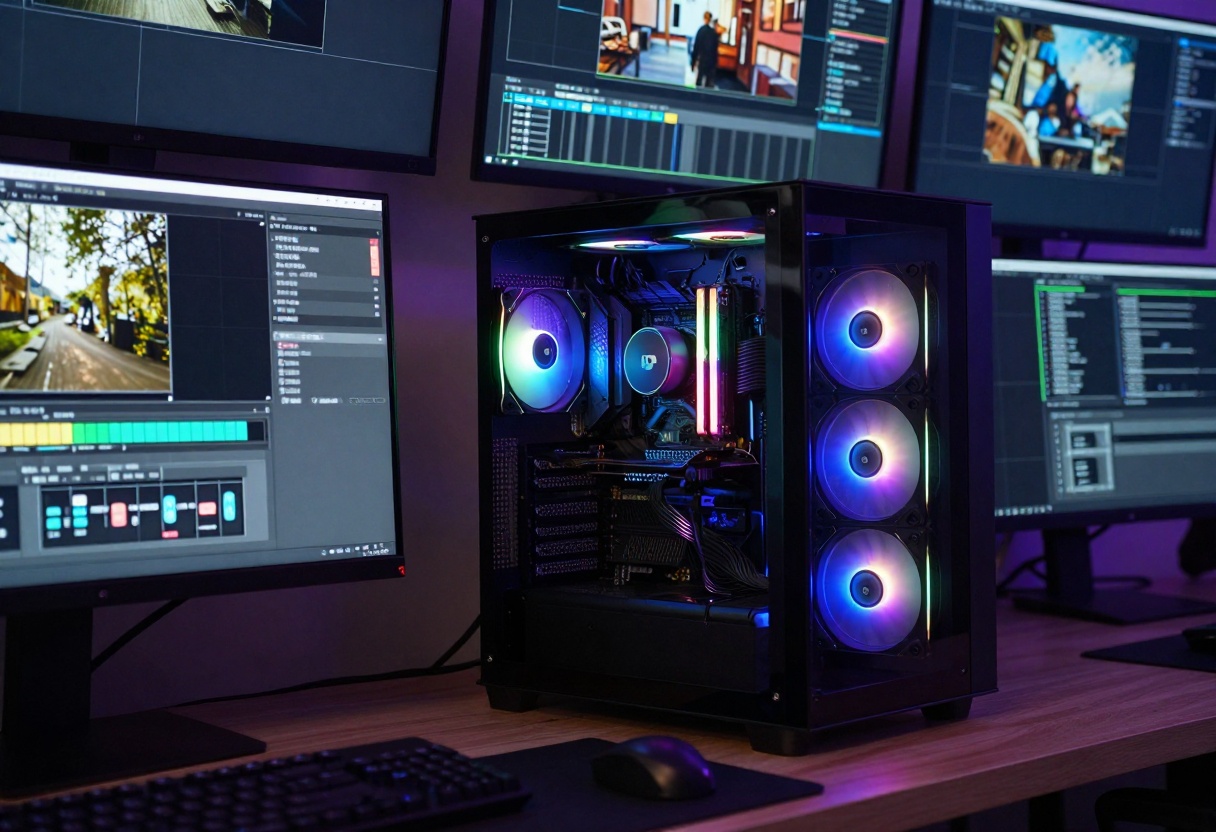
Modern AI rendering algorithms predict which frames need full processing and which can use shortcuts. They compress intelligently, maintaining quality in important areas while reducing file size where viewers won't notice.
Rendering improvements:
- 3-5x faster export times
- Smaller file sizes without visible quality loss
- Background rendering while you continue editing
- Automatic format optimization for each platform
- Preview rendering for instant feedback
Cloud-based AI rendering takes this further. Upload your project, and powerful servers handle the heavy lifting. Your computer stays free for other work while the video renders in the cloud.
Collaborative Editing Features
Team projects become easier with AI-powered collaboration tools. These systems track changes, suggest improvements, and maintain version control automatically. They can even predict which team member should handle specific tasks based on past performance.
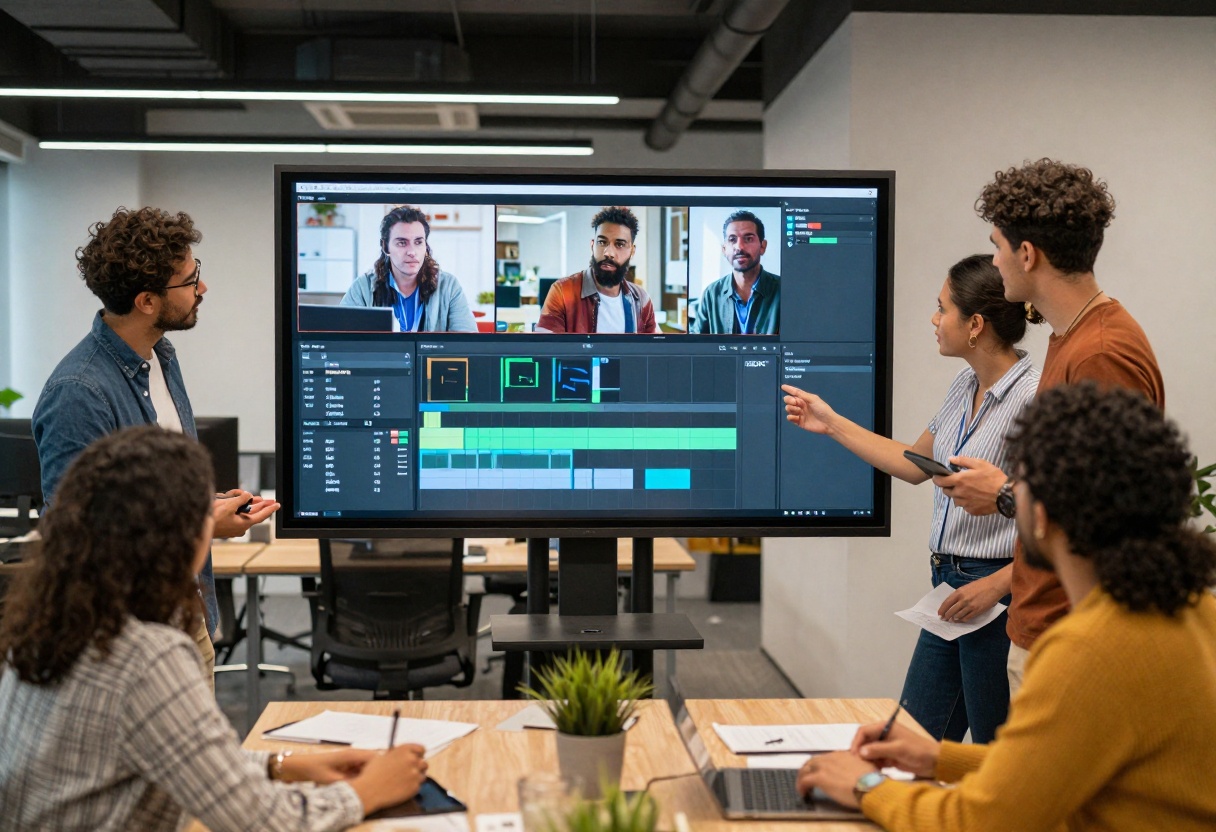
AI collaboration platforms understand context. When someone makes an edit, the system notifies relevant team members and flags potential conflicts. This prevents duplicate work and miscommunication.
Collaboration benefits:
- Real-time multi-user editing
- Automatic conflict resolution
- Task assignment based on AI analysis
- Version control with intelligent merging
- Cloud storage with instant sync
For remote teams, AI bridges the gap between asynchronous work styles. Team members contribute when they can, and the AI keeps everything organized and consistent.
Professional-Grade Effects
Adding motion graphics, titles, and effects used to require specialized skills. AI effects libraries contain thousands of templates that automatically adjust to your footage. They detect scene elements and position effects naturally.
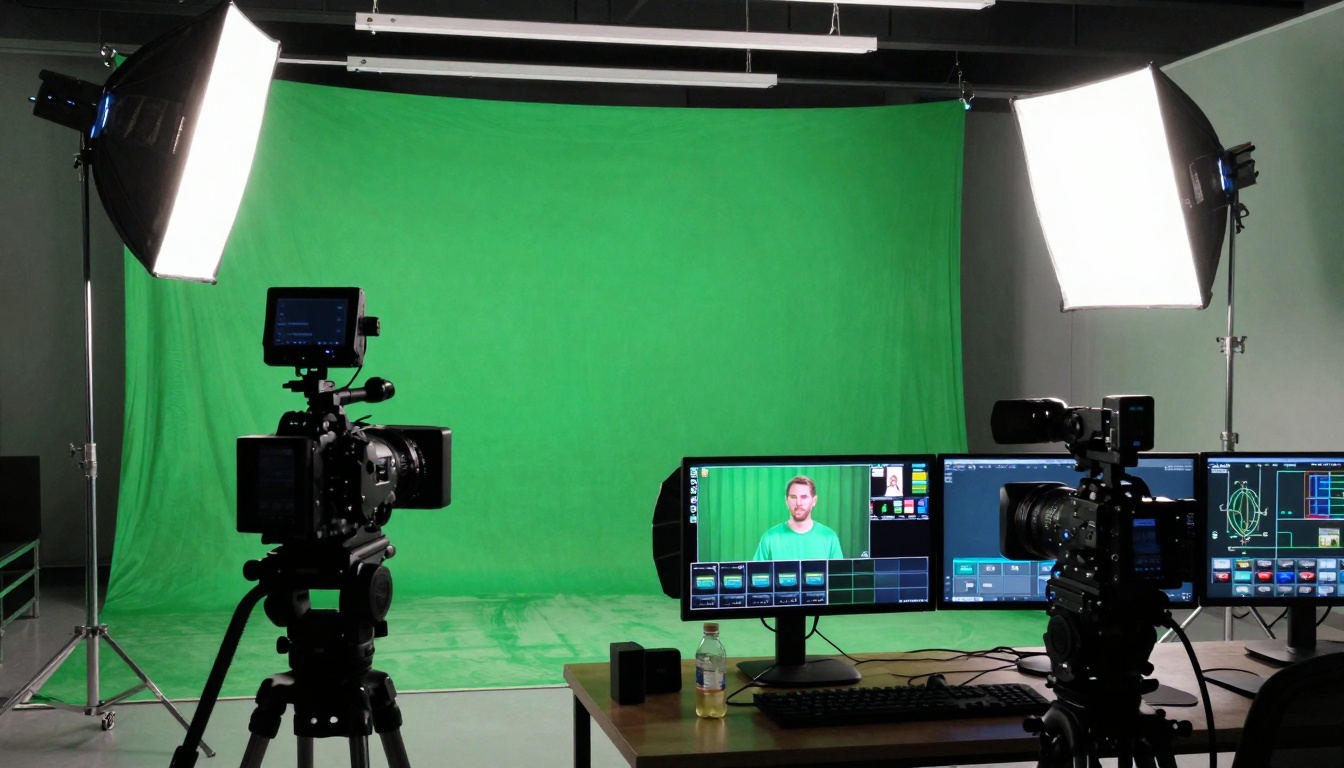
These aren't generic templates. AI customizes each effect based on your video's content, colors, and pacing. A title animation that works perfectly with one scene automatically adjusts timing and style to match another.
Effect capabilities:
- Motion tracking for text and graphics
- Automatic title card generation
- Transition suggestions based on content
- Green screen removal and replacement
- Object removal and insertion
The learning curve is minimal. You preview effects in context, make minor adjustments if needed, and let AI handle the technical implementation.
Getting Started with Veo 3.1 on PicassoIA
Veo 3.1 represents the cutting edge of AI video generation technology. This powerful text-to-video model creates high-quality videos from simple text descriptions. Here's how to use it effectively on PicassoIA.
Step 1: Access Veo 3.1
Visit the Veo 3.1 model page on PicassoIA. The interface is straightforward and designed for creators who want professional results without complex settings.
Step 2: Craft Your Prompt
The prompt is where you describe the video you want to create. Be specific about what you want to see. Instead of "a person walking," write "a young woman in a red jacket walking through a busy Tokyo street at sunset, camera following from behind."
Effective prompt elements:
- Clear subject description
- Specific location or setting
- Lighting conditions
- Camera angle or movement
- Mood or atmosphere
The more detail you provide, the more accurately Veo 3.1 can visualize your concept. The model understands natural language, so write conversationally.
Step 3: Configure Video Settings
Veo 3.1 offers several customization options:
| Setting | Options | Best For |
|---|
| Duration | 4, 6, or 8 seconds | 8 seconds gives more narrative time |
| Aspect Ratio | 16:9 or 9:16 | 16:9 for YouTube, 9:16 for TikTok |
| Resolution | 720p or 1080p | 1080p for professional content |
| Audio Generation | On/Off | Enable for complete scenes |
Start with 8-second duration and 1080p resolution for the highest quality. You can always create shorter versions later.
Step 4: Use Reference Images (Optional)
One of Veo 3.1's powerful features is reference image support. Upload 1-3 images to maintain consistent subjects across your video. This works perfectly for brand mascots, product shots, or character animations.
Reference images must:
- Use 16:9 aspect ratio
- Match the 8-second duration setting
- Show clear views of your subject
- Have good lighting and resolution
The AI analyzes these references and keeps visual consistency throughout the generated video.
Step 5: Add Input or Transition Images (Optional)
You can provide a starting image and ending image to create smooth transitions. Veo 3.1 generates the motion between these frames. This feature is incredible for product reveals, location transitions, or storytelling sequences.
Upload your start frame in the Image field and your end frame in the Last Frame field. The AI fills in everything between them naturally.
Step 6: Refine with Negative Prompts
Tell Veo 3.1 what you don't want to see. If your video keeps showing unwanted elements, use the negative prompt field. Examples: "blurry, low quality, watermark, text, cartoon style."
Negative prompts help the AI avoid common mistakes and focus on your specific vision.
Step 7: Generate and Review
Click generate and wait for Veo 3.1 to create your video. Processing typically takes a few minutes depending on complexity. The platform shows progress, so you know exactly how long to wait.
When finished, preview the result. If it's not quite right, adjust your prompt or settings and try again. Each generation teaches you more about how the AI interprets descriptions.
Step 8: Download and Use
Once you're satisfied with the result, download the video file. Veo 3.1 exports in high-quality formats ready for editing or direct upload to social platforms.
Download tips:
- Check file size before downloading
- Save versions with different settings
- Keep your prompts for future reference
- Organize downloads by project
Not every AI video tool fits every creator. Your choice depends on content type, technical skill, budget, and specific needs. Here's how to decide what works best.
Consider these factors:
- Content volume (how many videos per week)
- Platform focus (YouTube, TikTok, Instagram, etc.)
- Team size (solo vs. collaborative)
- Technical expertise (beginner vs. advanced)
- Budget constraints (free vs. paid tools)
Start with free trials. Most AI video platforms offer limited free access. Test multiple tools with real projects before committing to subscriptions. The right tool feels intuitive and actually saves you time.
Budget Considerations
AI video tools range from free with limitations to enterprise pricing. Free tiers work fine for occasional creators. Regular content producers need paid plans for unlimited exports and advanced features.
Typical pricing tiers:
- Free: Basic features, watermarks, limited exports
- Starter ($10-30/month): No watermarks, standard resolution
- Professional ($50-100/month): 4K exports, advanced AI features
- Enterprise ($200+/month): Team collaboration, priority processing
Calculate your time savings. If a $50/month tool saves five hours weekly, and your time is worth $25/hour, that's $425/month in saved time. The tool pays for itself immediately.
Common Mistakes to Avoid
Even with AI assistance, some editing mistakes still happen. Being aware of these pitfalls helps you create better videos faster.
Typical mistakes include:
- Over-relying on AI without creative input
- Ignoring AI suggestions that could improve quality
- Not reviewing auto-generated content before publishing
- Using generic templates without customization
- Skipping quality checks on rendered output
AI is a tool, not a replacement for your creative vision. The best results come from combining AI efficiency with human creativity and judgment.
Quality Control
Always review AI-generated edits before publishing. Check for awkward cuts, color mismatches, audio glitches, or unnatural transitions. AI makes mistakes, especially with unusual footage or complex scenes.
Set up a consistent review process. Watch the full video once for story flow, once for technical quality, and once with audio only. This catches issues that single-pass reviews miss.
Future of AI Video Editing
AI video technology improves monthly. Current limitations will disappear as models get smarter and processing becomes faster. We're moving toward AI that understands narrative structure, emotional pacing, and audience psychology.
Emerging trends:
- Real-time AI editing during filming
- Voice-controlled editing interfaces
- Automatic story structure optimization
- Personalized content variations for different audiences
- Full video generation from script to final edit
Within a few years, AI might handle entire video productions from concept to published content. Creators will focus purely on ideas and messaging while AI handles technical execution.
The creators who adapt early gain competitive advantages. They produce more content, maintain higher quality, and spend time on strategy instead of technical tasks. This isn't about replacing creativity. It's about amplifying it with powerful tools.
Ready to transform your video editing workflow? Start with Veo 3.1 on PicassoIA and experience professional-quality AI video generation today.


