A music video lives or dies on one thing: does the picture hit when the drum hits? You can have gorgeous footage, a great song and a decent budget, and still end up with a clip that feels off because the cuts land a fraction of a second late. That is why the best AI music video editor is not the one with the longest feature list. It is the one that gets your cuts onto the beat with the least friction, whether you are on a laptop, in a browser tab or on a phone on the train.
This article sorts through the free options, explains what beat sync actually does, compares online and mobile tools, and then shows a practical workflow you can run today with models on PicassoIA. I will be upfront about one thing: some tools detect beats automatically, some make you do it by hand, and some generate the entire video from a song. Each approach suits a different kind of creator.
What Beat Sync Really Means
Beat sync sounds like magic, but the idea is simple. The software listens to your track, finds the rhythmic pulse, drops markers on a timeline, and lets you snap clip boundaries to those markers. Good tools go one step further and suggest cuts, transitions or speed changes that follow the groove.
Cuts on the Beat
The most common pattern is a hard cut on every beat or every bar. A cut on the downbeat of each bar feels punchy and intentional. Cutting on every single beat feels frantic, which is great for a chorus drop and tiring everywhere else. Most editors working in this style mix both: slower cuts in verses, faster ones in the hook.
💡 Tip: Cut a few frames before the beat, not exactly on it. Viewers perceive a picture change that arrives slightly early as being in sync, while a late one feels sloppy.
Why Tempo Matters
Everything starts with BPM. If your song runs at 120 beats per minute, one beat lasts 0.5 seconds and a four-beat bar lasts 2 seconds. At 128 BPM a beat is roughly 0.47 seconds. That small number tells you how long each clip should run. You do not need a plugin to do this math, just a calculator and the tempo of your track.
| Tempo (BPM) | One beat | One bar (4 beats) | Typical genre |
|---|
| 90 | 0.67 s | 2.67 s | Hip hop, slow pop |
| 110 | 0.55 s | 2.18 s | Indie, funk |
| 120 | 0.50 s | 2.00 s | Pop, rock |
| 128 | 0.47 s | 1.88 s | House, dance |
| 140 | 0.43 s | 1.71 s | Trap, techno |
Free Options Worth Your Time
Free does not have to mean limited. Several editors give you real beat-aware tools at no cost, with different trade-offs. Pricing and free tiers change often, so check each tool's current plan before you commit.
CapCut for Quick Social Cuts
CapCut is the default pick for short vertical clips. It offers automatic beat markers and templates built around rhythmic cuts, and it is free for most basic work. If your goal is a 15 to 30 second clip for TikTok, Reels or Shorts, it is hard to beat for speed. The trade-off: exports and some effects can sit behind a paid tier, and you get less control over fine timing than in a desktop editor.
DaVinci Resolve for Full Control
DaVinci Resolve is the strongest free professional editor, with excellent color tools and a serious audio page. Beat sync here is mostly manual: you add markers while you play the track, then snap clips to them. That sounds slower, and it is, but the result is exact. If you care about color grading and a polished finish, this is where many music video editors end up.
Filmora and Final Cut Pro
Filmora offers automatic beat sync in a friendly desktop interface, with a free version that adds a watermark and paid plans to remove it. Final Cut Pro, on Mac, has beat detection built in and is sold as a one-time purchase, around $300 at the time of writing. Neither is free in the strict sense, but both are worth a look if you edit music videos every week and want automation without a monthly subscription.
Online Editors vs Mobile Apps
Where you edit matters as much as what you edit with. A browser tool is perfect for a quick job on a borrowed laptop. A phone app wins when your footage already lives on the phone.
Browser Tools
Online editors need no installation and sync projects across devices. They are great for collaboration: you send a link, your bandmate opens the same timeline, and you both tweak the cuts. The downsides are upload time for large files and reliance on a stable connection. For 4K footage, a desktop editor is still more comfortable.

Phone Apps
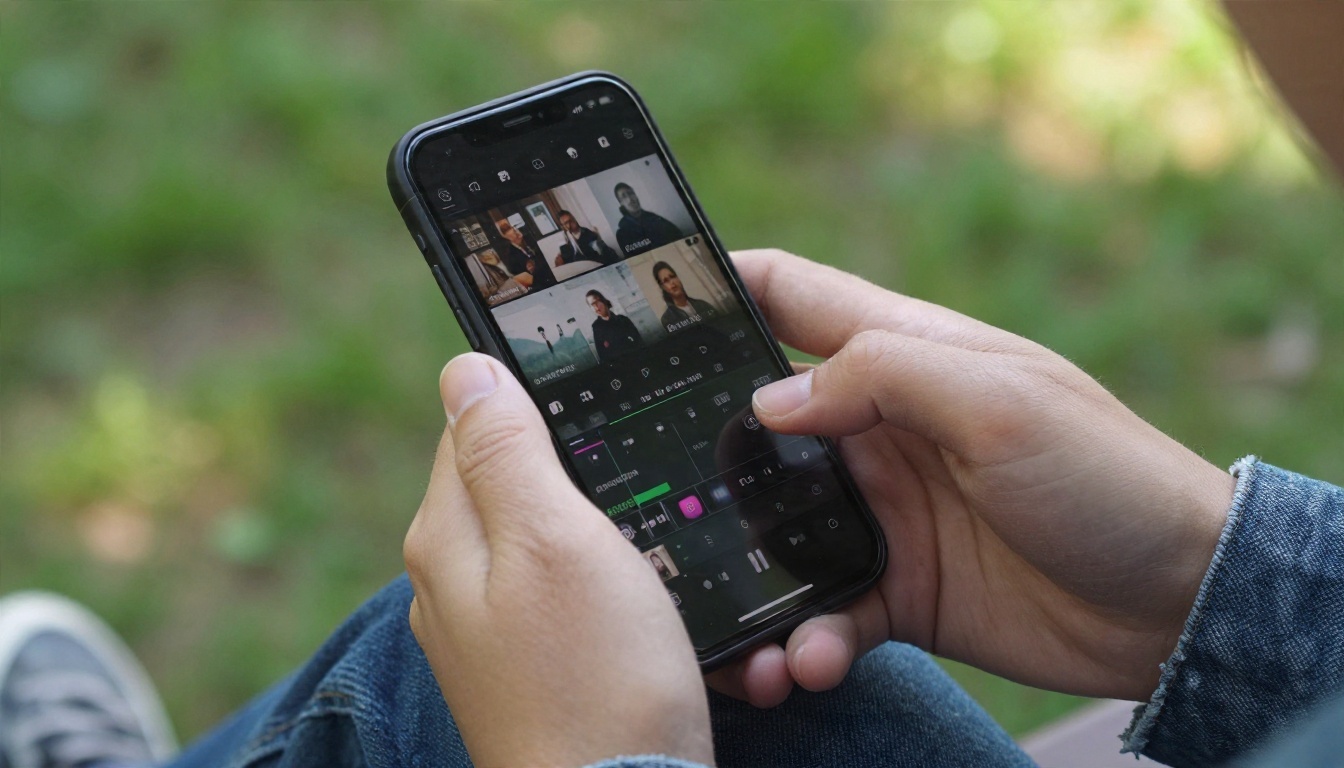
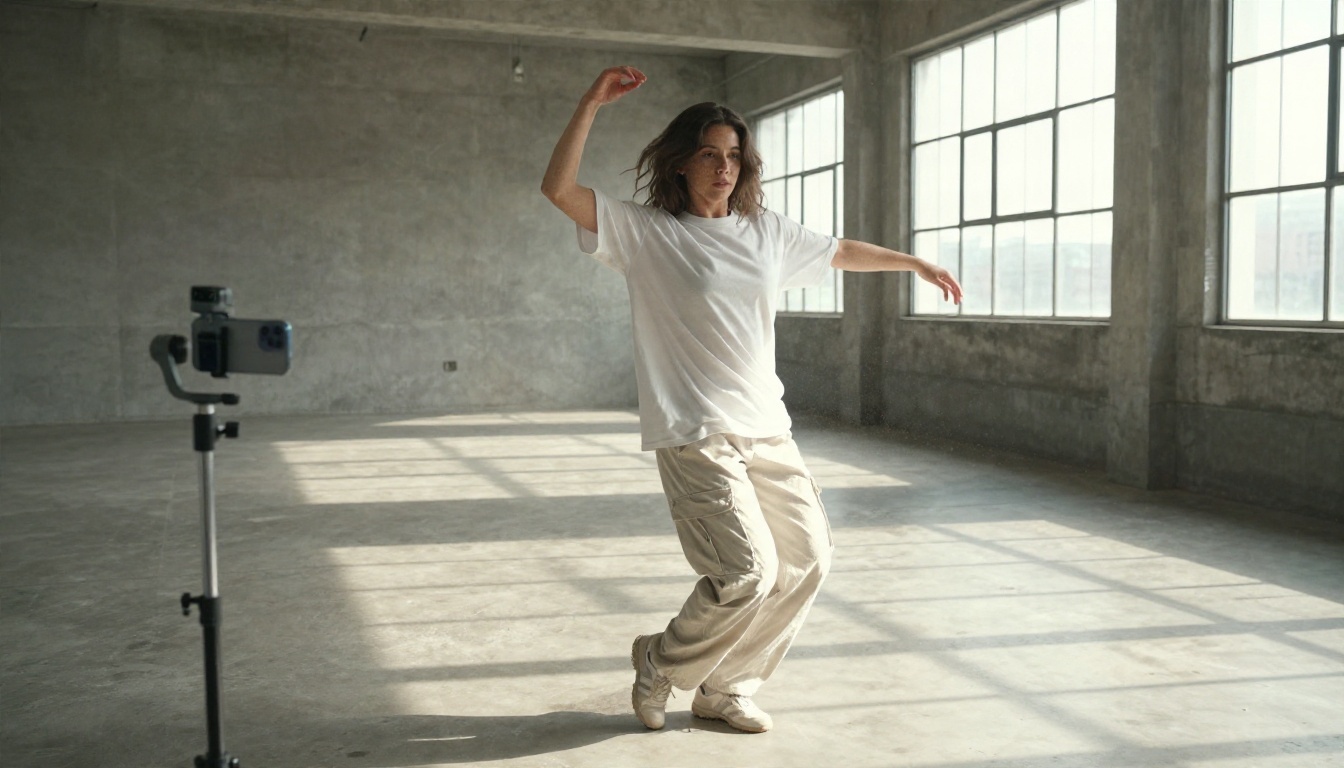
Mobile apps shine for speed. You film a dancer, shoot a rehearsal or grab a live clip, then cut it before you leave the venue. Touch editing is fast for simple beat cuts, and templates do most of the heavy lifting. The weak spots are small screens, limited audio tools and battery drain during long exports.
| Setup | Best for | Beat sync | Main drawback |
|---|
| Desktop editor | Full music videos, color work | Auto or manual | Learning curve, heavy hardware |
| Online editor | Teams, quick jobs, borrowed machines | Usually auto templates | Upload time, connection needed |
| Mobile app | Social clips, same-day posts | Template based | Small screen, limited precision |
| AI generator | No footage, song-first concepts | Built in | Less control over each shot |
AI Generators That Build the Video
A newer category skips the timeline altogether. You upload a song, describe a mood, and the tool generates visuals that follow the audio. Freebeat is the best-known example, with a free credit allowance at the time of writing, while Kaiber offers a beat-reactive mode on its paid plans. Runway and similar tools produce excellent clips but do not lock them to a track's rhythm on their own.
When Generators Make Sense
Generators suit you if you have no footage, a tight deadline, or an abstract concept like "a slow drive through a rainy city at night." They are weaker when you need your own band, your own face or a specific location. A sensible hybrid is to generate b-roll with a text to video model and then cut it yourself on the beat.
💡 Tip: Treat vendor comparison pages with caution. Many "best music video maker" rankings are published by the tools they rank. Run the same 30 second song through two or three options and trust your own eyes.
A Beat Sync Workflow on PicassoIA
PicassoIA is not a classic multi-track timeline. It is a library of AI models you can chain together, and several of them fit a beat-driven edit very well. Here is a workflow that gets a rhythmic result without any manual keyframing.
Make or Pick the Track
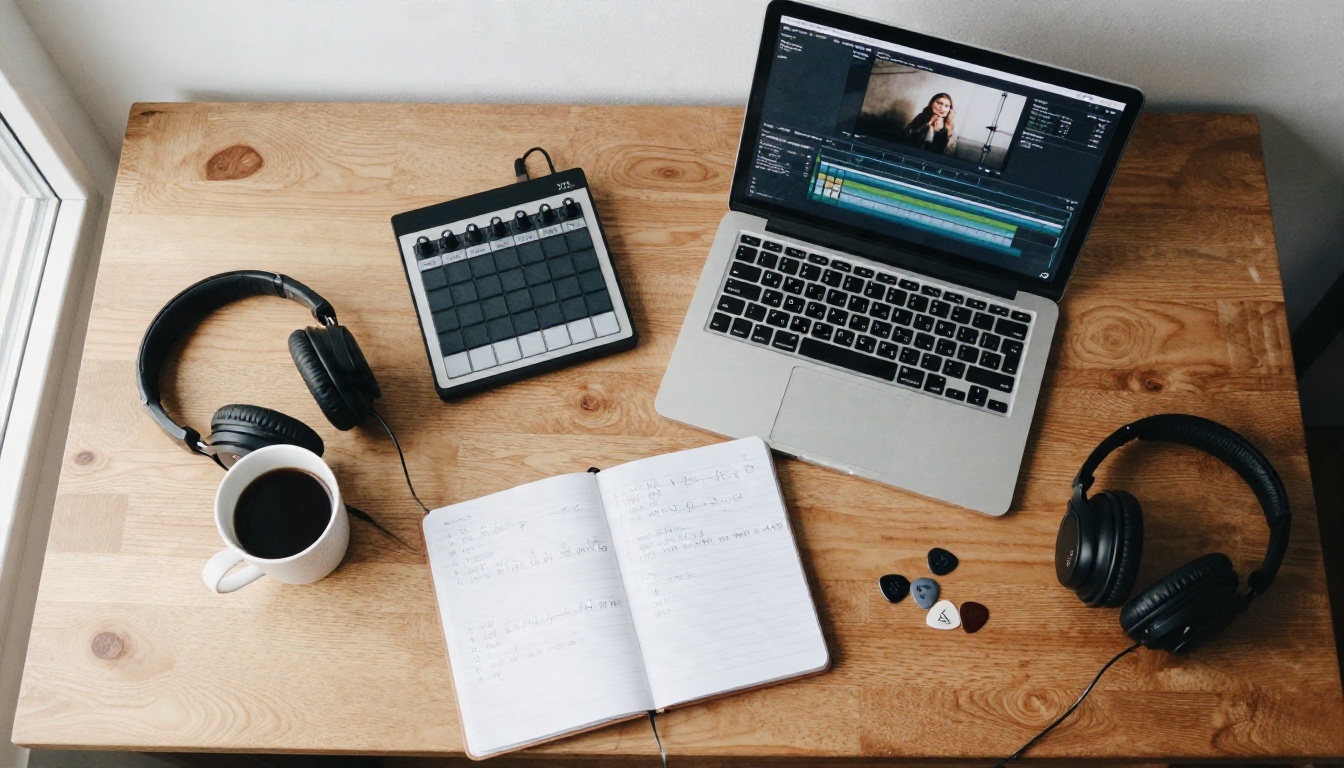
If you already have a song, skip ahead. If not, generate one. Music 2.6 creates full songs with vocals from a prompt, Lyria 3 Pro produces full-length tracks, and Stable Audio 2.5 is a solid pick for instrumental beds and loops. Include a tempo in the prompt, for example "120 BPM, tight drums, warm bass," so your cut math stays simple.
Trim, Split, Reframe
Next, prepare your footage. Use Trim Video to remove dead air at the start and end of a clip. Then run Video Split with a clip length that matches your beat math: 2 seconds for a bar at 120 BPM, 1 second for two beats, 0.5 seconds for a single beat. You get a stack of evenly timed clips that line up with the groove. If the destination is vertical, Reframe Video changes the aspect ratio without a manual crop.
Edit With a Text Prompt
Here is where AI earns its place. Instead of masking and keyframing, describe the change you want. P Video Edit edits a clip from a text prompt, Lucy Edit 2 changes details such as wardrobe, props or setting, and Wan 2.7 Videoedit handles broader restyling. Apply the same prompt to every beat-length clip and your edit keeps a consistent look from the first bar to the last.
A few parameter tips that save time:
- Keep prompts short and concrete. "Change the jacket to red leather" works better than a paragraph of mood.
- Edit one thing per pass. Wardrobe first, then background, then color feel.
- Test on the shortest clip. Confirm the look on a single beat before running the whole stack.
- Keep the source frame rate. Mismatched frame rates make cuts drift off the beat.
Caption and Sharpen
Lyric videos live on readable text. Autocaption adds captions to a clip automatically, which is handy for hooks and spoken intros. If the finished edit looks soft, Video Upscale sharpens footage up to 4K. When you need audio pulled from a clip to check tempo or reuse a vocal line, Extract Audio does it in one step. For performance shots where the mouth must match a new vocal, Kling Lip Sync aligns lips to the audio.
Mistakes That Kill the Rhythm
Most beat sync problems come from a handful of habits. Fix these and your edits will feel tighter right away.
- Cutting on every beat for the whole song. Constant cuts numb the viewer. Save them for the chorus.
- Ignoring the intro. Many tracks start with a few quiet seconds. Trim them or your markers drift.
- Trusting auto markers blindly. Detection can lock onto a hi-hat or a vocal instead of the kick. Scrub through and confirm.
- Using footage with different frame rates. Mixed 24, 30 and 60 fps clips can cause tiny timing shifts.
- Forgetting the tail. Let the last shot land on the final hit or hold through the fade.
- Over-styling every clip. A strong look is good, but a different effect on each beat looks like a sampler pack.
There is no single winner. Here is a quick way to choose.
| If you are... | Start with | Why |
|---|
| Posting 15 second clips daily | A mobile app with beat templates | Fastest from shoot to post |
| Cutting a full music video with color work | DaVinci Resolve | Free, precise and professional |
| Working with a bandmate remotely | An online editor | Shared timeline, no installs |
| Without footage, with only a song | An AI music video generator | Visuals created from the audio |
| Restyling or fixing existing clips | Text-prompt editing models on PicassoIA | Change looks without keyframes |
| Creating a track and visuals in one place | PicassoIA music and video models | Song, edit, captions and upscale together |
Many creators combine two of these. A common pattern is to prepare and restyle clips with AI, then assemble the final sequence in a desktop or mobile editor with beat markers. That keeps the creative control where it matters and hands the repetitive work to a model.
Try It Yourself on PicassoIA
The quickest way to find out which approach suits you is to run a small test. Pick a 20 second section of a song, work out the beat length, split a clip to match, and apply a single text-prompt edit with P Video Edit. If you want a fresh track to try it on, generate one with Music 2.6. Ten minutes of experimenting will tell you more than any ranking.
Browse the full library of video editing, music and enhancement models at picassoia.com/en/all-models, and start building your next music video on PicassoIA today.


