Building a logo from scratch used to be one of those tasks that required either a significant budget or months of learning design software. That changed fast. AI image generation has made it possible for solo founders, small business owners, and creative professionals to produce sharp, professional-looking logos in a fraction of the time, without touching Illustrator or spending a dime on a freelancer. The question is: which AI tool actually delivers? Not just visually interesting output, but logos with legible text, clean edges, transparent backgrounds, and the kind of visual consistency a real brand needs.
This article cuts through the noise and shows you exactly which AI models perform best for logo creation, how they differ, and how to get professional results on PicassoIA.
Why Logo Design Changed So Fast
The old process was broken
Five years ago, getting a professional logo meant one of two options: hire a designer for $500 to $5,000, or spend weeks learning tools like Adobe Illustrator. Neither option worked well for early-stage businesses or solo creators. Freelance platforms helped, but even there, the back-and-forth, the revisions, and the communication overhead added up fast. You often ended up with something generic because the creative brief got lost in translation.
The real problem was iteration speed. Design requires trying dozens of visual directions before landing on the right one. When each iteration costs time or money, most people settle for whatever is "good enough" rather than what actually fits their brand.
AI cut the timeline to minutes
AI image generation changed the iteration equation completely. With the right model and a specific prompt, you can generate 20 logo concepts in the time it used to take to write a creative brief. More importantly, you can describe exactly what you want: the typeface weight, the icon shape, the color palette, the mood. The AI does not interpret loosely or argue over scope, it just executes.
The practical upside is ownership. No licensing complications, no designer copyright claims, no revision rounds. What you see is what you get, and if you do not like it, you generate again.
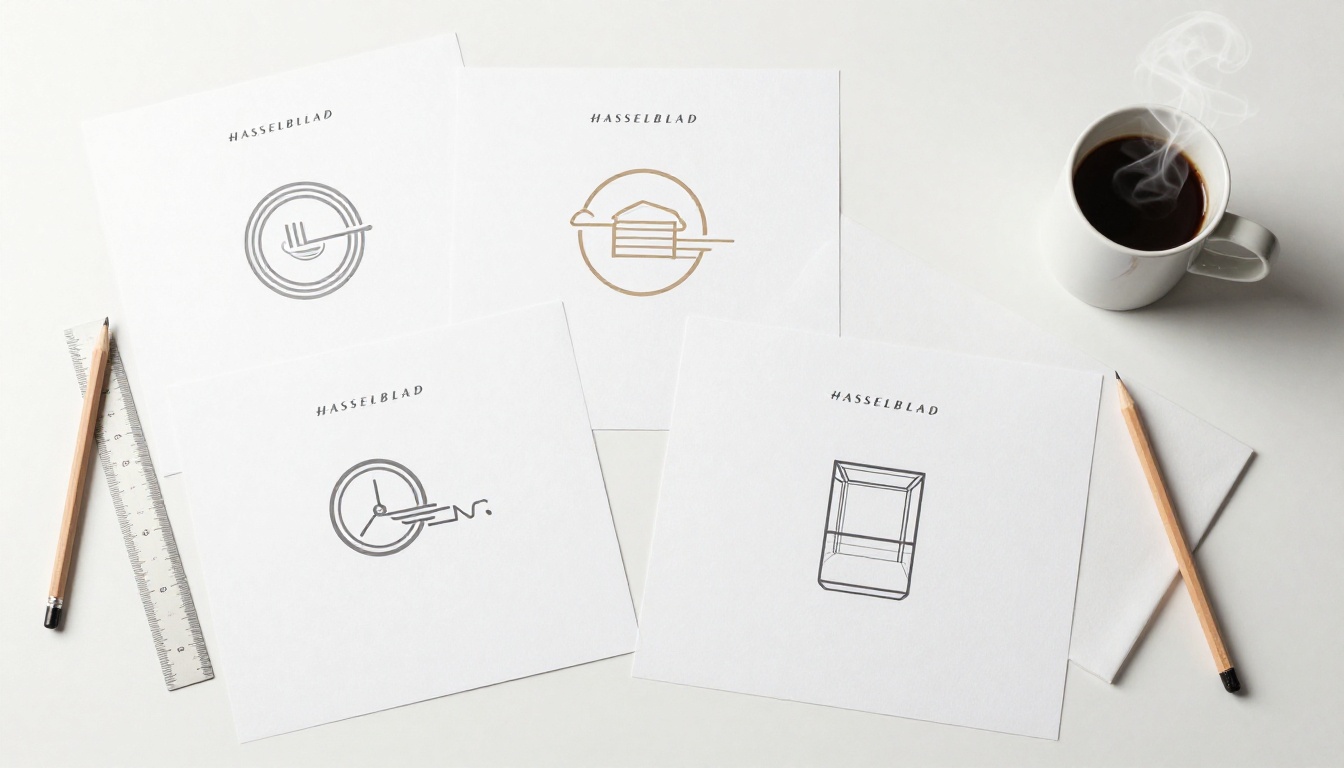
Not every image generator is suited for logos. Some models produce gorgeous photorealistic scenes but fall apart when asked to render clean text or geometric shapes. Before picking a model, three things are worth checking.
Typography that holds up at small sizes
Logo text needs to be sharp, legible, and accurate. Most older image generation models hallucinate letters, swap characters, or produce text that blurs at anything smaller than 300px. Newer models like Ideogram were specifically trained to render accurate text inside images, which is why they dominate for wordmark and lettermark logos.
💡 When prompting for logo text, always spell out the exact word in quotes inside your prompt. "A minimal wordmark logo with the text "NOVA" in a clean sans-serif typeface" will produce far better results than a loose description.
Clean backgrounds, no extra steps
A logo without a transparent or solid white background is not a finished logo. It is an image of a logo. The distinction matters when you place it on a website, a business card, or a product label. Models like Recraft V3 generate on white or transparent backgrounds by default when prompted correctly. And if the model does not, background removal tools on PicassoIA can strip the background in seconds.
Output you can actually use
For logos used at multiple sizes, vector format is the professional standard. SVG files scale infinitely without pixelation. Recraft Vectorize converts raster logo outputs into clean vector artwork automatically, making this a non-issue even if your source image came from a pixel-based model.

The Best AI Models for Logo Work on PicassoIA
PicassoIA gives you access to over 90 image generation models in one place. For logo work specifically, a handful of models stand out based on text rendering accuracy, style control, and output quality.
FLUX Dev and FLUX Pro for precision
FLUX Dev and FLUX Pro from Black Forest Labs are two of the most capable general-purpose image models available. For logos, they shine when you need precise geometric shapes, clean iconography, and consistent proportions. The instruction-following in FLUX Pro is strong enough to handle detailed prompts with multiple visual constraints at once.
Where FLUX models work best: abstract icon logos, badge-style marks, minimal monogram designs, and geometric shapes that need to look intentional rather than organic.
Where they fall short: complex multiletter wordmarks where every character needs to be pixel-perfect. For those cases, Ideogram is the right call.
FLUX Schnell is the faster, lighter version of the FLUX family and works well for rapid prototyping when you want to generate 10 or more variations quickly before committing to a visual direction.
Ideogram for text-heavy marks
Ideogram is purpose-built for images that include text. Its text rendering accuracy is significantly better than most competing models, and it handles stylized lettering, brand wordmarks, and mixed icon-plus-text compositions reliably.
For wordmark logos, where the company name IS the logo, Ideogram is the clear first choice. Pair it with Ideogram Layerize if you need the text and icon on separate layers for easier editing afterward.
💡 Use Ideogram's style controls to push toward "design" or "typography" modes. You will get cleaner, more intentional letterforms instead of illustrated or hand-drawn variants.

Recraft V3 for vector-ready artwork
Recraft V3 is exceptional for flat vector-style logo output. Unlike most models that produce rasterized painterly textures, Recraft V3 can generate images that look like they came from a vector application: flat fills, sharp edges, consistent line weights, no gradients unless you ask for them.
This makes it the ideal model when you need something that feels designed in Illustrator rather than generated by an algorithm. It also integrates cleanly with Recraft Vectorize for a fully scalable SVG output afterward.
Seedream for bold brand visuals
Seedream from ByteDance is a strong choice when you want logo concepts with bold, editorial-quality visual impact. It handles complex compositions well and produces rich, vivid imagery that works especially well for brand marks where aesthetics and personality are the priority over pure technical precision.
For lifestyle brands, creative studios, or consumer products where the logo needs to feel aspirational, Seedream delivers a quality of output that rivals far more expensive custom design work.
How to Use Ideogram on PicassoIA
Since Ideogram consistently tops the performance charts for logo text rendering, here is a step-by-step breakdown of how to use it on PicassoIA for your first logo.
Step 1: Open the Ideogram model
Go to Ideogram on PicassoIA. The model is available on all plan tiers and requires no setup.
Step 2: Write a specific prompt
Vague prompts produce vague logos. Instead of "a logo for a coffee shop," write something like:
"A minimal wordmark logo for a coffee brand with the text "ROAST" in a geometric sans-serif typeface, black on white background, no gradients, clean flat design"
The more constraints you include, the closer the output will match your vision.
Step 3: Set the aspect ratio to 1:1
Most logos are used in square contexts, favicons, social profile pictures, app icons. Setting the output ratio to 1:1 gives you the most versatile base format to work from.
Step 4: Generate and compare variations
Generate 4 to 6 variations with the same prompt before deciding. Small differences in how the model interprets the same text can produce dramatically different results. Choose the one with the most accurate text rendering and cleanest overall composition.
Step 5: Refine with the editor
Use PicassoIA Image Editor Pro to make targeted adjustments: swap colors, clean up edges, or replace a specific element without regenerating the entire image. The editor handles inpainting and outpainting natively, so surgical fixes take seconds.
Step 6: Vectorize for production use
Take the final output to Recraft Vectorize for a clean SVG file you can use at any size, from a billboard to a favicon.

Background Removal in One Click
A clean transparent background is non-negotiable for professional logo use. When a model does not produce one automatically, PicassoIA's background removal tools make the cleanup instant.
Recraft Remove Background
Recraft Remove Background is purpose-built for isolating subjects from backgrounds with pixel-level precision. For logos, it handles the transition between the icon edge and the background cleanly, even when there are thin lines, small details, or tight curves involved.
The workflow is simple: generate your logo with any model, upload the output to Recraft Remove Background, and download a clean PNG with full transparency. No Photoshop, no manual selection tool, no manual cleanup required.
💡 For logos with text, use Recraft Remove Background over generic background removal tools. It handles the negative space between individual letters better, which makes a visible difference when the logo is placed on colored or textured backgrounds.
Here is a straight comparison of the main models on PicassoIA for logo creation, based on the criteria that matter most for professional output.
| Model | Text Accuracy | Icon Quality | Vector Output | Best For |
|---|
| Ideogram | Excellent | Good | No (use Recraft after) | Wordmarks, text-heavy logos |
| FLUX Pro | Good | Excellent | No | Icon marks, geometric logos |
| Recraft V3 | Good | Excellent | Yes (native) | Flat vector-style logos |
| Seedream | Average | Excellent | No | Brand visuals, bold marks |
| FLUX Dev | Good | Excellent | No | Rapid prototyping |
| DALL-E | Good | Good | No | Simple, clean concepts |
| SDXL | Fair | Good | No | Stylized, artistic logos |
The right model depends on what your logo needs to do. If legible text is the priority, start with Ideogram. If you need something that looks like it came from a professional design agency with flat shapes and clean lines, start with Recraft V3. If you want rapid exploration across many visual directions, FLUX Schnell or FLUX Dev get you there fastest.
Build a Full Brand Identity, Not Just a Logo
A logo is the starting point, not the finish line. Once you have a mark you are confident in, AI tools on PicassoIA let you build out a full brand identity in the same session.
Icons and pattern sets
FLUX Pro and Recraft V3 both handle icon set creation well. Generate a cohesive family of icons by using the same prompt structure and seed value across multiple generations. The result is a visual system where icons share the same line weight, corner radius, and visual language, which is exactly what consistent branding requires.
For brand patterns, FLUX Dev can generate repeating tile elements and textural backgrounds that match your logo's aesthetic. These work directly as website backgrounds, packaging elements, or social media textures.
Product mockups and previews
One of the most practical applications is placing your new logo on product mockups. PicassoIA's inpainting capabilities let you take a photo of a product, a t-shirt, a coffee cup, or a tote bag, and place your logo into a specific region of the image. The AI fills in natural lighting and shadow to make the logo look like it was printed there, not pasted on top.
This is especially useful for showing stakeholders what a logo looks like in context before committing to physical production. What used to require a professional photographer and a print run can now happen in minutes.
The Sticker Maker for app icons and badges
Sticker Maker is a niche but highly practical tool for creating app icons, badges, and emoji-style marks. If your brand needs a supplementary icon that feels modern and digital-native, this model produces crisp, high-contrast outputs optimized for small screen display.
It is worth running your final logo concept through Sticker Maker to see what it looks like at favicon scale before committing to a final version. A logo that looks great at 600px wide but falls apart at 32px is not a production-ready logo.
Make Your First Logo Right Now
The barrier to professional logo design is gone. With the right AI models available directly on PicassoIA, you have everything needed to go from a blank prompt to a finished, transparent-background, vector-ready logo without any prior design experience or expensive software.
Start with Ideogram if your logo needs accurate text. Start with FLUX Pro or Recraft V3 if you want a pure icon mark or geometric symbol. Strip the background with Recraft Remove Background. Vectorize for production use with Recraft Vectorize. Refine anything down to the pixel with PicassoIA Image Editor Pro.
The entire process takes less than 30 minutes. All the models are in one place at picassoia.com/en/all-models. Pick your model and start generating.


