Wedding day photos carry the weight of memory for a lifetime. A couple will look at those images for decades, and every detail matters, from the way light falls on a veil to the tiny crease visible in the groom's jacket. That is a serious amount of pressure on the photographer's editing workflow. AI has stepped in to absorb much of that pressure, and the best AI tools for wedding photo edits are now sophisticated enough to handle tasks that used to take hours in a matter of seconds.
This is not about replacing skill. A great eye behind the camera still captures the moment. But what happens after the shutter clicks is where AI genuinely changes the economics and quality of wedding photography. Here is what is worth your time right now.
Why Wedding Photos Are Hard to Edit
The Volume Problem
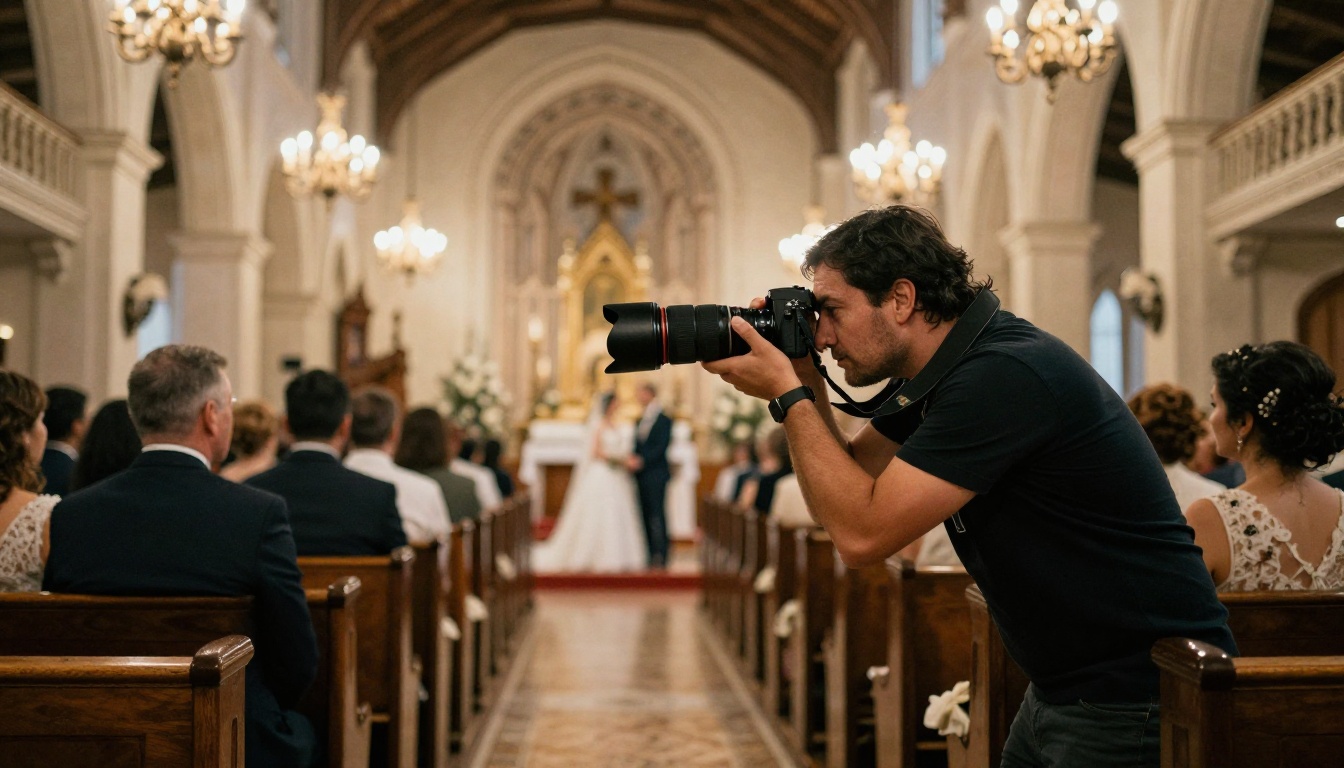
A typical wedding produces between 500 and 1,500 raw files. Manual retouching of every usable frame at professional quality means hours, sometimes days, of focused editing work. Clients expect turnaround within two to four weeks, which means the bottleneck is almost always in post-production, not in shooting.
Where Traditional Editing Falls Short
Classic Lightroom presets handle color grading well enough, but they do nothing for blemish removal, object cleanup, or background replacement. Photoshop handles those things but requires manual, layer-by-layer work. Neither tool alone closes the gap between a good photo and a great one at scale.
AI bridges that gap. Specifically, it handles the repetitive parts of retouching with a speed no human can match.
What AI Actually Does to Wedding Photos
AI editing tools operate on a fundamentally different level than preset-based editors. Rather than applying blanket adjustments, they analyze image content and make targeted decisions.
Skin Retouching Without the Plastic Look
The biggest risk in wedding portrait editing is over-retouching. Faces start looking airbrushed and unnatural. AI retouching tools trained on photorealistic datasets have learned to identify skin texture and preserve it while removing temporary blemishes. The result is skin that looks healthy, not processed.
Smart Background Fixes
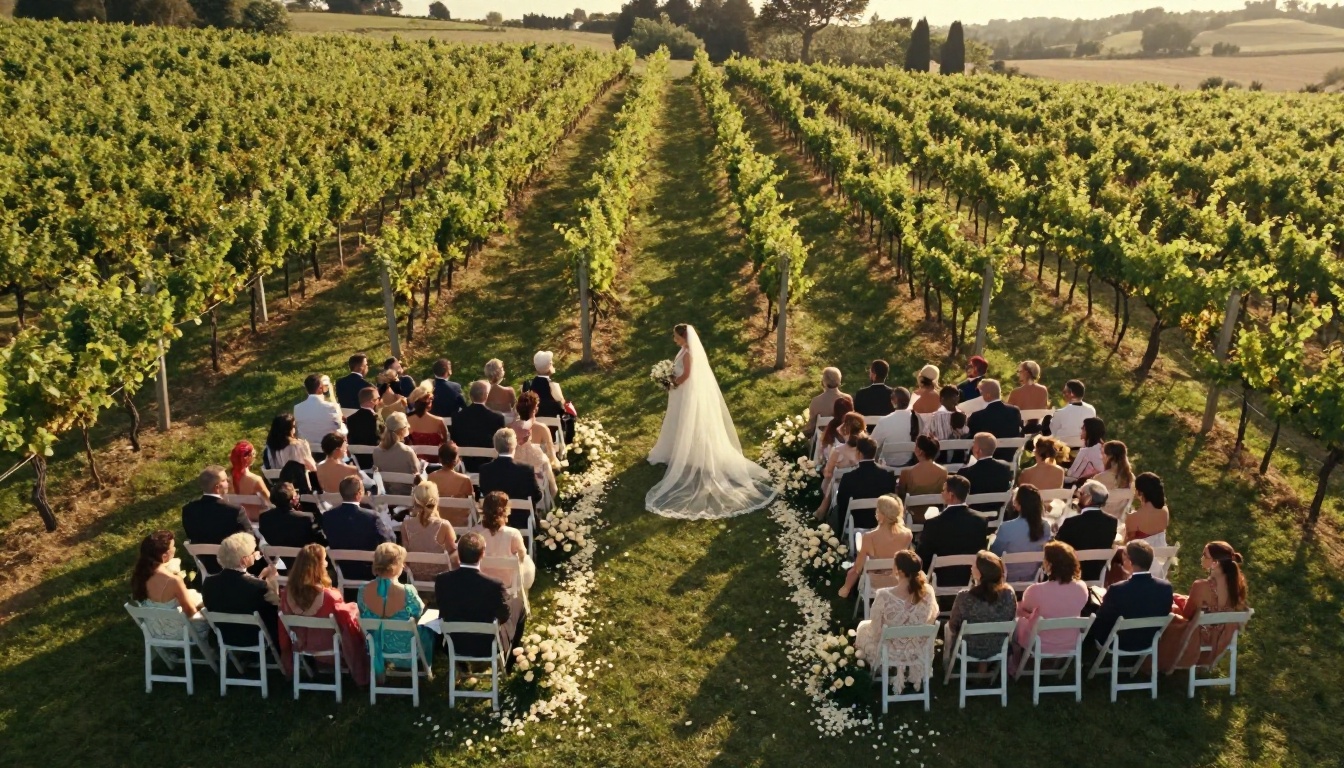
A photobomber in the background, a parked car in an otherwise perfect outdoor ceremony shot, a catering staff member walking through the frame. All of these are fixable with AI inpainting tools that analyze the surrounding area and intelligently fill in what should be there.
Color Grading Consistency
Shooting across an entire wedding day means vastly different lighting conditions: bright outdoor ceremony at noon, a dim church interior in the afternoon, warm reception hall light at night. AI tools normalize color across all frames to create a consistent look without manual correction of every single image.
Flux 1.1 Pro Ultra for Portrait Work
Flux 1.1 Pro Ultra is the top choice for generating photorealistic portrait reference images and for image-to-image enhancement workflows. Its 4-megapixel output resolution means results are print-ready without additional upscaling. For wedding photographers needing to reconstruct a partially ruined shot, such as closed eyes or motion blur on a face, Flux 1.1 Pro Ultra with image conditioning prompts delivers results that hold up at album printing sizes.
💡 Pro tip: Feed Flux 1.1 Pro Ultra a reference frame from the same lighting condition. The model uses that context to produce outputs that match the ambient color temperature and scene depth of your actual shoot.
Flux Kontext Pro and Max for Targeted Edits
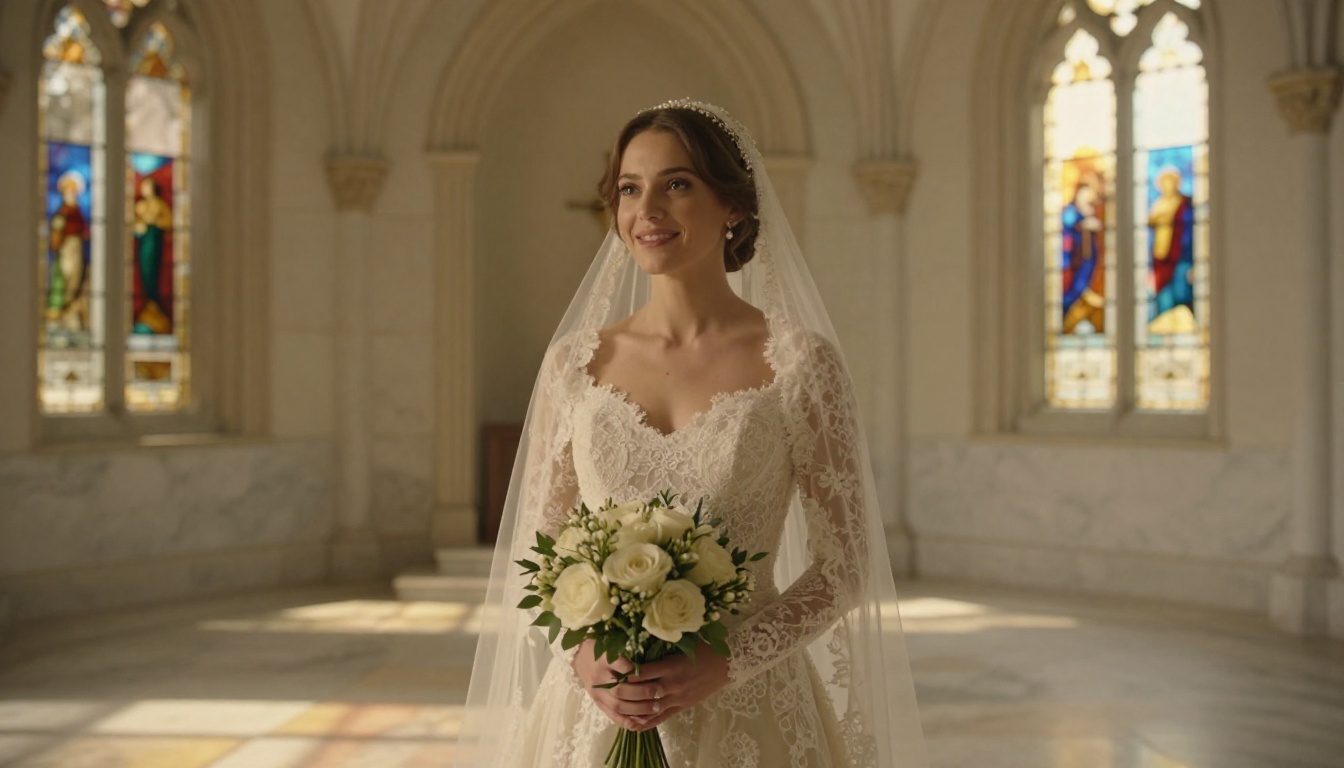
Both Flux Kontext Pro and Flux Kontext Max allow you to rewrite parts of an existing image using text prompts. This is the tool for fixing specific problems in real shots: replace the background sky from overcast to golden hour, remove a visible microphone wire from the ceremony, or change the color of a guest's outfit that is clashing with the wedding palette.
Flux Kontext Max handles more complex edits, particularly where the change involves maintaining consistent lighting and scene coherence across a large portion of the frame.
Flux Dev for Quick Iterations
Flux Dev is the fastest option in the Flux family for rapid iteration when testing how a scene would look with different conditions or when you need to batch-process creative variations for a client presentation. Pair it with Flux 2 Pro for sessions where you need both speed and maximum output fidelity at different stages.
Real ESRGAN for General Upscaling
Real ESRGAN is the workhorse for wedding photo upscaling. It specializes in photorealistic upscaling by 4x without the halation or soft halos that plague simpler bicubic methods. A 12-megapixel crop from a ceremony shot, upscaled with Real ESRGAN, will print cleanly at 20x30 inches.
Crystal Upscaler for Close-Up Portraits
For close-up portrait shots, Crystal Upscaler outperforms Real ESRGAN. It is specifically trained on human faces and recovers fine detail in eyes, lashes, and skin that general upscalers sometimes miss or over-sharpen. Use it for any face-forward album page images.
Recraft Crisp Upscale for Detail-Rich Scenes
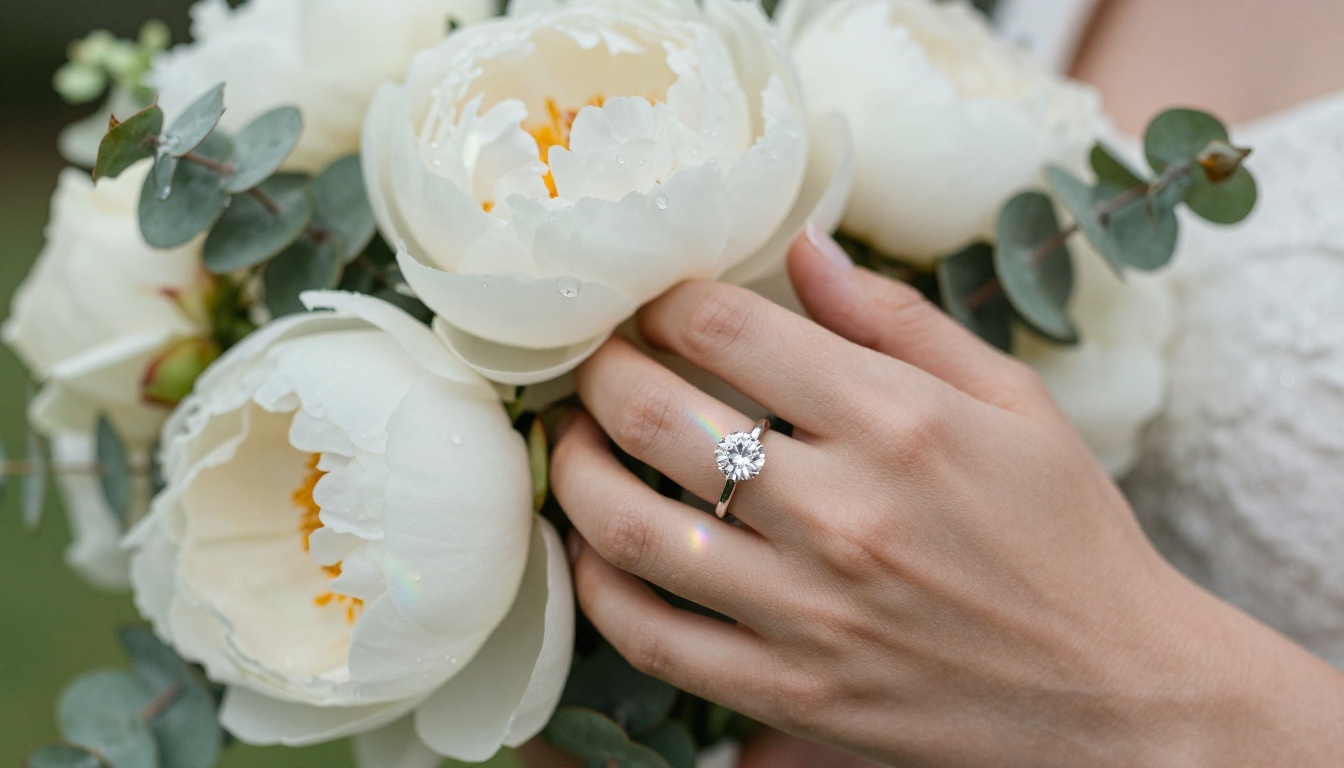
Recraft Crisp Upscale excels at scenes with complex texture detail: floral arrangements, lace fabric, table settings. It preserves fine pattern geometry during upscaling better than most alternatives and is the right call when your image has fine structural detail that general upscalers tend to blur or distort.
Image Upscale by Topaz Labs for Large Format Prints
Image Upscale by Topaz Labs goes up to 6x. When a photographer needs an image at poster or large-format print size, this is the tool that delivers without visible artifacts. The AI is specifically trained to avoid introducing texture noise that other high-ratio upscalers produce at extreme magnifications.
Remove Background for Composite Work
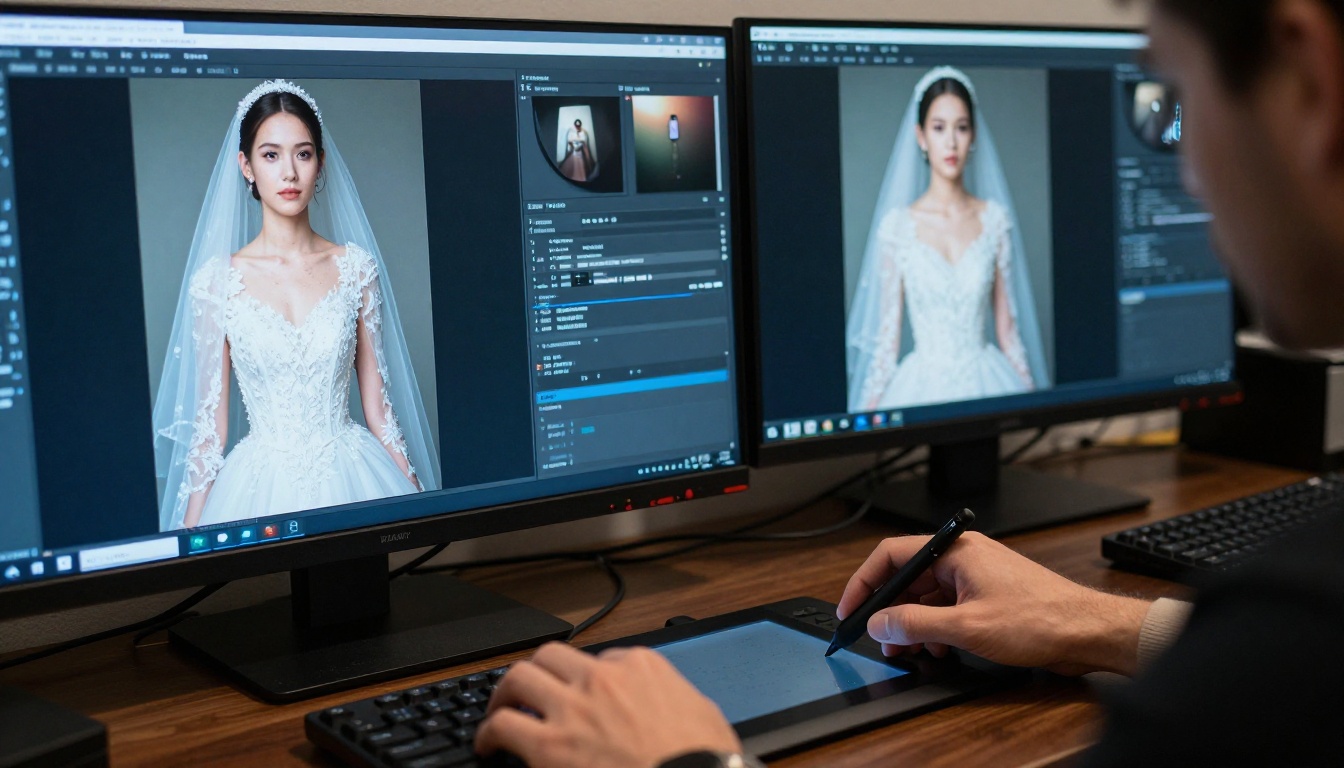
Remove Background by Bria handles hair and veil edges with accuracy that was previously only possible with careful manual masking in Photoshop. For composite wedding shots where the couple is placed against a new background, or where a studio-lit portrait is needed from an outdoor shot, this tool makes the cutout process reliable and fast even on the most complex edge cases.
Comparing the Top Upscalers
Inpainting vs. Background Removal
These two tools serve different purposes. Choosing the wrong one wastes time and produces inferior results.
Use background removal when:
- You want to place the subject on a completely new background
- The background is uniformly lit and the subject edge is clearly defined
- You are building composite album spreads or promotional material
Use inpainting when:
- You want to fix a specific area within the existing scene
- The change needs to blend seamlessly with surrounding elements
- The object to remove occupies less than 30% of the frame
💡 Workflow tip: Run Remove Background by Bria first, then use Flux Kontext Pro to generate a replacement background that matches the original scene's lighting. This two-step approach gives you significantly more control than using either tool alone.
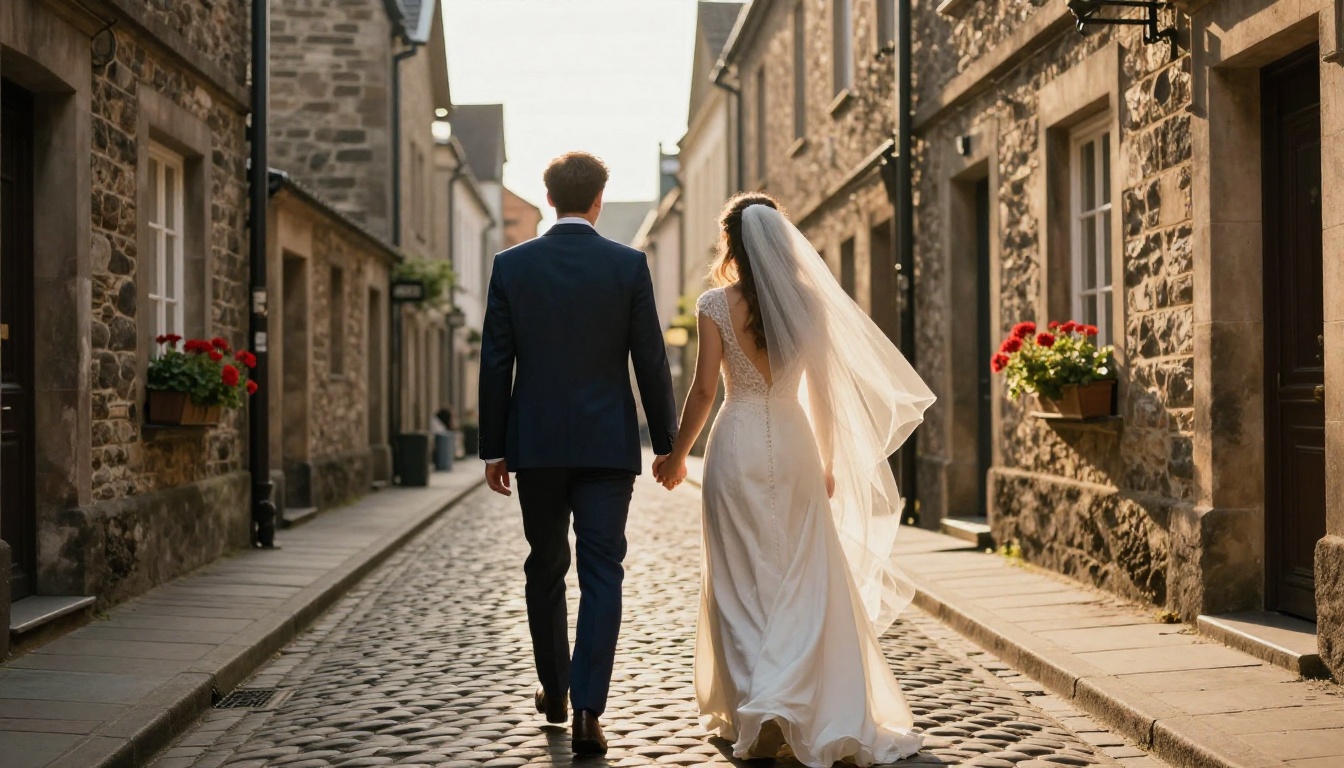
Imagen 4 Ultra for Mood Board Generation
Imagen 4 Ultra from Google is worth attention for photographers who need to generate high-fidelity portrait images for client mood boards or album cover concepts before the wedding day. Its output at high detail settings captures realistic fabric, hair, and environmental lighting in ways that help clients visualize their final album before delivery, which reduces revision requests significantly.
How to Use Flux 1.1 Pro Ultra on PicassoIA
Flux 1.1 Pro Ultra is available directly through PicassoIA and produces some of the highest-quality photorealistic wedding portrait outputs of any model currently available. Here is how to use it for wedding photo work:
Step 1: Open the Model
Go to Flux 1.1 Pro Ultra on PicassoIA and open the generation interface.
Step 2: Write a Precise Prompt
For wedding portrait generation or enhancement, your prompt should include the subject description, lighting conditions, camera and lens specifics, and the emotional tone you want. For example:
"A bride in ivory lace gown standing in a sunlit garden, natural Rembrandt lighting from the left, 85mm portrait lens, shallow depth of field, Kodak Portra 400 film grain, photorealistic, 8K"
Step 3: Set the Aspect Ratio
For album spreads, use 3:2. For full-bleed portrait pages, use 2:3. For panoramic ceremony shots, use 16:9.
Step 4: Select Raw Mode
Enable the RAW output style option. This disables in-model post-processing and gives you more natural, editable output that behaves like a real camera RAW file in your editing workflow.
Step 5: Download and Integrate
Download the result and bring it into your Lightroom catalog. Since the output is photorealistic, it responds to Lightroom adjustments exactly as a real photograph does, including highlight recovery and shadow detail.
Qwen Image Edit Plus LoRA for Style Consistency
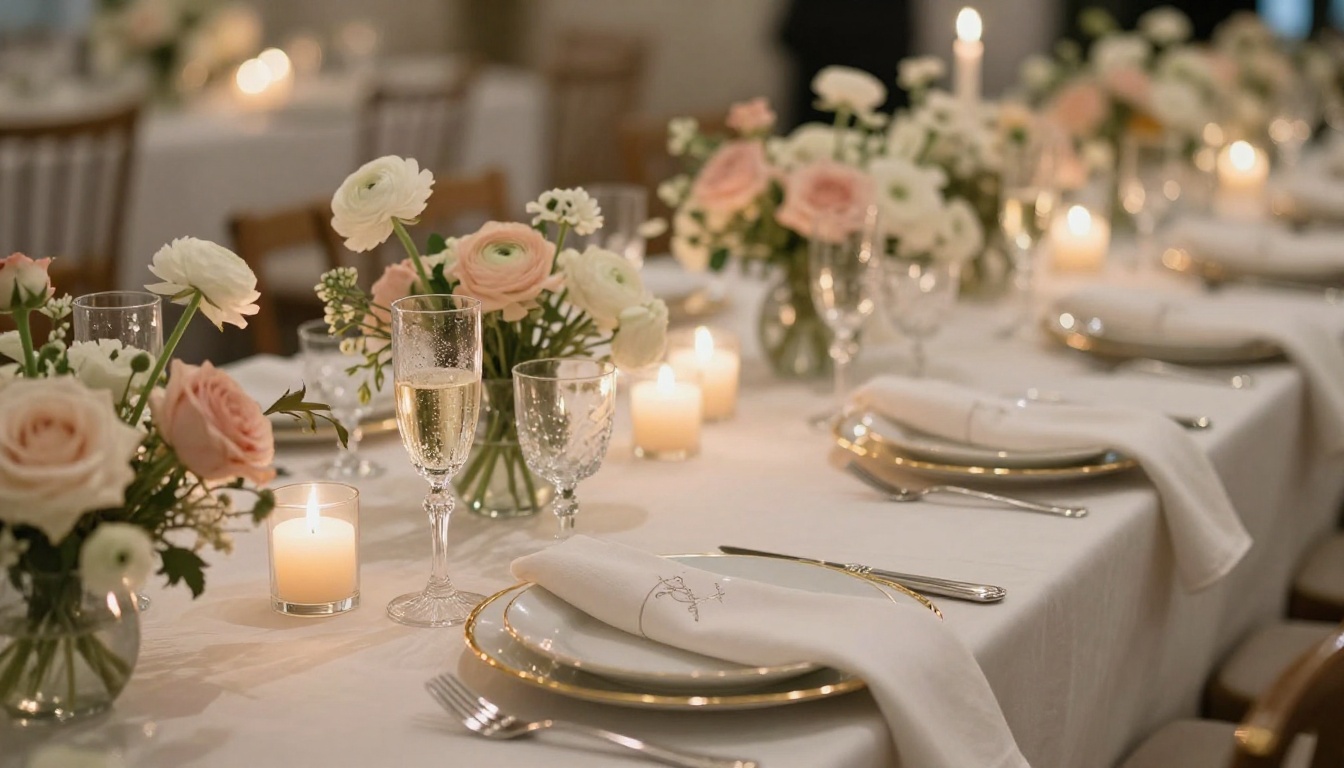
Qwen Image Edit Plus LoRA is a strong option for photographers who have a specific editing style they want to maintain across a batch. By training a LoRA on reference images from previous weddings with the same aesthetic look, it can apply that style to new photographs with text instructions, preserving both the color treatment and the retouching approach from image to image.
This is particularly useful for photographers who market a signature editing aesthetic. Consistency across hundreds of wedding shots is what separates amateur edits from professional albums, and a style-specific LoRA makes that achievable without manual work on every frame.
3 Mistakes Photographers Make With AI Editing
Over-processing Faces
AI skin retouching is powerful, but the temptation is to push it too far. The goal is to remove blemishes from the wedding day (stress breakouts, unexpected redness) while keeping the person's actual skin texture intact. Faces that look like they have been sanded will get flagged by clients even if they cannot articulate exactly why.
Skipping Upscaling Before Delivery
Many photographers deliver files at original capture resolution without considering the print sizes clients will actually use. A tight 12-megapixel crop from a crop-sensor camera may not print cleanly at 16x24 inches. Running that image through Image Upscale by Topaz Labs before delivery adds minutes to your workflow and makes a significant difference in client satisfaction at the print stage.
Using the Wrong Tool for Each Problem
Background removal is not the same as inpainting. Remove Background by Bria is built to isolate subjects cleanly. Using it where you actually need scene-integrated inpainting will produce visible edge artifacts. Match the tool to the actual problem, and you will spend less time on revisions.
Start Creating with PicassoIA
Every tool listed in this article is available through PicassoIA without needing separate subscriptions to multiple platforms. The models run on professional-grade infrastructure, which means output quality stays consistent regardless of how many images you are processing.
If you shoot weddings professionally, the best place to start is with Flux 1.1 Pro Ultra for portrait work and Crystal Upscaler for any close-up face images headed to print. Those two tools alone will produce a measurable difference in the final album quality your clients receive.
For photographers who want to push further into scene correction and object removal, Flux Kontext Max handles the complex multi-element changes that used to require hours of manual Photoshop work.
Start with one image from your last wedding shoot. Run it through the upscaler, then through the Flux Kontext tools for any fixes it needs. The result will show you exactly what is now possible, without the time investment that previously made these edits impractical at scale. PicassoIA gives you all of these models in one place, so your entire post-production workflow stays in a single platform rather than scattered across a dozen different subscriptions.


