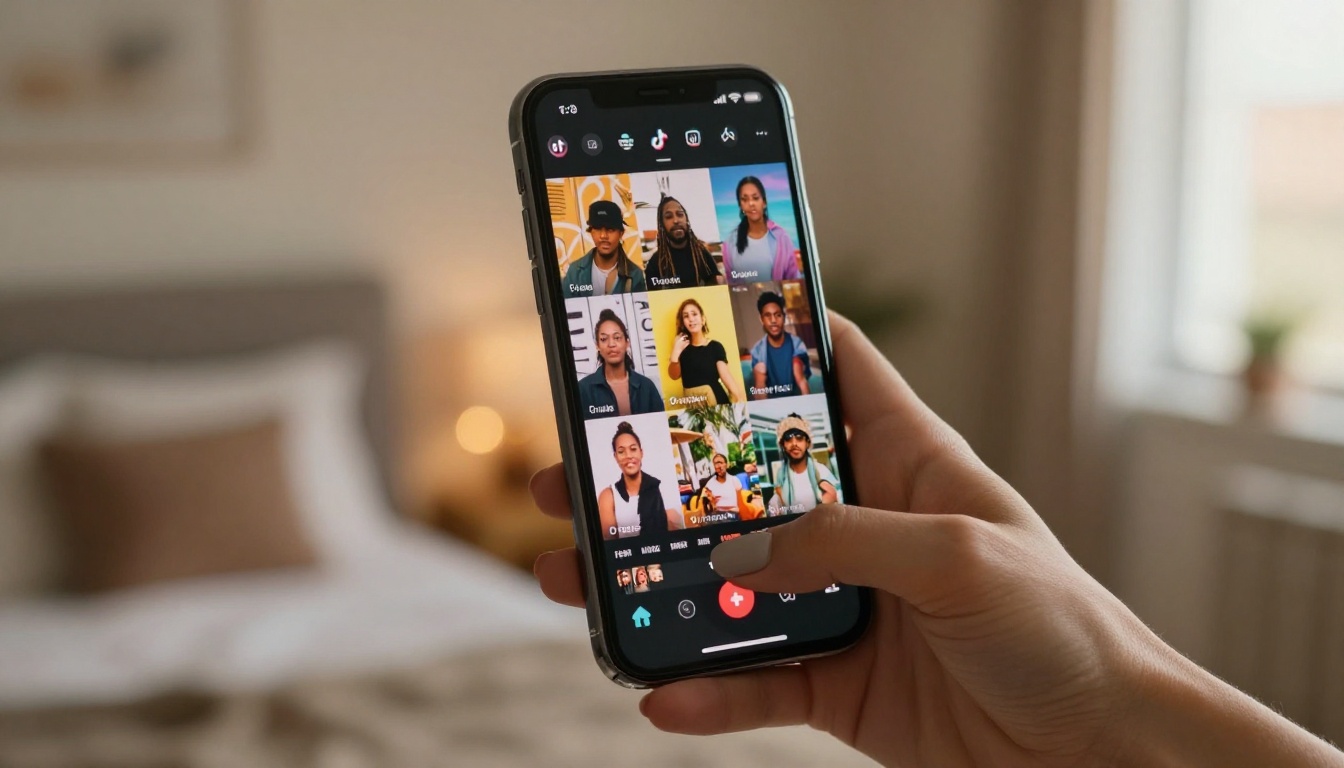
The numbers are impossible to ignore: short-form video is the single most consumed content format across every major social platform right now. TikTok, Instagram Reels, and YouTube Shorts collectively pull in billions of daily views, and the creators who post consistently, creatively, and at high production quality are the ones building audiences fastest. The problem? Traditional video production demands time, money, expensive equipment, and specialized editing skills that most solo creators simply do not have. That is exactly where the best AI video tools for social media creators are rewriting the rules.
Why AI Video Took Over Social Feeds
Before AI-powered video tools arrived, a creator faced a binary tradeoff: produce polished content slowly at real cost, or move fast at low quality. AI collapsed that distinction entirely. Today you can type a sentence and receive a cinematic 1080p clip in under a minute. You can strip a background from live footage without a green screen. You can burn synced captions onto a talking-head video in a single click.
This is not about replacing creativity. The tools covered here function as a production crew in your pocket, handling the technically tedious parts of the workflow so you can focus entirely on ideas, storytelling, and publishing consistently.
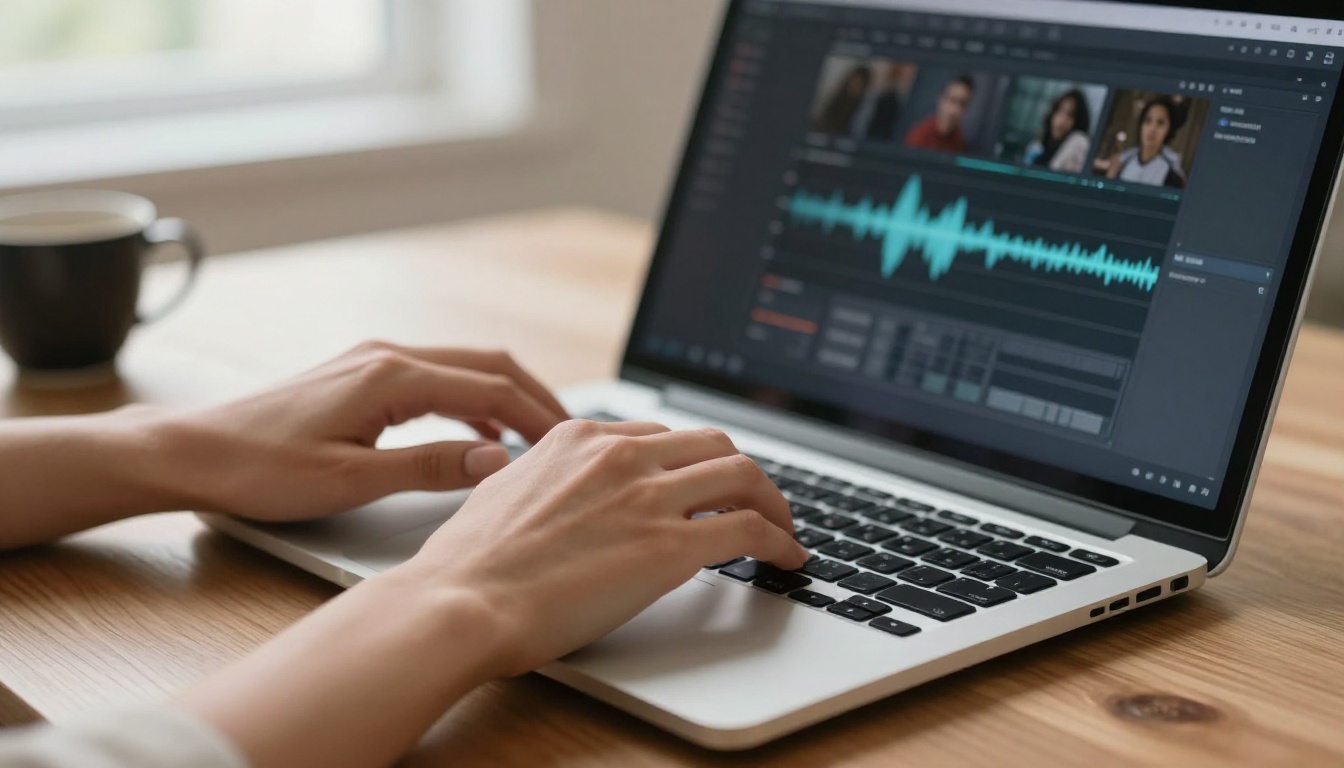
The social media algorithm rewards both volume and quality at the same time. AI video tools are the first technology that genuinely delivers both without forcing a compromise.
Text to Video: The Core of Modern Content
The biggest shift in content production over the past two years is the explosion of text-to-video AI. You describe a scene, a mood, or an action in natural language and the AI generates a video clip ready for your feed or for use as B-roll footage. For social media creators, this unlocks storytelling possibilities that previously required a film crew and a full production day.
Kling v3: Built for Cinematic Reels
Kling v3 Video from Kwaivgi is one of the most impressive text-to-video models available right now for creators who need cinematic, camera-motion-aware footage at 1080p. Its handling of realistic motion physics and complex scene composition sets it apart from most competing models.
What makes it particularly well-suited for social content is its awareness of camera language. You can specify "slow push-in," "dolly left," or "rack focus" directly in your prompt and the model responds with appropriate motion behavior. For Reels and TikToks where visual storytelling drives thumb-stopping attention, this level of control is a real production advantage.
Tip: Pair Kling v3 with Kling v3 Motion Control when you need to animate a specific subject from a still photo with precise, hand-drawn motion paths.
Veo 3: Native Audio in Every Generated Clip
Google's Veo 3 quietly changed expectations across the entire AI video industry. While most text-to-video tools generate silent clips that you then score separately, Veo 3 produces synchronized native audio directly alongside the video. Ambient sound, dialogue, environmental noise, even soft music can emerge from a single prompt.
For social media creators, this cuts post-production time dramatically. A clip of a beach at sunset with crashing waves, seagulls, and soft acoustic guitar used to require sourcing licensed music, field recording, and careful audio mixing. Now it is a single generation step.
Veo 3.1 Fast offers the same native audio capability at a faster generation speed, making it the right choice for high-volume creators who need to post daily without waiting.
Seedance 2.0: Speed at Scale
ByteDance's Seedance 2.0 prioritizes throughput without sacrificing output quality. For creators who batch-produce content (scheduling a week of posts in a single session), Seedance's generation speed is a real practical advantage. It also ships with built-in audio generation alongside the visual output.
The Seedance 2.0 Fast variant trades a small amount of fidelity for significantly faster renders. For social content where the shelf life of a post is 24 to 48 hours, that is often the right tradeoff.
Sora 2 and LTX 2 Pro: When Quality Is Everything
When quality is the absolute priority, two models stand above the rest:
Sora 2 from OpenAI produces some of the most photorealistic video output available. Its handling of human motion, lighting transitions, and fine environmental detail is exceptional. The tradeoff is generation time, but for hero content (a viral-candidate post or a brand collaboration deliverable) the output quality justifies the wait.
LTX 2 Pro from Lightricks pushes output to 4K resolution, which gives you extraordinary flexibility in cropping for different social formats without any quality loss. Generate once, reformat for every platform.
| Model | Resolution | Audio | Best For |
|---|
| Kling v3 Video | 1080p | No | Cinematic storytelling, Reels |
| Veo 3 | 1080p | Yes | Full scenes with ambient sound |
| Seedance 2.0 | 1080p | Yes | High-volume batch production |
| Sora 2 | HD | Yes | Premium hero content |
| LTX 2 Pro | 4K | No | Multi-format repurposing |
Not every creator wants to generate footage from scratch. Many have existing product photos, portrait shots, or filmed clips they want to bring to life. This is where image-to-video models become part of the daily workflow.

Wan 2.7 I2V: Any Still Photo Becomes a Clip
Wan 2.7 I2V takes a still image and animates it into a fluid, natural-motion video clip. Product creators use this constantly: a clean product photo becomes a rotating or panning clip without any filming required. Travel creators animate destination photography. Fashion creators bring outfit photos to life with subtle body movement and hair dynamics.
The motion quality avoids the uncanny warping artifacts that plagued earlier image-to-video models. You can also pair the image input with a text prompt to guide the specific motion style you want applied.
Gen 4.5: Cinematic Motion from Images
Gen 4.5 from Runway brings a cinematic motion sensibility to image animation. Where some models default to simple zooms, Gen 4.5 interprets the scene and applies contextually appropriate camera movement. A portrait photo receives a slow push-in. A landscape gets a parallax drift. The result reads as intentionally filmed rather than AI-generated.
Tip: For precise subject movement control, Kling v3 Motion Control lets you draw motion paths directly on your image before animating, giving you frame-accurate control over how subjects move across the clip.
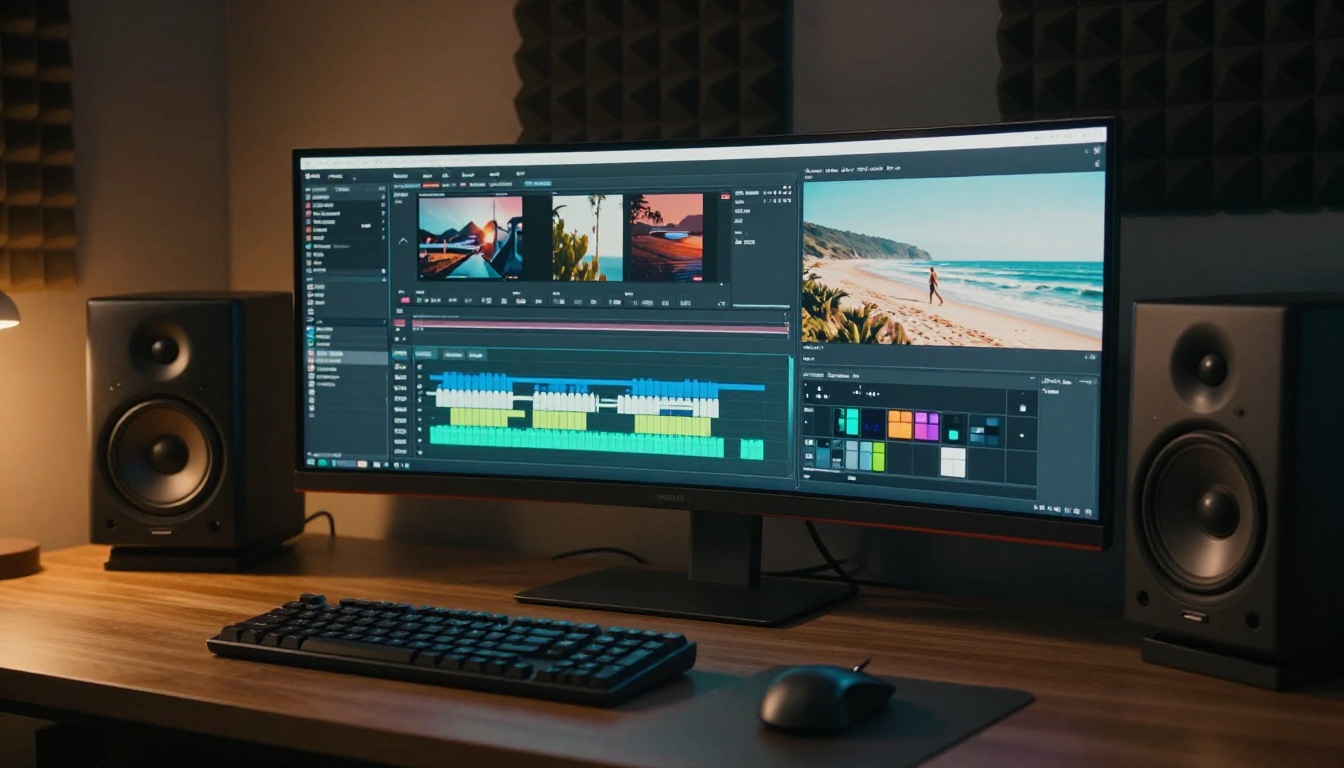
Generating video footage is only half the workflow. Editing for social platforms, adding captions, reframing for different aspect ratios, removing unwanted backgrounds, and mixing audio all used to demand separate software and significant time investment. AI editing tools have compressed that entire pipeline into minutes.
Auto-Captions That Actually Work
Autocaption is one of the highest-leverage tools in any creator's stack. Captioned videos consistently outperform uncaptioned ones across every platform because a significant portion of social media is consumed with the sound off. Manual captioning is slow and error-prone at scale.
Autocaption uses AI speech recognition to transcribe audio and burns styled captions directly onto the video output. For creators doing talking-head content, tutorial breakdowns, or commentary videos, this single tool saves an hour or more per video in post-production time.
Reframing for Every Platform at Once
Reframe Video from Luma solves one of the most persistent practical problems in modern content creation: you shoot in one aspect ratio and need to publish in three or four. A 16:9 landscape clip needs to become 9:16 for Reels, 1:1 for feed posts, and 4:5 for certain placements.
Intelligent AI reframing keeps subjects centered and crops contextually rather than simply cutting edges. It reads the scene and follows the action, which is something static crop tools cannot replicate.
Text-Based Video Editing
Lucy Edit 2 lets you edit video clips by typing commands in plain language. Remove a section, change the visual style of a scene, or retime a specific moment, all through a text interface. For creators who know exactly what they want but do not want to absorb the complexity of a professional timeline editor, this capability is genuinely significant.
Wan 2.7 Videoedit applies a similar approach with strong visual consistency across edits, meaning changes do not introduce jarring artifacts into surrounding frames.
Background Removal Without Green Screen
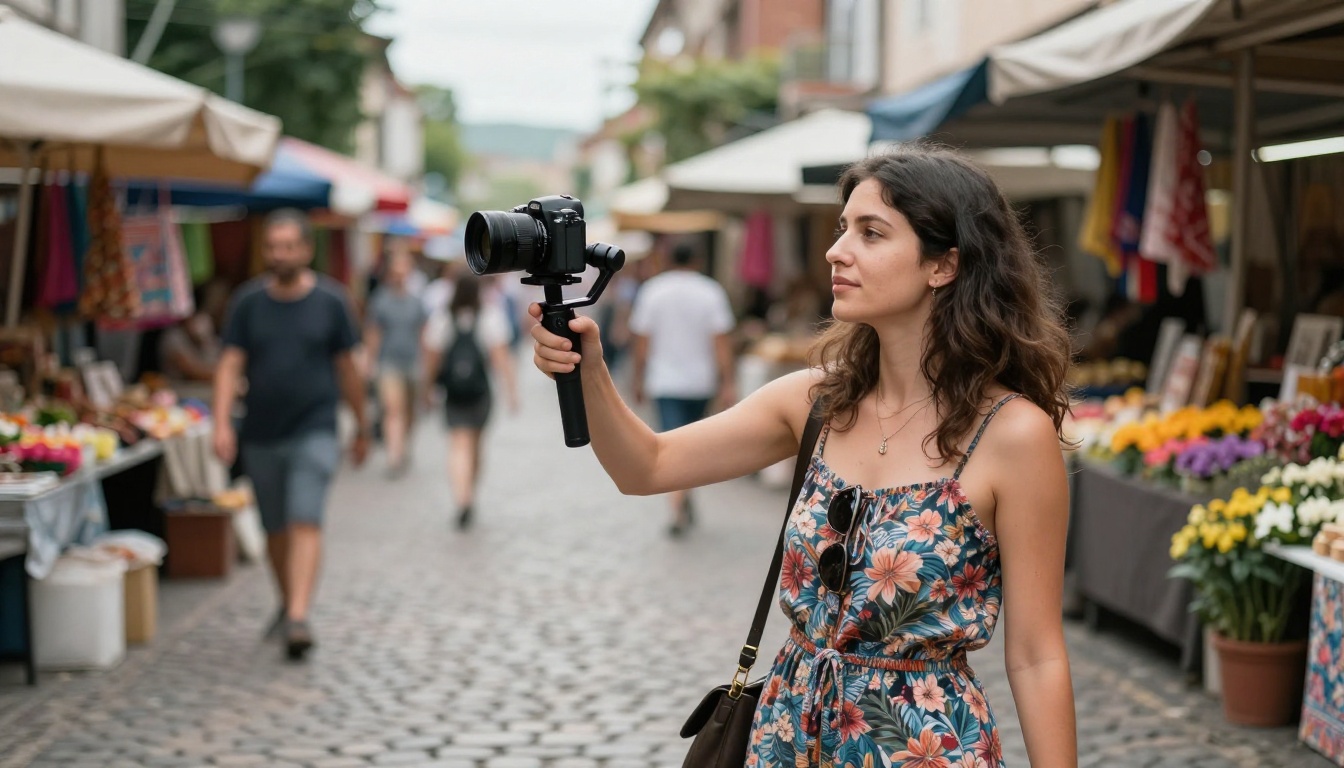
Video Remove Background from Bria cleanly isolates subjects from video footage without any physical setup. No green screen, no controlled lighting, no manual rotoscoping frame by frame. You upload the clip and receive clean isolated footage ready for compositing onto any background.
For creators working in imperfect environments (small apartments, shared offices, cluttered rooms) this is one of the most practically useful tools in the entire stack. Pair the isolated footage with AI-generated background video from Seedance or Kling for a fully AI-produced visual style.
Sound: The Half of Video Most Creators Rush
Most creators spend 90% of their attention on visuals and then rush through audio. The result is polished-looking clips with mediocre or mismatched sound. Two tools address this directly.
AI Sound Effects on Autopilot
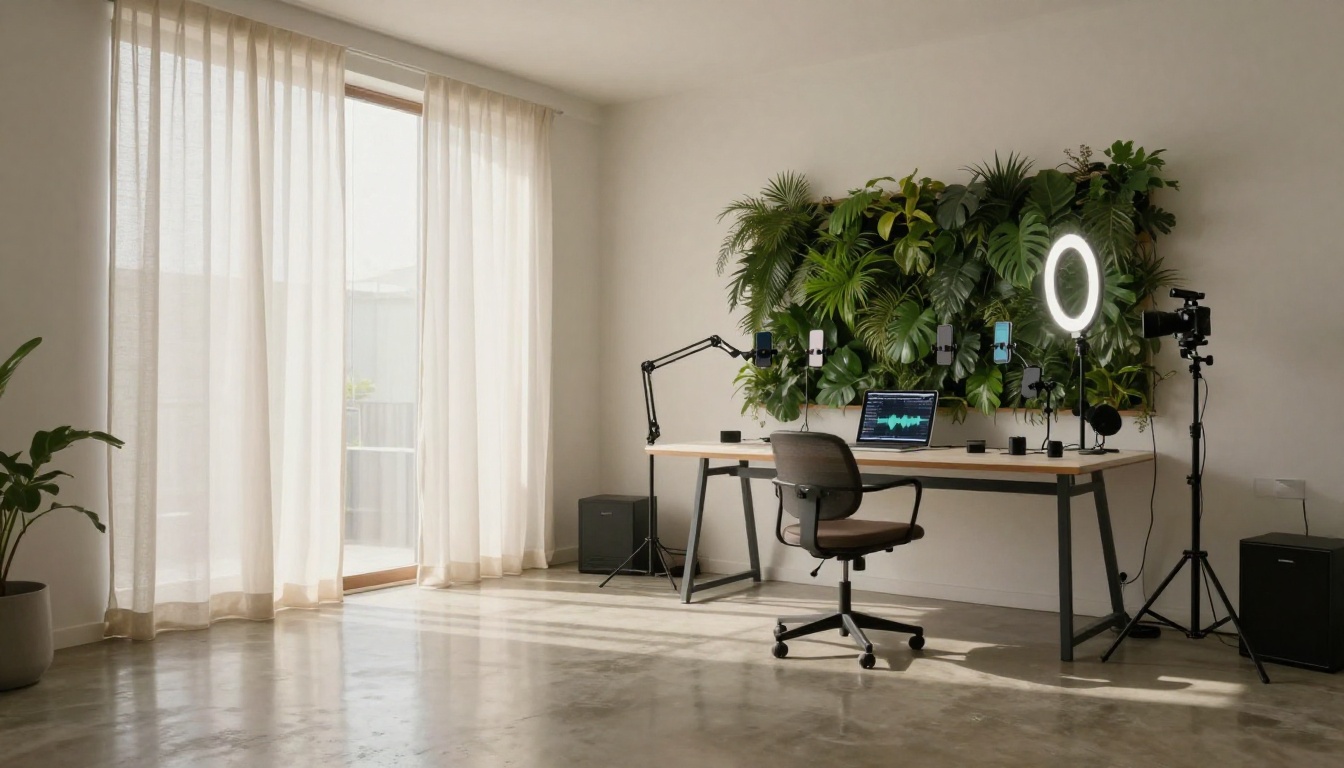
Thinksound analyzes your video and automatically generates contextually appropriate sound effects. A clip of rain against a window gets rain audio. A market scene gets ambient crowd and vendor noise. A product close-up gets a satisfying tactile sound layer. No manual selection, no timeline dragging, no audio sourcing.
MMAudio takes a similar approach with a stronger focus on tonal and musical audio layers alongside environmental effects. Both tools operate without manual timing, removing a significant technical bottleneck from the editing workflow.
Precise Sound Effect Placement
When you want more control over exactly which sounds appear where, Video To SFX v1.5 lets you describe specific sound effects for specific timestamps. You can specify "sharp snap at 0:03, soft whoosh at 0:08" and the tool places them with precision, giving you the creative control of a sound designer without the tools or background.
Older clips, smartphone recordings, and low-light footage can be salvaged and brought to platform-quality output through AI upscaling tools that add genuine detail rather than simply stretching pixels.
Crystal Video Upscaler and Video Upscale by Topaz Labs both push footage to 4K through AI interpolation that reconstructs real detail. For creators repurposing archival content or working with lower-end cameras, these tools have a measurable impact on perceived production quality.
Real ESRGAN Video is a strong free option for 4K upscaling when budget is a constraint.
How to Use Wan 2.7 T2V on PicassoIA
Wan 2.7 T2V is one of the most capable text-to-video models on the platform, producing 1080p output with strong prompt adherence and smooth, natural motion. Here is exactly how to use it for social media content production.
Step 1: Open the model. Go to Wan 2.7 T2V on PicassoIA. No installation or API configuration required.
Step 2: Write a detailed prompt. Be specific about subject, environment, lighting, and motion. For social content, think about what grabs attention in the first second. Example: "A woman walking through a sunlit lavender field, slow tracking shot from behind, golden afternoon light, natural breeze, 35mm film aesthetic, Kodak Portra colors."
Step 3: Set duration. For Reels and TikToks, 5 to 8 seconds of generated footage is ideal. Enough material to cut from, without excessive file size.
Step 4: Preview before downloading. Watch the full clip to assess motion quality and scene fidelity before committing the output.
Step 5: Post-process. Run the output through Autocaption if adding voiceover, or through Video Audio Merge to layer a music track underneath.
Tip: For prompt structure, always include lighting direction, camera type, and a motion verb. "A woman running through autumn leaves, handheld camera follow shot, diffused overcast light" will consistently outperform "a woman running through leaves." Specificity is the single biggest factor in output quality.
Matching the Right Tool to Your Content Type
The right AI video tool depends on what you are actually trying to produce. This table maps common social media content types to their most effective tool pairings:
3 Mistakes That Kill AI Video Quality
Getting the tools right is step one. Using them well is step two. These are the most common errors creators make when starting with AI video production:
1. Generic prompts. "A beautiful landscape at sunset" gives the model almost nothing to work with. Specify time of day, geography, weather, season, camera angle, and motion type. The more specific the prompt, the more specific and usable the output.
2. Skipping audio. A stunning visual with flat or mismatched sound reads as unfinished. Run every clip through Thinksound or MMAudio, even if only for ambient texture.
3. Single-platform thinking. Generate once and distribute everywhere. Use Reframe Video to adapt the same clip for 9:16, 16:9, and 1:1 before publishing across platforms.
The Repeatable Workflow That Actually Works
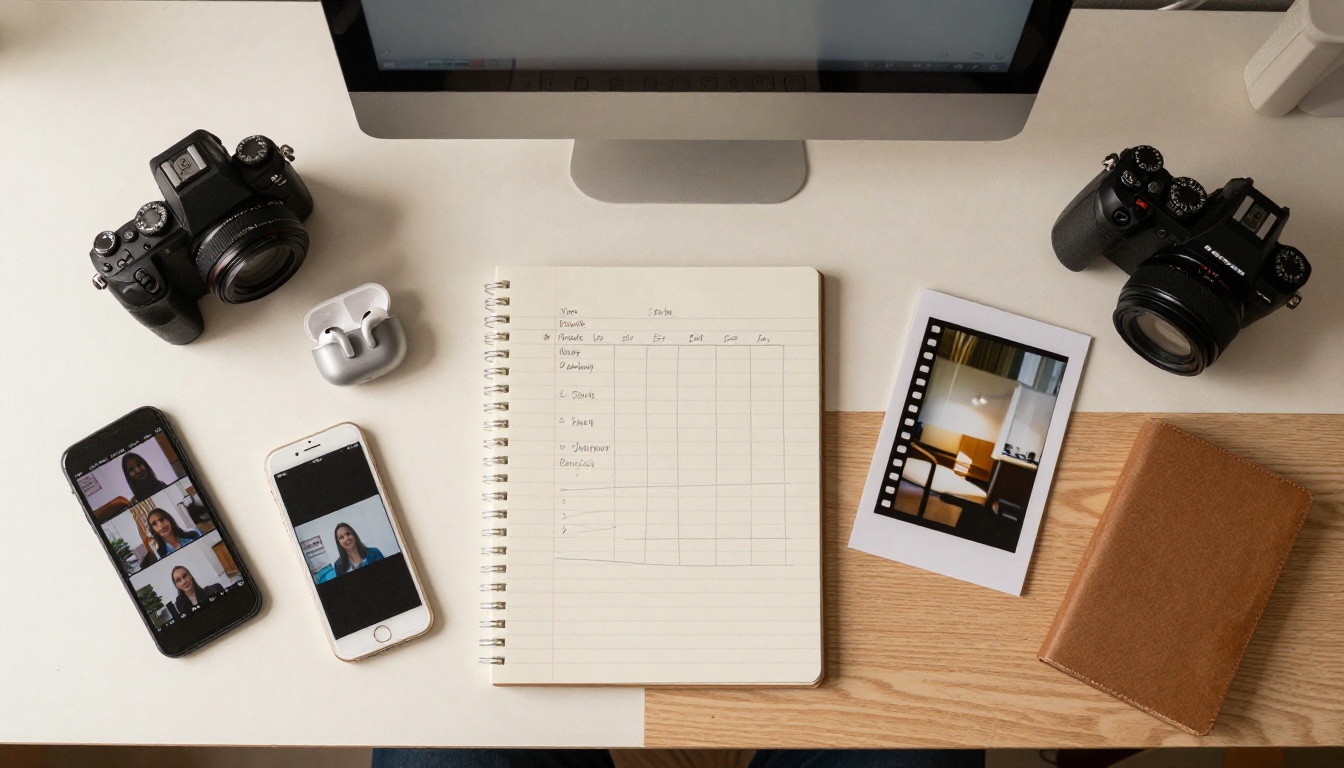
The most effective AI video workflow is not about using every tool available. It is about building a repeatable, fast system:
- Ideate (what story or value do you want to deliver?)
- Generate core footage with Wan 2.7 T2V or Kling v3 Video
- Add sound with MMAudio or Thinksound
- Caption with Autocaption
- Reformat with Reframe Video
- Publish across platforms simultaneously
This entire workflow can realistically wrap up in two to three hours for a full week's worth of content. That used to take a dedicated production day with a team of two or three people.
Start Generating Your Own Content
The best way to understand what these tools can do for your feed is to run a generation and see what comes back. Start with Wan 2.7 T2V, write a detailed prompt for the type of B-roll you post most often, and generate a clip. Then run it through Autocaption and MMAudio.
The whole process takes under 10 minutes and the result is ready to post. Every model referenced in this article is accessible directly on PicassoIA with no software installation, no API configuration, and no technical setup required.
Your audience does not care how you made the video. They care whether it is worth watching. AI video tools give you the speed to post more and the quality control to post better, at the same time.