Your phone already has more raw processing power than the studio setups that produced blockbuster visual effects in 2005. What changed in the last two years is not the hardware but the software layer sitting on top of it. Free AI tools have moved to the web, and most of them work perfectly in a mobile browser without a sign-up wall or a paywall blocking the best features. The question is no longer "can my phone run AI?" It is "which tools are actually worth your time?"
This article answers that directly.
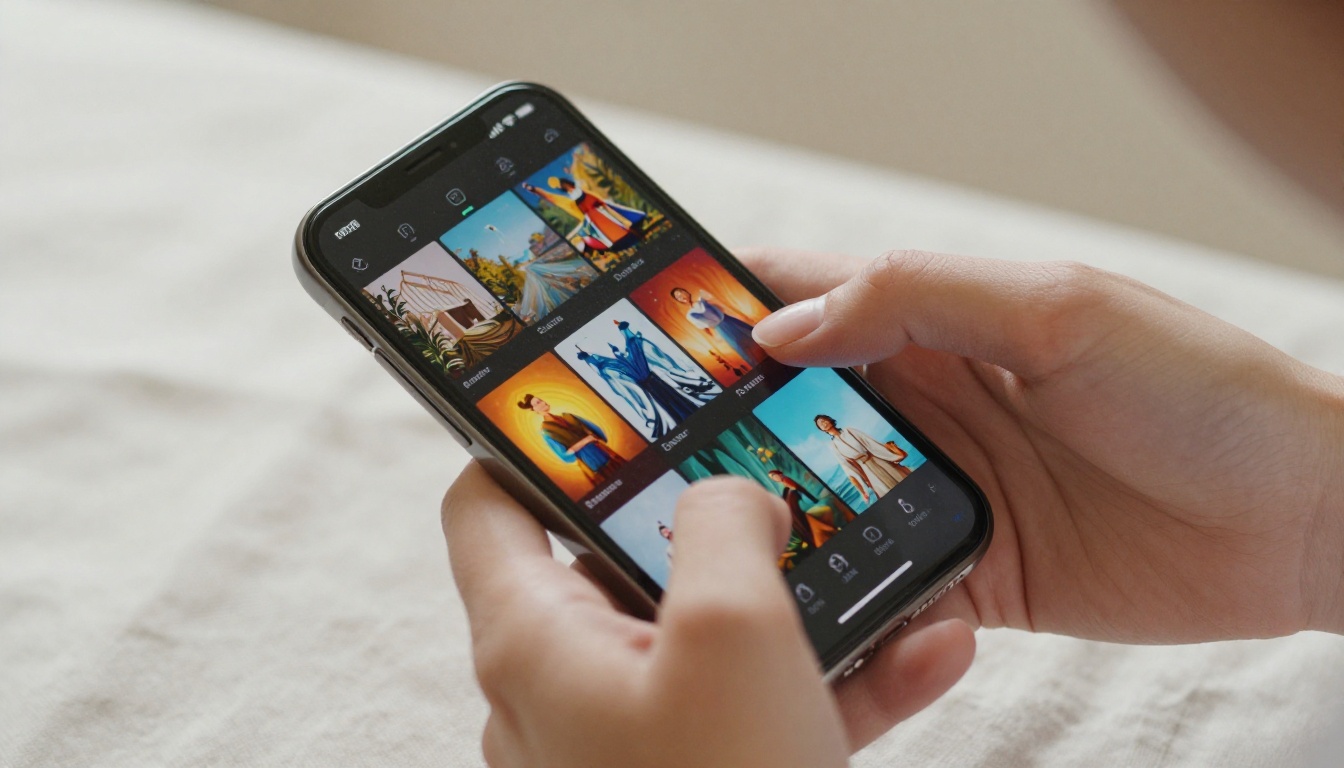
What Free AI on Mobile Looks Like Now
The landscape shifted fast. A year ago, the best AI image generators required a desktop with a dedicated GPU. Today, you tap a browser link on your phone, type a description, and get a photorealistic image in seconds. The same pattern holds for video, audio, and writing tools.
Free does not mean limited in most of these cases. It typically means you get a set number of credits per day or per month, which is more than enough for casual or semi-professional use. Some platforms offer unlimited access to specific models with no daily cap at all.
The categories worth knowing about right now:
- Text-to-image generation: Turn written descriptions into photorealistic visuals without any design skill
- Image editing: Remove backgrounds, fill in missing areas, replace objects in seconds
- AI video: Generate short clips from text or animate a still photo into motion
- Voice tools: Text-to-speech narration, speech-to-text transcription, and voice cloning
- Super resolution: Upscale and restore blurry or low-quality photos with AI-added detail
- AI music: Generate full tracks from a plain-text mood and style description
You can access all of these from a phone browser. No app download required in most cases.
Best Free AI Image Generators for Mobile
This is where the biggest leap has happened. The gap between what free tools can produce and what premium subscriptions deliver has narrowed to the point where casual users rarely notice a difference.

FLUX 2: Fast and Photorealistic
FLUX 2 Max by Black Forest Labs is among the sharpest free models available right now. It handles complex prompts with accurate detail, particularly for portraits and architectural shots. The photorealism at this level used to require commercial tools with monthly fees.
For something faster with minimal quality loss, FLUX 2 Klein 4B delivers quick results on longer prompts without the wait. Both are accessible on PicassoIA directly from your mobile browser, no account required to try.
FLUX 2 Dev sits between them in terms of speed versus quality. When you need consistent results across a batch of images, this is the reliable middle-ground option. FLUX 2 Pro steps in when you need the highest fidelity output the model family can produce, with additional prompt adherence that shows in fine-detail scenes.
GPT Image 1.5
GPT Image 1.5 from OpenAI is particularly strong for instruction-following. If your prompt is detailed and specific, this model respects that specificity more reliably than most alternatives. Product mockups, lifestyle photography styles, and illustrated visuals all come out with a clean, intentional look. It is also more forgiving of unconventional prompt structures than other top models, which makes it a good starting point for people new to AI image generation.
Seedream 4.5
Seedream 4.5 from ByteDance performs well on stylized images and fashion-forward visuals. If your content skews toward portrait photography with a cinematic tone, this model produces consistent color grading that rivals professional editing workflows. The skin tones are particularly realistic, and it handles fabric textures and hair detail with unusual accuracy.
P-Image and Z-Image Turbo
For speed-first workflows, P-Image and Z-Image Turbo from Prunaai are the practical options. Both return results in a fraction of the time compared to heavier models. When you are testing prompt ideas or need a quick concept visual to share or iterate on, these two cut iteration time significantly without asking you to compromise on output clarity.
💡 On mobile, keep prompts under 100 words. Models process shorter descriptions faster and return cleaner, less cluttered outputs.

AI video from text is no longer a novelty. Several tools now produce short clips with coherent motion, and the best of them run directly from a browser with no installation or local rendering required.
Text to Video
PicassoIA hosts over 80 text-to-video models. For phone-based use, the fastest options are worth starting with. Models like RunwayML Gen-4.5, Kling, and LTX handle short clips in the 3-8 second range with solid motion quality that holds up at social media dimensions.
What works well on mobile: prompts that describe a single, clear scene with a defined camera movement. "A woman walking through a rain-soaked street at night, cinematic slow motion, shallow depth of field" produces far better results than vague scene descriptions that give the model too many competing elements to interpret.
Lipsync Tools
If you produce content for social media or video messaging, lipsync AI tools let you animate a still portrait to match any audio track. Upload a portrait photo and an audio clip, and the output is a natural-looking talking video. The sync accuracy on current models is solid enough for short social clips, and the results are convincing at typical viewing sizes on phone screens.

Text to Speech
Text-to-speech has crossed the line from robotic-sounding output to genuinely usable narration. AI speech tools available on mobile-accessible platforms produce voiceovers that hold up in short videos, podcast-style content, and audio messages without sounding like a robot reading a script.
The voices available now span multiple languages, accents, tones, and emotional registers. You can select something that matches your content style rather than defaulting to a generic AI voice that audiences immediately tune out.
Speech to Text
Speech-to-text is already built into most phone keyboards, but dedicated AI transcription tools go further. They handle different accents, ambient noise, and overlapping speakers more accurately than native phone tools. If you record voice notes, interviews, or meetings on your phone, a proper AI transcription tool saves significant editing time and produces output that is closer to a clean draft than raw dictation.
💡 For speech-to-text on mobile, place your phone face-up on a flat surface rather than holding it. Microphone pickup is more consistent and transcription accuracy improves noticeably across long recordings.

Background Removal and Photo Restoration
Background Removal
Removing a background from a photo used to require Photoshop and fifteen minutes of careful manual selection. On mobile AI tools today, it takes three seconds. Upload your image, wait for processing, download the result. The current AI background removal tools handle hair, fine edges, and complex foregrounds far better than older cutout tools or app-based filters.
For professional-looking product photos, social media content, or profile pictures, this is one of the highest-value free AI tools available on your phone, particularly if you are running any kind of online presence or small business.
Super Resolution
Have an old photo that is blurry or pixelated? Super resolution AI upscales images 2x or 4x while adding realistic detail rather than just stretching pixels into a larger blurry version of the same thing. The output is dramatically cleaner than anything a standard image resizing tool could produce. For photos from old phones, scanned prints, or screenshots saved at low resolution, this tool is genuinely transformative in a practical sense.
Using PicassoIA on Your Phone
PicassoIA runs entirely in a mobile browser. No app download, no account required to start. Open the site on any Android or iOS browser, pick a model from the collection, type your prompt, and generate.
Step 1: Pick Your Model
From the text-to-image collection, start with FLUX 2 Pro for high-quality general-purpose images. If speed is the priority, switch to P-Image for fast results without sacrificing too much detail.
Step 2: Write a Specific Prompt
The most common mistake on mobile is using short, vague prompts. Add context: describe the lighting, the setting, the mood, the subject, and the camera angle. "A woman in a red jacket" produces something generic. "A woman in a red wool jacket standing on a snow-dusted street under overcast winter light, 50mm lens, photorealistic, shallow depth of field" produces something you would actually use.
Step 3: Set Your Aspect Ratio
For phone wallpapers, use 9:16. For social posts and thumbnails, 1:1 or 16:9. PicassoIA offers all major aspect ratios as a single click before generating.
Step 4: Generate and Download
Tap generate, wait a few seconds depending on the model, and download directly to your phone's photo library. You can share immediately from the download screen without opening any additional apps.
💡 Use Recraft V3 when you need illustrations, icons, or vector-style graphics rather than photorealistic photography. It handles clean, geometric aesthetics with precision that photorealism models cannot match.
Free vs Paid: What You Actually Get
Most people do not need a paid subscription to get useful results from AI tools on their phone. Here is how the tiers typically break down:
| Feature | Free Tier | Paid Tier |
|---|
| Image generation | 10-30 per day | Unlimited |
| Model access | Top 5-10 models | All 90+ models |
| Output resolution | Standard | High-res download |
| Video generation | 2-5 clips per day | Unlimited |
| Queue priority | Standard | Priority |
| Storage | Session only | Cloud library |
For testing ideas, creating social content, or personal projects, the free tier covers most needs. The paid tier makes sense for professional workflows where volume, resolution, and saved project history matter day to day.
Different workflows need different tools. Here is a quick reference for common use cases:

Mistakes That Produce Bad Results
Most people get mediocre outputs because of a few fixable habits, not because the tools are limited.
Prompts that are too short. "A sunset" generates something generic every time. "A warm orange sunset over a calm ocean, low horizon, golden hour, soft atmospheric haze, 85mm lens, long exposure" generates something specific and visually strong.
Wrong model for the task. Using a video model when you want a still image, or using a heavy high-fidelity model when speed is what you actually need. Check what each model is built for before generating. The PicassoIA collection lists the strengths of each model clearly.
Not iterating. The first result is rarely the best one. Change one element of your prompt, regenerate, and compare. The iteration loop is fast enough on mobile that this takes minutes. Treating the first output as final leaves most of the tool's capability on the table.
Ignoring aspect ratio. Generating at 1:1 when you need 9:16 for a phone wallpaper means cropping or distorting the output. Set the ratio before generating, not after.
💡 Save prompts that produce good results in a notes app. A personal prompt library saves significant time on future projects, particularly for recurring content formats or consistent visual styles.
AI Music From Your Phone
AI music generation has reached the point where short tracks sound genuinely composed rather than algorithmically assembled from stock loops. If you produce short video content on your phone, a royalty-free AI music track generated to match the mood of your clip is now a practical option that costs nothing.
The music generation tools accessible on mobile let you describe style, mood, tempo, and instrumentation in plain text. "Upbeat lo-fi hip-hop with soft piano, 90 BPM, warm and relaxed, minimal percussion" produces a track that fits typical social content without sounding like an obvious AI filler loop.
For creators who produce consistently branded content, having an AI music tool on your phone means you are never searching for a background track that fits the mood or worrying about copyright claims.

Start Creating Right Now
You do not need a setup process, a paid subscription, or a new app download to start. Open PicassoIA in your mobile browser, pick any model from the text-to-image collection, and type what you want to see. The first image takes under thirty seconds to generate depending on which model you choose.
Start with FLUX 2 Dev for a solid baseline result on almost any subject. Then try Seedream 4.5 for a different visual tone and color aesthetic. Switch to NVIDIA Sana if you want something with a more artistic, high-resolution edge that sits between photorealism and painterly illustration.
The gap between wanting to create something visual and actually having it in your hands has collapsed to under a minute. The tools are already in your browser, running right now, free to use. The only thing that shapes what you get is what you type.


