Best Local NSFW AI Generator: Run It Offline and Private
Running an NSFW AI generator locally means your images stay on your drive, your prompts are never logged, and no algorithm decides what you can or cannot create. This breaks down the best offline models, hardware requirements, and how to get photorealistic results without cloud dependencies.
Privacy is not a luxury, it is the baseline. When you run a local NSFW AI generator, every image stays on your drive, every prompt stays in your RAM, and every generation happens without a third party seeing it. No terms-of-service violations hanging over your head, no content filters blocking your creative direction, and no subscription canceling your access overnight. This is the real reason people are moving their workflows offline, and the output quality, with the right models and setup, now rivals anything produced by cloud platforms.
Why Running Locally Actually Matters
Cloud-based AI generators are convenient, but convenience comes with costs most users overlook. Every prompt you type, every image you generate, and every setting you tweak is processed on someone else's infrastructure. For most content that is fine. For NSFW, adult, or simply unrestricted creative work, it creates real problems.
The problems are not hypothetical. Platforms change their policies without notice. Accounts get flagged for ambiguous content. Models get lobotomized through RLHF updates that blunt their capabilities for adult output. Users who built workflows around a specific model's behavior wake up one day to find it fundamentally changed. Going local puts you in control of the version, the settings, and the output.
Your Data Never Leaves Your Machine
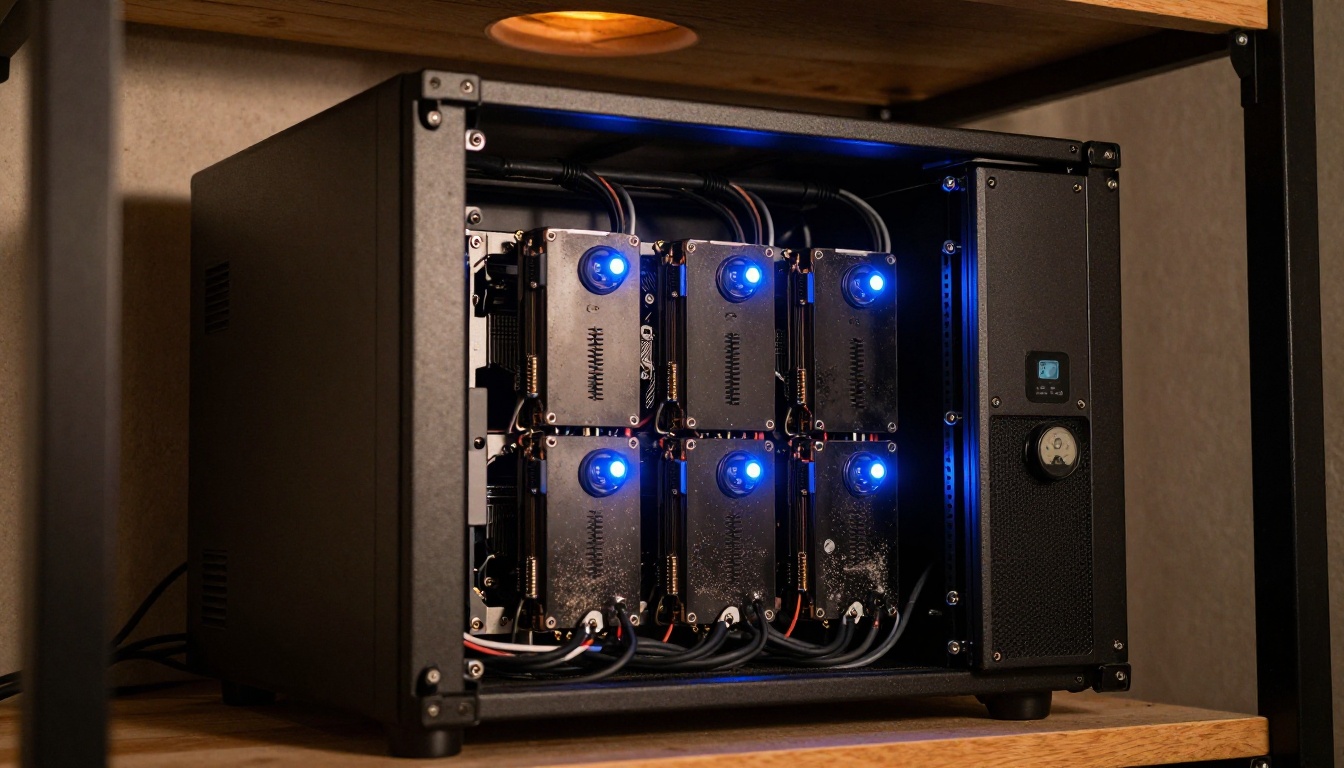
With a local setup, the model weights live on your drive, inference happens in your GPU's VRAM, and the output file writes to your local storage. No outbound connections, no API calls, no metadata attached to your creations. You can run the entire stack without an internet connection once everything is downloaded.
💡 Tip: After downloading your model files, put your machine in airplane mode and test generation. If it works, your setup is truly air-gapped and private. No traffic leaves your machine at any point in the process.
No Filters, No Restrictions
Commercial platforms enforce filters at the model level, the API level, and sometimes both layers simultaneously. Running locally means you control what the model can and cannot generate. NSFW, suggestive, glamour, artistic nudity, or any content category that falls within your own personal creative boundaries becomes entirely your call.
The tradeoff is real: you take on the responsibility of managing your own hardware, updates, and model selection. But for users who want genuine creative freedom without the constant anxiety of account restrictions, that is a trade most are willing to make.
What You Actually Need to Run It
You do not need a data center. A mid-range gaming PC from the past three years can run many top-tier models at acceptable speeds. Here is what actually matters.
GPU Requirements
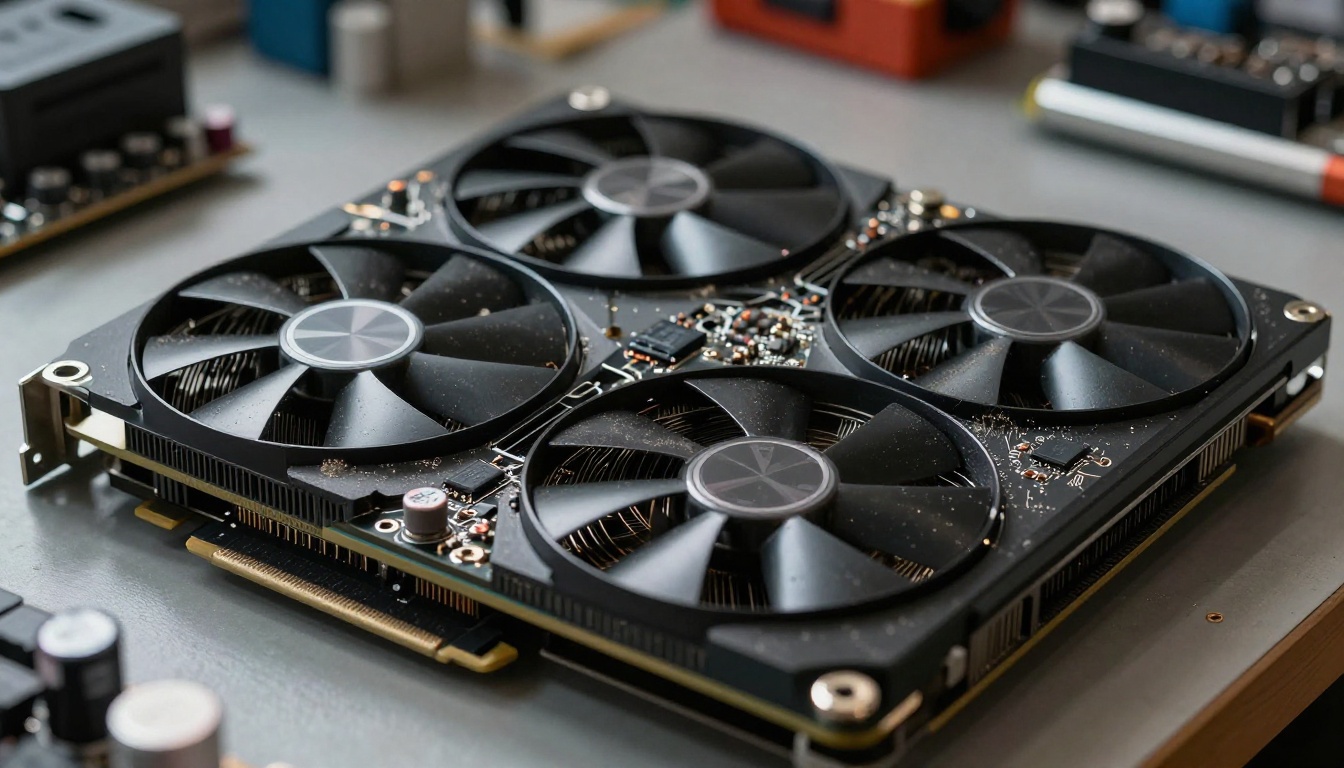
VRAM is the bottleneck. More VRAM means larger models, higher resolution outputs, and faster inference. The relationship is not linear but the jump from 8GB to 16GB makes a substantial practical difference.
VRAM
What You Can Run
Expected Speed
4GB
SD 1.5, small checkpoints
Very slow (2-5 min/image)
8GB
SDXL (with offloading), Flux Schnell quantized
Moderate (30-90 sec/image)
12GB
Flux Dev, SDXL full, most LoRAs
Good (15-45 sec/image)
16GB+
Flux Dev full precision, SD 3.5 Large
Fast (5-15 sec/image)
24GB+
Flux 1.1 Pro quality, SD 3.5 Large full
Very fast (3-8 sec/image)
NVIDIA RTX 3080, 3090, 4070, 4080, and 4090 are the most popular choices for local generation. AMD cards work but require extra configuration through ROCm on Linux. For a first-time build specifically targeting NSFW generation, an RTX 3090 with 24GB VRAM is the community's most recommended sweet spot between cost and capability.
CPU-Only: Slower But Possible
If you do not have a dedicated GPU, CPU inference is an option. It is significantly slower (think 10-30 minutes per image), but it works. Models like SD 1.5 and quantized Flux variants can run purely on CPU using tools that handle diffusion inference without CUDA. For casual or low-volume use, this is a viable offline path. For anything approaching a real workflow, saving up for a GPU is worth it.
Best Models for Local NSFW Generation
Not all models perform equally for adult or suggestive content. Some excel at photorealism, others at stylized output. Here is what consistently delivers results in local setups.
Flux Dev and Flux Schnell
Flux Dev is widely considered the best open-weight model for photorealistic human generation as of 2025. Its understanding of anatomy, lighting, and fabric interaction is significantly better than earlier Stable Diffusion variants. When you want skin that looks like skin, shadows that make physical sense, and hair that does not dissolve into noise at the edges, Flux Dev is the baseline to beat.
Flux Schnell is the distilled fast variant, trading some quality for speed. At 4-8 inference steps instead of the 20-50 that Dev requires, it generates in seconds rather than minutes. For iterating on prompts quickly before committing to a longer Dev render, Schnell dramatically cuts your total time spent waiting.
💡 Tip: Use Flux Schnell for rapid prompt iteration across 10-15 variations, then run only your best two or three prompts through Flux Dev for final quality. This workflow cuts total generation time by 60-70% compared to running everything through Dev.
Stable Diffusion and SDXL
Stable Diffusion started the open-weight revolution and remains the backbone of most local setups. The ecosystem around it is enormous: thousands of checkpoints, LoRAs, embeddings, and community-trained fine-tunes exist specifically for adult and NSFW content, many of which are trivially easy to drop into your local model folder.
SDXL pushed base resolution up to 1024x1024 and improved coherence significantly across the board. The architecture change made SDXL substantially better at full-body compositions, which matters for NSFW work where anatomy accuracy is the difference between a convincing image and an uncanny mess.
Stable Diffusion 3.5 Large is the current flagship from Stability AI, using a multimodal diffusion transformer architecture that handles complex, multi-subject prompts better than any prior SD release. It requires more VRAM but the output quality, particularly for detailed scenes with specific lighting conditions, is noticeably superior.
Realistic Vision v5.1
Realistic Vision v5.1 is one of the most downloaded NSFW-capable checkpoints in the open-weight community. It is a fine-tune specifically trained on photographic data, producing output that frequently passes for genuine photography at casual inspection. Skin texture, hair detail, and lighting behavior are all significantly improved over base SDXL.
The model ships without hard content restrictions, making it a direct candidate for adult or suggestive workflows. Its strength is in portrait and upper-body compositions with realistic ambient or artificial lighting conditions. For close-up glamour shots, it is one of the highest-performing options available at zero cost.
RealVisXL
RealVisXL v3.0 Turbo combines the base quality of Realistic Vision with a turbo-distilled architecture for faster inference. It targets the same photorealistic output at reduced step counts, cutting generation time without a proportional quality loss. For local setups where generation speed is a constraint due to VRAM limitations, RealVisXL gives you strong results without the long wait.
How to Set It Up on Your Machine
Two frontends dominate the local AI generation scene. Both are free, open-source, and actively maintained by large communities.
ComfyUI
ComfyUI is a node-based visual workflow editor. You drag and drop nodes representing operations (model loading, sampling, decoding, image output) and wire them into a pipeline. It sounds intimidating at first, but the payoff is enormous flexibility. Any workflow that is theoretically possible with diffusion models can be assembled in ComfyUI, including inpainting passes for anatomy correction, ControlNet pose guidance, and multi-model chaining.
On PicassoIA, the ComfyUI Workflow model lets you run custom ComfyUI pipelines in the cloud without local hardware, which is a practical option for testing workflows before committing to a full local install.
Setup steps for local ComfyUI:
Install Python 3.10+ and Git on your system
Clone the ComfyUI repository from GitHub
Install PyTorch with CUDA support matching your GPU driver version
Download your model checkpoint (.safetensors format) into the models/checkpoints/ folder
Launch with python main.py and open localhost:8188 in your browser
💡 Tip: Install ComfyUI Manager first. It is a one-click extension manager that gives you access to hundreds of custom nodes, including ControlNet pose control, NSFW-specific samplers, and upscalers, without manual file management.
Automatic1111
Automatic1111 (A1111) is the older, more mature option. It uses a traditional web UI rather than a node graph, making it significantly more approachable for beginners. Nearly every local generation tutorial written before 2024 uses A1111, which means the documentation, troubleshooting threads, and community support are deep and well-indexed.
A1111 handles SDXL, SD 1.5, and various fine-tunes natively. Flux model support requires additional extensions, but these exist and are stable. For a first local NSFW setup, A1111 is the fastest path from zero to running images, typically achievable in under an hour including model download time.
Prompting for Better Results
The model is only half the equation. Prompting determines whether your output looks like a photograph or an uncanny approximation of one.
What Works for Photorealism
These prompt structures consistently improve photorealistic output across all major local models:
Lighting specifics: "soft diffused morning light from left", "harsh tungsten key light at 45 degrees", "golden hour rim lighting from behind"
Camera context: "shot on Canon EOS R5, 85mm f/1.4, shallow depth of field", "35mm street photography, ISO 1600, Kodak Portra 400"
Skin and texture detail: "authentic skin texture, visible pores, subtle imperfections, real hair flyaways"
Environment grounding: "private studio with grey linen backdrop", "luxury apartment, warm amber lamp light, blurred bookshelves"
Weak Prompt
Strong Prompt
"beautiful woman"
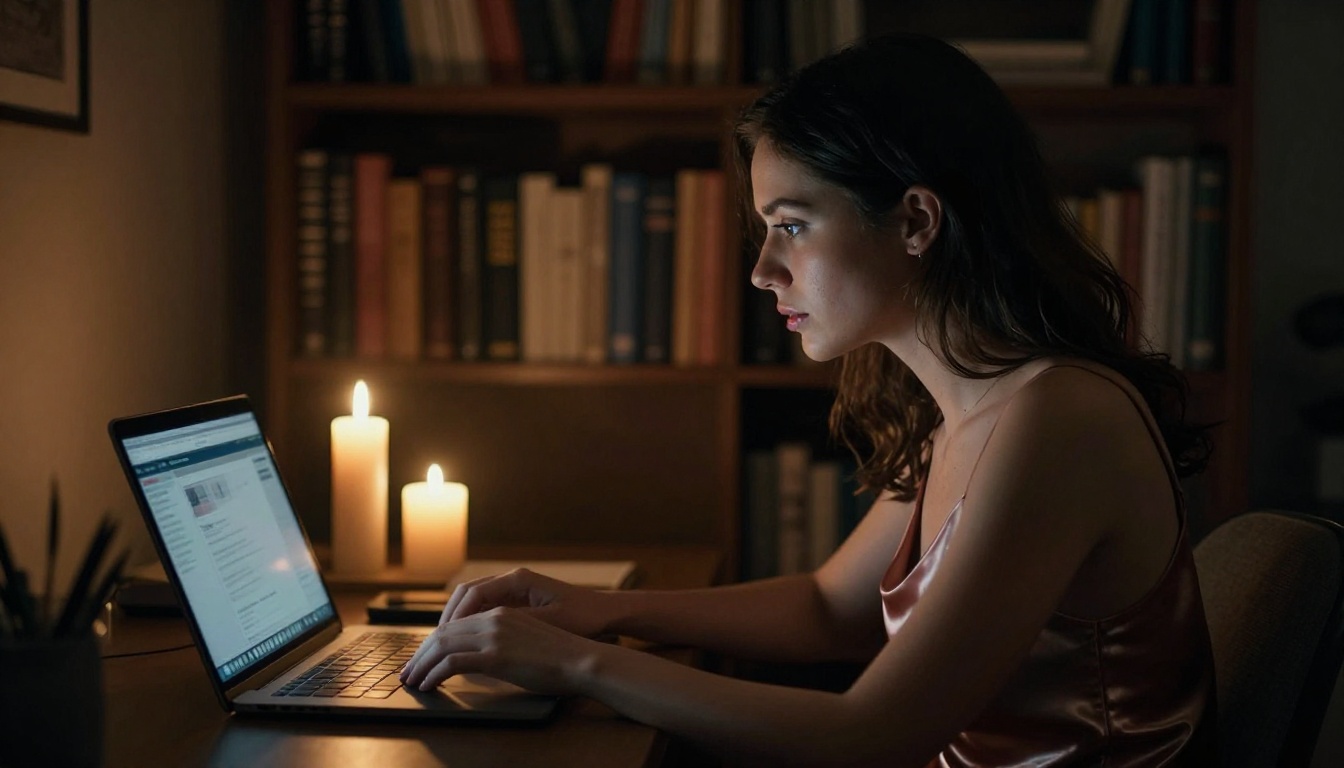
"woman in her late twenties, candlelit private apartment, satin slip dress, 85mm f/1.2, Kodak Portra film grain"
"sexy outdoor shot"
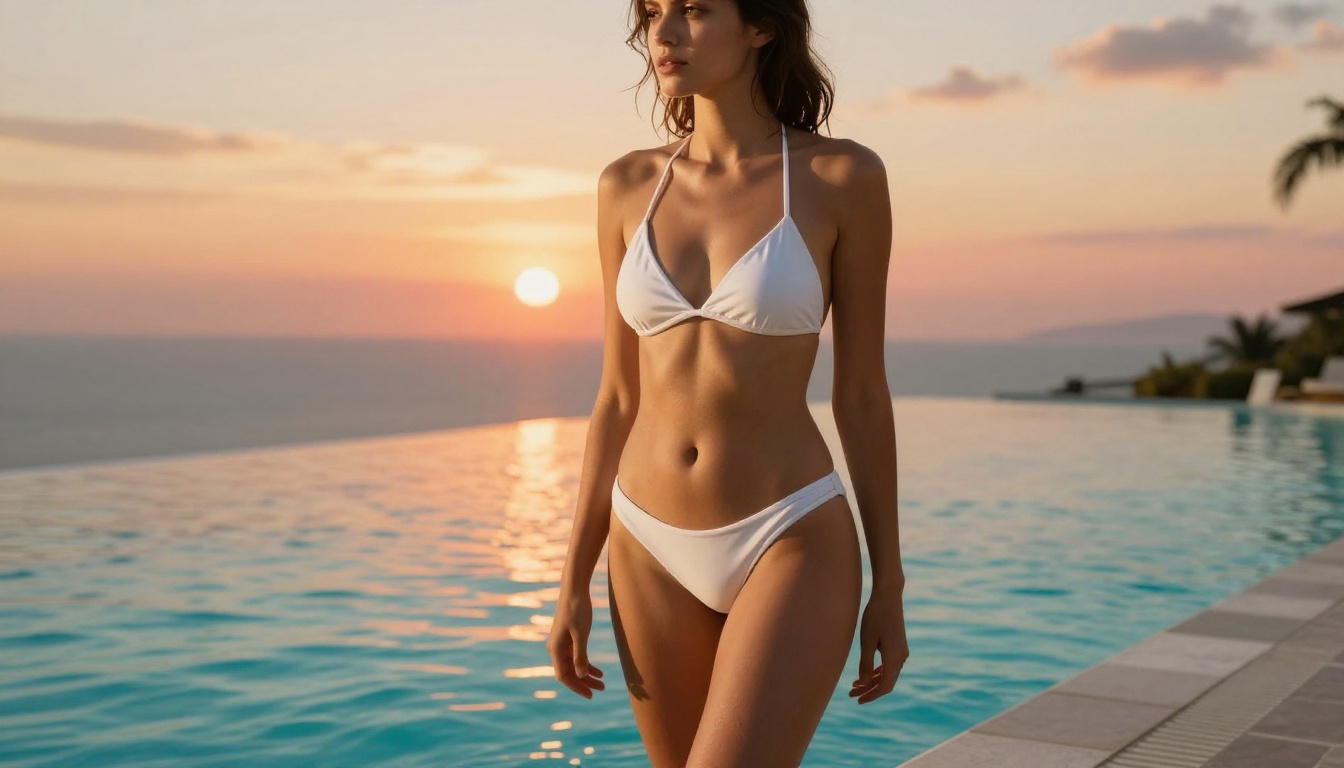
"golden hour infinity pool, low-angle ground-level shot, turquoise water reflection, 50mm f/1.8 shallow DOF"
"glamour portrait"
"three-quarter body shot, soft-box studio lighting from front-left, Phase One camera, 110mm f/2.8, linen backdrop"
Negative Prompts That Actually Help
Negative prompts tell the model what to avoid. For photorealistic NSFW content, these are consistently useful across SDXL and Flux-based models:
ugly, deformed, extra fingers, bad anatomy, blurry, low resolution,
watermark, text overlay, cartoon, anime, illustration, oversaturated,
plastic skin, doll-like, CGI render, artificial glow, neon effects
The bad anatomy and extra fingers entries are particularly important for full-body compositions where limb distortion is most visible and hardest to ignore.
PicassoIA Online vs Local Setup
Both approaches have legitimate uses. The choice depends on your hardware, your technical comfort level, and how much creative freedom you actually need day-to-day.
When to Use the Browser
PicassoIA gives you access to over 91 text-to-image models without any installation. Models like Flux 1.1 Pro, Flux 2 Pro, Flux Dev, and Realistic Vision v5.1 run at cloud speed with zero setup. For one-off generations, portfolio work, or exploring new models before deciding to download them locally, the browser is the fastest path to output.
The platform also supports ControlNet workflows for pose control, super-resolution upscaling, and 88 other model categories covering video, audio, and editing. When your local rig is offline or you want to test something quickly, having browser access to the same model families you use locally is practical.
When to Go Local
Go local when:
Volume is high: generating hundreds of images per session at a cost that does not scale with cloud credits
Prompts are sensitive: you need absolute certainty that content is not logged or reviewed
Full model control is needed: custom LoRAs, embeddings, or pipeline modifications that are not supported through a platform API
Offline use is required: traveling, on a restricted network, or simply preferring no external dependencies at all
A practical middle path is to use PicassoIA to test and iterate quickly on prompts and model choices, then replicate your best-performing workflows locally for high-volume or fully private sessions.
3 Mistakes That Kill Image Quality
1. Running too few inference steps
NSFW content demands more coherent anatomy than a simple landscape or abstract image. Rushing inference at 4-8 steps with non-distilled models produces visible artifacts in hands, faces, and body proportions. For Flux Dev and SDXL, 20-30 steps is the minimum for anatomy that holds together under inspection. Reserve ultra-low step counts for distilled models like Flux Schnell that are specifically trained to work at that range.
2. Ignoring VAE quality
The VAE (variational autoencoder) decodes your latent image into final pixels. A low-quality or mismatched VAE produces color banding, soft skin lacking texture, and inaccurate shadow rendering that makes output look processed rather than photographic. Flux models have a built-in high-quality VAE. For SDXL checkpoints, always download the sdxl_vae.safetensors file separately and load it explicitly rather than using the baked-in default.
3. Using resolution that mismatches the model
SD 1.5 was trained at 512x512. Generating at 1024x768 breaks composition and creates repeated or doubled elements across the frame. SDXL targets 1024x1024. Flux performs best at 1024x768 or 1360x768. Match your output resolution to the model's native training resolution for the best base quality, then use a dedicated super-resolution pass to scale up the final image without the quality penalties of generating at the wrong size.
💡 Tip: PicassoIA's Super Resolution models can upscale your locally-generated or cloud-generated images at 2x or 4x. Run your base generation at the model's native resolution, then push it through upscaling for a clean final file.
Start Without Installing Anything
If all of this sounds like a lot of infrastructure, it is. Setting up a local AI rig correctly takes time and troubleshooting. There is a practical alternative for getting started immediately: PicassoIA puts Flux Dev, RealVisXL v3.0 Turbo, Realistic Vision v5.1, Stable Diffusion 3.5 Large, and 87 other text-to-image models directly in your browser.
Use the platform to refine your prompts, identify which model behavior you actually want, and build a sense of what good output looks like before investing in hardware. When you know exactly which model you want to run locally and exactly what your prompts look like, the local setup process becomes much more focused and far less frustrating.
The images you want to create are well within reach, whether that means a local rig running Flux Dev in your home or a browser session on PicassoIA generating at cloud speed. Start with what you have, iterate hard on your prompts, and build toward the setup that fits your actual workflow rather than an idealized one.