If you've spent any time with AI image generators, you know the frustration. You get 90% of the way to a perfect image, and then something is off. The background clashes. The clothing doesn't fit the scene. A hand looks wrong. Without inpainting, your only option is to regenerate from scratch and hope you get lucky.
That's why inpainting has become the most sought-after feature for adult AI image creation. It lets you surgically fix, replace, or expand specific parts of an image without touching what already works. For NSFW creators, this is where control and output quality actually separate the polished from the rough.
What Inpainting Actually Does
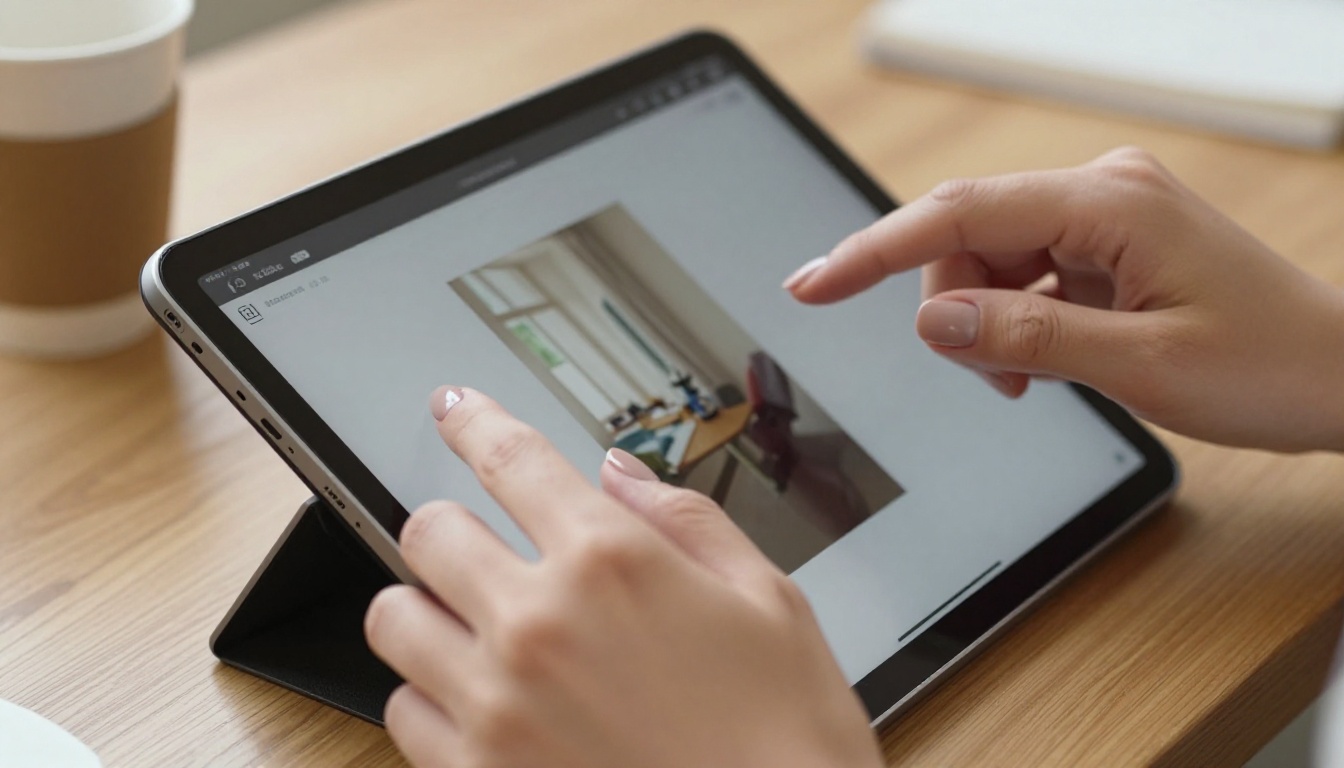
Inpainting is a targeted image editing technique. You mark (or "mask") a specific region of an existing image, write a text prompt describing what should appear there, and the AI regenerates only that area while keeping the rest intact.
Think of it as Photoshop's generative fill, but powered by a full diffusion model trained on vast datasets. The AI doesn't just blend pixels. It understands context: lighting conditions, skin tone, clothing style, and background depth. When done well, you can't tell where the original ended and the AI fill began.
Inpainting vs. Outpainting
These two are related but serve opposite purposes:
| Feature | What It Does | Best For |
|---|
| Inpainting | Fills or replaces a masked region inside the image | Fixing details, swapping elements |
| Outpainting | Extends the image beyond its original edges | Wider scenes, expanding context |
Both are available in PicassoIA's suite of tools. For NSFW content creation, inpainting is typically more useful because you're refining existing work rather than building from a blank canvas.
Why It Matters for NSFW Content
Standard text-to-image generation for adult content is a numbers game. You prompt, generate, discard, repeat. With a strong inpainting workflow, you cut that waste dramatically. You keep what works, fix what doesn't, and iterate with precision.
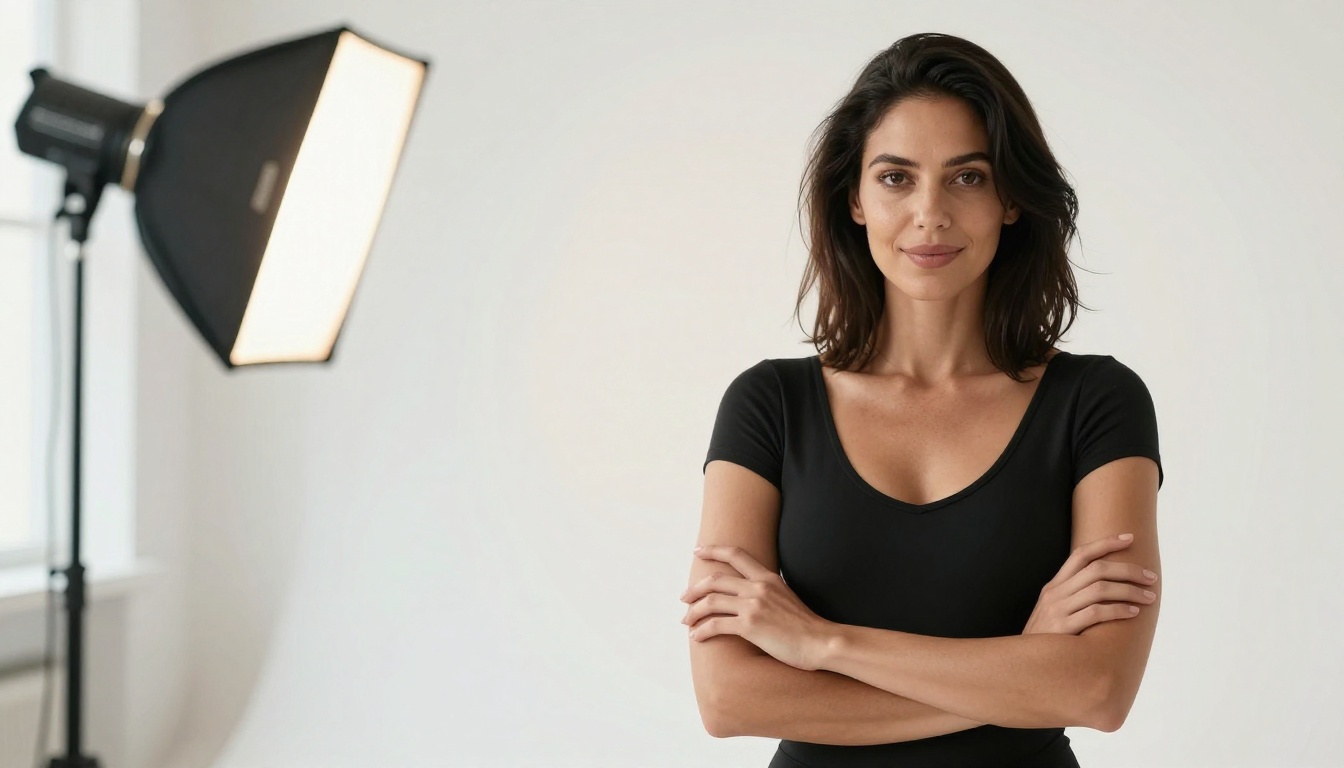
The real value shows in portrait refinement. Correcting minor anatomy issues, adjusting clothing fit, or perfecting the lighting on skin textures are all tasks that inpainting handles far better than full regeneration.
💡 Pro Tip: Use inpainting with a low denoising strength (0.4-0.6) when you want subtle corrections. Higher values (0.7-0.9) work better when you're replacing something entirely.
The Best Models for NSFW Inpainting
Not all models handle inpainting equally. The architecture, training data, and finetuning all affect how well a model blends its fill with the surrounding image. Here are the top performers available on PicassoIA.
Flux Kontext Pro and Max
Flux Kontext Pro is built specifically for text-based image editing, making it the most capable option for inpainting tasks on the platform. Unlike standard generation models, Kontext understands the existing image as context, not just a starting point. This results in fills that respect lighting, skin tone, and texture with far more accuracy.
Flux Kontext Max takes this further with premium quality generation. If you're working on high-resolution adult portraits where detail consistency is critical, Max is worth the extra compute.
Both Kontext models excel at:
- Clothing modifications without altering body shape
- Face and hair refinements with context-aware fills
- Background swaps that match the subject's existing lighting
Flux Dev for Flexible Inpainting
Flux Dev is the open-weight workhorse of the Flux family. It offers high creative flexibility with strong prompt adherence. For NSFW inpainting, Flux Dev is particularly effective when you want the AI to interpret your prompt somewhat freely within the masked region.
Its sibling Flux 1.1 Pro adds more refined output quality, making it a solid middle ground between speed and detail. For the highest fidelity results, Flux 1.1 Pro Ultra delivers near-photographic output that holds up well across inpainting masks of all sizes.
SDXL-Based Models
SDXL by Stability AI remains one of the most widely used models for NSFW content due to its large body of community finetuning and strong photorealistic output. Its inpainting pipeline is well-established, predictable, and forgiving with prompt phrasing.
For more precise structural control, SDXL Multi ControlNet LoRA adds pose and composition guidance on top of inpainting. This is useful when you need the filled region to conform to a specific pose rather than being generated freely.
SDXL ControlNet LoRA offers a more streamlined version of this same workflow, with fewer parameters to configure.
Realistic Vision v5.1
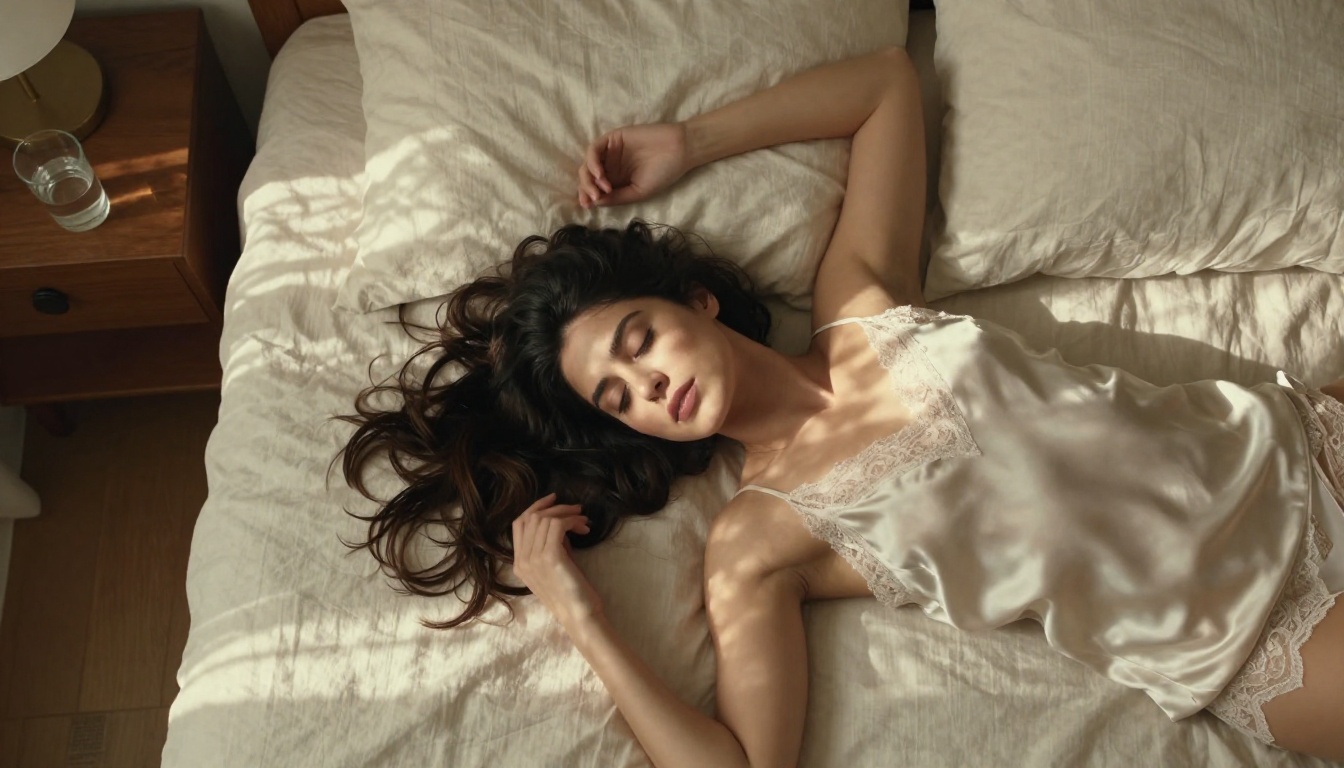
Realistic Vision v5.1 is a finetuned model built specifically for photorealistic human subjects. It's one of the most popular NSFW-capable models in the broader diffusion ecosystem. When inpainting portraits, it excels at skin texture consistency and natural facial detail. If your primary use case is adult portraiture rather than general scene editing, this model deserves a first look.
RealVisXL for High-Resolution Work
RealVisXL v3.0 Turbo brings SDXL-level realism with faster generation speeds. The Turbo variant is particularly practical when you're doing iterative inpainting work because you're not waiting long between each adjustment. For detailed close-up work on skin, hair, and fabric textures, RealVisXL delivers very consistent results.
How to Use Inpainting on PicassoIA
Step 1: Generate Your Base Image
Start with any text-to-image model to create your initial image. For portraits, Flux 2 Pro or Stable Diffusion 3.5 Large are strong starting points. Be deliberate with your initial prompt because the better the base, the less inpainting you'll need.
Step 2: Select Your Inpainting Model
Switch to an inpainting-capable model. Flux Kontext Pro is the recommended choice for most use cases because it reads the existing image as context rather than treating it as a simple input.
Step 3: Draw Your Mask
Paint the mask over only the area you want to change. A tight, precise mask produces cleaner fills because the model has less uncertainty about what surrounds the fill region.
Common masking strategies:
- Soft edge masks for skin and hair (natural blending)
- Hard edge masks for clothing, objects, and backgrounds
- Small spot masks for targeted detail fixes like hands or faces
Step 4: Write Your Inpainting Prompt
Your prompt should describe what you want in the masked area specifically. You don't need to describe the whole image again. If you masked the background, describe just the background. If you masked clothing, describe the clothing.
💡 Prompt Tip: Include lighting context in your inpainting prompt. "Soft natural window light from left" tells the model how the new fill should match the existing illumination.
Step 5: Adjust Strength and Generate
Denoising strength controls how much the AI departs from the original masked area:
| Strength | Effect | Use When |
|---|
| 0.3 - 0.5 | Subtle adjustment | Minor corrections |
| 0.5 - 0.7 | Moderate rework | Clothing, details |
| 0.7 - 0.9 | Major replacement | Backgrounds, objects |
Tips for Sharper Results
- Match your style prompt to the base image: If the base was generated with Flux prompting style, keep the inpainting prompt consistent.
- Use p-image-edit for fast multi-image editing workflows when you're processing several images with similar fixes.
- Always zoom in on the mask boundary before generating. Gaps or rough edges in the mask show up clearly in the output.
- Save versions as you go: Inpainting is iterative. Keep your best intermediate results before continuing.
Common Inpainting Use Cases
Fixing Awkward Details
AI image generators still produce anatomical issues, especially with hands, fingers, and complex poses. Inpainting is the standard fix. Draw a tight mask over the problem area, keep your denoising strength in the 0.6-0.75 range, and generate a targeted correction. A single well-executed inpaint pass typically resolves most detail issues without disturbing the rest of the image.
Replacing Objects or Clothing
This is one of the most popular applications for NSFW inpainting. You generate an image with a character in one outfit, then use inpainting to try variations. Mask the clothing area precisely, write a specific prompt for the new item, and generate. Because the model sees the full image as context, skin tone and lighting are preserved automatically.
💡 Wardrobe Note: For clothing replacement, keep the mask slightly larger than the garment edge. This gives the model room to match how the clothing edge meets the skin naturally.
Background Swaps
Generated backgrounds sometimes don't match the mood or setting you want. Rather than regenerating the full image, mask the background and describe the environment you want. This approach works especially well with Flux Kontext Pro because it maintains subject lighting coherence across the swap.
Effective background replacement prompts tend to be specific: "warm interior with brick walls and soft amber lighting" performs better than "nice room."
Object Removal and Restoration
Sometimes you want to remove something from the frame entirely. A watermark, a distracting prop, an artifact from the generation. Mask the object and prompt with the surrounding context: "smooth wooden floor, natural light, no objects." The model fills the area with what logically belongs there.
This also works for AI image restoration tasks, where generated artifacts or noise need to be cleaned up in a targeted region without affecting the rest of the image.
Comparing Top Inpainting Models
Inpainting doesn't exist in isolation. The best results come from combining it with other AI tools in a deliberate workflow.
ControlNet for Pose Control
SDXL Multi ControlNet LoRA lets you lock in structural elements like pose, edge maps, and composition while still using inpainting for detail work. If you've ever lost a good pose during a full regeneration, ControlNet solves that problem. You keep the structure and change only what needs changing.
This is especially powerful for NSFW content where maintaining specific body positions across edits would otherwise require redoing the entire image.
Super Resolution After Inpainting
Once you've finished inpainting, run the result through a super resolution model. Inpainting sometimes reduces sharpness slightly at the mask boundary, and upscaling with AI fixes this while adding detail across the entire image. PicassoIA offers multiple super resolution options that work well as the final step in any inpainting pipeline.
Outpainting for Scene Extension
After perfecting a portrait with inpainting, outpainting lets you expand the canvas. Add a wider room, extend a landscape, or reveal more of the environment around the subject. Flux 1.1 Pro Ultra handles outpainting with high coherence, making extended areas feel continuous with the original.
The typical workflow: generate base image, inpaint to fix details, outpaint to expand the scene, then super resolution for the final output.
Start Creating on PicassoIA
The tools discussed above are all available on PicassoIA's platform. If you haven't used inpainting before, start simple: generate any image with Flux Dev or Realistic Vision v5.1, then use Flux Kontext Pro to make a single targeted change. Even one inpainting pass will show you immediately how much more control you have compared to full regeneration.
For adult content creators, the combination of high-quality base generation and precise inpainting is the workflow that separates polished outputs from rough drafts. The models are there. The platform is ready.
Pick your starting model, generate something you're 70% happy with, and let inpainting finish the job.


