The Best Prompt Structure for Video AI That Actually Works
Writing prompts for video AI is nothing like writing prompts for images. The wrong structure wastes credits and produces flat, inconsistent results. This article breaks down the exact prompt anatomy that works across every major text-to-video model in 2027, with real examples, motion tips, camera angles, and the most common mistakes to avoid.
Writing a good video AI prompt is not the same as writing a good image prompt. The gap between those two disciplines is massive, and most people figure that out the hard way after burning through credits on flat, lifeless clips that look nothing like what they imagined. The reality is that video AI responds to structure, and once you know that structure, your results shift dramatically.
Why Video Prompts Fail Without Structure
Image prompts can get away with being vague. Drop in a few adjectives and a subject, and the model fills in the gaps with something visually coherent. Video models can't do that cleanly. They're interpreting movement, duration, lighting continuity, and scene physics simultaneously. A vague prompt gives the model too much creative freedom, and the result is almost always generic.
The most common failure modes:
Subject drift: the character changes appearance mid-clip
Static shots: nothing actually moves in the video
Wrong pacing: action happens too fast or too slow
Lighting inconsistency: shadows jump or color grading shifts mid-clip
All of these trace back to the same root cause: the prompt didn't communicate enough.
💡 Quick rule: if your prompt would make a good image caption, it's too short for video AI. Video needs motion, time, and camera language.
The 7-Part Prompt Framework
There is one structure that consistently outperforms random prompting across models like Kling v2.6, Veo 3, Wan 2.7 T2V, and Sora 2. It has seven parts, and each one fills a specific job.
Part 1: Subject and Action
Start with who or what is in the frame and what they are doing. Be specific. Don't say "a woman walking." Say "a woman in her early 30s with dark hair, wearing a beige linen coat, walking slowly through autumn leaves."
The action should be continuous and simple. Video AI models handle looping or progressively developing motion better than complex multi-step sequences. Stick to one clear primary action per clip.
Part 2: Scene and Environment
Describe where the action is happening with enough physical detail that the model can render consistent background elements. Include:
Location type: city street, forest path, indoor studio, beach
Time of day: golden hour, midday sun, overcast afternoon, blue hour
Weather or atmosphere: light fog, clear sky, soft rain, wind in trees
Example: "on a cobblestone street in a European old town, late afternoon, warm golden light casting long shadows on the stone pavement."
Part 3: Camera Angle and Shot Type
This is the part most beginners skip entirely, and it's where the most quality is left on the table. Specifying shot type forces the model to commit to a framing decision instead of defaulting to a static medium shot.
Shot Type
What It Does
Wide shot
Establishes location, shows full environment
Medium shot
Shows subject from waist up, good for dialogue
Close-up
Captures emotion, texture, fine detail
Low angle
Makes subject look powerful, dominant
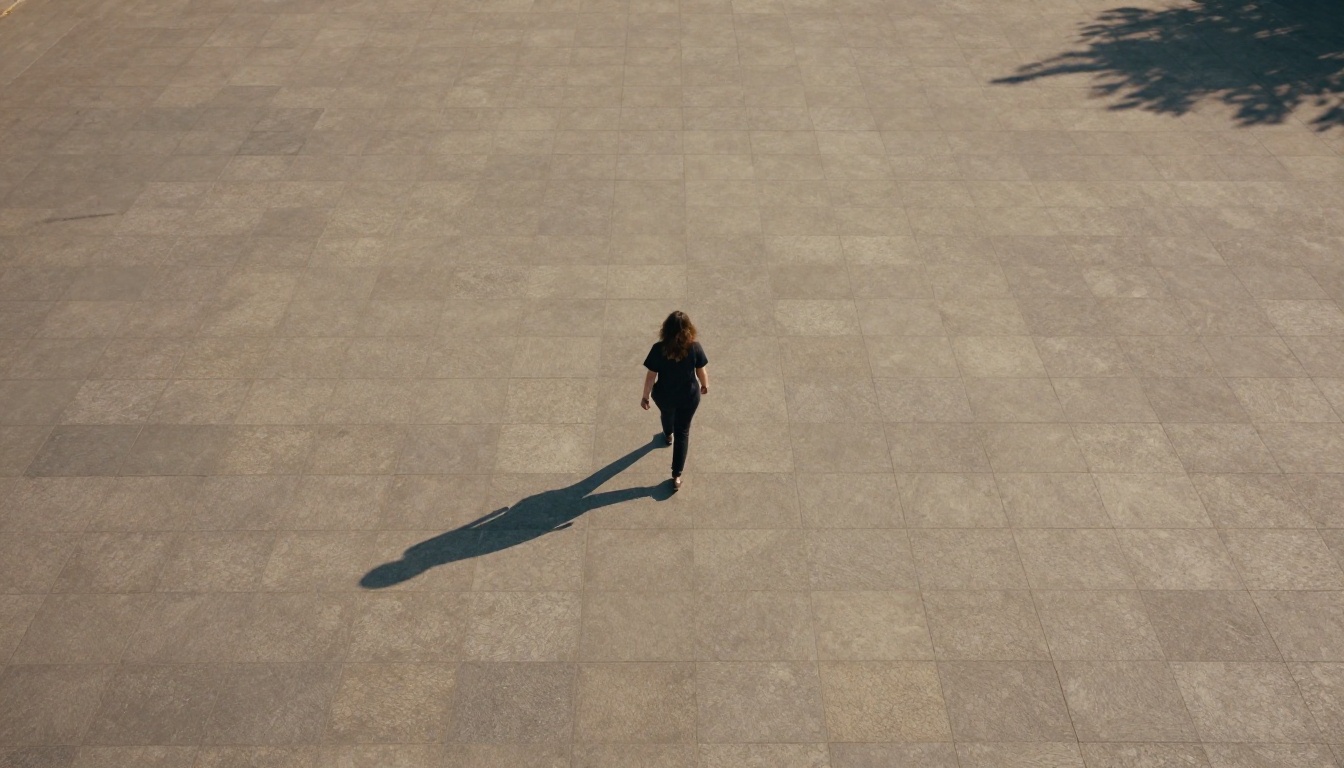
Bird's eye view
Dramatic overhead perspective
Tracking shot
Camera follows subject's movement
Dolly zoom
Classic cinematic zoom effect
💡 Pro tip: Models like Kling v3 Video and Seedance 1.5 Pro respond very well to explicit camera movement language. Use "slow dolly push in" or "orbiting camera from left" for cinematic motion.
Part 4: Lighting Specification
Lighting shapes mood faster than anything else in a video. AI models are responsive to lighting descriptors and will apply them more consistently when they appear early in the prompt.
These are the most reliable lighting terms for text-to-video prompts:
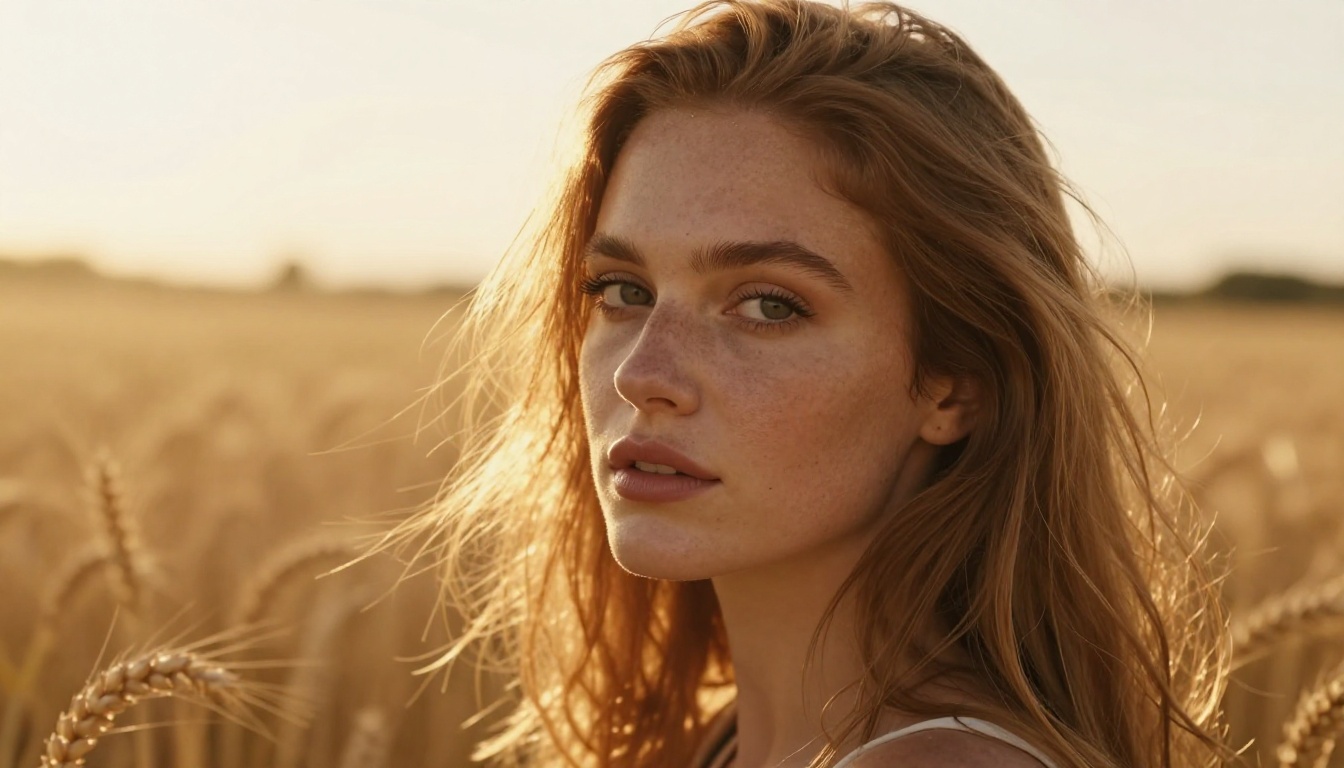
Golden hour light: warm, horizontal sun rays, long shadows
Overcast diffused light: soft, shadowless, even tones
Rim lighting: backlit edge definition separating subject from background
Volumetric light: beams of light through atmosphere (mist, dust)
Practical lighting: light sources visible in frame (lamps, candles, screens)
Avoid vague terms like "good lighting" or "bright." They communicate nothing to the model.
Part 5: Motion and Pace
This is the element that separates a cinematic clip from a slideshow. Motion descriptors tell the model how things in the scene should move over time, and how quickly.
Slow and deliberate: "hair moves gently in the breeze, leaves drift downward"
Dynamic and urgent: "camera pushes in fast, subject turns sharply"
Ambient and subtle: "steam rises from the coffee cup, bokeh lights pulse softly"
Models like LTX 2 Pro and Pixverse v5 handle motion pacing well when you describe it explicitly. If you want slow-motion, say so. If you want real-time, clarify that too.
Part 6: Style and Aesthetic
Style descriptors define the visual language of the clip. For photorealistic results, use cinematic photography language:
"35mm film grain, Kodak Portra 400 color grading"
"RAW photography style, natural color palette"
"cinematic anamorphic lens, slight lens flare"
"documentary handheld style, slight camera shake"
For a more stylized output, you can specify:
"vintage 1970s color grading, warm faded tones"
"high contrast black and white, sharp shadows"
"soft matte finish, pastel color palette"
💡 Important: Avoid style terms that suggest illustration, animation, or digital art. Models like Hailuo 02 and Veo 3.1 will interpret photographic descriptors correctly for realistic outputs.
Part 7: Negative Constraints
This is optional but powerful. At the end of your prompt, add what you don't want. This prevents the model from defaulting to common visual clichés.
Examples of negative constraints:
"no text overlays"
"no sudden cuts"
"avoid camera shake"
"no cartoonish features"
"no watermarks"
Putting It All Together
Here's what a complete structured prompt looks like versus an unstructured one:
Weak prompt:
"A woman walking in a city at night"
Structured prompt:
"A woman in her late 20s with auburn hair, wearing a camel trench coat, walks slowly along a rain-wet city sidewalk at night, reflected neon signs shimmering in puddles, medium tracking shot from the side, camera moves at the same pace as the subject, warm practical light from storefronts, steam rising from a grate near her feet, cinematic 35mm film look, shallow depth of field, no camera shake, no text"
The second prompt is 80 words. The first is 10. That difference shows up directly in the quality of the output.
Prompt Length: How Long Is Too Long?
A common worry is that longer prompts will confuse the model. In practice, the opposite is more often true. Most video AI models have been trained on detailed captions, so richer descriptions give them more to work with.
The sweet spot for most models sits between 70 and 120 words. Below 40 words and you're underspecifying. Above 200 and you may start to see the model ignore some constraints.
3 Mistakes That Kill Video Output Quality
Mistake 1: Describing the End State, Not the Motion
Most people describe what the scene looks like rather than what is happening. Video AI needs action verbs and temporal language.
Wrong: "a sunset over the ocean"
Right: "the sun slowly descends toward the horizon, casting an expanding orange glow across calm ocean water, gentle waves rolling toward the shore"
Mistake 2: Stacking Conflicting Styles
Asking for "cinematic and animated, fantasy and documentary" in the same prompt pulls the model in too many directions. Pick one visual register and stick with it throughout.
Mistake 3: No Camera Information
Skipping the shot type and camera movement leaves the model to improvise. Improvised camera work almost always defaults to a static medium shot. Always specify camera behavior.
💡 Quick fix: add one camera term and one motion descriptor to every prompt, even minimal ones. "Close-up, slow zoom out" is better than nothing.
How Temporal Consistency Works in Prompts
Temporal consistency means that the subject, lighting, and scene stay stable across the duration of the clip. Some models handle this better than others, but every model benefits from prompts that reinforce it.
Tactics for better consistency:
Describe the subject once, completely. Don't let the model guess details.
Anchor the lighting to a source. "window light from the left" is more stable than "natural light."
Avoid rapid changes. If the prompt implies multiple sequential events, the model may try to compress them and fail.
Use duration cues. Phrases like "throughout the clip" or "continuously" signal that a state should persist.
Prompting for Different Video Styles
Not all video prompts serve the same purpose. The structure adapts depending on what you're making.
For Cinematic Short Films
Focus on: rich environmental description, mood-defining lighting, specific lens language, slow deliberate motion.
Example: "close-up of a woman's face, eyes closed, soft morning light through white curtains, the shadow of tree branches moving across her skin, 85mm portrait lens, shallow depth of field, Kodak Portra warmth, absolute stillness broken only by her breathing"
For Social Media Clips
Focus on: an immediate visual hook in the first second, dynamic camera movement, high energy pacing.
Example: "fast tracking shot following a woman running barefoot across a white sand beach at sunrise, camera at knee height, spray of sand and sea foam catching the light, warm golden backlight, high energy pace, shallow depth of field on her feet"
For Product or Brand Video
Focus on: clean backgrounds, deliberate product framing, controlled lighting.
Example: "close-up of a glass perfume bottle on a white marble surface, studio softbox light from above and left, slow rotation of the bottle revealing intricate design, water droplets on the glass catching the light, macro lens 100mm, photorealistic product photography style"
How to Use Wan 2.7 T2V on PicassoIA
Wan 2.7 T2V is one of the strongest text-to-video models available, producing 1080p output with solid temporal consistency. Here's how to use it effectively:
Step 2: Write your prompt using the 7-part framework above. For Wan 2.7, the sweet spot is 70-120 words with clear subject, motion, and lighting descriptors.
Step 3: Set your duration. Wan 2.7 supports clips up to around 10 seconds. For complex prompts, shorter clips of 4-6 seconds produce more consistent results.
Step 4: Run a test generation with a simplified version of your prompt first. This lets you verify that the core elements (subject, motion, environment) are rendering correctly before committing to a longer, more detailed generation.
Step 5: If the result drifts from your intent, isolate which part of the prompt is being ignored and move it earlier in the text. Models tend to weight the beginning of prompts more heavily.
💡 Wan 2.7 tip: This model handles lighting descriptors especially well. Detailed lighting language covering direction, color temperature, and softness produces noticeably better results compared to most other models.
The Prompt Template You Can Copy
Here's a fill-in-the-blank template that works across most video AI models:
[Subject: age, appearance, clothing, expression] [Action verb + motion detail], [Environment: location, time of day, weather], [Shot type] [Camera movement], [Lighting: source, direction, quality, color], [Motion detail: ambient elements, pacing], [Style: film look, depth of field], [Negative constraints]
Filled example:
A woman in her mid-30s with silver-streaked hair, wearing a gray cashmere turtleneck, slowly stirs a cup of coffee while gazing out of a floor-to-ceiling window, in a minimalist apartment on a gray rainy morning, medium shot with very slight handheld drift, soft overcast window light from the right casting subtle shadows, steam rising gently from the cup, rain drops running down the glass behind her, cinematic 50mm film look, shallow depth of field on her hands, no music overlays, no text
That prompt is 94 words and covers all seven parts. Use it as your baseline.
Start Creating Now
The only way to get sharper at prompting video AI is repetition. Take the template above, fill it in with your own subject and scene, and run it on any of the models available, including Kling v2.6, Veo 3.1, Wan 2.7 T2V, LTX 2 Pro, or Seedance 1.5 Pro.
Each model has its own personality, and spending a few generations on each teaches you more than any written tutorial can. Run a prompt. Adjust one element. Run it again. This iterative approach compounds fast, and within a few sessions you'll have a prompt style that reliably produces the output you're after.
PicassoIA gives you access to over 100 text-to-video models in one place. That breadth means you can test the same prompt across multiple models in minutes and see exactly how each one interprets your instructions differently. It's the fastest feedback loop available for sharpening your video AI prompting skills.