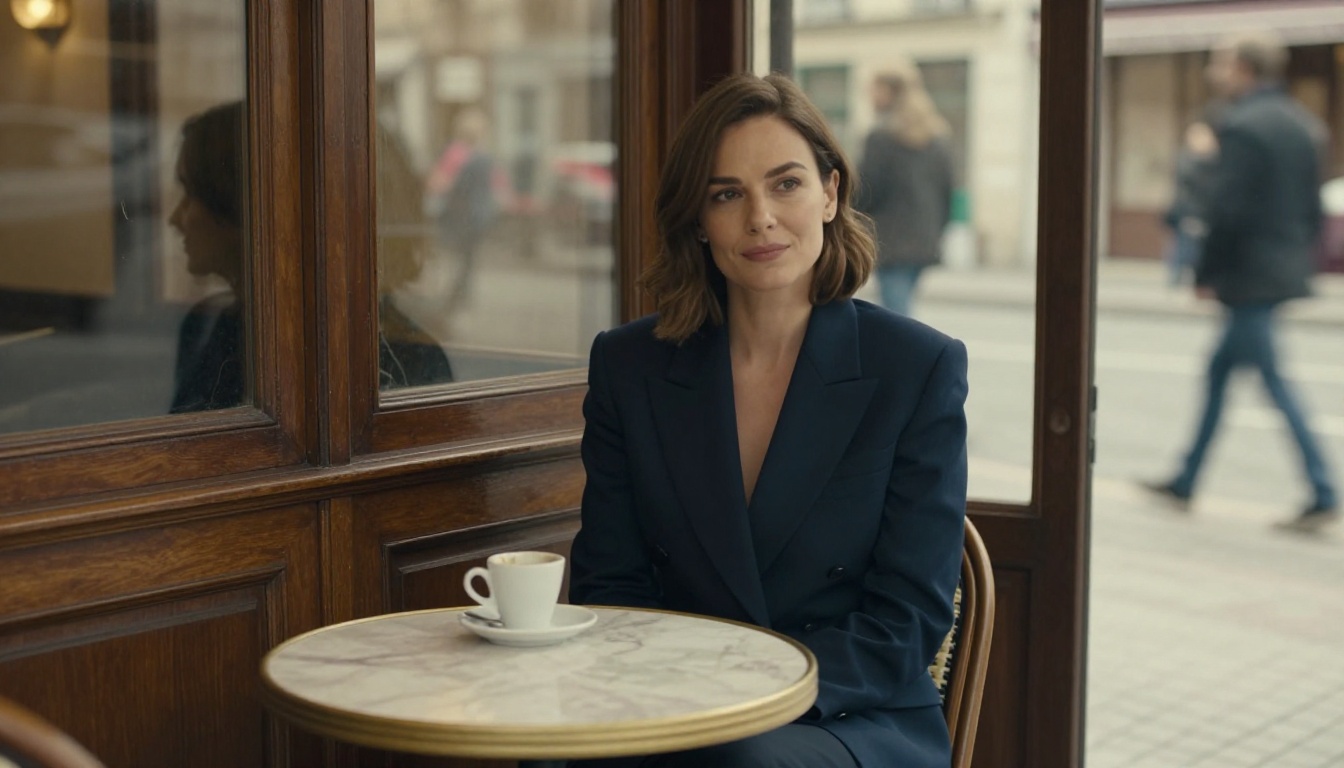
If you've been burned by AI images that look like plastic mannequins with airbrushed skin, you know exactly what's missing: realism. The texture of a pore. The slight asymmetry in a real face. A strand of hair catching light in a way that makes your brain say "that's a photograph." The best uncensored AI tools for real-looking photos in 2027 have gotten shockingly close to that standard, and this article breaks down exactly which models hit the mark and how to use them.
What "Real-Looking" Actually Means
Most people assume the hardest part of photorealistic AI is "making it not look like AI." That's half right. The actual challenge is layered across multiple dimensions, from micro-texture to macro-composition.
The Plastic Skin Problem
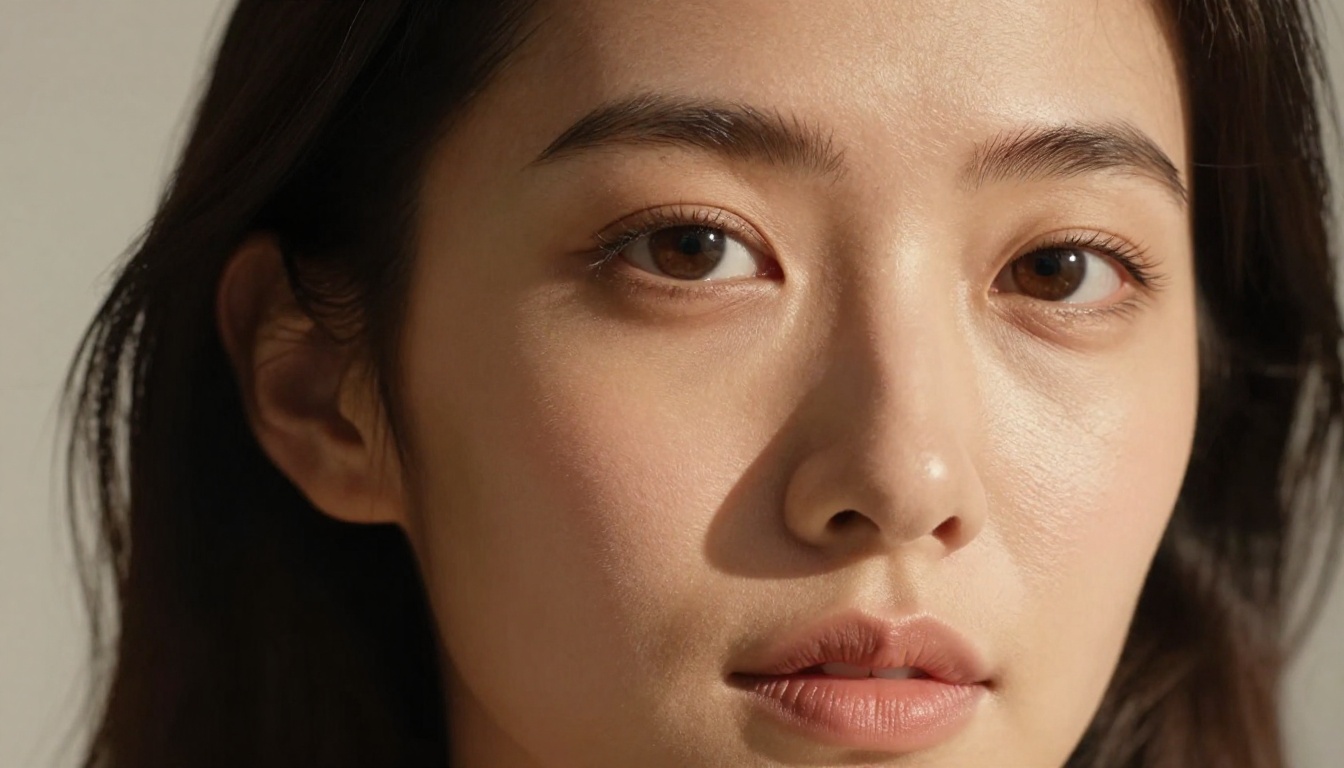
The most common tell in AI-generated photos is skin that behaves like polished vinyl. Perfect, pore-free, uniformly lit, with zero subsurface scattering variation. Real human skin has:
- Micro-texture: Pores, fine hair, sebum variation, subtle redness in certain areas
- Subsurface scattering: Light that partially passes through skin and bounces back slightly warmer
- Imperfections: A freckle here, a small scar there, natural asymmetry across the face
- Shadow variation: Soft, graduated shadows that follow bone structure, not a uniform flat tone
When AI skips these details, the result looks "clean but fake." The best uncensored AI generators attack this head-on with models trained specifically on photographic datasets rather than illustrated or stylized content.
Three Signs an Image Is Not Real
Before you pick a model, train your eye. These are the red flags:
- Over-smooth backgrounds: Real photos have environmental texture, dust motes, natural blur falloff, not a clean painted-looking bokeh.
- Perfect lighting symmetry: Real studio shots have deliberate imperfections. Natural-light shots have harsh transitions and competing light sources.
- Teeth and eyes that "glow": Real eyes have a single, specific catch light. Real teeth have slight color variation and shadow.
Knowing these flaws helps you prompt against them.
Top Models for Photorealistic Output
Not all text-to-image models are built equal. These are the ones that consistently produce images that fool the eye.
Flux Krea Dev
Flux Krea Dev is the standout choice for images that don't carry the "AI look." Krea has fine-tuned the base FLUX architecture specifically to reduce the characteristic flatness and synthetic quality that plagues most image generators. The result is output with organic micro-detail, genuine film-like texture, and a quality that sits closer to high-end photography than digital illustration.
For portrait work, Flux Krea Dev handles skin tone transitions exceptionally well. When combined with camera-specific prompts (focal length, aperture, film stock), the output takes on the authentic quality of a RAW photograph from a professional shoot. This is the model to reach for when realism is the primary objective.
💡 Tip: Always include a specific film stock in your Flux Krea Dev prompts. "Kodak Portra 400 grain" adds a subtle organic texture that kills the synthetic look immediately.
Seedream 4.5
Seedream 4.5 from ByteDance generates images at 4K resolution by default, which matters a lot for realism. Low-resolution images hide detail; high resolution exposes every flaw and every authentic texture. Seedream 4.5 produces sharp, detailed output with strong composition intelligence, meaning it understands things like rule-of-thirds framing, natural pose variation, and environmental depth.
For full-body shots, beach scenes, and fashion-style imagery, this model consistently delivers results with plausible cloth physics and correct environmental lighting. It's also notably good at generating natural-looking backgrounds that don't feel artificially generated.
Riverflow 2.0 Refsr
Riverflow 2.0 Refsr is purpose-built for "true-to-life" output. Originally developed for product photography, its training on photographic reference images means it handles surface reflections, material textures, and lighting consistency exceptionally well. For beauty shots and portraits where skin and fabric texture are critical, this model produces a level of surface realism that's hard to match.
GPT Image 2
GPT Image 2 brings OpenAI's latest vision architecture to image generation. Its main strength is instruction-following accuracy, meaning if you describe a specific pose, lighting setup, or scene, it delivers with precision. For complex prompts that describe exact scenarios (specific time of day, multiple subjects, precise framing), GPT Image 2 tends to interpret and execute better than most competing models.
It's particularly strong at generating natural-looking environmental context around subjects, which is one of the areas where uncensored AI images often fall flat: the background looks painted while the subject looks photographed.
Skin Texture, Lighting, and Depth
Getting photorealism right is partly about model choice and partly about how you write your prompts. The same model can output a plastic-looking image or a genuinely stunning photograph, depending on how well the prompt is constructed.
Prompting for Real Skin
The single most effective technique for realistic skin in AI images is explicitly describing the imperfections you want. Counterintuitively, asking for "perfect skin" signals the model to smooth everything out. Instead:
- Use: "visible pore texture, subtle sun freckles, natural blush on cheekbones"
- Avoid: "flawless skin, perfect complexion, smooth"
- Always add lighting direction: "volumetric morning light from the upper left"
- Specify film stock: "Kodak Portra 400 film grain, slight chromatic aberration"
The prompt structure that consistently works:
[Subject + realistic skin descriptors] + [Specific environment] + [Lighting direction and quality] + [Camera specs: lens, aperture, film] + [Color grade] --ar 16:9 --style raw
💡 The Rule: Photorealism in AI images is achieved by adding specific detail, not by removing constraints. Every additional authentic detail you describe pushes the output closer to a photograph.
Lighting Setups That Work
Lighting is the single biggest differentiator between an AI image that looks like a photo and one that looks generated. These setups consistently produce real-looking results:
| Lighting Setup | Description | Best For |
|---|
| Rembrandt | One main light at 45 degrees, triangle of light under the eye on the shadow side | Close-up portraits, dramatic beauty shots |
| Golden Hour Backlight | Sun behind subject, hair halo and warm rim lighting | Outdoor, lifestyle, fashion |
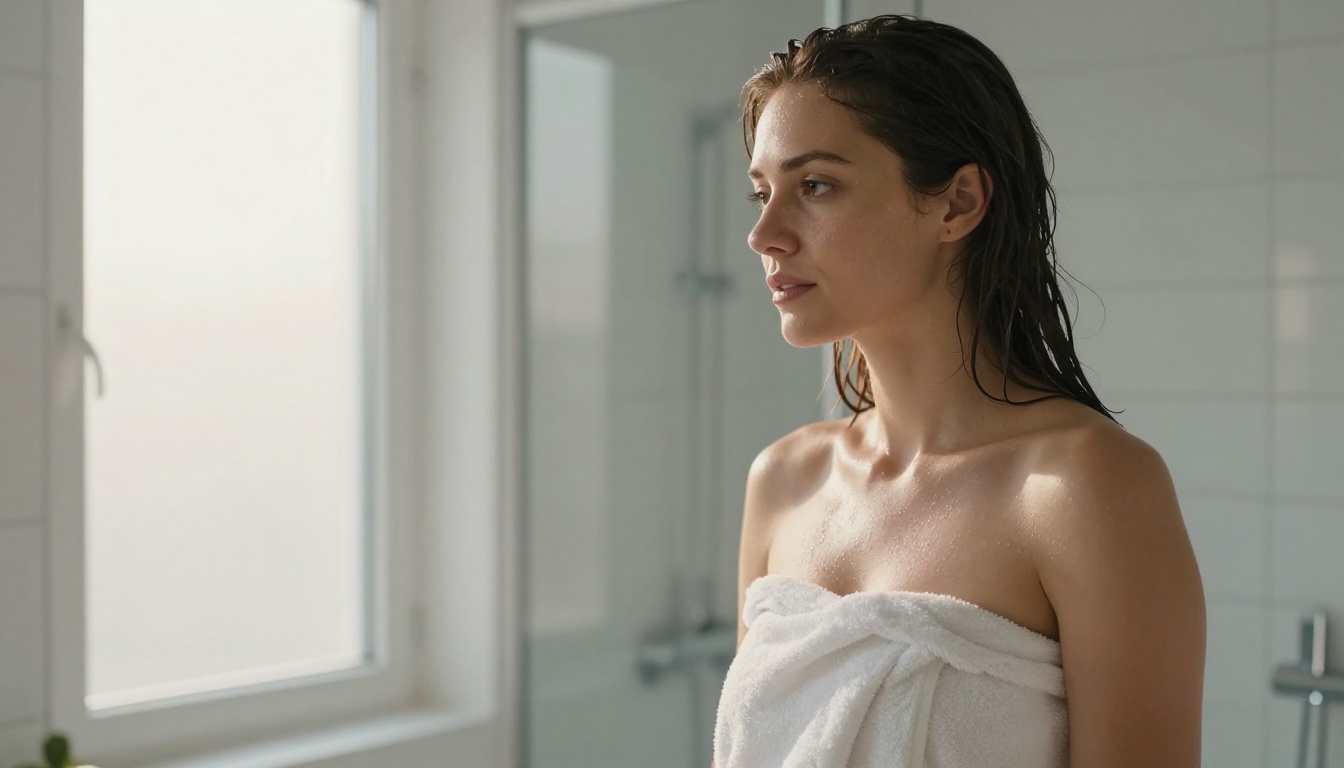
| Diffused Window | Soft, directional natural light from a large window to one side | Intimate, candid, boudoir-style |
| Studio Softbox | Large square or octagonal soft light, with fill reflector | Clean glamour, beauty, commercial |
| Overcast Outdoor | Even, diffused natural light with no harsh shadows | Portraits, lifestyle, natural beauty |
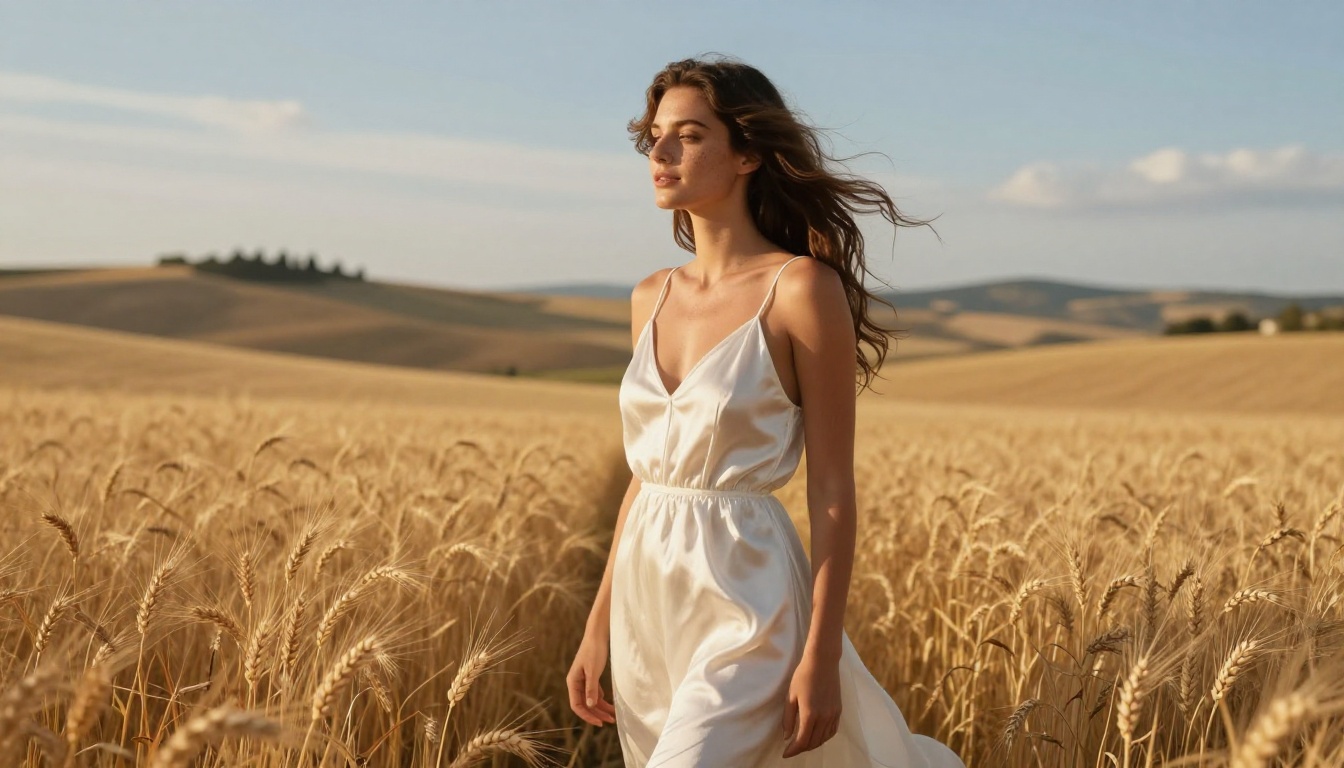
For uncensored AI photography specifically, the Golden Hour Backlight and Diffused Window setups produce the most authentic-feeling results because they mimic conditions that genuine photographers actively seek out.
Portraits, Glamour, and Suggestive Shots
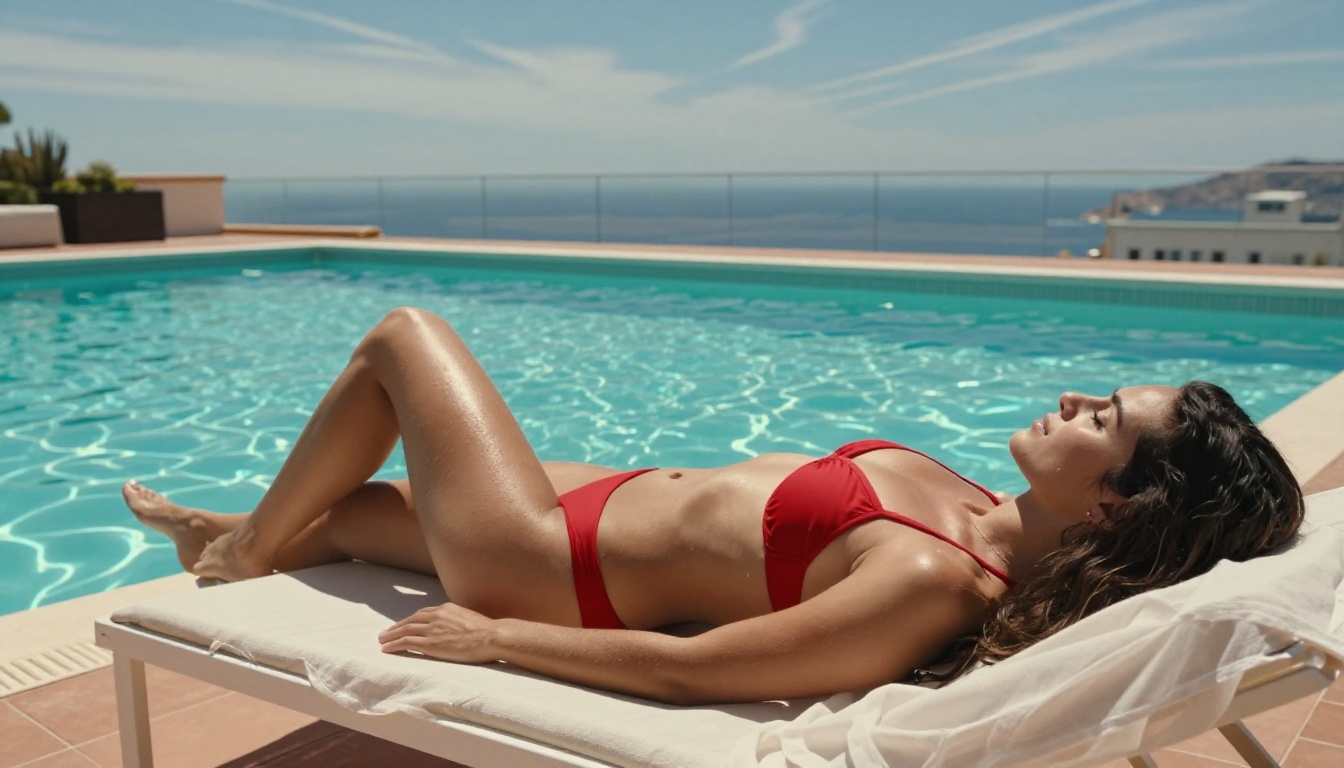
The most popular use case for uncensored AI is portrait and glamour photography: images that are beautiful, suggestive, and aesthetically rich without crossing into explicit territory. These are the AI images that get featured in art portfolios, used in creative projects, and generate the most attention on creative platforms.
The Right Models for Portrait Work
For tight portrait work (head and shoulders, beauty shots, close-up skin detail), Flux Krea Dev and Riverflow 2.0 Refsr are the leading choices. Both excel at facial anatomy accuracy and skin texture at high resolution.
For full-body glamour and lifestyle shots, Seedream 4.5 and Wan 2.7 Image Pro deliver stronger composition and environmental realism. The 4K default output means body proportions look natural and fabric textures have authentic weight and drape.
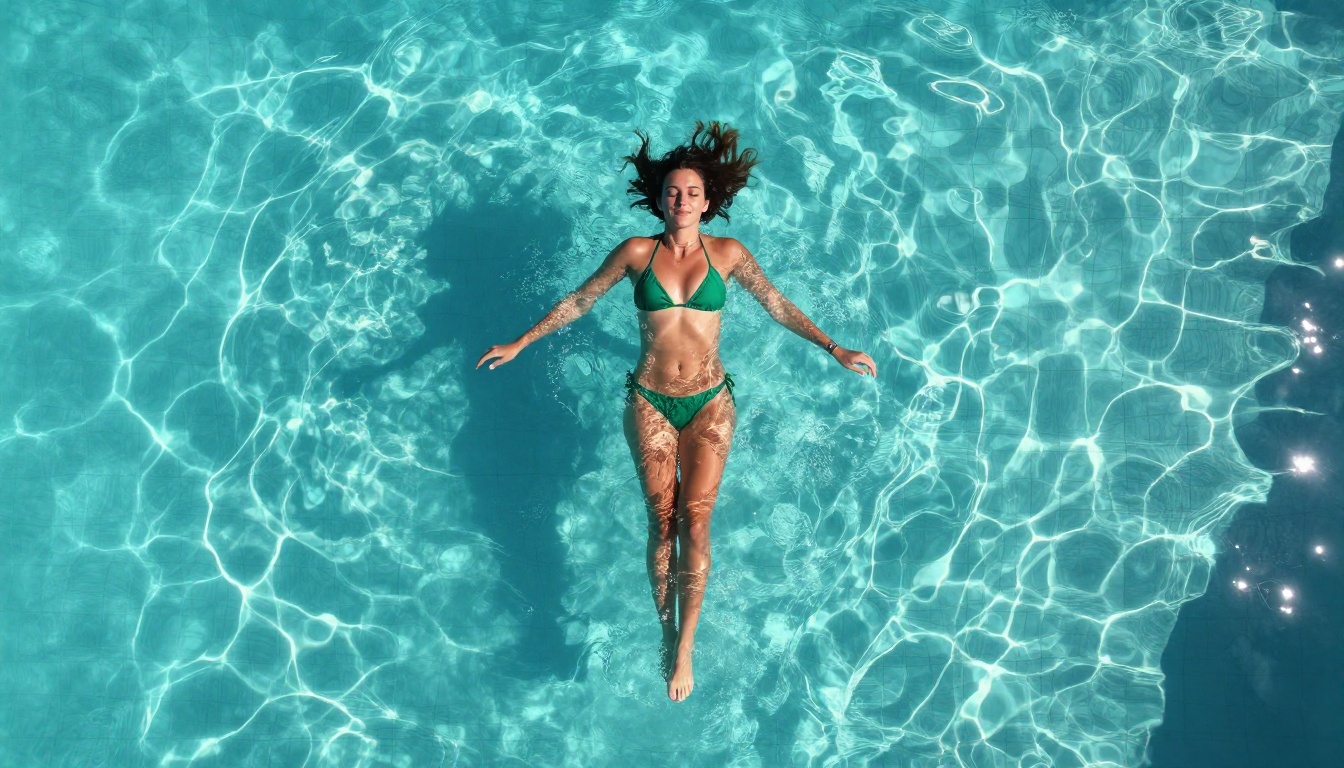
What Makes Glamour Shots Look Real
The difference between a glamour shot that looks like a magazine spread and one that looks AI-generated comes down to three elements:
1. Environmental Authenticity
The background can't look like a painted backdrop. Real glamour photography happens in real locations: hotel rooftops, villa pools, designer interiors. When prompting, describe the environment in as much detail as the subject. What are the walls made of? What's the light source? Is there ambient fill from a white marble floor?
2. Fabric and Material Physics
Silk has a different drape and reflectance than cotton. Lace has a specific translucency. When you specify materials in your prompt, the model has more information to work with and produces more believable clothing behavior.
3. Micro-Expression and Pose
The most realistic AI portraits have a pose that looks slightly unposed. Not a catalog-stiff upright stance, but a moment caught mid-movement: a slight turn of the head, fingers loosely draped, a gaze going to one side. Describe these micro-details in your prompt.
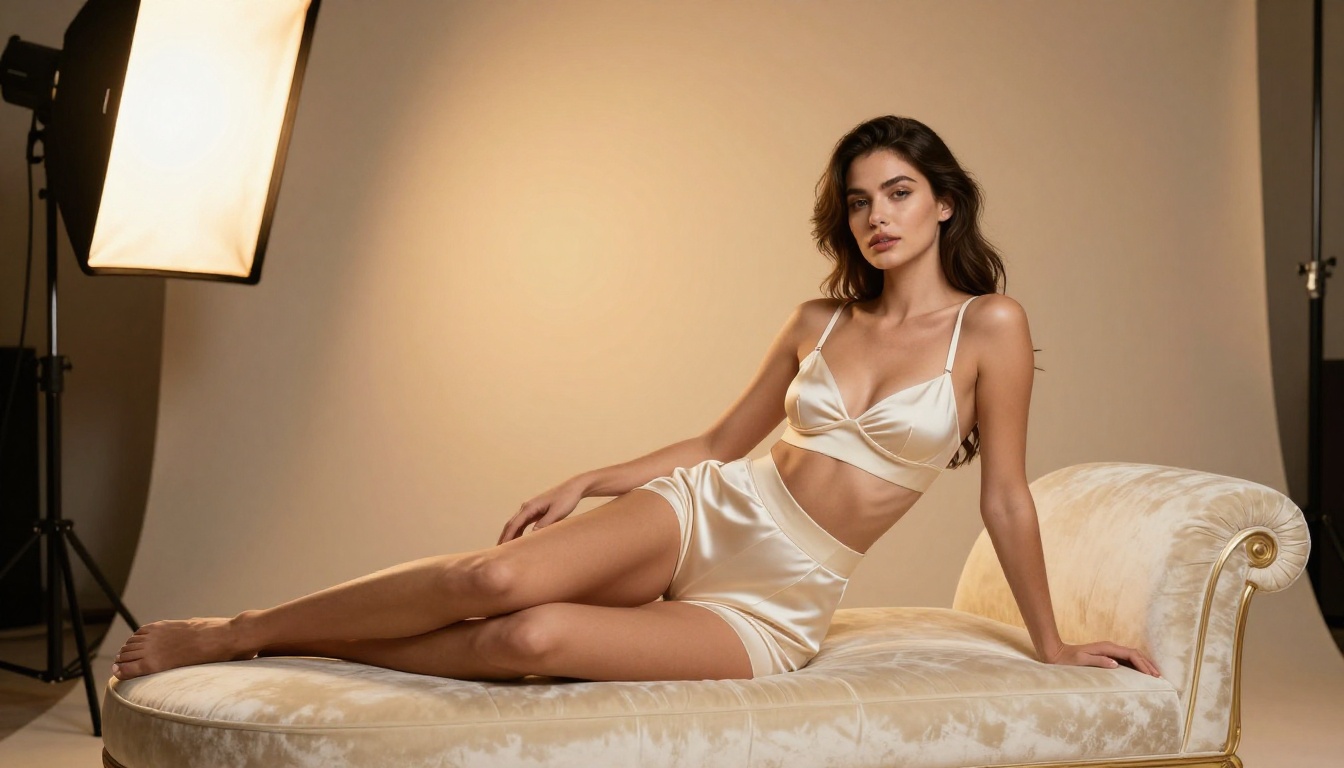
How to Use Flux Krea Dev on PicassoIA
Flux Krea Dev is one of the most powerful tools available for generating photorealistic images. Here's how to use it from start to finish.
Step 1: Open the Model
Navigate to the Flux Krea Dev page on PicassoIA. You'll see the prompt interface and parameter controls ready to go.
Step 2: Write a Detailed Prompt
The more specific, the better. Use this structure as a starting point:
[Subject description with realistic skin and clothing details], [specific environment with materials and colors], [lighting direction and quality], shot on [camera] with [lens] at [aperture], [film stock], [color grade] --ar 16:9 --style raw
Example for a portrait:
"Beautiful woman with visible skin texture, freckles on cheekbones, natural auburn hair, sitting in a white linen shirt on a sunlit balcony in Santorini, morning side light from the left, 85mm f/1.4, Kodak Portra 400 film grain, warm muted color grade --ar 16:9 --style raw"
Step 3: Set the Aspect Ratio
For most glamour and portrait work, use 16:9 for a cinematic widescreen feel or 3:2 for a classic photography ratio. For social media portraits, switch to 9:16.
Step 4: Use Prompt Upsampling (Optional)
PicassoIA's Flux Krea Dev integration includes prompt upsampling, which automatically expands your prompt with additional photographic details. Toggle it on when you have a shorter or simpler prompt and want the model to fill in the details.
Step 5: Iterate on Results
The first output is a starting point. If the skin looks too smooth, add more texture descriptors. If the lighting is flat, be more specific about the light source direction and quality. Each generation costs minimal credits and teaches you exactly what the model responds to.
💡 Pro Setting: Run the same prompt 3-4 times with the same settings. Photorealistic outputs from Flux Krea Dev vary significantly between runs. The best image in a batch of four is usually noticeably better than the first one.
Side-by-Side: Which Model Wins?
Here's how the top models stack up across the criteria that matter for uncensored, real-looking AI photography:
The verdict: Flux Krea Dev is the top choice for portrait-focused, close-up realistic work. Seedream 4.5 wins on full-body composition and environmental realism. Riverflow 2.0 is unmatched for surface texture authenticity.
For most users generating uncensored glamour or portrait photography, the recommended workflow is:
- Use Flux Krea Dev for face and portrait-dominant images
- Use Seedream 4.5 for full-body, environment-heavy scenes
- Use Flux Fill Pro to edit and refine specific areas of any generated image
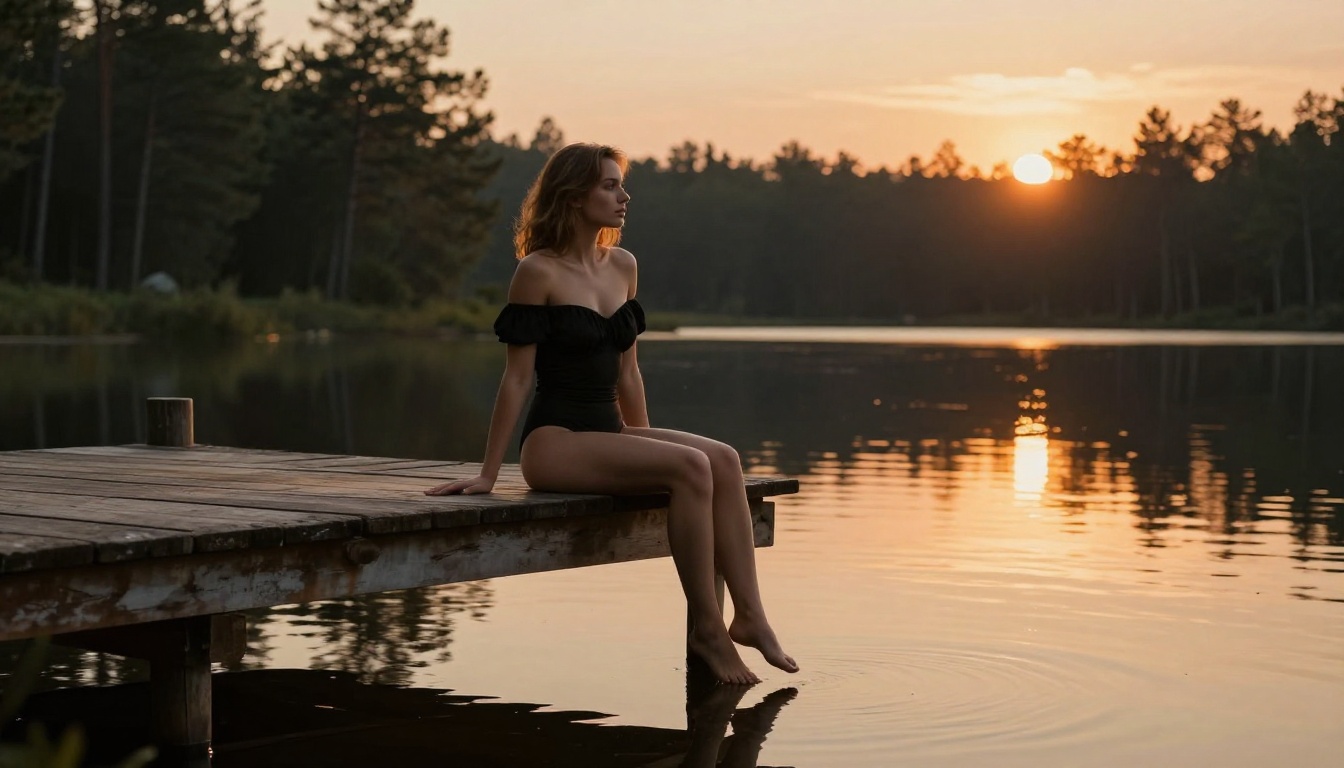
Beyond Portraits: Extending Your Creative Range
Once you've dialed in your portrait workflow, PicassoIA offers tools to take your AI photography further. Flux Fill Pro lets you inpaint or outpaint any generated image, so you can refine a photo's background, change clothing details, or extend a portrait to a wider crop without regenerating the entire image from scratch.
Flux Redux Schnell generates rapid variations of an existing image while preserving the subject's appearance. This is useful when you have a strong result and want to test different backgrounds, lighting moods, or outfits without changing the person entirely.
For adding high-resolution detail to generated images, the platform's super-resolution tools upscale output from 1K to 4K while adding authentic photographic sharpness, not the smeared quality typical of basic AI upscaling. The combination of generation, editing, and upscaling tools makes it possible to iterate a single image from rough first pass to polished, print-quality result entirely within PicassoIA.
Your First Real AI Image Starts Now
The gap between "looks AI-generated" and "looks like a real photograph" has narrowed to a matter of prompt craft and model selection. With Flux Krea Dev handling the organic texture work, Seedream 4.5 delivering 4K resolution by default, and Riverflow 2.0 bringing true-to-life surface realism, you have three distinct tools that each excel in different dimensions of photorealism.
The fastest way to improve your results: describe imperfections. Freckles, film grain, the specific direction of light, the exact lens aperture. Every specific detail you add is a vote for realism over synthetic output.
PicassoIA gives you access to all of these models in one place, with no downloads, no local hardware requirements, and no limit on creative experimentation. Head over to PicassoIA and try your first prompt. Start with Flux Krea Dev and a detailed portrait prompt using the structure from this article. You'll have a photorealistic AI image in under a minute, and you'll immediately see the difference that specific, photography-grounded prompting makes.