Ever tried to re-shoot an entire photo session just because the outfit was not right? That frustration is now optional. AI tools can change your outfit in photos with a level of photorealism that would have seemed impossible just two years ago, preserving body shape, lighting, skin tone, and background with striking accuracy.
This is not about slapping a filter on top. The technology behind AI outfit changes works at the pixel level, understanding fabric physics, shadow direction, and body contours to make the swap look like it was captured that way from the start. Whether you are a content creator, a fashion brand, a stylist, or someone who just wants to see themselves in a different look, the results now hold up to close inspection.
Why Changing Outfits in Photos Matters
The need is far from niche. Fashion brands photograph hundreds of looks per season. Influencers need outfit variety without spending entire days changing clothes and re-shooting. Models want to test different styles before committing to a shoot. Regular users want a professional-looking profile photo in multiple outfits without the cost of a photographer.
- E-commerce teams use it to show the same product on different body types from a single shoot.
- Content creators cut wardrobe costs by shooting once and generating outfit variations.
- Personal users experiment with new styles before buying clothes they may not end up wearing.
- Stylists preview looks on clients without physical fittings or sample requests.
- Photographers offer clients more deliverables without additional shooting time.
💡 Brands using AI wardrobe simulation report up to 60% reduction in re-shoot costs for product photography.
The technology is not replacing photography. It is making photography smarter and more adaptable.
How AI Actually Changes Clothes in a Photo
The core process uses a technique called inpainting, where the AI identifies a specific region of the image, your clothing, removes it cleanly, and regenerates that area with new content while maintaining coherence with everything around it.
Modern AI outfit-change models do this in three distinct steps:
- Segmentation: The AI detects and isolates the clothing area, separating it precisely from skin, hair, accessories, and background.
- Context reading: It analyzes lighting direction, shadow angles, surrounding colors, skin tones, and body contours to understand the visual environment.
- Regeneration: A diffusion model fills the selected area with a new garment that respects all the contextual data it just analyzed.
The result is not a pasted image. The new outfit has its own fabric shadows, light reflections, and natural wrinkles that match the original photo's conditions. When done well, there is no visible seam between the original photo and the regenerated clothing.
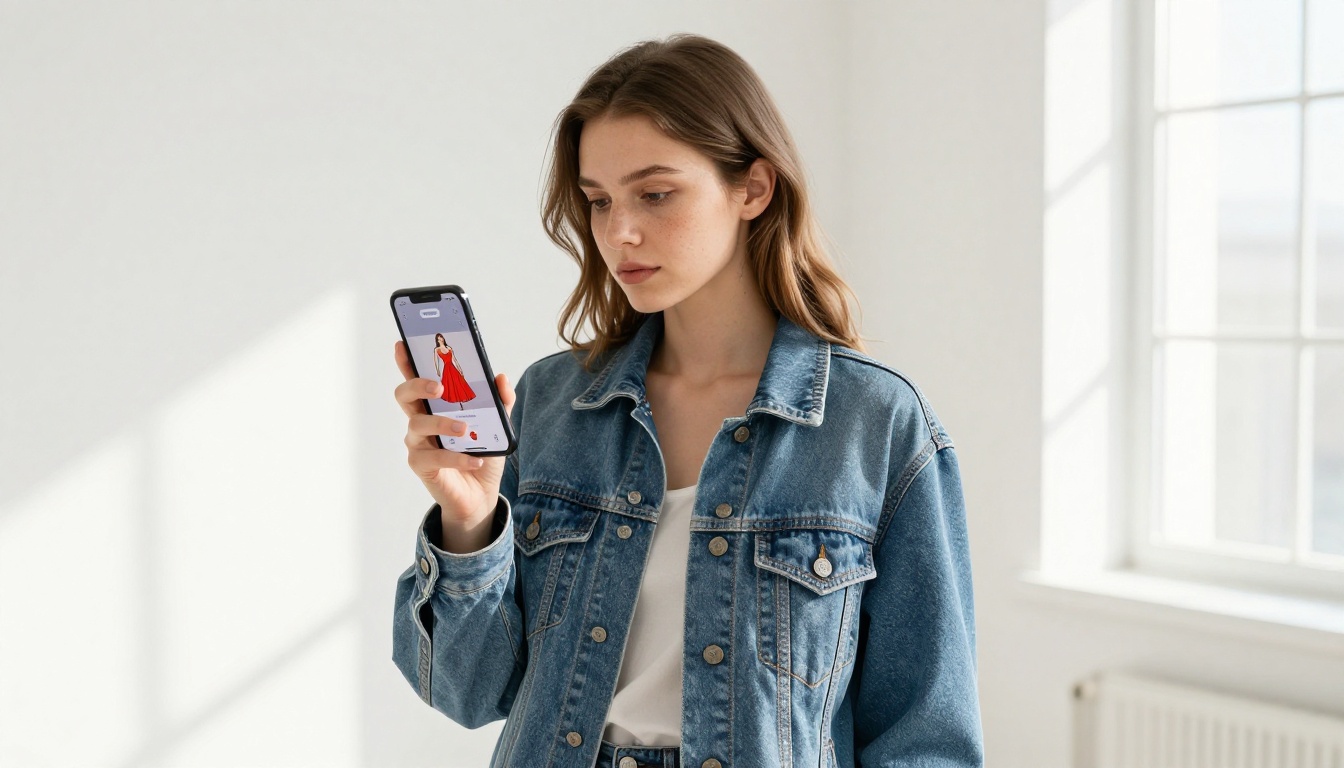
This is why the best AI outfit swap tools are built on powerful inpainting models. On PicassoIA, Fibo Edit handles this kind of targeted region editing precisely, letting you select any clothing area and replace it with text-based instructions while keeping everything else untouched.
What Types of Outfits AI Handles Best
Not all clothing changes are created equal. The AI performs differently depending on what you ask it to replace and how complex the garment is.
| Outfit Type | AI Performance | Notes |
|---|
| Simple dresses | Excellent | Clean silhouette, easy segmentation |
| Formal suits | Very Good | Sharp edges help context reading |
| Swimwear | Excellent | Minimal fabric complexity |
| Layered winter coats | Good | Multiple fabric layers can blur boundaries |
| Complex patterns | Moderate | Tartan, plaid, and intricate prints may approximate |
| Accessories only | Very Good | Hats, scarves, and belts respond well |
| Shoes | Good | Background interaction affects edge quality |
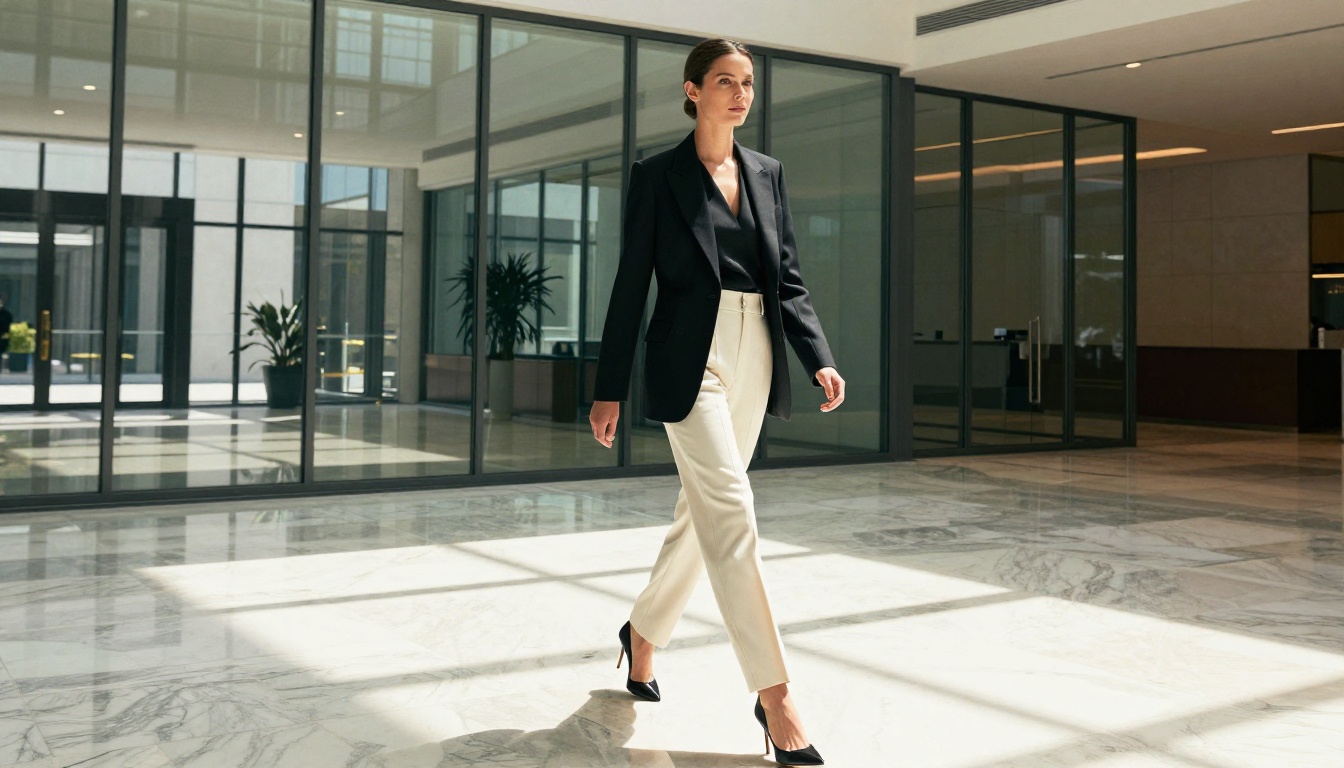
The best candidates for AI outfit changes are fitted garments with clear silhouettes. The AI thrives when body edges are obvious and the fabric does not hide behind other layers or blend into a similar-toned background.
Solid colors produce more reliable results than busy prints. If you need a specific pattern, describe it precisely in your prompt. Generic descriptions like "floral" will produce something plausible but not identical to a specific reference print.
The Role of Prompting in Outfit Quality
The biggest variable in how good your result looks is not the AI model. It is how you describe what you want.
Weak prompts produce weak results. Strong prompts produce photorealistic garments that look like they belong in the scene.
Weak prompt: red dress
Strong prompt: fitted sleeveless midi dress in matte crimson silk, with a subtle cowl neckline, natural wrinkles at the waist where the fabric gathers, shadow falling from the left consistent with the ambient lighting in the photo, tailored silhouette that follows the body closely
The difference is not cosmetic. The AI uses every descriptive word to calibrate fabric type, cut, color behavior under light, and how the garment sits on the body.
💡 Always include a lighting condition in your prompt (e.g., "warm afternoon light," "cool diffused studio lighting") so the new garment's shadows match the rest of the photo.
Key prompt elements that consistently improve results:
- Fabric type: silk, cotton, linen, velvet, denim, satin, chiffon, jersey
- Fit descriptor: fitted, oversized, structured, flowing, asymmetric, draped
- Color with shade: not just "blue" but "dusty powder blue" or "deep navy with subtle iridescent sheen"
- Neckline and cut: cowl neck, off-shoulder, V-neck, crew neck, halter, square neck
- Light interaction: matte, shiny, semi-transparent, fabric with natural drape and movement
- Silhouette: midi length, floor-length, cropped, A-line, column, fitted-to-knee
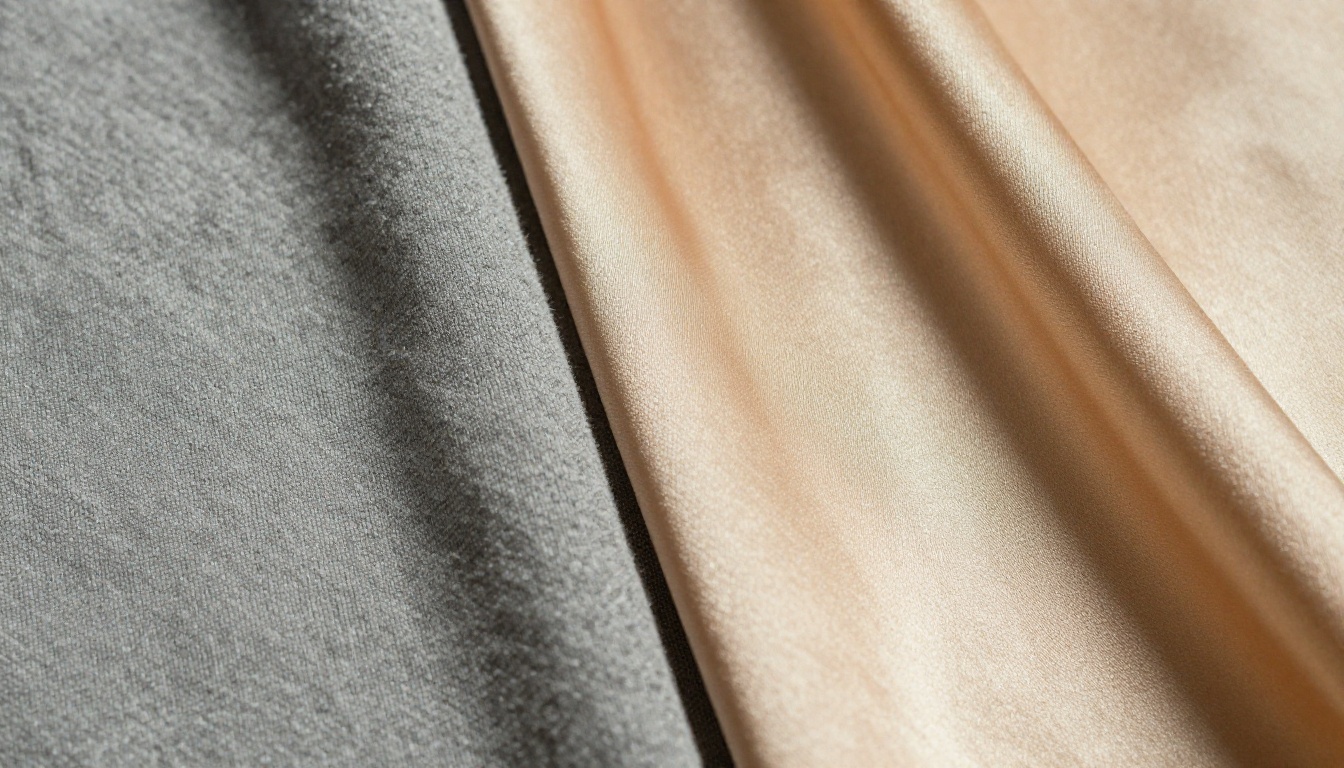
Photo Quality Directly Affects Results
The AI can only work with what it is given. Low-resolution, blurry, or heavily compressed photos limit what it can realistically achieve.
Best source photos for outfit changes:
- Lit by natural or consistent artificial light without heavy mixed color casts
- Sharp focus on the subject with minimal motion blur
- Clear contrast between clothing and the background behind it
- Minimal clutter in the foreground overlapping the clothing area
- Resolution of at least 1024x1024 pixels for body-level edits
If your original photo is slightly soft or degraded, P Image Edit LoRA on PicassoIA can sharpen and restore image quality before you apply outfit edits. Starting from a cleaner base consistently produces finer fabric details in the final result.
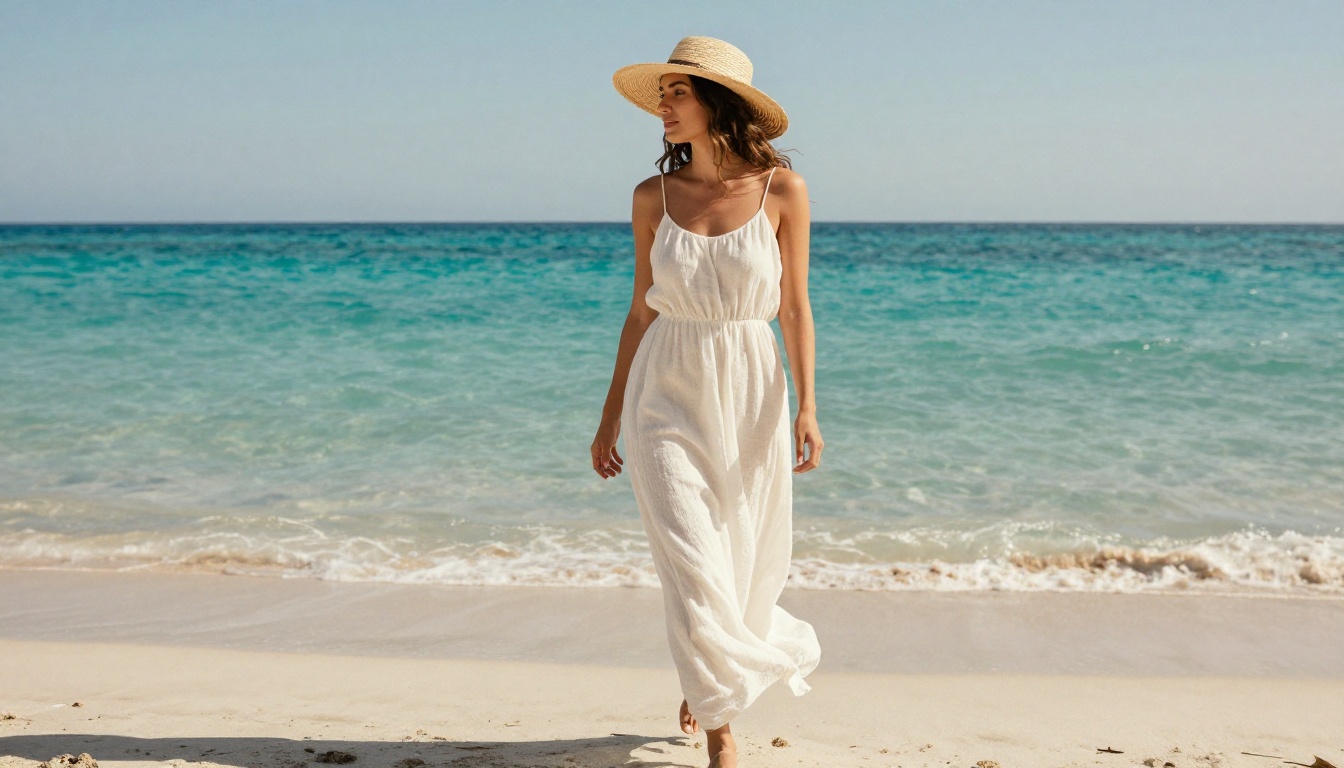
💡 Pro workflow: Run a sharpening or super-resolution pass on your source photo first, then do the outfit edit. The AI will have more pixel data to analyze and will produce finer fabric details and cleaner edge transitions.
3 Mistakes That Ruin AI Outfit Results
Most bad outputs come from the same predictable errors. Avoid these three and your success rate improves dramatically.
Imprecise Mask Selection
When using inpainting tools, you define the area to be changed with a painted mask. If your mask clips part of the arm, grazes the chin, or bleeds into the background, the AI will regenerate those areas too. The result looks patched and inconsistent at the edges.
Fix: Take your time with the mask. Use a precise brush size appropriate to the edge you are tracing. Zoom in to the collar, armhole, and hem. A clean mask is worth more than any prompt optimization.
Describing Only the Garment
Focusing entirely on the clothing and forgetting to describe how it interacts with the photo leads to flat, disconnected results. The AI needs enough context about the lighting and fit to integrate the new garment convincingly.
Fix: Add at least one lighting descriptor and one fit descriptor to every prompt. Even just "natural shadow on the left, fitted silhouette, slight fabric drape at the knee" dramatically improves coherence with the rest of the photo.
Editing an Already-Edited Image
Running outfit changes repeatedly on a photo that was already AI-edited accumulates compression artifacts and makes each generation slightly softer and less detailed. Within two or three iterations the photo can look visibly degraded.
Fix: Always start from the original source file for each new outfit attempt. Save the raw source separately and never chain edits on an AI-modified output if you want to maintain quality.
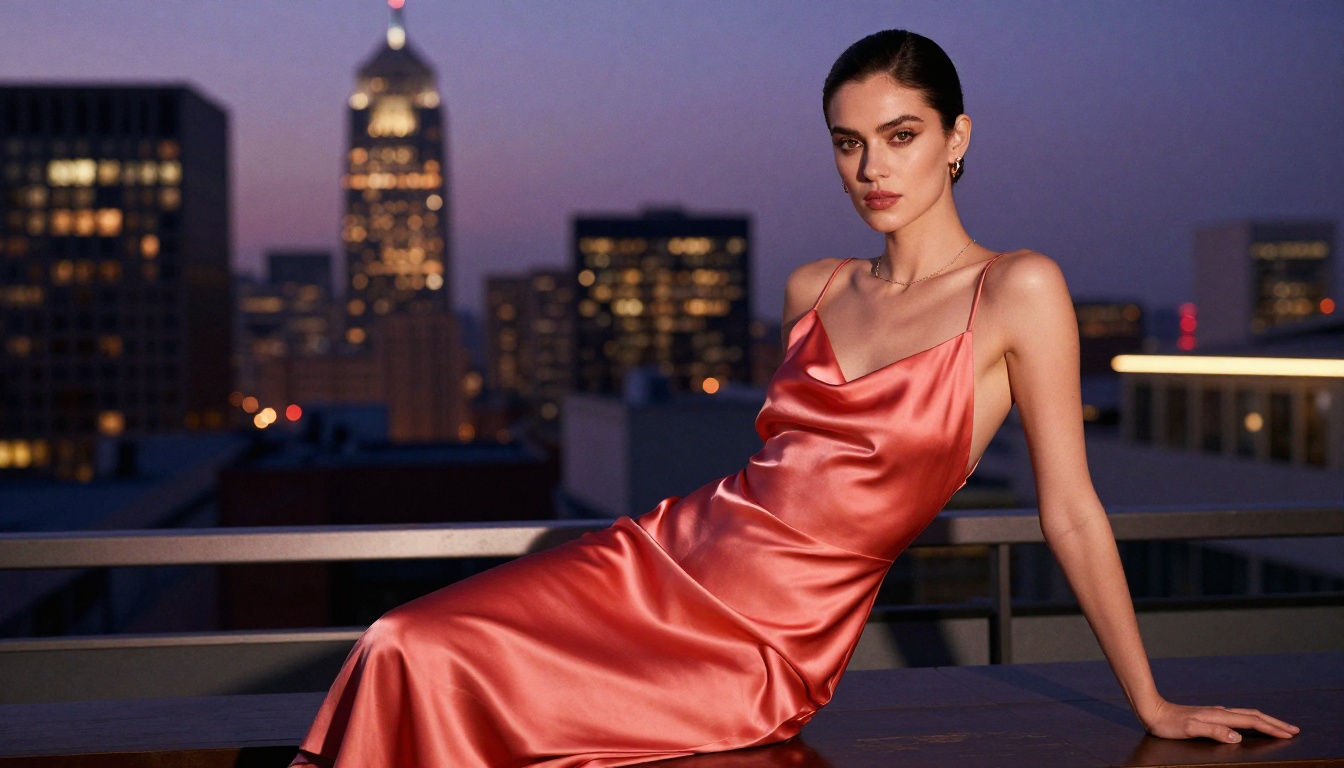
Wardrobe Simulation for Personal Style Decisions
Beyond professional use cases, AI outfit editing has become a genuine personal styling tool. Trying on clothes digitally before purchasing is now a practical option for everyday users.
The process is straightforward:
- Take a well-lit, full-length or three-quarter-length photo of yourself against a simple background
- Upload it to an AI editing tool like Fibo Edit
- Describe the garment you want to try in specific detail: color, cut, style, fabric
- Generate multiple variations and compare side by side
You get a photorealistic preview of how a dress, a suit, or a jacket would look on your actual body, in your actual proportions, lit the way you were originally photographed. This is substantially more useful than a generic model on an e-commerce product page who may have entirely different body proportions and height.
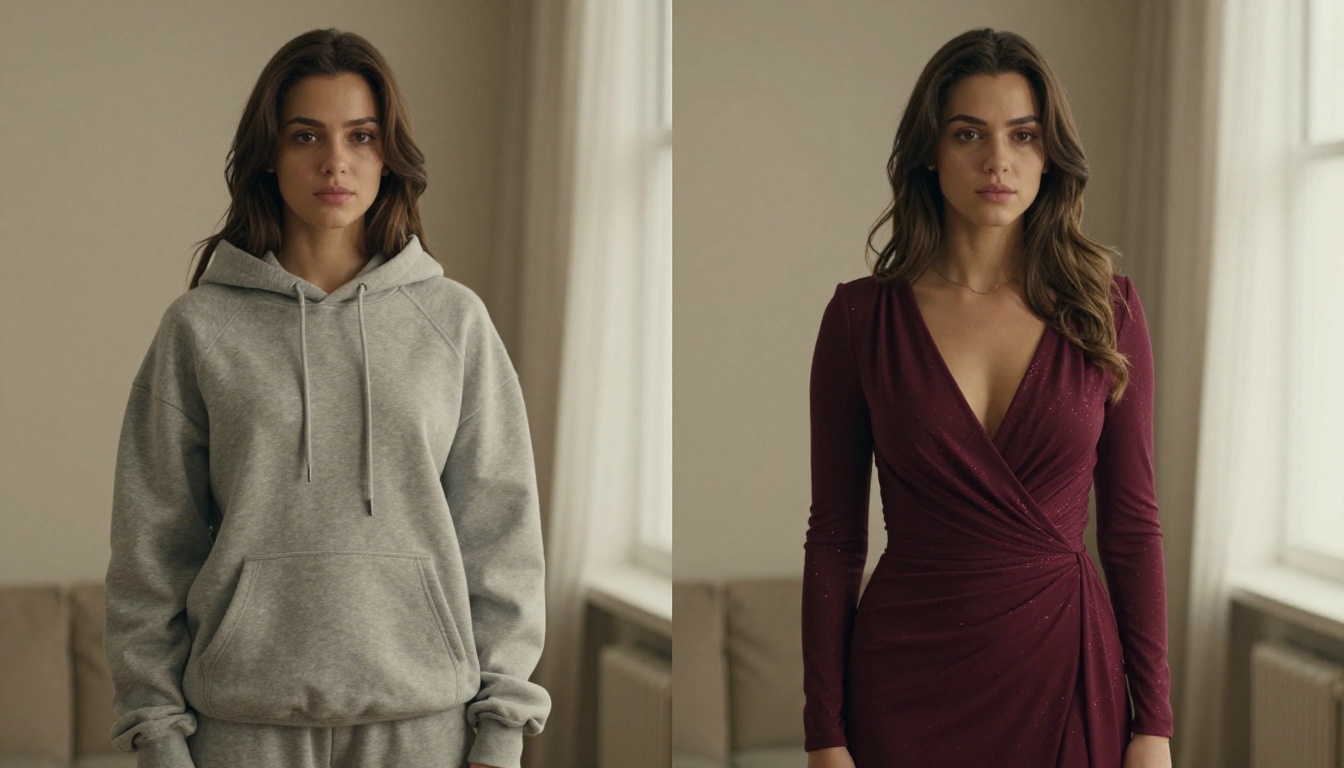
Some users go further, generating dozens of outfit variations from a single base photo to plan an entire seasonal wardrobe before buying a single item. The financial benefit of avoiding purchases that do not work on your body is significant.
How to Use Fibo Edit for Outfit Changes on PicassoIA
Fibo Edit is one of the most capable models on PicassoIA for this specific task. It specializes in region-specific image editing through inpainting, making it the right tool for precise, targeted outfit replacements without affecting the rest of the photo.
Here is a step-by-step process that produces consistent results:
Step 1: Prepare your photo
Upload a well-lit, high-resolution photo. Make sure the clothing area is clearly visible, not obscured by arms crossed tightly over the body or heavy shadows.
Step 2: Open Fibo Edit on PicassoIA
Navigate to Fibo Edit and upload your image directly to the interface.
Step 3: Draw your inpainting mask
Use the brush tool to paint over the clothing region you want to replace. Be precise at the critical edges: neckline, sleeve openings, and hemline. These are the areas most likely to show artifacts if the mask is imprecise.
Step 4: Write your outfit prompt
Describe the new garment with as much relevant detail as possible, including fabric type, cut, color with shade description, how it fits the body, and how it interacts with the light in the original photo.
Step 5: Set the right denoising strength
Use a higher denoising strength (0.75 to 0.90) to give the AI enough freedom to replace the garment completely. Lower values (0.40 to 0.60) preserve more of the original, which is useful when you only want a color change on an existing garment rather than a full swap.
Step 6: Generate and evaluate multiple outputs
Review each result carefully. Check the edges of the mask region for any visible artifacts or inconsistencies in lighting. If the neckline or sleeve transition looks unnatural, refine your mask slightly and regenerate.
Step 7: Sharpen for final output
For publication-quality results, run the best output through P Image Edit LoRA to enhance fine fabric texture and sharpen edge detail before using it anywhere.
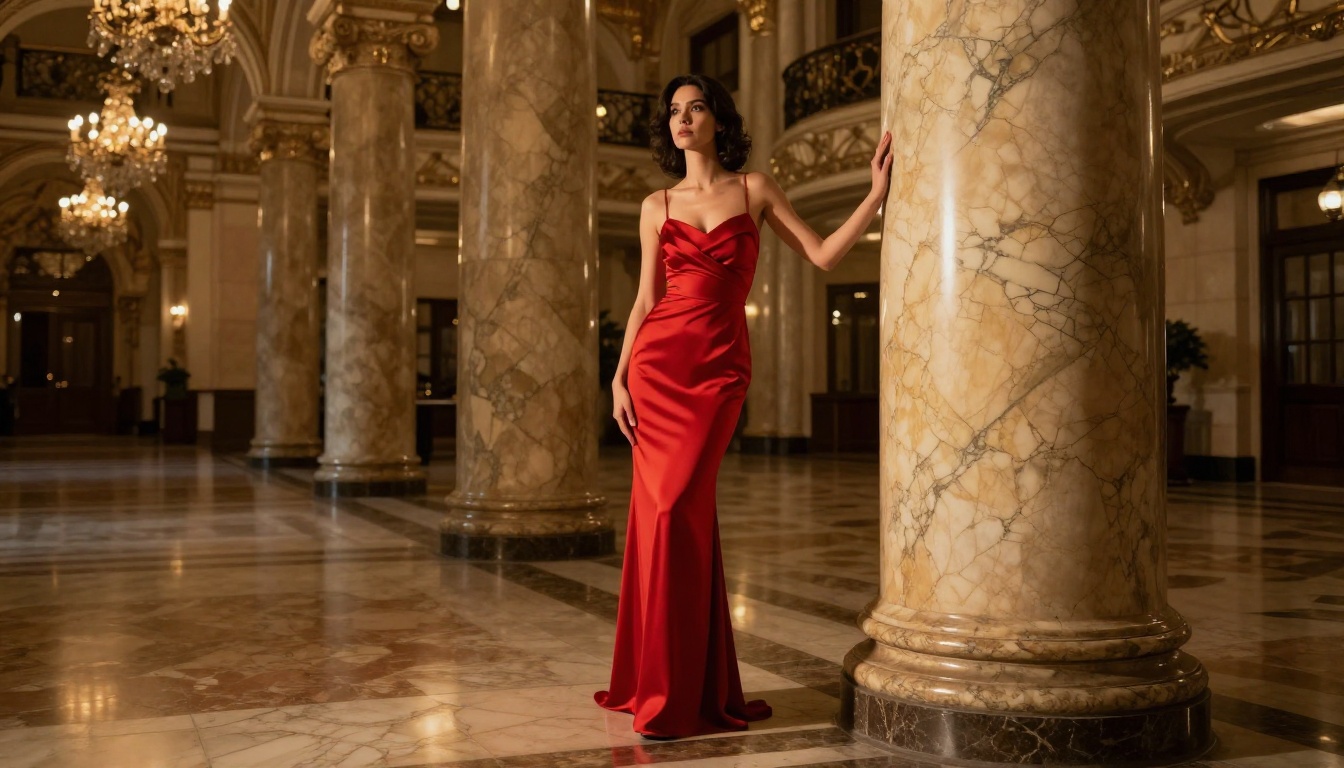
💡 Always generate at least 3 variations with the same prompt before deciding on the best one. Diffusion models have natural variation in their outputs, and one of those three will almost always be noticeably better than the others.
Color Changes vs. Full Garment Swaps
Not every outfit edit requires a complete replacement. Sometimes you only want to see the same dress in a different color, or test whether a different shade of the same jacket would work better in a specific photo.
For color-only changes:
- Use a lower denoising strength (0.40 to 0.60) to preserve existing wrinkles, shadows, and fabric folds
- Describe the original garment shape exactly, changing only the color in the prompt
- The AI will shift the hue while maintaining the natural fabric behavior of the original
For full garment swaps:
- Use higher denoising strength (0.80 to 0.90) for maximum creative freedom
- Describe the new garment completely from scratch without referencing the original
- Include explicit fabric and silhouette details so the AI generates the new piece on its own terms
For pattern changes:
- Use mid-range denoising (0.65 to 0.75)
- Be very specific about the pattern: "thin horizontal navy stripes on white cotton, 1cm stripe width, slight fabric texture visible"
- Vague pattern descriptions produce vague results
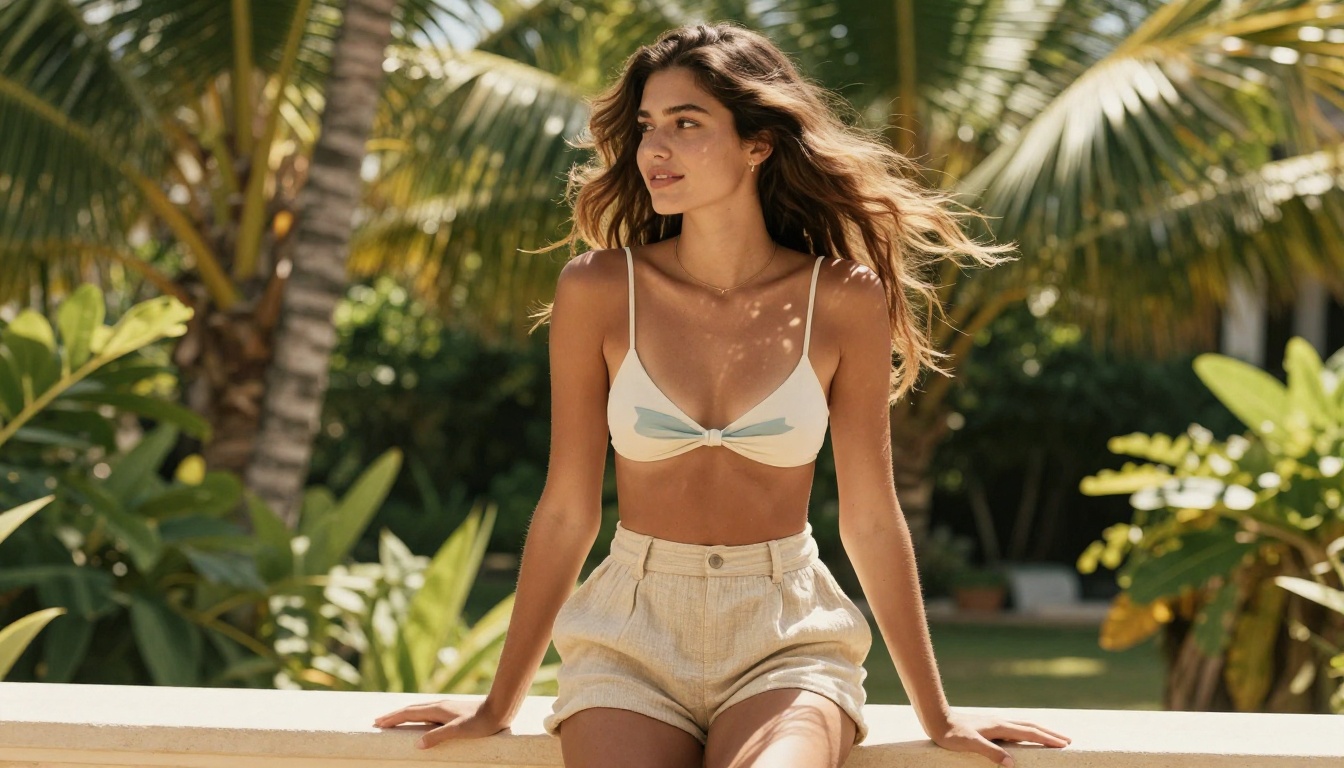
Generating Fashion Photos from Scratch
If you do not have a source photo, or if you want complete creative control from the first pixel, text-to-image models offer a direct path to polished fashion photography without any shooting at all.
GPT Image 2 on PicassoIA produces high-fidelity fashion photographs from text prompts. You describe the subject's look, the outfit in detail, the environment, the lighting conditions, and the camera angle, and it renders a photorealistic editorial image.
This is particularly useful for:
- Creating campaign imagery when sourcing a model or photographer is not feasible
- Testing outfit concepts before committing to production samples
- Generating varied fashion content at scale for social media or e-commerce
- Previewing how a garment concept would photograph before it is even made
The output quality from GPT Image 2 is now close enough to editorial photography that many brands use it as a first draft for internal creative approval before committing to a full production shoot. The time saved at the concept stage alone justifies the workflow.
What AI Cannot Do Yet
Honest assessment: there are still real limitations worth knowing before you commit to a workflow.
- Complex layering: A raincoat over a blazer over a hoodie is difficult to segment and regenerate cleanly without bleeding between layers.
- Exact pattern replication: If you need a specific branded print or a trademarked fabric design, AI will approximate convincingly but not replicate exactly.
- Extreme poses: Arms raised fully overhead, twisted body angles, or partial body occlusion reduce accuracy because the model has less spatial context for body geometry.
- Small accessories in contact with skin: Necklaces, bracelets, and rings that rest directly against skin are hard to isolate without affecting the surrounding area when masking.
- Very dark or underexposed originals: Low light photos give the AI less to work with, and garment edges in shadow may blend imprecisely.
These limitations are narrowing fast. The improvement trajectory over the past 18 months suggests that most of these constraints will become significantly less relevant in the next generation of models.
Start Creating Your Own Outfit Edits
The best way to understand what AI outfit editing can do is to try it with your own photos. The process is faster than most people expect, and the first convincing result usually arrives within the first few attempts.
PicassoIA has all the tools needed for a complete outfit editing workflow:
- Fibo Edit: targeted inpainting for precise outfit replacement in any photo
- P Image Edit LoRA: photo sharpening and detail enhancement for source prep and final output
- GPT Image 2: full fashion photo generation from text, no source image required
Start with one photo and one outfit change. Follow the step-by-step Fibo Edit process above. Generate three variations. Pick the best one and refine from there. The learning is fast, and what you can achieve in an hour of practice would have required a full production team just a few years ago.
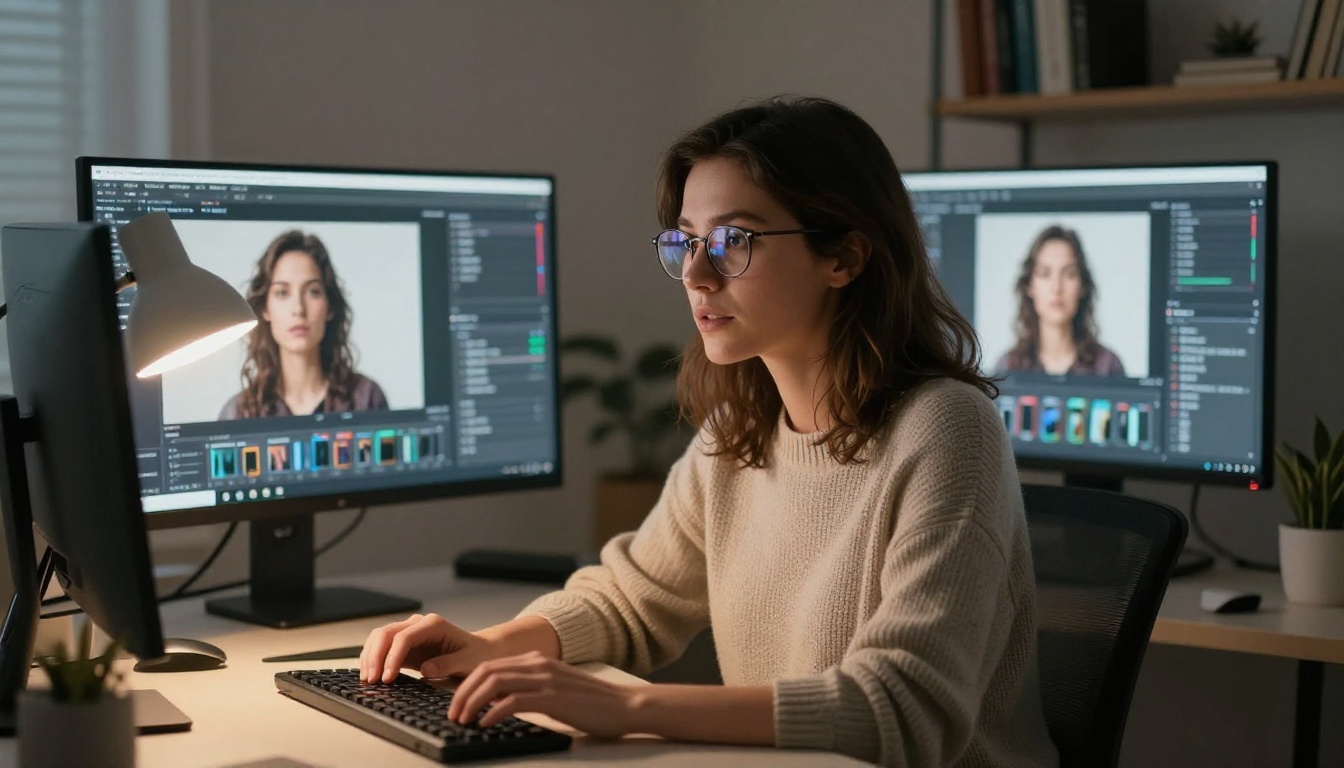
The wardrobe you want to see yourself in is a few precise prompts away. Pick one photo. Pick one outfit idea. See what the AI produces. The results will change how you think about what is possible in post-production photography.


