You upload one photo, one short clip of someone moving, and a few minutes later your character is dancing, kicking or waving exactly like the person in the footage. That is what Kling Motion Control does, and it is addictive. The problem shows up on your credit balance. A single 10 second render can cost more than a lunch, and since motion transfer rarely nails it on the first try, the bill grows fast.
So what is the cheapest way to run it? The honest answer depends on whether you are a casual user, a freelancer batching client work, or a developer calling an API. This article lays out what the research shows about credit rates, what "free" really means, where the lowest online prices sit, and which alternatives on PicassoIA can stand in when the budget is tight.
💡 Quick take: Standard mode at 720p is almost always the cheapest entry point. Test every idea there, and only switch to Pro when the motion is already right.

What Motion Control Actually Charges For
Before comparing prices, it helps to know what you are paying for. Motion Control is not a normal text to video model. It takes two inputs, a reference image that defines the character and the scene, and a reference video that defines the movement. The output length follows the reference clip, which is why billing is tied to seconds of finished video.
Billing Is Per Second of Output
Almost every provider bills by the second. A 5 second clip costs half of a 10 second clip, a 30 second clip costs six times a 5 second one. This sounds obvious, but it is the single biggest lever on your spend. People upload a 20 second reference video "just in case" and pay for 20 seconds of output they never use.
Standard Versus Pro Mode
Kling offers two quality tiers. Standard is the cost-effective option, and Pro produces sharper, more polished clips. On the newer v3 model, Standard maps to 720p and Pro maps to 1080p. The price gap is large, with Pro commonly running 30 to 60 percent above Standard in the rate tables I found.
| Factor | Standard | Pro |
|---|
| Typical resolution (v3) | 720p | 1080p |
| Relative price | Lowest | Roughly 1.3x to 1.6x higher |
| Best use | Drafts, tests, social clips | Client delivery, large screens |
| Retry cost | Low | Painful |
Audio and Orientation Add Variables
Some sources report extra credits per second when native audio is switched on. Orientation also matters for length: with image orientation the clip tops out at about 10 seconds, while video orientation allows up to 30 seconds. Longer is not cheaper, so choose the shortest setting that fits your idea.
Credit Costs Across Providers
Published numbers conflict, and that is worth saying plainly. Kling's own consumer app, API resellers and creative suites all convert money to credits differently. Treat every figure below as a snapshot from third party pages in late 2026, and always check the live estimate before you press generate.
Consumer Credit Rates
One breakdown lists Kling 3.0 Motion Control at about 9 credits per second in Standard and 12 in Professional, with Kling 2.6 at about 5 and 8. Another source puts the 3.0 model at roughly 6 credits per second for 720p and 8 for 1080p, with native audio adding 3 to 4 credits on top. A third lists 2.6 at about 3 credits per second at 720p and 5 at 1080p Pro.
Why the spread? Different plan tiers, different promotions, and different billing windows. The pattern is still consistent: v2.6 is cheaper than v3, and 720p is cheaper than 1080p.

Per Second API Prices
For developers, resellers publish clean dollar rates. For Kling 2.6 Motion Control, the lowest standard mode, 720p figures I found sit around $0.064 to $0.067 per second, while pro mode lands near $0.09 to $0.11 per second. Some providers charge about $0.07 per second for standard and bill in small time blocks, which can inflate the real cost of very short clips.
| Mode | Approx. price per second | 10 second clip |
|---|
| Standard, 720p (v2.6) | $0.064 to $0.07 | About $0.64 to $0.70 |
| Pro, 1080p (v2.6) | $0.09 to $0.11 | About $0.90 to $1.10 |
| Pro (one reseller) | About $0.095 | About $0.95 |
Those numbers look small until you multiply by the number of attempts. A project with 40 test renders at 10 seconds each adds up to roughly $26 on Standard before you even deliver anything.
💡 Rule of thumb: Budget three to five attempts per final clip. If your cost per attempt is $0.70, your real cost per usable clip is closer to $2 to $3.50.
Hidden Cost: Failed Generations
Credits are generally spent whether or not you like the result. A reference clip with fast hand motion, a half-hidden face in the photo, or a cropped body will give you artifacts, and you pay for each experiment. That is why the cheapest provider on paper is not always the cheapest in practice.
Free Limits and Trial Options
Everyone asks the same thing: can I run Kling Motion Control for free? Here is what I could confirm and what I could not.
The Truth About Free Credits
I could not find a confirmed, standing free allowance for Motion Control on Kling's own consumer plans. The lowest paid plan mentioned in the research was around $6.99 per month for 660 credits, which at 5 to 9 credits per second gives you roughly 70 to 130 seconds of output per month. Some developer platforms hand out a small signup bonus, one reseller gives 200 free credits, but that is a trial for API testing, not a monthly allowance.
Promotions change quickly. A free tier that exists in one month may disappear the next, so any free limit should be treated as temporary.
Free Online Access on PicassoIA
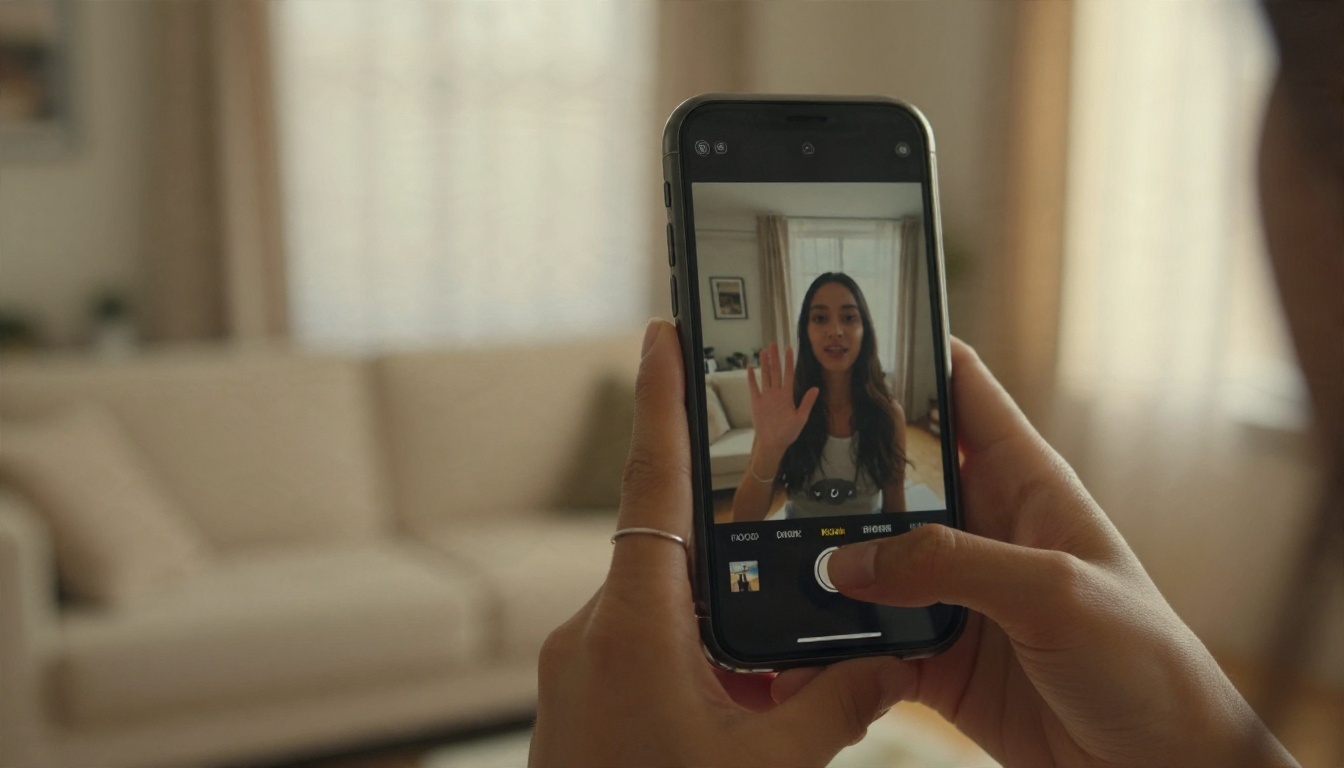
On PicassoIA, both Kling v2.6 Motion Control and Kling v3 Motion Control are listed as models you can run online in the browser, with no coding and no local GPU. Limits and credit usage depend on your account, so check the estimate shown inside the tool before you submit a render.
Stretching Whatever Free Allowance You Have
- Use short reference clips. Three to five seconds is enough to test whether a motion transfers well.
- Test in Standard. Save Pro for the final render.
- Pick one strong character photo. A sharp, full-body, evenly lit image saves rerolls.
- Skip the prompt at first. Run the plain image plus video combination, then add a prompt only if something is missing.
Cheapest Online Options Compared
Here is how the main routes stack up for a typical 10 second Standard clip. Prices are approximate and reflect the research above.
| Route | Best for | Approx. cost, 10 sec Standard | Setup effort |
|---|
| Kling consumer app | Casual users | Around 50 to 90 credits | None |
| API reseller | Developers, batch work | About $0.64 to $0.70 | Needs code |
| Creative suite credits | Teams using other tools too | Varies by plan | Low |
| Browser tool on PicassoIA | Quick tests, no code | See in-tool estimate | None |
When an API Reseller Wins
If you render dozens of clips a week, a per second reseller can be cheaper than a monthly plan because you never pay for unused credits. The tradeoff is that you need to write the integration, handle uploads, and watch for providers that round billing up to the next block of seconds.
When a Subscription Wins
If you only render a few clips a month, a small plan or an in-browser tool is simpler and avoids minimum top-ups. The point is not to chase the lowest dollar figure but the lowest cost per finished clip, including retries.

Version Choice Changes the Bill
v2.6 is the budget pick. It handles most dance, gesture and talking-head transfers well. v3 costs more per second but gives you higher resolution in Pro and tends to hold identity and fine details more reliably on tricky footage. For social posts at phone size, v2.6 Standard is usually plenty.
How to Use Kling Motion Control on PicassoIA
Here is a practical, low-cost workflow using the PicassoIA tool pages. Both models share the same inputs, so the steps are identical.
Step by Step
- Open the model page. Start with Kling v2.6 Motion Control for the cheapest tests, or Kling v3 Motion Control when you need 1080p.
- Upload the reference image. Use a .jpg or .png under 10 MB. The picture should have clear limbs and a visible face, with an aspect ratio between 1:2.5 and 2.5:1.
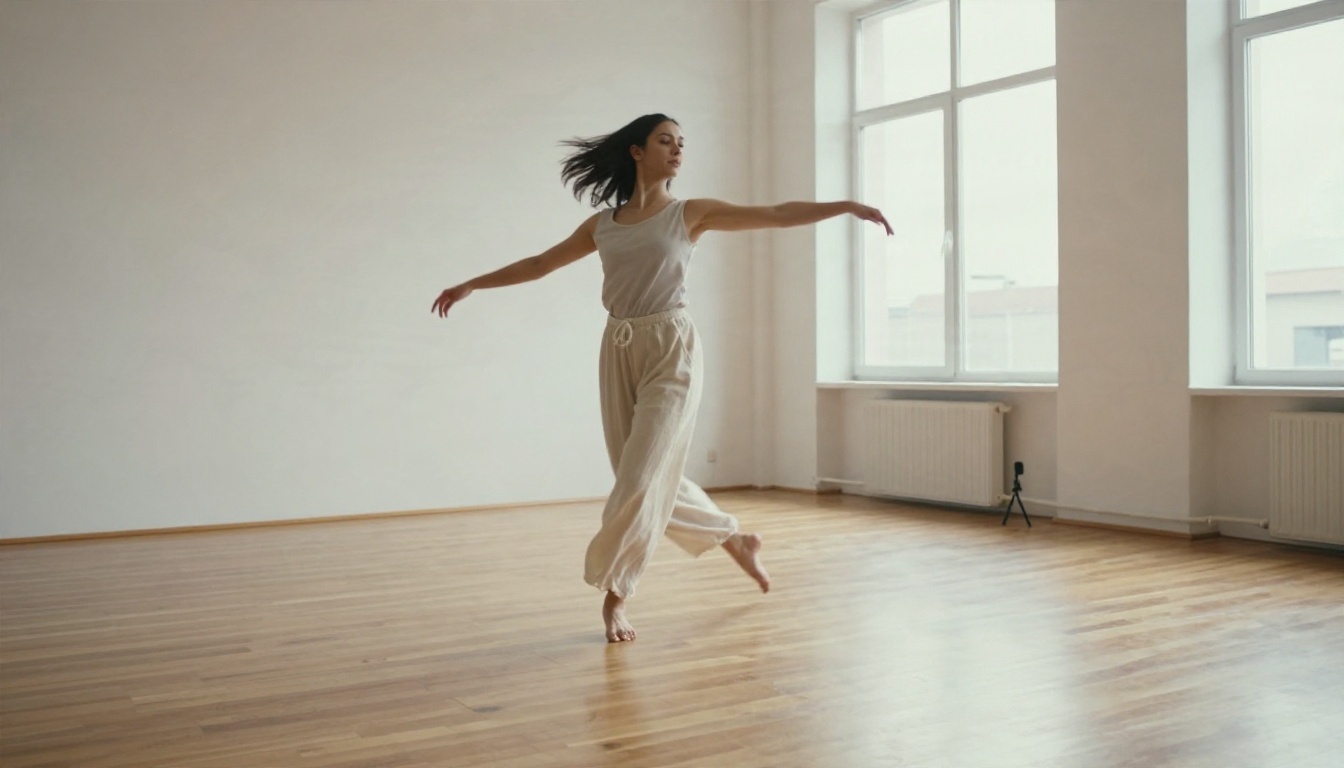
- Upload the reference video. Use .mp4 or .mov under 100 MB, between 3 and 30 seconds depending on orientation. Trim it to the exact moves you want.
- Set the mode. Choose std for drafts. On v3 the default is pro, so switch it manually if you are testing.
- Pick character orientation. Image keeps the pose direction from your photo (up to 10 seconds). Video follows the person in the footage (up to 30 seconds).
- Decide on sound. The keep original sound toggle preserves audio from your reference clip. Turn it off if you plan to add music later.
- Add a short prompt, optional. Describe a scene detail or camera feel, for example "soft daylight, gentle breeze". Keep it brief.
- Generate and review. Check the in-tool estimate, submit, and compare the result against your reference.
Parameter Tips That Save Credits
| Parameter | Budget setting | Why |
|---|
| mode | std | Cheapest way to validate motion |
| character_orientation | image | Caps clip at 10 seconds, limits waste |
| keep_original_sound | on or off | Choose once, avoid rerenders for audio |
| prompt | Short or empty | Less to go wrong during early tests |
| Reference length | 3 to 6 seconds | You pay per second of output |
Choosing Between v2.6 and v3
Run the same reference pair on v2.6 Standard first. If the motion looks right but you need sharper pixels, rerun only that exact pair on v3 Pro. This two-step approach means you pay premium rates exactly once per clip.
Ways to Cut Your Spend
Price lists matter less than habits. These are the changes that reduce cost the most.
Film Better Reference Footage
Stable framing, one person, plain background, full body in view. A reference where the person fills the frame and moves steadily transfers far better than a shaky clip with a busy backdrop. Better inputs mean fewer retries.
Match the Photo to the Motion
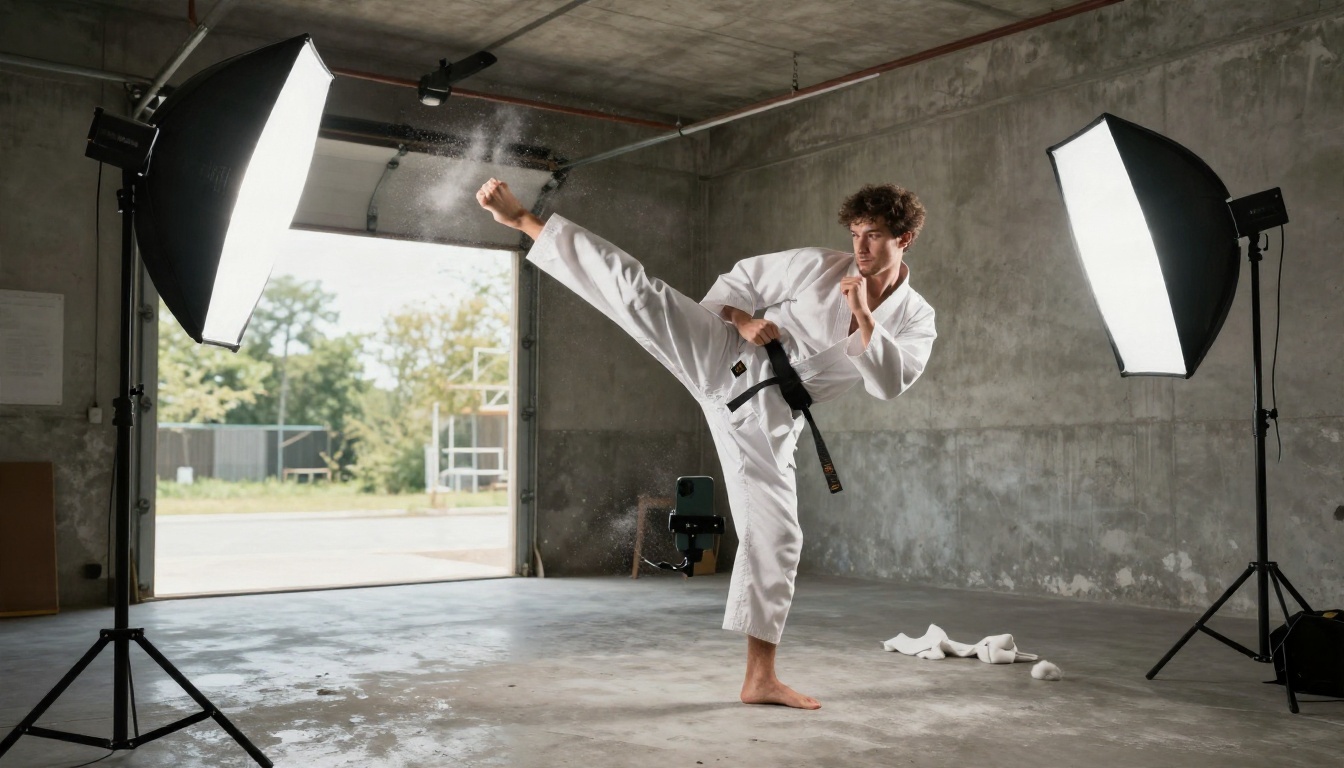
If the reference shows a full-body kick, a cropped headshot will confuse the model. Use a photo whose framing matches the footage: full body for dance, waist-up for gestures, face close-up for expressions.
Trim Before You Upload
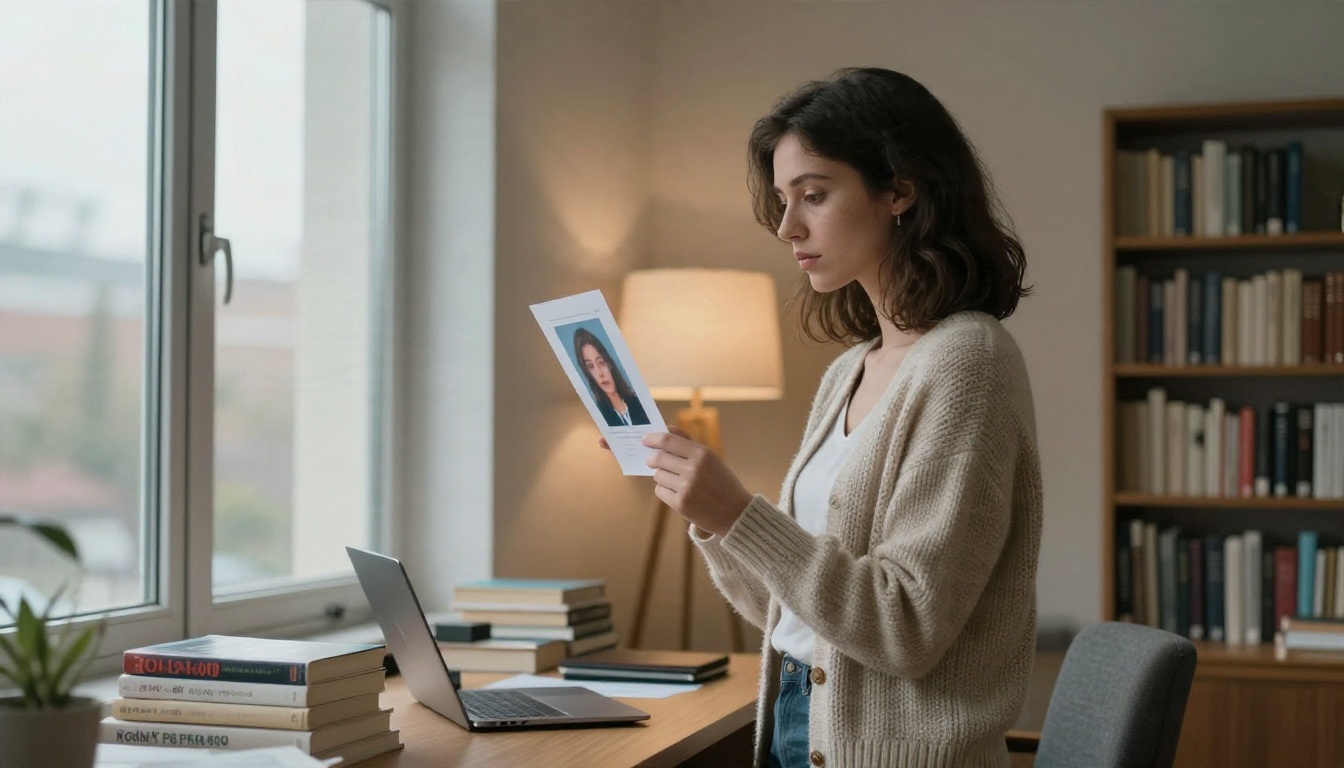
Cut the dead seconds at the start and end. Since billing follows output length, trimming a 12 second clip down to 6 seconds can halve the cost of every attempt.
Compare Side by Side
Keep your reference and output together while you review. Spotting a drifting hand or a warped face early tells you whether another run is worth the credits.
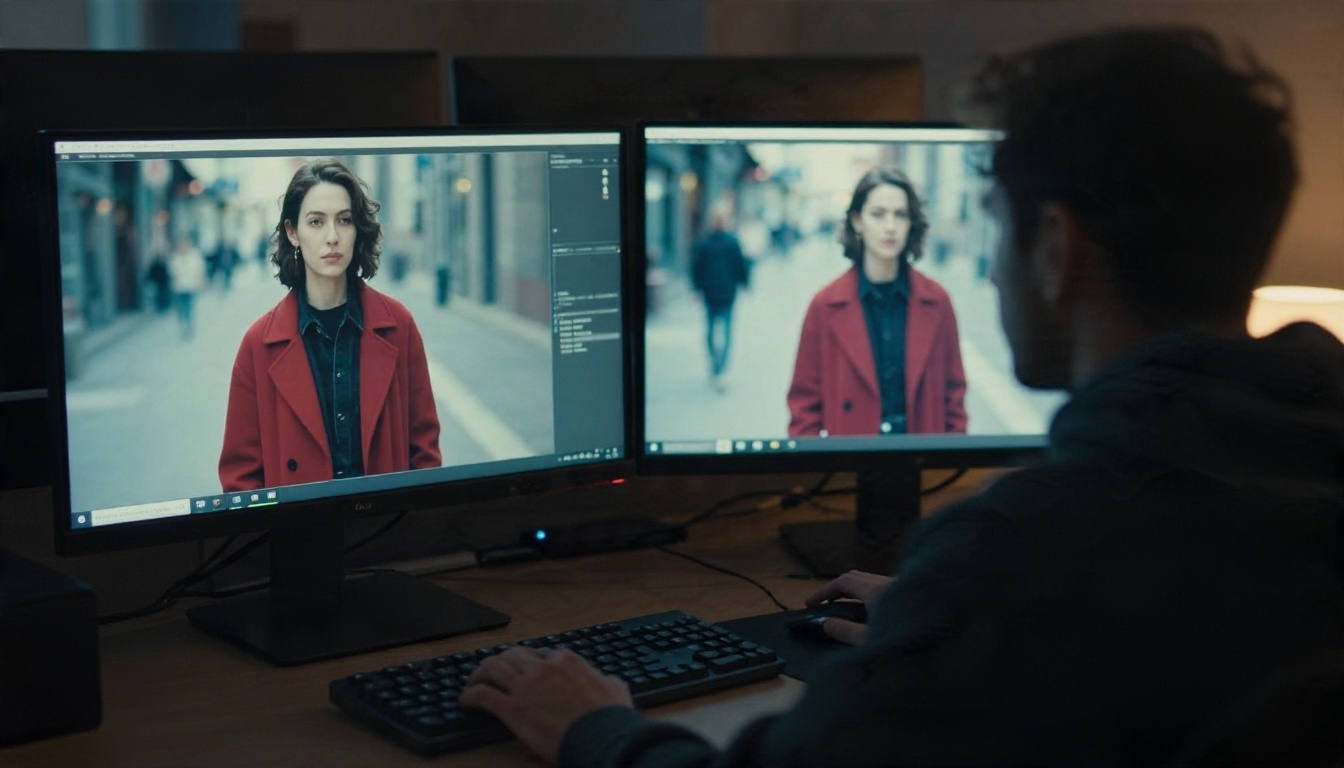
💡 Batch smartly: Group similar clips, same character, same orientation and same mode, so you only tune settings once.
Alternatives Worth Trying
Sometimes the cheapest Kling price is still more than a project needs. These PicassoIA models cover similar ground for different budgets and goals.
Wan 2.2 Animate Animation
Wan 2.2 Animate Animation is the closest conceptual match. It copies motion from a reference video onto a still image, which is the same core job as Motion Control. It is a good second opinion when a Kling render drifts on a particular pose.
Wan 2.2 Animate Replace
Wan 2.2 Animate Replace works the other way around: it swaps the character in an existing video with your subject. If you already have footage with the right scene, this can be cheaper than generating a whole new world around the character.
Seedance 2.5 Lite
Seedance 2.5 Lite is listed as a free and unlimited video generator for clips up to 10 seconds. It does not copy motion from a reference clip, so it is not a like-for-like replacement, but it is a low-cost way to produce animated shots from a prompt or an image when exact choreography is not required.
Kling v3 Video
Kling v3 Video and Kling v2.6 are the standard text and image to video options in the same family. If your idea does not depend on copying specific moves, a plain image to video run can cost less than a motion-transfer render.

| Need | Best pick | Why |
|---|
| Exact move copy, lowest cost | Kling v2.6 Motion Control, Standard | Cheapest Kling tier |
| Sharper 1080p transfer | Kling v3 Motion Control, Pro | Higher resolution |
| Second opinion on motion | Wan 2.2 Animate Animation | Same task, different engine |
| Replace a person in footage | Wan 2.2 Animate Replace | Reuses real scene |
| Cheap animated shots | Seedance 2.5 Lite | Free and unlimited listing |
Start Making Your Own Clips
The cheapest Kling Motion Control setup is rarely one magic provider. It is a habit: short reference clips, Standard mode for tests, a well-matched photo, and a single Pro render once the motion looks right. Add a second model such as Wan 2.2 Animate when Kling struggles, and your cost per usable clip drops quickly.
Pick one character photo and one three second reference video, open Kling v2.6 Motion Control on PicassoIA, and run your first Standard test. When you want to try more models side by side, browse everything at picassoia.com/en/all-models and build the cheapest workflow for your own projects.


