Search for ComfyUI porn videos and you hit the same wall: gorgeous short loops in forum threads, then a wall of red error boxes the moment you try to reproduce one. This article sorts it out. You will see what these clips realistically look like, why almost every one of them ends after about five seconds, what actually fixes a workflow that refuses to run, and which online apps let you skip the GPU, the Python environment and the 40 GB of downloads.
Everything here stays on the tasteful side: glamour, lingerie, swimwear, boudoir lighting. The tools discussed can do more than that, but the techniques that matter (frame counts, VRAM, prompts, consistency) are the same whatever the subject.
💡 Quick answer: Most open video models in ComfyUI generate roughly 81 frames at 16 fps, about 5 seconds. Longer clips are made by chaining several short ones. If a workflow fails, 80% of the time it is a missing model file, a missing custom node, or not enough VRAM.
What ComfyUI Adult Videos Look Like
ComfyUI is a node-based editor: you wire boxes together (model loader, text encoder, sampler, video decoder) and press run. It does not produce anything by itself. The look of the result depends on the video model you load, and in 2027 that is usually a Wan 2.2 family checkpoint, sometimes LTX or Hunyuan variants.
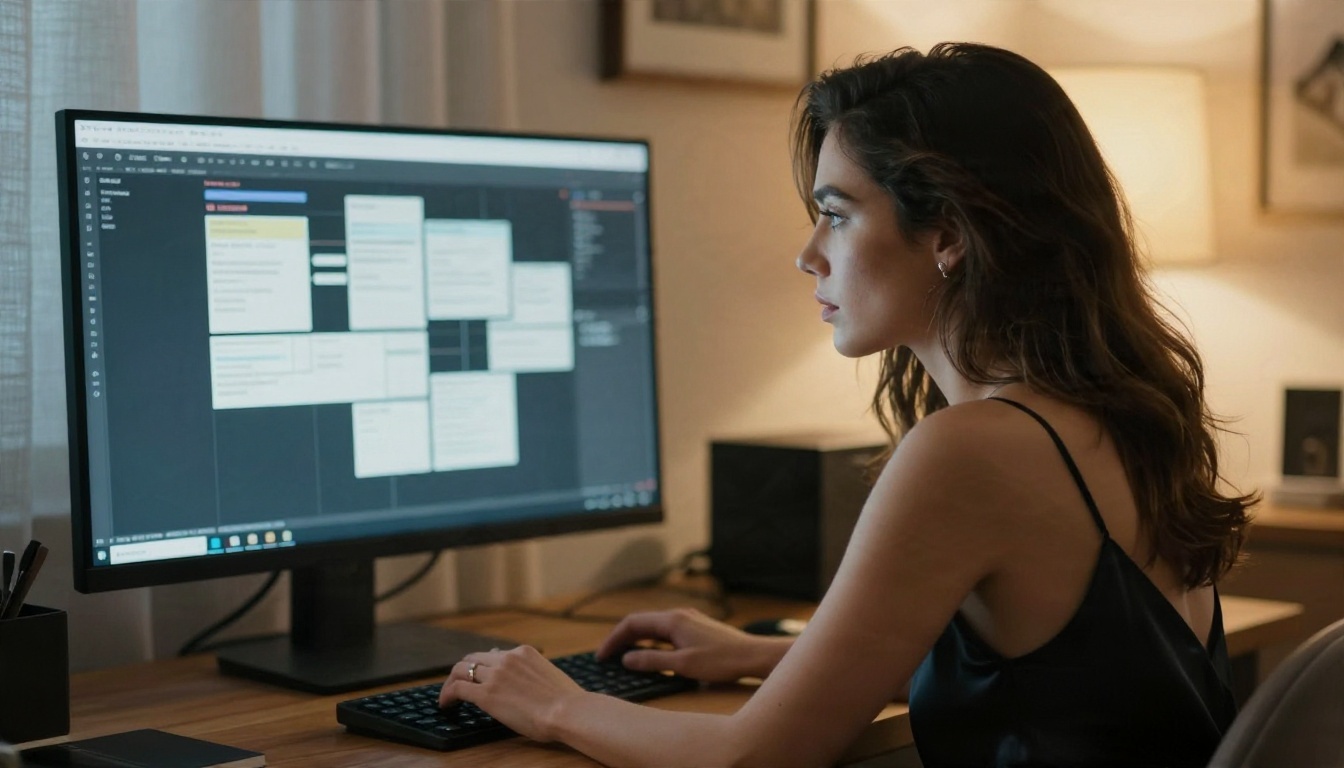
The typical output
Expect a short, silent, slightly looping clip: a subject turns her head, hair moves, fabric shifts, the camera drifts. Resolution is commonly 480p to 720p, and many posted examples are upscaled afterwards. Motion is gentle because larger movement is where the model breaks: hands melt, limbs duplicate, faces drift away from the source photo.
Where the examples come from
Most shared clips follow one of three recipes:
| Recipe | Starting point | Best for | Weak spot |
|---|
| Text to video | Prompt only | Quick concepts | Face changes every run |
| Image to video | One still photo | Keeping the same person and outfit | Limited motion |
| First and last frame | Two stills | Controlled transitions | Needs two matching images |
Image to video is the most popular route because you design the still first, then add motion. That is also how this article suggests working, whether locally or online.
An honest quality check
Browse a few dozen community clips and you will notice the same tells: soft detail in the second half of the clip, flickering lace patterns, jewellery that changes shape, and background elements that warp. None of that is a bug in your setup. It is the current ceiling of open models at this size.

Simple scenes work best. A beach shot with slow waves and a gentle camera push survives five seconds. A crowded room with fast action does not.
Why Clips Stop at Five Seconds
The length limit is the most common complaint, and it is not a setting you forgot to change.
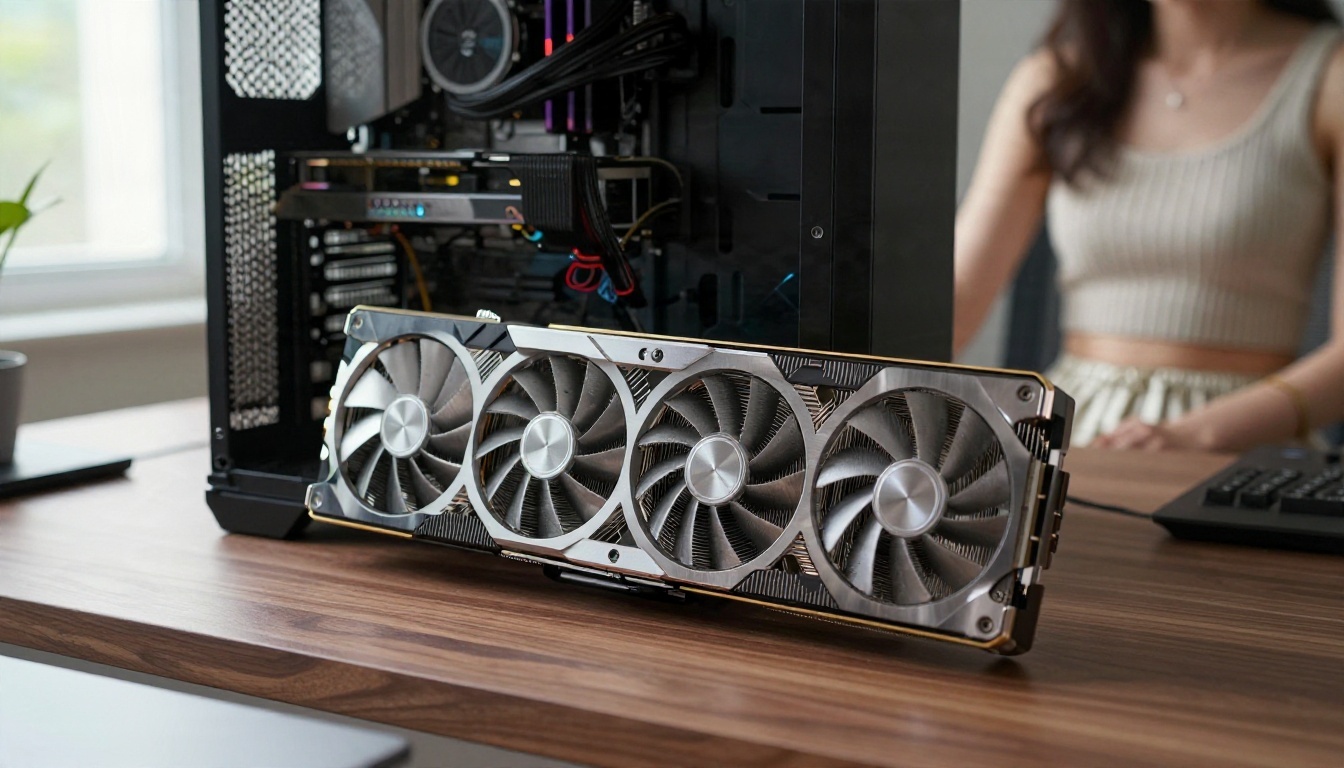
Frames, not seconds
In the Wan nodes the length field is a frame count. The workflow runs at 16 frames per second, so five seconds is 5 × 16 = 80, and the model wants a value of the form 4n + 1, which is why you see 81. The 5B variant is usually run at 24 fps instead, so the same frame budget gives a different duration.
| Length value | Approx. duration at 16 fps | What happens |
|---|
| 33 | 2 seconds | Fast to render, good for tests |
| 49 | 3 seconds | Safe on 12 GB cards |
| 81 | 5 seconds | The practical ceiling |
| 121 and above | 7+ seconds | Looping, drifting, or ignored |
The model was trained on clips of about this size. Push the number higher and you either get the value silently clamped, repeated motion, or a face that slowly becomes someone else.
💡 If you raised the length and the output is still five seconds, check that you changed the right node and that the frame rate in the video combine node matches the model's native rate.
Chaining clips without drift
The standard workaround is simple: render clip one, take its last frame, use it as the first frame of clip two, and stitch the results. Community nodes automate this, but they all fight the same problems:
- Colour drift. Each handoff shifts skin tone and contrast a little. After three links the shift is visible.
- Detail loss. The last frame is slightly softer than the first, and the softness compounds.
- Identity creep. The face changes by a few percent each link.
To limit this, upscale or sharpen the handoff frame before reusing it, keep the prompt identical between links, and stop at three clips. Fifteen seconds is a realistic upper bound for a clean result.
Why not just ask for 30 seconds?
Memory and attention cost grow quickly with frame count. A clip twice as long needs far more than twice the VRAM, and the model has never seen minute-long motion. Anyone selling "unlimited length" is stitching short segments behind the scenes.
ComfyUI Not Working? Fixes That Help
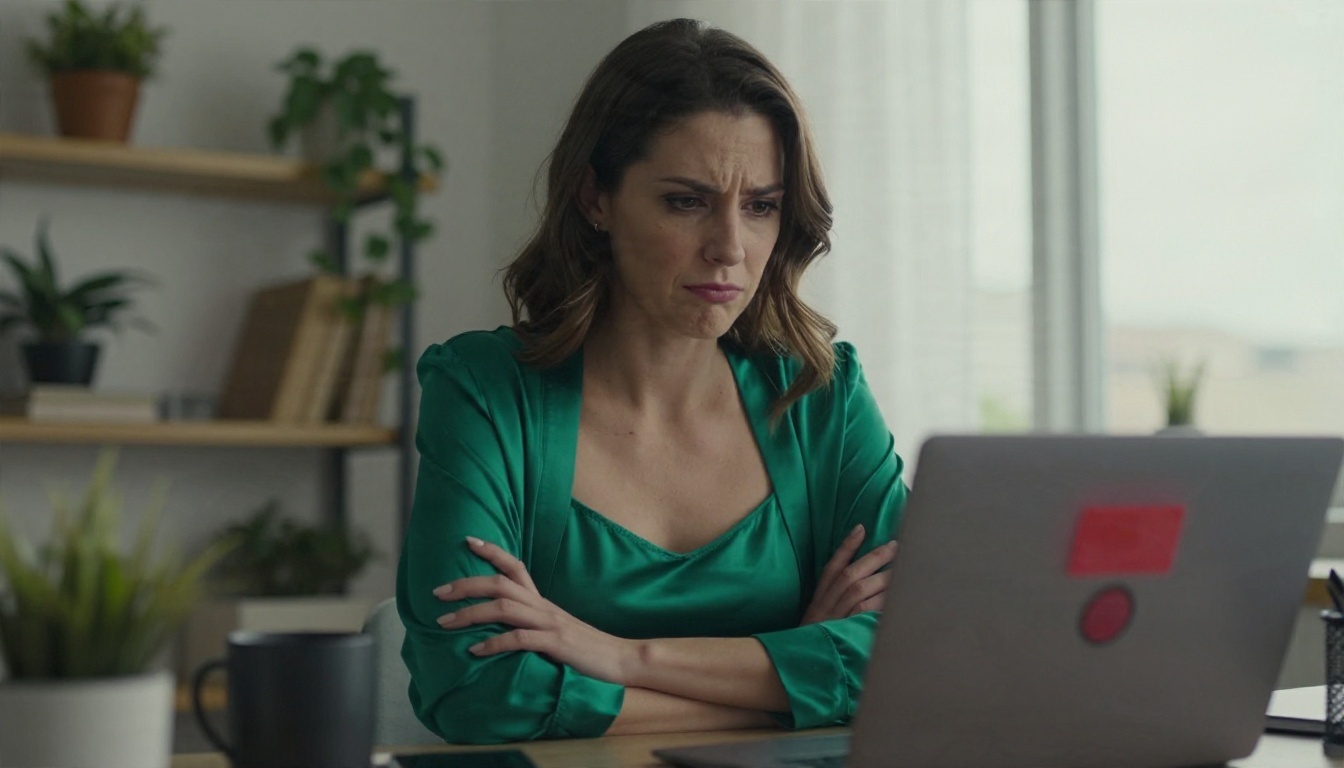
Work through these in order. They are sorted by how often they turn out to be the cause.
Red nodes and missing models
A red outlined node means a custom node is not installed. Open the manager, choose the option to install missing custom nodes, restart, and reload the workflow. If the node loads but the dropdown is empty, the model file is missing or sitting in the wrong folder:
- diffusion model files go in the diffusion models folder
- text encoder (umt5 for Wan) in the text encoders folder
- VAE in the VAE folder
- LoRA files in the loras folder
Refresh the browser after copying files, since the lists are read when the page loads.
Out of memory errors
This is the second most common failure. Try the following, one change at a time:
- Lower the resolution first (480p instead of 720p), then the frame count.
- Use a GGUF quantised version of the model, which cuts memory sharply with a modest quality loss.
- Decode with a tiled VAE node; the decode step often fails after sampling succeeds.
- Close the browser tabs that hold GPU memory, including other video players.
- Use block swap or offload options where the loader offers them.
💡 Out of memory at the very end, right after the progress bar finishes, almost always means the VAE decode, not the sampler.
Black or noisy output
A black video, rainbow static, or a grey blur usually means mismatched components: a text encoder or VAE from a different model generation, a LoRA trained for another version, or a sampler/scheduler pair the model does not like. Load the template workflow from the official examples, confirm it works unchanged, then swap one part at a time.
Slow motion and ghosting
Speed-up LoRAs that allow 4-step sampling are popular because they cut render time. A frequent side effect is slow, floaty motion. Raise the LoRA strength carefully, increase the motion description in the prompt ("walks quickly", "turns sharply"), or use the full step count for the final render.
Dragging an image into ComfyUI does nothing
Workflow metadata is stripped when an image is re-saved, resized or posted on many social sites. If dropping a picture into the window does not load a workflow, the data is gone. Ask the author for the JSON file instead.
| Symptom | Most likely cause | First fix |
|---|
| Red nodes | Missing custom nodes | Install missing nodes, restart |
| Empty model dropdown | Wrong folder | Move file, refresh page |
| Crash at 99% | VAE decode memory | Tiled VAE, lower resolution |
| Black video | Component mismatch | Use the template workflow |
| Frames ignored | Native cap | Chain clips instead |
| Slow motion | Speed-up LoRA | Adjust strength and prompt |
Online Apps Instead of Local Setup
Running ComfyUI locally is rewarding if you enjoy tinkering. If you only want clips, the setup cost is steep: a 16 to 24 GB GPU, tens of gigabytes of models, version conflicts between Python packages, and a workflow that breaks after an update.

Local or online
| Factor | Local ComfyUI | Online app |
|---|
| Hardware | Strong GPU required | Any phone or laptop |
| Setup time | Hours | Minutes |
| Control | Total, every node | Fewer sliders |
| Privacy | Files stay on your disk | Depends on the service |
| Cost | Hardware and power | Credits or subscription |
| Content filters | You choose | Varies a lot |
What to check in an app
Filters are the real difference. Many hosted tools block adult content outright, or silently blur it. Before paying, test a simple glamour prompt and see whether it is refused. Also check whether generations are unlimited or credit-metered, because video burns credits quickly, and whether you can download the clip without a watermark.
PicassoIA also lists Any ComfyUI Workflow, a ComfyUI workflow runner for images, for people who like the node approach but do not want to host it.
How to Get Similar Results on PicassoIA
ComfyUI itself is a local tool and does not run on PicassoIA. For the same still-to-video result without building a graph, use this three step route. It starts with Seedream 4.5 for the still, then PicassoIA Image Editor Pro for edits, then an image to video model.
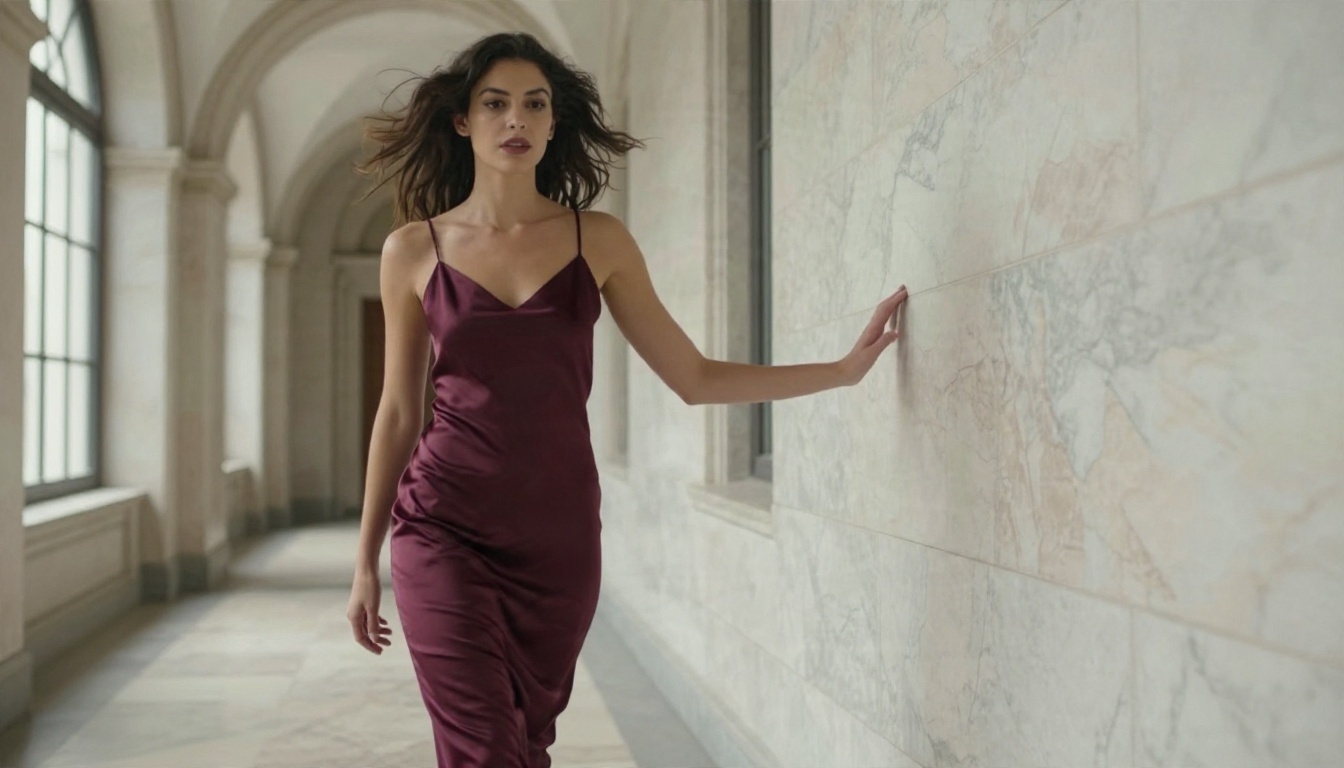
Step 1: Design the still in Seedream 4.5
Open Seedream 4.5 and write one clear sentence for subject, outfit, setting and light. Example: a woman in a burgundy satin slip dress in a marble hallway, soft afternoon window light from the right, 35mm lens, natural skin texture, film grain. Generate four variations and pick the one with the cleanest hands and face.
Parameter tips:
- Use a 16:9 ratio if you plan to make a landscape clip.
- Describe lighting direction. It is the fastest way to get a believable photo.
- Keep one subject. Crowds are where video models fall apart.
Step 2: Fix details in Image Editor Pro
PicassoIA Image Editor Pro offers unlimited generations, so you can correct a strap, a hand, or the colour of an outfit as many times as needed without watching a credit counter. Because video amplifies small mistakes, a clean starting frame is the single biggest quality lever.
Step 3: Animate the still
Send the final image to an image to video model such as Wan 2.7 I2V or Wan 2.2 I2V A14B. Describe only the motion: slow camera push in, she turns her head toward the window, hair and fabric move gently. Short motion prompts beat long ones.
💡 Both Seedream 4.5 and Image Editor Pro are the starting point for adult glamour work on PicassoIA. Do not use Seedream 5 Lite for this kind of content, since it blocks it.
Prompts That Hold Up
Local or hosted, the prompt structure that survives video is the same.

Keep the character consistent
Reuse the same description word for word: hair length and colour, skin tone, outfit, accessories. Change only the setting and the motion. If your model supports a reference image, always feed the same one. Only use fictional characters or people who gave clear permission; images of real people without consent cause harm and are banned on most platforms.
Write motion like a director
Use verbs with a direction and a speed. "She slowly lifts her chin" is clear. "Sexy movement" gives the model nothing to work with. Add one camera instruction only: push in, pan left, or hold still.
Avoid what breaks clips
- Fast spins and jumps
- Hands touching hair, faces or other hands
- Patterned lace, thin chains and text on clothing
- Several people in frame

Other Models Worth Trying
If a local workflow keeps failing, these hosted models cover the same ground. Test each with the same starting still so you can compare fairly.
Order matters here. Start with the first two, since an excellent still decides most of the final clip, then move down the list for motion.
Make Your Own Clips Today
You do not need a 24 GB graphics card or a free weekend to get a good result. Create the still in Seedream 4.5, polish it with PicassoIA Image Editor Pro, then animate it with one of the Wan models above. Run three variations of the same prompt, keep the best one, and chain a second clip from its last frame if you want something longer.
Keep a notes file with the prompts that worked. It saves hours later. When you want more options for stills, video and editing, browse everything at picassoia.com/en/all-models and try your own idea on the platform.


