You found a promising workflow file, dragged it into ComfyUI, and got a wall of red nodes. Or the file loaded fine, then your GPU ran out of memory on frame twelve. That is the normal first week with a ComfyUI video workflow for NSFW content, and most of the pain comes from the same handful of causes: wrong model files, wrong settings, and hardware that cannot hold a 14B video model.
This article is a practical walkthrough. You will see what the workflow is made of, where free downloads actually come from, which settings produce stable motion, what hardware you need, and how to get the same kind of result online without installing anything. Everything here is about adult, consenting, non-explicit glamour content: swimwear, lingerie, boudoir style portraits, and the motion that brings them to life.
💡 Quick answer: Most people use a Wan 2.2 image-to-video graph in ComfyUI, feed it a still image, and add a community LoRA for style. If your GPU has less than 12 GB of VRAM, an online generator is faster and far less frustrating.
What This Workflow Actually Does
A ComfyUI video workflow is a saved graph of connected nodes. You do not write code. You load a JSON file, point the nodes at the right model files, type a prompt, and press run. For NSFW-leaning work, which in practice means suggestive glamour rather than explicit scenes, the graph usually does one job: take a single still image and animate it for a few seconds.
The Core Pieces
Every image-to-video graph has the same skeleton, regardless of who built it:
- Diffusion model loader: the video model itself, often a Wan 2.2 file in 14B or 5B size.
- Text encoder: turns your motion prompt into something the model can read.
- VAE: compresses and decompresses frames.
- Start image node: your still frame, the first picture of the clip.
- Sampler: runs the denoising steps.
- LoRA loader (optional): adds a style or motion behavior on top of the base model.
- Video combine node: stitches frames into an MP4 or WebM.
If a workflow fails on load, the cause is nearly always one of the first three. A missing text encoder file will stop the graph before it starts.
Why People Choose ComfyUI
The appeal is control and cost. Once the software is installed, each clip costs only electricity. You decide the seed, the frame count, the LoRA strength, and the sampler. Nobody changes the rules on you overnight, and your files stay on your own disk.
The trade is time. Expect an evening of setup the first time, plus recurring troubleshooting after updates.
Where to Get the Free Download
Official Templates First
Start with the built-in templates. Current ComfyUI builds ship with video templates under the workflow browser, and the Wan 2.2 14B image-to-video template is one of them. These are clean, tested by the maintainers, and use standard node names, so they break less often than third-party files.
Load the official template, confirm it generates a normal clip with a neutral prompt, and only then start adding things. This one habit saves more time than any other.
Community Files and LoRAs
Adult-oriented workflows and LoRAs come from community hubs and model-sharing sites. Treat them as modified versions of the official template with extra loader nodes. Typical additions include:
- A LoRA loader for a specific look or motion style
- A speed-up LoRA so you can use fewer steps
- A first frame and last frame node for loops
- An upscale and frame interpolation chain at the end
⚠️ Adults only, always. Use only fictional adult characters or your own consenting subjects. Never use a real person's likeness without their permission, and never generate anything involving minors. Reputable platforms ban this outright, and so should you.
Safety Check Before You Load
Workflow JSON files are generally harmless, but custom node packs are code. A workflow that asks you to install five unfamiliar node packs deserves suspicion. Before installing:
- Check how many people use the node pack and how recently it was updated.
- Prefer workflows that use only core nodes plus one or two well-known packs.
- Never install a node pack because a random comment told you to.
- Avoid model files in old pickle formats. Stick with safetensors files.
- Keep ComfyUI in its own folder, away from anything sensitive.
Settings That Actually Work
Defaults in downloaded files are often tuned for someone else's GPU. Here are values that behave well for Wan 2.2 image-to-video, based on current public workflow notes. Treat them as starting points, then adjust one setting at a time.
| Setting | Safe starting value | What changes if you raise it |
|---|
| Resolution | 832x480 for testing, 1280x720 for final | More detail, much more VRAM |
| Frame count | 81 for a 5 second clip, up to 121 | Longer clip, higher risk of drift |
| Steps (standard) | 20 to 30 | Cleaner motion, slower runs |
| Steps (with speed LoRA) | 4 to 14 | Slight softness if too low |
| CFG (standard) | 3 to 5 | Stronger prompt adherence, stiffer motion |
| CFG (with speed LoRA) | 1.0 to 3.5 | Burnt contrast if too high |
| LoRA strength | 0.6 to 0.9 | Stronger style, more artifacts |
| Seed | Fixed while testing | Random seed changes everything |
Resolution and Frame Count
Test small. Generate at 480p with 33 or 49 frames to check the motion idea, then rerun the winning seed at 720p. A 720p run at 121 frames is a big job for a consumer card, and you do not want to find out the prompt was wrong after twenty minutes of waiting.
Also keep your start image aspect ratio close to your output size. A portrait image forced into a wide frame gets stretched or cropped, and faces suffer first.
Steps, CFG, and Samplers
Raising CFG feels like it should give better results. For video it usually gives stiffer, more jittery motion. Keep it modest. If you use a speed-up LoRA, the rules change: low steps and a CFG near 1 are the point, and pushing them back to normal values burns the contrast.
The two-model design of Wan 2.2 14B uses a high noise model for the early steps and a low noise model for the finishing steps. Official templates already split the steps between them. Do not change that split unless you know why.
Prompting the Motion
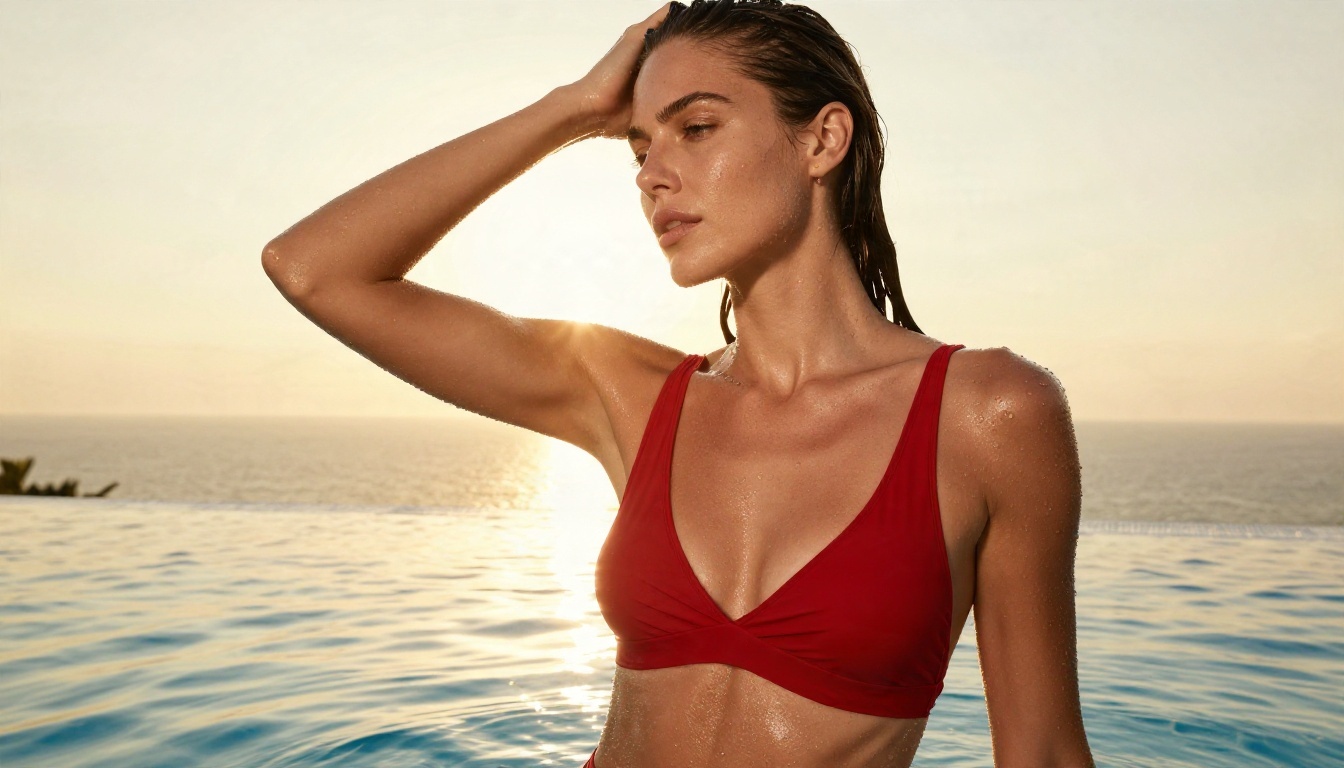
Your image already defines the subject. The prompt only needs to describe what moves. Compare these two:
- Weak: "beautiful woman at a pool, sexy, high quality"
- Better: "She slowly pushes her wet hair back with one hand and turns her head toward the camera, water drips from her shoulder, slow dolly in, warm sunset light"
Order matters. Describe subject motion first, camera motion second, light and atmosphere last. Keep to one or two actions per clip. Five seconds is short, and asking for a spin, a walk, and a laugh at once produces mush.
💡 Tip: Write camera moves with plain words: "slow push in", "gentle pan left", "static camera". Vague words like "cinematic" do little on their own.
Hardware Limits and Common Errors
VRAM by Model Size
VRAM is the real gatekeeper. Rough guidance from public documentation and community reports:
| Model | Practical VRAM | Notes |
|---|
| Wan 2.2 5B | 8 GB with offloading | Faster, softer detail, good for testing |
| Wan 2.2 14B (quantized GGUF) | 12 to 16 GB | Slower, closer to full quality |
| Wan 2.2 14B (full precision) | 24 GB or more | Best quality, highest cost |
ComfyUI can offload parts of a model to system RAM, which lets weaker cards run bigger models. The price is speed. A clip that takes four minutes on a 24 GB card can take triple that with heavy offloading.
5 Mistakes That Waste Hours
- Skipping the official template test. If the stock graph fails, the custom one will too.
- Mixing model families. A Wan 2.1 LoRA on a Wan 2.2 graph often loads silently and then does nothing, or breaks the output.
- Starting at 720p. Test at low resolution, then scale.
- Using a blurry start image. The model animates what you give it. Blur in, blur out.
- Changing three settings per run. You will never know which one helped.
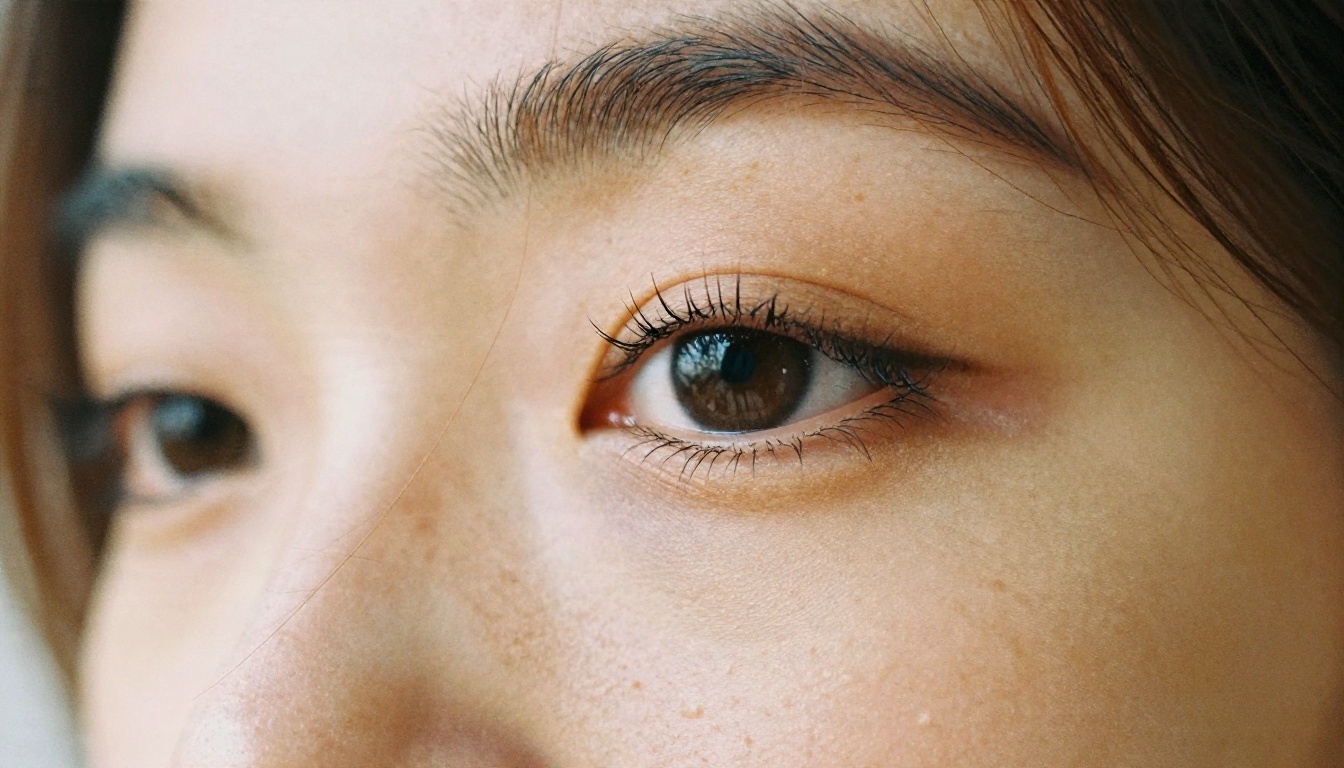
About that fourth mistake: the sharper and cleaner your start frame, the better the motion. Skin texture, eyelashes, and fabric edges are what the video model tries to keep consistent across frames. A crisp source image is worth more than any sampler tweak.
Online Alternatives With No Install
Why Go Online
Local ComfyUI is excellent when you own the hardware and enjoy tinkering. It is a poor fit if you have an 8 GB laptop, no spare evening, or just want ten good clips this week. Online generators remove the install, the model downloads, the node errors, and the VRAM math.

| Factor | Local ComfyUI | Online on PicassoIA |
|---|
| Setup time | Hours | Minutes |
| GPU needed | 12 GB or more recommended | None, runs in the browser |
| Model downloads | Tens of GB | None |
| Node errors | Frequent | None |
| Cost per clip | Electricity | Credits or free tiers |
| Control over sampler internals | Total | Limited to exposed settings |
| Works on a phone | No | Yes |
If you still like the node workflow idea, PicassoIA also has Any ComfyUI Workflow, which lets you run a ComfyUI-style graph online instead of on your own graphics card.
How to Make Clips on PicassoIA
The same two-step recipe you would build in ComfyUI works online: make a strong still, then animate it.
Step by Step
- Create the start frame. Open Seedream 4.5 and write a detailed prompt: subject, outfit, setting, light direction, lens. Keep it tasteful and non-explicit.
- Refine it. Open PicassoIA Image Editor Pro to change outfit colors, fix hands, adjust the background or clean up details. It offers unlimited generations, so you can iterate freely until the frame is right.
- Animate it. Open Wan 2.2 I2V A14B, upload your finished still as the first frame, and write a motion prompt.
- Test a faster option. Try Wan 2.2 5B Fast for quick drafts at 720p before committing to a longer run.
- Compare. Run the same image through Seedance 2.5 Lite and look at which motion feels more natural.
Parameter Tips
- Keep the motion prompt short. One subject action, one camera move, one light note.
- Match the aspect ratio of the clip to your still, so nothing gets cropped.
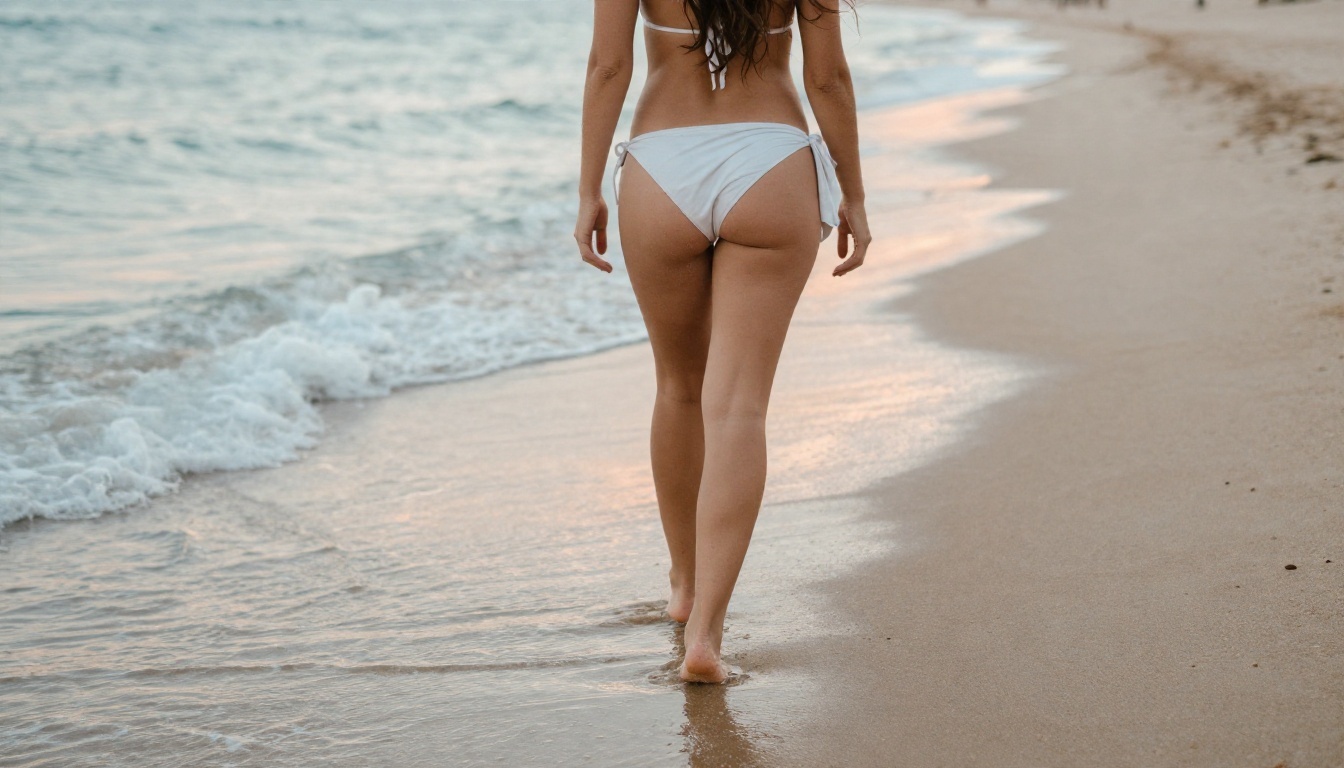
- Use wide, simple scenes first. Beach walks, hair movement, fabric in wind, and slow turns animate more cleanly than close hand gestures.
- Reuse good seeds. If an option to fix the seed exists, lock it while testing prompt changes.
- Make the still at the highest quality available. The clip inherits its sharpness.
💡 Tip: A beach, a pool edge, or a window with breeze gives the model natural motion to work with: water, hair, curtains, fabric. Static rooms with no movement sources tend to produce stiff clips.
Best Models for Adult Glamour Frames
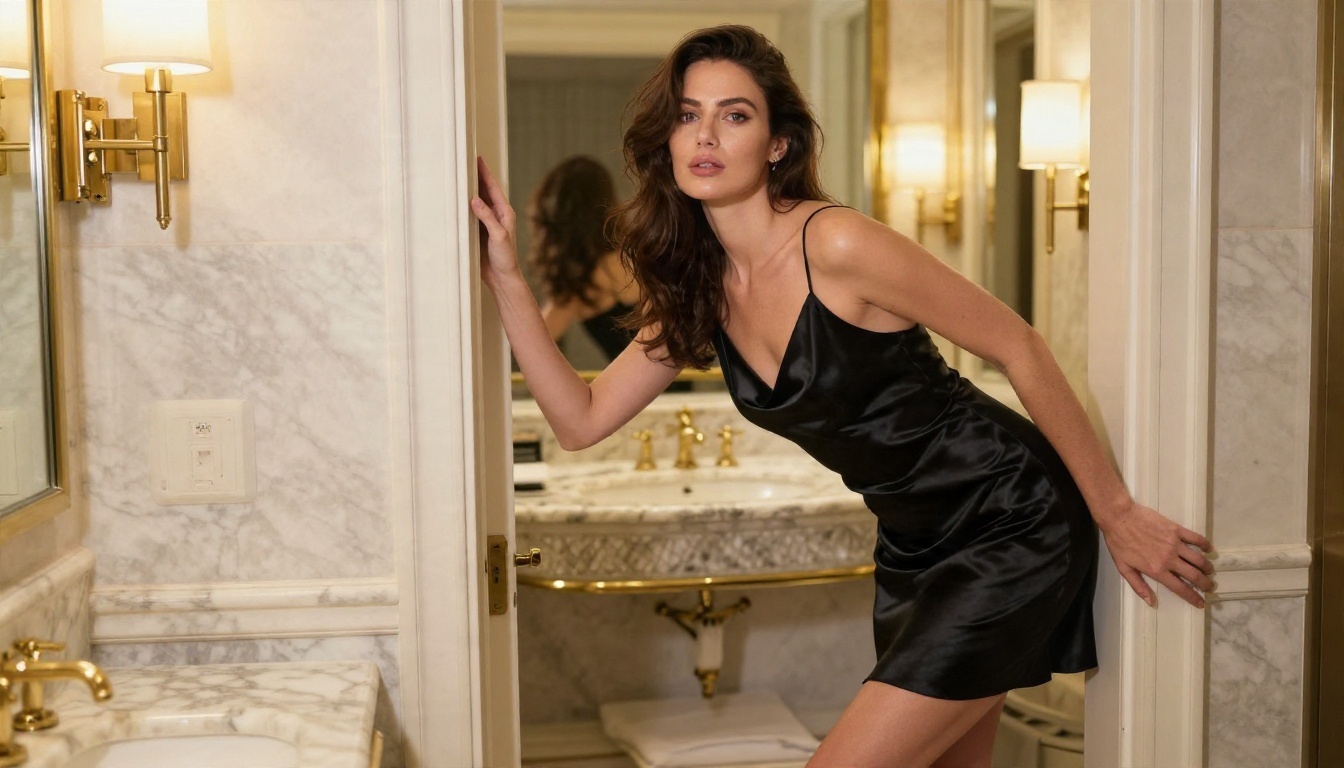
Many mainstream tools refuse swimwear, lingerie, or boudoir prompts. Over-cautious filters are one of the main reasons people turn to local ComfyUI in the first place. On PicassoIA you can work with suggestive glamour content without that constant friction, as long as it stays non-explicit and involves adults only. Here is the order I would use:
Speed is the quiet advantage. A still takes seconds, and a short clip takes minutes at most, with no queue of downloads or node errors in between. When iteration is cheap, you try more ideas, and more ideas is what produces the one clip that looks right.
A Simple Prompt Pair to Copy
For the still in Seedream 4.5:
"Adult woman in a black satin slip dress leaning on a marble doorway, boutique hotel suite, warm tungsten lamp from the left, 50mm f/1.4, visible skin texture, soft film grain, photorealistic."
For the motion in Wan 2.2 I2V A14B:
"She slowly lifts her eyes to the camera and lets a strap settle on her shoulder, slow push in, warm lamp light flickers softly on the marble."
Notice how each prompt does only its own job. The still prompt is about what the picture looks like. The motion prompt is about what changes over five seconds.
Try It Yourself Today
A local ComfyUI video workflow rewards patience. If you have a strong GPU and like tuning samplers, build it: start from the official Wan 2.2 template, test at low resolution, change one setting at a time, and treat third-party node packs with caution.
If you would rather spend the evening making clips than fixing red nodes, go online. Create a sharp still with Seedream 4.5, refine it in PicassoIA Image Editor Pro, then animate it with Wan 2.2 I2V A14B or Seedance 2.5 Lite. You will likely have your first finished clip in the time it takes to download one model file locally.
Pick a scene with natural movement, such as a pool, a beach, or a breezy window, write one clear motion sentence, and press generate. Then try a second version with a different camera move. To see every image and video model you can use, browse picassoia.com/en/all-models and start creating your own images and clips on Picasso IA today.


