If you have typed a prompt into Grok Imagine and watched the output land somewhere between confusing and completely off-target, you are not alone. Millions of people open xAI's image generation tool expecting Hollywood-quality visuals from a single sentence, and what they get instead is a muddy, weirdly proportioned image that barely resembles what they had in mind. The frustrating part is that none of this is the tool's fault. Every common mistake people make prompting Grok Imagine comes down to the same root cause: the prompt was not built with the model's logic in mind.
This article breaks down the six most frequent prompting errors, shows exactly why each one fails, and gives you actionable fixes that work right now. You will also find out when Grok Imagine is simply not the right tool for the job, and what platforms give you the precision and control you need.
Why Grok Imagine Keeps Disappointing
The Gap Between Expectation and Output
Grok Imagine is powered by Aurora, xAI's internal image generation model. It performs reasonably well on simple, literal prompts. Where it runs into trouble is when users expect it to fill in visual decisions they have not made themselves. If your prompt is vague, the model makes guesses. Most of those guesses will not match your vision.
The model does not have artistic taste. It does not interpret "vibes." It translates tokens into pixels based on patterns learned from training data. The richer and more specific your input, the closer the output lands to what you actually want.
What the Model Actually Needs
Think of prompting like giving directions to someone who has never visited your city. "Go toward downtown" sends them anywhere. "Head north on Fifth Avenue, turn left at the red building, walk three blocks" gets them there. Grok Imagine works the same way. Every word you omit is a decision the model makes for you, and the model's defaults rarely match yours.
The good news is that most common mistakes are fixable in under two minutes once you know what they are.

Mistake 1: Prompts That Are Too Vague
The "A Woman in a Field" Problem
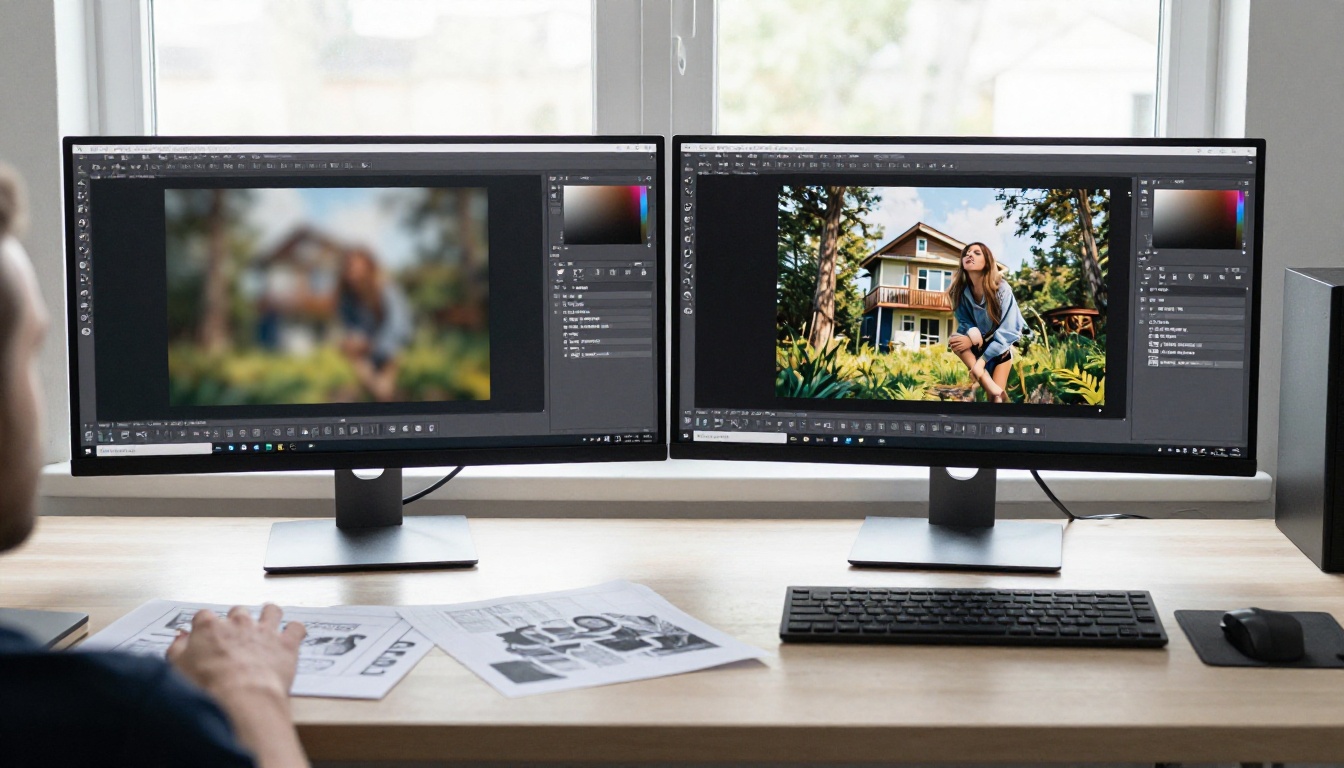
This is the single most common mistake people make prompting Grok Imagine. A prompt like "a woman in a field" gives the model almost nothing to work with: no age, no clothing, no time of day, no weather, no camera angle, no field type (wheat? lavender? grass?), no mood, no color palette. The model guesses on all of it.
The result is usually a technically functional image that feels completely generic. It looks like something you have seen a hundred times because the model fell back on the most statistically common interpretation of those five words.
Compare these two prompts:
| Weak Prompt | Strong Prompt |
|---|
| A woman in a field | A young woman in a red linen dress walking through a golden wheat field at dusk, shot from a low angle with an 85mm lens, soft backlight from a setting sun |
| A dog on a beach | A golden retriever running along a wet sandy shoreline at low tide, sea foam catching the light, shot from ground level with a wide 24mm lens |
| A city at night | An empty cobblestone street in Prague at 2am, rain-slicked surfaces reflecting amber streetlights, shot from a high angle looking down, 35mm lens, cold blue tones |
Every strong prompt answers: who, what, where, when, how (lighting and camera angle). If your prompt skips any of these, the model guesses.
Specificity Fixes Everything
The fastest way to improve your Grok Imagine results is to add five specific details before you hit generate. Write your base idea, then add: subject description, location or environment, time of day, lighting type, and camera angle. That alone will lift your output quality significantly.
💡 Pro tip: Before prompting, ask yourself: if I handed this description to a professional photographer, would they know exactly what shot to take? If not, your prompt needs more detail.
Mistake 2: No Style or Mood Direction
Why Style Words Matter
Grok Imagine defaults to a clean, modern, slightly editorial look when no style is specified. That is fine for some use cases. For everything else, no style cue means you are accepting the model's default, which is never going to be perfectly suited to your specific project.
Style direction is not just about aesthetics. It also signals intended output quality to the model. A prompt that includes "photorealistic RAW photography, Kodak Portra 400, 8K" trains the model's attention toward high-fidelity detail. A prompt with no style cues gets the model's best guess at a generic middle ground.
Style Terms That Get Results
These are style descriptors that consistently improve output quality across AI image generators:
For photorealistic results:
- RAW photography, photorealistic, film grain, Kodak Portra 400, 35mm film
- cinematic, volumetric lighting, natural light, shallow depth of field
For mood and atmosphere:
- golden hour, overcast diffused light, dramatic shadows, backlit
- muted tones, high contrast, warm amber palette, cool blue tones
For texture and detail:
- 8K resolution, fine grain, sharp focus, ultra-detailed textures
- visible pores, fabric weave detail, surface imperfections
What to avoid: style words that push the model toward illustration territory, like "digital art," "3D render," "anime," or "hyper-real CGI." Those break the photorealistic pipeline.
Mistake 3: Ignoring Composition and Lighting
Camera Angle Changes Everything
This is one of the most overlooked mistakes people make prompting Grok Imagine. Most users describe the subject but say nothing about how it should be framed. Camera angle and distance fundamentally change the emotional impact of an image:
- Low angle, wide lens: power, drama, monumentality
- High angle, overhead: vulnerability, intimacy, documentation
- Eye level, 50mm: natural, neutral, journalistic
- Close-up, macro: texture, emotion, detail emphasis
- Wide establishing shot: environment, context, scale
Adding "shot from a low angle with a 35mm lens" to your prompt takes about three seconds and can completely transform the image's mood.
Lighting Words Worth Knowing
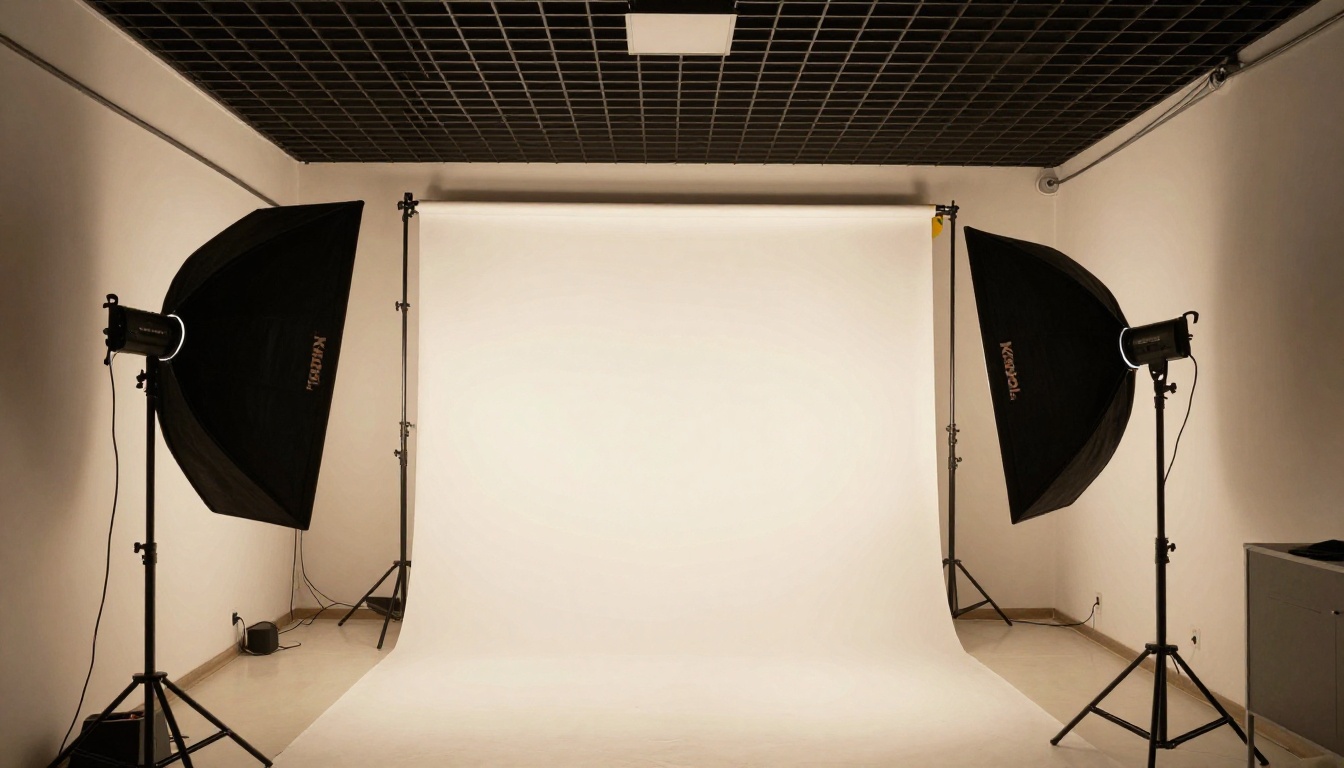
Lighting is where most AI images fall apart or come alive. These phrases reliably steer Grok Imagine toward better lighting results:
| Lighting Type | Prompt Phrase |
|---|
| Soft natural window light | "diffused morning light from a large window on the left" |
| Dramatic studio | "single overhead directional light, deep shadows" |
| Golden hour outdoor | "warm backlight from a low setting sun" |
| Overcast outdoor | "flat, even, cloud-diffused outdoor light" |
| Street at night | "amber sodium streetlights reflecting on wet pavement" |
Notice that each phrase specifies direction and source, not just a mood word like "good lighting" or "dramatic." The model responds to specifics, not adjectives.
Mistake 4: Contradictory or Overloaded Prompts
When Too Many Ideas Conflict
There is a common misconception that longer prompts always produce better images. That is not true. When you stack too many competing concepts into a single prompt, the model gets pulled in multiple directions and you end up with a compromised result that half-executes on several ideas rather than fully nailing one.
A prompt like "a futuristic minimalist cozy vintage industrial loft with neon lights and warm candlelight" contains so many contradictions that the model cannot resolve them into a coherent visual. Futuristic conflicts with vintage. Minimalist conflicts with industrial. Neon conflicts with candlelight.
Every adjective in your prompt competes for the model's attention. The more you add, the more each individual element gets diluted.
How to Trim and Focus Your Prompt
The rule of thumb: pick one dominant visual theme and support it with complementary, non-contradicting details. If you want warm and cozy, commit to warm and cozy. Every lighting choice, texture descriptor, and color palette note should reinforce the same direction.
A practical test: read your prompt aloud. If any two words feel like they belong to completely different images, one of them needs to go.
💡 The constraint test: Delete three words from your prompt. If the image would not change, those words were not helping anyway.
Mistake 5: Skipping Negative Prompts
What You Forget to Exclude
Most AI image platforms support a dedicated negative prompt field. Grok Imagine has some ability to process "no X" style exclusions written inline in the prompt, but most users skip this entirely.
Not using exclusions is like ordering a custom sandwich without telling the kitchen what you do not want on it. You get whatever defaults are baked into the training data.
Common things worth explicitly excluding:
- Distorted anatomy: "no extra fingers, no deformed hands, no distorted face"
- Text artifacts: "no watermark, no text overlay, no logos"
- Unwanted styles: "no digital art, no CGI, no illustration, no cartoon"
- Overused AI clichés: "no lens flare, no oversaturated colors, no HDR halo effect"
Exclusions Worth Using Every Time
When your prompt is photorealistic, always add some version of: "no digital art, no 3D render, no CGI effects, no illustration, no oversaturation." This single addition eliminates a huge category of default model behavior that makes AI images look artificial.
If your subject involves people, add: "no extra limbs, no merged fingers, no distorted proportions." Anatomy errors are among the most common Grok Imagine failure modes, and they are directly addressable with explicit exclusions.
Mistake 6: Giving Up After One Try
Single-Shot Prompting Always Fails
The biggest misconception about AI image generation is that a good prompt produces a good image on the first try. Professional AI artists, the people whose work you see in campaigns and publications, run dozens or hundreds of variations before landing on the image they publish.
Single-shot prompting fails for two reasons. First, you do not yet know how the model interprets your specific phrasing until you see the output. Second, every run introduces randomness, which means the same prompt produces different images each time. You need multiple samples to find the best version.
The Iteration Method That Works
Effective iteration is not random trial and error. It is a systematic process:
- Run the base prompt and identify what went wrong (lighting, composition, subject, style)
- Change one variable at a time so you know what fixed the problem
- Lock in a seed once you find a direction you like, and make small prompt tweaks from there
- Build on success rather than starting over from scratch each time
This method, running three to five variations on a single focused prompt, consistently produces better results than writing five different prompts and picking the best one.
💡 Seed strategy: When a generation produces an almost-perfect image, note any available seed parameter. Rerunning with the same seed plus a small prompt tweak keeps the composition stable while fixing the one detail that was off.
When Grok Imagine Falls Short
What Grok Imagine Does Not Handle Well
Grok Imagine is a solid general-purpose image generator for quick, conversational use. But there are specific use cases where it consistently underperforms:
- High-resolution output for print: Grok Imagine does not offer fine resolution control or export formats suitable for large print
- Consistent character or style across multiple images: Without seed control and model fine-tuning, character consistency is nearly impossible
- Precise composition control: You cannot set specific aspect ratios, define exact framing, or constrain the shot beyond what words can describe
- Iterative editing of existing images: Grok Imagine lacks inpainting and outpainting workflows for refining what was already generated
For all of these use cases, dedicated text-to-image platforms offer significantly more control.
Better Options Worth Switching To
If Grok Imagine's limitations are blocking your workflow, these models on PicassoIA give you far more control over output quality, format, and iteration speed:
Flux Schnell is the fastest text-to-image model available. It generates a 1-megapixel image in under 5 seconds using four denoising steps, making it ideal for rapid iteration. If you are running thirty prompt variations to find the right direction, Flux Schnell keeps the cycle fast. Unlimited generations, eleven aspect ratios, no credit caps.
How to use Flux Schnell on PicassoIA:
- Open the Flux Schnell page
- Write your prompt using the specificity structure from this article: subject, environment, lighting, camera angle, style
- Choose your aspect ratio (16:9 for landscape, 9:16 for vertical, 1:1 for square)
- Set "Go Fast" to true for maximum speed, under 5 seconds per image
- Generate three to five variations, adjusting one element at a time between each run
- When you find a direction you like, set a seed number and continue iterating from there
Flux Dev is the 12-billion parameter version for when you need maximum fidelity. It supports image-to-image mode, so you can start from an existing reference photo and redirect it with a prompt. Eleven aspect ratios, seed control for consistent results, WebP or PNG export.
Flux Pro is tuned specifically for prompt precision. Most models interpret your words loosely. Flux Pro follows your description with unusually tight fidelity. Adjust the guidance value to control how strictly the output matches your text, or use the interval setting to introduce compositional variation across runs.
Stable Diffusion gives you the deepest manual control: six schedulers, guidance scale adjustment, negative prompt support, resolution from 64px to 1024px in 64px increments, and unlimited batch output. It is the right choice when you want to dial in a result methodically over many iterations.
Seedream 5 Pro handles 2K output and accepts up to 10 reference images in a single generation. If you are working on projects where character consistency or style matching matters, feeding multiple references and a long detailed prompt gives you results that are simply not possible in a conversational AI interface.
Start Generating Better Images Now
Every mistake covered in this article has a simple fix. Vague prompts become specific prompts in under two minutes. Missing style cues take three words to add. Composition and lighting direction costs five extra words. Negative prompts take ten seconds to write. Iteration is a mindset shift, not extra work.
If you have been frustrated with Grok Imagine, the problem is almost certainly the prompt, not your creativity. The tools respond to precision. Give them precision and they deliver.
The models on PicassoIA give you more control than any conversational AI image interface, with unlimited generations, seed control, resolution choice, and model variety across 91 text-to-image options. Whether you want the speed of Flux Schnell, the fidelity of Flux Dev, the prompt precision of Flux Pro, or the 2K resolution of Seedream 5 Pro, there is a model for exactly what you are trying to make.
Browse the full list at picassoia.com/en/all-models, pick a model, write your first structured prompt, and see the difference precision makes.