If you've spent time with Nano Banana Pro and still aren't happy with your results, you're not alone. Most people hit a wall early on where the images they generate look flat, blurry, or just not what they had in mind. The frustrating part? It's rarely the model's fault. Nano Banana Pro is one of the most capable 4K image generation models available on PicassoIA, and when people get bad results, it's almost always because of a small set of very fixable mistakes.
This is a breakdown of those mistakes, why they happen, and what to do instead.
Why So Many Nano Banana Pro Images Fall Flat
The Expectation Gap Is Real
People see stunning examples of what Nano Banana Pro can produce and assume the model does all the heavy lifting. It doesn't. The model is a precision tool, and how you use it determines the quality of what comes out. The gap between what the model can produce and what most people actually get is almost entirely explained by avoidable input errors.
It Almost Always Starts With the Prompt
Nano Banana Pro is a language-conditioned image model. That means the text you give it is the single biggest variable in your output. Every other setting, every parameter dial, every aspect ratio option, all of it matters less than the quality of the words you type into the prompt box. Most mistakes start there, and most fixes start there too.
Prompt Mistakes That Wreck Your Results
Prompts That Are Too Short
This is the most common mistake by a large margin. People type something like "a woman in a forest" and expect a stunning, photorealistic portrait. What they get is generic. Nano Banana Pro has the capability to render fine micro-detail: skin pores, fabric weave, light reflecting off hair strands, ambient occlusion in shadow areas. But it won't do any of that unless you tell it to.
A weak prompt gets you an average result. A strong prompt gets you something that looks like a professional photograph.
Compare these two prompts:
| Weak Prompt | Strong Prompt |
|---|
| "a woman in a forest" | "A young woman standing in an ancient redwood forest at golden hour, warm amber light filtering through the canopy from the left, 85mm f/1.8 lens, shallow depth of field, Kodak Portra 400 film grain, photorealistic RAW 8K, skin pores visible, moss-covered bark behind her in soft bokeh" |
The second prompt tells the model exactly what lighting, what lens, what film stock, and what level of detail to aim for. Every detail you add is a constraint that pulls the output away from generic and toward specific.
Rule of thumb: If your prompt is under 30 words, it's probably too short.
Wrong Keyword Order
Nano Banana Pro processes your prompt sequentially. Words that appear earlier carry more weight than words near the end. A lot of people put style descriptors at the end of their prompt as an afterthought:
"A woman in a forest, sunset, trees, birds, photorealistic RAW 8K Kodak Portra 400"
The style information is buried. The model has already built most of its internal representation of the scene before it gets to the quality descriptors. Instead, lead with style and quality:
"Photorealistic RAW 8K photography, Kodak Portra 400 film grain, a young woman standing in an ancient redwood forest at golden hour..."
Put the most important stylistic direction first. Subject and scene description comes after.
Skipping Negative Prompts Entirely
Negative prompts tell the model what you don't want. When you leave this field blank, the model fills the gap with its own defaults. Those defaults often include exactly what you didn't want: cartoon elements, CGI-looking textures, watermarks, or chromatic aberration.
For photorealistic work with Nano Banana Pro, a solid base negative prompt looks like this:
"cartoon, anime, illustration, 3D render, CGI, digital art, watermark, signature, blurry, low resolution, pixelated, oversaturated, neon colors, unrealistic skin"
This is not a nice-to-have. Skipping negative prompts is one of the fastest ways to get muddy, mixed-style outputs that look like nothing in particular.
Settings Errors You're Probably Making
Ignoring the Aspect Ratio Setting
Nano Banana Pro generates images at full 4K resolution, but the default aspect ratio may not match your intended output. A lot of people generate square images and then crop them for social media or web use, which destroys detail at the edges and forces re-framing decisions that the model could have made for you.
Before you generate, decide where the image is going:
| Use Case | Recommended Ratio |
|---|
| Blog header or web banner | 16:9 |
| Instagram post | 1:1 or 4:5 |
| Instagram or TikTok Stories | 9:16 |
| Product card | 3:4 |
| Print portrait | 2:3 |
Generating in the right aspect ratio from the start means the model composes for that frame. It places subjects, balances negative space, and manages visual weight for your actual output size. Cropping a 1:1 image into a 16:9 banner never looks as good as generating 16:9 directly.
Leaving Seed at Random Every Time
Seeds in Nano Banana Pro control the randomness of the initial noise pattern the model uses. Most people never touch the seed setting and just click generate, which gives a different random result every time. This is fine when exploring, but it's the wrong approach once you find a result you like.
When a generation produces something close to what you want, write down the seed number. You can then:
- Refine the prompt slightly while keeping the same seed
- Adjust one parameter at a time while keeping composition consistent
- Generate variations that maintain the same structural foundation
Without seed control, every generation is a new roll of the dice. With it, you're iterating intelligently toward a specific result.
Skipping Resolution Settings
Nano Banana Pro is built for 4K output, but not every use case needs full 4K. Generating at maximum resolution for quick concept tests slows down your iteration loop. On the other hand, locking in a composition at low resolution and then jumping straight to 4K final without refinement often reveals issues at large size that weren't visible at small size.
A smarter workflow: quick-test prompts at lower resolution to check composition and feel, then move to full 4K once the prompt is dialed in. You can use PicassoIA's Super Resolution models to upscale a strong lower-resolution result rather than generating full 4K blindly from the start.
Style and Consistency Failures
Mixing Incompatible Style Tokens
This mistake is subtle but common. People stack style descriptors that contradict each other, and then wonder why the output looks like a half-rendered experiment:
"photorealistic, anime-style, oil painting, 4K, cartoon"
These are fighting each other. The model has to average across incompatible visual vocabularies, and the result satisfies none of them. Nano Banana Pro is exceptionally good at photorealism. That is its strength. Use it for what it does best, and pick one coherent style direction per prompt.
💡 Tip: If you want to blend styles, use specific qualifiers that are compatible, such as "cinematic photography with painterly color grading" or "documentary photography with film noir shadow contrast." These point toward a unified aesthetic rather than pulling in separate directions.
Not Using a Reference Image
When you need consistency across multiple generations, such as a character appearing across several images, the same product from different angles, or a specific environment revisited in new compositions, not providing a reference image forces the model to reinvent from scratch each time. The results drift.
PicassoIA's image editing tools let you use an existing image as a structural or stylistic reference. Use them. Consistency across a content series requires giving the model something to anchor to, not just re-typing the same prompt and hoping for similar output.
Output Problems and What Causes Them
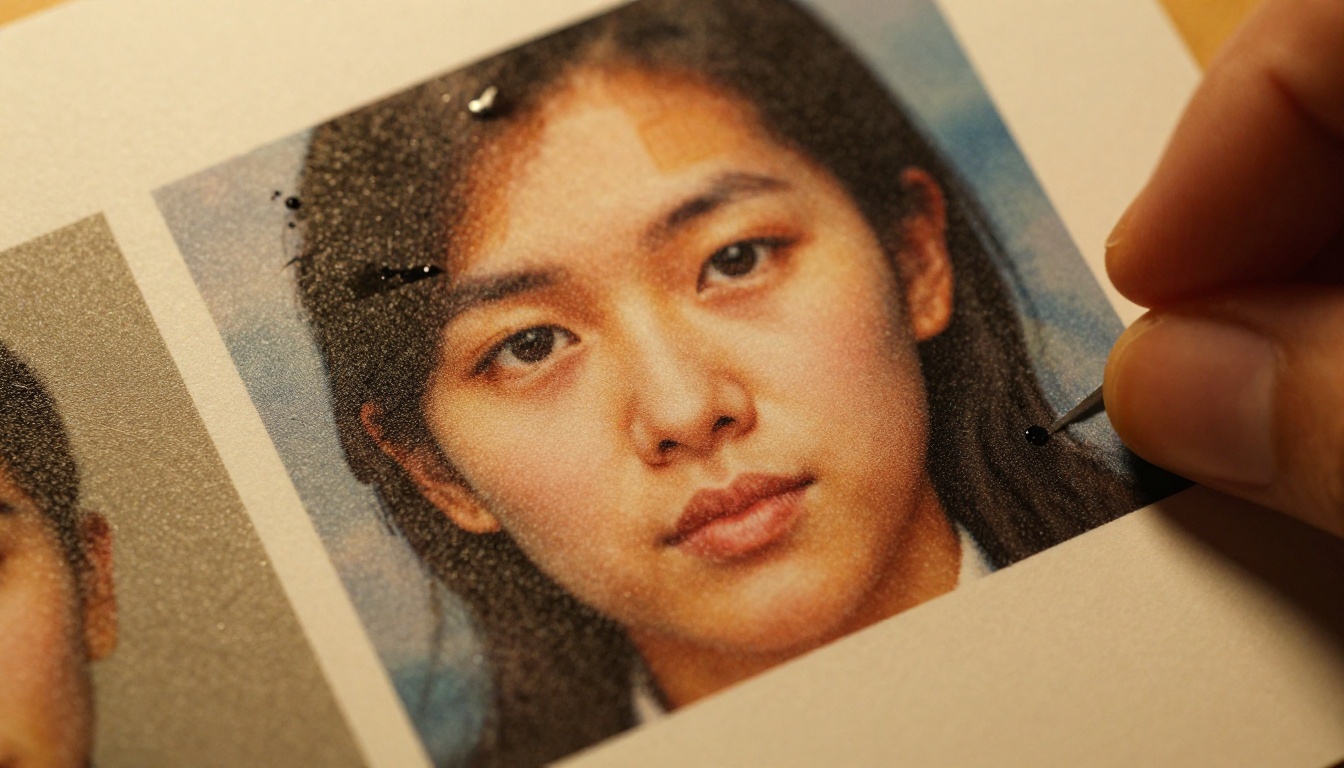
Blurry, Soft, or Low-Detail Images
Soft images from Nano Banana Pro almost always come from one of three things:
- No quality modifiers in the prompt: You must explicitly ask for sharpness. Include "RAW 8K", "photorealistic", "high detail", "sharp focus", and lens specifications like "85mm f/1.8".
- Aspect ratio mismatch: Generating at one ratio and stretching or compressing the output creates softness at edges.
- Competing style tokens: Mixing photorealistic with watercolor or illustration softens the output because the model is splitting the difference.
Add lens specification and quality anchors to every prompt. Make sharpness an explicit requirement, not an assumed default.
Distorted Faces and Hands
Faces and hands have been the weak point of AI image generation since the beginning. Nano Banana Pro handles these better than older models, but not without guidance. The most common failures happen when:
- The face or hands are not mentioned explicitly in the prompt
- The subject is at a distance and facial detail isn't a stated priority
- Hands appear in a complex pose without specific description
For hands specifically, describe what they're doing. "Hands resting flat on a wooden table" beats "hands visible" by a wide margin. For faces, include: "natural facial expression", "sharp eyes", "realistic skin texture", and avoid overly complex facial angles in early iterations.
If you consistently get distorted faces, try PicassoIA's Face Swap or image inpainting tools to correct specific areas rather than regenerating the entire image from scratch.
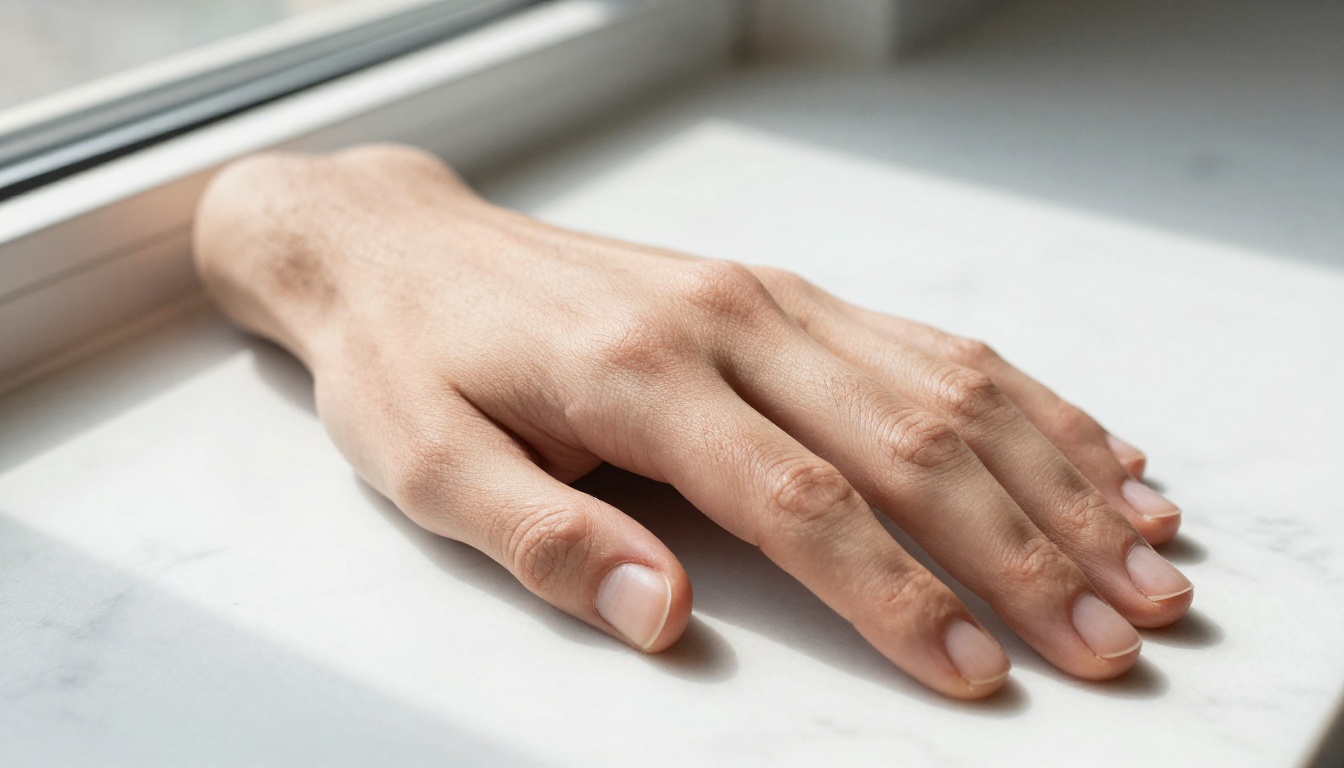
Color Banding and Unnatural Tones
Over-saturated, cartoonish color that doesn't match the photorealistic intent usually comes from two sources: missing film stock references in the prompt, and not including any negative prompts around color.
Adding "Kodak Portra 400", "Fuji Provia 100F", or "natural color grading" to your prompt pulls the output toward organic, realistic color science. In your negative prompt, add "oversaturated, neon, unrealistic colors, HDR, hyper-vibrant" to push back against the model's tendency to punch up color in the absence of direction.
Nano Banana Pro responds very well to specific film stock references because they carry precise color, contrast, and grain associations that the model has internalized.
How to Use Nano Banana Pro on PicassoIA
Step 1 — Write a Proper Prompt
Go to Nano Banana Pro on PicassoIA and start with this structure:
- Quality anchors first: "Photorealistic RAW 8K photography, Kodak Portra 400 film grain"
- Subject and action: "A woman in her 30s reading at a wooden desk"
- Environment: "in a warmly lit home library with floor-to-ceiling bookshelves"
- Lighting: "afternoon golden hour light from a large window on the left"
- Camera spec: "85mm f/1.8 lens, shallow depth of field, bokeh background"
- Atmosphere: "quiet, contemplative mood, soft ambient fill light from right"
That structure consistently produces professional-quality output.
Step 2 — Set Your Parameters Before Generating
Before you click generate on Nano Banana Pro, run through this checklist:
- Aspect ratio: Set it to match your intended output (16:9 for web, 9:16 for vertical, 1:1 for social posts)
- Seed: Set a fixed seed if you're iterating. Leave it random only when exploring
- Resolution: Use lower resolution for quick concept tests, full 4K for final output
- Negative prompt: Fill it in. Always. Even a basic negative prompt makes a measurable difference
💡 Tip: Save your best-performing prompt and negative prompt combo as a template. Build a personal library of starting points that you know work, and customize from there.
Step 3 — Review and Iterate, Not Regenerate
The biggest workflow mistake: getting a result that's 80% right, scrapping it entirely, and starting over with a different prompt. That throws away useful information.
When a generation is close but not perfect:
- Identify exactly what's wrong (lighting? composition? one specific element?)
- Adjust only that variable in your prompt
- Hold the same seed to maintain the rest of the composition
- Use inpainting or image editing tools to fix specific areas instead of regenerating everything
Iteration beats regeneration every time. You'll hit your target in fewer credits with better results.
When to Reach for a Different Model
Nano Banana Pro is optimized for photorealism. When the job calls for something else, it may not be the right choice. PicassoIA has a full catalog of models for different visual styles. If you need:
- A more experimental or stylized output: consider Nano Banana 2 for its image fusion capabilities
- Fast concept generation: Nano Banana 2 Lite gives quick previews at lower cost
- Classic image editing and generation: Nano Banana covers foundational editing and generation workflows
Picking the right model for the task is itself a skill that many users overlook. Not every image needs to be a 4K photorealistic production. Match the model's strength to the job.
💡 Tip: Browse the full PicassoIA model catalog at picassoia.com/en/all-models. There are over 90 text-to-image models available, each with different strengths. Knowing when to switch models is as important as knowing how to prompt.
Quick Reference: Fixes for Common Mistakes
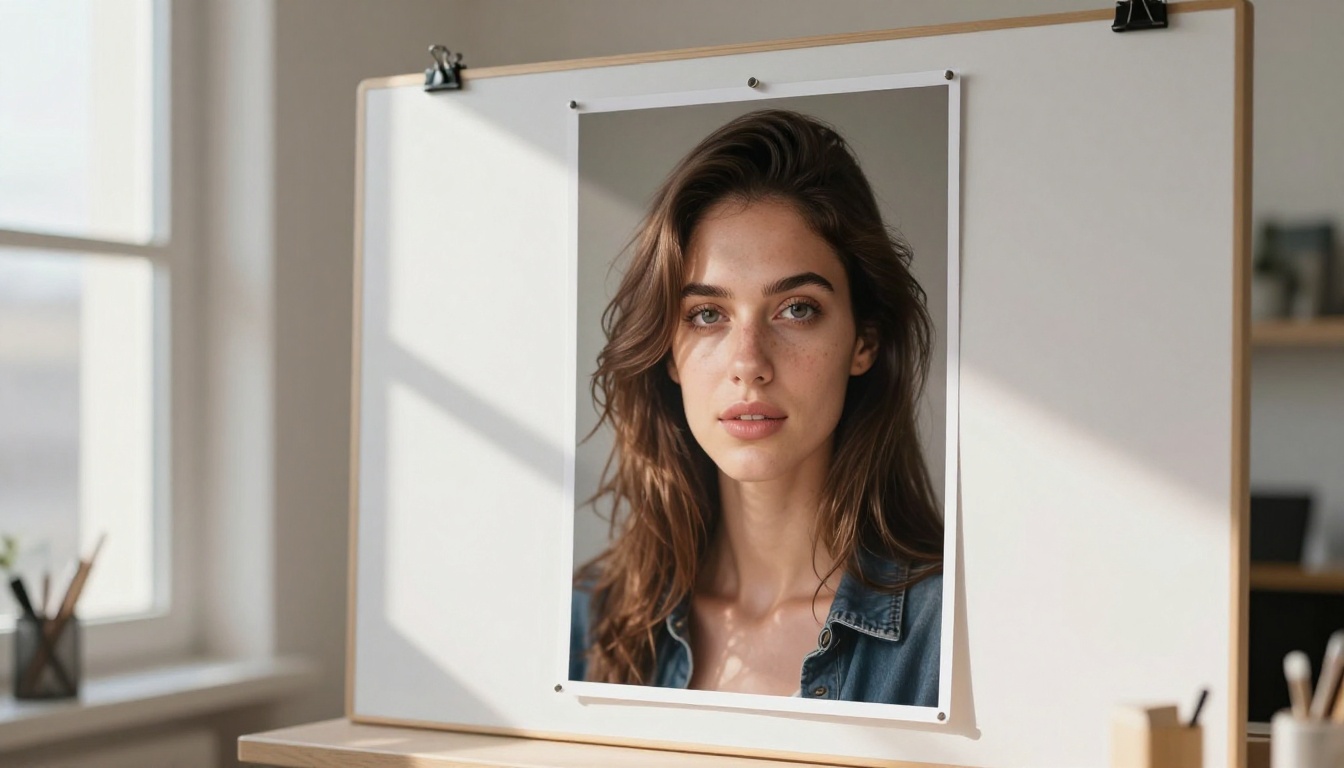
Here's a fast reference for the mistakes covered above:
| Mistake | Fix |
|---|
| Prompt too short | Aim for 50 to 75 words minimum with lighting, lens, and texture specs |
| Wrong keyword order | Lead with quality anchors, then subject, then environment |
| No negative prompt | Add style exclusions, quality exclusions, and color exclusions |
| Wrong aspect ratio | Set ratio before generating to match your output format |
| Ignoring seed control | Write down seeds that produce good compositions, iterate from them |
| Mixing incompatible styles | Pick one coherent aesthetic direction per generation |
| Blurry output | Add "RAW 8K", "sharp focus", and specific lens specs to every prompt |
| Face or hand distortion | Describe exactly what the face or hands are doing in the prompt |
| Unnatural color | Add a film stock reference and oversaturation to negative prompt |
| Regenerating when 80% right | Use inpainting and seed-locked iteration instead |
Start Getting Real Results
The mistakes above are all fixable, and fixing them doesn't require any special skill. It requires attention to how you construct your prompts, a habit of filling in parameters before generating, and a willingness to iterate instead of regenerate.
Nano Banana Pro on PicassoIA is genuinely capable of producing images that rival professional photography when you give it what it needs. The same model that produces blurry, generic output for one user produces stunning 4K portraits for another. The difference is almost never the model. It's the prompt.
Apply one or two of the fixes above to your next generation and see the difference. The gap between where your results are now and where they can be is narrower than you think.


