HunyuanVideo 2.0 is the kind of release that makes you stop and rethink what's possible with a single photograph. Tencent's open-source model doesn't just add motion to an image. It reads the physics of the scene, the implied lighting direction, the texture of fabrics and skin, and synthesizes realistic frame sequences that hold up to frame-by-frame scrutiny. If you've been waiting for image-to-video quality to catch up with the ambitions of content creators, photographers, and filmmakers, this is the checkpoint.
This article breaks down exactly how the technology works, how to run it on PicassoIA without any local setup, and how to pick the right tool for each type of source image you're working with.

What HunyuanVideo 2.0 Actually Does
Most image-animation tools apply a fixed warp field or an optical flow estimate across the image. The result looks like someone wrapped a photo around a wobbling balloon. HunyuanVideo 2.0 works differently because it was trained on a massive corpus of paired image-video data with explicit temporal supervision.
From Still Frame to Cinematic Motion
The model accepts a single input frame and generates a sequence of subsequent frames that are physically and perceptually consistent with the first. It doesn't just move pixels. It infers the depth of the scene, the probable behavior of materials under motion (how hair flows, how water moves, how fabric drapes when a body shifts weight), and renders those behaviors into new frames.
The result is what video professionals call temporal coherence: the quality where each frame looks like it was shot by the same camera, in the same light, with no hallucinated geometry appearing between frames.
The Architecture Behind the Animation
HunyuanVideo 2.0 is a diffusion transformer trained at scale, building on Tencent's earlier HunyuanVideo work but with a redesigned conditioning mechanism that gives the model far more control over motion magnitude and direction. Notable improvements in version 2.0 include:
- Better motion fidelity at high resolution: Previous versions often produced soft or smeared details when animating faces or fine textures. Version 2.0 addresses this with improved high-frequency detail preservation across frames.
- Stronger adherence to motion prompts: You can now describe the type of motion you want (subtle hair movement, slow camera pan, cascading water) and the model tracks those instructions more reliably.
- Reduced flickering on complex textures: Fabric, foliage, and reflective surfaces no longer produce the characteristic shimmer that plagued earlier open-source models.

Why Image-to-Video Quality Matters
The distinction between a good and a mediocre image-to-video model is immediately visible, even to people who don't think of themselves as visual critics. Bad motion feels like a glitch. Good motion feels like you just found a video you forgot you'd taken.
Motion Coherence and Realism
When the motion in an animated photo is coherent, viewers don't consciously notice the technology at all. They just accept it. This is the benchmark that matters for real-world use cases: social media content, marketing materials, portfolio presentations, and film pre-visualization. HunyuanVideo 2.0 crosses that threshold far more consistently than most models released before it.
The physics simulation embedded in the training data means that when you animate a photo of ocean waves, the water doesn't just scroll left. It froths, breaks, and recurls in a way that matches the scale and energy implied by the original shot.
Temporal Consistency Explained
Temporal consistency is a technical term with an intuitive meaning: the video doesn't contradict itself between frames. A building in the background doesn't grow a new window. A person's shirt doesn't change color. Shadows don't jump.
Earlier image-to-video models struggled with this when animating for more than 2-3 seconds. HunyuanVideo 2.0 maintains scene consistency across longer outputs, which is critical when you're working with 5-10 second clips rather than looping GIFs.

How to Use HunyuanVideo on PicassoIA
PicassoIA hosts Hunyuan Video as part of its text-to-video collection, which means you can run the model entirely in the browser with no GPU required on your end. Here's the exact workflow.
Step 1: Prepare Your Source Image
Image quality going in directly affects video quality coming out. A few things to optimize before uploading:
- Resolution: 1024px on the shortest edge or higher gives the model enough information to preserve fine details during animation.
- Aspect ratio: 16:9 and 9:16 are both well-supported. Unusual crops may produce artifacts at the frame edges.
- Subject clarity: Avoid heavy compression artifacts (JPEG noise) in areas you want to animate. The model will faithfully reproduce whatever it sees, including digital noise.
- Lighting: Images with strong directional light give the model clear information about depth and surface orientation, which produces more realistic motion shadows.
Step 2: Set Your Motion Prompt
This is where most users underperform. The motion prompt is not a description of the image. It is a description of what should happen in the video.
💡 Write motion, not content. Instead of "a woman on a beach at sunset," write "woman's hair gently lifts in a sea breeze, camera slowly pulls back, soft wave sounds."
Strong motion prompts include:
- The direction and speed of movement ("slow drift to the right," "rapid upward pan")
- Specific elements that should animate ("leaves rustling," "water rippling," "curtains moving")
- Camera behavior ("gentle dolly-in," "static locked-off shot")
- Atmospheric conditions that reinforce motion ("morning mist rolling forward")
Step 3: Choose Resolution and Duration
PicassoIA's Hunyuan Video implementation offers multiple output settings. For most use cases:
- 480p at 5 seconds: The fastest option, ideal for testing your prompt and composition before committing to a higher-quality render.
- 720p at 5 seconds: The sweet spot between generation speed and visual quality. Recommended for social content and website embeds.
- 1080p outputs: Available through premium models in the catalog and worth using when the final destination is a large screen or broadcast context.
Step 4: Download and Iterate
Generated videos are automatically uploaded to storage and returned as a direct URL. Download the clip, review it at full resolution, and take notes on what the model got right and wrong before submitting a revised prompt.
Iteration is the actual skill here. Three or four rounds of prompt refinement typically produces a result that would have taken hours to achieve with traditional animation software.

Best Alternatives for Image-to-Video in 2027
HunyuanVideo 2.0 is excellent, but it's one tool in a large ecosystem. Depending on your subject matter and output goals, a different model might serve you better.
Wan 2.7 I2V
Wan 2.7 I2V from Wan Video is arguably the strongest competitor for photorealistic image animation right now. It excels at human subjects, particularly faces and body movement, and produces sharper fine details at equivalent resolutions. For portrait photographers animating headshots or fashion photographs, Wan 2.7 I2V often outperforms HunyuanVideo on subject clarity.
The Wan 2.6 I2V variant is also available if you want a slightly faster generation time with comparable quality for most subject types.
Kling v2.6 and v3
Kling from Kwaivgi has built one of the most consistent image-to-video pipelines available. Kling v2.6 is particularly strong at handling complex scenes with multiple moving elements without losing coherence. The newer Kling v3 Video pushes the envelope further with improved camera motion control, making it the go-to option when you need precise cinematographic behavior rather than organic natural motion.
Seedance 2.5
Seedance 2.5 from ByteDance generates up to 30 seconds of video per clip, which is exceptional for storytelling contexts where you want more than a brief animated moment. The audio-native architecture means motion often syncs well with ambient sound generation. For content creators building short-form video from a single product photograph or travel photo, Seedance 2.5 is worth testing specifically for its duration advantage.
Free Options That Still Deliver
Not every use case needs the highest quality tier. For rapid prototyping and free unlimited access:
- PicassoIA Video: PicassoIA's own model offers free unlimited image-to-video generation, making it the best starting point for any workflow. Test your image quality and motion prompts here before spending credits on premium models.
- Seedance 2.5 Free: The lite version provides free access to the Seedance architecture with shorter clip lengths.
- Wan 2.1 I2V 720p: Free 720p animation with strong photorealistic output for landscape and architectural photography.

Which Images Work Best
Not all photographs animate equally. Knowing why helps you make better creative decisions before you even open the generation tool.
Composition Tips for Better Animation
Images with clear foreground, midground, and background layers give the model depth information it can use to create parallax motion. A flat image (such as a scan of a document, or a photo shot against a blank wall) leaves the model with little to infer about spatial relationships, and the resulting animation often feels like a 2D warp rather than a 3D scene.
The strongest starting images for animation:
- Portraits with natural environmental backgrounds
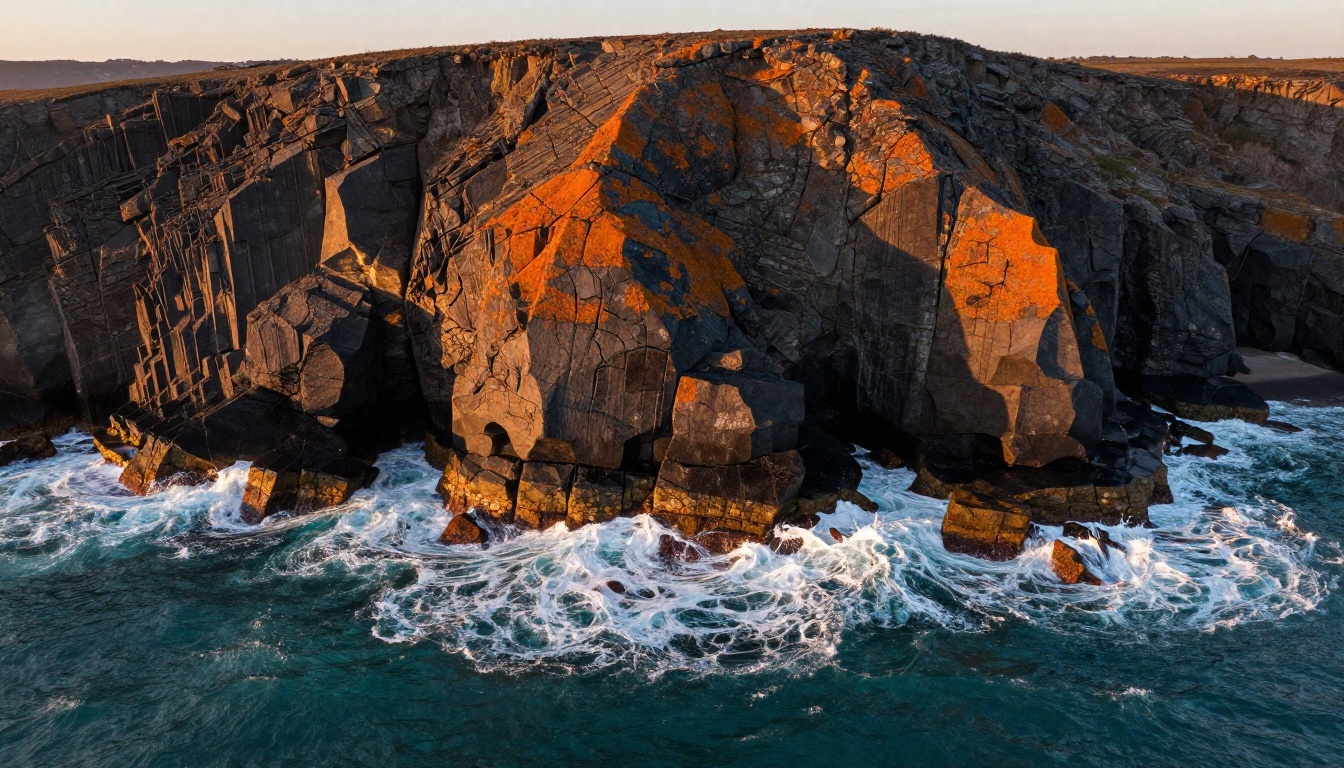
- Landscapes with multiple distance layers (foreground rocks, midground trees, distant mountains)
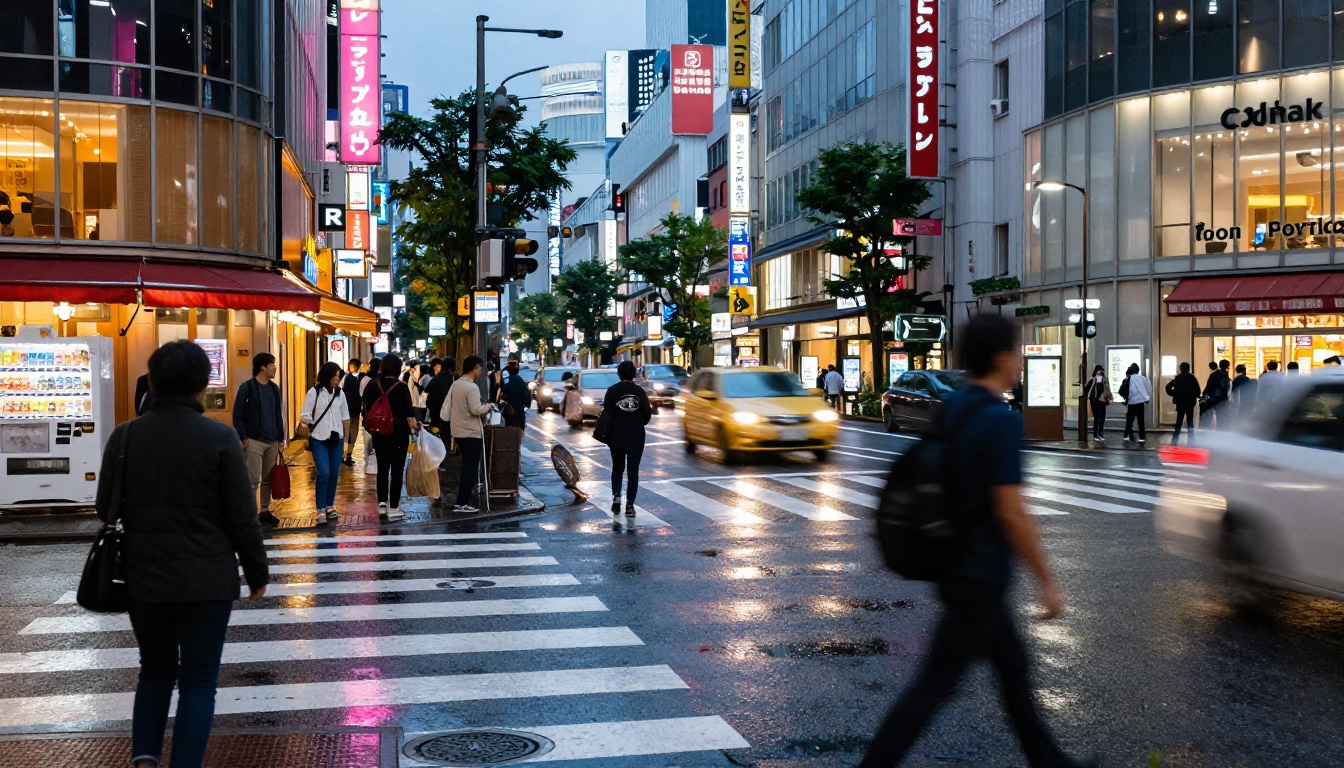
- Street scenes with depth-of-field gradients
- Any photo where there's an implied physical force (wind, water, fire, breath)
Lighting and Contrast Considerations
High-contrast directional light gives the model edge information it uses to preserve subject boundaries during motion. Flat or overcast lighting, while beautiful in still photography, reduces the model's ability to track where one object ends and another begins.
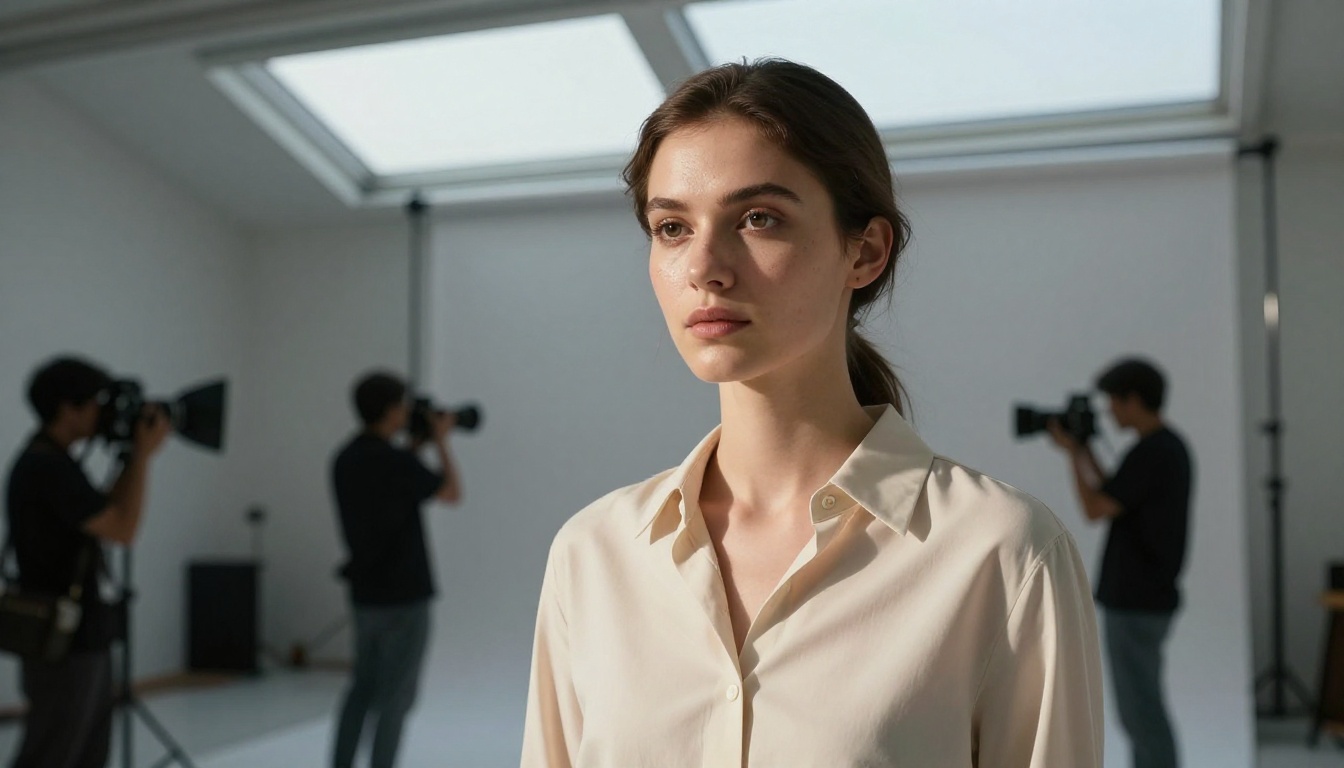
💡 Golden hour and side-lit studio shots animate exceptionally well. The strong directional light defines surfaces precisely, which helps the model maintain sharp subject edges across frames.
What Types of Photos to Avoid
Some image types consistently produce poor animations regardless of the model:
- Heavy HDR post-processing: Tone-mapped images with unnatural luminosity gradients confuse the model's depth estimation.
- Extreme wide-angle distortion: Barrel distortion from fisheye lenses produces animation artifacts at the image edges.
- Low-resolution or heavily compressed files: The model amplifies existing artifacts during frame synthesis.
- Multiple overlapping subjects at similar distances: The model struggles to determine which elements should move independently.
Comparing Quality Across Top Models
Pro Tips for Better Results
After running hundreds of image-to-video generations across different models, these patterns consistently separate mediocre outputs from publication-ready ones.
Writing Motion Prompts That Work
The single biggest improvement most users can make is moving from descriptive prompts to action prompts. The model already knows what the image looks like. It needs instructions on what to do next.
Weak prompt: "Beautiful sunset over the ocean, waves, serene atmosphere"
Strong prompt: "Ocean waves roll slowly toward the shore, camera holds steady, warm sunset light fades slightly, sea breeze causes light foam to drift left"
A few structural templates that work reliably:
[subject] [specific motion], [camera behavior], [atmospheric element]Slow [camera movement], [element 1] gently [motion], [element 2] gradually [motion]Locked-off camera, [foreground element] moves [direction and speed], background remains still
When to Use 480p vs 720p vs 1080p
Resolution choice is not just about quality. It affects generation time and credit consumption significantly.
| Use Case | Recommended Resolution |
|---|
| Prompt testing and iteration | 480p |
| Social media clips (Instagram, TikTok) | 720p |
| Website hero videos and embeds | 720p or 1080p |
| Broadcast, large screen, film work | 1080p |
| Portfolio presentation | 1080p |
💡 Always test at 480p first. If the motion behavior is wrong at 480p, it will be wrong at 1080p too. Lock in the prompt behavior before paying for higher resolution renders.
Multi-Image Workflows
One of the most powerful things you can do with image-to-video is build a sequence from multiple source images. Rather than generating one long clip from a single photo, you generate shorter clips from a series of different photographs that share visual continuity (same location, same subject, similar lighting), then edit them together in a video timeline.
This approach solves the temporal consistency problem at scale: each clip only needs to be consistent for 5-10 seconds, and the editorial cuts between them handle the longer narrative arc. Content creators working with landscape photography, portrait series, or event documentation all benefit from this workflow.
PicassoIA's video catalog extends well beyond image animation. When your project needs more than a single animated photograph:
- Ray 3.2 by Luma delivers cinematic HDR video from text descriptions alone, useful when you don't have a source image but need to create a matching visual from scratch.
- LTX 2.3 Pro generates 4K video, which is the right choice when your source image is high enough resolution to support it and your final output will be displayed on a 4K screen.
- P Video gives you a flexible text-to-video or image-to-video option that works well as a general-purpose clip generator when you want something faster than the premium models.
- LTX 2 Fast is purpose-built for rapid iteration, producing clips in seconds rather than minutes, which changes the economics of the entire prototyping phase.
- Veo 3 from Google brings native audio generation alongside the video, removing the need for a separate audio step when you need ambient sound with your animated content.
- Gen 4 Turbo from Runway handles fast image-to-video conversion at high quality, making it a strong contender when turnaround time is a priority alongside visual quality.
- Happyhorse 1.1 from Alibaba supports both text-to-video and image-to-video workflows in a single model, useful when your project mixes generated and photographed source material.
The full collection of over 117 video models is available at picassoia.com/en/all-models.
Try It with Your Own Photos
The fastest way to see what HunyuanVideo 2.0 and its alternatives actually produce is to run your own images through them. Choose a photograph with clear depth layers and strong directional light, write a specific motion prompt, and generate a 480p test clip.
The difference between a photograph and a video made from that photograph is the difference between a moment captured and a moment experienced. That gap is closing fast, and the tools to close it for your own work are available right now.
Pick your best photo. Write the motion. Hit generate on PicassoIA and see what a single great image can become when the right model is applied to it.


