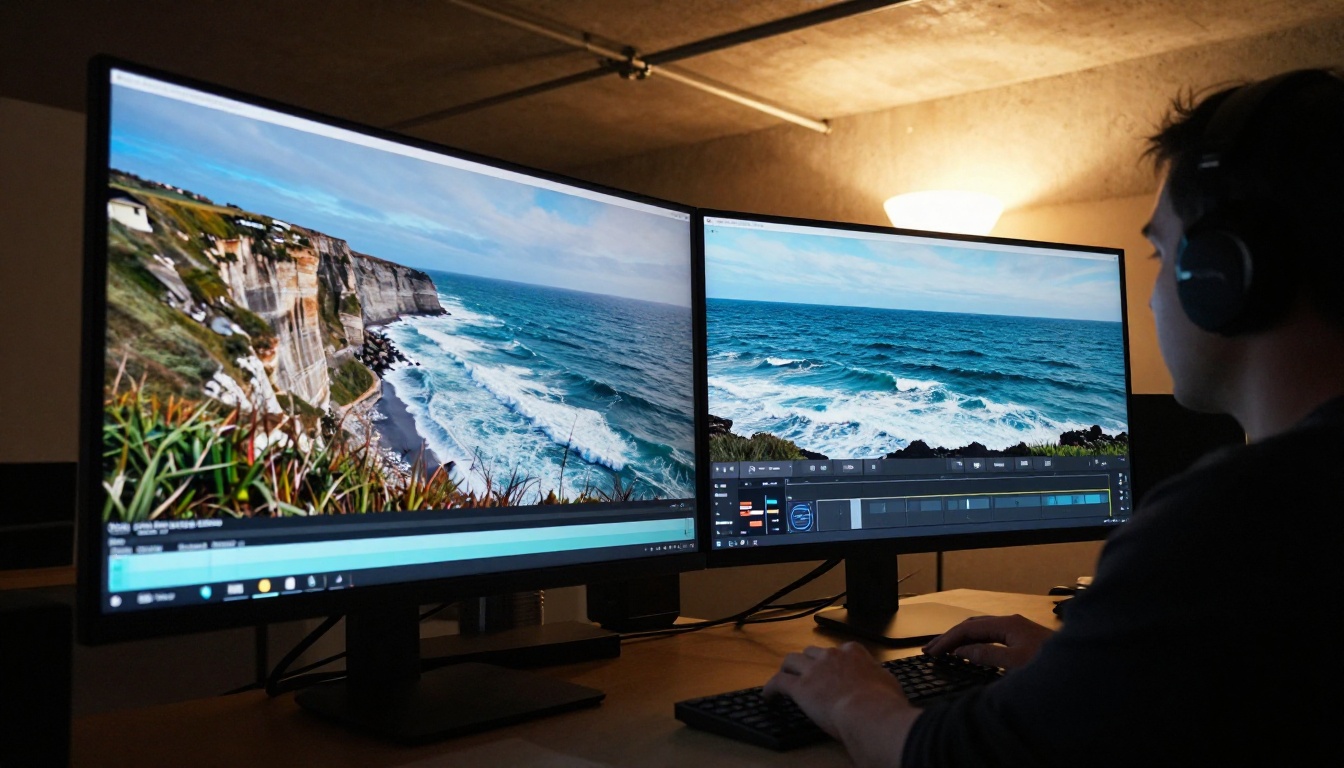
Converting a still image into a fluid, cinematic video clip is no longer a task for expensive VFX studios or specialized engineers. Sora 2.5, OpenAI's latest image-to-video model, lets anyone drop a photograph and a short text prompt to produce a high-quality video in seconds. Whether you are a social media creator animating a product photo, a filmmaker storyboarding a scene, or simply someone curious about AI video generation, the process is now remarkably straightforward. The results can be stunning.
What Sora 2.5 Actually Does to Your Photos
Sora 2.5 is not just adding a wiggle effect to your image. The model performs a deep analysis of the spatial information, estimated depth, lighting direction, and implied physics inside a photograph, then synthesizes a temporal sequence of frames that feel physically plausible.
Static Frame to Moving Scene
When you upload an image as the input, Sora 2.5 uses it as the first frame of the generated video. The model then predicts what should happen next based on two things: the visual information in that image and the motion description in your text prompt. This is called first-frame conditioning.
The result is a clip where the starting frame matches your photograph almost exactly, and motion unfolds from there in a natural, physics-aware way. A photo of an ocean cliff will produce crashing waves. A portrait in warm light will animate with subtle breathing or a gentle head turn. A forest scene will drift with wind-blown leaves and shifting fog.

How First Frame Conditioning Works
The technical principle behind first-frame conditioning is that the model is trained not just on image-text pairs, but on video sequences where the first frame is known. At inference time, the model treats your uploaded photo as a hard constraint: frame zero is locked, and all subsequent frames are generated to follow from it.
This is meaningfully different from text-to-video generation, where the model invents the visual content entirely from scratch. With image-to-video, you control the visual identity, the character's appearance, the scene's lighting, and the overall aesthetic from the very first frame. The model only needs to add time.
💡 Tip: The more visual information your source image contains (sharp focus, clear subject, defined lighting), the more accurately Sora 2.5 can animate it. Blurry or flat-lit photos produce murkier results.
Why Image-to-Video Beats Text-to-Video
Text-to-video models are impressive, but they come with a fundamental limitation: you cannot precisely control what the first frame looks like. Every generation starts from scratch, and even with detailed prompts, the output can vary wildly in character appearance, scene layout, and lighting.
Control You Actually Have
With image-to-video, you bring the visual foundation yourself. This matters enormously for practical use cases:
- Brand consistency: Use a product photo and the resulting video will always feature your actual product, not an AI's interpretation of it.
- Character persistence: Upload a portrait and the animated version will retain that person's face, expression, and clothing.
- Scene accuracy: Use a real location photograph and the motion will happen within that actual environment.

Consistent Characters, Every Time
One of the persistent frustrations with pure text-to-video generation is character drift. Ask for "a woman in a red dress walking through a park" across five generations and you will get five different women in five different interpretations of red. Feed a specific photograph to an image-to-video model and the character is locked in.
This makes image-to-video conversion the right choice for:
- Social content featuring a specific person or influencer
- Product showcase videos where the item must be recognizable
- Narrative clips where a character needs to appear consistently across multiple shots
- Travel content animated from real travel photography
How to Convert Images into Video with Sora 2.5
The workflow is simpler than most people expect. Here is what the process looks like from start to finish.

Step 1: Pick Your Source Image
Your source image is everything. The model will respect its composition, lighting, and color palette, so start with the strongest possible photograph. A few things that matter most:
- Resolution: Aim for at least 1280x720 pixels. Higher resolution inputs produce sharper output frames.
- Composition: A clear subject with defined foreground and background gives the model more spatial context to work with.
- Lighting: Hard directional light works best. Flat, overcast lighting can result in flatter motion.
- Minimal motion blur: The source photo should be sharp. Blurred source images confuse the model's depth estimation.
Step 2: Write a Motion Prompt
Your text prompt describes what should move and how. Think of it as a director's note to the model: describe the action, the camera behavior, and the atmosphere, all in chronological order.
Effective motion prompt structure:
[Subject] + [starting state] → [action over time] + [camera behavior] + [lighting and atmosphere details]
Example prompts that work well:
- "The ocean waves crash rhythmically against the rocky cliff, mist rising from each impact, slow dolly-in from distance, warm golden hour light"
- "Woman slowly turns her head to look directly at camera, a gentle smile forming, shallow depth of field, soft natural window light from the left"
- "Forest canopy sways gently in a soft breeze, individual leaves drifting downward, slow upward tilt from ground to sky, diffused morning light through mist"
Prompts to avoid:
- Vague descriptions: "make it move" (gives no direction to the model)
- Contradictory physics: "ocean waves moving upward" (breaks plausibility)
- Too many simultaneous actions (the model prioritizes the first few)
Step 3: Choose Resolution
Sora 2.5 supports multiple output resolutions. For most content, 720p is the sweet spot, offering excellent visual quality without the significantly longer generation time that higher resolutions require. For social reels optimized for mobile, 480p often looks sharper on small screens than 720p on a compressed stream.
💡 Tip: If you are generating multiple variations to pick the best one, start at 480p for speed. Once you find the winning version, regenerate at 720p for the final export.
The Best Models to Try Right Now
Sora 2.5 is exceptional, but it is not the only option. Several models on PicassoIA deliver outstanding image-to-video results, some with distinct advantages in speed, audio, or stylistic control.

Sora 2 Pro for Cinema-Grade Output
Sora 2 Pro is the highest-fidelity OpenAI model currently available on PicassoIA. It produces HD video with exceptional motion coherence and is the closest available model to Sora 2.5's capabilities. Use it when output quality is the priority and generation time is secondary. Sora 2 is the standard version, suitable for faster iteration at slightly lower fidelity.
Wan 2.7 I2V for Speed
Wan 2.7 I2V is a dedicated image-to-video model that animates any photograph into a video clip with fast generation times. It handles a wide variety of source image types well, from portraits to landscapes to product shots. For high-volume workflows where you need to generate many variations quickly, Wan 2.7 I2V is among the fastest options available.
Kling v3 for Cinematic Motion
Kling v3 Video from Kwai produces some of the most cinematic-looking output of any image-to-video model. Its motion is smooth and naturalistic, with particularly strong handling of human subjects and facial animation. If your source image features a person and you want the result to look like a real film clip, Kling v3 is the right call.
You can also try Kling v2.6 for a balance of speed and quality, or Kling v2.6 Motion Control if you need to specify exact camera path and character movement directions.
Seedance 2.5 for Audio-Synced Clips
Seedance 2.5 by ByteDance generates video with built-in synchronized audio, which is a significant advantage for social content. The model creates ambient sound or music that matches the visual motion automatically. A free, unlimited version is also available: Seedance 2.5 Lite supports clips up to 10 seconds at no cost.
Other strong alternatives include Gen4 Turbo from Runway for ultra-fast image-to-video conversion, Grok Imagine Video 1.5 from xAI for photo-to-video with native audio, and Ovi I2V from Character AI, which generates video with synchronized audio from any photo.
Model Comparison at a Glance

Tips That Actually Make a Difference
Most tutorials tell you to write a good prompt. Here is what that actually means in practice, based on how image-to-video models process input.
Photo Resolution Matters More Than You Think
Models like Sora 2.5 perform spatial depth estimation on your source image. A high-resolution photograph gives the model more pixel-level data to work with when inferring what is near versus far, which directly affects how natural the motion will be. At minimum, use a 1920x1080 source image. The model downsamples internally, but the depth map it constructs from a 4K source will be measurably more accurate than one built from a 720x480 crop.
For best results:
- DSLR or mirrorless photos: Near-perfect for image-to-video. Sharp edges, strong depth of field separation, and accurate color give the model excellent spatial data.
- Smartphone photos: Perfectly adequate at 12MP and above. Avoid heavy HDR processing as it can flatten the depth cues the model relies on.
- AI-generated images: These work extremely well because they are already sharp, high-contrast, and free of compression artifacts.
Motion Prompts That Work
The single most common mistake is describing how the output should look rather than what should move. Compare these two prompts:
- Weak: "Beautiful cinematic ocean scene with waves"
- Strong: "Ocean waves surge forward and crash against the foreground rocks, white foam spreading across the wet stone surface, slow push-in camera movement, dawn light raking from the left"
The second prompt tells the model what moves (waves, foam), what direction (forward), where the camera goes (push-in), and where the light comes from. Every piece of that information shapes the output in a meaningful way.
Additional motion prompt patterns worth memorizing:
| Action Type | Prompt Fragment |
|---|
| Camera moves in | "slow dolly-in toward subject" |
| Camera rotates | "gentle pan left to right" |
| Camera rises | "slow upward tilt from ground level" |
| Subject moves | "[subject] walks forward into frame" |
| Environmental motion | "leaves drift, branches sway in light breeze" |
| Lighting change | "golden hour light gradually warms from left" |
When to Use 480p Over 720p
480p is not a downgrade in every context. For vertical social content viewed on a 5-inch phone screen, 480p compressed to H.264 at 8 Mbps often looks better than 720p compressed to H.264 at 4 Mbps. Platform compression is the real enemy of visual quality, and a lower-resolution source with more bits per pixel will frequently win on a compressed stream.
Use 720p when: the content will be displayed on large screens, embedded in websites, or shared as a downloadable file without significant re-encoding.
Use 480p when: the content is destined for Instagram Reels, TikTok, or YouTube Shorts where the platform will re-encode it regardless.
What to Do with Your AI Videos
The technical process is half the story. The other half is figuring out what to actually create once you understand how to convert images into video with Sora 2.5.
Social Reels and Short-Form Content
Short animated clips of landscapes, portraits, and products perform significantly better on social platforms than static images. The autoplay behavior on Instagram, TikTok, and YouTube Shorts means a video that starts on your best image and then subtly comes alive will capture attention in the first half-second of playback.
A practical workflow: shoot strong still photographs with a DSLR or high-end smartphone, run the best ones through an image-to-video model, and post both the original photo and the animated version as separate pieces of content. Two posts from one shooting session.
Content formats that perform particularly well:
- Landscape photos animated with drifting clouds or gentle fog
- Portrait photos with subtle breathing motion or a slow smile
- Architecture photos with sun rays shifting across surfaces
- Food photos with steam rising from a hot dish
Product Animation
For e-commerce and brand marketing, animated product photos outperform static images on virtually every performance metric. A perfume bottle with its liquid shimmering, a jacket with fabric rippling in a subtle breeze, a coffee cup with steam rising: these clips are all achievable from a single product photograph.
What matters most is a controlled source image: clean background, professional lighting, sharp focus on the product. The model handles the physics of the motion, and the result is a polished marketing asset that would have required a video production team just a few years ago.
Storytelling Without a Camera
Perhaps the most creatively interesting application: using image-to-video to tell stories from photographs that were never intended as video. Historical photographs, archival portraits, old travel images, even AI-generated stills can all be brought to life as moving scenes.
This opens up content categories that previously required expensive VFX work: documentary-style historical content, animated photo albums, narrative films made entirely from still images.
Models like LTX 2.3 Pro and Veo 3 add another dimension here, generating video with native audio to create a more immersive final output. P Video Animate from PicassoIA is specifically designed for animating photos, with fast access directly on the platform.
Make Your First Animated Image Today
The barrier between a photograph and a video has collapsed. With Sora 2.5 and the models available on PicassoIA, turning any still image into a cinematic clip takes minutes.
Start with your strongest photograph. Write a motion prompt that describes what moves, how it moves, and where the camera goes. Pick the model that fits your output goal: Sora 2 Pro for maximum quality, Wan 2.7 I2V for speed, Seedance 2.5 if you need audio in the clip, or Seedance 2.5 Lite if you want to experiment without any cost.
PicassoIA gives you access to over 87 text-to-video and image-to-video models in one place, so you can run the same source image through multiple models and compare results before committing to a final version. Browse the full catalog at picassoia.com/en/all-models and start animating your photographs today.