Those faded photographs tucked inside shoeboxes, the ones where faces have dissolved into gray fog and edges crumble when you touch them, carry stories that deserve to be seen clearly. AI-powered photo restoration has made it possible for anyone, without professional training or expensive software, to convert old photos to HD with results that were unthinkable five years ago.
This article walks you through exactly how the technology works, which AI models produce the best results for different types of damage, and how to use the top upscaling tools available right now.
Why Old Photos Deteriorate Over Time
The Science of Photo Aging
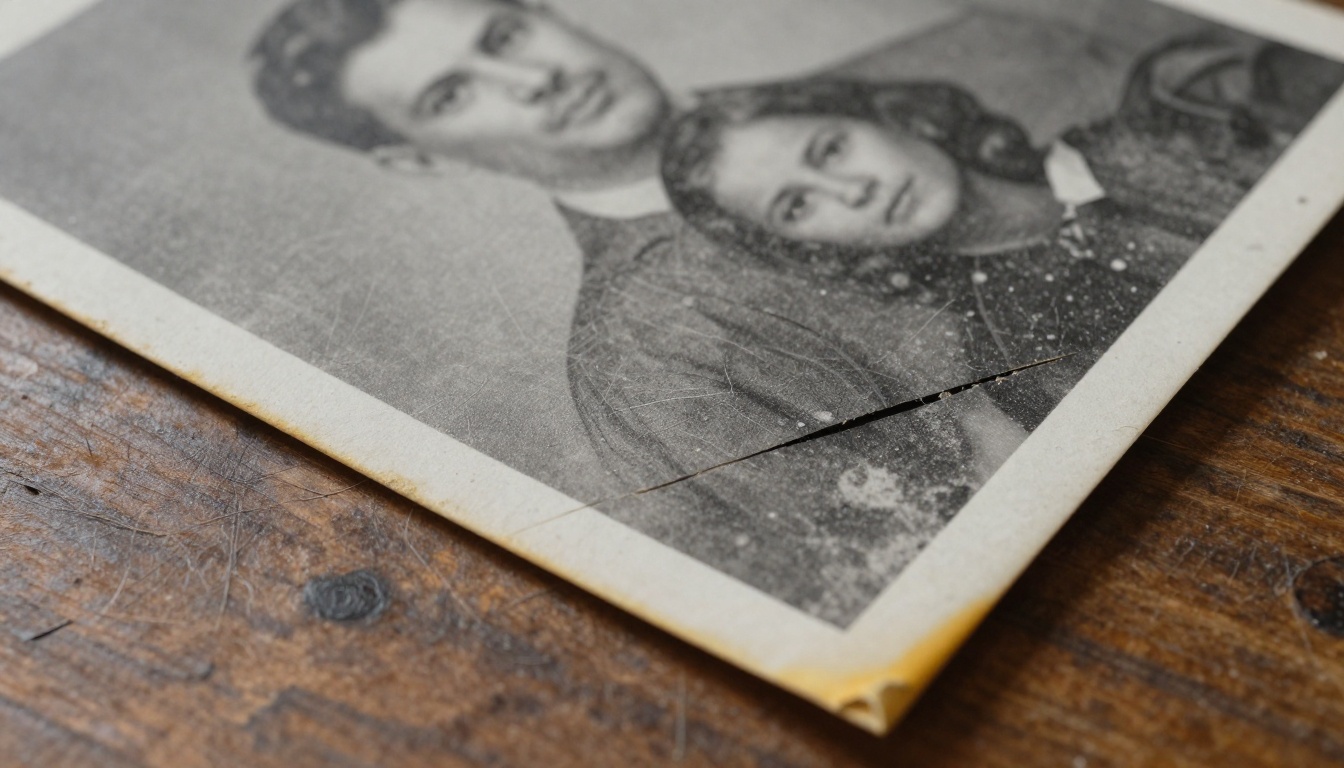
Photographs age through two distinct processes: chemical decay and physical damage. Silver halide crystals in black-and-white prints oxidize over decades, causing the image to fade to yellow-brown tones. Color photographs suffer from dye instability, where cyan, magenta, and yellow layers fade at different rates, producing the characteristic orange shift you see in photos from the 1970s and 1980s.
Physical damage layers on top of this. Humidity causes paper fibers to expand and contract, creating fine cracks in the emulsion. Foxing spots appear where mold has eaten into the paper. Scratches, tears, and water damage add more visual noise. The result is a photograph that barely resembles the original scene.
💡 Did you know? Color photographs printed between 1970 and 1990 are considered among the most at-risk archival materials. Many have already lost up to 60% of their original tonal range.
Digital Copies Are Not Safe Either
Scanning old photos on a cheap flatbed scanner in the 1990s produced digital files that are genuinely low resolution by modern standards. A 300 DPI scan of a small print might yield an image that is only 800x600 pixels. Compressed into JPEG at low quality, that file picks up additional compression artifacts: the blocky squares and color banding that make upscaling with traditional software produce blurry, smeared results.
This is precisely where AI changes everything.
What AI Actually Does to a Blurry Photo
Super Resolution vs Simple Upscaling
Traditional upscaling, the kind built into basic image editors, works by interpolation: it samples neighboring pixels and averages them to fill in the gaps. The result is a larger file that looks softer, not sharper. You cannot create information that was never there through interpolation.
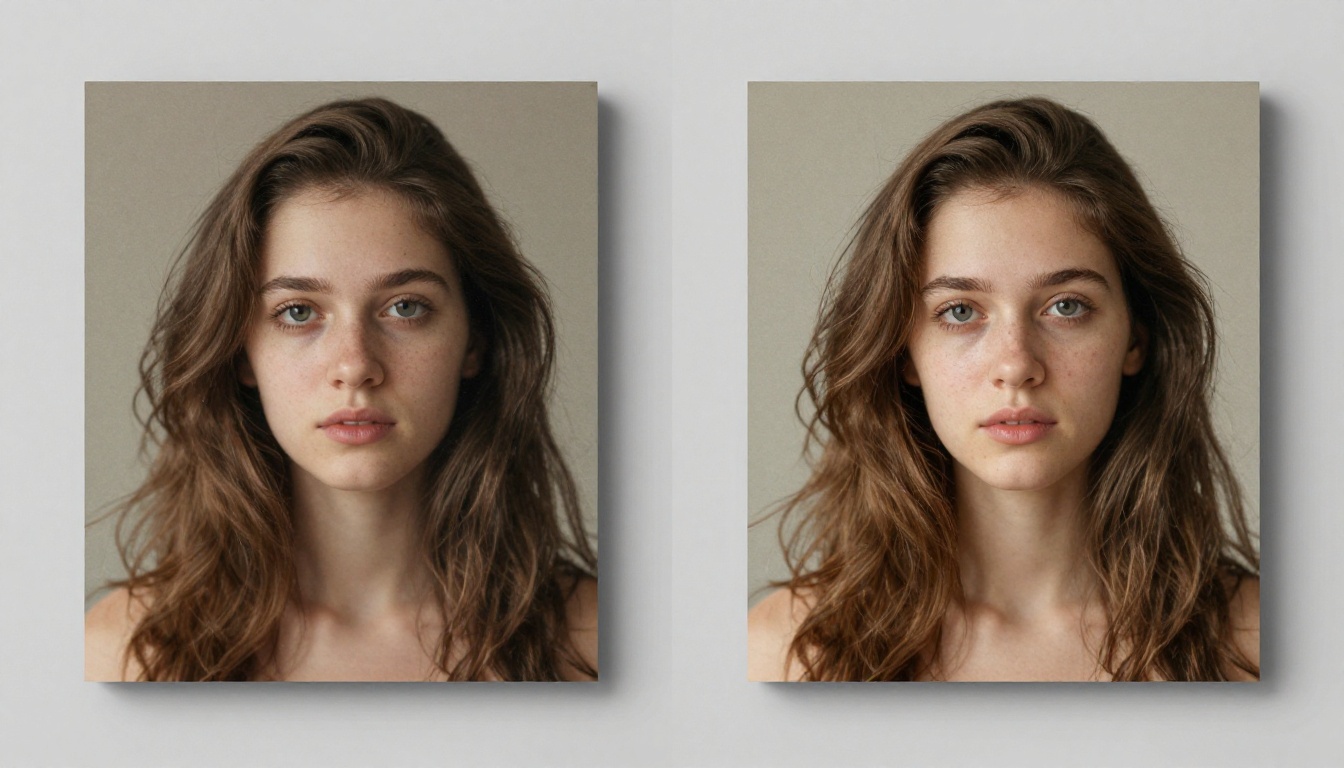
AI super resolution is fundamentally different. These models are trained on tens of millions of image pairs: high-resolution originals alongside artificially degraded versions. The neural network learns to recognize patterns, textures, and structures at a deep level. When it processes your blurry photo, it is not averaging pixels. It is predicting what the missing information should look like, based on everything it learned during training.
The difference in output quality is not incremental. It is a different category of result.
How Neural Networks Reconstruct Missing Detail
Modern photo restoration models operate in multiple stages:
| Stage | What Happens |
|---|
| Noise Removal | JPEG artifacts and film grain are identified and filtered |
| Structure Detection | Edges, faces, and textures are mapped using learned feature extraction |
| Detail Synthesis | Missing high-frequency detail is generated based on context |
| Upscaling | The clean, detail-enriched image is scaled to 2x, 4x, or 6x |
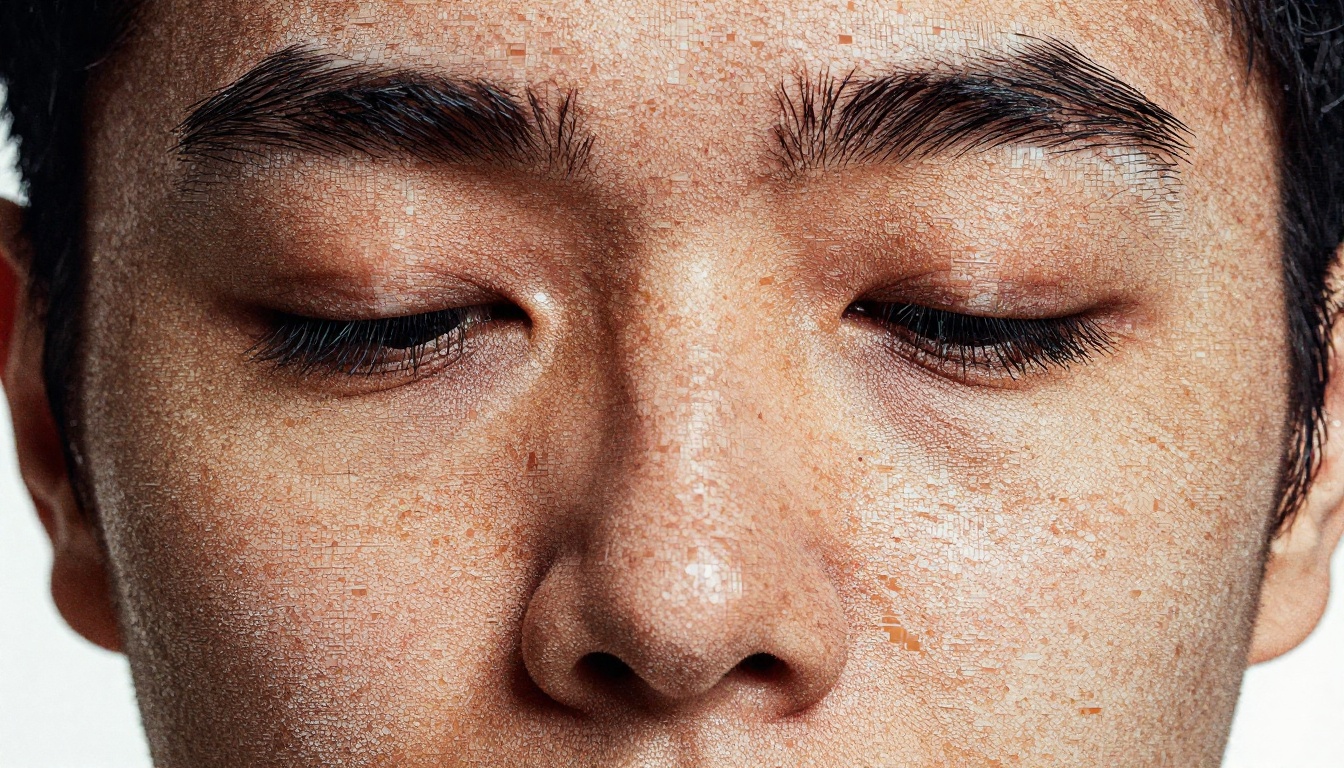
The most impressive aspect is how these models handle faces specifically. Dedicated face enhancement networks, often running as a second pass on top of the base upscaler, can reconstruct eyes, skin pores, and hair strands from a face that was only a few pixels wide in the original scan.
The Best AI Models for Photo Restoration
Several specialized models are available on PicassoIA, each optimized for different types of images and quality goals.
For Crisp, Clean Results
Recraft Crisp Upscale is purpose-built for clarity. It sharpens edge definition and suppresses noise without introducing hallucinated details. This makes it the go-to choice for documents, text-heavy images, and architectural photography where accuracy matters more than creative interpretation.
Google Upscaler enlarges photos up to 4x while preserving the original character of the image. It excels with landscape and nature photography where fine texture in foliage, rock, and sky needs to be rendered convincingly at large sizes.
Bria Increase Resolution is the reliable all-rounder that handles mixed content well. Upload a family photo with a mix of faces, clothing textures, and background scenery, and this model manages all three without over-sharpening any single element.
For Portraits and Faces
Crystal Upscaler is specifically optimized for portrait photography. Its secondary face refinement pass reconstructs facial features with a level of realism that general-purpose upscalers cannot match. If you are restoring a graduation photo, a wedding portrait, or any image where faces are the primary subject, this is the model to use.
For Maximum Upscaling Power
Topaz Labs Image Upscale offers upscaling up to 6x, the highest multiplier available. This is the right choice when the original photo is extremely small, such as a wallet-sized print scanned at low resolution, and you need to produce a file large enough for a poster print.
Recraft Creative Upscale takes a different approach. Rather than strict reconstruction, it generates plausible high-resolution detail with some creative latitude. The output is visually striking and suits artistic uses, though it may not be the best choice for archival accuracy.
Real-ESRGAN is one of the most battle-tested open-source upscaling models available. It was trained on real-world degradation: scan noise, compression artifacts, film grain. This makes it exceptionally effective on old photos that have not been digitally cleaned before scanning.
💡 Quick tip: For photos with severe physical damage (water stains, tears, heavy foxing), combine AI upscaling with inpainting. First use an AI inpainting tool to fill in damaged areas, then run the repaired image through an upscaler for maximum quality.
How to Use Real-ESRGAN on PicassoIA
PicassoIA gives you direct access to Real-ESRGAN without any account setup, model downloads, or GPU requirements. Here is the exact process.
Step 1: Prepare and Upload Your Photo
Start by scanning your original photograph at the highest resolution your scanner allows. For a 4x6 inch print, aim for at least 600 DPI, which produces a base image of approximately 2400x3600 pixels. If you are working from an existing digital file, use the highest-quality version available.
Open Real-ESRGAN on PicassoIA and upload your image using the file picker. The tool accepts JPG, PNG, and WEBP formats.
Step 2: Select Your Scale Factor
Real-ESRGAN supports the following upscale multipliers:
- 2x: Ideal for photos that are already a reasonable size and need sharpening without dramatically growing the file
- 4x: The standard choice for most old photos, increases a 1000px image to 4000px
- 8x: Use only when the source image is extremely small, under 400px on the longest edge
For most family photo restoration projects, 4x is the sweet spot. It produces files large enough to print at 8x10 inches at 300 DPI without further upscaling.
Step 3: Run the Model and Download
Click the run button and wait for processing. Real-ESRGAN typically completes within 30 to 90 seconds depending on the source file size. The output downloads as a PNG file, which preserves all detail without additional JPEG compression losses.
If the result shows visible over-sharpening, particularly around hair edges or fabric patterns, try running the original through Recraft Crisp Upscale instead. Its edge handling is more conservative and suits images where natural softness is preferable.
How to Restore Wedding and Portrait Photos
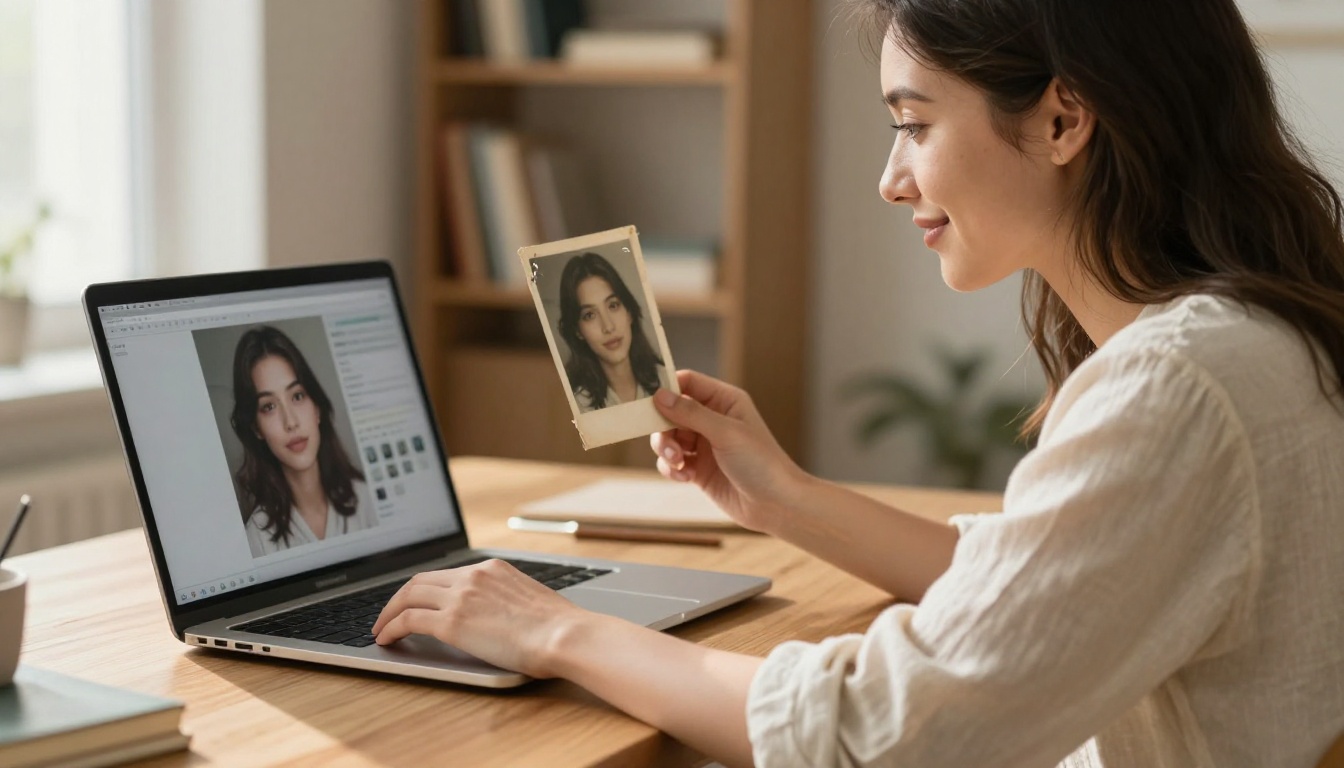
Wedding photographs from the 1950s through 1980s present specific challenges. The white of a wedding dress is notoriously difficult: early color photography struggled with bright whites, leaving dresses looking flat or overexposed. Lace detail disappears entirely in low-resolution scans.
Crystal Upscaler for Faces
Crystal Upscaler uses a dual-model approach: a base super-resolution pass handles the overall image, while a specialized face model runs a second pass exclusively on detected faces. The result is that even a face occupying only 50 pixels in the original scan comes out with convincing skin texture, visible eyelashes, and natural tonal gradation.
For a wedding portrait, the recommended workflow is:
- Upload the original scan to Crystal Upscaler at 4x
- Check the face detail in the output at 100% zoom
- If the background shows over-synthesis, blend the Crystal Upscaler output with a Recraft Crisp run using a simple layer mask in any photo editor
When to Use Creative vs Crisp Upscaling
The choice between Recraft Creative Upscale and Recraft Crisp Upscale comes down to your end use:
Before vs After: What AI Restoration Actually Fixes
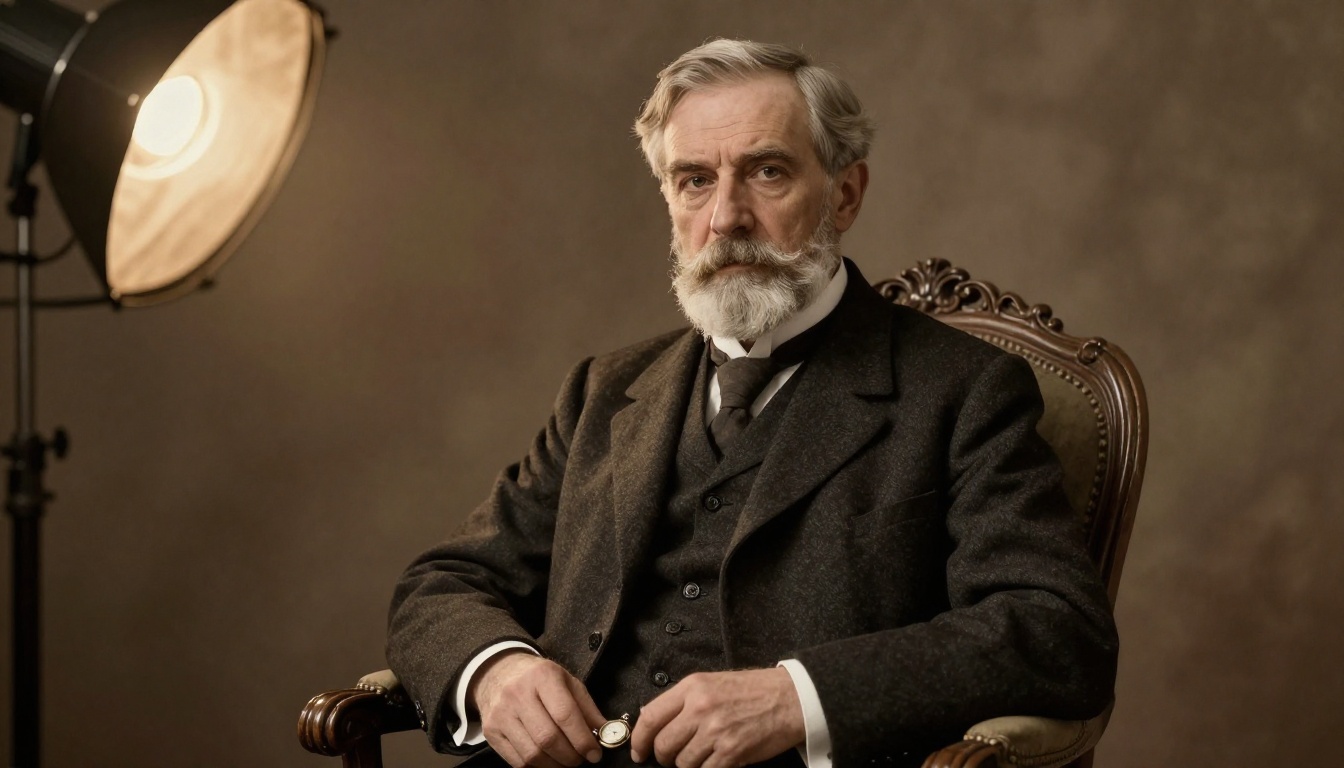
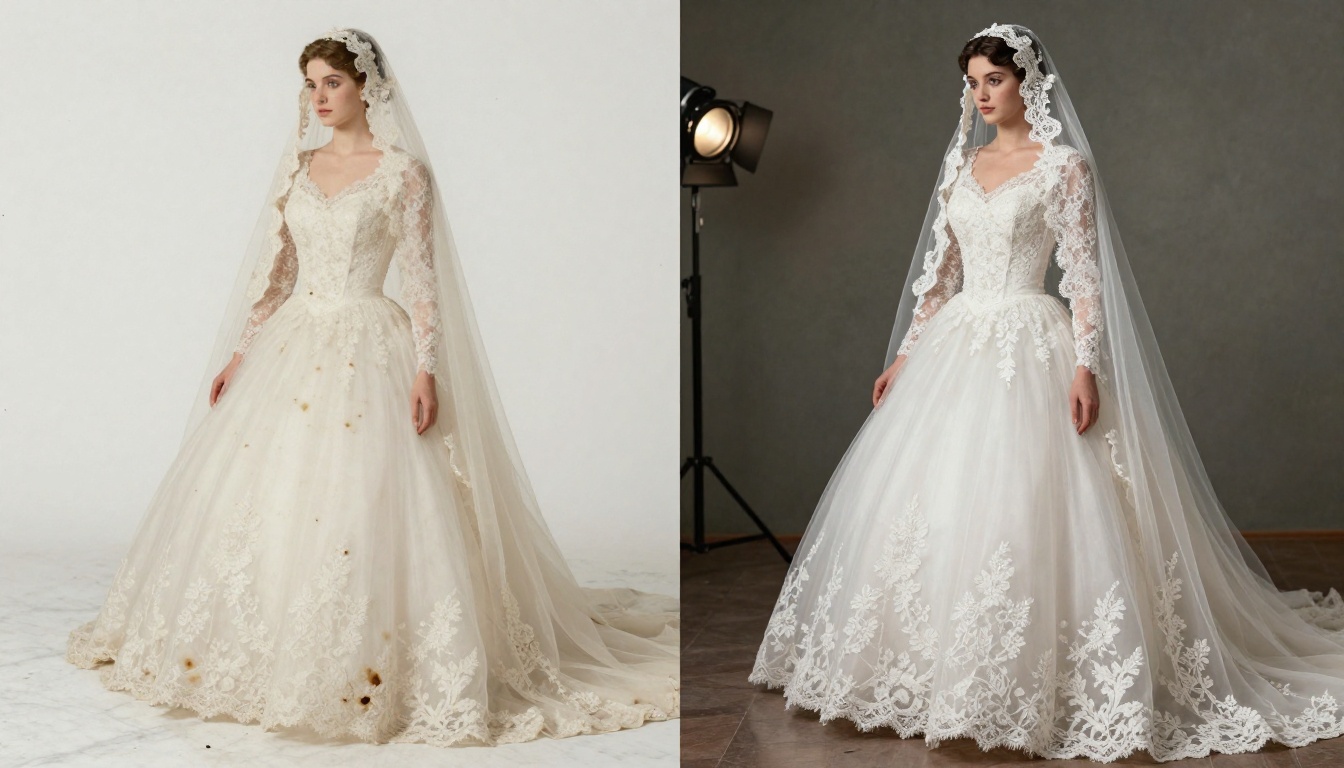
Understanding what these tools can and cannot do prevents frustration and sets realistic expectations. Here is a clear breakdown:
| Problem in Original | AI Fix Quality | Notes |
|---|
| Low resolution or small file | Excellent | Core function of all upscalers |
| JPEG compression artifacts | Excellent | Real-ESRGAN trained specifically on this |
| Film grain and scan noise | Very Good | All models handle this well |
| Fading and color shift | Good | Best paired with manual color correction after |
| Scratches and physical tears | Moderate | Use inpainting first, then upscale |
| Extreme blur from motion or focus | Moderate | AI improves but cannot perfectly recover |
| Water stains and foxing spots | Moderate | Requires manual touch-up or inpainting |
| Missing sections of image | Poor alone | Must use inpainting before upscaling |
💡 Pro approach: Think of AI upscaling as the final step, not the first. Clean up physical damage with inpainting tools first, correct color casts manually, then run the repaired image through your chosen upscaler. This pipeline produces significantly better results than upscaling raw damaged images.
Common Problems (and How to Fix Them)
The Result Looks Over-Sharpened
Over-sharpening is the most common complaint with AI upscaling. It presents as an unnatural crispness around edges, a "plastic" quality to skin, and halos around high-contrast boundaries. This usually happens when using a high multiplier on an image that was already a decent size.
Fix: Drop the scale multiplier to 2x or 4x. If the problem persists, switch from Real-ESRGAN to Recraft Crisp Upscale, which applies more conservative sharpening by design.
Faces Look Slightly Off
Occasionally, face enhancement models produce subtle distortions: eyes that are slightly too symmetric, skin that looks airbrushed rather than natural. This happens most often with faces that were severely degraded in the original.
Fix: Use Bria Increase Resolution as an alternative. It does not apply a specialized face pass, which means faces come out with a more natural look. Alternatively, reduce the face enhancement strength if the model offers that parameter.
Colors Look Unnatural After Upscaling
AI upscalers sometimes amplify color casts that were barely visible in the original. A subtle orange shift in a 1970s photo can become pronounced after 4x upscaling.
Fix: Correct the color balance in a basic image editor before upscaling. A quick Auto Color or Curves adjustment to neutralize the cast gives the AI a cleaner starting point and produces more accurate color in the output.

Not all old photos are the same, and not all AI models are the same. Matching the right tool to your specific image type saves time and produces better results on the first attempt.
Here is a practical decision framework:
- Group portrait from the 1960s with faded colors: Start with Bria Increase Resolution at 4x, then correct colors manually
- Single portrait where faces are the main subject: Crystal Upscaler at 4x for the best face detail
- Heavily damaged photo with tears or missing areas: Fix damage with inpainting first, then apply Real-ESRGAN
- Tiny wallet-size photo destined for a large print: Topaz Labs Image Upscale at 6x
- Old photo for social media or digital sharing: Recraft Creative Upscale for the most visually appealing output
- Scan of a document or text-heavy image: Recraft Crisp Upscale for maximum edge clarity
💡 Batch processing tip: If you have a large collection of old photos to restore, start with the ones that matter most. Work through your highest-priority images first to develop an intuition for which model and settings work best for your specific batch.

Start Restoring Your Photos Right Now
Every family has photographs sitting in boxes or folders that have never been properly preserved. Most of those photos are actively degrading. With AI upscaling tools available directly in a browser, there is no longer a technical barrier between you and a high-resolution version of those memories.
PicassoIA brings together every major super-resolution model in a single platform, no GPU required, no installation, no subscription needed to start. You can go from a damaged 400-pixel scan to a sharp 4K restoration in under two minutes.
Pick one photo today. A parent's graduation portrait, a grandparent's wedding photograph, a childhood birthday party from the 1980s. Upload it to Real-ESRGAN or Crystal Upscaler on PicassoIA and see what comes back.
The result might surprise you more than you expect.


