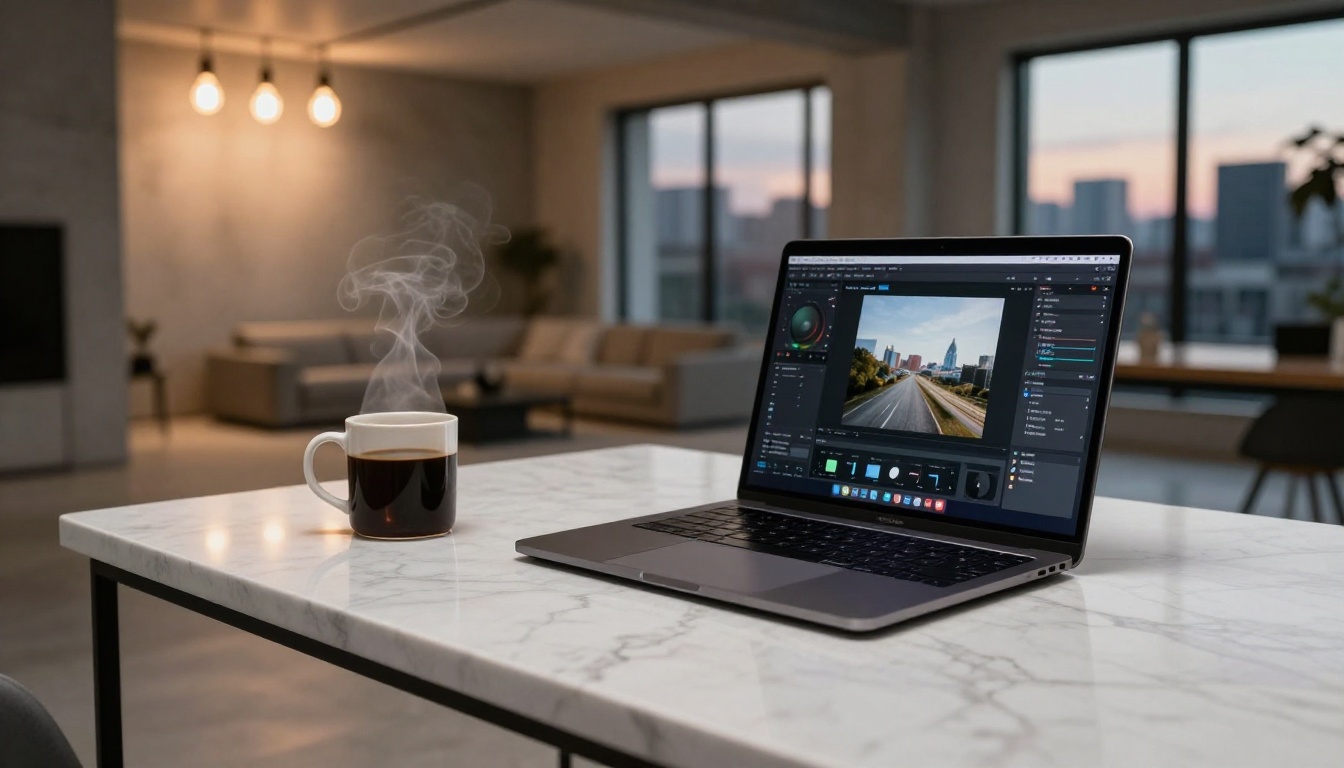
You do not need a timeline. You do not need Adobe Premiere. You do not need to know what a keyframe is. The entire editing pipeline that once stood between an idea and a finished video has been replaced by a single text box, and the results from today's AI video models are shockingly good. If you have been holding off on creating AI NSFW videos because you assumed it required editing skills, that assumption is now completely outdated.
Why Zero Editing Skills Is Now Enough
The barrier to creating AI NSFW videos used to be technical. You needed to generate images, animate them in a separate tool, stitch clips together, add transitions, color grade, export. Each step required its own software and its own learning curve.
Text-to-video AI collapsed all of that into one step.
What the Model Handles for You
When you type a prompt into a model like Kling v3, the AI handles every production element automatically:
- Camera movement: pan, zoom, tracking shots, and push-ins
- Motion physics: hair, fabric, water, and skin moving with natural behavior
- Lighting continuity: consistent shadows and highlights across every frame
- Scene coherence: characters maintain consistent appearance throughout the clip
- Temporal smoothness: no choppy transitions or jarring cuts between moments
The output is a complete, polished clip. No assembly required.
The Old Barrier Is Gone
Three years ago, producing a 5-second AI video required chaining together at least four different tools. Today, a single prompt in Wan 2.6 T2V generates a smooth, photorealistic clip in under a minute. The technical ceiling has dropped to zero, and the quality ceiling has risen dramatically at the same time.
The Best Models for NSFW AI Video
Not every text-to-video model is equally suited for suggestive, glamorous, or adult-oriented content. Some excel at anatomical realism. Others are better at movement quality or cinematic style. Here is how the top options break down.
Kling v3: Motion Realism That Stands Out
Kling v3 from Kwaivgi is currently one of the strongest models for realistic human motion. It handles skin texture, fabric dynamics, and subtle facial expressions better than most alternatives. If your scene involves a person moving, posing, or interacting with an environment, this is the right starting point.
Strengths: motion realism, skin detail, natural physics
Best for: full-body scenes, beach and pool content, glamour shots in motion
Kling v3 Omni accepts both text and image input, so you can start from a reference photo and animate it directly, which gives you exact control over how your subject looks before any motion is applied.
Wan 2.6: Versatile and Detail-Rich
The Wan 2.6 family offers two entry points. Wan 2.6 T2V generates from pure text prompts. Wan 2.6 I2V takes an image and animates it with natural motion. Both produce exceptional detail in complex lighting scenarios, making them ideal for intimate, moody scene compositions where the visual atmosphere matters as much as the movement.
Strengths: detail fidelity, lighting accuracy, versatile input modes
Best for: indoor scenes, artistic lighting setups, starting from a generated image
PixVerse v5.6: Cinematic by Default
PixVerse v5.6 punches above its weight class on cinematic output quality. The model tends to produce clips with a polished, film-like character, making suggestive content look genuinely high-end rather than machine-generated. Color grading, framing choices, and depth of field behavior are all noticeably stronger than average.
Strengths: cinematic output quality, color behavior, framing intelligence
Best for: editorial-style content, close-up glamour shots, high-polish results
Hailuo 2.3: Length and Stability
Hailuo 2.3 from Minimax is particularly capable at generating longer, more coherent clips. Where some models start to lose character consistency after 3 seconds, Hailuo maintains visual stability for the full duration. Its fast variant, Hailuo 2.3 Fast, cuts generation time significantly with only a small quality trade-off.
Strengths: clip length consistency, character stability, speed variant available
Best for: longer scenes, multi-movement sequences, faster iteration
Writing Prompts That Actually Work
Your prompt is the only creative input you provide. Getting it right determines whether you get something stunning or something generic. Most beginners write prompts that are too short, too vague, or missing the elements the model needs to make good decisions.
The Anatomy of a Good Prompt
Every strong text-to-video prompt for NSFW or glamour content follows the same structure:
[Subject + Appearance] + [Action and Motion] + [Environment] + [Lighting Source] + [Camera Angle] + [Visual Style]
Here is a weak prompt versus a strong version:
Weak: "woman in bikini on beach"
Strong: "a confident woman in a coral bikini top and white sarong walks slowly along the waterline at sunset, golden hour light from the right creating a warm rim glow on her shoulder, small waves washing over her bare feet, shot from behind at a low medium distance, Kodak Portra 400 film grain, cinematic 16:9, natural motion"
The strong version gives the model a scene, a movement direction, a lighting source, a camera position, and a visual style. Each element reduces ambiguity and pushes output quality significantly higher.
Words That Shift the Output
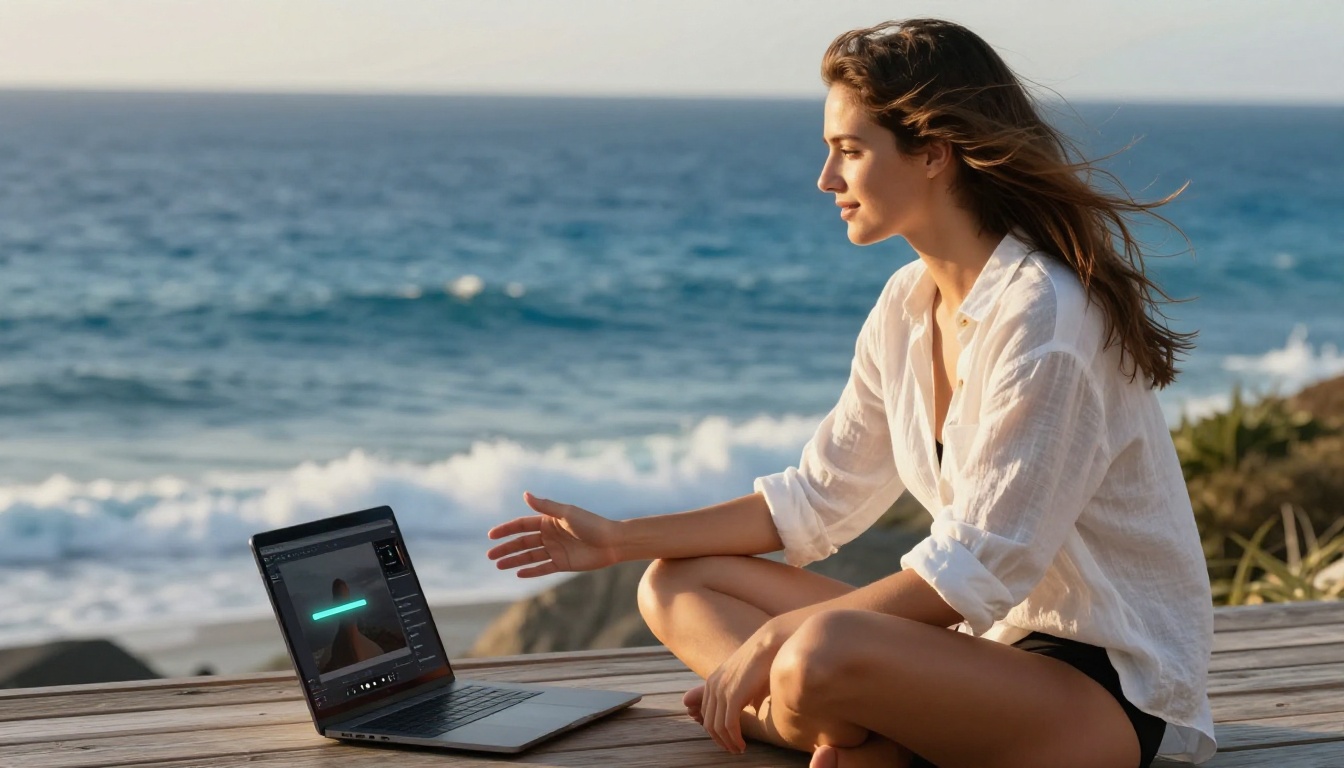
Certain terms reliably push the model toward better results for suggestive, glamorous AI video content:
- Lighting: "golden hour", "volumetric morning light from left", "soft diffused window light", "dramatic side lighting with deep shadows"
- Camera: "85mm f/1.8", "low angle wide", "medium close-up", "aerial overhead", "slow tracking shot"
- Texture: "skin pores visible", "fabric drape with natural weight", "natural skin sheen", "wet hair clinging to collarbone"
- Style: "photorealistic", "Kodak Portra 400 film grain", "editorial fashion photography", "RAW 8K, natural colors"
💡 Tip: Avoid adjectives like "sexy" or "hot." They produce inconsistent results. Describe the specific visual detail instead: "collarbone exposed", "wind lifting the hem of the dress", "damp skin catching the light from the pool."
What to Avoid in Your Prompts
Some phrasing actively confuses models or dilutes the output quality:
- Too generic: "attractive woman doing things" tells the model almost nothing
- Conflicting styles: "anime photorealistic cartoon film" forces contradictions the model cannot resolve
- Too many subjects: "three women on a beach near boats and palm trees with umbrellas" splits attention and reduces coherence
- No motion description: static image language produces video that feels like a barely-animated photo
Step-by-Step: Your First Video
No theory. Here is the exact process from blank screen to finished clip.
Step 1: Pick Your Model
For a first attempt, start with Kling v3. It has the most predictable behavior for human subjects and handles imperfect prompts better than most alternatives. If you already have a reference photo you want to animate, switch to Wan 2.6 I2V instead.
Step 2: Write Your Scene
Before typing anything into the prompt box, answer these four questions in writing:
- Who is in the scene? (physical appearance, clothing)
- What are they doing? (be specific about the movement)
- Where is this happening? (environment, background detail)
- What does the light look like? (direction, quality, color temperature)
Write one clear sentence per answer, then combine them into a single flowing prompt. That structure alone puts you ahead of the majority of first-time creators.
Step 3: Set the Parameters
Most models offer a handful of controls that directly impact quality:
- Duration: Start with 4-6 seconds. Longer clips are harder to keep coherent on the first attempt.
- Aspect ratio: 16:9 for standard landscape, 9:16 for portrait and vertical formats.
- Motion intensity: Start at medium. High motion settings on the first attempt often introduce artifacts.
- Seed: Leave blank for the first run. If you get a result you like, note the seed number and reuse it for controlled variations.
Step 4: Generate, Review, Iterate
Hit generate and watch the full output before making any judgments. Common problems and their fixes:
| Problem | Fix |
|---|
| Character face is inconsistent | Add facial description to prompt: "dark eyes, high cheekbones, natural makeup" |
| Movement looks mechanical | Add "natural fluid motion" and reduce clip duration |
| Background shifts mid-clip | Simplify the environment description to fewer elements |
| Skin looks plastic | Add "film grain", "pores visible", "natural skin texture" |
| Scene too dark | Specify the light source explicitly: "warm morning light from left window" |
💡 Tip: Never reject a model based on a single output. Run 3-5 variations with the same prompt before deciding it is not the right fit for your scene.
5 Mistakes Beginners Make
1. Writing One-Line Prompts
A 6-word prompt produces a generic result every time. The model fills in all the blanks, and rarely the way you imagined. Write at least 3-4 sentences of detailed visual description and be specific about motion.
2. Ignoring Motion in the Prompt
Text-to-video is not image generation. A prompt that describes a static scene produces a clip that feels like a barely-animated photo. Always include what is moving, in which direction, and how it moves.
3. Using the Wrong Model for the Job
P-Video accepts text, image, and audio inputs, making it extremely versatile but potentially unnecessary for a simple text-only scene. Match the model to the specific task rather than defaulting to the most feature-rich option.
4. Running One Attempt and Stopping
Generation has inherent randomness. The same prompt can produce a mediocre result and a stunning one in back-to-back runs. If the first attempt gets 70% of the way to your vision, run it again before changing anything in the prompt.
5. Overloading the Scene
More elements do not equal better results. One clear subject, one well-defined environment, a single light source. The models handle focused prompts far more reliably than complex scenes with many competing elements.

More Control, Still No Editing
Image-to-Video Gives You a Head Start
If you want precise control over how your subject looks, the most effective workflow is to generate a still image first and then animate it. This two-step approach produces far more consistent character appearance than pure text-to-video, because the model already has a defined visual reference to work from.
The process:
- Generate a photorealistic still with a text-to-image model
- Feed it into Wan 2.6 I2V or Kling v3 Omni
- Describe the motion you want in the prompt
- Receive a clip featuring the exact character from your original image
This is the single biggest quality improvement available without any additional technical knowledge.
Transfer Motion with Wan 2.2
The Wan 2.2 Animate Animation model takes a fundamentally different approach. Instead of describing motion in text, you reference a motion source and the model transfers that movement pattern to your subject. Want a specific walk cycle or body movement? Point it at the motion reference.
Wan 2.2 Animate Replace goes one step further by letting you swap a character in an existing video entirely. The motion stays, the character changes. This is particularly powerful for NSFW content creation where you want to repurpose movement from one video source into a completely different visual context.
Faster Iterations with Seedance
Seedance 1.5 Pro from ByteDance prioritizes speed without sacrificing too much on quality. When you are in an active iteration loop, testing prompt variations quickly, this model cuts the wait time significantly. Use it to narrow down your prompt and creative direction, then switch to a heavier model for the final high-quality output.
💡 Tip: Run 5-6 quick iterations in Seedance 1.5 Pro to lock in the right prompt. Then do your final render in Kling v3 for maximum motion quality and detail.
When Detail Is Everything
If skin texture, fabric behavior, and micro-motion realism are priorities, LTX-2.3-Pro from Lightricks is worth a dedicated test. It accepts text, image, and audio as inputs, making it one of the most flexible options for creators who want to layer additional control into their workflow without learning traditional editing tools.
The audio input is particularly useful for NSFW and glamour content: provide a sound or music reference, and the model generates motion that feels synchronized to it. For scenes where rhythm and movement quality matter, this adds a layer of polish that pure text-to-video prompting alone cannot produce.
For creators who want blazing speed at high resolution, LTX-2.3-Fast offers the same Lightricks architecture at significantly reduced generation time, making it a practical daily driver for volume content creation.
Putting It All Together
The workflow that produces the best results consistently is simple:
- Define your scene in 4 sentences: subject, action, environment, light
- Pick the right model for your input type (text only vs. image start)
- Run 3-5 fast iterations in Seedance 1.5 Pro to nail the prompt
- Final render in Kling v3 or PixVerse v5.6 for maximum quality
- Repeat with a different angle or scene variation
No timeline. No color grading. No export settings. The AI handles the production; you handle the creative direction.
Start Creating Right Now
Every model mentioned in this article is available on PicassoIA. No software installation, no separate subscription, no editing timeline to figure out. Open the model page, type your prompt, and hit generate.
The fastest way to get good results is to start imperfectly and iterate. Your third prompt will outperform your first by a significant margin. Your tenth will look like something you planned carefully from the beginning.
Start with Kling v3 if you are brand new to AI video. Start with Wan 2.6 I2V if you already have an image you want to bring to life. Start with Seedance 1.5 Pro if speed and iteration volume matter most in your current session.
The only mistake is not starting at all. Pick a model, write a scene, and see what comes back.


