Want to create NSFW content with AI but don't know where to start? This article breaks it down into three actionable steps: picking the right photorealistic model, writing prompts that actually work, and refining your outputs with inpainting and super resolution. With the right approach, anyone can produce stunning, artistic, suggestive images from a simple text description.
Most people who want to create NSFW content with AI spend hours fighting confusing settings, getting blurry results, or hitting platform restrictions they didn't know existed. The reality is simpler than it looks. Three focused steps separate a frustrating session from a library of stunning, suggestive images that actually look real.
This article walks through each step in detail: choosing the right model, writing prompts that produce consistent results, and refining outputs until they're exactly what you had in mind. Along the way, you'll see which models on PicassoIA are worth your time and how to use them effectively.
What "NSFW" Actually Means for AI
Before anything else, it helps to get clear on what "NSFW" means in the context of AI image generation. The term covers an enormous spectrum, and knowing where you're operating saves a lot of wasted time.
Suggestive vs explicit
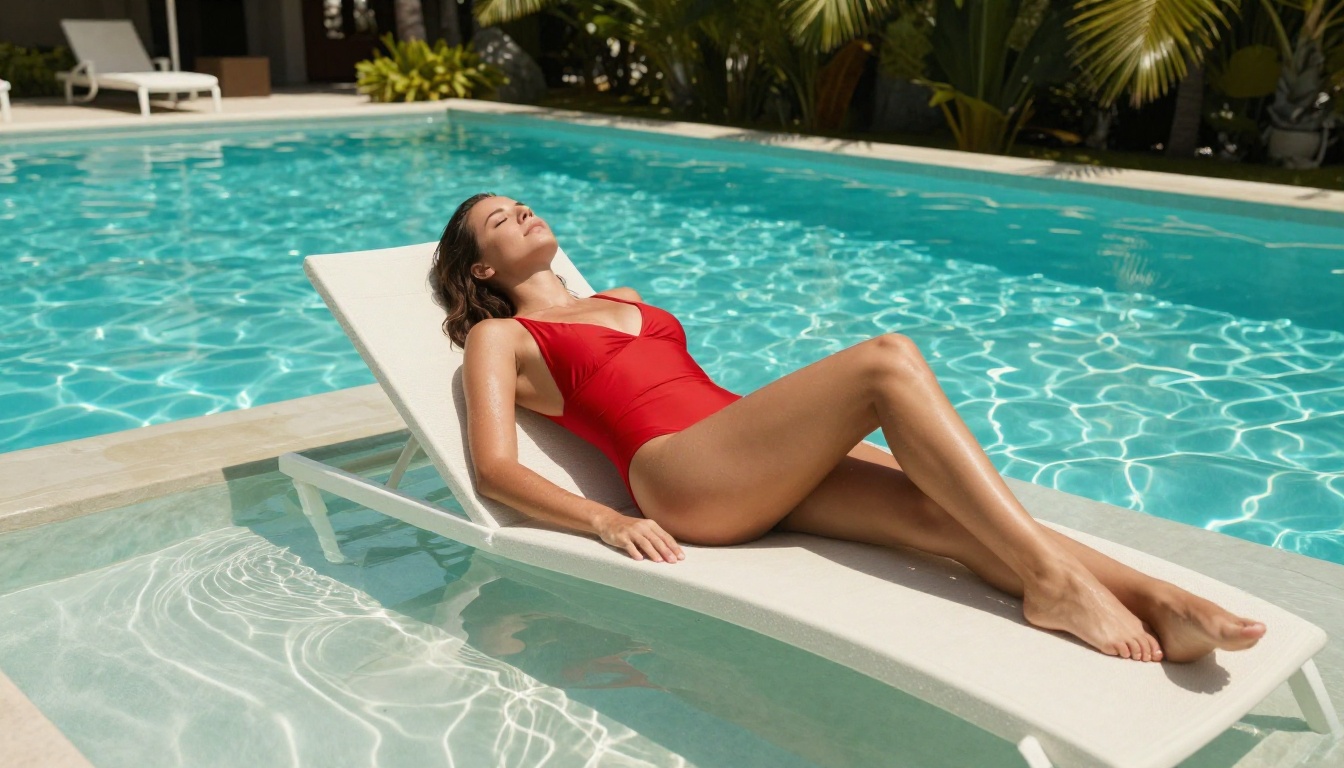
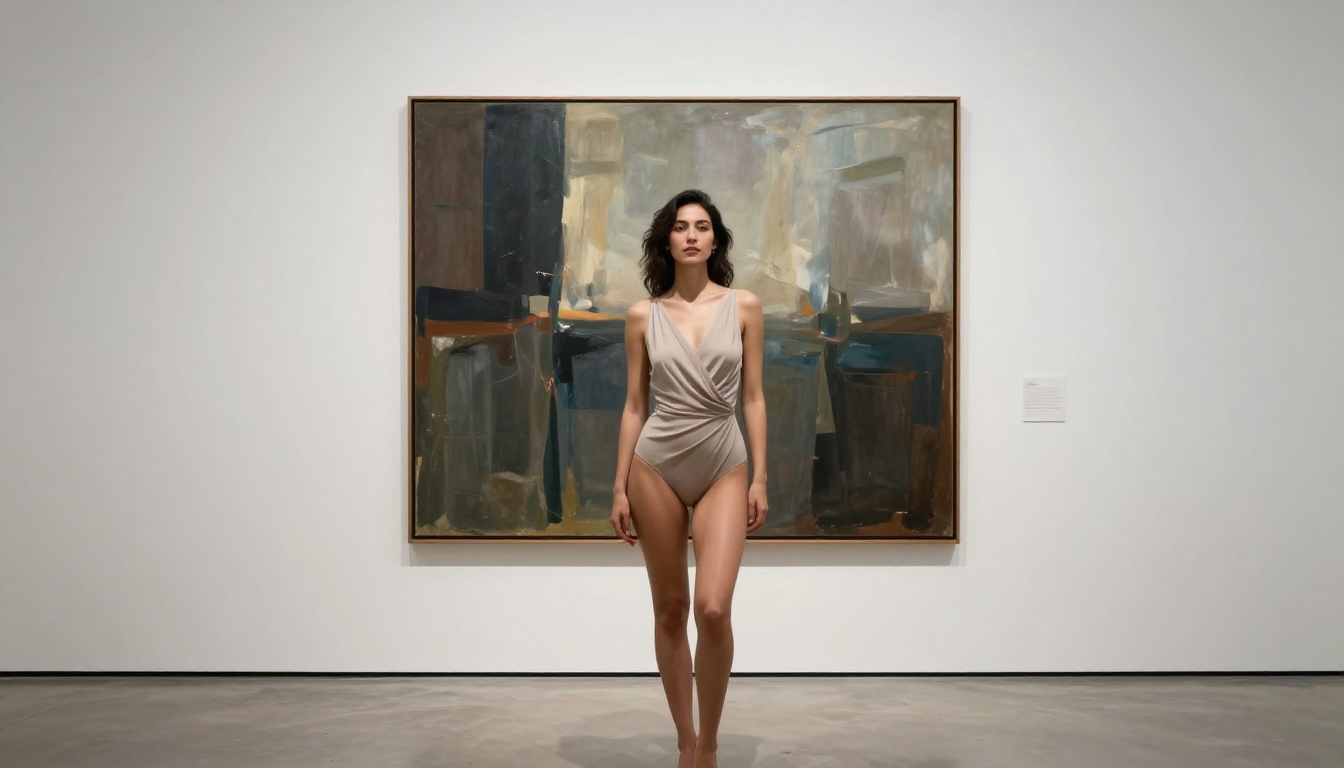
The spectrum runs from tasteful all the way to explicit, but most of the interesting creative territory sits in the middle: glamour, boudoir, artistic nudity, fashion-forward swimwear, editorial beauty. This is the zone where AI tools genuinely shine.
Explicit pornographic content is a different category entirely, and most mainstream AI platforms either block it completely or require verified age-gating systems. This article focuses squarely on the suggestive-to-artistic range, which is where the best-looking results live anyway.
Why this distinction matters
Platforms draw the line in different places. Understanding where a platform sits helps you write prompts that work with the system rather than against it. On PicassoIA, the platform supports artistic and suggestive content, which means you can produce genuinely striking results without constantly fighting content filters.
💡 Pro tip: Framing matters as much as content. "Confident woman in silk lingerie, editorial photography" produces different (and better) results than blunt descriptions. Train yourself to write like a photographer directing a shoot.
Step 1 — Pick the Right Model
Model selection is the single biggest factor in output quality. A great prompt through a mediocre model produces mediocre results. The right model with even a decent prompt produces something worth keeping.
Models built for realism
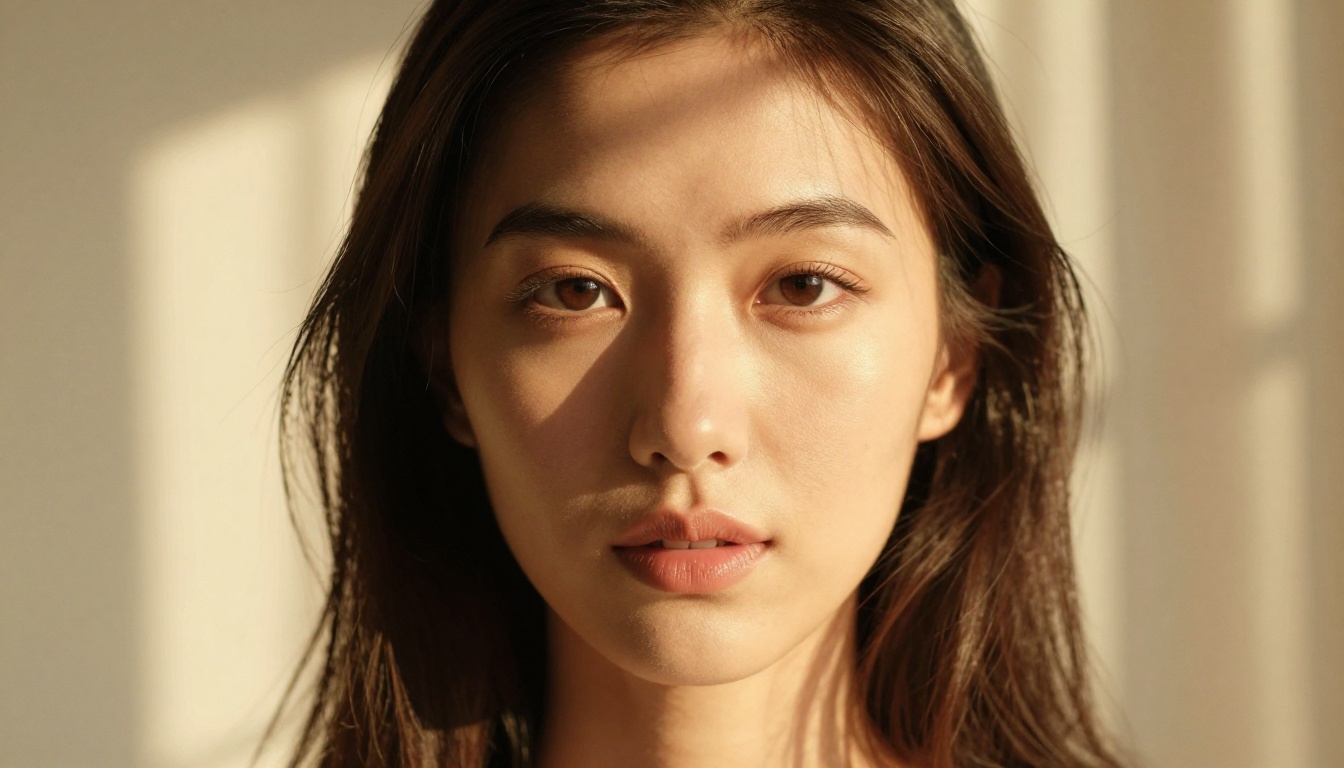
For NSFW and glamour-adjacent content, photorealism is almost always the goal. You want skin that looks like skin, fabric that looks like fabric, and lighting that could have come from an actual photographer's set. The models worth knowing are:
Flux 1.1 Pro Ultra — the current top-tier choice for photorealism. Exceptional detail retention, strong understanding of human anatomy, and excellent prompt adherence.
Flux 2 Pro — newer generation with improved fine detail and better handling of complex lighting scenarios.
Realistic Vision v5.1 — a community favorite specifically trained for photorealistic human subjects. Consistently strong skin rendering.
RealVisXL v3.0 Turbo — fast generation with excellent photorealistic output, great for rapid iteration.
Flux vs Stable Diffusion for NSFW
This comparison comes up constantly, and the honest answer depends on what you're prioritizing.
Feature
Flux
Stable Diffusion
Photorealism
Exceptional
Good to excellent (model-dependent)
Prompt following
Very strong
Moderate
Anatomy accuracy
Best-in-class
Variable
Speed
Moderate
Fast (turbo variants)
Fine detail
Outstanding
Good
For serious glamour and suggestive content, Flux Dev or Flux 2 Max are the stronger picks. For rapid iteration and drafting, Flux Schnell or SDXL cut generation time significantly without sacrificing too much quality.
Step 2 — Write a Prompt That Works
This is where most beginners lose time. They write something vague, get mediocre output, and assume the model isn't capable. The model is almost always capable. The prompt is the problem.
Anatomy of a good NSFW prompt
A strong prompt has four layers:
Subject: Who is in the image, what they're wearing, what they're doing
Environment: Where the scene is set, what's around them
Lighting: Direction, quality, and color of light
Technical: Camera lens, style reference, quality modifiers
Here's an example that demonstrates each layer:
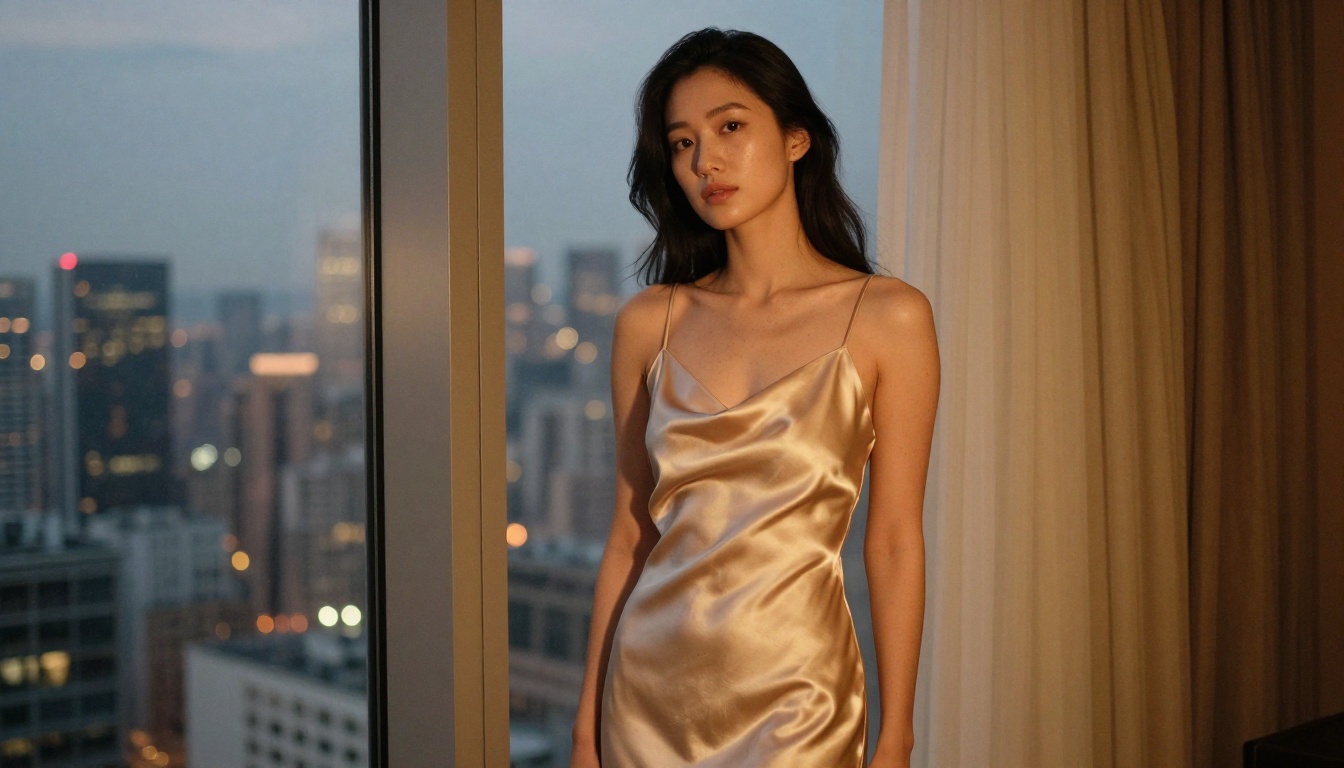
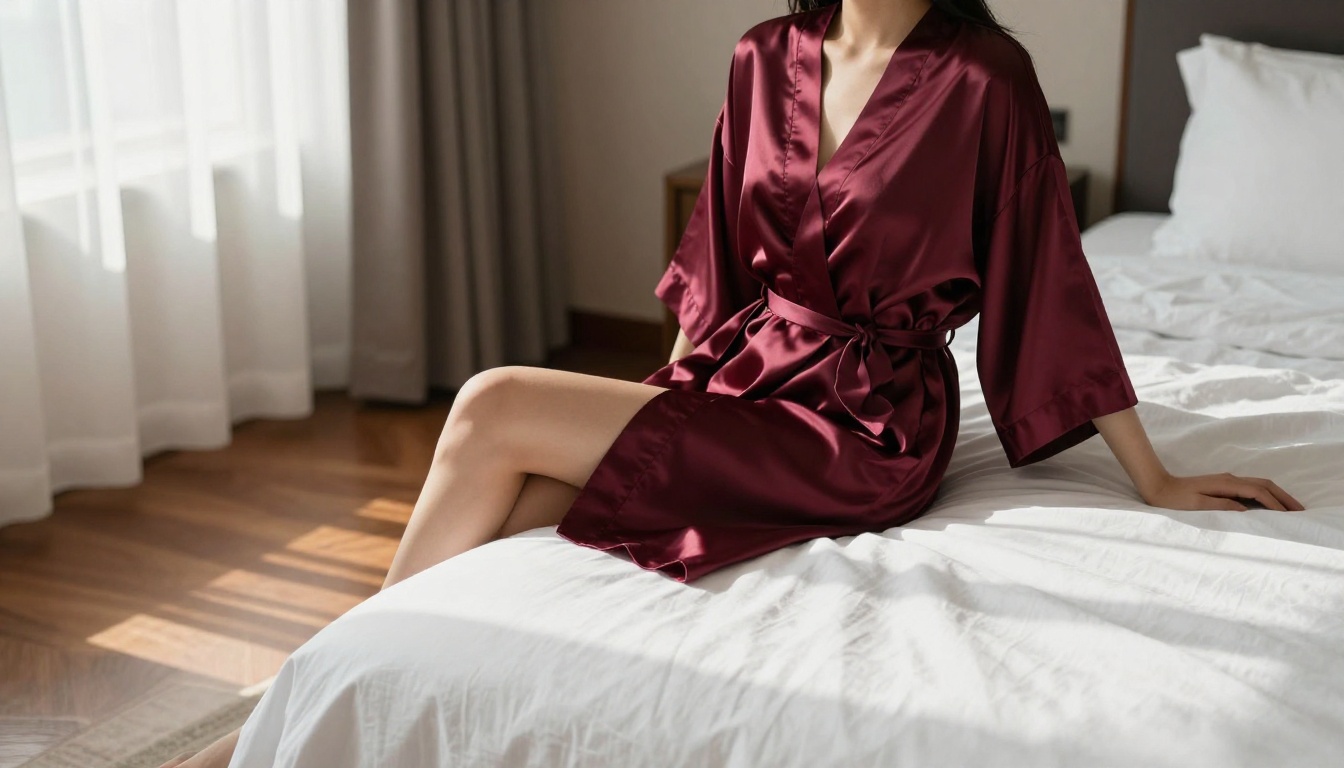
"Beautiful woman in elegant black satin lingerie, seated on the edge of a king-size bed in a luxury hotel room, soft morning light streaming through floor-to-ceiling windows from the left, Canon 85mm f/1.4, shallow depth of field, Kodak Portra 400 film grain, photorealistic, 8K"
Notice: no vague words. Every element is specific. The model knows exactly what to produce.
Words that hurt your results
Some terms consistently degrade output quality or trigger unnecessary filtering. Strip these from your prompts:
Generic intensity words ("sexy," "hot," "seductive") without specific visual description
Vague body descriptions without spatial context
Conflicting style instructions (e.g., mixing "photorealistic" with "digital art")
Overcrowded prompts that describe five different things happening at once
💡 The photographer test: Ask yourself, if you were briefing a professional photographer for this shoot, what would you actually say? That level of specificity is what the model needs.
Add negative prompts when available: blurry, deformed hands, extra fingers, watermark, text, logo, cartoon, illustration
Step 3 — Refine Until Perfect
First generations are starting points, not final products. Even experienced users rarely ship the first output. The refinement phase is what separates amateur results from professional-looking work.
Inpainting to fix details
Inpainting lets you select a specific region of the image and regenerate only that area. This is how you fix the common problems without starting over:
Hands: Regenerate just the hand area with a specific hand description
Faces: Sharpen or adjust expression without affecting the rest of the image
Fabric folds: Refine draping or clothing detail selectively
Backgrounds: Clean up unwanted elements in the environment
On PicassoIA, the inpainting tools are available through the image editing models. The workflow is: generate a base image, identify the problem area, use inpainting to fix that specific region, repeat as needed.
Super resolution for final output
Once the composition is right, run the image through a super resolution model. This step takes a solid 1024px output and pushes it to print-ready quality, sharpening fine texture details that soft generation steps can miss.
The refinement loop looks like this:
Generate base image with your full prompt
Evaluate: subject, lighting, anatomy, background
Inpaint any problematic regions
Apply super resolution to the final version
Optional: use face restoration if facial detail is soft
💡 Time saver: Fix anatomy issues in the prompt first before using inpainting. If hands are consistently wrong, add "perfect hands, detailed fingers" to your prompt. Inpainting is for residual issues, not structural ones.
How to Use Flux 1.1 Pro Ultra on PicassoIA
Flux 1.1 Pro Ultra is the model that consistently produces the best photorealistic results for glamour and suggestive content. Here's a step-by-step process for getting the most out of it.
Write your prompt: Use the four-layer structure from Step 2. Be specific about clothing, environment, lighting, and camera details.
Set aspect ratio: For portrait/boudoir shots, use 2:3 or 3:4. For lifestyle and environmental shots, 16:9 works well.
Add a negative prompt: blurry, deformed, extra limbs, cartoon, watermark, text, illustration
Generate: Run 2-3 variations before settling on one to develop further.
Parameters for best results
Parameter
Recommended Setting
Why
Steps
28-35
More steps produce sharper detail
CFG Scale
6-8
Balances prompt adherence and naturalness
Aspect Ratio
Match your subject
Portrait for people, landscape for environments
Seed
Lock once you find a good pose
Allows incremental refinement
Prompt tip for Flux specifically: Flux responds extremely well to photography-style prompts. Reference specific camera gear, film stocks, and lighting setups. "Shot on Canon EOS R5, 85mm f/1.4, Kodak Portra 400 film simulation" consistently improves output quality compared to style-free prompts.
5 Models Worth Trying
Beyond Flux, here are five models on PicassoIA that regularly produce strong results for glamour and suggestive content:
Each has a different character. Realistic Vision v5.1 is specifically trained for photorealistic people and handles skin tones and textures with care. RealVisXL v3.0 Turbo is excellent when you want to run 10 variations in the time it takes other models to run 3.
4 Mistakes That Kill Your Results
After spending time with these models, certain errors come up constantly. Here are the four that matter most:
1. Vague prompts
"Beautiful woman in lingerie" is not a prompt. It's a category. Add specificity: lighting direction, clothing material, setting, camera focal length. Every vague word is a decision you're handing to the model, and it won't always decide the way you want.
2. Ignoring aspect ratio
Portrait subjects need portrait ratios. Generating a person-focused image at 16:9 often results in awkward composition, empty space, or the model cramming background detail to fill the frame. Match the ratio to your subject.
3. Skipping negative prompts
Negative prompts are free quality improvements. deformed hands, extra fingers, blurry, cartoon, watermark applied consistently eliminates a huge category of common errors without touching your main prompt.
4. Giving up after one generation
Every model has variance. A prompt that produces a weak first result often produces a strong second or third one. Run at least 3-5 variations before changing your prompt. You're looking for the best of a distribution, not a deterministic output.
💡 The seed trick: When you get a generation with great composition but soft detail, lock the seed and increase your step count. You'll often get the same pose and layout with significantly sharper rendering.
Try It on PicassoIA
The three-step process works. Pick a model built for realism, write a prompt with the precision of a photographer briefing a shoot, and refine the output with inpainting and super resolution. That's all there is to it.
The best way to actually get good at this is to start. Head to Flux 1.1 Pro Ultra on PicassoIA, write your first structured prompt using the four-layer format, and run a few variations. The gap between your first generation and your tenth is surprisingly large, and it narrows fast once you have a clear process.
PicassoIA gives you access to over 90 text-to-image models from the same interface, which means you can use Flux Schnell for rapid drafting, move to Flux 2 Pro for final renders, and apply super resolution and inpainting to finish the job, all without switching tabs. That's the workflow. Now go use it.