How to Create Product Shots for Your Online Store with AI
Selling online lives or dies on image quality. This article shows you how to create product shots for your online store using AI, covering prompt formulas for every product category, background removal, 4x upscaling, and a full workflow from first generation to marketplace-ready file, no camera or studio required.
Selling online comes down to one brutal truth: your product image is your only salesperson. Visitors can't touch, smell, or hold what you're selling. They decide in seconds whether to trust your store or scroll past. And most of the time, that decision is made entirely on the quality of your photos.
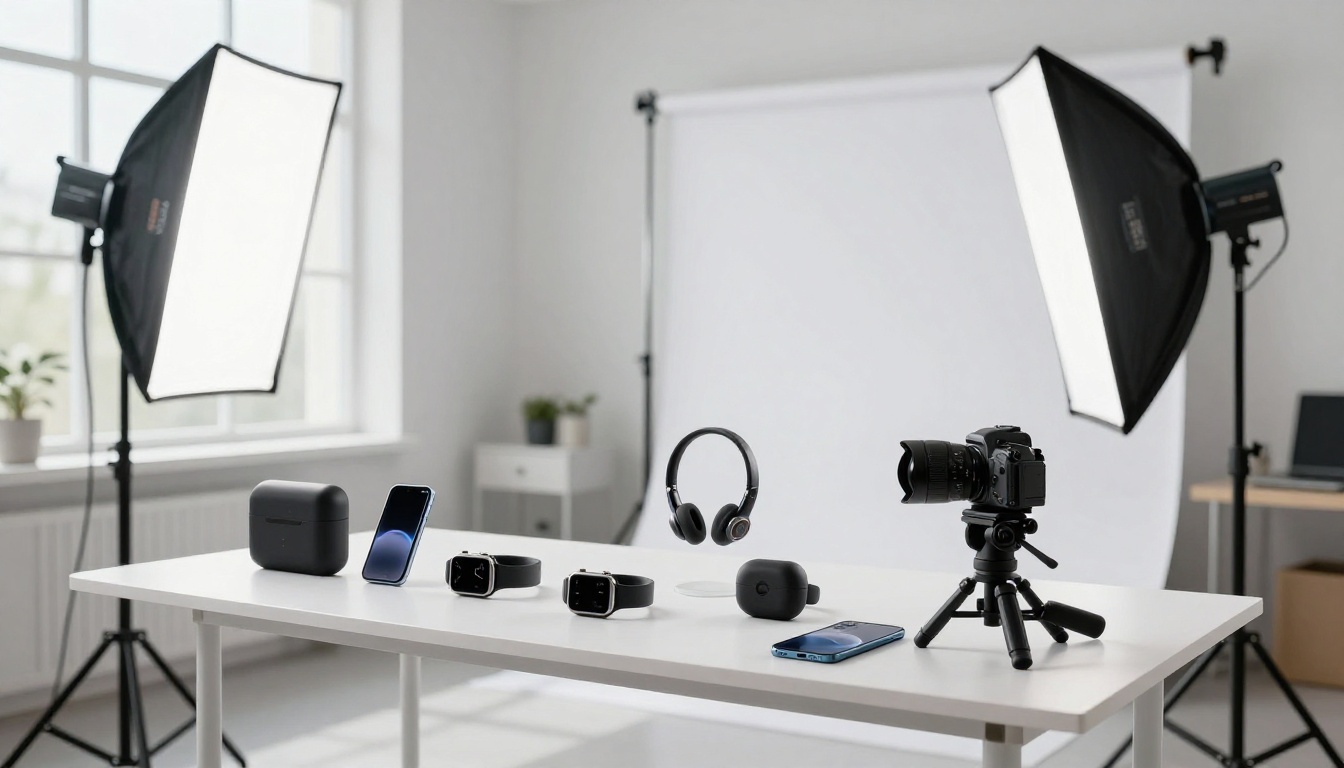
The good news? You no longer need a $500-per-day studio rental, professional lighting gear, or a camera that costs more than your inventory. AI tools now let you create product shots for your online store that rival anything a professional photographer would produce, in minutes, for a fraction of the cost.
This article covers everything you need, from writing effective prompts to removing backgrounds, upscaling images to print quality, and picking the right shot style for each product category.
Why Product Photos Control Your Conversion Rate
The numbers behind bad photos
Poor product photography doesn't just look unprofessional. It actively costs you money. Studies consistently show that 75% of online shoppers rely on product photos when deciding whether to buy. More telling: customers cite unclear or low-quality images as one of the top three reasons they abandon a purchase.
A blurry photo, an uneven background, or flat, washed-out lighting signals to buyers that a seller either doesn't care, or can't afford to care. Either perception kills trust.
What buyers actually look at
When a shopper lands on your product page, they scan for three things fast:
Does this look real? Overly clean, CGI-looking renders make people skeptical.
Can I see the detail? Texture, finish, scale, and material quality matter.
Does this fit my life? Lifestyle shots that place the product in context close more sales than white-background shots alone.
The best product pages use a mix of all three. AI lets you produce all three from a single text prompt.
What AI Does That Traditional Photography Can't
Speed and cost are only part of it
Booking a product photographer involves scheduling, shipping samples, setup fees, editing time, and back-and-forth revisions. A single product SKU might take a full day and several hundred dollars. Scale that across a catalog of 200 items, and you're looking at a serious budget line.
AI image generation collapses that entire workflow into minutes. More importantly, it removes the constraint of physical reality. You can place your product on a surface that doesn't exist, in a location you've never visited, under lighting conditions that require no physical equipment.
Iteration without physical constraints
With a camera, every change costs time. Move the light, reshoot. Wrong background, reshoot. With AI, changing the surface material, lighting direction, or background context takes seconds. You can generate 20 variations of the same product in the time it would take to set up one physical shot.
💡 Pro tip: Generate at least 3 variations per product before committing. Change one variable per run (lighting, angle, surface) to systematically find what works best for each SKU.
How to Use Flux Pro on PicassoIA for Product Shots
Flux Pro is one of the most capable text-to-image models available for photorealistic product photography. Its precision prompt-following makes it particularly strong for commercial images, where the gap between what you describe and what you get needs to be minimal.
Step 1: Write a structured product prompt
The biggest mistake sellers make is writing vague prompts like "a bottle of perfume on a table." That gives the model too much room to interpret, and the results will be inconsistent.
Instead, structure every product prompt using five components:
Component
What to Include
Example
Subject
Product type, material, color
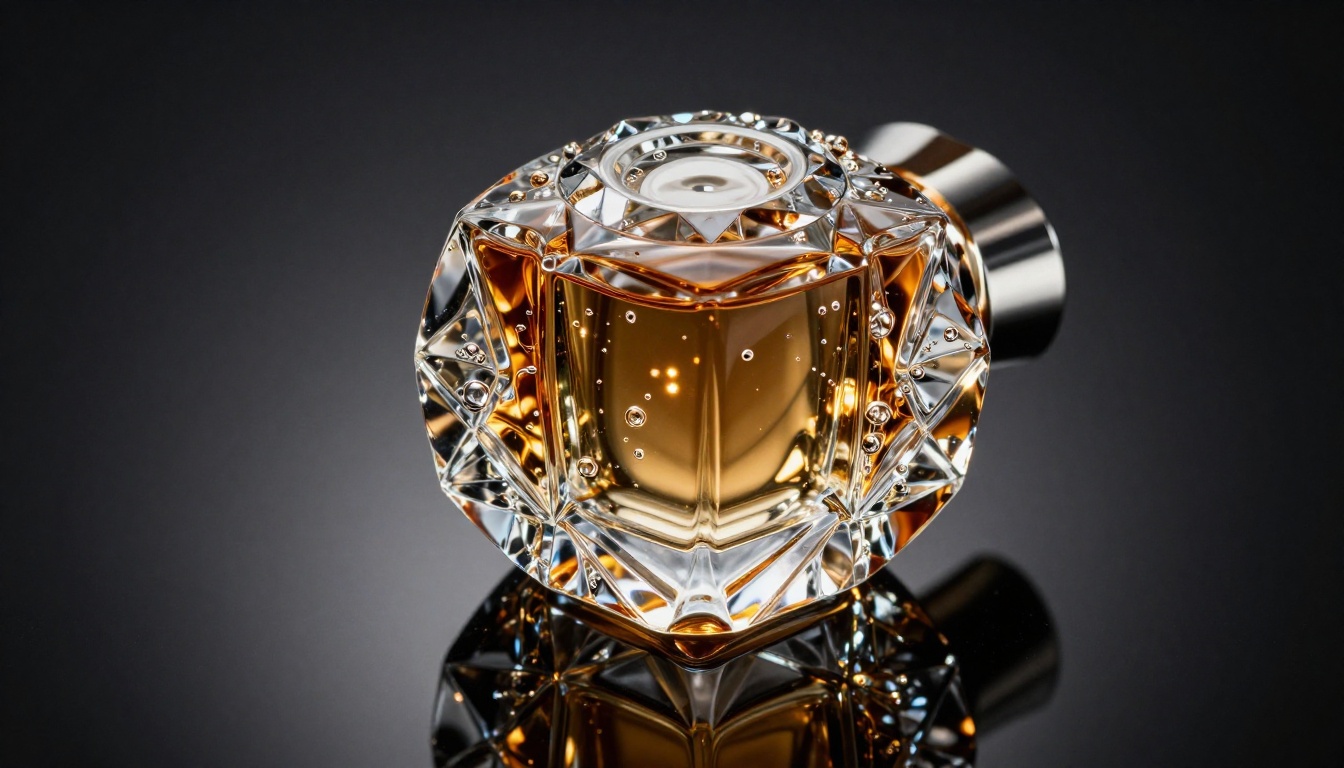
"Dark amber glass perfume bottle"
Surface
What it sits on, texture
"on polished black acrylic surface"
Lighting
Direction, quality, source
"backlit studio light, inner amber glow"
Lens
Focal length, aperture
"90mm macro lens f/2.8"
Style
Film, quality, mood
"Kodak Portra 400, 8K RAW, commercial"
Step 2: Set your parameters in Flux Pro
Once you open Flux Pro on PicassoIA, these are the settings that matter most for product shots:
Guidance: Set to 4-5 for commercial product work. This forces the model to stay close to your prompt, which matters when you're describing specific surfaces and lighting.
Aspect Ratio: Use 3:2 for most product shots. It matches the natural framing of commercial photography.
Steps: 30-32 gives sharp, detailed results without excessive generation time.
Output Format: Export as PNG when you plan to remove the background later, or JPG at 90+ quality for final use.
Step 3: Iterate with one variable at a time
After your first generation, resist changing everything at once. Instead:
Run the same prompt 3 times to see natural variation
Adjust guidance up or down by 1 point to see the effect
Change only the surface description if the background isn't working
Lock the seed once you get a result you like, then tweak the prompt slightly
For speed iteration, Flux Schnell is the faster alternative. It produces results in seconds rather than the 15-20 seconds of Flux Pro. Use Flux Schnell for concept testing, then switch to Flux Pro for final production images.
Remove the Background in One Click
Most e-commerce platforms, from Shopify to Amazon, require product images on a clean white or transparent background. Even if your AI-generated shot has the perfect lighting and composition, you may need to strip the background for marketplace compliance.
Remove Background handles this in a single step. Upload your generated image, and the model isolates the product with clean edges, preserving fine details like hair, transparent materials, and complex shapes that older mask-based tools would destroy.
This workflow is how you go from a richly lit, textured product shot to a clean, marketplace-ready image without losing any of the quality you generated.
💡 Platform note: Always generate your product image with a background first. A clean white AI background often looks fake. Generate with a natural surface, remove it, then place on a true white. The product edges and natural shadows will look far more convincing.
Upscale to Print and High-Resolution Display Quality
AI-generated images often come out at 1 megapixel or slightly above. For social media thumbnails, that's fine. For Amazon Hero images (which require 1000px minimum on the longest side and ideally 2000px+) or print catalog work, you need to upscale without introducing softness or compression artifacts.
Several tools on PicassoIA handle this at different quality levels:
For most online store use cases, Real ESRGAN is the fastest path to a high-resolution image. For catalog or print work, Image Upscale by Topaz is the quality ceiling.
5 Product Shot Styles That Actually Sell
Different product categories perform differently depending on the type of shot. Here are the five styles worth knowing, with prompt notes for each.
Clean surface with natural shadow
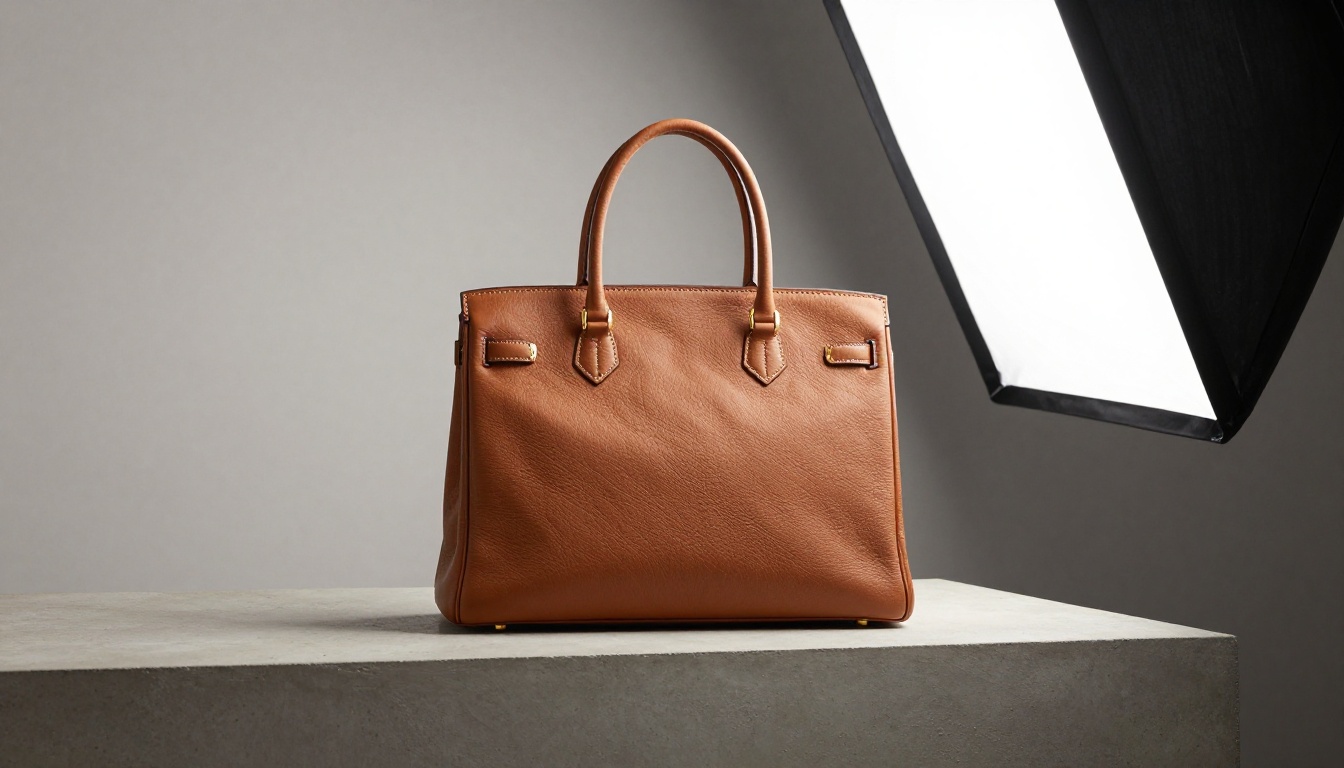
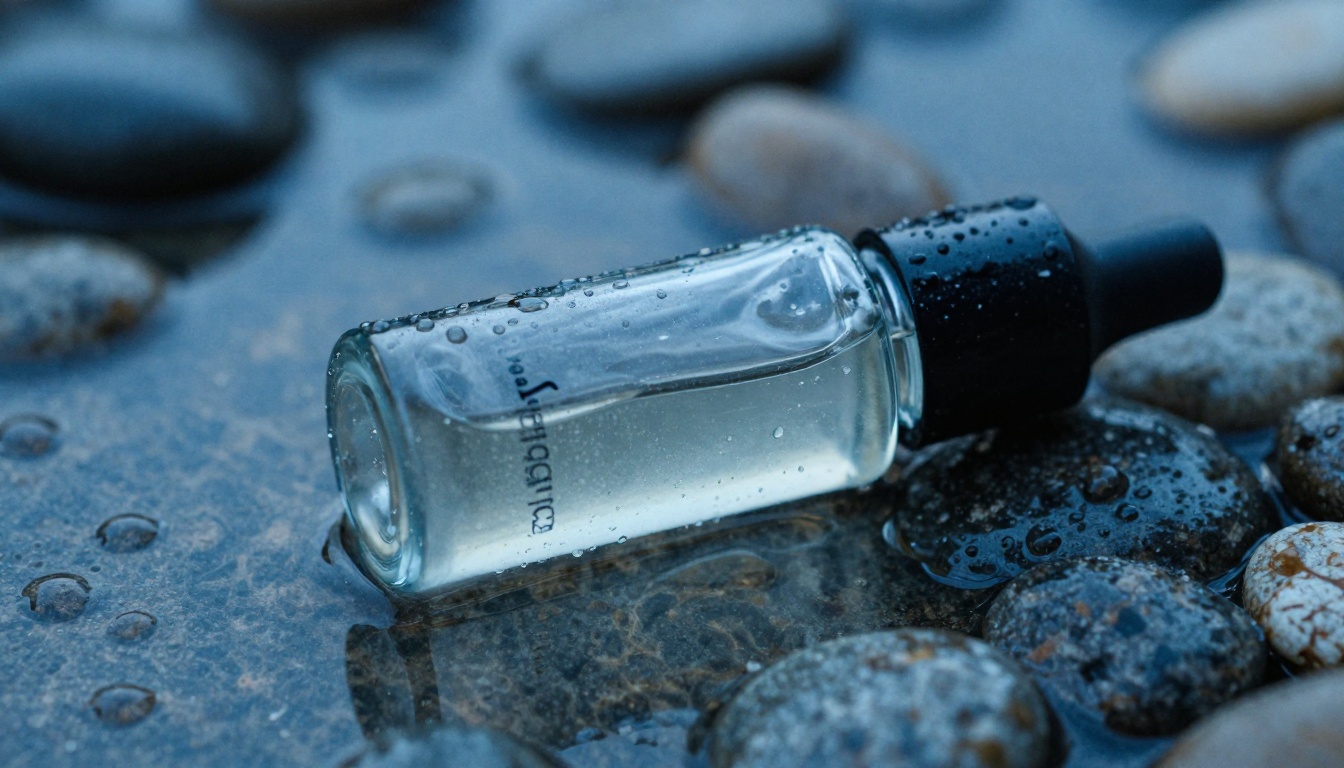
The most versatile shot. Place the product on a material surface (marble, slate, wood) with soft directional light. Avoid pure white backgrounds in your prompt: they look AI-generated. Instead, prompt for "warm ivory surface" or "light grey concrete."
Works best for: Cosmetics, supplements, candles, food products.
Lifestyle context
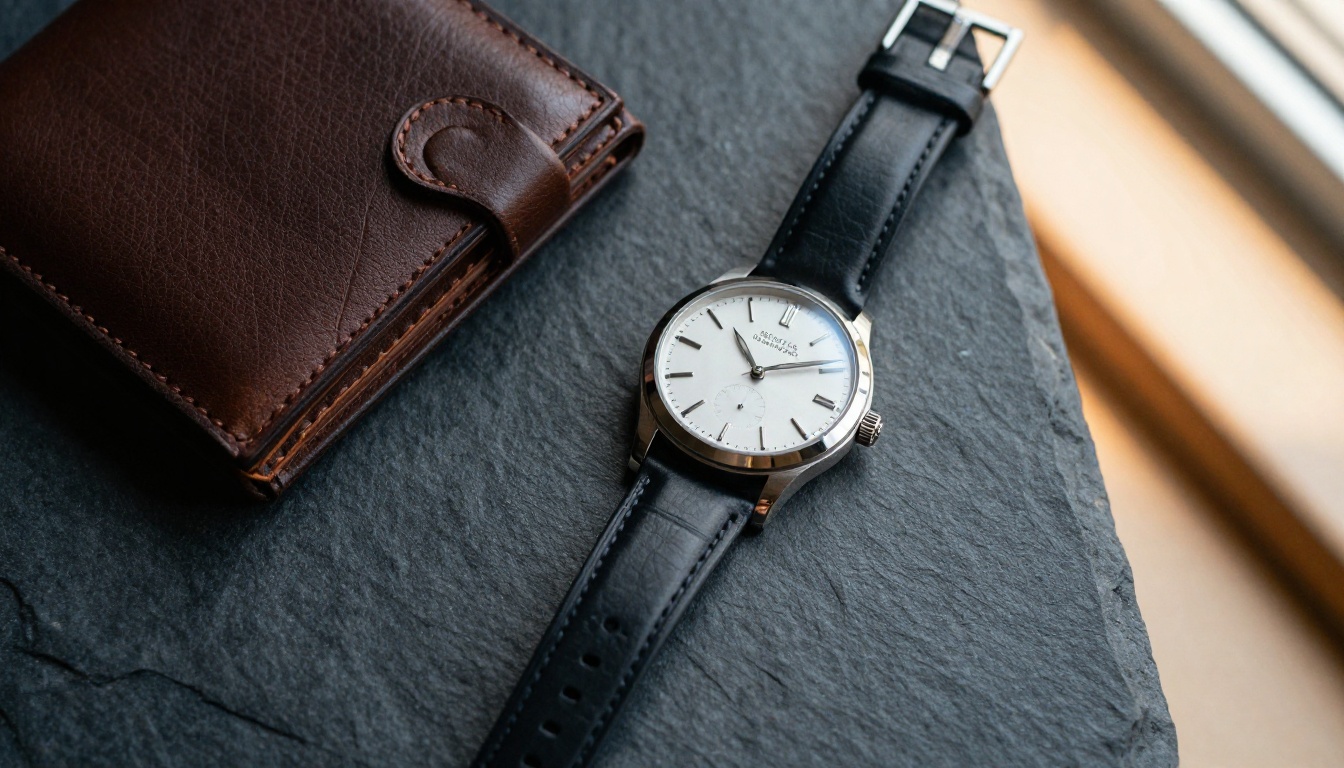
Place the product in a scene where it would naturally be used. A coffee mug on a wooden breakfast table, a wallet sitting next to car keys on leather upholstery. This signals to the buyer what the product fits into in their actual life.
Works best for: Apparel accessories, home goods, tech products, food and beverage.
Flat lay
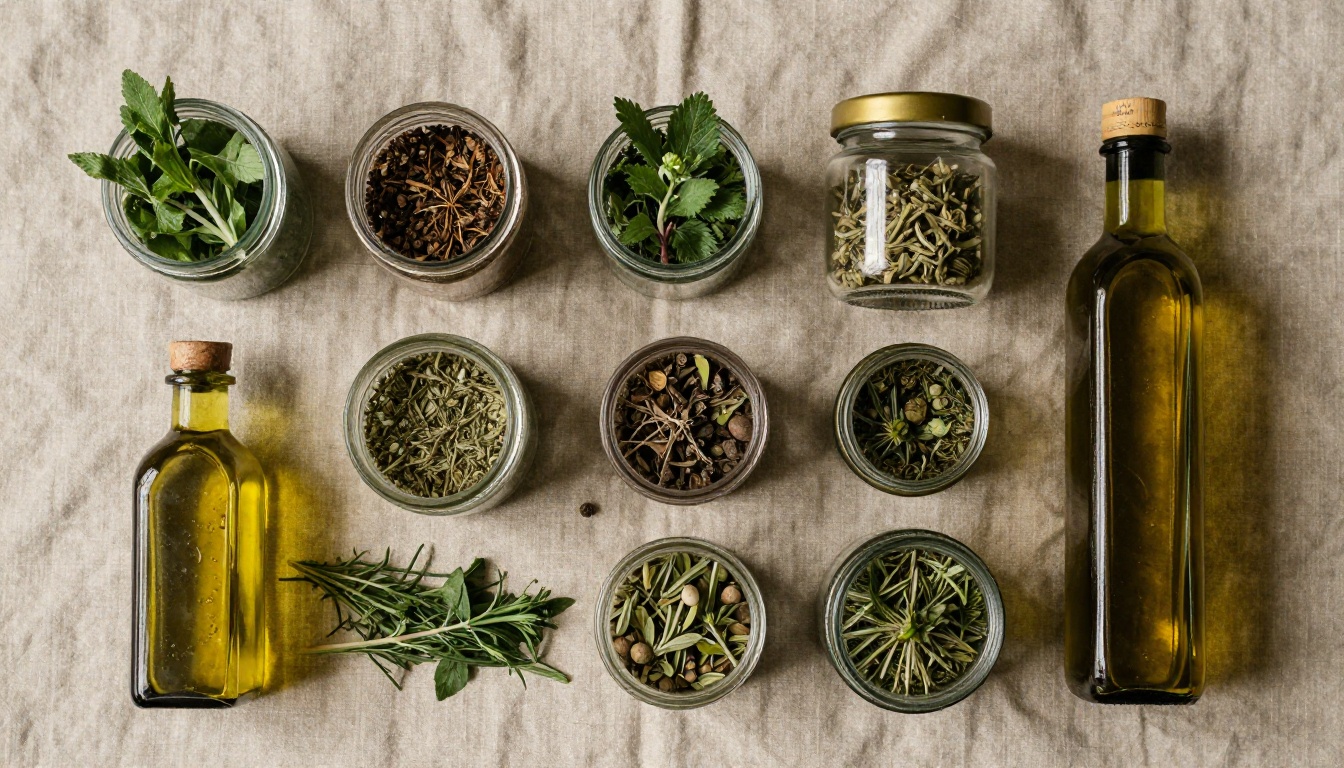
Overhead shot, products arranged on a surface with complementary props. The arrangement matters: negative space reads as premium. Crowded flat lays look like stock photos.
Works best for: Fashion accessories, skincare bundles, food styling, gifting.
Close-up detail
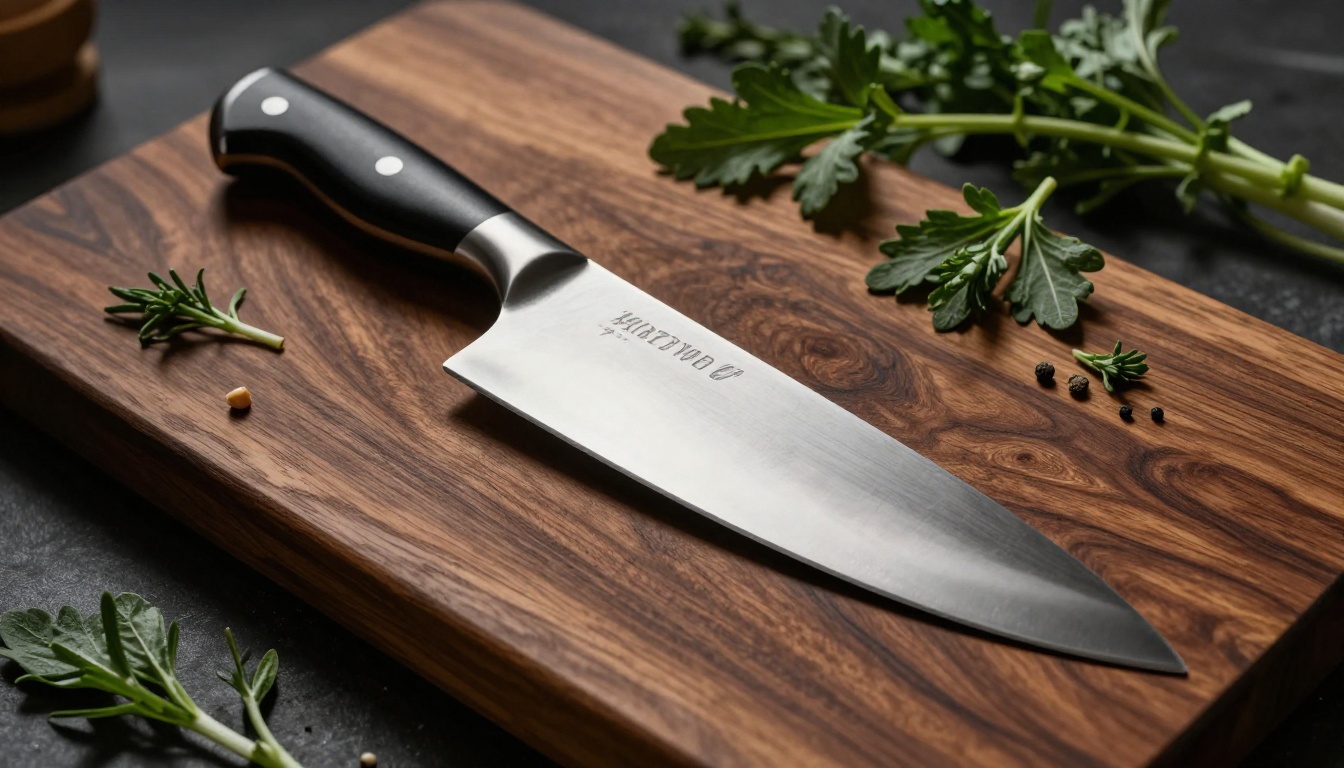
90-105mm macro lens prompts that fill the frame with a specific product feature. The stitching on a leather bag. The dial on a watch. The texture of a shoe sole. These shots tell the buyer the product is built to last.
Works best for: Luxury goods, fashion, hardware, anything where material quality is a selling point.
Dramatic low-angle
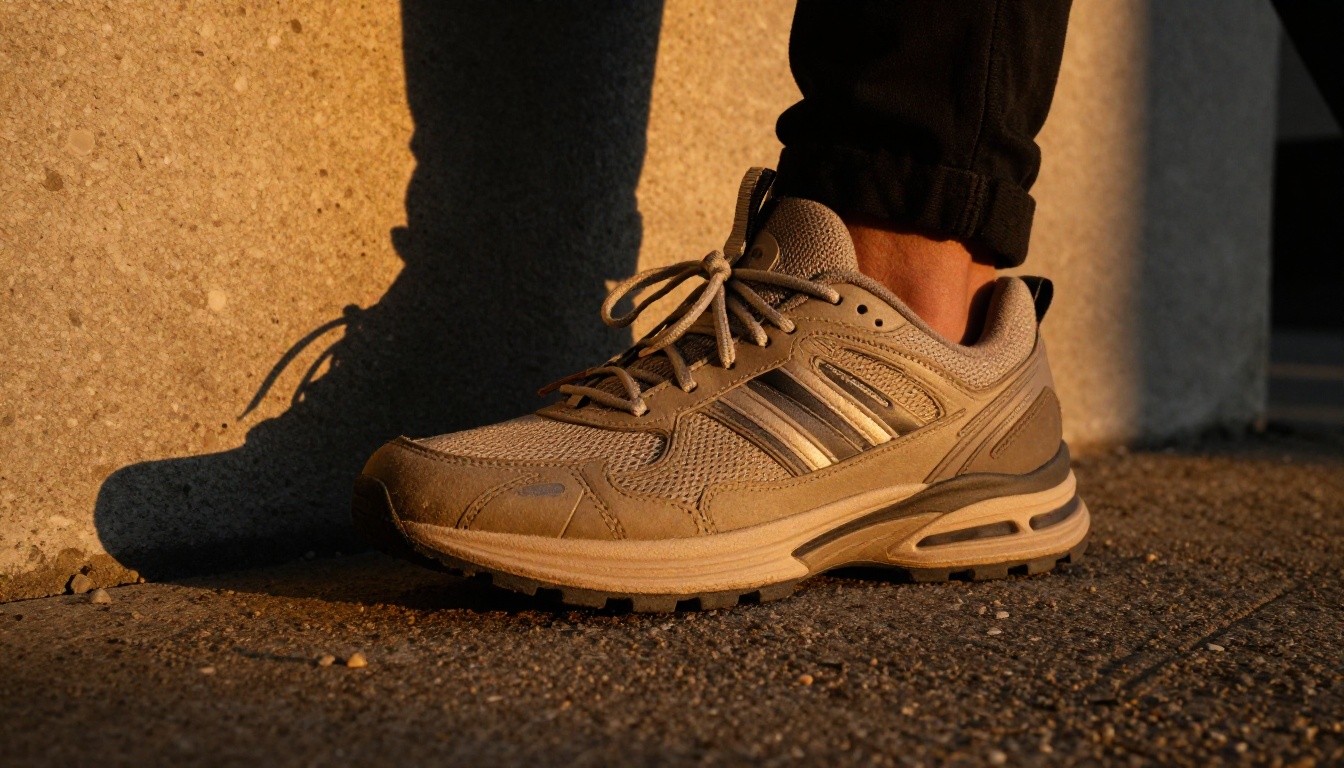
The camera sits below the product line, looking slightly upward. This makes almost any product look more imposing and premium. Combined with golden hour or tungsten-warm light, it reads as aspirational.
Works best for: Footwear, spirits, tech products, sports equipment.
Prompt Formulas That Produce Consistent Results
The difference between a prompt that works once and a formula you can reuse across your whole catalog is structure. Here are three proven formats:
The minimal commercial formula
[Product description], on [surface material], [lighting direction] from [source], [lens spec], photorealistic 8K RAW, Kodak Portra 400
Example: "Clear glass hand soap dispenser, on honed white marble with gold veining, soft diffused light from the left through a linen curtain, 85mm f/2.0, photorealistic 8K RAW, Kodak Portra 400"
The lifestyle context formula
[Product] in use, [natural environment], [human element if relevant], [time of day lighting], [camera angle], photorealistic, film grain
Example: "Stainless steel insulated water bottle resting on a granite summit rock, vast mountain valley visible in the background, early morning blue-hour light, slightly low angle 35mm lens, photorealistic, Kodak film grain"
The hero shot formula
[Product], [dramatic surface], [single strong directional light], [macro or standard lens close-up], deep shadow, volumetric light, commercial photography, 8K
Example: "Dark whiskey bottle, on weathered oak barrel top, single tungsten spotlight from above right, 70mm lens close-up, deep warm shadows, volumetric amber light, commercial photography, 8K"
💡 Consistency tip: Keep a spreadsheet of prompts that worked per product category. When you generate a new product in the same category, start from the formula that already performed, change only the product description.
The Full AI Product Photography Stack
Here's the complete workflow from first prompt to marketplace-ready image:
Generate with Flux Pro using a structured prompt with surface, lighting, and lens specifics
Iterate fast with Flux Schnell to test 5-10 prompt variations before committing to production
Export in the format your platform requires: PNG for transparency, JPG at 90+ quality for compressed uploads
The entire workflow runs in under 10 minutes for a single product. Across a full catalog of 50 SKUs, you're looking at a day of focused work vs. weeks of scheduling, shipping, and studio fees.
Start Shooting Without a Camera
Product photography used to be the bottleneck that separated well-funded brands from everyone else. That gap is gone. The tools that let you create product shots for your online store now sit inside a browser, require no equipment, and cost a fraction of what a single studio day would run.
The prompt formulas in this article are starting points, not ceilings. Every product category has its own visual language, and the best way to find yours is to run dozens of variations until the image does what a great product photo is supposed to do: stop the scroll and close the sale.
Open Flux Pro on PicassoIA, paste in one of the prompt formulas above with your product details, and see what your catalog could look like in 15 seconds.