Most AI image platforms make a quiet promise: generate anything you imagine. Then they install a dozen hidden filters that quietly sabotage exactly the kind of creative work people actually want to do. Glamour photography gets flagged. Artistic nudity gets blocked. Even realistic swimwear images trigger automated refusals. If you have spent any time trying to push the creative limits of popular AI tools, you already know this frustration. The good news is that it does not have to be this way. There are models that prioritize artistic freedom, platforms that respect your creative vision, and workflows that consistently produce photorealistic 4K results without costing you anything.
This article walks you through exactly how to create uncensored AI images in 4K for free: which models are worth your time, how to write prompts that produce professional-grade output, and how to get the most out of every session.
What "Uncensored" Actually Means for AI Images
The Filter Problem
When people talk about uncensored AI image generation, they are not always talking about explicit content. More often, they are describing the frustration with overly aggressive content filters that block legitimate creative work. Fashion photography, beach scenes, intimate couple portraits, artistic figure studies, and even historical paintings recreated in photorealistic style can all get caught in filters designed to block something entirely different.
The problem is compounded by inconsistency. The same prompt on the same platform can produce an image one day and trigger a refusal the next, depending on server load, model updates, or invisible policy changes. This unpredictability makes professional-quality workflows nearly impossible.
💡 The real goal is not to bypass safety entirely. It is to work with tools that treat you as a creative professional rather than a potential bad actor.
What Gets Blocked vs. What Should Not
Here is the honest breakdown of how different platforms treat various content types:
| Content Type | Typically Blocked by Default | Should It Be? |
|---|
| Swimwear and Lingerie | Often | No |
| Artistic figure studies | Sometimes | No |
| Implied nudity (sheet, shadows) | Sometimes | No |
| Explicit sexual content | Always | Yes |
| Graphic violence | Always | Yes |
| Glamour and editorial photography | Rarely | No |
The sweet spot for most creative users is non-explicit NSFW: suggestive, beautiful, aesthetically driven imagery that respects artistic integrity without crossing into pornographic territory. That is the creative space this article is about.
Why 4K Resolution Changes Everything
Pixel Count vs. Perceived Quality
There is a significant difference between an image that looks high quality at thumbnail size and one that holds up at full resolution. Most AI image generators default to outputs between 512x512 and 1024x1024 pixels. At standard monitor viewing distance, these look fine. But zoom in even slightly and the cracks appear: soft edges on hair strands, muddy skin textures, artifacts around facial features.
4K resolution (typically 3840x2160 or equivalent in portrait orientation) changes everything. At this output size:
- Individual strands of hair remain sharp
- Skin pores and micro-textures render accurately
- Fabric weave and material surfaces hold their detail
- The image can be cropped, zoomed, or printed without visible degradation
For anyone using AI images professionally, whether for editorial content, product mockups, personal projects, or artistic exploration, 4K is not a luxury. It is the minimum standard worth working toward.
Use Cases That Demand High Resolution
Not all AI image use cases need 4K. Social media thumbnails, quick concept sketches, and moodboard references can all work with lower resolution outputs. But the following applications genuinely benefit from every pixel:
- Print media: magazines, posters, art prints
- Professional portfolios: editorial, fashion, commercial
- Album artwork: music releases, digital publications
- Background images: desktop wallpapers, streaming overlays
- Product visualization: apparel mockups, packaging design
If your work falls into any of these categories, you need tools that output true high-resolution images, not just upscaled low-resolution ones.
The Best Free Models Right Now
The landscape of free AI image models has improved dramatically. Several models now produce genuinely professional-quality output at no cost, particularly on platforms that offer free tier access.
Flux Dev and Flux Schnell
The Flux family from Black Forest Labs has become the go-to for realistic human photography. flux-dev is the balanced option: slower than Schnell but with noticeably better prompt adherence and more natural skin rendering. flux-schnell trades some of that quality for speed, making it ideal for rapid iteration when you need to test multiple prompt variations.
For those who want the ceiling of what Flux can do, flux-1.1-pro-ultra and flux-2-pro push into genuinely cinematic territory, with outputs that rival licensed photography in terms of technical quality.
💡 Flux models handle natural lighting, skin texture, and hair physics better than almost anything else currently available. If you are generating portrait or figure photography, start here.
Stable Diffusion 3.5 and SDXL
Stable Diffusion 3.5 Large is the most capable open-source model in current circulation. It supports native high-resolution output, handles complex compositional prompts well, and has strong community support with extensive LoRA fine-tunes available. The Stable Diffusion 3.5 Large Turbo variant cuts generation time roughly in half with minimal quality loss.
SDXL remains relevant in 2027, particularly for users who want fine-grained control through ControlNet. It pairs well with SDXL ControlNet LoRA for pose-matched generations, which is extremely useful in fashion and figure photography workflows.
RealVisXL and Realistic Vision
For photorealism specifically, realvisxl-v3.0-turbo is purpose-built. It was fine-tuned specifically on photographic datasets and is designed to minimize the telltale "AI look" that most models still struggle with. Similarly, Realistic Vision v5.1 remains a solid choice for portrait work, particularly when you need accurate facial anatomy and natural eye rendering.
How to Write Prompts That Actually Work
The 5-Part Prompt Formula
Poor prompts are the single biggest reason most people get disappointing AI image results. The good news is that prompt engineering is learnable, and a simple structure covers most use cases.
The formula: Subject + Environment + Lighting + Camera/Lens + Atmosphere/Style
Here is an example applied to a glamour photography scenario:
"A confident woman in a black silk dress, standing on a rain-wet street in Paris at night, warm cafe light spilling from a doorway to her left creating strong side illumination on her face, shot with 85mm f/1.4 lens creating shallow depth of field, Kodak Portra 400 film grain, photorealistic, 8K RAW photography"
Breaking this down:
- Subject: confident woman in a black silk dress
- Environment: rain-wet Parisian street at night
- Lighting: warm cafe sidelight from the left
- Camera: 85mm f/1.4, shallow depth of field
- Atmosphere: Kodak Portra 400 grain, photorealistic, 8K RAW
💡 The lighting description is the most underrated element. Specify the direction, color temperature, and quality of light in every prompt. It makes more difference than almost anything else.
Common Mistakes That Kill Quality
| Mistake | Why It Hurts | Fix |
|---|
| Vague subjects | Model fills gaps with generic content | Name the exact pose, expression, clothing |
| No lighting direction | Flat, studio-looking result | Specify direction and color of light |
| Style keywords only | No technical grounding | Add lens, aperture, film stock |
| Too many subjects | Model averages them together | One clear subject per generation |
| Skipping negative prompts | Allows common artifacts | Add: "no blur, no distortion, no plastic skin" |
How to Use These Models on PicassoIA
PicassoIA gives you access to all of the models described above under one roof, with no installation required and a free tier that covers a substantial number of generations.
Step-by-Step on the Platform
Step 1: Choose your model
Navigate to the Text-to-Image collection and sort by your priority: speed, realism, or artistic control. For uncensored photorealistic images, flux-dev, realvisxl-v3.0-turbo, and Stable Diffusion 3.5 Large are the three to try first.
Step 2: Set your output parameters
Select a 16:9 aspect ratio for landscape and editorial work or 9:16 for portrait-oriented content. If the model supports custom dimensions, set width and height to match 4K native resolution for maximum output fidelity.
Step 3: Write your prompt
Apply the 5-part formula above. Focus first on lighting, then subject detail. Keep your negative prompt active with terms like "blurry, distorted, low quality, jpeg artifacts, plastic skin, overexposed".
Step 4: Generate and evaluate
Your first output establishes the baseline. Look for: correct anatomy, accurate lighting direction, and material texture quality. If any of these are off, adjust those specific elements in the prompt before regenerating.
Step 5: Use Super Resolution if needed
After generating at the model's native resolution, run the output through a Super Resolution model on the platform to push it to true 4K without quality loss. This two-step approach (generate then upscale) consistently outperforms single-step high-resolution generation on most models.
Choosing the Right Model for Your Goal
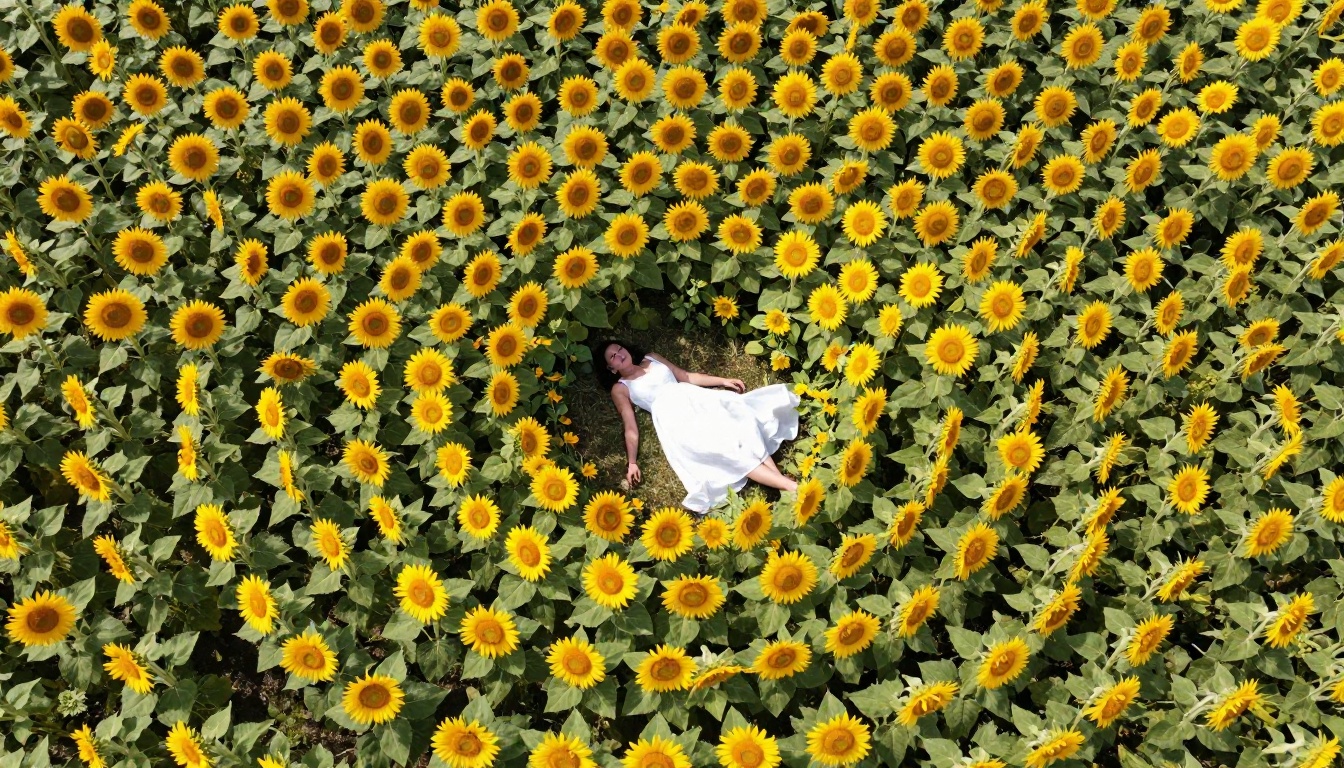
Settings That Actually Matter
Aspect Ratio and Output Size
Most people ignore output dimensions and then wonder why their results look mediocre when cropped for their intended use. Aspect ratio affects composition in ways that go beyond simple dimensions: a 1:1 square crop fundamentally changes how a model distributes visual attention across the frame compared to a 16:9 cinematic ratio.
For uncensored AI photography workflows:
- 16:9: Editorial, landscape, lifestyle, group compositions
- 9:16: Portrait mode, fashion photography, vertical social content
- 4:3: Classic photography proportions, editorial print
- 3:2: Emulates 35mm film standard, natural for portrait work
If your target platform uses a specific ratio (Instagram, print, wallpaper), set this before generating. Cropping after the fact almost always introduces compositional issues.
Negative Prompts and Samplers
A well-crafted negative prompt is as important as your positive prompt. For photorealistic uncensored AI images, a reliable baseline negative prompt is:
"cartoon, anime, painting, illustration, 3D render, CGI, blurry, out of focus, low resolution, low quality, plastic skin, oversmoothed, airbrushed, deformed anatomy, extra fingers, missing limbs, jpeg artifacts, watermark, text overlay"
This actively prevents the most common failure modes in photorealistic generation. Adjust based on what your specific model tends to produce, and add model-specific blockers as you notice recurring artifacts.
3 Types of Images Worth Trying
Glamour and Fashion Photography
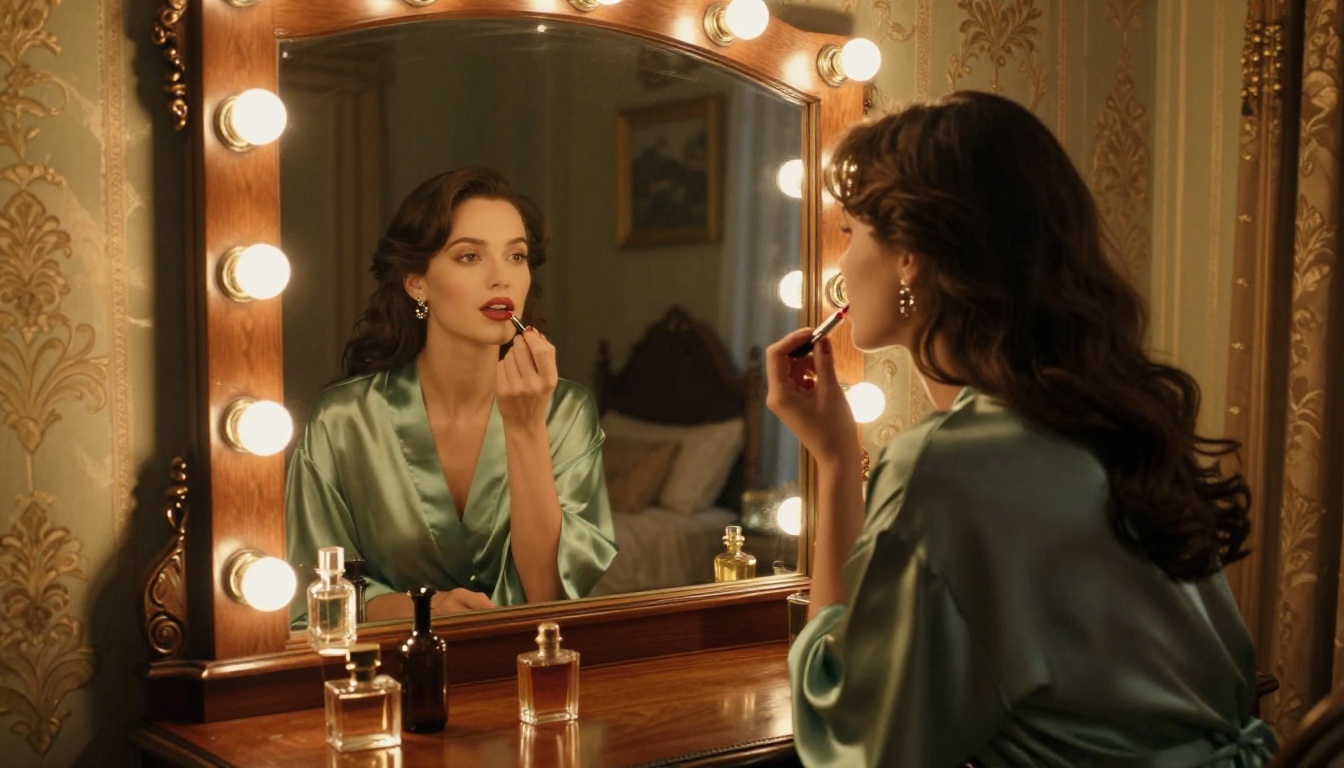
This is where the combination of creative freedom and output quality matters most. Glamour photography in AI requires accurate skin rendering, correct fabric drape, and believable lighting. flux-2-pro and flux-2-max are both excellent here. Prompt specifics that make the difference: describe the exact fabric type (silk, lace, cotton jersey), specify the lighting rig (single key light from left, rim light from behind), and include the lens information.
Attention to small wardrobe details elevates the result dramatically. Describe whether fabric is wet, wrinkled, flowing, or fitted. Name the color specifically (ivory, champagne, cobalt) rather than using generic terms. These specifics give the model the information it needs to make material rendering decisions.
Artistic Portraits
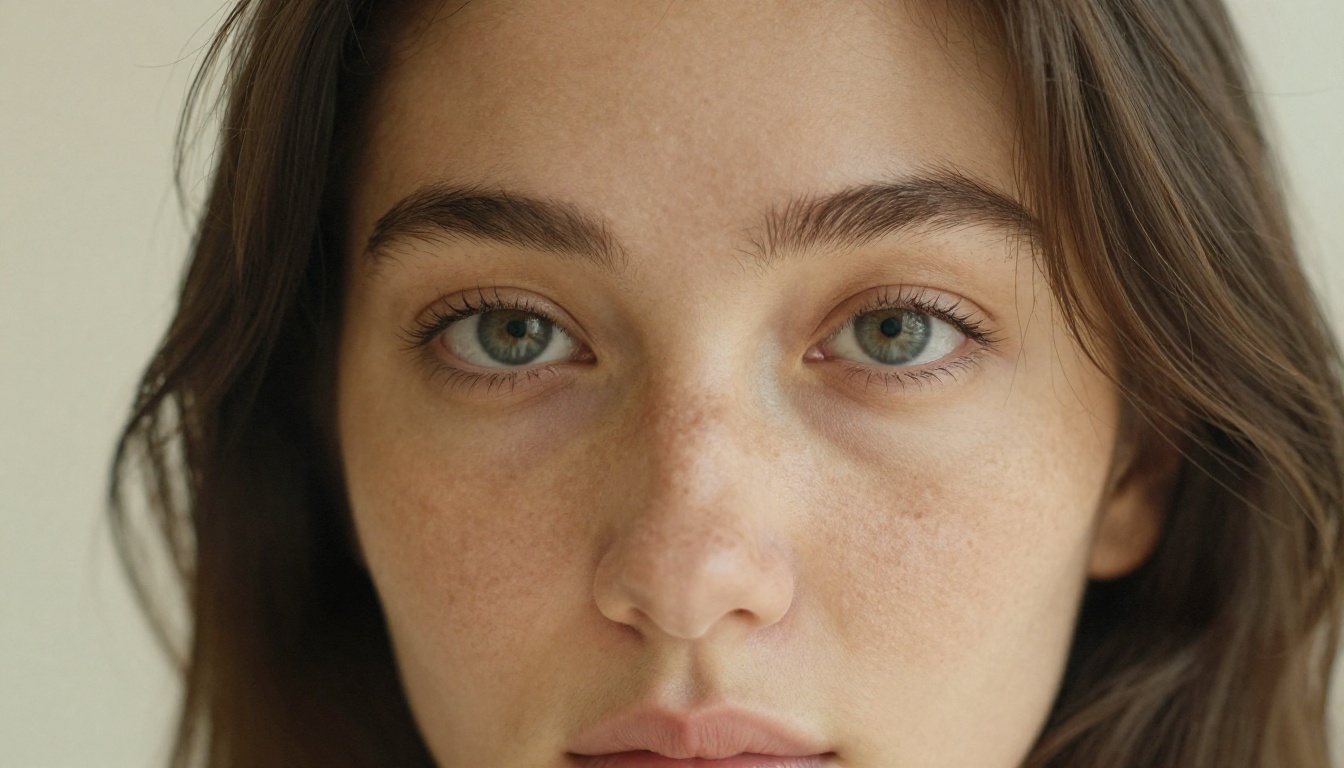
Portrait photography lives and dies by the eyes. In AI generation, eye quality is still the most challenging element to get right consistently. Realistic Vision v5.1 handles eye rendering better than most models at free tier. For artistic portraits with a different kind of high-fidelity output that sits between photography and fine art, Ideogram v3 Quality produces strikingly detailed results with strong tonal control.
Always include eye-specific descriptors in your prompt: "sharp eyes, catchlight in iris, natural pupil dilation, realistic corneal reflection". These additions consistently make the difference between a portrait that feels alive and one that feels artificial.
Lifestyle and Scenic Shots
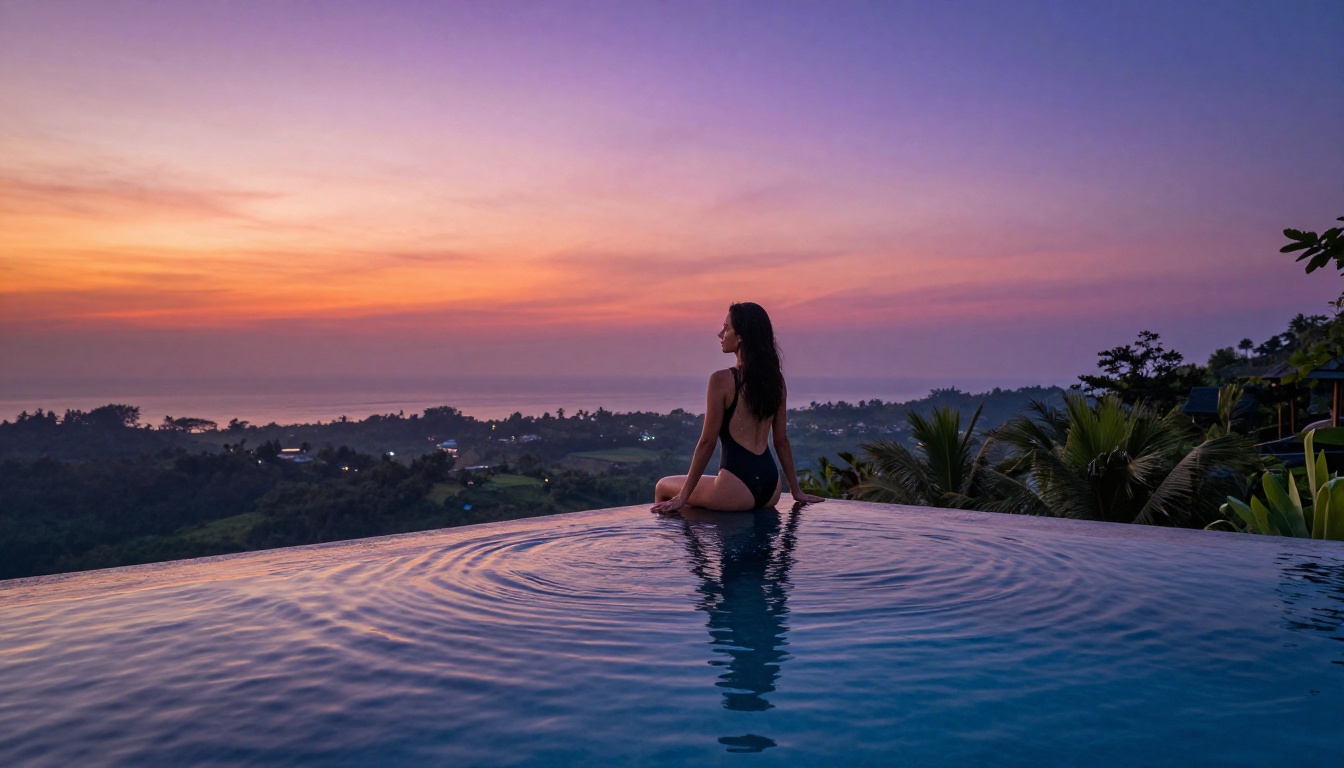
Lifestyle photography, people in natural environments doing natural things, is arguably the hardest category to get right with AI. The challenge is that natural-looking scenes require a kind of visual randomness and imperfection that models are not always good at generating.
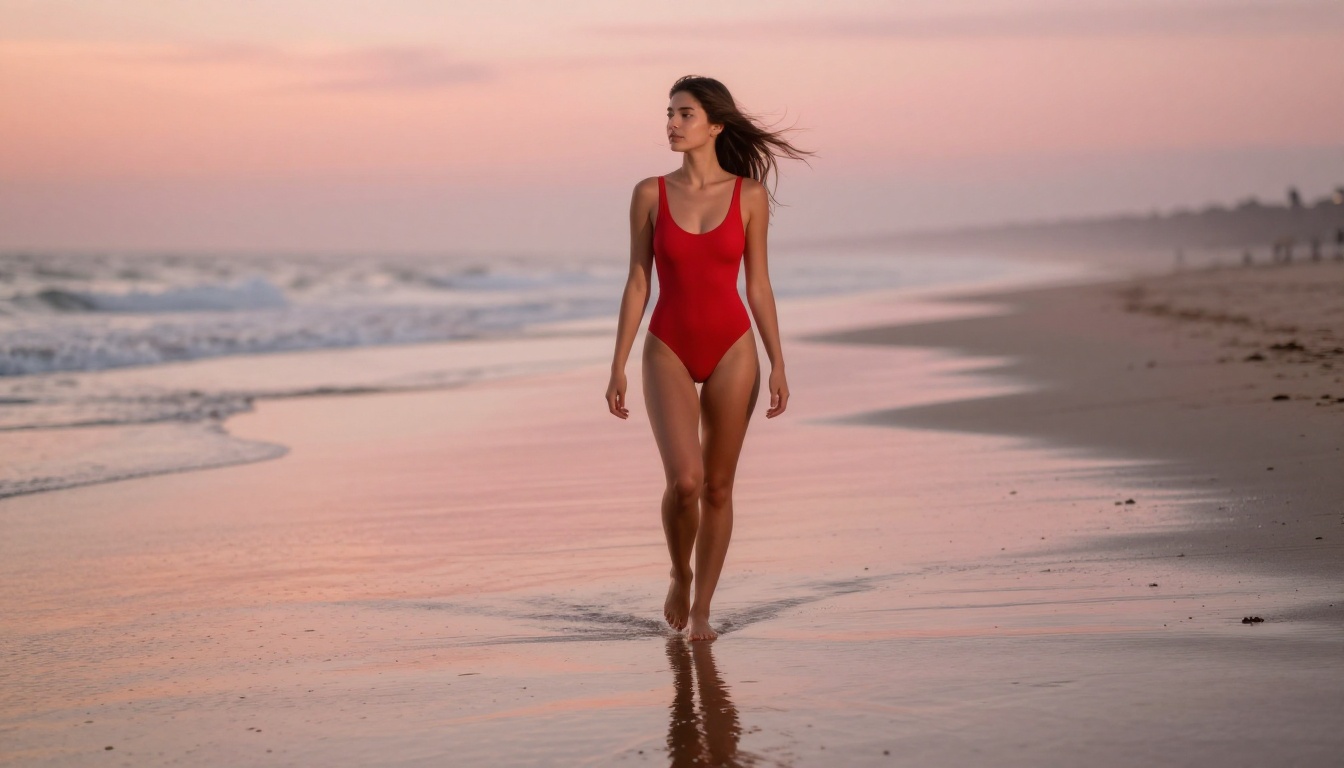
For beach and outdoor scenes, flux-dev does particularly well with water rendering and natural light. For indoor lifestyle, gpt-image-1.5 has strong spatial reasoning and tends to generate more coherent room environments. For scenes requiring extreme photographic credibility, imagen-4-ultra and imagen-4 from Google produce some of the most convincingly photographic outputs currently available.
💡 For lifestyle shots, add minor imperfections to your prompt: "slightly wrinkled fabric, natural shadow under chin, wind-lifted hair strand, casual relaxed posture." These details make the image feel real rather than posed.
When Results Disappoint
Every experienced AI image creator has sessions that do not click. When quality is consistently below expectations, the problem is almost always one of three things.
Wrong model for the task. Not every model handles every subject equally well. If you are getting poor skin texture with one model, try switching to realvisxl-v3.0-turbo or Realistic Vision v5.1 before reworking the prompt. Model selection is often more impactful than prompt adjustment.
Underspecified lighting. "Natural lighting" is not a lighting direction. Replace it with something specific: "volumetric golden hour light from camera-left at 30 degrees, warm amber tones, soft shadow on the right side of face." This single change consistently improves perceived realism more than any other prompt modification.
Resolution mismatch. If you are generating at native model resolution (often 1024px) and expecting 4K quality, the two-step workflow is the answer. Running flux-schnell outputs through a 4x upscale model produces results that hold up far better than equivalent attempts on lower-quality models at native resolution.
Start Creating Your Own Images Now
The tools exist. The models are free. The workflow is straightforward once you have tried it a few times. What separates people who get excellent results from those who give up after a few disappointing generations is almost entirely in the details: clear subjects, precise lighting descriptions, the right model for the right task, and willingness to iterate.
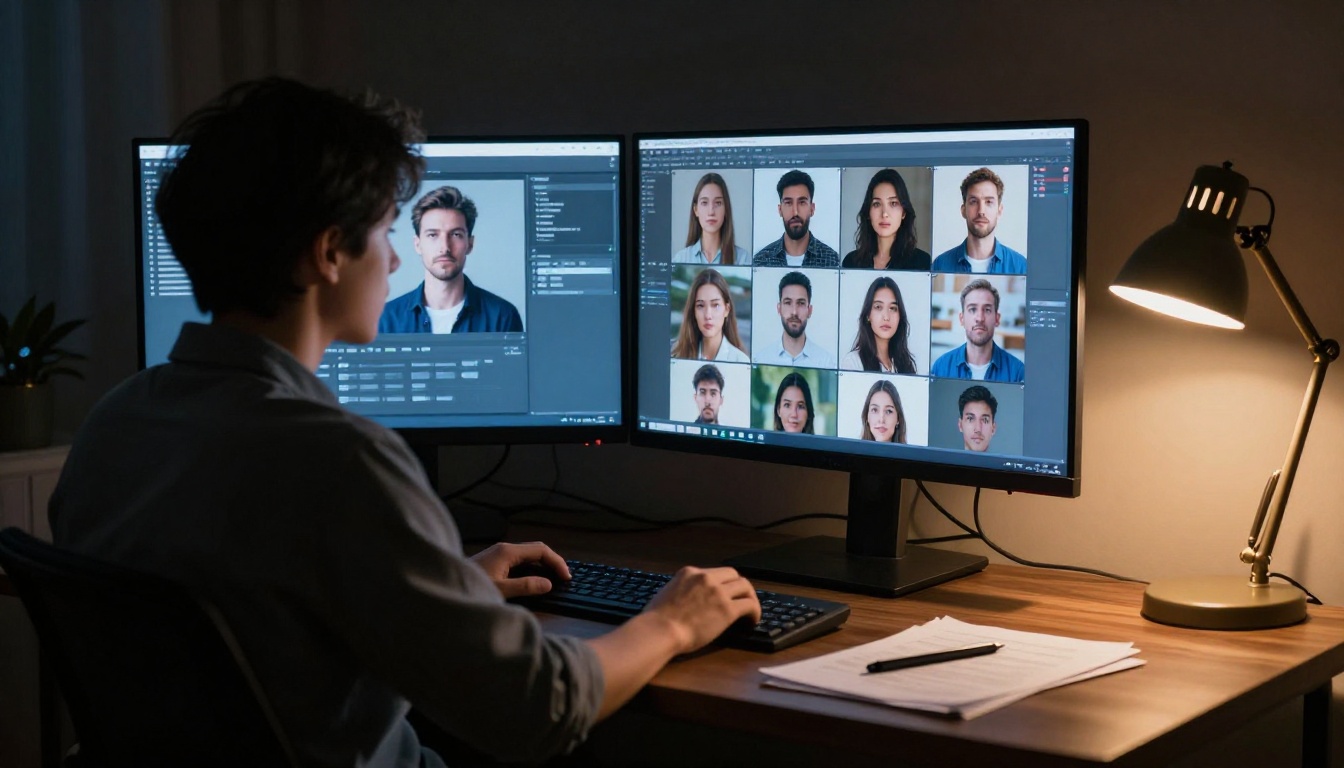
PicassoIA puts all of this in one place: 91 text-to-image models, from flux-schnell for speed to flux-2-max for peak quality, alongside inpainting tools, Super Resolution upscaling, and more. You can go from a prompt to a polished 4K result without leaving the platform.
Pick a scene you have had in mind. Write a prompt using the 5-part formula. Generate it with flux-dev or realvisxl-v3.0-turbo. Then iterate once. You will immediately see what a difference precision makes.


