DiffusionBee makes local image generation on a Mac feel almost too easy: install the app, type a prompt, wait a minute, and a picture appears. The catch is that the built in model is a general purpose Stable Diffusion checkpoint, and it was never tuned for glamour, lingerie or adult style portraits. That is why so many people search for DiffusionBee NSFW models the moment the novelty wears off. They want a different checkpoint, a believable skin texture, and settings that stop producing waxy faces and extra fingers.
This article walks through the whole path. You will see where free checkpoints come from, which file formats actually load, how the import works, which sliders deserve your attention, and where the local approach starts to hurt. Then we look at online alternatives that need no downloads at all. Everything here stays on the suggestive and tasteful side: think bikinis, silk, satin and golden hour light, not explicit content.

What DiffusionBee Actually Does
DiffusionBee is a free desktop app that wraps Stable Diffusion in a simple interface. Everything runs on your own machine, so there is no account, no credit counter and no queue. For a first experiment that is hard to beat.
Local, Free and Mac First
The app was built for macOS, and it runs on Apple Silicon as well as many Intel Macs, though Apple Silicon is far faster. Generation happens on your hardware, which means your prompts and outputs stay on your disk. Newer releases added more tools, including the ability to train custom Stable Diffusion models locally, which was introduced around version 2.5.1.
💡 Tip: Check the current release notes inside the app before you download anything. Features and supported model types have changed from version to version, and older forum posts are often out of date.
Why Add Custom Checkpoints
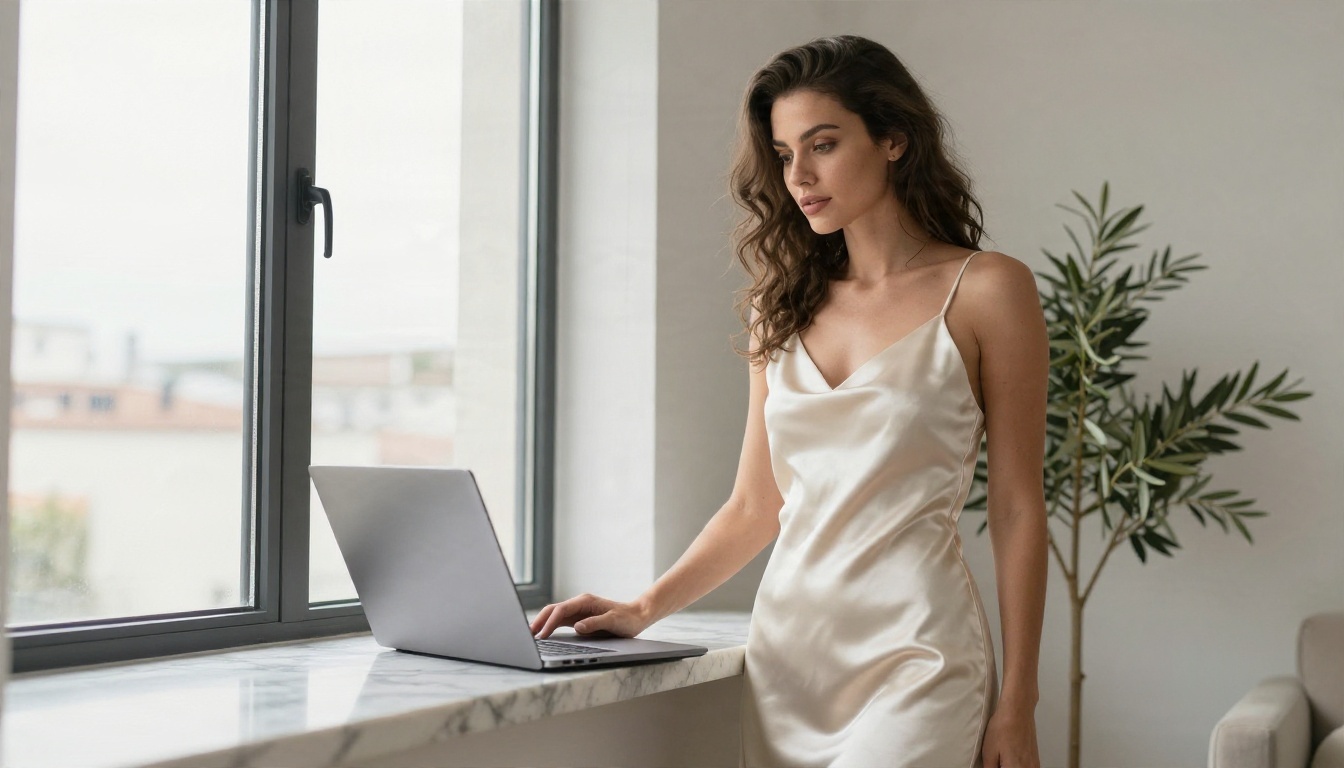
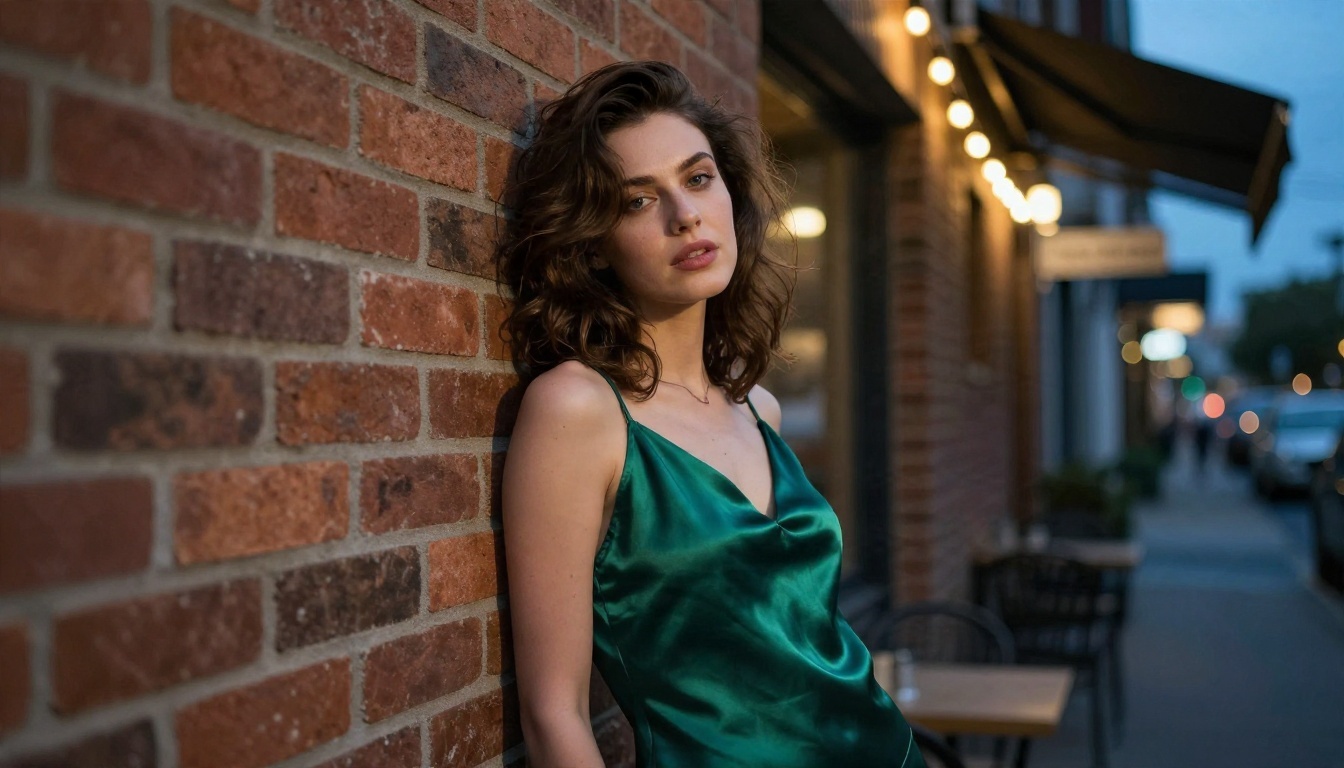
The stock model is a generalist. Ask it for a woman in a satin slip by a window and you will get something passable, but the skin often looks airbrushed and the fabric folds look painted. A custom checkpoint is a model that someone fine tuned on a narrower set of images. Portrait focused checkpoints tend to produce better skin pores, more natural lighting and more convincing fabric, which is exactly what people mean when they say they want NSFW models for DiffusionBee.
Where to Download Free Checkpoints
There is no official NSFW model store inside DiffusionBee. You find files elsewhere and bring them in by hand.
Trusted Sources
Two websites dominate. Civitai is the largest community library of fine tuned checkpoints, with preview images, user ratings and comments. Hugging Face hosts research releases and many community uploads, usually with fewer previews but cleaner file listings. Both require you to check the model card, because the license and the intended use differ from file to file.
When you browse, look for these signals before downloading:
- Base version listed clearly (SD 1.5, SD 2.1 or SDXL), because that decides whether DiffusionBee can read it.
- Sample images with generation details, so you can reproduce the look.
- Recent comments from people who actually ran the file.
- A safetensors download, which is safer than an older pickle based file.
File Formats That Load
DiffusionBee accepts .ckpt and .safetensors files. Safetensors support arrived back in version 1.7.4, released in April 2023. Prefer safetensors whenever you have the choice, since that format cannot hide executable code the way an old checkpoint file can.
The SDXL Problem
Here is the part that trips people up. Reports on the project's GitHub tracker described SDXL models failing to import in versions 2.4.3 and 2.5.0, and the error message asks for a valid SD 1.4, 1.5 or 2.1 file. I could not confirm a fix in the sources I found, so treat SDXL import as unreliable until the release notes say otherwise. If a checkpoint fails with that error, it is probably an SDXL or newer architecture, not a corrupted download.
| File type | Base version | Likely to load in DiffusionBee |
|---|
| .safetensors | SD 1.5 | Yes, preferred |
| .ckpt | SD 1.5 | Yes, with a safety caveat |
| .safetensors | SD 2.1 | Usually yes |
| .safetensors | SDXL | Unreliable, check release notes |
| LoRA only file | Any | Not a full model, will not work as a checkpoint |
How to Import a Model
The process is short, but the order matters.
Step by Step Import
- Download the file to a dedicated folder, not your general Downloads directory.
- Open DiffusionBee and click the menu icon at the top right to find the model import option.
- Select your .ckpt or .safetensors file and wait while the app converts it. Large files can take a few minutes.
- Open the options panel for your next generation and scroll down to the custom model section.
- Pick the new checkpoint from the dropdown that lists every model you have imported.
- Run one test prompt with a fixed seed so you can compare it against the default model.
💡 Tip: Keep the seed identical across tests. If you change the checkpoint and the seed at the same time, you cannot tell which one caused the difference.
Safety Checks Before Loading
The DiffusionBee project itself warns that loading external models can harm your computer, and that is a fair warning. A .ckpt file can contain code. Stick with safetensors, download only from pages with a history of positive feedback, and keep your Mac updated. Never load a file that arrived through a random message or a link you cannot trace back to a model page.
Settings That Matter Most
A good checkpoint with bad settings still gives you bad pictures. These are the controls that change results the most.
Steps and Guidance
Steps control how many refinement passes the model makes. Somewhere between 25 and 35 is the sweet spot for most portrait work. Going to 80 rarely adds detail, it just adds waiting time.
Prompt guidance (also called CFG) sets how strictly the model follows your words. Around 6 to 8 gives natural results. Push it to 12 or higher and skin turns plasticky, colors saturate and edges look burned.
| Setting | Safe starting range | What happens if too high |
|---|
| Steps | 25 to 35 | Slower, little extra detail |
| Guidance | 6 to 8 | Oversaturated, harsh skin |
| Image size | 512 to 768 on the long side | Duplicated limbs, odd anatomy |
| Number of images | 2 to 4 per run | Wasted time on weak seeds |

Prompts and Negative Prompts
Write prompts like a photographer's shot list. Name the subject, clothing, setting, light direction, lens and film look. For example: "woman in a white one piece swimsuit on a terrace, golden hour rim light from the right, 85mm lens, shallow depth of field, natural skin texture, film grain."
Then use the negative prompt to remove common failures. A reliable starting list is: blurry, extra fingers, deformed hands, plastic skin, oversharpened, watermark, text, lowres.
💡 Tip: Describing light works better than stacking adjectives like "beautiful" or "stunning." Words such as "soft window light from the left" push the model toward real photography.
Resolution and Seeds
Older Stable Diffusion checkpoints were trained at 512 pixels, so asking for huge canvases from the start causes repeated faces and stretched bodies. Generate at the native size, find a seed you like, then upscale afterward. Write down good seeds in a notes file with the prompt, because the same seed with a different checkpoint gives a different image.
Why Local Setups Stall
Local generation is great until you want volume or consistency. Three problems show up for almost everyone.
Hardware Limits
A base model Mac with limited memory can take a minute or more per 512 pixel picture. Heavier checkpoints slow that further, and when other apps are open the whole machine feels sluggish. Running a batch of twenty variations to find one keeper becomes a coffee break, then a lunch break.
Maintenance and Format Churn
Newer, better looking models are mostly built on architectures that DiffusionBee struggled to load in the versions mentioned above. So the models people rave about on Civitai are often the exact ones that throw an error on import. You end up hunting for older SD 1.5 variants, which look a generation behind.
Quality Ceiling
Even the best SD 1.5 portrait checkpoint struggles with hands, small text and complex fabric. If your goal is a polished photographic glamour shot, you will spend a lot of time fixing details by hand.
Online Alternatives on PicassoIA
DiffusionBee is not on PicassoIA, and it does not need to be. The goal behind searching for NSFW models is a good looking, tasteful adult style image without a download folder and without waiting on your laptop fan. For similar results today, these models run in the browser.
Seedream 4.5 Comes First
Seedream 4.5 is the model to try first. It produces sharp photographic skin, handles satin, lace and silk convincingly, and follows detailed lighting instructions well. Because it runs on remote hardware, you get results in seconds instead of minutes, and there is no file to import, convert or worry about. Its output resolution also goes well beyond the 512 pixel canvas of older local checkpoints.
Image Editor Pro for Unlimited Edits
PicassoIA Image Editor Pro is built for iterating. You can generate, then keep editing the same picture: change an outfit color, fix the lighting, soften a background or adjust a pose, with unlimited generations. That removes the biggest frustration of local tools, where every retry costs minutes and every failed seed is wasted time.
Other Models Worth Trying
If you like the Stable Diffusion look, there are close relatives:
| Feature | DiffusionBee plus custom checkpoint | Seedream 4.5 and Image Editor Pro on PicassoIA |
|---|
| Setup | Download, convert, import | Open the browser |
| Speed per image | Around a minute or more on many Macs | Seconds |
| Hardware needed | Capable Mac | Any device with a browser |
| Newer architectures | Import errors reported | No import step |
| Editing after generation | Manual, separate tools | Built in with Image Editor Pro |
| Limits on retries | Your patience | Unlimited with Image Editor Pro |
How to Get Similar Results on PicassoIA
Here is the workflow, using Seedream 4.5 as the starting model.
- Open the model page and choose a 16:9 or portrait ratio, depending on your scene.
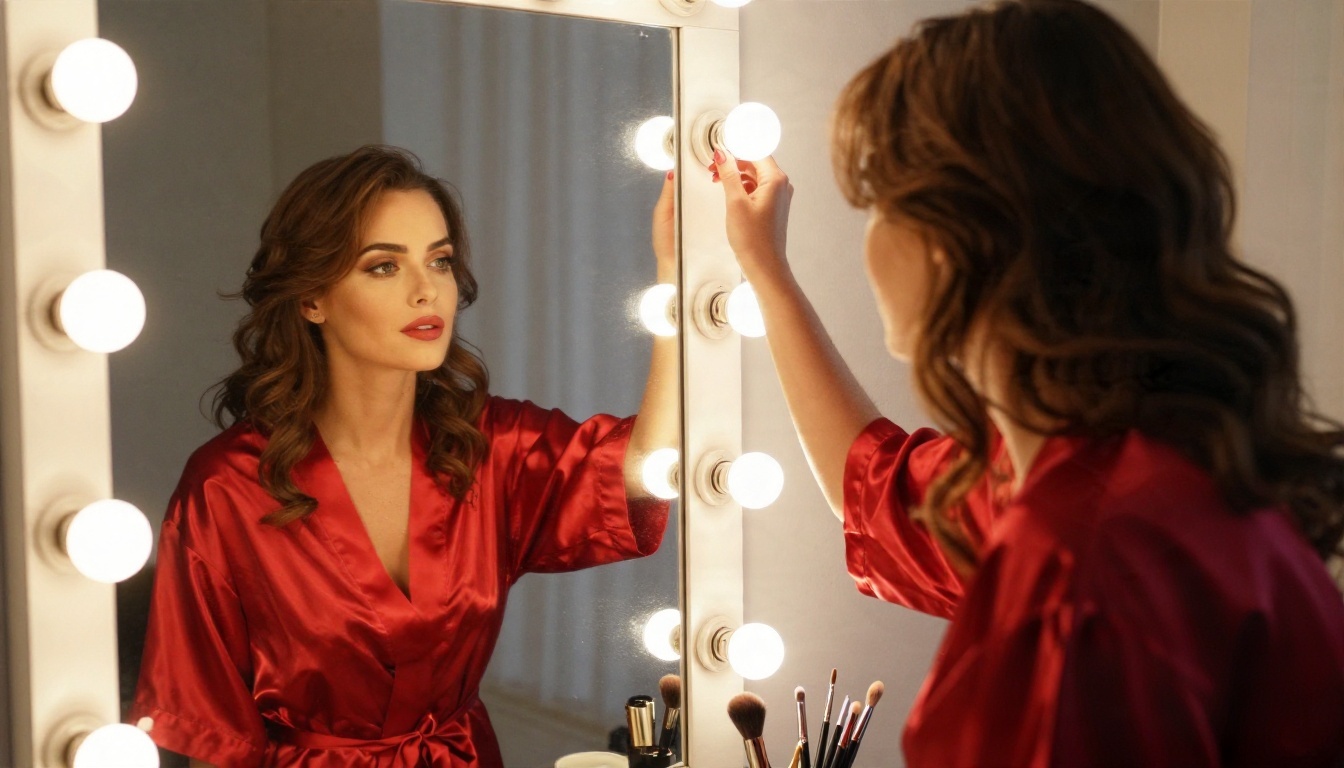
- Write a photographer style prompt. Include subject, outfit, setting, light direction, lens and film grain. Example: "woman in a red satin robe at a vintage dressing mirror, warm bulb light from the front, soft window light from the right, 50mm lens, natural skin texture, Kodak Portra 400 grain."
- Skip the long negative list. Modern models need far less of it. Say what you want, not what you fear.
- Generate two or three variations and pick the best composition.
- Send the winner to Image Editor Pro to adjust outfit color, light or background without starting over.
- Upscale if needed when you want a larger print or a sharper crop.
💡 Parameter tips: Keep prompts between 40 and 80 words. Name one light source and its direction. Mention one lens, such as 85mm f/1.8 for portraits or 35mm for environmental shots. Avoid stacking more than three clothing details.
Prompt Examples That Work
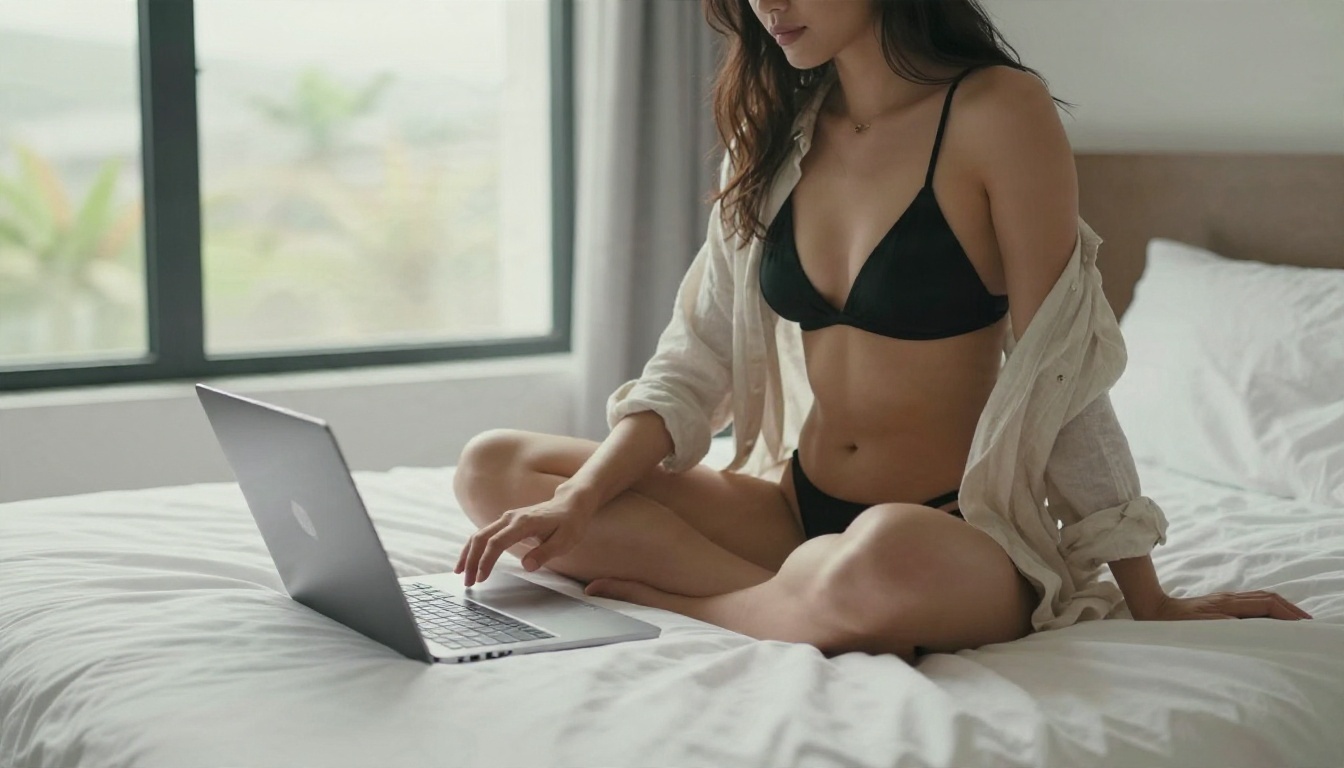
- A woman in a black two piece bikini and open linen shirt on a white hotel bed, morning light from a large window on the left, 28mm lens, soft shadows, film grain.
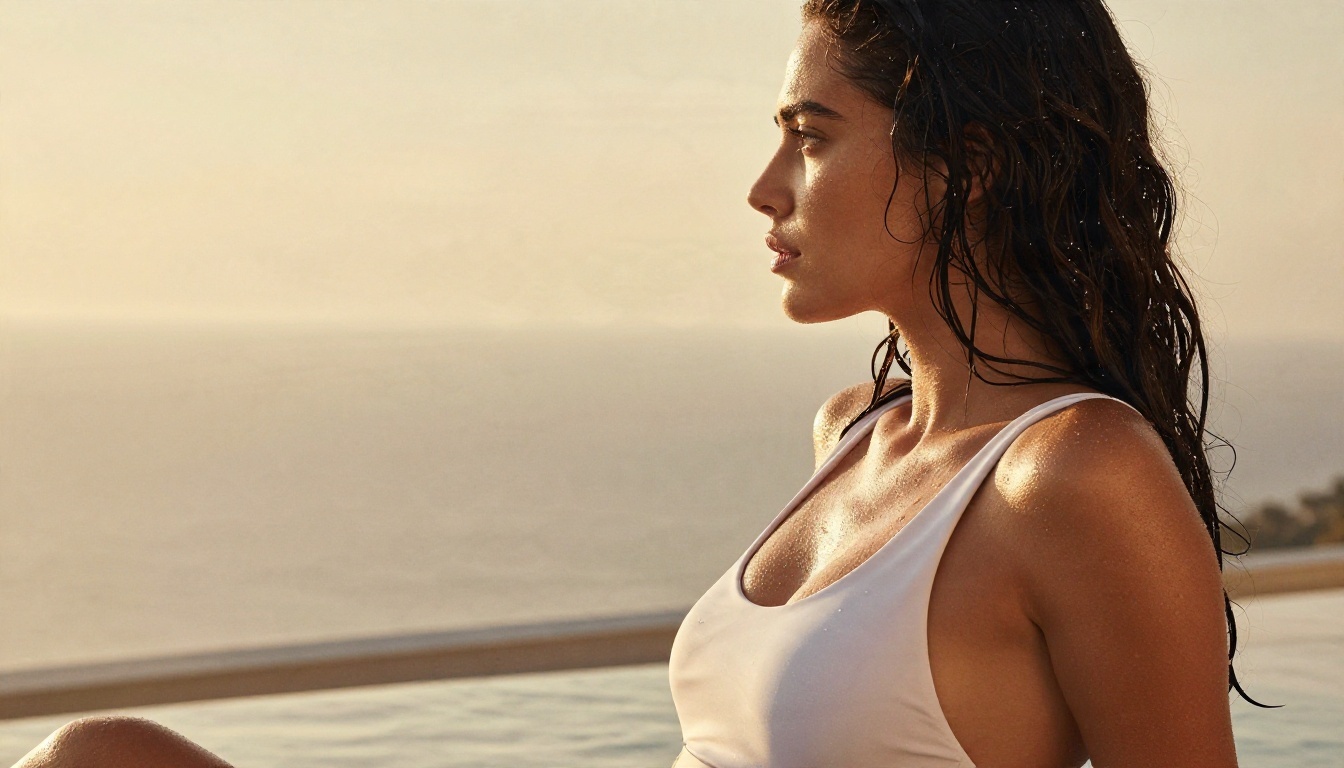
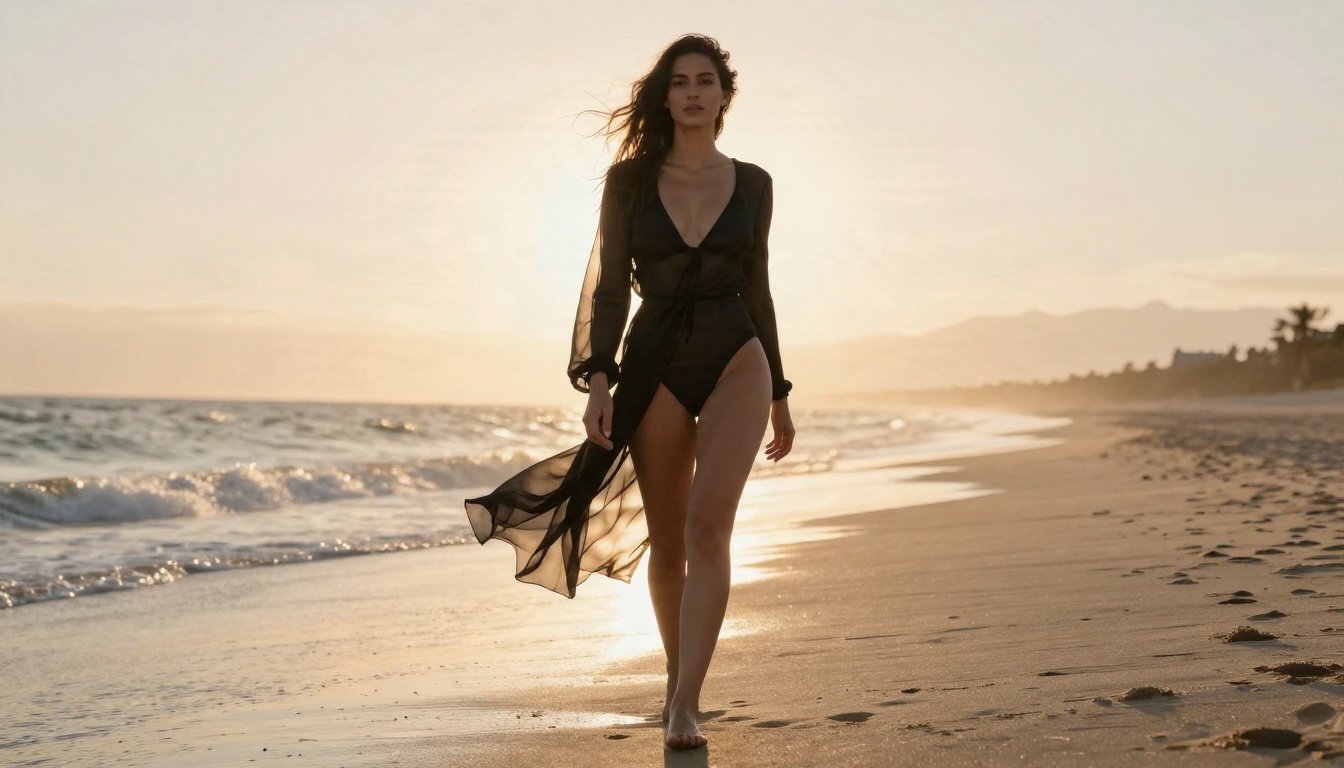
- Profile portrait of a woman in a white swimsuit on a terrace at golden hour, water droplets on shoulders, 135mm lens, rim light from the right.
- A woman in a cream satin slip dress by a floor to ceiling window, overcast daylight, 35mm lens, plaster wall, olive plant.
These all stay suggestive and elegant, which is where photographic models produce their most convincing skin and fabric anyway.
Which Route Fits You
Pick DiffusionBee if you enjoy tinkering, own a recent Apple Silicon Mac, and like the idea of everything staying on your own disk. Keep your checkpoints to SD 1.5 safetensors files, use 25 to 35 steps, guidance around 7, and a short, sensible negative prompt.
Pick an online model if you want quality and speed with no maintenance. Seedream 4.5 handles the first pass, Image Editor Pro handles the refinement, and you never think about file formats again. Many people end up using both: local for private experiments, online for finished work.
Make Your First Batch Today
Open Seedream 4.5, paste one of the prompts above, and compare the result with what your local checkpoint produced. Then move your favorite into PicassoIA Image Editor Pro and push it further with unlimited edits. You will see fast how much time disappears when there is nothing to download.
Ready to try more? Browse every available image model at picassoia.com/en/all-models and build your own set of glamour portraits with Picasso IA today.


