Fix Ugly AI Images with These Steps: What Actually Works in 2027
Bad AI images happen to everyone. Blurry faces, weird hands, pixelated backgrounds, and washed-out colors are frustrating when you knew exactly what you wanted. This article breaks down why AI images look bad and gives you a direct, repeatable workflow to fix each problem, from prompt structure to professional super-resolution upscaling tools available right now.
Bad AI images are more common than anyone admits. You type a carefully worded prompt, hit generate, and the result looks like it was painted by someone who has never seen a human face. Blurry skin. Extra fingers. Backgrounds that fade into digital soup. Colors that look like they went through a photo filter from 2010.
These are not random glitches. Every broken image has a cause, and almost every cause has a fix. The steps below work whether you are generating portraits, product shots, or anything in between.
Why Your AI Images Look Bad
The first step to fixing bad output is knowing what caused it. Most ugly AI images fall into one of five categories: bad prompts, wrong model settings, resolution issues, lighting mismatches, or missing post-processing steps.
The Model Is Not Broken
When your image comes out bad, the model is usually not at fault. AI image generators process your words and do their best with what you gave them. Vague input creates vague output. Contradictory instructions create confused output.
💡 Think of it this way: if you asked a photographer to shoot "a woman, nice lighting, outdoors, maybe a city?" you would get wildly different results from ten different photographers. Specificity is your tool.
The 5 Most Common Problems
Problem
What It Looks Like
Root Cause
Blurry faces
Soft, undefined facial features
Low base resolution or missing face terms
Bad hands
Extra fingers, fused digits, wrong anatomy
No anatomical guidance in prompt
Flat lighting
No depth, washed-out shadows
Missing lighting descriptors
Low resolution
Pixelated, visible compression artifacts
No upscaling step applied
Wrong colors
Oversaturated or desaturated results
Lack of color and style modifiers
It Starts with Your Prompt
The single biggest fix for ugly AI images is writing a better prompt. This is not a suggestion, it is the root of almost every image quality problem.
Vague vs. Specific Prompts
Here is the difference in practice:
Vague: "A woman sitting outside in nice light"
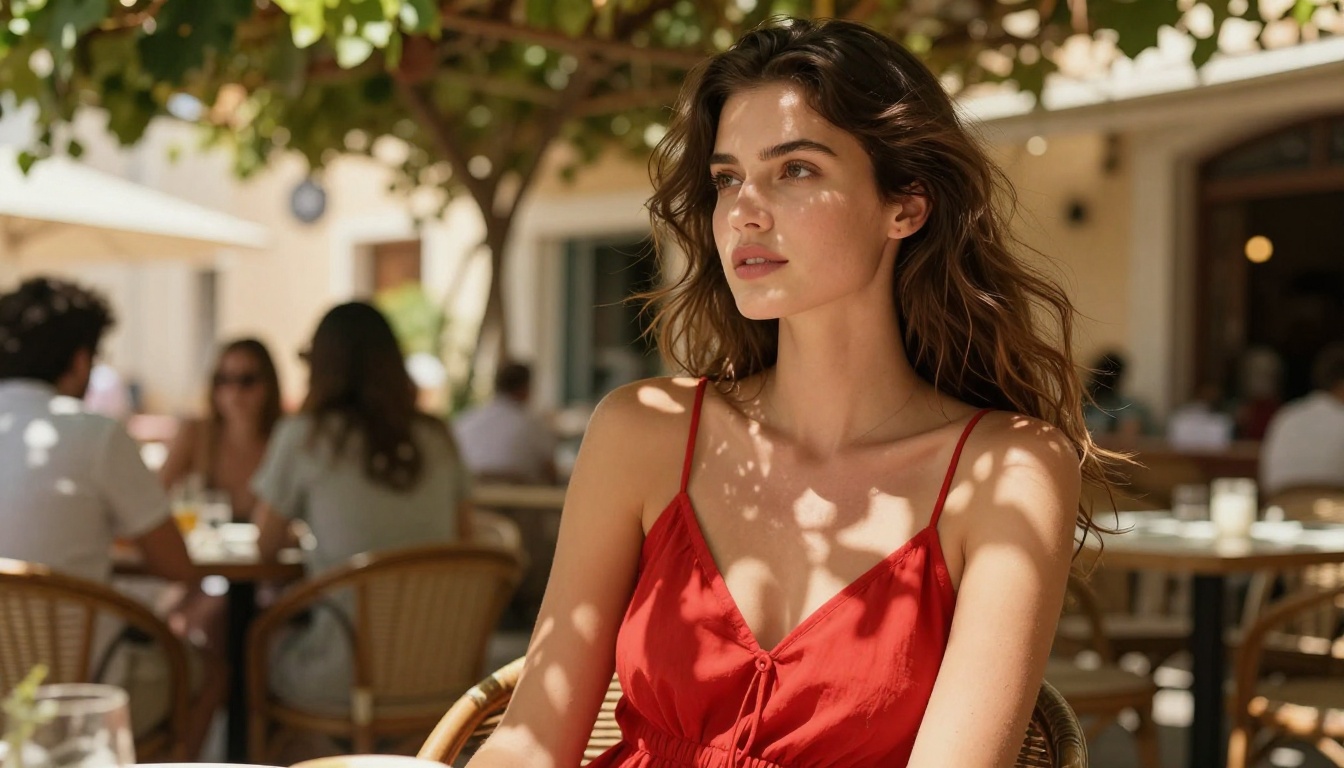
Specific: "A 28-year-old woman with dark wavy hair sitting at an outdoor cafe table, warm afternoon golden-hour sunlight from the right side, shallow depth of field, 85mm portrait lens, natural skin texture, Kodak Portra 400 film grain, photorealistic"
The second prompt leaves no room for guessing. The model knows the light direction, the camera setup, the skin treatment, and the stylistic target. That specificity directly translates to output quality.
What to Always Include
A reliable prompt has four layers:
Subject: Who or what, with specific physical details
Environment: Where, with background description
Lighting: Direction, quality, and color temperature
Camera: Lens, aperture, angle, and style reference
💡 Add quality modifiers at the end: photorealistic, 8K, RAW photography, film grain, high detail, sharp focus push the model toward realism consistently.
Negative Prompts That Actually Help
Negative prompts (what you do not want) are just as powerful as positive ones. Use them to push back against common artifacts:
blurry, pixelated, low resolution, bad anatomy, extra fingers,
deformed hands, flat lighting, oversaturated, cartoon, illustration,
CGI, plastic skin, 3D render, watermark, text
This list alone removes a significant portion of typical ugly AI image problems before the model starts generating.
Fix Blurry Faces Fast
Faces are the first thing a viewer looks at and the first thing to break in AI generation. A slightly off face ruins an otherwise perfect image.
Why Faces Break First
Face generation requires the model to balance dozens of simultaneous constraints: symmetry, skin texture, eye placement, lighting consistency, and anatomical accuracy. Any prompt ambiguity shows up here first.
The fix is usually one of three things:
Regenerate with face-focused terms: Add sharp facial features, natural skin texture, detailed eyes, correct facial symmetry directly to your prompt
Use inpainting: Generate the overall image at normal resolution, then zoom in and regenerate only the face region with a more specific prompt
Upscale after fixing: Once the face is correct at base resolution, run the full image through a super-resolution model
💡 Inpainting is your secret weapon. Instead of regenerating the full image when only the face is wrong, mask just the face area and regenerate that region with a tighter, more specific prompt.
Hands: The Persistent Problem
Hands are the most consistently broken element in AI-generated images across all models. The reason is structural: hands have complex topology with many possible configurations, and models frequently generate plausible-looking but anatomically wrong results.
Fix steps for bad hands:
If hands are not critical to the composition, prompt to hide them: hands in pockets, arms crossed, hands behind back
If hands must be visible, add to your prompt: perfectly formed human hands, correct finger count, natural hand pose, five fingers
Use inpainting to regenerate just the hand region with a focused prompt: realistic human right hand, five fingers, natural skin, correct anatomy
Fix Colors and Lighting
Colors that look wrong, flat, or oversaturated are almost always a prompt issue, not a model limitation.
When Color Goes Wrong
Too saturated: The model defaults to vivid colors when it lacks direction. Fix it by specifying: natural colors, muted tones, film photography, Kodak Portra 400 or similar film stock references.
Too flat: Flat images lack contrast and depth. Your prompt needs explicit lighting direction. Volumetric side lighting from camera left, strong directional shadows, studio rim light all create visual depth.
Wrong temperature: If you want warm golden tones but get cold blue output, specify the light source: warm afternoon sunlight, golden hour, 3200K tungsten versus cool natural daylight, overcast diffused light.
The Lighting Formula
Copy this structure into any prompt:
[Light source] + [Direction] + [Quality] + [Color temperature]

Example: "Soft volumetric natural light from the upper left window,
warm 4500K daylight, casting gentle shadows with soft gradual falloff"
This single addition fixes flat, lifeless images in most cases.
Fix Low Resolution Output
Even when composition and colors are right, a low-resolution output makes the whole image look amateurish. This is where super-resolution models become essential.
Upscaling vs. Regenerating
The decision between upscaling an existing image and regenerating entirely depends on what is wrong:
Situation
Best Fix
Good composition, just pixelated
Upscale with a super-resolution model
Good composition, one broken region
Inpaint the broken area, then upscale
Completely wrong result
Regenerate with a better prompt
Right result, need 2-4x larger size
Super-resolution upscaler
Upscaling is faster and preserves the exact composition you approved. Regeneration introduces variability.
Super-Resolution Models on PicassoIA
PicassoIA has several dedicated super-resolution models that do different things well. Here is a breakdown of the best options available right now:
Real ESRGAN: The most widely used upscaler. Increases image resolution by 4x while reducing noise and sharpening edges. Best for general-purpose upscaling of portraits and scenes.
Crystal Upscaler: Specialized for portrait upscaling. Adds fine skin detail, sharpens eyes and hair, and produces realistic textures at 4x resolution. The go-to for face-forward images.
Recraft Crisp Upscale: Focused on edge sharpness and clarity. Strong for images with architecture, products, or geometric elements where precision matters.
Recraft Creative Upscale: Adds interpretive detail when upscaling, filling in texture and depth. Useful when the original image is very low resolution and needs more than simple pixel multiplication.
Google Upscaler: Reliable 4x upscaling with strong noise reduction and consistent results across different image types.
Topaz Image Upscale: The highest-end option, capable of up to 6x enlargement. Preserves fine detail at extreme scales. Use this when you need the absolute largest output.
Bria Increase Resolution: A strong 4x upscaler with good color preservation and minimal hallucination. Best for images with sensitive color work where you do not want the upscaler changing your palette.
Beyond faces and hands, AI images sometimes produce wrong proportions, impossible poses, or bodies that do not quite look right. These issues require a separate approach.
Anatomy Fixes in the Prompt
Add these terms when anatomy is critical to your output:
Correct human proportions, natural body pose, anatomically accurate
Natural arm length, correct shoulder width, realistic torso
For full-body shots: full body portrait, head-to-toe proportions correct, natural standing pose, realistic legs
When to Use Inpainting
Inpainting lets you fix specific regions of an image without regenerating the whole thing. The workflow is straightforward:
Generate your base image
Identify the broken area (arm, background element, face detail)
Mask that specific region in the editor
Write a focused prompt for just that region
Generate only within the mask
The fixed region blends back into the original
This is significantly faster than full regeneration when only one element is broken, and it preserves everything that was working correctly in the composition.
A Workflow That Actually Works
The most reliable way to fix ugly AI images is not to randomly try things until something works. It is following a consistent sequence from prompt to final output.
The 3-Pass Method
Pass 1: Prompt and Generate
Write a detailed prompt using the four-layer structure (subject, environment, lighting, camera). Run the generation. Identify what is wrong.
Pass 2: Fix Specific Problems
Address each problem in order of visual impact:
Faces or hands wrong: use inpainting with focused prompts on those regions
Colors flat or off: regenerate with explicit lighting and color temperature terms
Composition off: adjust prompt structure and re-run
Pass 3: Upscale and Finalize
Once the composition, anatomy, and colors are correct at base resolution, run the image through a super-resolution model. This is the last step, not an early one. Upscaling a broken image just creates a bigger broken image.
Quick Checklist Before You Generate
Prompt includes subject detail, environment, lighting direction, and camera lens
Negative prompt includes: blurry, low resolution, bad anatomy, extra fingers, flat lighting
Style modifiers added: photorealistic, 8K, film grain, sharp focus
Aspect ratio set correctly for the intended use
Model selected matches the output type (portrait, landscape, product)
💡 Save your best prompts. When you find a prompt structure that consistently produces good results for your use case, save it as a template. Your library of working prompts is one of the most valuable things you can build.
Common Mistakes Worth Avoiding
A few patterns come up repeatedly when producing bad AI images.
Overloading the prompt: Including 30 conflicting style descriptors creates confusion. The model tries to satisfy all of them partially instead of any of them fully. Pick a clear direction and stay consistent with it.
Skipping negative prompts: Negative prompts are not optional. They remove the default artifacts that every model tends to produce. An empty negative prompt field is leaving quality on the table.
Upscaling too early: Running a rough, broken draft through a super-resolution model does not fix anatomy or composition problems. It makes them larger. Fix the base image first, always.
Using the wrong model for the job: Not all text-to-image models excel at everything. Some perform better at portraits, others at landscapes, others at product shots. Matching the model to the task reduces the number of problems you start with.
Ignoring aspect ratio: Generating a 1:1 square image when you need a 16:9 wide shot forces the model to work in the wrong frame from the beginning. Set the correct ratio before generating.
Start Creating Better Images Now
If you have been frustrated by AI images that never quite look right, the workflow above removes most of the guesswork. Detailed prompts, targeted inpainting for specific fixes, and the right super-resolution model at the end of the process produce results that are genuinely usable and professional.
PicassoIA has all the tools in one place: text-to-image generation across dozens of models, inpainting for targeted area fixes, and a full suite of super-resolution options from Real ESRGAN and Crystal Upscaler to Topaz Image Upscale for professional-grade enlargement up to 6x.
The fastest way to stop generating ugly AI images is to start applying these steps on your next prompt. Pick one problem from the list above, apply the specific fix, and see what changes. Most people find that fixing one thing well shifts how they approach every generation after that.
Try it on PicassoIA and see what a structured approach actually produces.