Flux 1.1 Pro from Black Forest Labs is not just another AI image model. It is the version that changed what people expected from text-to-image generation, specifically in terms of photorealism, speed, and prompt accuracy. If you have been using older Flux releases or relying on competing tools and have not tried 1.1 Pro yet, you are missing a significant step forward in what the technology can actually do.
This article covers every feature that matters, how the model compares to others in the Flux family, and exactly how to use it through PicassoIA, the platform that gives you direct access without any setup, API keys, or developer configuration required.
What Flux 1.1 Pro Actually Does
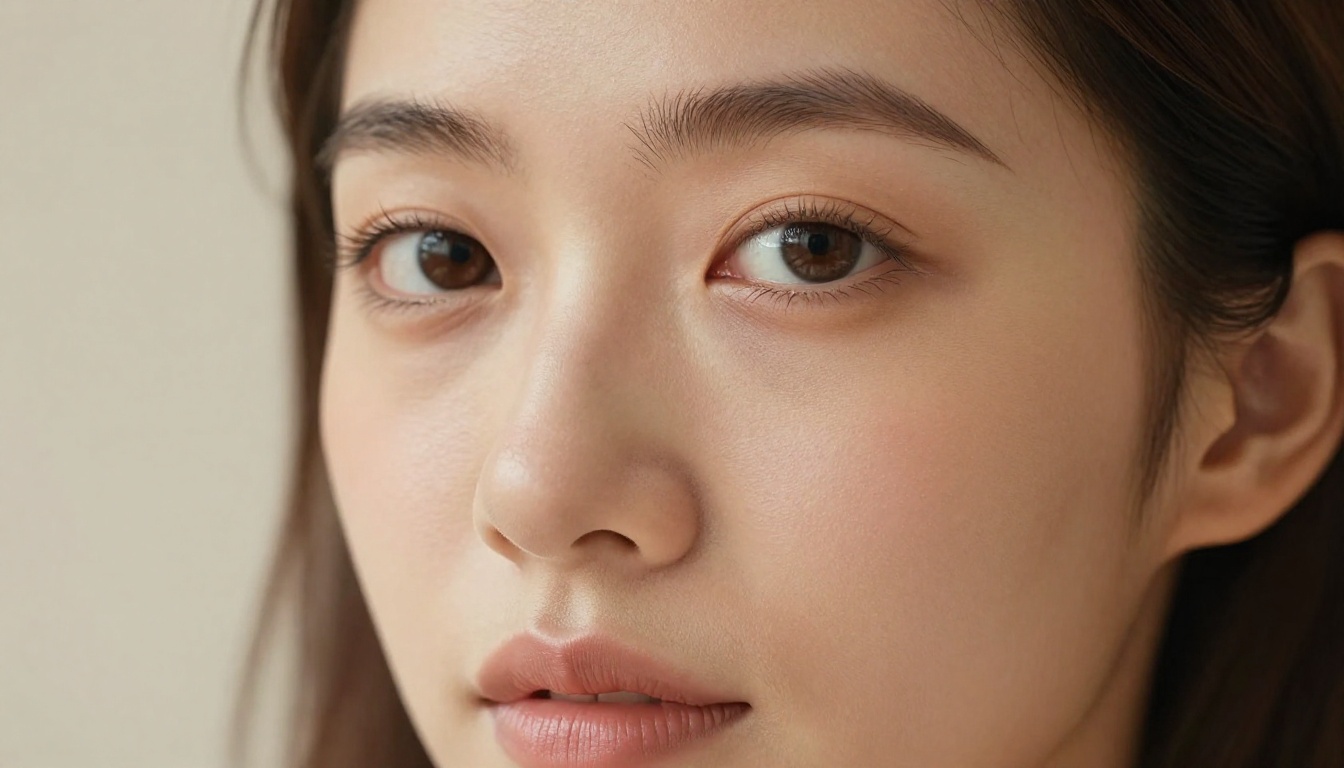
Flux 1.1 Pro is a text-to-image model built by Black Forest Labs. It accepts a text description and outputs a high-resolution image that, at its best, is nearly indistinguishable from real photography. What separates it from its predecessor, Flux Pro, is how much faster and sharper the output is across a wide range of prompt types.
The original Flux Pro set a new standard for image generation quality when it launched. Flux 1.1 Pro takes that foundation and improves on three critical areas: generation speed, image quality at complex compositions, and prompt fidelity when you give it detailed or unusual descriptions that other models tend to oversimplify.
The Speed Difference
Speed matters more than people admit in creative workflows. When you are iterating on a concept, testing five or six variations of a prompt, or producing visuals at any real volume, the difference between 10 seconds and 2 seconds per image compounds quickly. A session that would take an hour at the old pace now takes ten minutes.
Flux 1.1 Pro generates images approximately six times faster than the original Flux Pro while maintaining comparable or better output quality. That is not a minor optimization. That is a workflow change that affects how you think about using the tool at all. Rapid iteration becomes the norm rather than something you budget time for.
This speed improvement comes without a meaningful quality penalty. In side-by-side comparisons, Flux 1.1 Pro consistently scores higher than Flux Pro on image quality metrics, which is the rare case where faster also means better, not a compromise between the two.
Photorealism That Holds Up Close
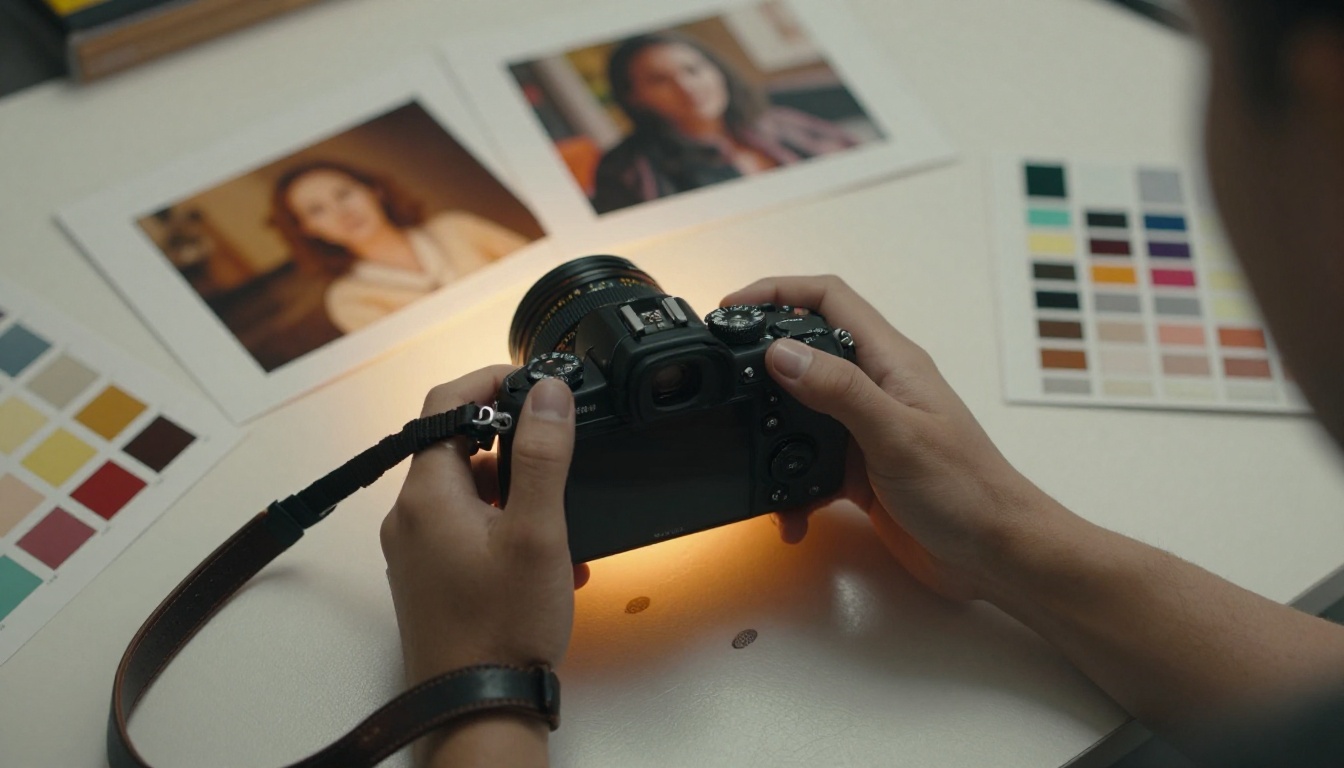
Most AI image models break down when you zoom in. Skin looks plastic. Fabric loses texture and becomes a flat painted surface. Backgrounds turn into smudged approximations of real environments. Flux 1.1 Pro handles micro-detail better than almost any other publicly accessible model in its class.
At full resolution, you get pore-level skin texture that reads as real in portrait close-ups, fabric weave patterns on clothing that follow the physics of natural light, eye reflections with realistic corneal specular highlights, and individual hair strands that separate naturally rather than merging into a single painted mass.
These details matter enormously for commercial applications. Product mockups, portrait photography, fashion content, and marketing visuals all depend on an image model that gets the small things right. An image that looks great at thumbnail size but falls apart at full resolution is not useful for professional work.
5 Features That Set It Apart
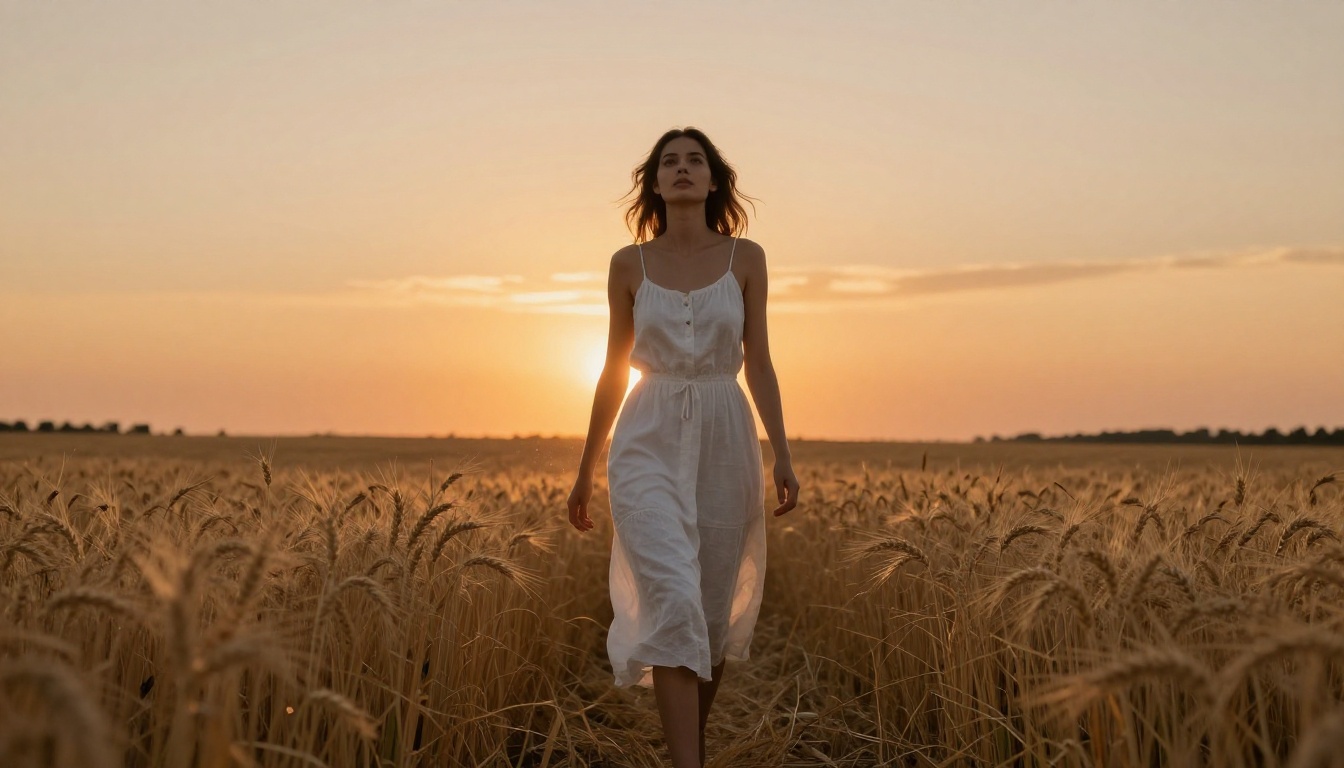
1. Text Rendering That Actually Works
Generating readable text inside an image has been a consistent failure point for AI image models for years. Midjourney struggles with it significantly. DALL-E 3 improved the situation. Flux 1.1 Pro treats text in images as a first-class output, not an afterthought.
Give it a prompt like "a vintage poster with the words 'Summer Sessions' in hand-lettered script on a warm beige background" and it delivers legible, stylistically appropriate text that fits the composition and feels intentional. This opens up use cases that were previously impractical: logo concepts, social media graphics, poster mockups, signage visuals, and typographic art.
💡 Tip: For best text rendering, put the exact words you want in quotes within your prompt and describe the typography style explicitly. Example: "a minimalist label with the word 'FLORA' in clean serif uppercase, white text on an olive green background, no decorative elements."
2. Prompt Adherence at Scale
The longer and more specific your prompt, the more most models drift from your intent. They prioritize some elements and quietly drop others, collapsing toward whatever the model considers a reasonable generic interpretation. Flux 1.1 Pro has significantly better multi-element coherence.
Give it a prompt with five specific elements: a particular subject, a particular environment, a specific lighting setup, a precise color palette, and a defined mood. It tends to honor all five rather than picking three and approximating the rest. This matters enormously for art direction, brand work, and any context where the brief is specific rather than open-ended.
For creative professionals who need AI output that matches a reference or a client specification rather than a loose interpretation of one, this level of prompt fidelity is the difference between a usable tool and a toy.
3. Color Fidelity and Skin Tones
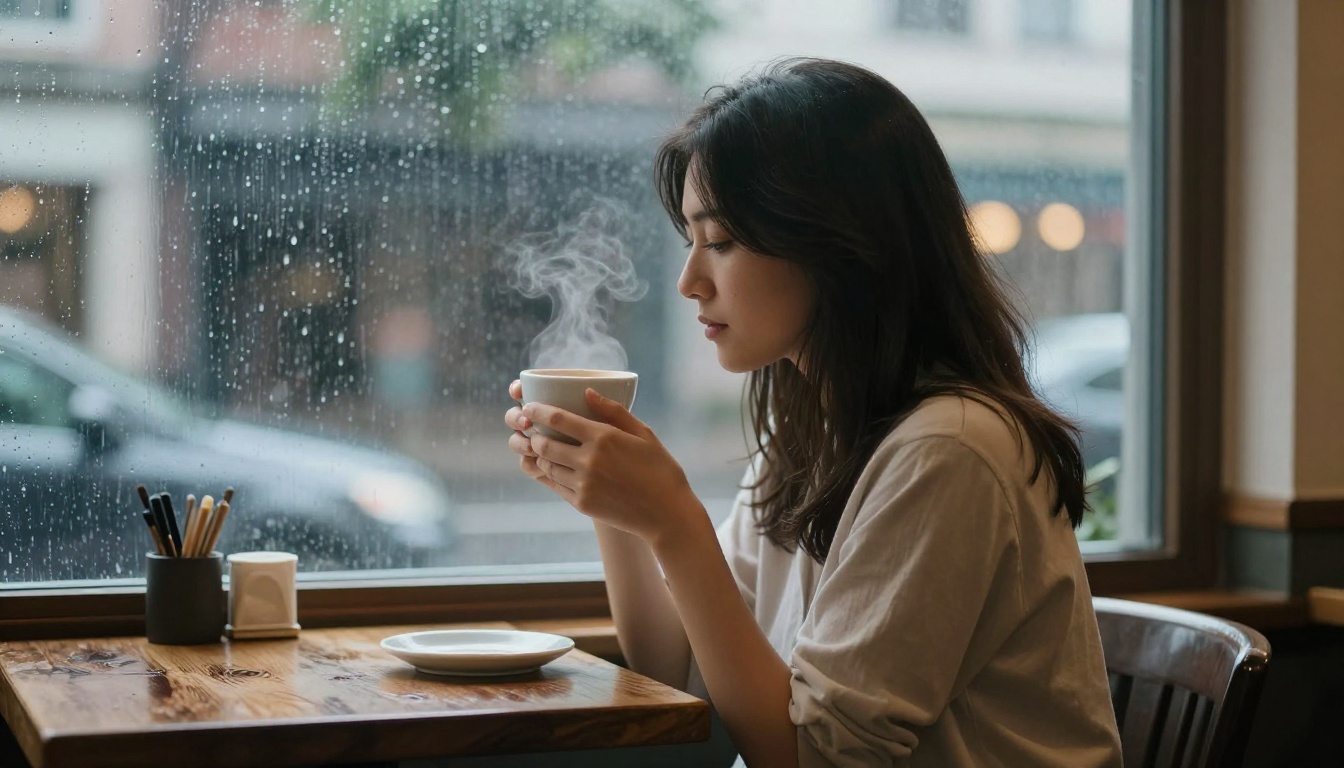
Color accuracy is underrated in discussions about AI image quality. Many models produce results that look impressive at a glance but fail when you need colors to match real-world expectations or stay consistent across a batch of images.
Flux 1.1 Pro performs notably better in several specific color situations:
- Skin tone diversity: It renders a wide range of skin tones without the over-saturation or grey-cast artifacts that affect other models at the extremes of the range.
- Neutral accuracy: Whites stay white. Grays read as gray rather than drifting blue or warm. Beige does not become yellow or pink.
- Palette consistency: When you specify a restricted color palette in your prompt, the model generally respects it rather than reinterpreting it toward whatever looks visually exciting.
- Subtle color gradients: Sunsets, skin tone transitions, and fabric dye patterns render with smooth, realistic gradients instead of posterized bands.
For photographers using AI tools for reference images or concept visualization, this is a meaningful improvement over Flux Dev or Flux Schnell.
4. Resolution and Detail Control
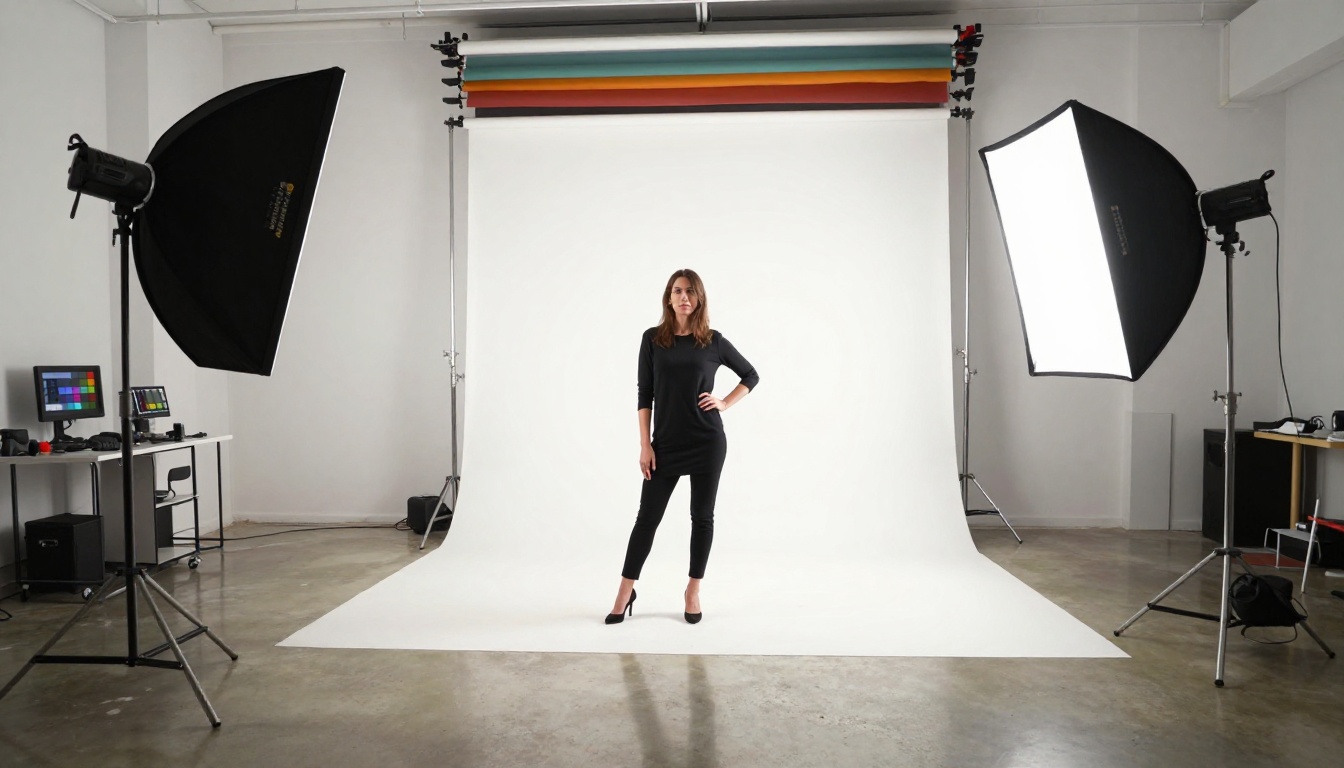
Flux 1.1 Pro outputs at high native resolution with fine detail that holds at 4K viewing sizes. You do not need to run a separate super-resolution pass to get a usable image for digital display, presentation, or web use.
The model also handles non-square aspect ratios gracefully. Portrait compositions maintain face and body proportions without the distortion that affects many models when you move away from square output. Landscape ratios produce properly composed wide scenes rather than cropped or stretched versions of what would have been a square image.
If you need to push resolution further for large-format print, PicassoIA includes super-resolution upscaling models that can take Flux 1.1 Pro output and double or quadruple it. The combination of a strong Flux 1.1 Pro base image with a subsequent upscaling pass produces print-ready files without the softness that comes from upscaling a lower-quality starting image.
5. Model Variants: Pro vs Ultra
The Flux family includes multiple tiers built for different use cases and quality requirements:
| Model | Best For | Speed | Output |
|---|
| Flux Schnell | Fast drafts, rapid iteration | Fastest | Standard resolution |
| Flux Dev | Open weights, local experimentation | Fast | Standard resolution |
| Flux 1.1 Pro | Production-quality output | Fast | High resolution |
| Flux 1.1 Pro Ultra | Maximum resolution, RAW-style output | Moderate | 4MP native |
Flux 1.1 Pro hits the sweet spot for most users: fast enough for real workflows, high enough quality for professional delivery. The Ultra variant is for specific situations where you need 4MP native output or are targeting print-ready quality without post-processing. For most digital-first projects, standard Flux 1.1 Pro is the right starting point.
Flux 1.1 Pro vs the Competition

Where does Flux 1.1 Pro sit relative to the other major image generation models on the market? Here is a direct comparison across the dimensions that matter most for real work:
| Feature | Flux 1.1 Pro | Midjourney v6 | DALL-E 3 | Flux Schnell |
|---|
| Photorealism | Excellent | Excellent | Good | Good |
| Text in images | Very Good | Good | Very Good | Average |
| Prompt accuracy | Very Good | Good | Good | Average |
| Generation speed | Fast (6x vs Flux Pro) | Moderate | Moderate | Very Fast |
| Fine detail | Excellent | Very Good | Good | Good |
| Skin tone range | Excellent | Good | Good | Good |
| API / platform access | Yes | Limited | Yes | Yes |
The areas where Flux 1.1 Pro stands out most clearly are fine detail rendering and skin tone accuracy, both of which matter significantly for portrait, fashion, and commercial work. Midjourney v6 produces more stylized output with a strong aesthetic signature that is identifiable and sometimes desirable. DALL-E 3 integrates directly with ChatGPT workflows but has a softer ceiling on overall image fidelity.
For raw photorealism in a model you can access through a no-code platform like PicassoIA without developer setup or subscriptions to closed ecosystems, Flux 1.1 Pro sits at the top of the current field.
How to Use Flux 1.1 Pro on PicassoIA
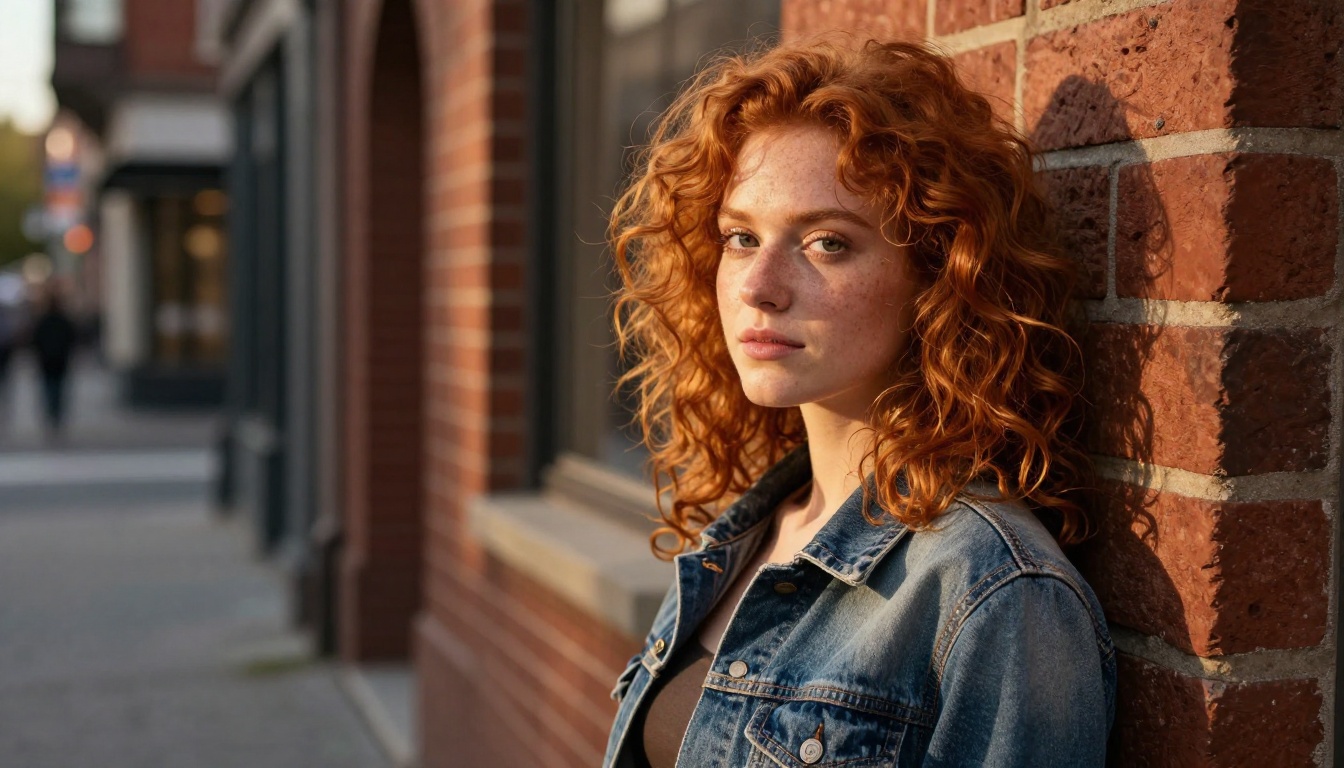
PicassoIA gives you direct access to Flux 1.1 Pro without needing to configure API keys, install packages, or manage credits through a developer dashboard. The entire workflow runs in the browser.
Step 1: Open the Model
Go to the Flux 1.1 Pro page on PicassoIA. You will see the prompt input field and parameter controls directly on the page. No account setup is required to start generating.
Step 2: Write Your Prompt
The model responds best to descriptive, specific prompts. Use this structure as a starting point:
[Subject] + [Setting] + [Lighting] + [Camera or Lens] + [Mood or Style]
Example: "A woman in her early 30s reading a paperback novel on a worn leather couch, afternoon light from the window to her left, 85mm lens, warm domestic atmosphere, photorealistic"
The more specific you are about lighting conditions and camera angle, the more photographic the result. Vague prompts produce acceptable results. Detailed prompts produce exceptional ones.
Step 3: Set Parameters
On PicassoIA, you can control the key generation parameters directly from the interface:
- Aspect ratio: Choose 16:9 for landscape, 9:16 for portrait or mobile-first content, or 1:1 for social media square format
- Seed: Set a specific seed number to reproduce a result exactly or iterate from a consistent compositional starting point
- Prompt upsampling: Enable this to have the model expand and refine your prompt automatically before generating
💡 Tip: Start with default settings on your first pass. Once you get an image you like, note the seed number and change only one element of the prompt at a time to iterate in a controlled direction.
Step 4: Generate and Download
Click generate. Flux 1.1 Pro on PicassoIA typically returns results in under 10 seconds. You can download the full-resolution output directly from the platform with no watermarks or quality reduction.
If the first result is close but not quite right, adjust one element of your prompt. Small changes in how you describe lighting or camera distance often produce meaningfully different output. Three or four iterations is usually enough to arrive at a strong result from a well-written starting prompt.
Prompt Structures That Actually Work
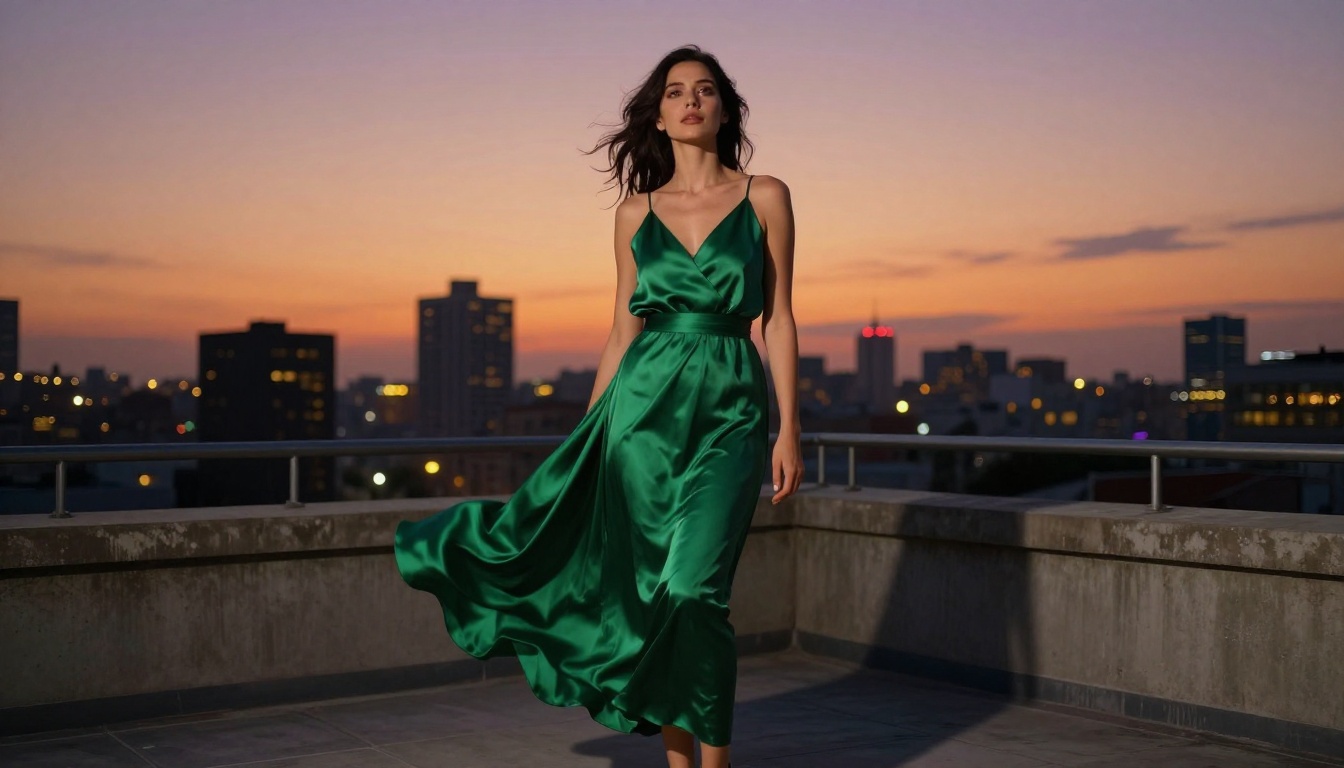
Portrait Photography
For portraits, the following elements produce the most photorealistic results with Flux 1.1 Pro:
- Specify the lens: "85mm f/1.8" tells the model you want portrait photography, not a wide or documentary style
- Name the lighting setup: "Rembrandt lighting," "golden hour backlight," "overcast diffused light," or "north-facing window" all produce distinct and realistic results
- Describe skin texture intent: "natural skin texture with visible pores" signals that you want realism rather than a smoothed or retouched look
- Include background depth cue: "shallow depth of field with the background in soft focus" reinforces that this should read as a photographic image
Example: "A woman with dark brown shoulder-length hair, late 20s, looking slightly off-camera, 85mm f/1.4, soft side lighting from the left, muted terracotta wall in soft focus behind her, photorealistic, Kodak Portra 400 film emulation"
Landscape and Environmental
For environmental and scene-based images:
- Specify time of day precisely: Golden hour, blue hour, overcast midday, and direct noon sun produce completely different lighting physics and atmosphere
- Include atmospheric elements: Ground mist, heat haze, dust particles, and light rain all add the kind of detail that makes a scene feel photographed rather than generated
- State the camera angle explicitly: Wide-angle, low-angle looking up, aerial, and eye-level all change the compositional logic the model uses
Example: "Rolling hills of dry grass at golden hour, low-angle 24mm wide shot, warm amber light raking across the hillside from the right, heat haze visible in the distance, wildflowers in the foreground partially out of focus, photorealistic 8K, Kodak Portra 400"
Product and Commercial
- Specify the surface or background: "Seamless white backdrop," "rustic oak table," or "polished marble countertop" gives the model a clear compositional anchor
- Describe reflections and surface materials explicitly: Products with glossy or metallic finishes need specific lighting descriptions to render realistically
- Add context objects sparingly: One or two objects that suggest how the product is used make images feel editorial rather than catalog-flat

The Flux ecosystem on PicassoIA extends well beyond Flux 1.1 Pro. Depending on your specific use case, these models add capabilities that Flux 1.1 Pro alone does not provide:
Image editing and inpainting: Flux Fill Pro lets you edit specific regions of an existing image using text prompts. It is the right tool when you have a base image that is almost right but needs one element changed, replaced, or extended without regenerating the whole composition.
Structure-controlled generation: Flux Canny Pro uses edge detection to maintain the structural outline of a reference image while applying new styles, lighting, or content. Flux Depth Pro does the same using depth maps, which is useful for architectural and product visualization where spatial accuracy matters.
Image variations: Flux Redux Dev generates stylistic variations of an existing image without requiring a text prompt. This is the right tool for iterating on a composition you like but want to see in different lighting, color treatment, or season.
Custom fine-tuning: Flux Pro Finetuned and Flux 1.1 Pro Ultra Finetuned allow you to train the model on a specific visual style, a recurring character, or a product design so that every output stays within a defined aesthetic range.
Text-based image rewriting: Flux Kontext Pro accepts an existing image plus a plain-language instruction and modifies the image accordingly. Change an outfit, swap a background, adjust the season, or shift the lighting style using natural language rather than masking tools.
Try It Right Now
If you have been deciding which AI image model is worth your time, Flux 1.1 Pro is a clear answer for anyone who puts photorealism, prompt accuracy, and generation speed at the top of their requirements. It does not ask you to compromise between quality and workflow.
PicassoIA puts Flux 1.1 Pro directly in your browser. Open the model page, write a prompt that describes a real scene you would photograph if you had a camera, and generate your first image. You will see immediately what the bar looks like now.
From there, the entire Flux ecosystem is available to you on the same platform: Flux Schnell for fast drafts, Flux 1.1 Pro Ultra for maximum resolution, and the full suite of editing and variation models for every stage of a visual production workflow. Start with the prompt you have in mind right now.


