When it comes to AI image generation, Black Forest Labs has given creators two powerful options: Flux 2 Pro and Flux Schnell. Both models excel at transforming text into visuals, but they serve different purposes. The question isn't which one is better, it's which one fits your workflow.
Flux 2 Pro prioritizes quality and flexibility, offering up to 4MP resolution and the ability to work with multiple reference images. Flux Schnell, on the other hand, is built for speed, generating results in seconds with minimal configuration. Whether you're creating hero images for a campaign or churning out social media graphics, understanding these differences will save you time and money.
What Sets Flux 2 Pro Apart
Flux 2 Pro is designed for situations where image quality cannot be compromised. The model supports resolutions up to 4 megapixels, though 2MP is recommended for most use cases to balance quality and processing time. You can also upload up to 8 reference images, which means you can guide the generation process with specific styles, compositions, or subjects.
This level of control makes Flux 2 Pro particularly valuable for:
- Creating detailed concept art for entertainment projects
- Producing marketing visuals that need to match specific brand aesthetics
- Generating product mockups with consistent styling
- Developing educational materials with precise visual requirements
The model also includes adjustable safety tolerance settings, giving you more flexibility over content filtering. Output formats include WebP, JPG, and PNG, with quality controls from 0 to 100. If you need reproducible results, you can set a specific seed value to generate the same image multiple times.
Why Flux Schnell Is Built for Speed
Flux Schnell takes a different approach. It's optimized for fast generation, producing images in as little as 2-4 seconds. The model uses fp8 quantization by default, which significantly speeds up processing without drastically reducing quality. If you disable the "go fast" option, you can run the model in its original bf16 precision, though this will slow things down.
One of Flux Schnell's standout features is batch generation. You can request multiple outputs in a single run, which is perfect for:
- Testing different variations of a prompt quickly
- Creating multiple social media graphics at once
- Rapid prototyping for design projects
- Generating training data for machine learning tasks
The model supports fewer megapixel options (0.25 MP and 1 MP) compared to Flux 2 Pro, but for most web and social media applications, 1 MP is more than sufficient. Aspect ratios range from 1:1 to ultra-wide 21:9, making it versatile for different platforms.
Speed vs Quality: The Real Tradeoff
The performance difference between these models becomes apparent when you look at generation times. Flux 2 Pro typically takes 10-20 seconds to produce a single image at 2MP resolution. Flux Schnell, with its optimizations, can generate the same prompt in under 5 seconds.
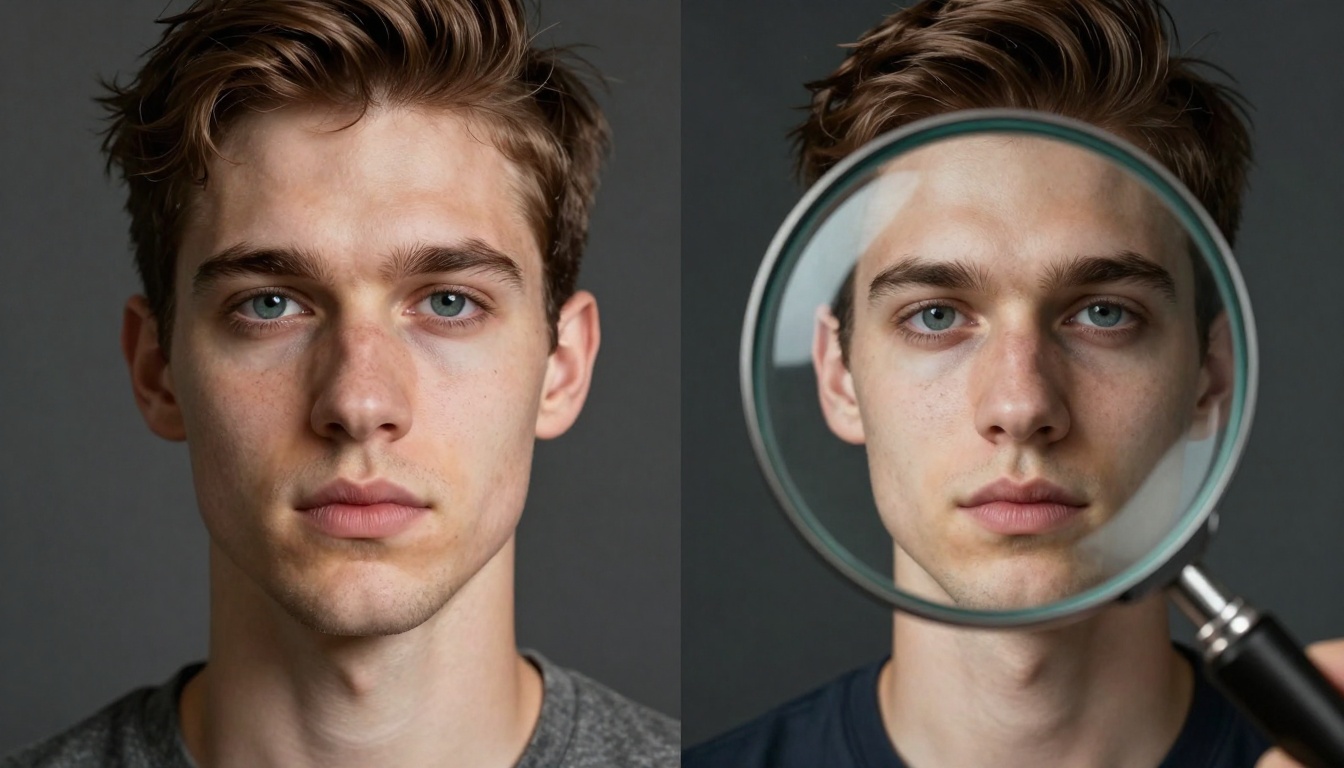
But speed comes with tradeoffs. Flux Schnell produces excellent results for most purposes, but if you zoom in on fine details like facial features, textures, or intricate patterns, Flux 2 Pro will show noticeably sharper outputs. This isn't necessarily a problem, it depends on where the image will be used.
For Instagram posts, blog headers, or presentation slides, Flux Schnell's output is more than adequate. For print materials, high-resolution web graphics, or portfolio pieces, Flux 2 Pro is the safer bet. Think of it this way: Flux Schnell is your everyday workhorse, while Flux 2 Pro is what you bring out for client presentations.
Features That Matter for Creators
Beyond raw speed and quality, several features differentiate these models in practical ways.
Reference Image Support: Flux 2 Pro allows up to 8 input images, which you can use to guide style, composition, or subject matter. This is incredibly useful for maintaining brand consistency or when you have a specific visual direction in mind. Flux Schnell doesn't support reference images, so you're working purely from text prompts.
Inference Steps: Flux Schnell uses 4 inference steps by default, which balances speed and quality. You can reduce this number for even faster results, though quality will drop. Flux 2 Pro doesn't expose this parameter, as it's optimized for quality from the start.
Batch Processing: Flux Schnell can generate multiple images in one go, while Flux 2 Pro produces a single output per generation. If you need to create 10 variations of a concept, Flux Schnell will get you there much faster.
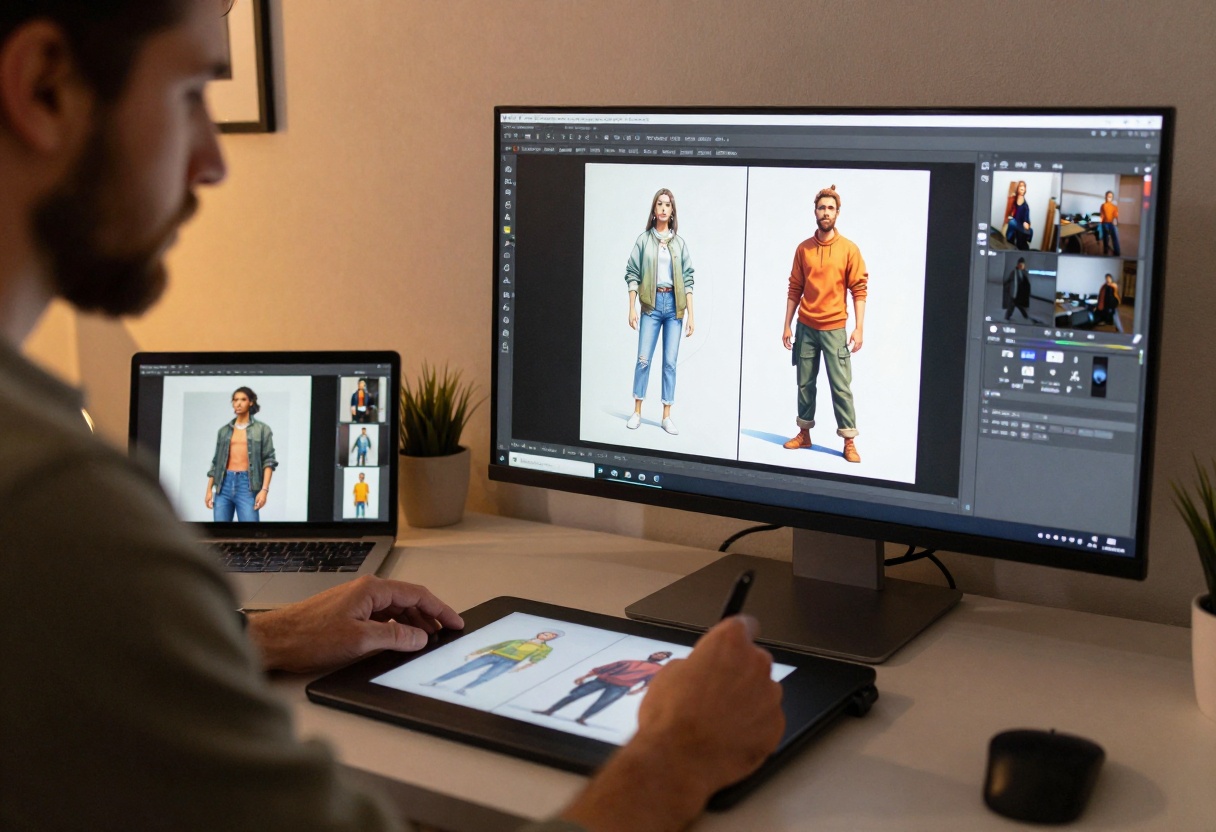
Customization Options: Flux 2 Pro offers more granular control over resolution (0.5 MP to 4 MP) and aspect ratios (including a custom option where you set exact width and height). Flux Schnell provides fewer options but covers the most common use cases.
Real-World Applications
Choosing between these models often comes down to your specific use case. Here's how different types of creators are using each tool.
Digital Artists and Concept Designers: Flux 2 Pro is the clear winner here. The ability to work with reference images and output at higher resolutions makes it ideal for detailed concept art, character designs, and environment studies. Artists can upload mood boards, style references, and compositional guides to steer the generation process.

Social Media Managers: Flux Schnell is perfect for creating content calendars. You can generate multiple variations of a post in minutes, test different visual approaches, and iterate quickly. The speed advantage means you can respond to trends and timely topics without waiting.
Marketing Teams: Many teams use both models strategically. Flux 2 Pro for hero images, landing page graphics, and campaign assets that need to look polished. Flux Schnell for A/B testing, internal presentations, and content that doesn't require maximum resolution.

Game Developers: Flux 2 Pro's reference image feature is valuable for maintaining visual consistency across assets. You can upload existing character designs or environment art and generate new variations that match the established style.
Bloggers and Content Creators: Flux Schnell is usually sufficient for blog post headers, thumbnails, and illustrations. The turnaround time lets you publish faster without sacrificing visual appeal.
How to Choose the Right Model
Start by asking yourself three questions:
-
How will the image be used? Web-only content and social media can get away with lower resolutions. Print, large displays, or portfolio work needs maximum quality.
-
Do you need style control? If you're working with brand guidelines or have specific visual references, Flux 2 Pro's multi-image input is essential. If you're exploring ideas freely, Flux Schnell's simplicity might be preferable.
-
How fast do you need results? If you're on a tight deadline or need to generate many variations, Flux Schnell's speed advantage becomes critical. If you can afford longer generation times for better output, Flux 2 Pro is worth the wait.
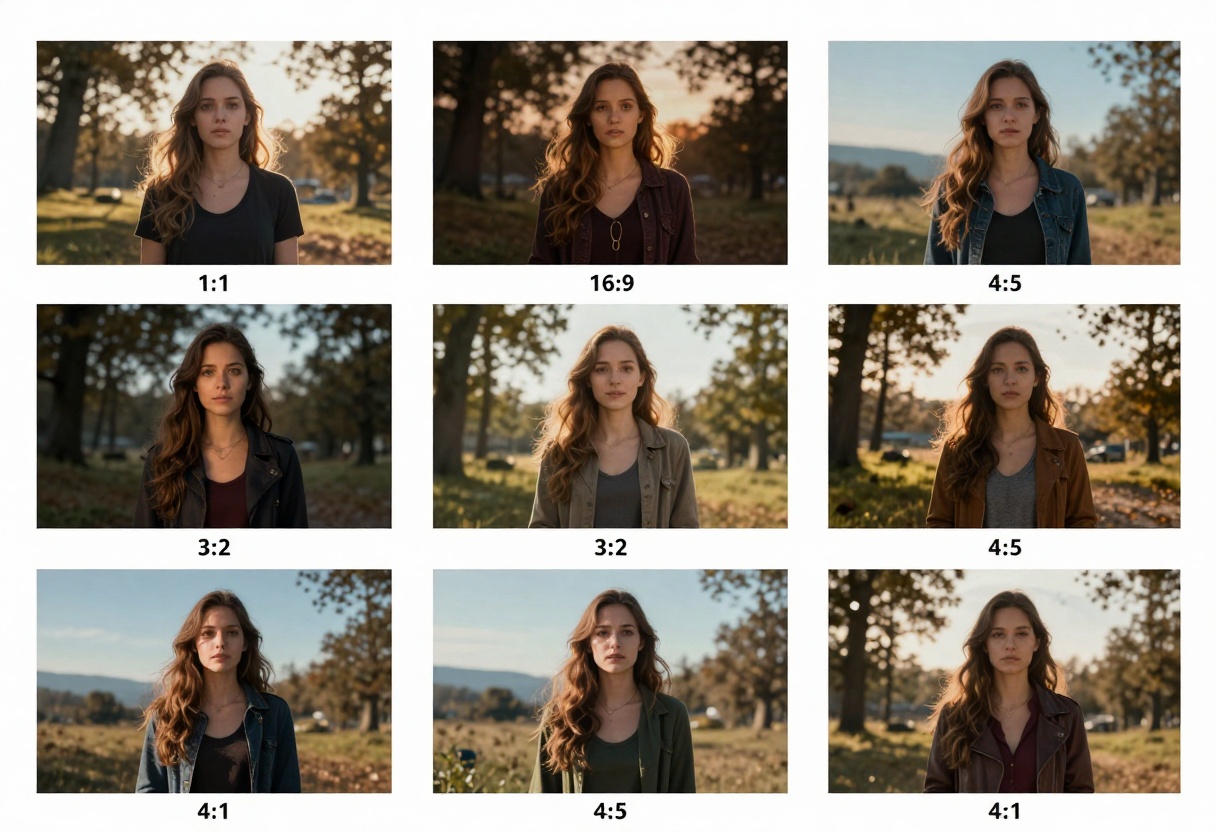
There's also no rule saying you have to choose just one. Many creators use Flux Schnell for ideation and initial concepts, then switch to Flux 2 Pro once they've settled on a direction and need higher-quality finals.
Cost Considerations
Speed and quality also translate to cost differences on most platforms. Flux Schnell's faster generation means lower per-image costs, making it more economical for high-volume work. Flux 2 Pro's longer processing times and higher resource requirements typically result in higher per-generation pricing.
If you're running a business or managing a content pipeline, this can add up. Calculate your monthly image needs and estimate costs for both models. You might find that using Flux Schnell for 80% of your work and reserving Flux 2 Pro for critical assets is the most cost-effective approach.
Technical Details for Developers
For those integrating these models into applications or workflows, there are some technical differences worth noting.
Flux Schnell's "go fast" mode uses fp8 quantization, which reduces precision but dramatically improves speed. This mode is non-deterministic, meaning you won't get identical results even with the same seed. If you need exact reproducibility, disable fast mode and use bf16 precision.
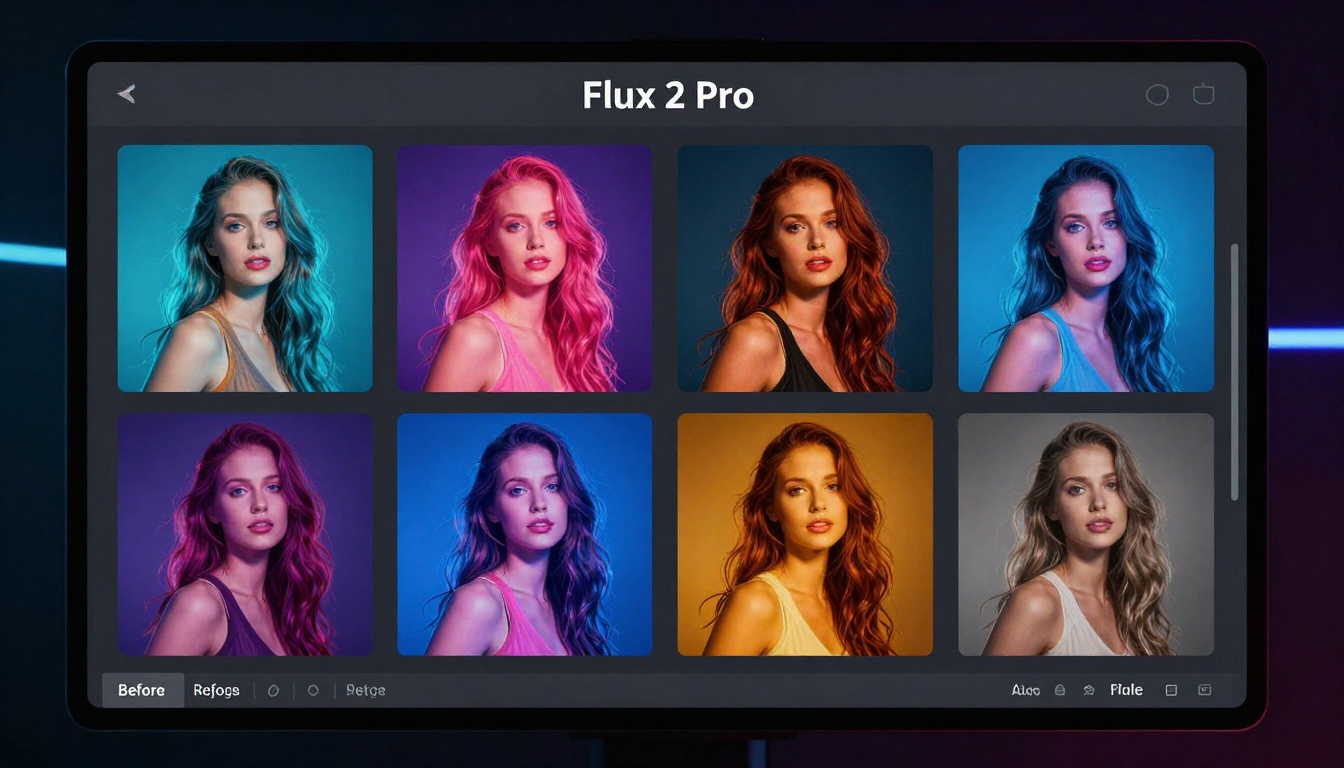
Flux 2 Pro's reference image feature accepts JPEG, PNG, GIF, and WebP formats. Images are processed in the order they're uploaded, with the first image having the most influence. You can experiment with different ordering to see how it affects the output.
Both models support custom aspect ratios, but Flux 2 Pro requires width and height to be multiples of 32. The model will round to the nearest valid dimension if you provide non-conforming values.
Common Pitfalls and How to Avoid Them
Overusing High Resolutions: Flux 2 Pro can generate up to 4MP images, but this isn't always necessary. Unless you're printing or displaying on large screens, 1-2 MP will save time and money without visible quality loss.
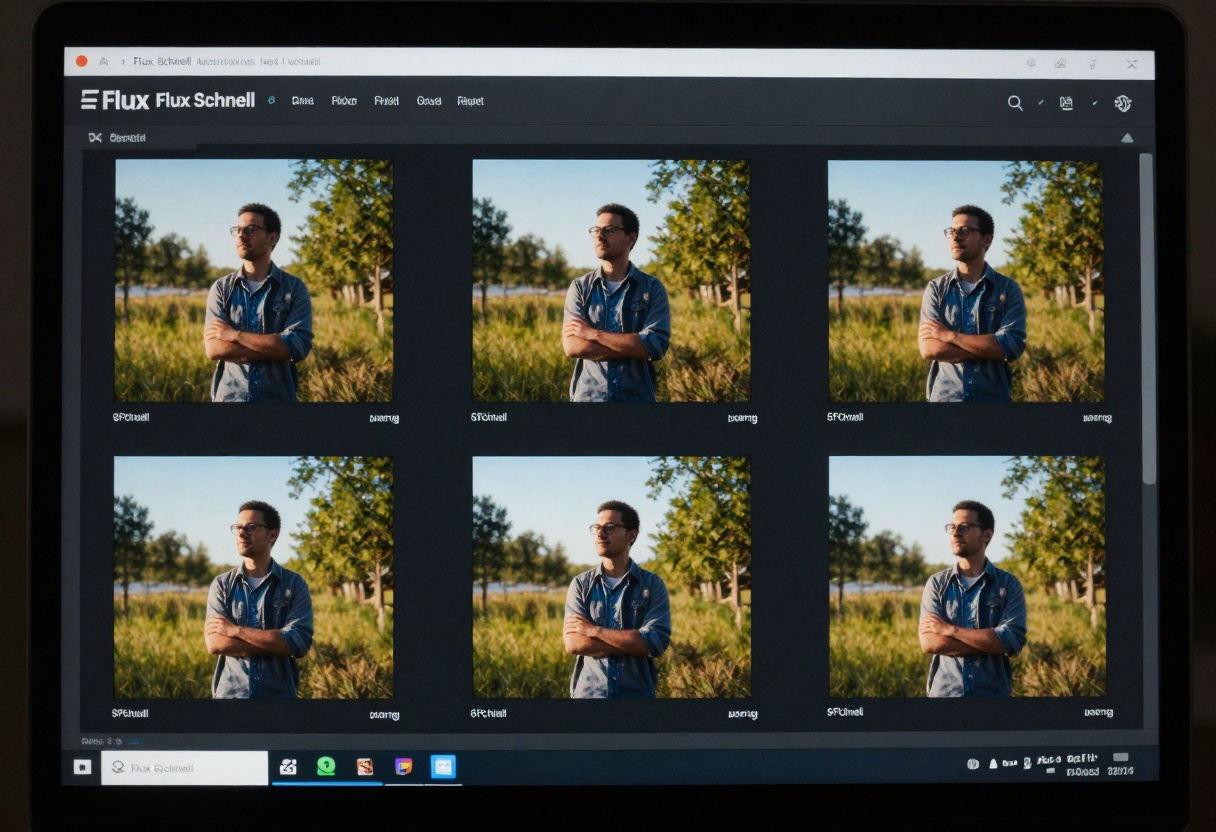
Ignoring Safety Settings: Both models include content filtering, but Flux 2 Pro gives you more control. If your generations are being blocked unexpectedly, adjust the safety tolerance rather than fighting with your prompts.
Not Testing Batch Sizes: Flux Schnell's batch feature is powerful, but generating 10 images at once doesn't always mean better results. Test different batch sizes to find the sweet spot between variety and relevance.
Forgetting About Aspect Ratios: Choosing the wrong aspect ratio for your target platform wastes generation time. Instagram posts work best at 1:1 or 4:5, YouTube thumbnails need 16:9, and Pinterest prefers 2:3. Set these upfront rather than cropping later.
How to Use Flux 2 Pro on PicassoIA
Getting started with Flux 2 Pro on PicassoIA is straightforward. Follow these steps to generate your first high-quality image.
Step 1: Access the Model
Navigate to the Flux 2 Pro model page on PicassoIA. You'll see the interface with all available parameters.
Step 2: Write Your Prompt
Enter your text description in the Prompt field. Be specific about what you want to see. Instead of "a cat," try "a fluffy orange tabby cat sitting on a wooden windowsill, soft morning sunlight, cozy atmosphere."
Step 3: Upload Reference Images (Optional)
If you want to guide the style or composition, click the Input Images section and upload up to 8 reference photos. The model will use these to inform the generation.
Step 4: Configure Resolution and Aspect Ratio
Choose your desired resolution from the dropdown:
- 0.5 MP: Fast generation, suitable for thumbnails
- 1 MP: Balanced option for web graphics
- 2 MP: Recommended for most professional use
- 4 MP: Maximum quality for print or large displays
Select an aspect ratio that matches your intended use:
- 1:1 for Instagram posts
- 16:9 for YouTube thumbnails or web banners
- 3:2 for standard photography
- Custom to set exact dimensions
Step 5: Adjust Output Settings
Set your Output Format (WebP, JPG, or PNG). WebP offers the best compression for web use. JPG is more universally compatible. PNG is best for images with transparency or maximum quality.
Adjust Output Quality from 0 to 100. A setting of 80 balances file size and visual quality for most purposes.
Step 6: Optional Advanced Settings
- Seed: Set a specific number if you want reproducible results
- Safety Tolerance: Adjust from 1 (strict) to 5 (permissive)
Step 7: Generate
Click the Generate button and wait 10-20 seconds. Your image will appear below, ready to download.
How to Use Flux Schnell on PicassoIA
Flux Schnell's interface is simpler and faster. Here's how to get started.
Step 1: Open the Model Page
Go to the Flux Schnell model page on PicassoIA.
Step 2: Enter Your Prompt
Type your text description in the Prompt field. The model works best with clear, descriptive prompts.
Step 3: Choose Resolution
Select your megapixel count:
- 0.25 MP: Fastest generation, good for quick tests
- 1 MP: Standard quality for most uses
Step 4: Set Aspect Ratio
Pick from the dropdown:
- 1:1 for square images
- 16:9 for widescreen
- 21:9 for ultra-wide banners
- 4:5 for portrait orientation
- And several other common ratios
Step 5: Configure Batch Generation
Set Num Outputs to generate multiple variations at once. This is useful for testing different interpretations of your prompt.
Step 6: Speed Options
Keep Go Fast enabled for maximum speed (default). Disable it only if you need deterministic results with seed values.
Adjust Num Inference Steps if needed. 4 is the recommended balance. Lower numbers are faster but may reduce quality.
Step 7: Generate
Click Generate and your images will appear in 2-5 seconds. Download whichever variations you prefer.
When Both Models Make Sense
Some projects benefit from using both models in tandem. Here's a workflow that takes advantage of each model's strengths:
-
Ideation Phase: Use Flux Schnell to generate 20-30 quick variations of your concept. Test different prompts, styles, and compositions rapidly.
-
Refinement: Select the 3-5 best concepts and recreate them in Flux 2 Pro. Upload your favorites as reference images to guide the higher-quality generation.
-
Final Assets: Use Flux 2 Pro's 4MP option for anything going into print, presentations, or client deliverables.
-
Derivative Content: Once you have hero images from Flux 2 Pro, use them as reference images in Flux Schnell to generate supporting graphics, variations for A/B testing, or alternative colorways.
This approach maximizes speed during exploration while ensuring quality where it matters most.
Looking Ahead
Black Forest Labs continues to improve both models. Recent updates have improved prompt adherence, reduced generation artifacts, and expanded the range of supported styles. Both models now handle complex prompts better, including multi-subject scenes and specific artistic techniques.
The gap between Flux Schnell and Flux 2 Pro is narrowing in some areas. Flux Schnell's quality has improved significantly, making it viable for more professional applications. Meanwhile, Flux 2 Pro's generation times have decreased with infrastructure optimizations.
For creators, this means both models are becoming more capable while maintaining their core strengths. Flux 2 Pro isn't getting slower to justify its quality advantage, and Flux Schnell isn't sacrificing accuracy for speed gains.
Final Thoughts
Neither Flux 2 Pro nor Flux Schnell is objectively better. They're tools optimized for different situations. Flux 2 Pro excels when quality, resolution, and style control matter most. Flux Schnell dominates when you need volume, speed, or rapid iteration.
Most creators end up using both, choosing the right tool based on the specific task at hand. Start by understanding your primary use case, then experiment with both models to develop an intuition for which one fits each project.
The best approach is practical: try both models with the same prompt and compare results. You'll quickly see where each model shines and where the other might be a better fit. PicassoIA makes this easy since both models are available on the same platform.
Ready to start creating? Try both Flux 2 Pro and Flux Schnell on PicassoIA and see which one fits your workflow best.


