Flux Kontext Max changes what it means to edit a photo. Instead of masking layers, adjusting sliders, or learning complex software, you write a sentence. The model reads your image, understands what is in it, and rewrites the parts you describe, leaving everything else intact. It is not a filter. It is not a prompt-to-generate workflow. It is a fundamentally different approach to working with photos you already have, and it is available right now with no setup required.

What Flux Kontext Max Actually Does
Flux Kontext Max is the flagship image editing model from Black Forest Labs, the same team behind the original Flux generation series. Unlike Flux Dev or Flux 1.1 Pro, which take text and generate images from scratch, Kontext Max takes an existing image plus a text instruction and outputs a modified version of that image.
The core distinction is preservation. It changes exactly what you ask. Everything else stays.
Text-to-edit, not text-to-image
Standard diffusion models regenerate an entire image from noise. Every run produces something new. Flux Kontext Max works differently. It reads the full visual context of your uploaded photo, including subject identity, spatial relationships, lighting conditions, and scene composition, and then applies only the changes described in your prompt.
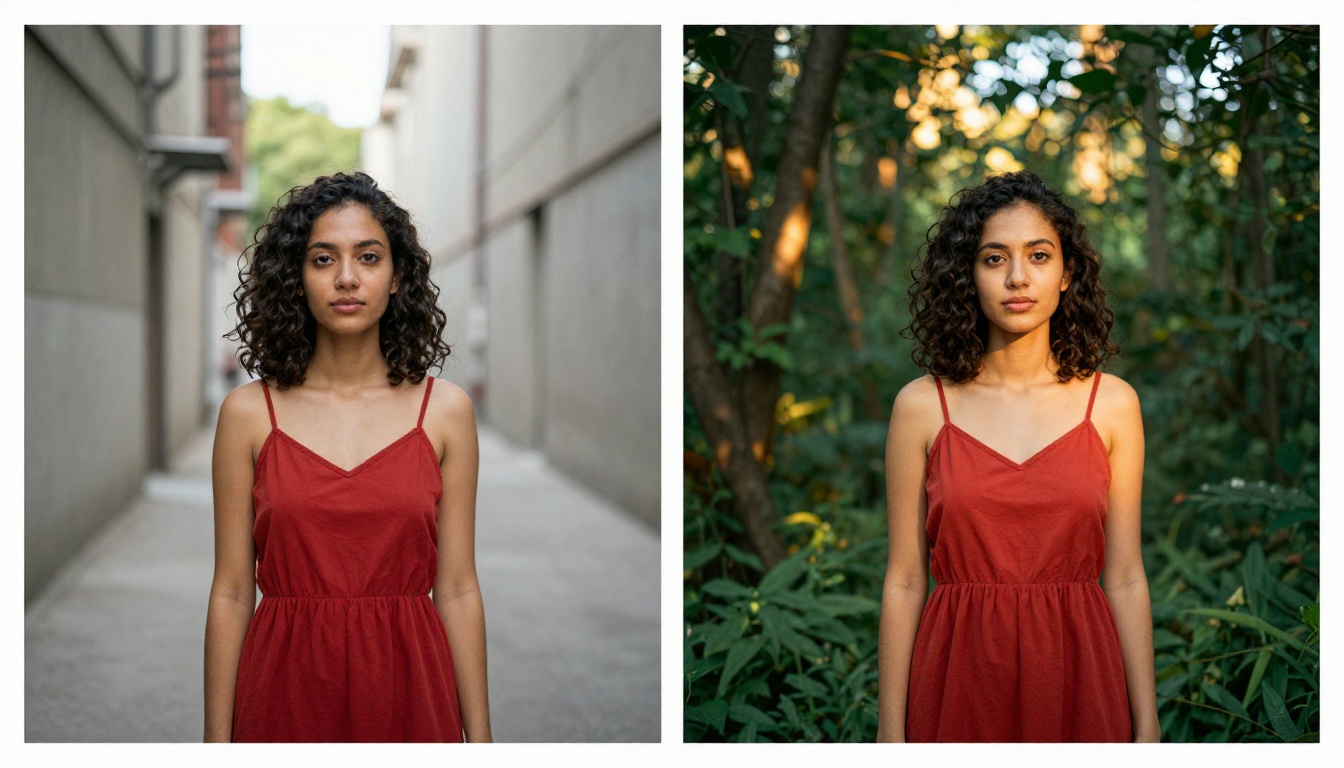
If you type "change the background to a rainy street at night," it changes the background. The person in the foreground stays identical. Their face, clothing, proportions, and lighting response all carry over intact. This is what contextual image editing means in practice, and it is the core capability that separates Kontext Max from every filter or style-transfer tool you have used before.
Why context is the whole point
The name "Kontext" reflects the model's architecture, not just its branding. Most image editing approaches either fully regenerate an image (losing subject identity entirely) or use coarse pixel masks (losing quality at edges and producing visible seams). Kontext Max solves both problems by using the original image as a strong conditioning signal throughout the entire generation process, not just as an initial reference that fades as diffusion proceeds.
The practical result: edits look like they belong in the original photo. Lighting matches. Shadows fall at correct angles. The grain, color cast, and texture of the original are preserved in every area you did not ask to change. The edited region integrates seamlessly rather than appearing pasted in.

Flux Kontext Max vs. Pro vs. Dev
Black Forest Labs released three Kontext variants: Max, Pro, and Dev. Each sits at a different point on the quality-speed-cost curve, and choosing between them depends on what you are optimizing for.
There is also Flux Kontext Fast, an optimized version of the Dev model built for speed when turnaround time matters more than absolute fidelity.
Where Max stands apart
Max was trained with a higher quality dataset at a substantially larger compute budget. The differences show up most clearly in four areas:
- Fine facial detail preservation: When editing portraits, Max maintains exact microexpressions, skin texture, and eye catchlights from the source image. Pro and Dev occasionally blur or average fine detail in preserved regions.
- Multi-instruction compliance: Prompts requesting several simultaneous changes ("change the jacket to red, add a street lamp behind her on the right, and shift the lighting to warm evening tones") are handled far more reliably.
- Edge coherence: The boundary between edited and unedited regions in Max outputs is nearly invisible without zoom. In Dev outputs it can be perceptible at 100% view.
- Text handling: If your source image contains printed text, signage, or labels, Max rewrites or removes it cleanly without artifacts.
For professional work, commercial photography, editorial content, or any output that will be published at full resolution, Max is the right choice without question.
How to Use Flux Kontext Max on PicassoIA
Flux Kontext Max is available on PicassoIA with zero setup required. No API key, no local GPU, no configuration. Open the model page, upload a photo, write a prompt, and click generate.
Step 1 - Open the model page
Navigate to the Flux Kontext Max page on PicassoIA. You will see two primary inputs: an image upload area and a text prompt field. The interface is intentionally minimal.
Step 2 - Upload your reference image
Click the upload area and select any JPG or PNG from your device. The model accepts standard photo resolutions. Using a higher resolution source image generally produces better editing results, since there is more visual information for the model to preserve and match against.
💡 Tip: For your first test, use a clean, well-lit portrait or product shot with a simple background. This makes it straightforward to evaluate whether the edit worked exactly as intended before moving to more complex source material.
Step 3 - Write your editing prompt
This is where the real difference between average and excellent results happens. Your prompt should describe only the change you want, while implying through specificity what should stay the same.
Effective prompt patterns that work:
"Change the background to a foggy forest at dawn, keep the person identical""Replace the white shirt with a dark navy blazer, same person, same pose""Remove the parked car in the background, replace with empty cobblestone street""Add dramatic golden hour sunlight from the right side, maintain the subject's clothing and expression exactly""Apply a 1970s film photography look with faded colors and slight light leaks, do not alter the composition"
The model handles natural language well, so write the way you would describe the change to a photo editor, not as a list of technical parameters.
Step 4 - Adjust and iterate
If the first result is close but not perfect, adjust the prompt rather than starting over entirely. Add more specificity about what should be preserved. If the edit affected areas you wanted untouched, add a phrase explicitly protecting them. Flux Kontext Max responds reliably to iterative refinement, and most edits reach their final form within two or three iterations.

6 Things You Can Edit Right Now
Swap backgrounds without masking
Portrait photographers use this to replace flat studio backdrops with location settings, seasonal scenes, or architectural environments. E-commerce teams use it to place products in contextually relevant spaces without reshooting.
The critical advantage over traditional background removal tools: Flux Kontext Max does not create an artificial cutout edge. The new background integrates with the lighting and shadow structure already present in the original image. If your subject has warm side lighting, the new background will reflect that same lighting logic.
Change clothing and outfits
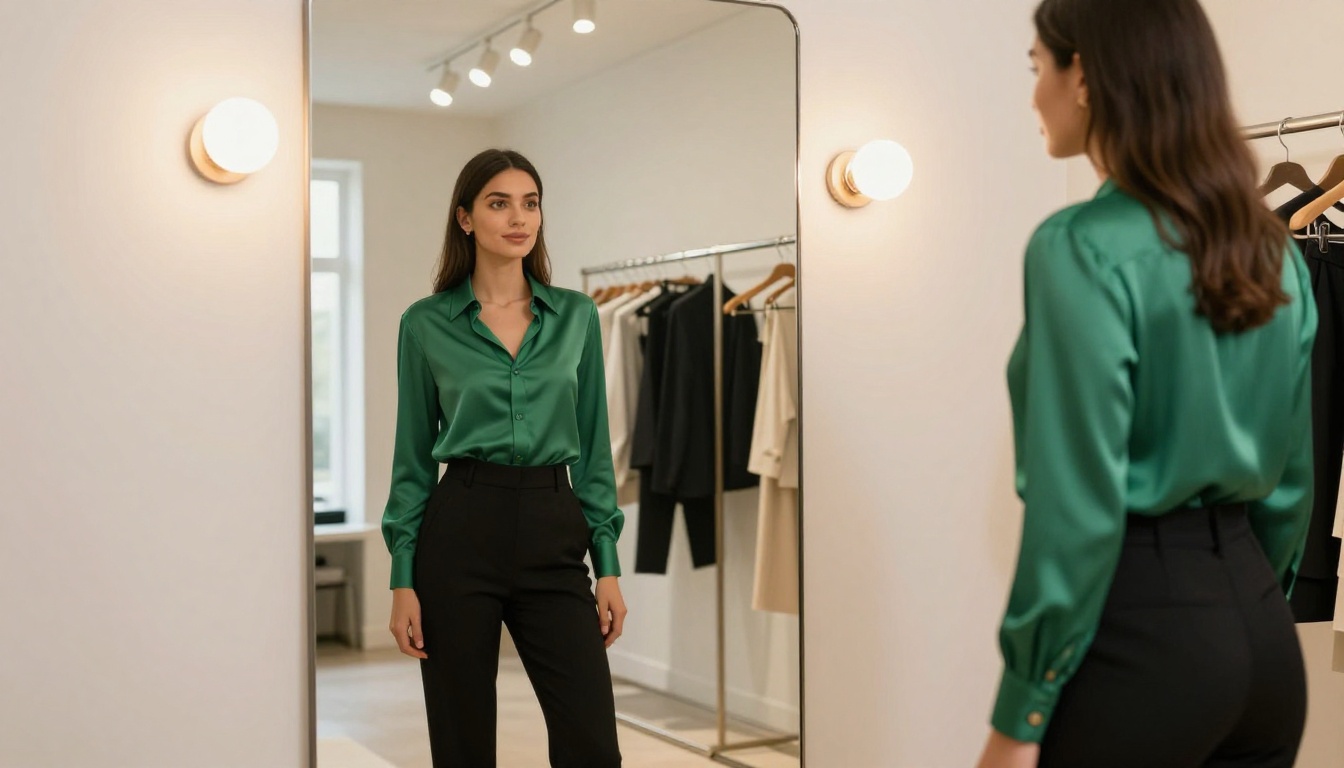
Fashion brands use this workflow to test colorways and garment styles before production samples exist. You can take a photo of a model in one outfit and generate variants with different colors, fabrics, or garment types while keeping the model's face, pose, and body proportions locked precisely.
💡 Tip: Describe fabric texture in your prompt for significantly more realistic output. "A fitted tailored wool coat in charcoal grey with visible herringbone weave" produces far better results than "a grey coat."
Fix lighting and atmosphere
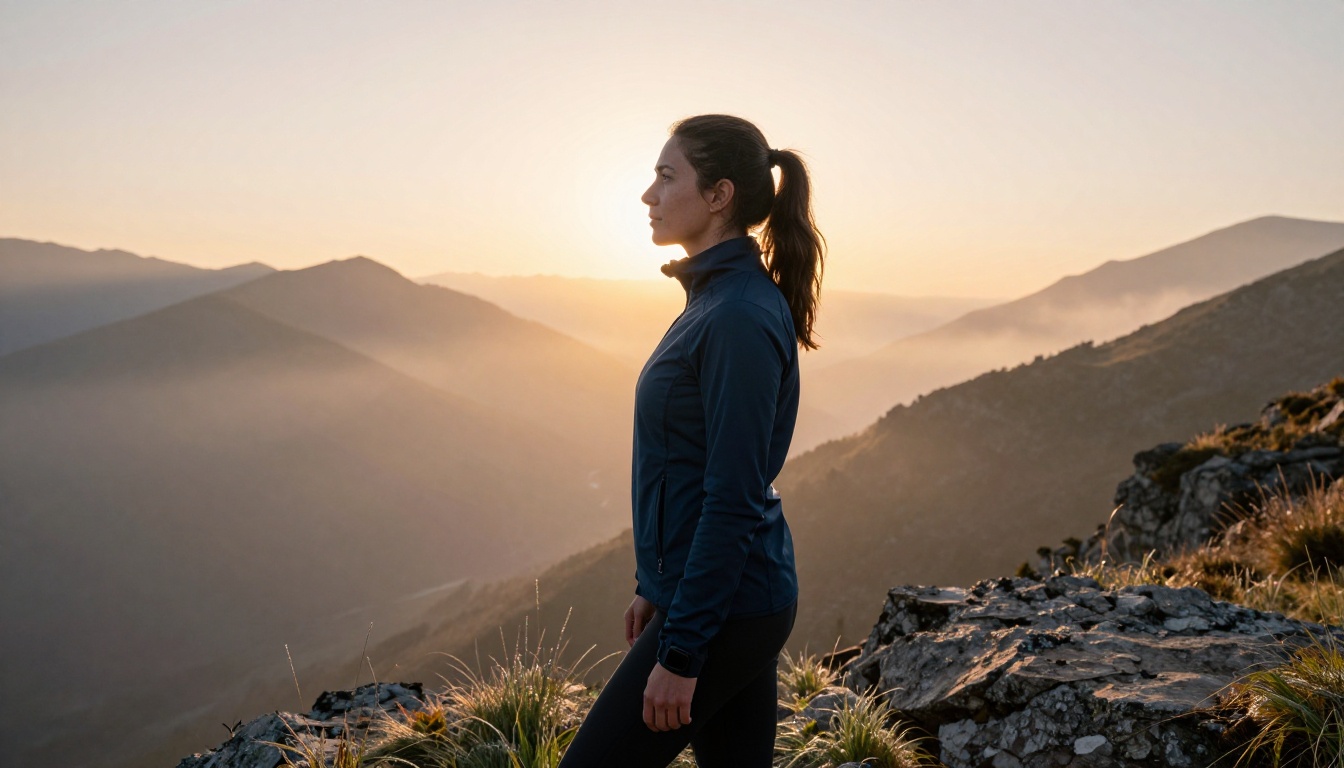
Bad lighting is one of the hardest problems to correct in traditional post-production. Flux Kontext Max can relight a scene convincingly. Prompts like "change to golden hour sunlight from the left" or "add soft overcast diffused lighting, remove harsh shadows under the chin" produce results that look like the photo was actually taken under those conditions, not filtered afterward.
This works because the model processes the 3D structure of the scene and adjusts shadow direction, highlight intensity, and ambient fill in ways that respect the geometry of the original image.
Add or remove objects
Need to remove a distracting element from the background? Describe what should occupy that space instead. Want to add a prop or environmental detail? Specify it with enough spatial context for the model to place it naturally within the existing scene.
For more surgical object removal where you need precise control over the mask boundary, Flux Fill Pro provides manual inpainting with a brush tool. But for most object editing tasks, Kontext Max handles it through text alone with no masking step required.
Style transfer from text
You can shift the entire visual treatment of an image without altering its content. Prompts like "make this look like a 1970s Kodachrome film photograph with warm color shifts and slight vignette" or "apply cinematic teal and orange color grading" work consistently and produce output that looks intentionally stylized rather than filtered.
The subject, composition, and scene structure stay intact throughout. Only the visual tone and color treatment change.
Character consistency across scenes
For visual storytelling, social media content series, or product narratives, maintaining a consistent subject across multiple different scenes is a persistent challenge when generating images from scratch. Kontext Max solves it: because every edit uses the source image as a conditioning reference, the subject's appearance carries through every output automatically.
Pair this with Multi Image Kontext Max to combine elements from two separate photos into a single coherent image, which opens up creative production workflows that were previously only achievable with a full photo shoot and compositing team.
Prompt Tips That Actually Work
The gap between mediocre and excellent Kontext results almost always comes down to prompt quality, not model capability. Here are the patterns that consistently produce better outputs.
Anchor what should stay the same
Flux Kontext Max is strong at inference, but it benefits from explicit anchoring on complex images with many elements. Instead of writing only what you want changed, briefly acknowledge what matters to you.
| Instead of | Write this instead |
|---|
| "Add rain" | "Add heavy rain to the street scene behind the subject, keep the subject dry and unaffected" |
| "Change jacket to leather" | "Replace the denim jacket with a fitted black leather jacket, preserve the subject's face and body position exactly" |
| "Different sky" | "Replace the overcast sky with a dramatic stormy sky with dark cumulus clouds, do not change the foreground landscape or people" |
| "Evening lighting" | "Shift the lighting to warm dusk tones from the left horizon, maintain all other elements of the scene" |
Use spatial language
The model responds reliably to directional and spatial precision. "Add a warm light source coming from the upper right" is consistently more effective than "add warm light." "Place a potted plant behind her on the left side of the frame" is more reliable than "add a plant."
Think in the language a photographer or cinematographer would use: lighting direction, subject distance, color temperature in Kelvin, lens compression, and relative positioning within the frame.
💡 Tip: When you want a specific part of the image to stay absolutely unchanged, name it explicitly in the prompt. "Do not alter her face, hair, or hands" gives the model a clear instruction that prevents diffusion bleeding into areas you want preserved.
For images where you need rigid structural control over the edit, Flux Depth Pro adds depth-map conditioning so every edit respects the 3D structure of the original scene. Flux Canny Pro uses edge detection to preserve the exact compositional structure of your source image while allowing substantial style or content changes within those boundaries.
Real-World Workflows Worth Knowing
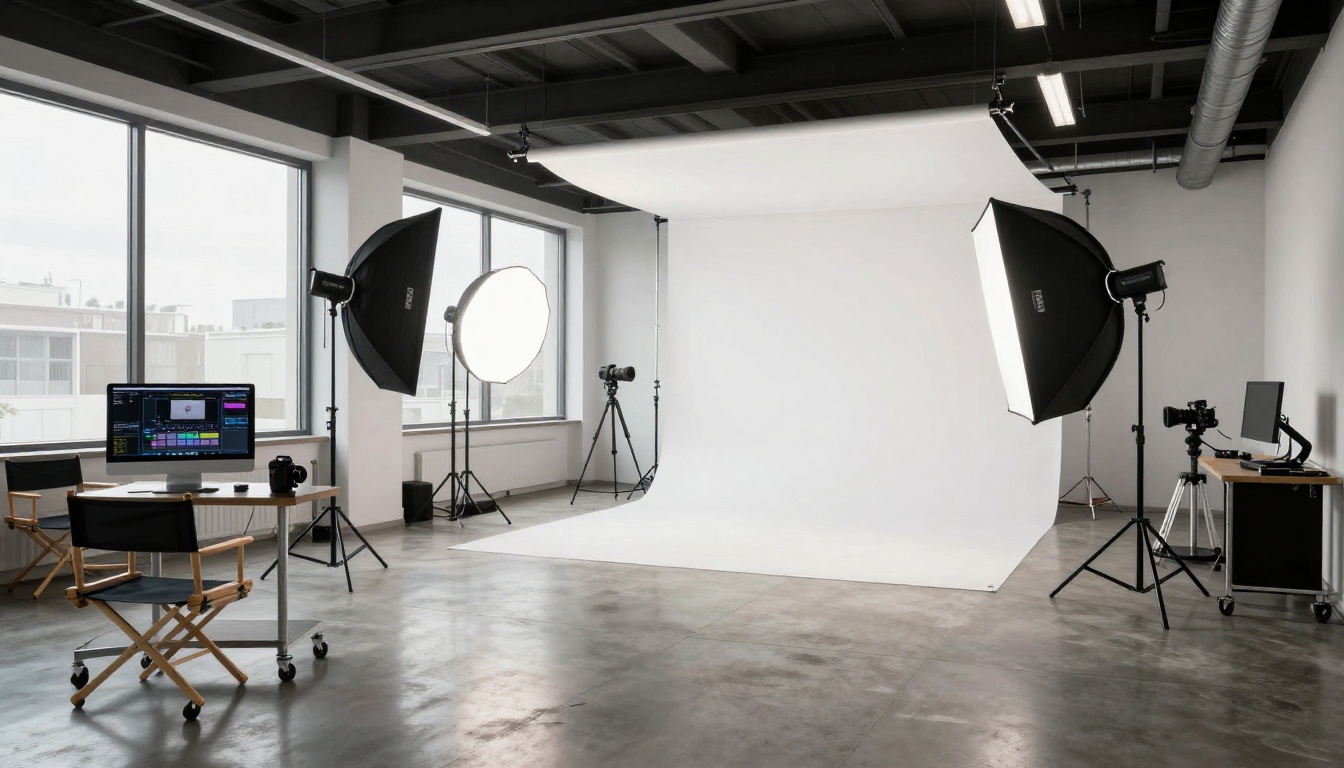
Photography post-production: Shoot clean portraits in a controlled environment, then use Flux Kontext Max to place subjects in location settings. You get the technical quality of a studio shoot with the visual context of an on-location photo, without the travel budget or the logistics.
E-commerce product photography: Generate multiple lifestyle context variants from a single product photo. Place the same product in a kitchen, a living room, and an outdoor terrace scene. Every variant shows the product identically while the environment changes to match the intended buyer's imagination.
Social content series: Create a sequence of images with the same subject in different settings, outfits, or moods for a consistent visual identity across platforms. Because Kontext Max uses the source as its identity reference, the character reads as the same person in every image.
Client mockups and pitches: Show clients how their campaign visuals would look in different environments, seasons, or lighting conditions before committing to production. Iterate on creative direction in minutes instead of scheduling additional shoots.
AI-assisted retouching: For images that need lighting correction, distracting element removal, or background cleanup, Kontext Max handles the edit in a single prompt without the precision selection work required in traditional editing software.
Other Flux Models Worth Using
The Kontext line is built specifically for editing existing images. PicassoIA also hosts the full Flux generation family for creating from scratch.
Flux 1.1 Pro Ultra generates photorealistic 4-megapixel images from text prompts. It produces the highest resolution outputs in the Flux family and is suitable for print and large-format applications.
Flux Pro is the standard professional-grade text-to-image model. Fast, reliable, and excellent for commercial photography-style images created entirely from descriptive prompts.
Flux Kontext Dev LoRA adds fine-tuning capability on top of the Kontext architecture. If you need the model trained on a specific subject, brand identity, or visual style, this is the correct starting point.
Face to Many Kontext takes a portrait and outputs it in different artistic styles, character roles, or aesthetics while preserving the subject's facial identity across every variant. It runs on the Kontext backbone and is one of the most effective portrait style variation tools available.
Try It on Your Own Photos
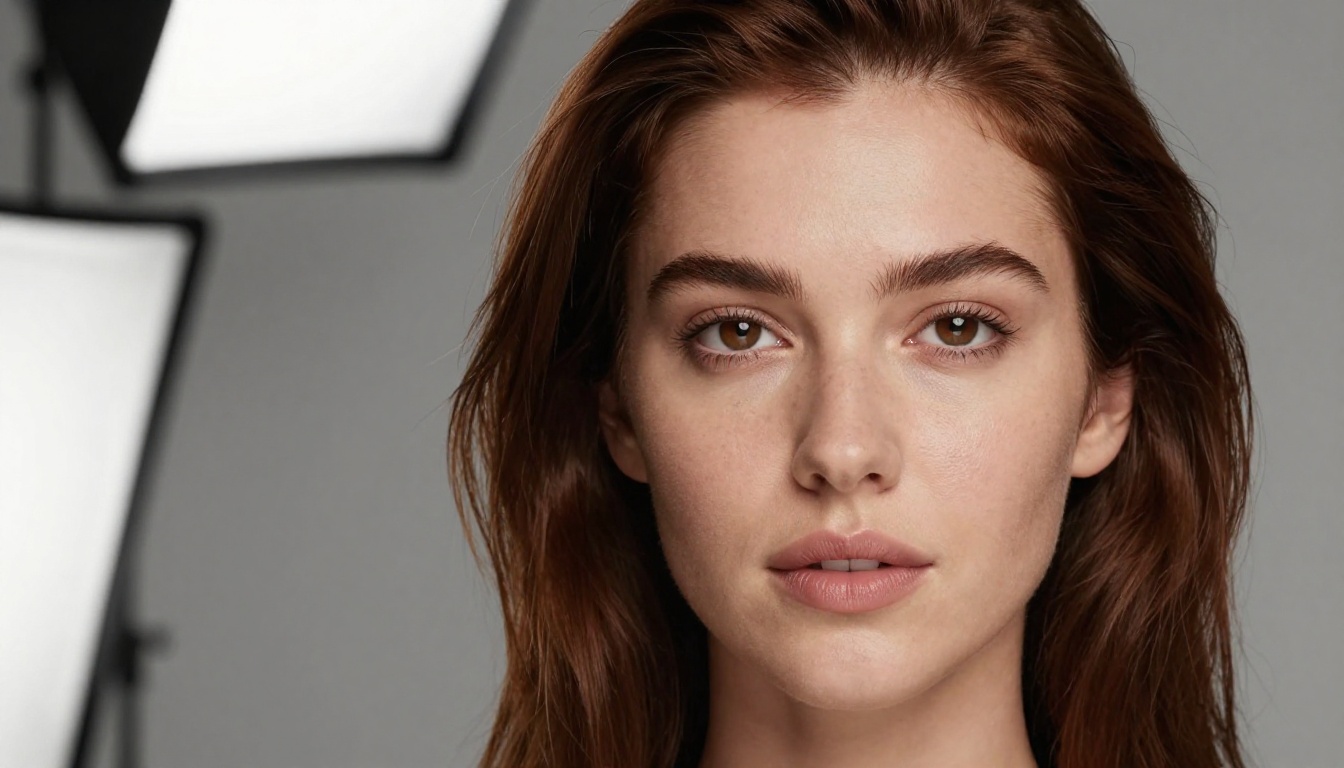
The best way to see what Flux Kontext Max can do is to run it against a photo you already have. Pull up any portrait, product shot, or outdoor scene from your library. Write one specific edit. See what comes back.
The feedback loop is fast. You do not need to install anything, configure a pipeline, or follow a multi-step setup. You write what you want changed, the model handles the work, and you receive an edited image that looks like it was shot or lit that way from the start.
PicassoIA hosts Flux Kontext Max alongside the full suite of Flux tools. Whether you are editing existing photos, generating originals with Flux 1.1 Pro Ultra, combining multiple images with Multi Image Kontext Max, or applying structural control with Flux Depth Pro, every tool is a few clicks away with no installation required.
Pick your photo. Write your edit. See what changes.