Flux 1.1 Pro Ultra is the most capable model Black Forest Labs has released, and the gap between it and everything else is hard to miss once you see results side by side. Whether you are producing photorealistic portraits, cinematic landscapes, or commercial-quality product shots, getting the most out of it comes down to how you prompt, what settings you pick, and which use cases it was built to dominate. This is not a list of surface-level tips. It is the practical knowledge that separates average AI images from ones that stop people mid-scroll.
What Is Flux 1.1 Pro Ultra?
Flux 1.1 Pro Ultra is the flagship model from Black Forest Labs, the team behind the entire Flux family. It was built specifically for maximum fidelity, supporting outputs up to 2K resolution with exceptional sharpness, color accuracy, and spatial coherence. Where other models start to fall apart at fine detail, Flux Pro Ultra holds. Skin looks like skin, fabric folds realistically, and architectural geometry stays precise.
The "Ultra" designation refers to the model's ability to generate at four times the standard resolution while maintaining prompt adherence that rivals anything available in the market today.
How It Differs from Flux Pro and Flux Dev
The Flux family has several tiers, and knowing which one does what will save you both time and processing costs.
Flux Dev is excellent for iteration. Flux Schnell is for when you need to test 20 prompts in five minutes. But when you need the final, deliverable-quality image, Flux 1.1 Pro Ultra is the one you reach for.
The Raw Quality Difference
At 2K, Flux 1.1 Pro Ultra renders detail that smaller models simply cannot reproduce. The difference is most visible in:
- Skin and hair: Individual strands, pore texture, micro-shadows beneath the eyes
- Fabric: Thread weave patterns, crease shadows, subtle sheen variation across different materials
- Architecture: Straight lines that stay straight, mortar between bricks, window glass reflections
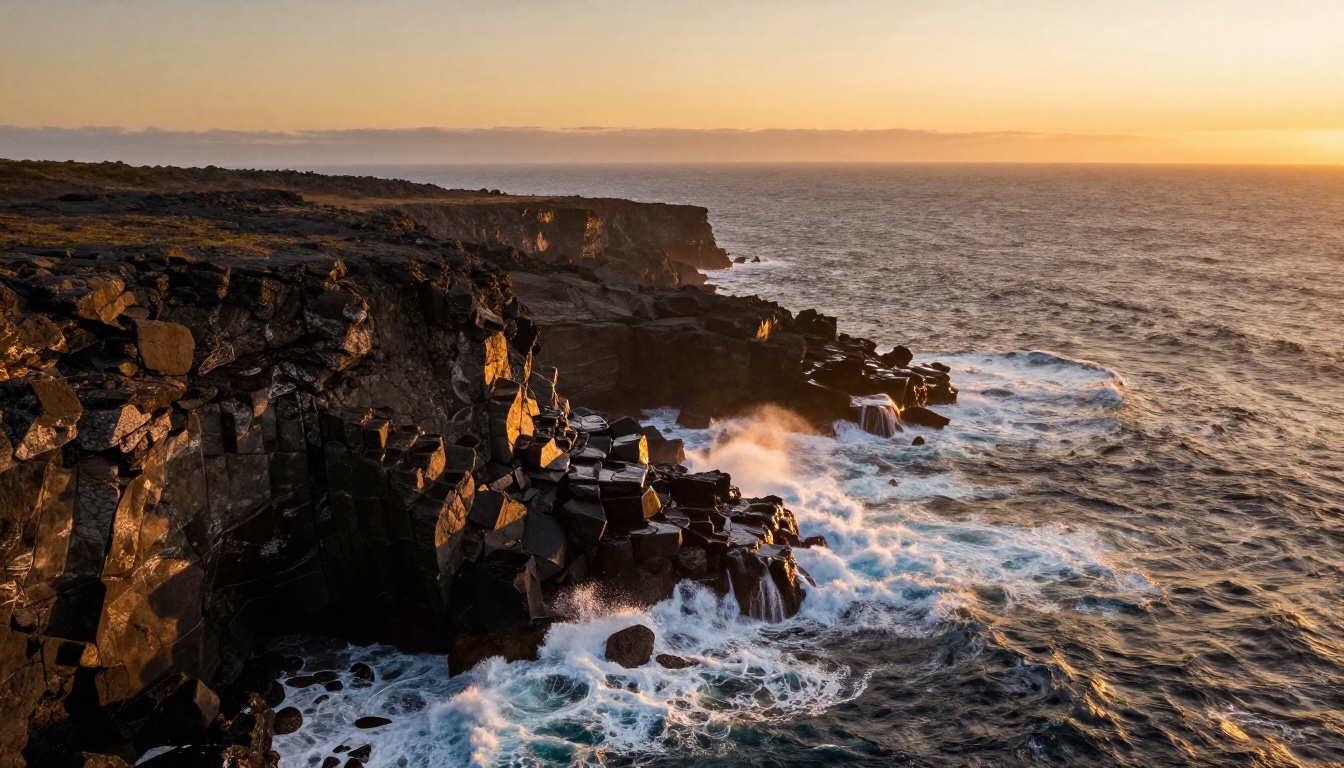
- Nature: Individual leaf veins, rock mineral striations, water surface tension at the edges of waves
This level of detail is not automatic. It requires prompts that explicitly tell the model what to render.

Writing Prompts That Actually Work
The single biggest factor in your output quality is prompt structure. Flux 1.1 Pro Ultra has strong natural language comprehension, but it responds dramatically better to prompts that are specific about three things: subject, lighting, and camera.
The Anatomy of a Strong Flux Prompt
Every high-performing prompt for Flux 1.1 Pro Ultra follows a loose but consistent structure:
[Subject + Action/Pose] + [Environment + Background Detail] + [Lighting Direction + Quality] + [Camera + Lens] + [Texture + Atmosphere]
Here is what this looks like in practice:
"A close-up portrait of a 35-year-old woman with freckled skin, standing near a rain-wet window in a dim apartment, soft morning light from the left diffusing through frosted glass, 85mm f/1.4 lens, shallow depth of field, Kodak Portra 400 grain, individual hair strands catching backlight"
Notice what is packed into that prompt. The lighting has a direction. The lens is named. The film stock is specified. The texture detail is called out explicitly. This is not overloading the model. It is giving it enough signal to do its best work.
💡 Tip: Specify the light direction in every prompt. "Morning light from the left" produces entirely different results than "evening light from the right," even on the same subject.
The elements that matter most, ranked by impact on final image quality:
- Lighting direction and quality (harsh vs. soft, specific direction, time of day)
- Camera lens specification (85mm portrait, 24mm wide angle, 100mm macro)
- Texture callouts (skin pores, fabric weave, stone grain)
- Atmosphere descriptors (film grain, atmospheric haze, bokeh, morning mist)
- Subject specificity (approximate age, clothing material, exact pose or expression)
What Kills Your Results
Prompts that produce weak output from Flux 1.1 Pro Ultra tend to share the same problems:
- Too abstract: "Beautiful woman in nature" gives the model nothing concrete to work with. What kind of nature? What light? What camera angle?
- Style words without grounding: "Cinematic, professional, stunning" are adjectives, not instructions. Replace them with actual camera and lighting details.
- Conflicting signals: Asking for both "harsh direct sunlight" and "soft portrait lighting" in the same prompt creates visual incoherence in the output.
- Too many subjects: Trying to describe five complex elements in a single frame usually collapses spatial coherence. Stay focused on one primary subject.
The sweet spot for prompt length is 60 to 100 words. Short enough to stay coherent, long enough to specify what matters.
Settings That Make or Break Your Results
Even with a strong prompt, the wrong settings will cap your output quality. These are the parameters worth understanding before you run your first generation.
Aspect Ratios and Resolution
Flux 1.1 Pro Ultra supports multiple aspect ratios, and the right choice depends entirely on your intended use:
| Ratio | Best Use Case |
|---|
| 1:1 | Social media posts, profile images, square prints |
| 16:9 | Widescreen scenes, YouTube thumbnails, website banners |
| 9:16 | Mobile wallpapers, Instagram Stories, vertical ads |
| 4:3 | Traditional photography look, blog headers |
| 3:2 | Classic DSLR proportions, print work |
For landscapes and architectural scenes, 16:9 is almost always the right choice. For portraits, 3:2 or 4:3 matches the proportions that feel most natural to the eye. The high-resolution output of Flux 1.1 Pro Ultra at 16:9 produces images wide enough for most print and commercial applications.
Raw Mode and Prompt Upsampling
Two specific settings have an outsized effect on your results:
Raw Mode: When enabled, this bypasses some of the model's internal stylization tendencies and produces more naturalistic, less processed-looking outputs. It is especially valuable for realistic photography work where you want the image to look like it came from an actual camera. Most professional photorealistic results benefit from Raw Mode being on.
Prompt Upsampling: This uses a language model to expand and enrich your input prompt before generation. It is useful when your prompt is short, but it can occasionally override specific details you intentionally included. If you have already written a full, detailed prompt, leave this off. If you are working from a short prompt and want the model to fill in reasonable visual detail, enabling it can help.
💡 Tip: For serious photorealistic work, use Raw Mode on and Prompt Upsampling off. Write your own detailed prompts rather than relying on automatic expansion.
How to Use Flux 1.1 Pro Ultra on PicassoIA
Flux 1.1 Pro Ultra is available directly on PicassoIA without any local installation or technical setup. Here is how to get a high-quality result from your first generation.
Step-by-Step Walkthrough
-
Open the model page: Go to Flux 1.1 Pro Ultra on PicassoIA.
-
Write your prompt: Follow the subject-lighting-camera structure outlined above. Aim for 60 to 100 words. Include at least one explicit lighting direction and one texture callout.
-
Set your aspect ratio: Choose based on intended use. 16:9 for wide scenes, 3:2 for portraits, 1:1 for social media.
-
Toggle Raw Mode on: For photorealistic results, this is almost always the right call.
-
Run and evaluate: Your first generation is a reference point. Look at what worked and what needs adjustment before iterating.
-
Iterate on one variable at a time: Adjust lighting first, then camera perspective, then texture details. Changing everything at once makes it impossible to isolate what made the difference.
Parameters to Pay Attention To
Beyond the basics, these choices affect quality in ways that are not always immediately obvious:
- Safety tolerance: For artistic or glamour work, a moderate tolerance setting allows the model to produce more expressive outputs without crossing into explicit territory.
- Output format: JPEG works well for most web use. For anything going to print or heavy post-processing, choose PNG to preserve quality.
- Seed: Once you find a prompt and generation combination you are happy with, save the seed. It allows you to reproduce very similar results while changing small variables systematically.
💡 Tip: Run three generations of the same prompt before deciding it does not work. Flux 1.1 Pro Ultra has natural output variation, and the third result is often noticeably better than the first.
Real Use Cases Where It Shines
The quality ceiling of Flux 1.1 Pro Ultra matters most in specific workflows. Here is where it consistently outperforms other models.
Portrait and People Photography
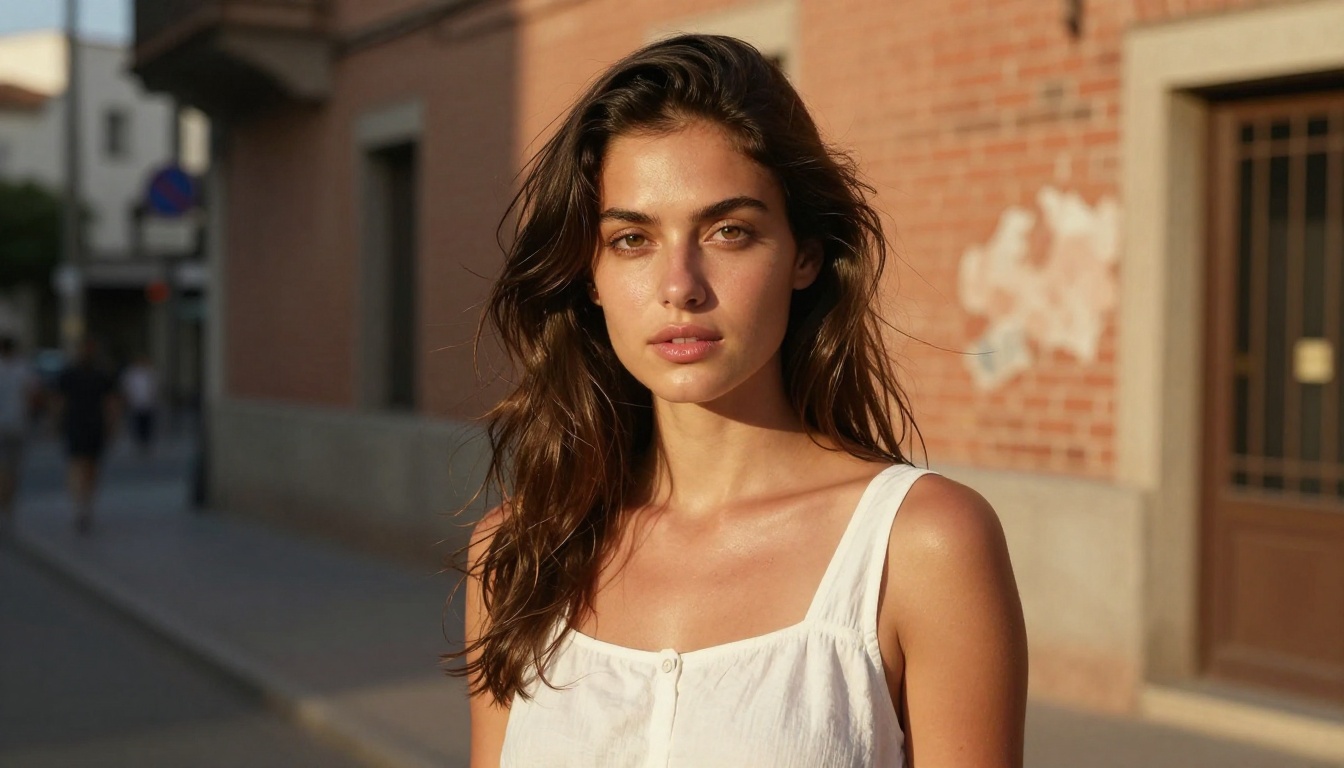
Portraits are where the detail advantage of Flux 1.1 Pro Ultra is most immediately visible. At 2K resolution, the model renders skin at a level that looks genuinely photographic rather than generated. The key is lighting specificity in the prompt.
For the best portrait results:
- Name the light source and its direction ("single softbox from the left")
- Specify the lens ("85mm f/1.8, shallow depth of field")
- Include skin detail callouts ("visible pores, natural skin texture")
- Set your ratio to 3:2 or 4:3 to match standard portrait proportions
Landscapes and Architecture
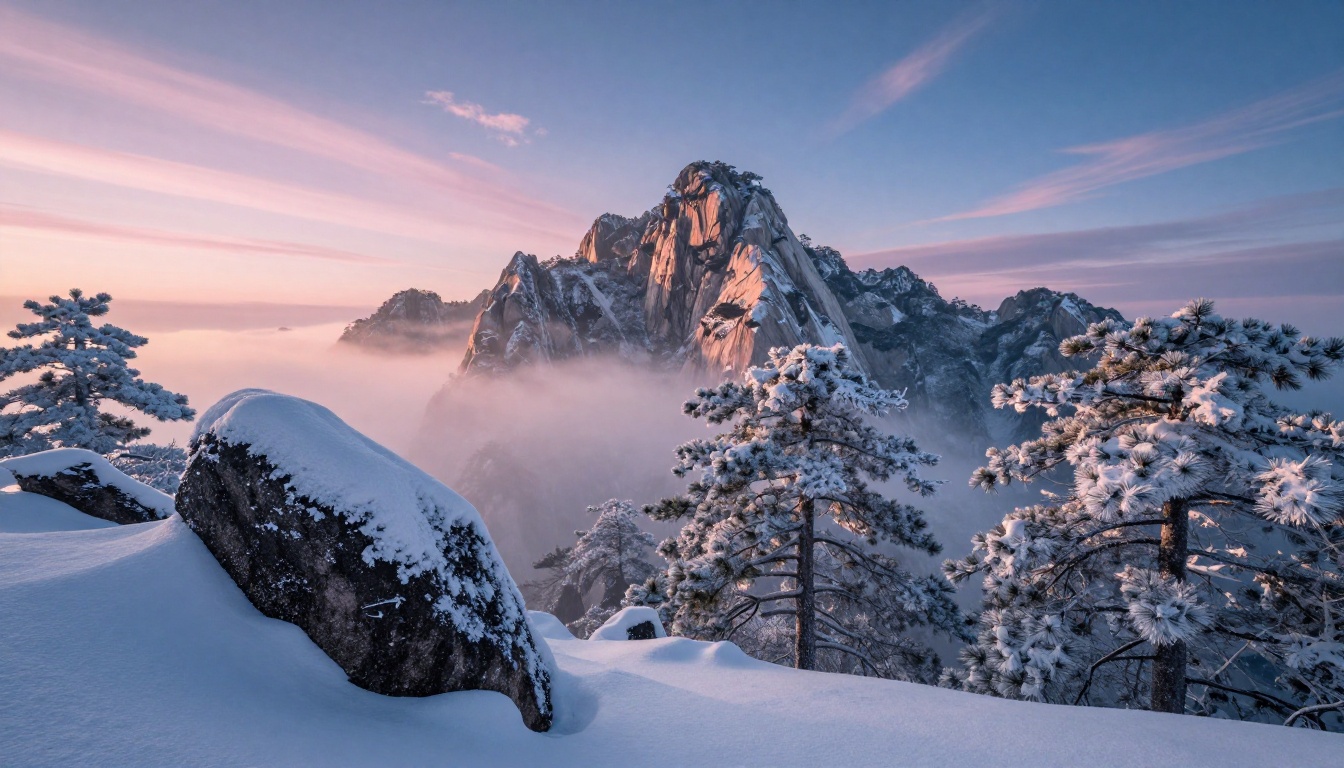
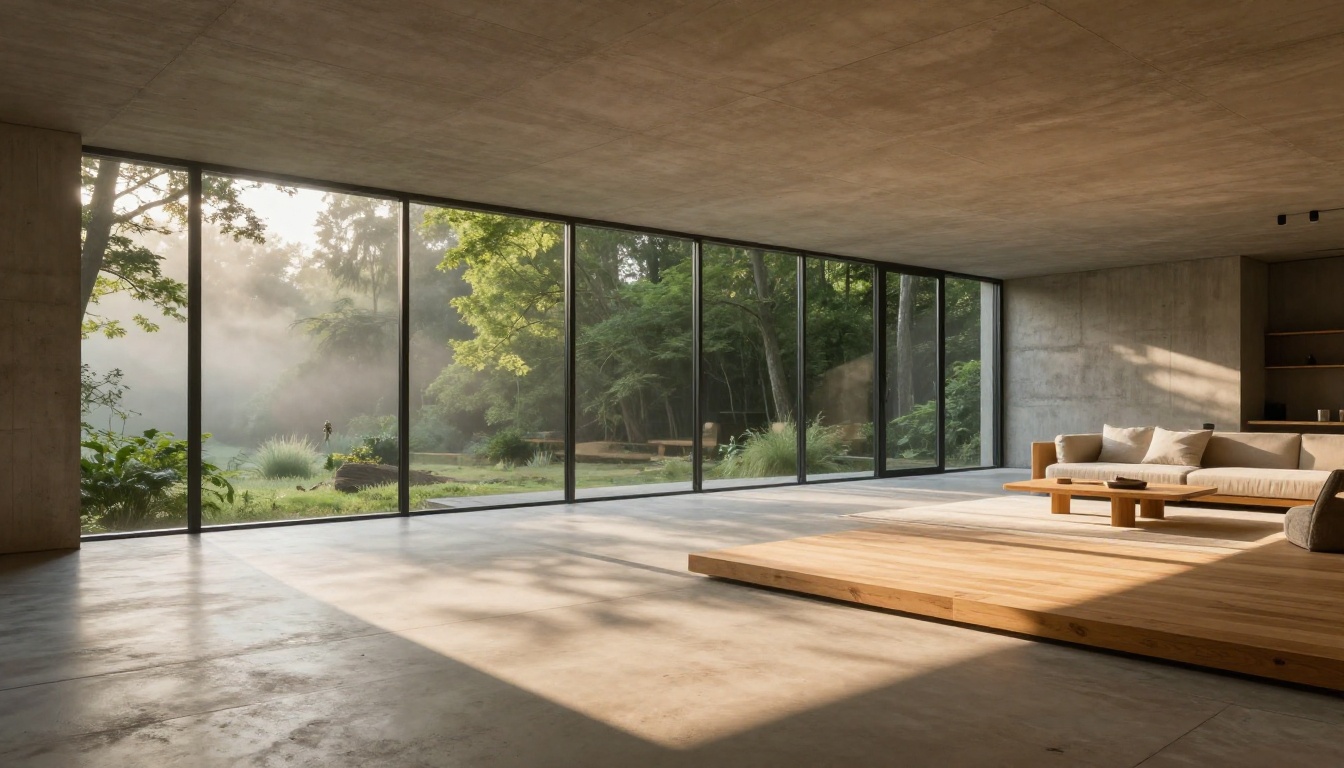
Wide-angle landscape and architectural photography benefit enormously from the high-resolution output. Flux 1.1 Pro Ultra handles complex spatial geometry well, keeping horizon lines level and architectural edges clean and sharp.
For landscapes, morning and golden hour prompts with atmospheric elements such as mist, haze, or rim lighting produce the most compelling results. For architecture, flat or slightly overcast light tends to preserve structural detail better than harsh direct sunlight prompts.
💡 Tip: For architecture, include "16mm f/8, deep depth of field, no lens distortion" in your prompt. This keeps the geometry clean and prevents the warping that many AI models introduce.
Product Photography
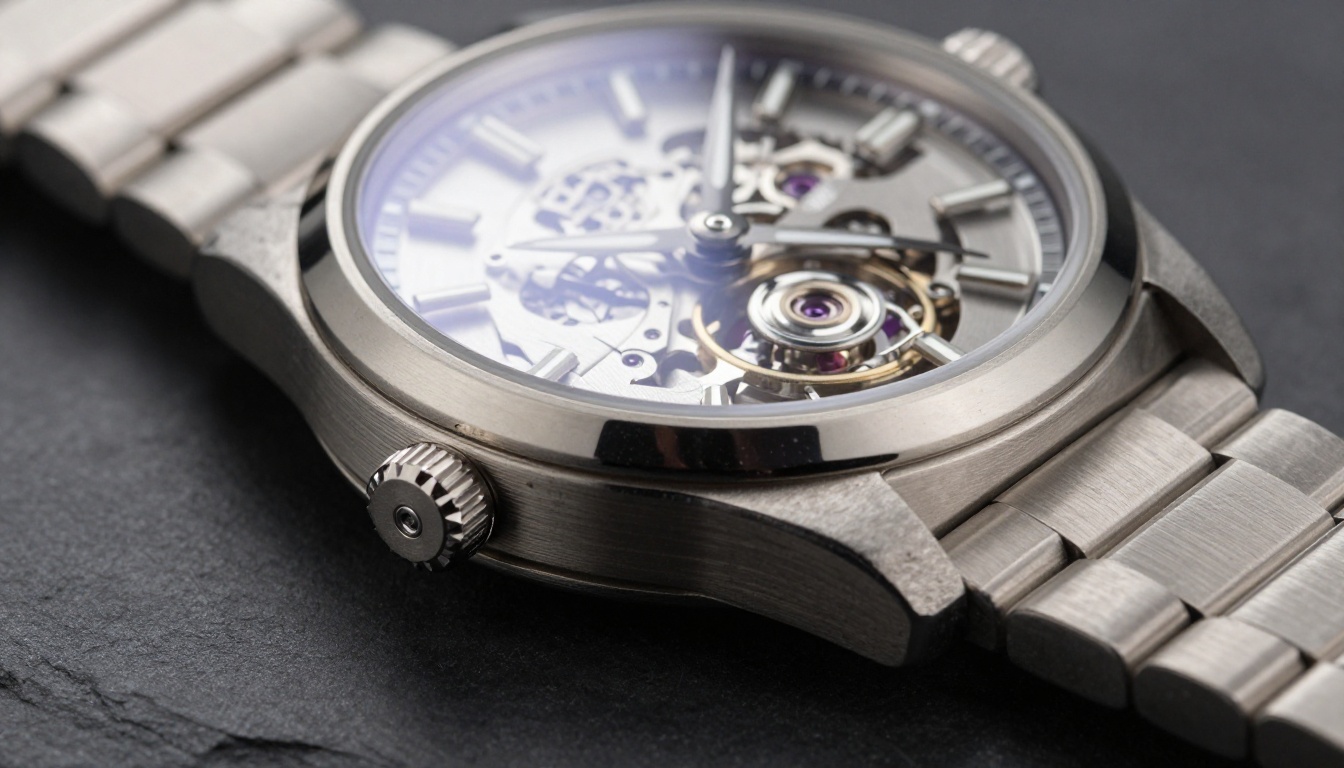
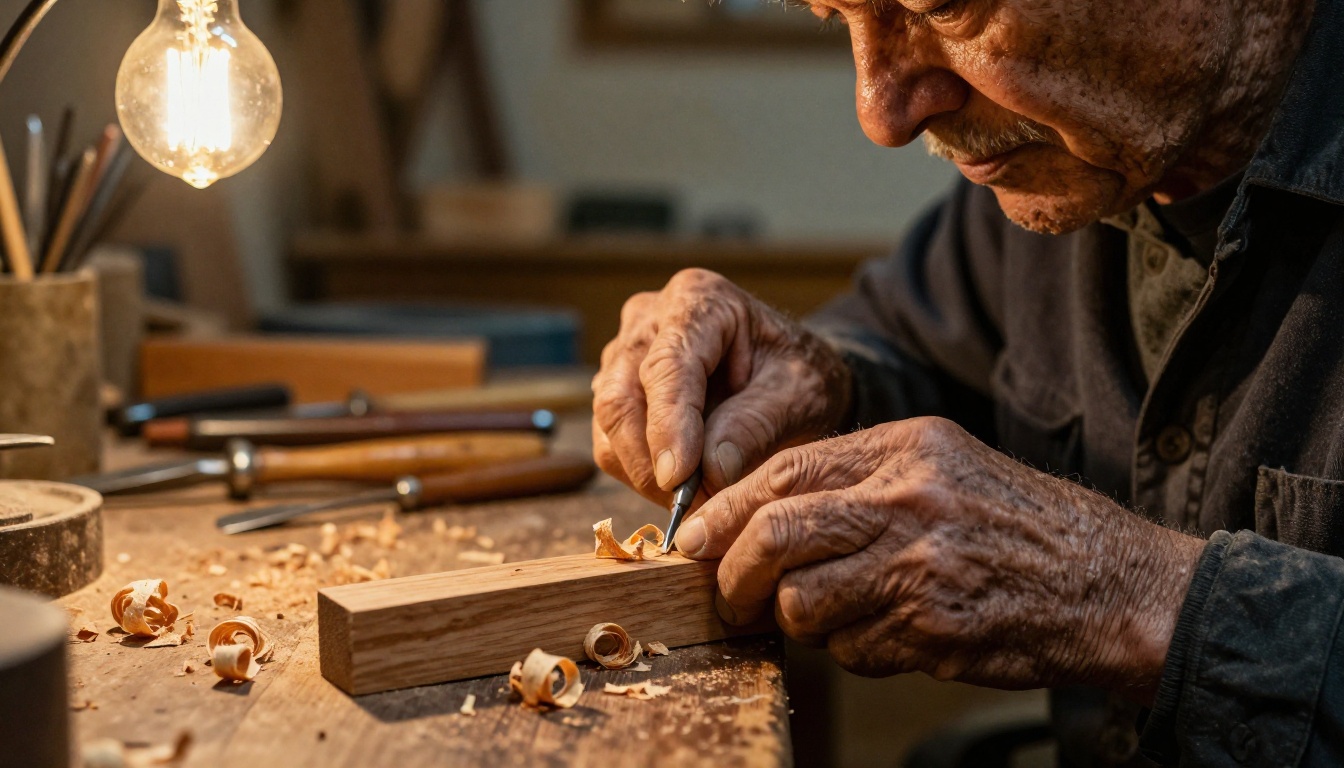
Commercial product photography is one of the strongest use cases for Flux 1.1 Pro Ultra. The model handles reflective surfaces, precise lighting setups, and material textures at a level that can replace actual product shoots for many catalog and e-commerce applications.
The formula for strong product shots:
- One directional light source described precisely ("single light from top-left at 45 degrees")
- Dark or neutral background to isolate the product visually
- Macro or close-up lens specification ("100mm macro, f/2.8")
- Material texture callouts ("brushed steel with hairline scratches," "matte ceramic surface")
Flux 1.1 Pro Ultra vs the Competition
Understanding where Flux 1.1 Pro Ultra sits relative to the rest of the market helps you make smarter decisions about when to use it and when something else is the better call.
Flux 1.1 Pro Ultra vs Flux 2 Pro
Flux 2 Pro is the newer generation model, but newer does not always mean better for every workflow. Flux 2 Pro brings improved prompt following and some compositional improvements. Flux 1.1 Pro Ultra still holds an advantage in pure resolution output and the kind of photorealistic texture rendering that makes portrait and product work stand out.
For most production work, Flux 1.1 Pro Ultra remains the standard. Flux 2 Pro is worth testing when you are working with complex multi-element scenes where prompt adherence matters more than raw resolution. If you want the absolute ceiling of the Flux 2 generation, Flux 2 Max is the option to try.
When to Use Other Flux Variants
Not every project needs Ultra quality. Here is a practical decision framework:
- Testing and iteration: Use Flux Schnell to run through 20 prompt variations quickly before committing resources to a final generation.
- LoRA and fine-tuning work: Flux Dev is built specifically for customization and training workflows.
- Context-aware image editing: Flux Kontext Pro handles targeted text-based edits on existing images with strong spatial awareness.
- Inpainting and outpainting: Flux Fill Pro fills regions or expands canvas while reading and matching the existing scene context.
- Structural control: Flux Canny Pro constrains generation to follow an edge map from a reference image.
- Depth-based editing: Flux Depth Pro performs depth-aware modifications that respect spatial layering in the scene.
The Flux family covers nearly every creative photography and design workflow. Flux 1.1 Pro Ultra is for when you need the highest fidelity final output. The other variants cover the iterative and editing steps before and after.
Editing and Control Models
Once you have a strong base image from Flux 1.1 Pro Ultra, PicassoIA gives you the tools to refine it further without starting from scratch.
Flux Fill Pro is the most useful for post-generation work. If you want to remove an object from the background, fill a region with a different element, or extend the canvas of a generated image, Fill Pro handles all of it with natural coherence. It reads the existing scene and continues it logically, rather than placing something visually disconnected over it.
Flux Kontext Pro lets you make targeted text-based edits to an existing image. Prompts like "change the jacket to dark green" or "add a coffee cup on the table" work accurately because the model understands the full spatial context of the image before making changes.
For structural control, Flux Canny Pro takes an edge map of your reference image and generates a new image that follows the same structural lines. This is particularly useful when you need consistent layout across multiple variations with different lighting or stylistic treatments.
If you generated a portrait or product shot that needs background removal for commercial use, PicassoIA also has dedicated background removal tools that work well with Flux-generated imagery.
💡 Tip: For a full production workflow, generate your base image with Flux 1.1 Pro Ultra, refine specific details with Flux Fill Pro, and use Flux Canny Pro if you need structural consistency across multiple outputs.
There is also Flux 1.1 Pro Ultra Finetuned for those who want to apply custom style training on top of the Ultra quality base. It gives you the same resolution and texture fidelity with a personalized visual signature trained on your own reference images.

Start Creating Right Now
The gap between knowing how Flux 1.1 Pro Ultra works and actually producing images you are proud of closes fast once you start experimenting. The prompting principles in this article are not complicated. They just require practice and one intentional iteration at a time.
Pick one subject you care about, write a prompt using the subject-lighting-camera structure above, and run three to five variations. Within an hour of real use, you will have a clear sense of the model's capabilities and exactly where your prompts need refinement.
Flux 1.1 Pro Ultra is ready to use on PicassoIA right now, alongside the full Flux editing ecosystem including Flux Fill Pro, Flux Kontext Pro, and over 90 other professional text-to-image models. No setup, no installation, just your prompt and the results.


