Removing a background from a photo sounds simple enough. You upload an image, click a button, and get back a clean cutout ready to use wherever you need it. But if you have spent any time with the dozens of "free" background removers floating around the internet, you already know the reality is different. Watermarks stamped across your result. Jagged edges that look hand-cut by someone in a hurry. Hair that blurs into a blocky mess. A download button that suddenly requires a subscription. And after all that, the result still looks wrong around complex edges.
The good news is that the underlying AI technology has gotten genuinely good. Not all tools have caught up with the latest models, but the ones that run serious neural networks built specifically for segmentation tasks can now separate subjects from backgrounds with a level of precision that surprises even experienced photo editors. This article is a straight look at what free AI background removal actually looks like in 2027, what separates tools that work from tools that frustrate, and how to get clean, transparent cutouts without spending anything or hitting a paywall mid-process.

There are hundreds of background removers with the word "free" in their marketing. Most of them are free to try and paid to actually use. That distinction matters because it shapes the entire experience: you upload your photo, wait for processing, and then see your result previewed with a watermark covering the most important part of the image. If you want the actual file, you pay.
Even setting the pricing issue aside, the quality problem is real. Many tools are built on older segmentation models that struggle the moment your photo moves outside their training comfort zone: busy backgrounds, hair blowing in the wind, semi-transparent fabric, reflective surfaces. The output comes back with fringed edges, color bleeding from the original background still clinging to the subject outline, and a flat, unnatural look that immediately signals "AI-processed" to anyone looking at it.
The Watermark Problem
Watermarks on free tiers are a business decision, and that is understandable. But for anyone doing actual work, a watermarked result is no result at all. You cannot use a product photo with a company logo stamped across it. You cannot use a portrait cutout with text covering the subject's face. The free tier becomes a teaser rather than a tool.
The better approach is to find tools that offer genuinely free access to the full output, without resolution limits or branding, at least for reasonable personal use volumes. These exist, and they tend to be the tools built around newer models with the confidence to let the output speak for itself.
Edge Quality That Disappoints
The edge is where background removal succeeds or fails. A clean edge means the cutout can be placed on any new background and look natural. A rough edge, with blocky pixels, fringing, or incorrect color sampling along the border, immediately looks wrong regardless of what you put behind it.
Older tools use a combination of simple segmentation masks and some smoothing, which produces acceptable results on high-contrast, simple subjects but falls apart on anything complex. Newer AI models trained specifically on diverse edge cases handle transitions with significantly more nuance, preserving the fine structure of hair, fabric, and organic shapes.

What AI Actually Does to Your Background
Understanding what the model is doing helps you use it better and set realistic expectations. Background removal is fundamentally a segmentation task: the model looks at every pixel in your image and makes a decision about whether it belongs to the foreground subject or the background.
Early approaches used simple color or contrast differences. Modern AI models use deep convolutional neural networks and, more recently, transformer-based architectures that look at the entire image context before making per-pixel decisions. This means the model can reason about what it is looking at: it knows that a person standing in front of a tree is probably a foreground subject even if the color values at the edge are very similar.
How Modern Models Read Edges
The way a strong segmentation model handles edges is fundamentally different from a simple thresholding approach. Rather than looking at individual pixels, it considers patches of context and builds a semantic understanding of the scene. It knows that the fuzzy area around a person's hair is still part of the subject, even though those pixels partially transmit the background color.
This is why results from newer models look so much cleaner around hair and fine detail. The model is not guessing about color values. It has learned what hair looks like in thousands of different conditions and can make accurate predictions about which pixels to keep and which to remove, including the semi-transparent ones at the very edges.
Hair, Fur, and the Hard Cases
Hair is the classic test case for any background remover, and for good reason. Individual strands are extremely fine, often semi-transparent at the tips, and typically contrast only slightly with busy backgrounds. Getting hair right requires the model to maintain those fine structures rather than collapsing them into a hard mask edge.
The same applies to fur on animals, feathers, and similarly complex organic textures. Transparent and translucent objects present a different kind of challenge: glass, fabric overlays, and wet surfaces need special handling because they partially transmit the background while still being part of the foreground composition.

How to Use the Bria Model on PicassoIA
PicassoIA includes the Bria Remove Background model in its collection, and it is one of the better-performing options currently available for this task. Bria's model is specifically trained for high-quality subject isolation with strong attention to fine detail preservation, which puts it in a different category from generic segmentation tools.
Here is the exact process for getting a clean cutout using the model.
Step-by-Step Process
Step 1: Prepare your image. The model works best on photos with at least moderate contrast between the subject and the background. Very dark subjects on dark backgrounds are harder to process. Higher resolution input images produce better output, since the model has more detail to work with at the edges.
Step 2: Open the model. Go to the Bria Remove Background model page on PicassoIA. The interface is straightforward: you upload your image and the model processes it automatically.
Step 3: Upload and process. Drag your image into the upload area or click to browse. Processing typically takes a few seconds depending on the image size. The model analyzes the full image context before generating the segmentation mask.
Step 4: Review the result. Check the edges of your subject carefully, particularly around hair, clothing borders, and any areas where the subject and background share similar colors. Zoom in on the edges to verify quality before downloading.
Step 5: Download your cutout. The result is available as a PNG with a transparent background, ready to drop into any design, presentation, or further editing workflow.
Getting the Best Results
Tip: Well-lit photos with clear separation between subject and background always produce the cleanest cutouts. If you are shooting specifically to remove the background later, use a plain wall or consistent surface behind your subject and keep the subject in sharp focus.
A few specific things that improve results significantly:
- Lighting: Even, diffused lighting reduces harsh shadows that can confuse edge detection. Shadows cast by the subject onto the ground are a common problem area.
- Resolution: Higher resolution images give the model more edge information to work with. Always use the highest quality version of your photo when possible.
- Contrast: The more the subject's tones differ from the background tones at the border, the cleaner the result. A light subject against a mid-tone background is easier than one where tones match closely.
- Background simplicity: Busy backgrounds with lots of texture at the same scale as subject edges are the hardest case. Simpler backgrounds always produce cleaner results.

Real Use Cases That Benefit Most
Background removal is one of those capabilities that sounds narrow but turns out to apply to a huge range of practical situations. Once you have clean cutouts available, the number of things you can do with them expands considerably.
Selling Products Online
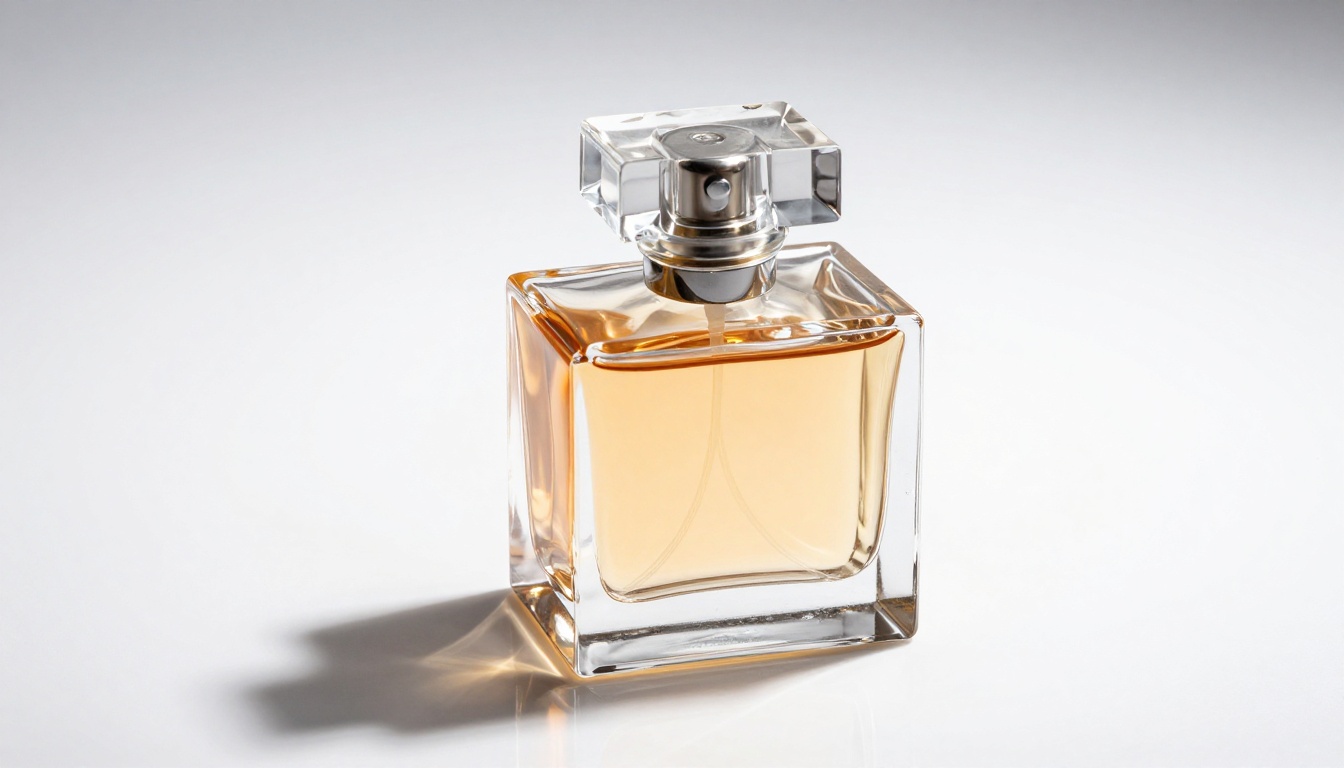
E-commerce is probably the highest-volume use case for background removal. Every major marketplace, from Amazon to Etsy to independent Shopify stores, either requires or strongly prefers product photos on clean white or transparent backgrounds. Shooting every product against a white backdrop in a professional studio is expensive and time-consuming. Shooting products in a natural environment and removing the background afterward is dramatically faster and more scalable.
The challenge is getting clean edges around products, particularly ones with fine detail like jewelry, electronics with small components, or items with complex silhouettes. A model that handles edges accurately is the difference between product photos that look professional and ones that look obviously processed.
Portraits and Profile Shots
Portrait cutouts are used across a wide range of contexts: professional headshots for LinkedIn and company websites, profile pictures for social media, team pages, speaker bios, and marketing materials. Being able to take any portrait photo and place the subject on a clean, consistent background or match them to a specific branded backdrop is genuinely valuable.
The quality bar for portrait cutouts is high because people look at faces closely. Any fringing, edge artifacts, or incorrect color sampling around hair is immediately noticeable. This is exactly the use case where the difference between a strong model and a mediocre one is most visible in practice.
Design and Creative Work
Designers routinely need to extract subjects from photos to build composite images, promotional materials, social media graphics, and advertising assets. The ability to pull a subject cleanly from a photo and drop them into a completely different environment is a core workflow in both print and digital design.
Background removal also opens up more creative possibilities: placing subjects on custom illustrated backgrounds, building marketing composites, and producing consistent visual assets across a campaign. Having access to a fast, accurate tool removes a significant friction point from the creative process.
Common Problems and Real Fixes
Even with strong AI models, you will occasionally run into results that need attention. Knowing what causes the most common issues helps you either prevent them upfront or address them after processing.
Rough or Jagged Edges
Rough edges usually happen when the input photo has low resolution, heavy JPEG compression artifacts, or when the subject and background have very similar tones at the edges. The model is working with insufficient information and makes errors at the pixel level.
Fix: Use the highest quality version of your photo. If the original is heavily compressed, try shooting or exporting at a higher quality setting. If you are working with an existing low-resolution photo, running it through a super-resolution step before background removal gives the model more edge information to work with and consistently improves output quality.
Missing Parts of Your Subject
Sometimes the model removes parts of the subject itself, particularly areas with similar color to the background. A person wearing a white shirt in front of a white wall is the classic example. Semi-transparent elements like glass accessories, sheer fabric, or wet hair can also get partially removed.
Fix: Where possible, choose clothing and settings with good contrast between subject and background. For situations where this is unavoidable, some tools offer manual refinement options where you can paint back areas that were incorrectly removed from the subject.

AI Background Removers Compared
Not all background removers are worth your time. Here is a direct comparison of what matters in actual use:
| Feature | Basic Free Tools | Mid-Tier Tools | PicassoIA (Bria Model) |
|---|
| Watermark-free output | No | Sometimes | Yes |
| Hair and fine detail | Poor | Moderate | Strong |
| High-resolution output | No | Limited | Yes |
| Processing speed | Fast | Fast | Fast |
| Complex backgrounds | Poor | Moderate | Strong |
| Transparent PNG export | Sometimes | Yes | Yes |
| Additional editing tools | No | Limited | Full suite |
The pattern is consistent: tools that invest in strong underlying models and do not need to hide results behind watermarks to monetize tend to produce better output and offer a better overall experience.
Note: Model quality matters more than interface design. A simple interface running a strong model will always beat a polished interface running an outdated segmentation approach.
What Else You Can Do After Removal
Getting a clean cutout is often the first step in a longer workflow. Once you have your subject isolated, there are several directions you can take it.
Place on a new background: The most obvious next step. Drop your subject onto a different environment, a branded solid color, a lifestyle scene, or a completely AI-generated background created from a text prompt.
Upscale for print: If you need the cutout at a larger size for print materials, super-resolution models can increase the resolution cleanly without the blurring you get from simple resampling. PicassoIA has dedicated super-resolution models for exactly this purpose.
Use in composites: Combine your cutout with other elements, place a product in a lifestyle scene, add a person to a promotional graphic, or build advertising assets from individual components.
Restore and refine: If the original photo has noise, blur, or other quality issues, AI image restoration tools can clean up the source before or after background removal, improving the overall result without manual retouching.
PicassoIA brings all of these capabilities together in one place. The Bria Remove Background model handles the removal, and from there you can move directly into editing, enhancement, or generation workflows without switching between multiple tools.

Free AI background removal has reached a point where the output quality is genuinely good enough for professional use, as long as you are using a tool built on a strong model. The gap between the best free options and paid professional tools has closed significantly over the past two years, and for most everyday use cases, a well-built free tool is entirely sufficient.
The practical checklist when evaluating any background remover:
- Does it return the full-resolution file without watermarks?
- How does it handle hair and complex edges specifically?
- What is the output format, and does it support true transparency?
- How does it perform on your specific types of images?
Running a few test images through any tool before committing to a workflow is always worth doing. Background removal quality varies significantly by image type, and the best way to know how a tool will handle your photos is to test it with the actual content you plan to process.
Start Removing Backgrounds Right Now
If you have photos sitting on your drive that need clean cutouts, the fastest way forward is to try the Bria Remove Background model on PicassoIA directly. Upload a photo, see the result, and check the edges on your specific type of content. The output speaks for itself.
Beyond background removal, PicassoIA brings together over 90 image generation models, video tools, audio capabilities, and a full suite of editing features. Whatever you need to do with your visuals after the background comes off, the tools are there waiting. Start with your background removal project and see where the platform takes you from there. Your first clean cutout is a few seconds away.


