The demand for a free AI image generator with no sign-up required has exploded in the last two years. People want results fast, without handing over an email address, creating a password, or waiting for a confirmation link. The friction of registration is real, and it stops a lot of people from trying otherwise excellent tools. But that barrier is becoming obsolete. Today, several of the most powerful text-to-image models on the planet are accessible in seconds, directly in your browser, with no account needed.
Why Registration Kills Momentum
The friction problem is real
Most people who search for a free AI image generator are in a creative sprint. They have an idea, a prompt forming in their head, and they need to see it rendered now. Nothing kills that momentum faster than a sign-up wall demanding your email address, a username, a password, and then making you wait for a verification link.
Research consistently shows that every extra step in an onboarding flow reduces conversion by 10-20%. For creative tools, that drop is even sharper because the emotional window of inspiration is short. If you cannot produce results in under 60 seconds from landing on a page, most people leave.
💡 The ideal workflow: Open browser, type prompt, hit generate, download image. No forms, no emails, no waiting.
What "no sign-up" actually means
There are different levels of access worth knowing about. Some platforms offer a limited free tier where you can generate a handful of images per day without logging in. Others require no account at any point. The main distinction is whether you need to authenticate before touching the generator.
The best platforms strike a balance: generous free access for anonymous users, with optional accounts for those who want to save history, access premium models, or increase generation limits.

What Makes a Good Free Generator
Image quality is non-negotiable
Free does not have to mean blurry, washed-out, or plasticky. The gap between top-tier AI image models and budget alternatives has become stark. A good free generator should produce images that are:
- Sharp and detailed at at least 1024x1024 pixels
- Coherent with accurate anatomy and realistic proportions
- Prompt-faithful: if you describe a red jacket, you get a red jacket
- Fast enough to iterate, ideally under 30 seconds per image
The underlying model matters enormously here. A platform running Flux Schnell or Stable Diffusion 3.5 Large Turbo will produce dramatically better results than one running older or less capable architectures.
Speed vs. quality: pick your priority
Different models optimize for different things. Here is how the core trade-off works:
For most casual users, a fast model that takes 5-10 seconds beats a slow model that takes 45 seconds, even if the slow one is marginally better quality. Speed lets you iterate and experiment, which is how you find the prompts that actually work.

Top Models Worth Using Right Now
Flux Schnell: the speed king
Flux Schnell by Black Forest Labs changed expectations around fast image generation. It produces high-quality outputs in 3-8 seconds, making it the best option when you need to test a concept quickly or generate multiple variations. The detail level and prompt adherence are both impressive for a model optimized for speed. For no-sign-up workflows, it is often the go-to choice because turnaround is nearly instant.
Stable Diffusion 3.5 Large Turbo
Stable Diffusion 3.5 Large Turbo is the fast variant of Stability AI's latest architecture. It preserves most of the quality of the full model while cutting generation time significantly. The "Turbo" suffix here is not just marketing. This model handles complex scene descriptions, multi-subject compositions, and accurate lighting conditions better than its predecessor SDXL in almost every scenario.
💡 Pro tip: Stable Diffusion models respond especially well to descriptive adjectives. Instead of "a dog in a field", try "a golden retriever puppy sitting in a sunlit wheat field, shallow depth of field, warm afternoon light".
Ideogram v2: when text matters
If your image needs to contain readable text, letters, or typography, Ideogram v2 is in a different league. Most diffusion models notoriously mangle text in images, producing distorted letters and misspellings. Ideogram v2 was specifically trained to handle typography, making it the right tool for posters, social media graphics, t-shirt designs, and any output where words need to be legible.
Imagen 3 by Google
Imagen 3 brings Google's research muscle to the table. It excels at photorealistic scenes, accurate human anatomy, and natural-looking skin tones. The model handles nuanced lighting descriptions particularly well, making it a strong choice for portrait photography-style outputs. Its prompt adherence is among the highest of any model currently available. For faster results with nearly the same quality, Imagen 3 Fast is worth trying.
GPT Image 1.5
GPT Image 1.5 from OpenAI brings strong instruction-following capability to image generation. It is particularly capable at handling complex, multi-part prompts and produces clean, well-composed outputs. For users who want an image generator that simply "understands" what they are asking for, this model is hard to beat.
Writing Prompts That Actually Work
Structure your prompt the right way
The single biggest factor in output quality is not the model. It is the prompt. Most people describe what they want but forget to describe how it should look. A complete prompt has three layers:
- Subject: What or who is in the image
- Context: Where are they, what surrounds them, what is happening
- Style: Lighting, camera angle, lens, mood, film stock
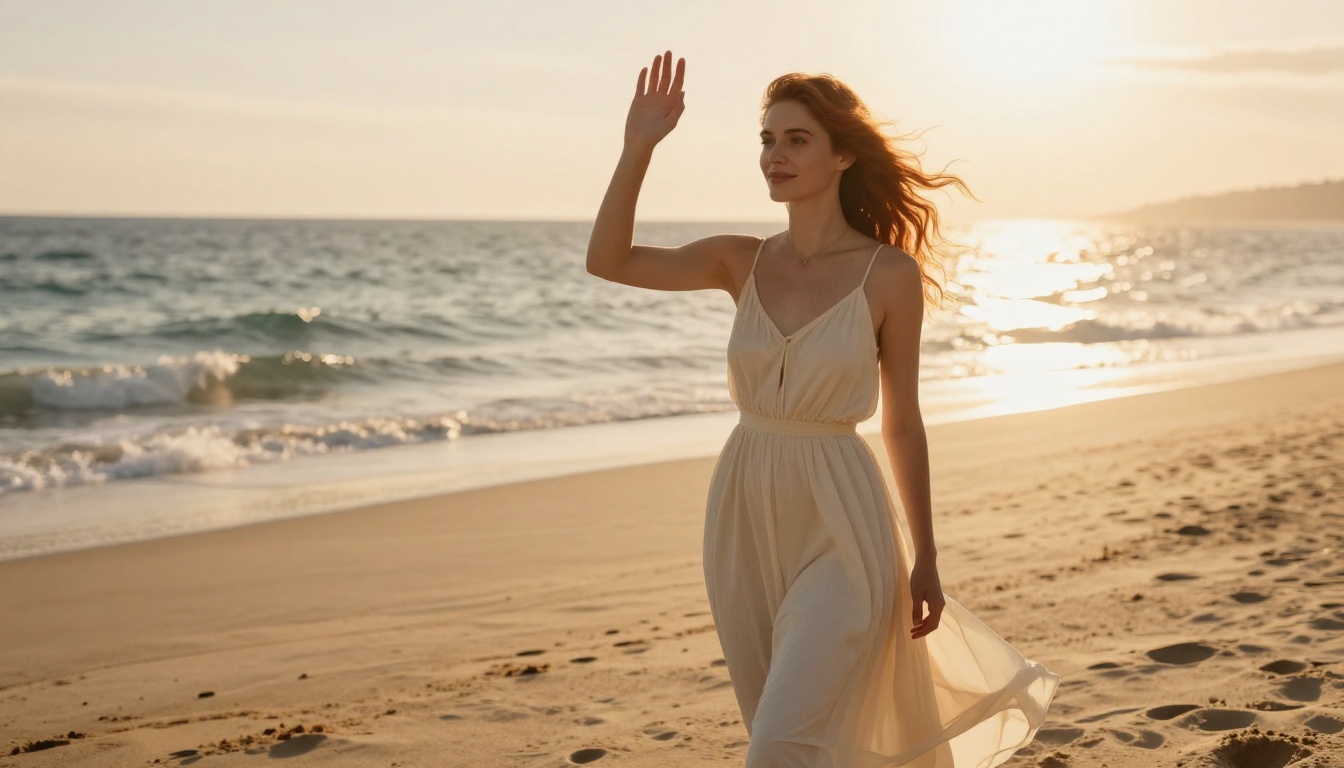
Weak prompt: a woman on a beach
Strong prompt: a woman in her thirties with dark curly hair wearing a cream linen dress, standing on a sandy tropical beach at golden hour, waves in background, 85mm f/1.8 lens, warm backlight, film grain, Kodak Portra 400
That second prompt tells the model exactly what kind of photograph you are imagining. The difference in output quality is not subtle.
Style modifiers that consistently deliver
These phrases reliably improve output across most models:
photorealistic, 8K, RAW photonatural lighting, volumetric lightshot on [camera], [lens] f/[aperture]film grain, Kodak Portra 400cinematic compositionshallow depth of fieldshot from low angle / aerial view / close-up
💡 Angle matters: Adding "low angle shot" or "aerial perspective" immediately adds visual interest and professionalism to otherwise flat compositions.

How to Use Free AI Image Models on PicassoIA
PicassoIA gives you access to 91 text-to-image models directly in your browser, with generous free usage and no mandatory sign-up to start generating. Here is how to go from zero to a finished image in under 2 minutes.
Step-by-step walkthrough
Step 1: Open the model page
Navigate to any text-to-image model. The fastest starting point is Flux Schnell for quick iterations, or Flux Dev for higher quality outputs.
Step 2: Write your prompt
In the prompt field, describe your image using the three-layer structure above. Include your subject, context, and style cues. Aim for 30-60 words for best results.
Step 3: Set basic parameters
Most models let you choose:
- Aspect ratio: 1:1 for social posts, 16:9 for desktop wallpapers, 9:16 for vertical formats
- Number of outputs: Start with 1-2 to test, then generate more once you find a working prompt
- Seed: Leave blank for random variation, or set a number to reproduce a specific result
Step 4: Hit Generate
Click generate. For fast models like Flux Schnell, results appear in 3-8 seconds. For higher quality models, expect 15-30 seconds.
Step 5: Download or iterate
If the result is close but not quite right, tweak the prompt and regenerate. This is where the no-sign-up advantage matters: you can iterate rapidly without any account overhead slowing you down.
Tips for better results on specific models
- For Realistic Vision v5.1: Add "ultra-detailed, hyperrealistic, sharp focus" to your prompt
- For SDXL: Use negative prompts to exclude unwanted elements such as "blurry, low quality, distorted"
- For Ideogram v2: Put text you want in the image inside quotation marks within your prompt
- For Seedream 4: Works exceptionally well with vivid color descriptions and dramatic lighting setups
5 Free Models Compared Side by Side
Here is a direct comparison of the top free text-to-image models available right now, judged on the metrics that actually matter for day-to-day use:
The right choice depends entirely on your use case. If you need to test 20 prompt variations in 10 minutes, Flux Schnell wins. If you need one perfect, publication-ready portrait, Imagen 3 or Realistic Vision v5.1 is the right call.
Beyond Basic Image Generation
Super Resolution: bigger and sharper
Once you have an image you like, you may want to scale it up for print, wallpapers, or detailed use. Super Resolution AI models upscale images 2x to 4x while adding realistic detail rather than just stretching pixels. This is fundamentally different from traditional digital upscaling, which creates blurry artifacts at high magnification. AI upscaling reconstructs texture, sharpness, and fine detail at the larger size.
Background Removal in one click
For product photos, social content, or design work, removing backgrounds cleanly is a common follow-up step after image generation. AI background removal tools can isolate subjects from any background in seconds, handling hair, transparent edges, and complex shapes that would take a skilled editor minutes to cut by hand manually.
Editing and variation
After generating a base image, the workflow often continues with refinement tools:
- Inpainting: Fix or replace specific parts of an image without regenerating the whole thing
- Outpainting: Expand the canvas beyond the original frame, generating new content that matches the existing style and lighting
- Object Replacement: Swap specific items in an image, changing a red shirt to blue, swapping a background, or replacing props
These editing tools let you refine your output rather than starting from scratch every iteration.
3 Mistakes That Hold People Back
Over-complicated prompts
Longer is not always better. A 200-word prompt can confuse a model just as easily as a 5-word one. The sweet spot is 30-75 words that are specific and clear. Focus on what matters most in your image. If you want to emphasize the lighting, make that explicit and cut other details. If the composition angle is what matters, state it and simplify the rest.
Ignoring aspect ratio
Generating a portrait image at 1:1 and then trying to crop it to 9:16 will cut out important parts of the composition. Set your aspect ratio before you generate, based on where the image will actually be used. Most interfaces let you select this before hitting generate.
Not using the seed feature
When you find a prompt that is working well, note the seed number from that generation. Setting the same seed lets you reproduce similar results while making small prompt adjustments, rather than getting completely different outputs each time. Most interfaces display the seed used or let you set it in the settings panel.
💡 Iteration tip: Change only one thing at a time when refining a prompt. If you change the subject, lighting, and angle all at once, you will not know which change improved the result.
The Models Keep Getting Better
The pace of improvement in AI image generation is relentless. What was state-of-the-art 12 months ago is now available for free. Models like Flux 1.1 Pro Ultra push photorealism to a level that was inconceivable from a free tool two years ago. GPT Image 1.5 brings instruction-following capability that makes the prompt writing process far more intuitive for people without prior AI art experience. Flux 2 Pro and Flux 2 Dev represent the next generation of Black Forest Labs architecture, offering higher resolution and better coherence across complex scenes.
The pattern is consistent: yesterday's paid premium model becomes today's free option. For users who need high-quality AI images without registration, the landscape has never been more favorable.
Start Creating Right Now
You do not need an account, a credit card, or hours of reading. Pick a model from the list above, write a prompt using the three-layer structure (subject, context, style), and hit generate. Within 30 seconds you will have a result to react to. The fastest way to get good at AI image generation is to produce a lot of images and pay close attention to what changes when you adjust your prompts.
PicassoIA brings together 91 text-to-image models in one place, with immediate free access and zero barriers between you and the generator. Whether you are after a quick concept with Flux Schnell, a photorealistic portrait with Imagen 3, a bold typographic image with Ideogram v2, or an ultra-high-resolution render with Flux 1.1 Pro Ultra, the tools are there, the models are free, and the only thing between you and a great image is your first prompt.
💡 Start here: Open Flux Schnell, type exactly what you want to see, and hit generate. You will have your first AI image in under 10 seconds, with no sign-up required.


