You type a prompt. The screen goes blank, or you get a generic error saying your request was blocked. Most AI image tools are wrapped in layers of content moderation that reject prompts before generation even begins. If you want to create bold, unrestricted visuals, including glamour shots, artistic portraits, or anything that pushes creative boundaries, you need to know which free AI image generators with no filter actually deliver.
This is not about finding loopholes. It is about using platforms and models built with broader creative freedom in mind, where the generation engine does not second-guess your artistic intent.
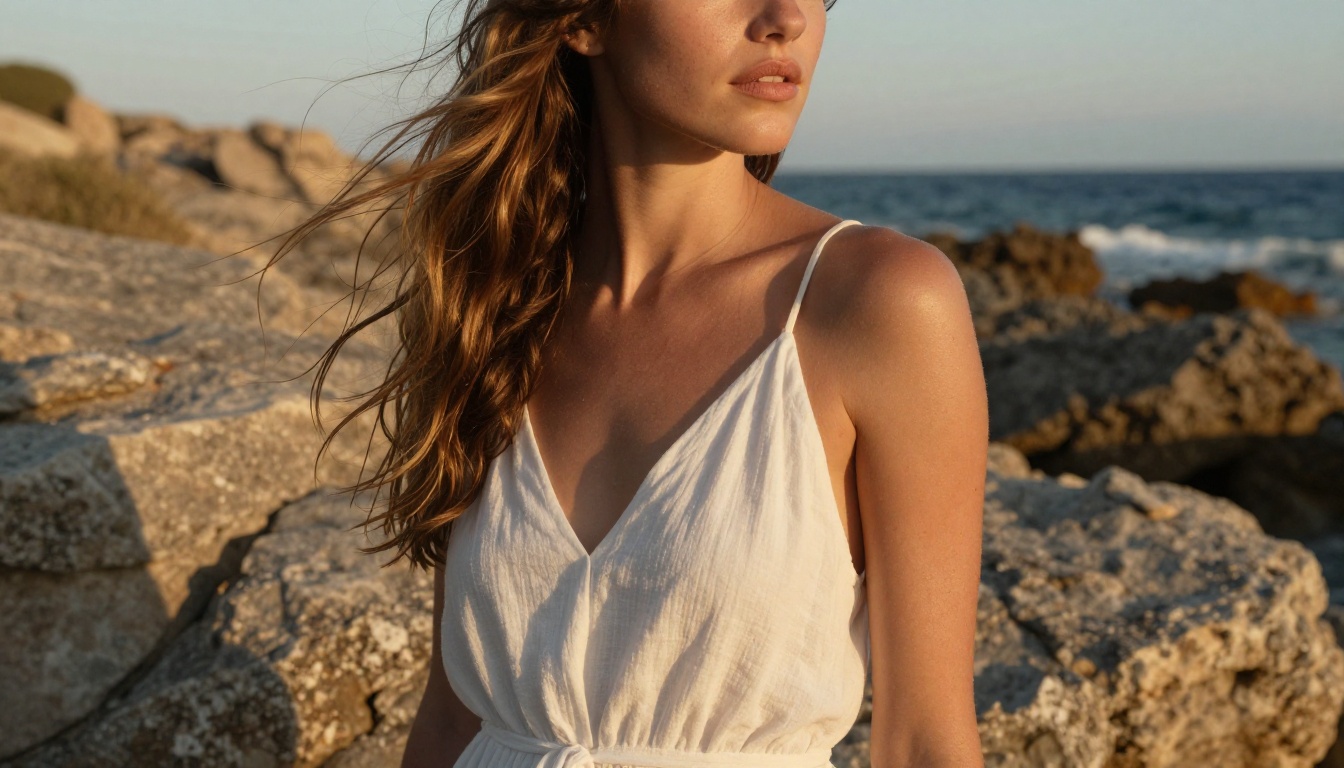
Content filtering in AI image generators is not a single system. It is a layered stack: the training data was curated to exclude certain content, the model itself may refuse prompts through alignment tuning, and then a post-generation safety checker flags outputs after they are produced. Some platforms add a fourth layer at the API level.
The result is that you can write a perfectly legitimate artistic prompt and have it blocked for touching on terms that, in another context, would be completely acceptable. A fashion photographer prompt mentioning a bikini shoot, a glamour portrait that implies skin, or an artistic reference involving natural form can all trigger refusals on the most locked-down platforms.
Content moderation systems optimize for liability, not creativity. They are tuned to block at the slightest ambiguity. That is acceptable for a product aimed at children. It is not acceptable if you are a creative professional trying to produce legitimate artistic work, run a content business, or simply want to iterate on bold visual ideas without hitting a wall every three prompts.
💡 The solution is not to trick filters. The solution is to use models that do not over-restrict in the first place.
The irony is that the best unrestricted AI image generators are also some of the most technically capable. Creative freedom and image quality are not trade-offs here, they are available together on the right platform.
What "No Filter" Really Means
People searching for free AI image generators with no filter are usually looking for one of three things:
- No content safety checker that blocks output after generation completes
- No prompt filtering that refuses input before generation even begins
- Uncapped usage with no credit limits on how many images they can create
These are three separate problems with three separate solutions. Some models have permissive content policies but charge for heavy use. Others are free but still run safety checks on every output. The strongest options address all three at once.
It is also worth separating uncensored from explicit. Most creative professionals want the former: a tool that does not flag an artistic beach portrait or a glamour photography prompt. Explicit, pornographic content is a different category, and even permissive platforms maintain their own policies around that.
The platforms covered in this article sit in the middle zone: generous with creative freedom, permissive with artistic and suggestive content, and available without paywalls. The models here are not compromises. They are production-grade tools that happen to be accessible without subscriptions.
The Best Free Options Right Now
Seedream 4: The Unrestricted Workhorse
Seedream 4 is the first model to reach for when creative freedom matters. Built by ByteDance, it produces images at resolutions up to 4K and supports single-sentence editing of existing photos. Its content handling is notably more permissive than closed consumer platforms, making it the top pick for fashion, glamour, lifestyle, and artistic portrait work.
What sets it apart:
- 4K output resolution with no upscaling needed afterward
- Reference image input to anchor style or subject across multiple generations
- Sequential generation of up to 15 related images in a single session
- Nine preset aspect ratios including 16:9 and 9:16
- No watermarks on downloaded files
On PicassoIA, Seedream 4 runs without credit caps. You can generate an entire glamour shoot, iterate on lighting and composition, and export clean files without hitting any usage wall. For creators who bill by project rather than hour, this alone changes the economics of the work.
Flux Schnell: Fastest Free Generator Available
Flux Schnell is built for iteration speed above everything else. It processes prompts in as few as four denoising steps and returns a finished image in under five seconds. For anyone running dozens of prompt variations in a session, the speed advantage over slower models is immediately felt in the workflow.
The model supports eleven aspect ratios and handles artistic lifestyle and portrait prompts without the heavy-handed blocking found on consumer platforms. On PicassoIA it runs completely free with no credit counter and no daily limit.
Best for: Rapid iteration, testing multiple prompt directions, producing reference drafts before switching to a higher-fidelity model.
Stable Diffusion: The Flexible Classic
Stable Diffusion remains one of the most permissive models available because its open-source nature means the platform running it controls the safety settings entirely. On PicassoIA, it generates up to 1024x1024 images and supports negative prompts, guidance scale control, and six different schedulers for fine-tuning generation behavior.
Its negative prompt system is particularly useful for no-filter work: you can specify exactly what visual elements to exclude from the output, giving precise control over what appears without relying on the model's defaults.
Parameters that matter:
Guidance scale: 7-12 for stronger prompt adherence, 3-5 for more creative interpretationNegative prompt: Exclude unwanted elements like "watermark, text, blurry, low quality"Scheduler: DPMSolverMultistep produces the cleanest results for most portrait and lifestyle use cases
Flux Dev: Quality Without Compromise
Flux Dev is the 12-billion parameter version of the Flux family. It supports both text-to-image and image-to-image editing, where you upload an existing photo and redirect it with a prompt. For photographers who want to modify real shoots or build composites from existing imagery, this is one of the most useful capabilities available without paying for it.
It has an optional safety checker that can be disabled, giving direct control over what gets generated. Combined with eleven supported aspect ratios and three export formats (WebP, JPG, PNG), it fits naturally into any professional workflow.
Flux Pro: When Prompt Precision Matters
Flux Pro is the model to use when your prompt needs to be followed precisely. It has a tunable safety_tolerance parameter ranging from 1 (most strict) to 6 (most permissive), giving direct control over how the model handles edge cases in your prompts.
The interval setting adds compositional variance across runs, which is useful for generating a diverse set of outputs from a single prompt before selecting the strongest result. This makes it particularly effective for brief-driven work where you know what you want but need multiple angles to find the right one.

How to Use Seedream 4 on PicassoIA
Since Seedream 4 is the top pick for unrestricted creative work, here is exactly how to run it effectively for your first session.
Step 1: Open the model
Go to Seedream 4 on PicassoIA. No account is required to start generating images immediately.
Step 2: Write a detailed prompt
The more specific your prompt, the better Seedream 4 performs. Include lighting direction, camera angle, subject detail, and atmosphere. For example:
"Close-up portrait of a woman in a silk evening dress, warm golden backlight from the right, shot on 85mm f/1.4, shallow depth of field, Kodak Portra 400 film grain, photorealistic skin texture with natural pores visible"
Step 3: Set resolution and aspect ratio
For web and social content, 2K with a 16:9 ratio is the sweet spot. For print or large-format display work, select 4K.
Step 4: Add a reference image (optional)
Upload a source image to anchor the style, composition, or subject of the output. This is particularly useful for consistent character work across multiple generations in a single session.
Step 5: Generate and iterate
Seedream 4 returns results in seconds. If the first output is close but not quite right, adjust the prompt with a single corrective sentence rather than rewriting from scratch. The model handles iterative editing efficiently, which means small corrections rather than full prompt rewrites.
💡 For glamour and portrait work, use sequential_image_generation: auto to get up to 15 related variations in a single session run.
Writing Prompts That Do Not Get Blocked
Even on permissive platforms, how you word a prompt affects results. This is not about bypassing anything. It is about writing prompts that are precise and contextually clear enough that the model produces exactly what you intended.
Framing Makes a Difference
AI models interpret prompts in context. A vague prompt about "a woman in revealing clothing" is more likely to produce an inconsistent result than a specific prompt describing the actual visual: fabric type, lighting direction, camera angle, and intended mood.
Specificity serves two purposes: it improves output quality, and it leaves less room for the model to default to a generic, conservative interpretation. The more photographic context you provide, the more cinematic and precise the result.
Write your prompts like a photographer briefing an assistant:
- Subject description (approximate age range, hair, outfit with fabric detail)
- Environment and background setting
- Lighting direction and quality (volumetric, golden hour, rim light, diffused)
- Camera lens and aperture (85mm f/1.4, 35mm f/2.0, macro 100mm)
- Mood or atmosphere
- Film stock reference (Kodak Portra 400, Fuji Velvia)
Words That Cause Unnecessary Flags
On some platforms, certain words trigger filters even in legitimate creative contexts. If you are on a platform that is still blocking prompts, these substitutions often resolve the issue:
| Instead of | Use |
|---|
| "nude" | "unclothed artistic portrait" or "bare skin, tasteful" |
| "sexy" | "sultry", "alluring", "confident", "glamour" |
| "naked" | "natural form", "implied nudity" |
| "bikini" | "swimwear", "beach attire" |
| "explicit" | "bold artistic work", "uncensored portrait" |
On PicassoIA with Seedream 4 or Flux Dev, most of these substitutions are unnecessary. The models handle direct artistic requests without the refusals you encounter on more restricted consumer platforms.
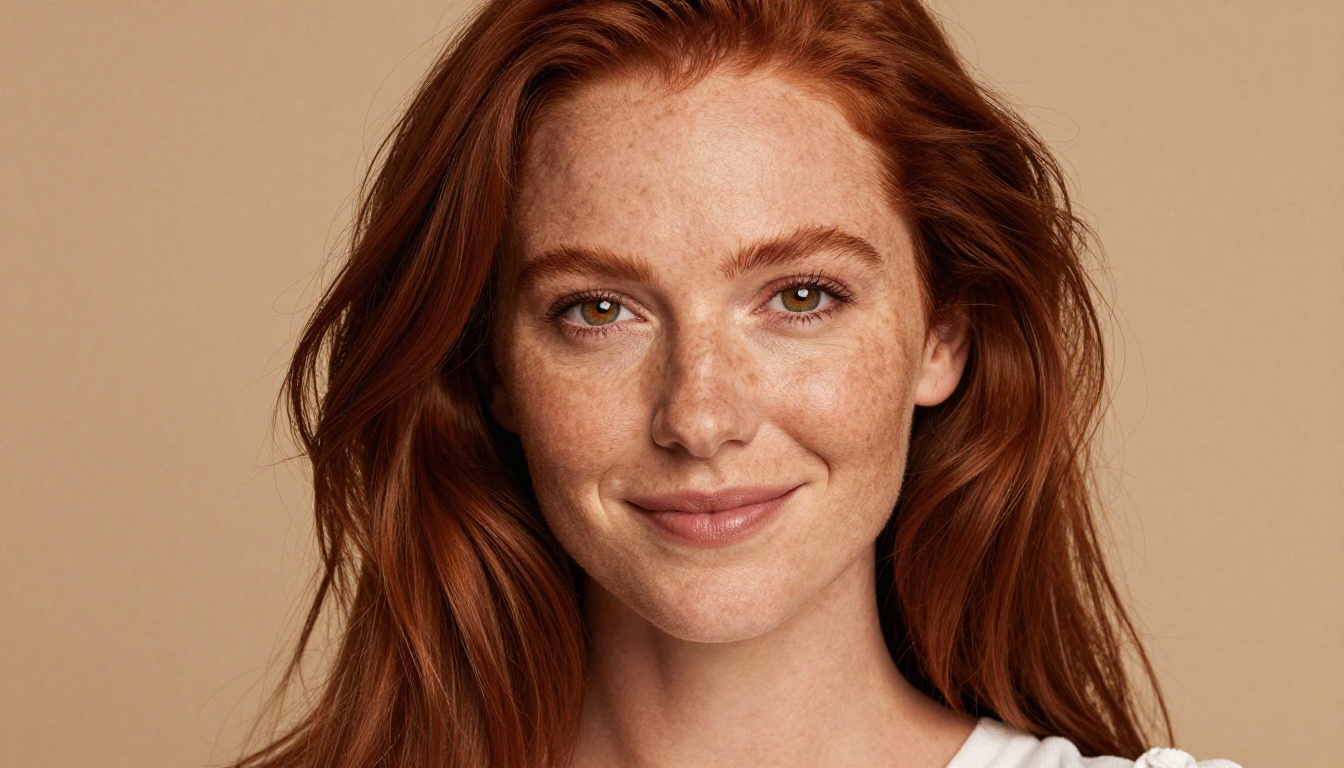
| Tool | Speed | Max Resolution | Content Freedom | Usage Limits |
|---|
| Seedream 4 | Fast | 4K | High | None on PicassoIA |
| Flux Schnell | Very fast | 1 MP | Moderate-High | None on PicassoIA |
| Flux Dev | Medium | 1 MP | High (optional safety checker) | None on PicassoIA |
| Flux Pro | Medium | 1 MP | Tunable (1-6 tolerance) | None on PicassoIA |
| Stable Diffusion | Slower | 1024px | Very High | None on PicassoIA |
💡 All five models run without credit caps on PicassoIA. You can switch between them freely within the same session depending on what each particular prompt needs.
The workflow that works best for most creators: start with Flux Schnell for rough drafts, move to Seedream 4 for final quality output, and use Flux Dev when image-to-image editing is needed. That three-model flow handles the vast majority of creative production work without any usage costs.
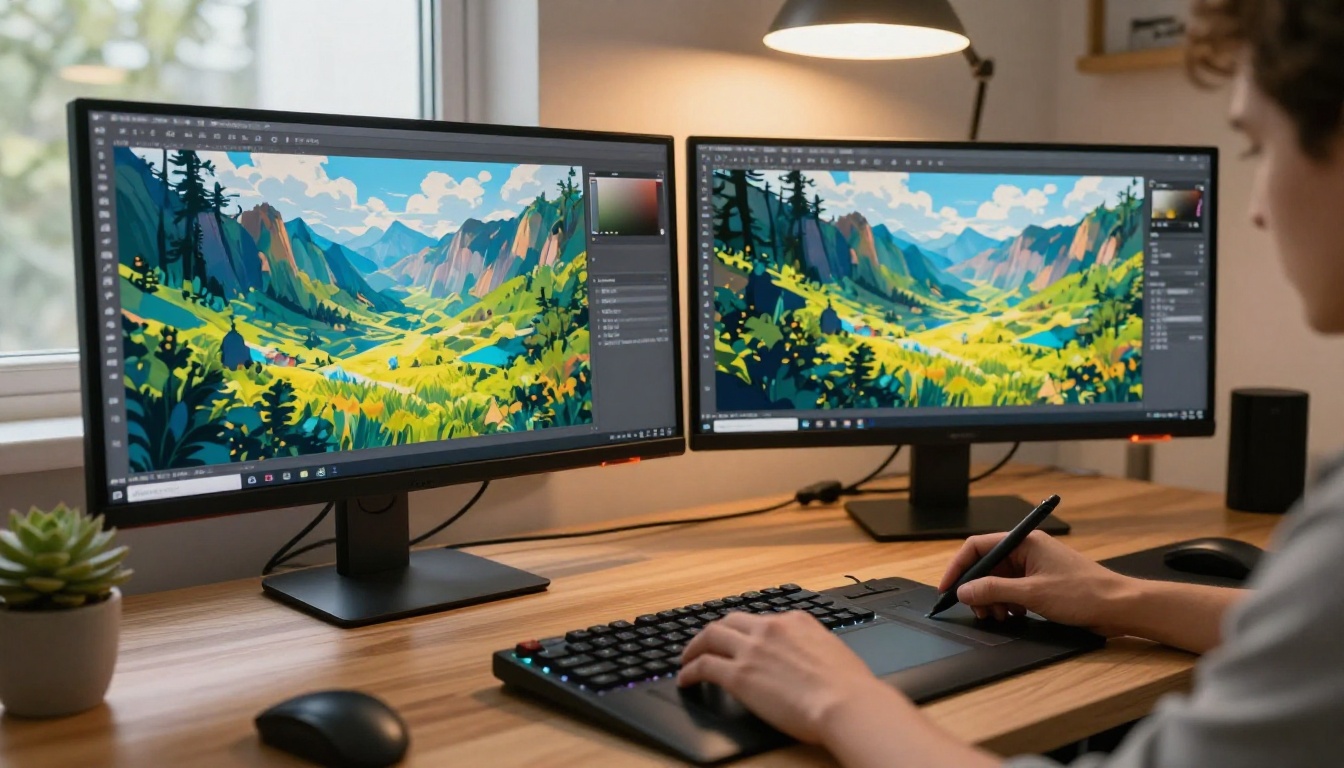
Remove Backgrounds From Any Generated Image
Once you have your image, removing the background is a natural next step for product shots, portrait composites, or any creative project requiring a clean cutout. PicassoIA's background removal tool handles this automatically with sharp, accurate edge detection.
The process takes seconds: upload your generated image, and the AI produces a clean PNG with a transparent background ready for compositing. For creators working in iterative loops, this means generating a portrait with Seedream 4, removing its background, and placing it into a new scene without leaving the platform.
Workflow for composite work:
- Generate the subject image with Seedream 4 (tight crop, clear foreground subject)
- Remove the background with the background removal model
- Generate a separate background scene with Flux Dev or Flux Pro
- Composite the results in any image editor for the final piece
This is how content creators build photorealistic composite images without expensive photography sessions or sourcing licensed stock photos.
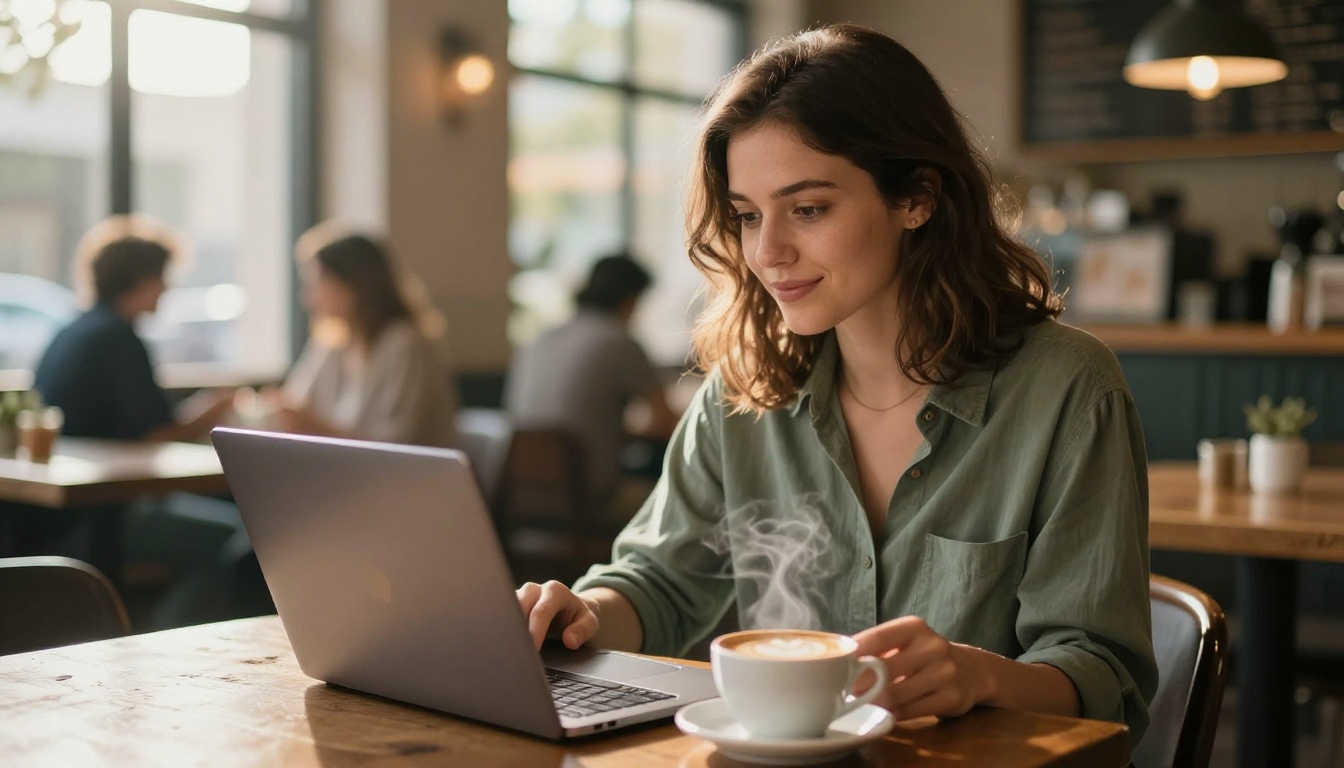
Add Visual Effects to Your Images
Beyond generation, PicassoIA's visual effects library gives you post-processing options that would otherwise require dedicated desktop software. Whether you need cinematic color grading, artistic overlays, or stylization treatments, the platform handles them natively so your workflow stays in one place.
For creators working with artistic and glamour content, this is particularly useful: generate a clean portrait, apply a visual effect that adds mood or atmosphere, and export directly. No round-tripping to Lightroom or Photoshop for a single treatment.
The effects library on PicassoIA covers a wide range of image treatments, from film simulation and grain overlays to color palette shifts and tonal adjustments. This is the kind of post-processing capability that was previously limited to desktop applications, now running in a browser on any device.
When Outputs Are Still Getting Blocked
Even on permissive platforms, there are situations where a prompt does not produce the expected result. Here is the fastest troubleshooting sequence when that happens:
- Increase specificity: Vague prompts default to conservative interpretations. Add camera specs, lighting details, and scene context to clarify artistic intent.
- Add "photorealistic, RAW photography": These qualifiers push models toward naturalistic outputs, which face fewer restrictions than stylized or illustrated imagery.
- Use a reference image: Image-to-image mode on Flux Dev reduces reliance on text interpretation entirely. Show the model the visual direction you want.
- Switch models: If Flux Schnell is blocking a prompt, try Seedream 4. Different models have different thresholds for the same type of content.
- Adjust the safety tolerance: On Flux Pro, raise
safety_tolerance from the default 2 toward 5 or 6 for more permissive generation without changing anything else in your prompt.
💡 Running on PicassoIA means your generations are not routed through an automated consumer flagging queue. The platform is built for professional creative use, and that shows in how the models respond to bold prompts.
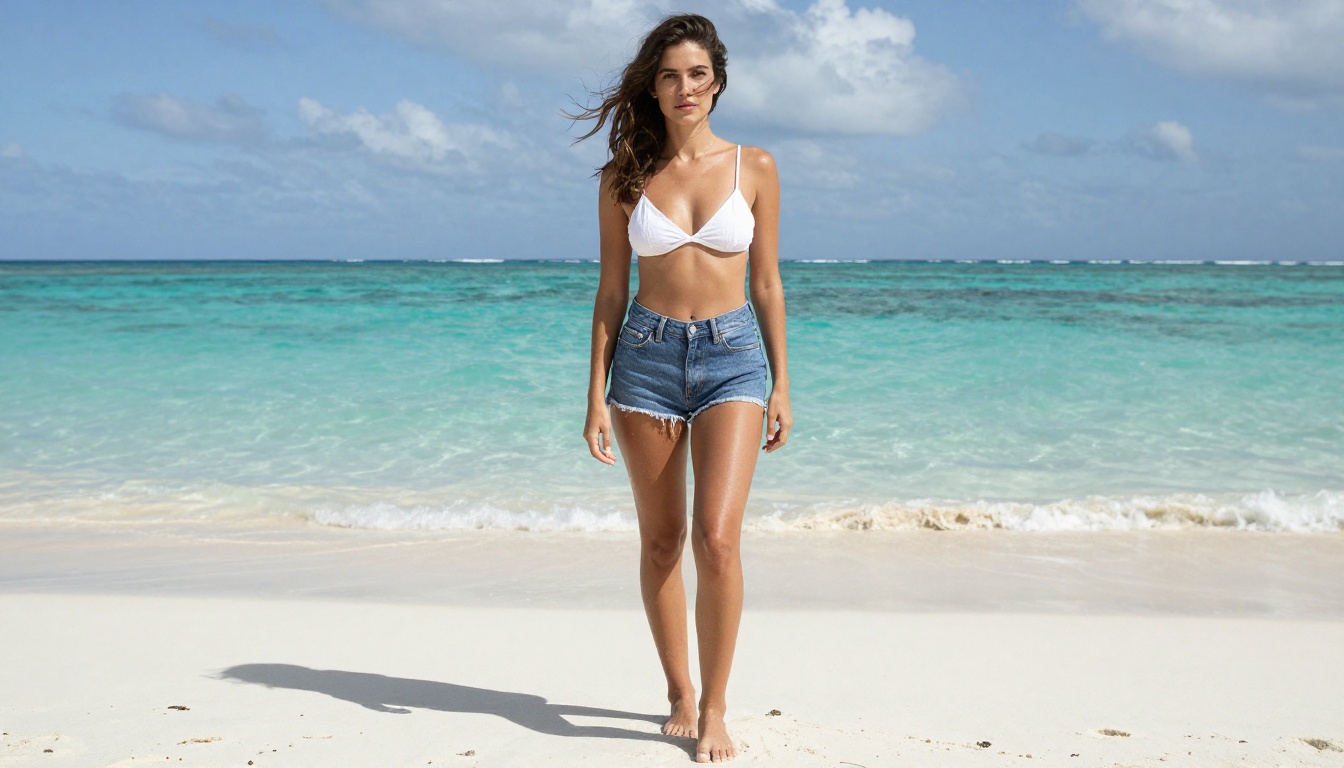
Start Creating Without Restrictions
The tools exist. The models are free. The only variable is your prompt quality.
PicassoIA gives you access to every model in this article, including Seedream 4, Flux Schnell, Flux Dev, Flux Pro, and Stable Diffusion, all without credit caps or usage limits.
If you are serious about unrestricted AI image generation, bookmark picassoia.com/en/all-models. It is the largest collection of free text-to-image models available on a single platform, updated as new models are released throughout the year.
Start with Seedream 4 for your first session. Write a detailed photorealistic prompt with proper lighting and camera context, set your aspect ratio, and run it. Iterate from there. The ceiling on what you can produce is set by your prompt quality, not the platform's content policy.


