The gap between "looks like AI" and "looks completely real" has never been smaller. Free AI lipsync tools have crossed a threshold where even trained eyes struggle to spot the difference between an AI-synced video and footage filmed live on set. Whether you are a solo content creator who needs to re-record dialogue without reshooting, a marketer dubbing videos into multiple languages, or a filmmaker who wants a photo to speak, the options available right now are genuinely impressive. This article breaks down every major free AI lipsync tool worth using in 2027, ranks them honestly, and shows you exactly how to get started on PicassoIA without spending anything.
Why Lipsync AI Has Gotten This Good
A couple of years ago, AI-synced lips had a tell: the movements were slightly stiff, the phoneme transitions were jerky, and the jaw moved without the rest of the face following. That is not the case anymore. The generation of models launching in 2024 and 2025 was trained on vastly larger datasets, and the loss functions now penalize temporal inconsistencies in ways that produce smooth, natural-looking mouth movements across varied lighting and head angles.
How the Models Actually Work
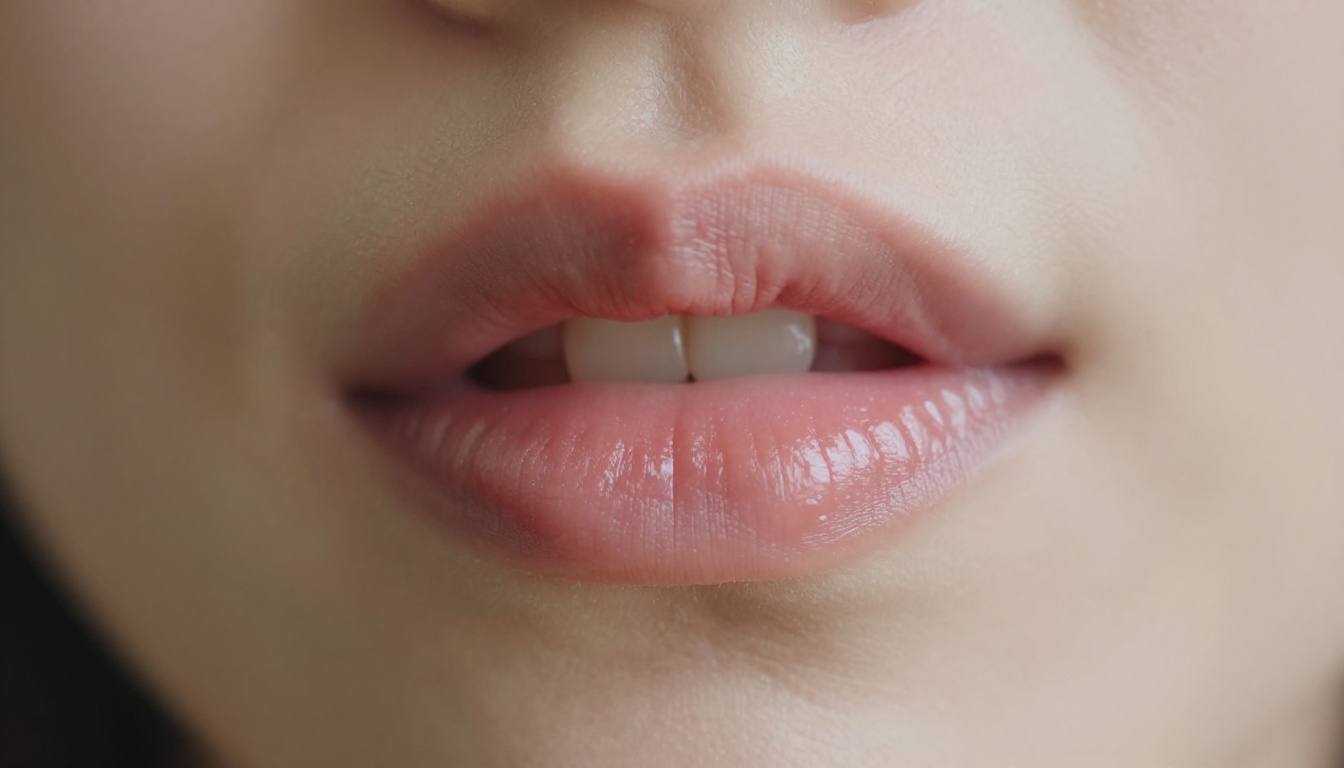
Modern lipsync models operate by separating a video's face region from the rest of the frame, running a phoneme-to-viseme mapping against the input audio, and then blending the synthesized mouth region back into the original clip with perceptual coherence. The best models, like Omni Human 1.5 from ByteDance, go further by modeling subtle secondary motions: the slight widening of the nostrils during certain sounds, the micro-tension in the jaw, and the natural asymmetry of real human speech.
The Accuracy vs. Speed Tradeoff
Not every tool optimizes for the same thing. Some, like Lipsync Speed from HeyGen, are built for rapid turnaround. You upload a short clip, get a result in under a minute, and the output is clean enough for social media. Others, like Lipsync 2 Pro from Sync, take longer but produce outputs with finer facial coherence, making them better for professional productions where the lipsync will be scrutinized closely.
💡 Quick pick: If your video is under 60 seconds and you need it fast, start with a speed-optimized model. For longer or close-up shots where the mouth fills the frame, go with a precision model.
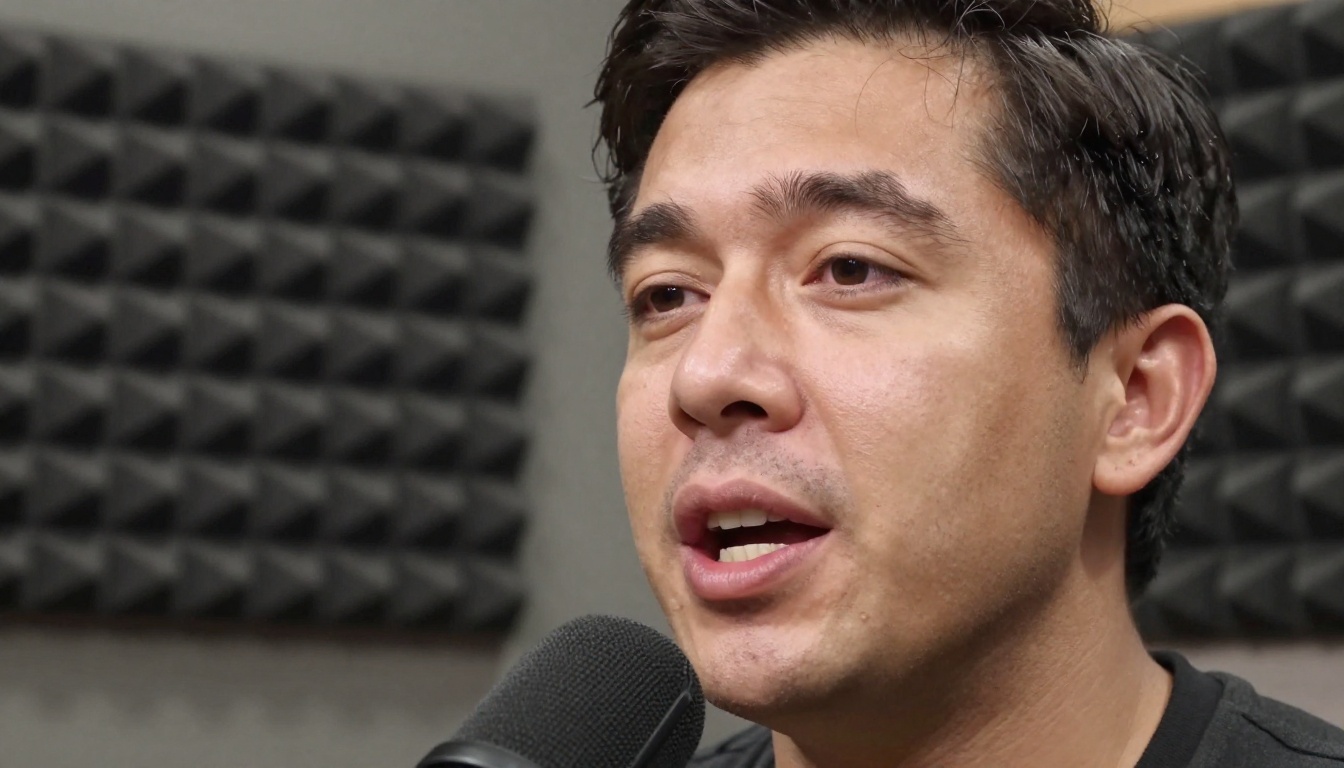
The following tools all have free tiers that produce usable output without watermarks large enough to ruin the result. Free tier limits vary, but each one is genuinely functional at no cost.
Sync Lipsync 2 and Lipsync 2 Pro
Sync.so built two separate models targeting different quality tiers, and both are accessible on PicassoIA. Lipsync 2 is the everyday workhorse: fast inference, consistent outputs across different face types, and solid handling of non-English phonemes. Lipsync 2 Pro sits above it with refined temporal consistency, making it noticeably better for speakers who use wide jaw openings or who speak with strong regional articulation.
What sets them apart:
- Lipsync 2: Best for batch work, social content, and quick iterations
- Lipsync 2 Pro: Best for professional videos, close-up shots, and multilingual content
Both support video-to-video and audio-file inputs, which means you can either replace existing dialogue or add speech to a silent clip. The audio analysis handles both recorded speech and text-to-speech outputs, so you can generate a voice with PicassoIA's text-to-speech tools and pipe it directly into the lipsync model for a fully AI-produced talking-head video.
HeyGen Lipsync Precision and Speed
HeyGen offers two flavors on PicassoIA: Lipsync Precision and Lipsync Speed. The naming is straightforward. Precision runs slower but produces results where lip corners, chin movement, and upper-lip curl all track together. Speed sacrifices some of that coherence for near-instant outputs.
HeyGen's models are particularly strong with frontal-facing subjects. If your source video has the subject looking at the camera, these tools deliver some of the cleanest results in this tier. Profile views or extreme angles reduce accuracy noticeably, which is worth keeping in mind when selecting source footage.
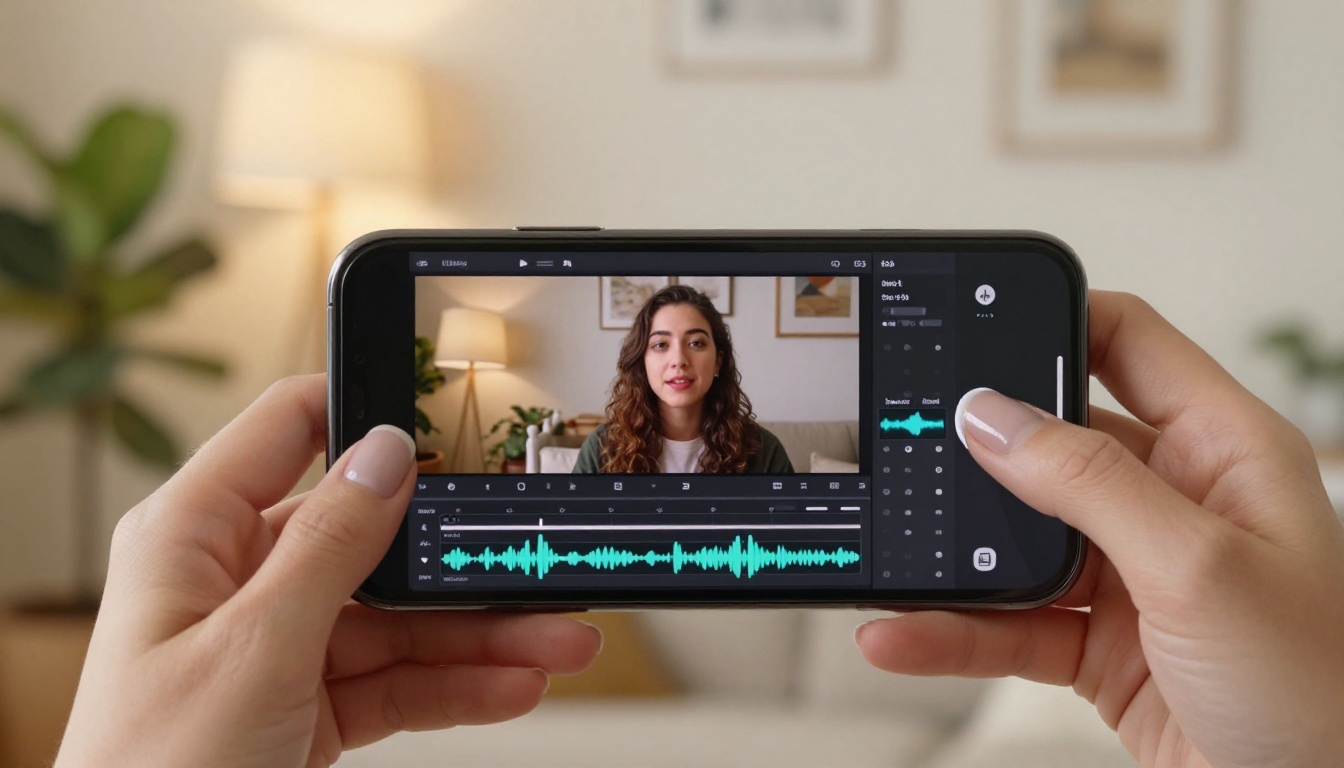
Bytedance Omni Human 1.5
Omni Human 1.5 is one of the most impressive free lipsync models available right now. Built by ByteDance, the team behind TikTok's video infrastructure, this model was trained with an emphasis on naturalness over precision metrics. The result is lipsync that looks organic rather than mechanical.
What makes Omni Human 1.5 special is its handling of head micro-movements. Real speakers do not hold perfectly still while talking. Their head bobs slightly, their eyebrows shift, and their neck muscles tighten during stressed syllables. Omni Human 1.5 generates these secondary movements automatically, making the final video feel alive rather than assembled from separate parts.
Its predecessor, Omni Human, is still available and works well for simpler tasks where you do not need the enhanced motion generation.
💡 Pro tip: Omni Human 1.5 works best when the source video or photo has consistent, even lighting. Harsh shadows across the face can cause the model to generate slightly inconsistent shadow transitions during lip movement.
Kling Lip Sync
Kling Lip Sync from Kwai VGI takes a different technical approach. Where most lipsync models focus exclusively on the mouth region, Kling's model processes the full face region including cheeks, chin, and lower forehead. This gives it an edge with subjects who have strong facial expressions during speech, producing synced output where the entire lower face responds realistically to the phonemes.
It handles fast speech particularly well. Rapid dialogue that other models render as a blur of indistinguishable movement comes through with Kling as distinct, readable mouth shapes. For interview content, documentary voice-overs, or any scenario where the subject speaks quickly, this model is worth trying first.
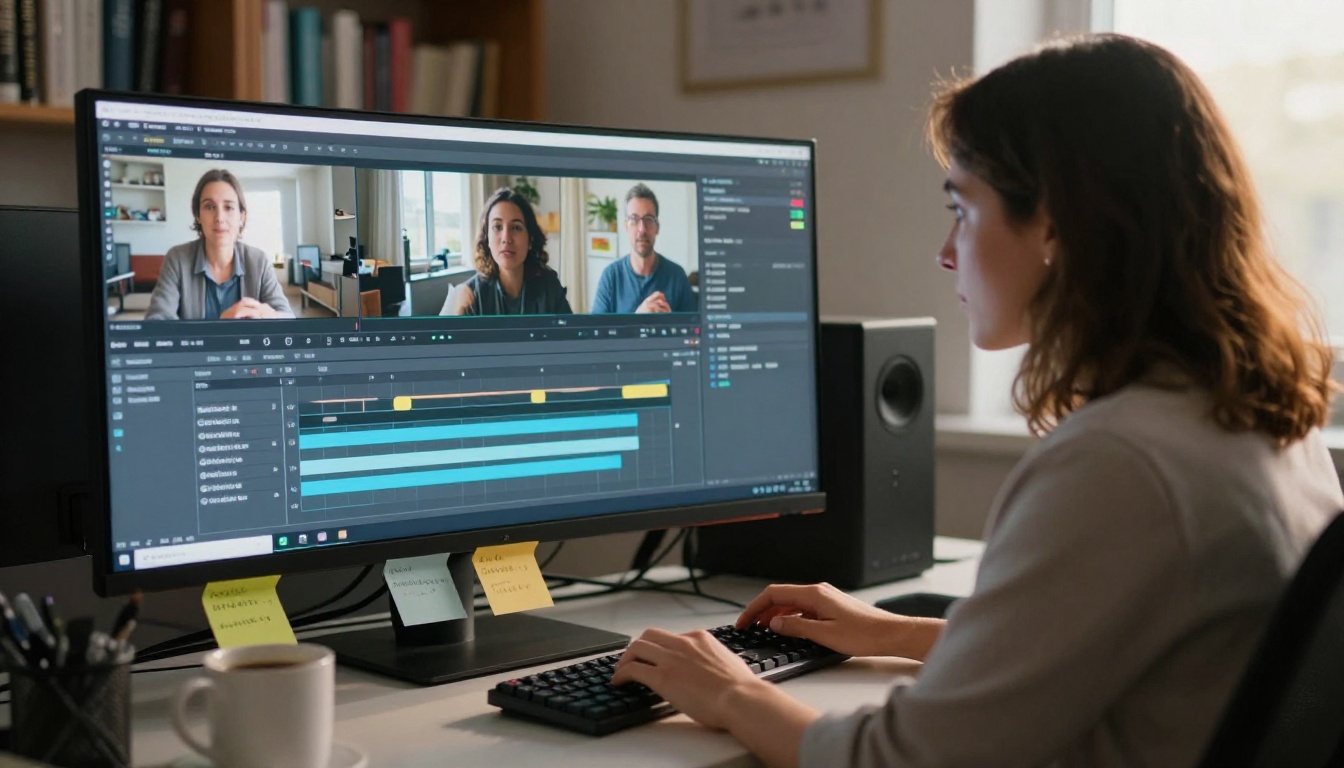
Some lipsync models go beyond video and can animate a still photograph into a speaking video. This is a fundamentally different technical challenge because the model must generate motion from nothing rather than replace existing motion. The best photo-animation tools do it convincingly enough that viewers cannot tell the source was a static image.
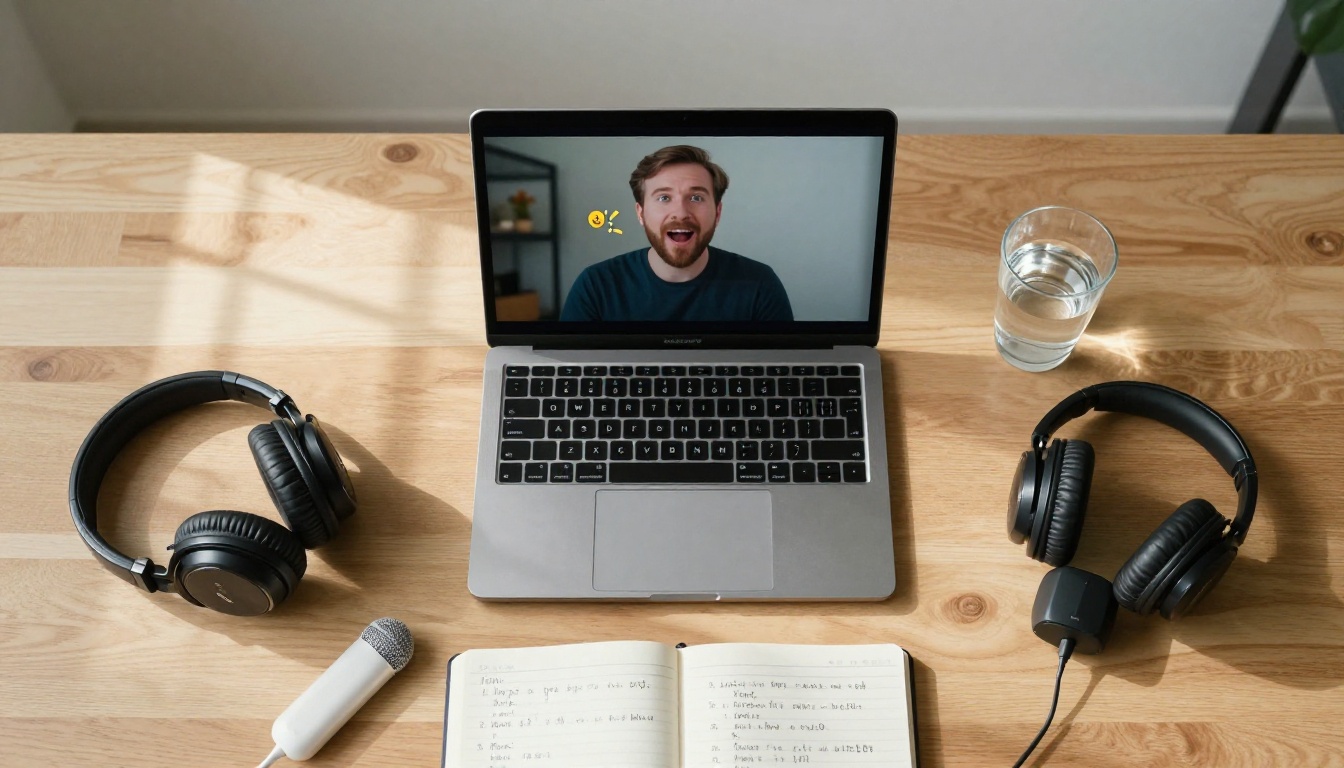
P Video Avatar
P Video Avatar by Prunaai is specifically designed for avatar creation from a single image. Upload a clear photo of a face, provide an audio file or text, and the model generates a talking-head video. The output maintains the photographic quality of the source image while producing natural-looking speech animation.
This is the tool to reach for when you want to create a spokesperson from a photo rather than recorded video footage. It is especially useful for:
- Creating presenters for online courses and training materials
- Animating historical photographs for educational content
- Producing spokespersons for brands that do not have existing video assets
- Generating multilingual versions of a presenter without re-filming
VEED Fabric 1.0
Fabric 1.0 from VEED approaches photo animation with an emphasis on skin texture preservation. One of the most common failure modes in photo-to-video lipsync is that the AI smooths out the skin around the mouth during animation, producing an uncanny transition between the animated region and the static parts of the face. Fabric 1.0 specifically addresses this by preserving micro-texture detail throughout the animation cycle.
For portrait photos with high detail, such as professional headshots and high-resolution photography, Fabric 1.0 often produces more convincing results than models optimized purely for motion accuracy. The texture fidelity makes a meaningful difference at larger screen sizes.
Sync React 1
React 1 from Sync approaches lipsync from the angle of reactivity, meaning the model generates not just the lip movements but the subtle emotional micro-expressions that accompany natural speech. A subject saying something forceful will have slightly different facial muscle tension than the same subject saying something casual. React 1 attempts to capture this distinction, producing outputs that feel emotionally coherent rather than mechanically synced.
Dubbing Into Other Languages
One of the most commercially valuable applications of lipsync AI is video translation. You have video in one language, and the tool not only translates the audio but re-syncs the lips to match the new language's phonemes. Different languages have fundamentally different mouth movement patterns, and models that ignore this produce obviously incorrect results.

HeyGen Video Translate
Video Translate from HeyGen handles translation into more than 150 languages. The model manages both the audio translation and the lipsync adaptation simultaneously, which matters because Spanish open vowels look different from Mandarin tones, and a model that simply overlays translated audio without adjusting the visemes produces obviously wrong results.
HeyGen's translation model handles linguistic adaptation automatically, making it the primary choice for content teams that need to localize video at scale. The free tier supports several language pairs, which is enough to test whether it fits your workflow before moving to a paid plan.
Languages with the strongest lipsync accuracy:
- English, Spanish, French, German, Portuguese
- Japanese, Korean, Mandarin Chinese
- Hindi, Arabic, Italian
PixVerse Lipsync
PixVerse Lipsync from PixVerse is worth including for its clean, simple interface. It strips out complexity and focuses on doing one thing reliably: syncing an audio input to an existing video. The output quality sits in a solid middle tier, good enough for most content creation needs while remaining fast and accessible for anyone new to AI video tools.
How to Use Omni Human 1.5 on PicassoIA
PicassoIA puts all of these models in one place at picassoia.com, with no installation required. Here is a step-by-step walkthrough using Omni Human 1.5, which consistently produces the most natural-looking results across different source materials.
Step-by-Step Walkthrough
Step 1: Open the model
Go to Omni Human 1.5 on PicassoIA. You will see the input panel on the left and the output preview on the right. No account is required to run a test generation.
Step 2: Upload your source
Click the image or video upload area and select your file. For best results, use a frontal or near-frontal photo or video clip where the face is clearly visible. Minimum recommended resolution is 512x512 pixels.
Step 3: Add your audio
Upload an audio file in MP3 or WAV format containing the speech you want to sync. Make sure the audio is clean, with minimal background noise. Longer silences at the start or end of the file can cause the model to generate awkward stillness, so trim them before uploading.
Step 4: Run the generation
Click the generate button. Processing time depends on the length of your audio and current server load, typically between 20 seconds and 2 minutes for a clip under 30 seconds.
Step 5: Review and download
Preview the result in the built-in player. If the lipsync looks off in specific segments, regenerate with a different seed value. Download the final video in your preferred format when you are satisfied.
Tips for Better Results
- Lighting matters more than resolution: A low-resolution photo with even lighting beats a high-resolution photo with harsh shadows every time.
- Trim your audio: Remove long silences at the beginning and end. The model can produce awkward stillness when it waits for speech to start.
- Match the language: While Omni Human 1.5 handles multiple languages, phoneme accuracy is strongest for languages with the most training data. For non-English content, also test Lipsync Precision as a comparison.
- Use neutral expressions: Source images or video frames with a relaxed, neutral expression produce cleaner animation because the model has more facial range to work with.
- Short clips first: Test with a 5 to 10 second clip before processing your full video. This lets you validate quality without waiting for a long generation.
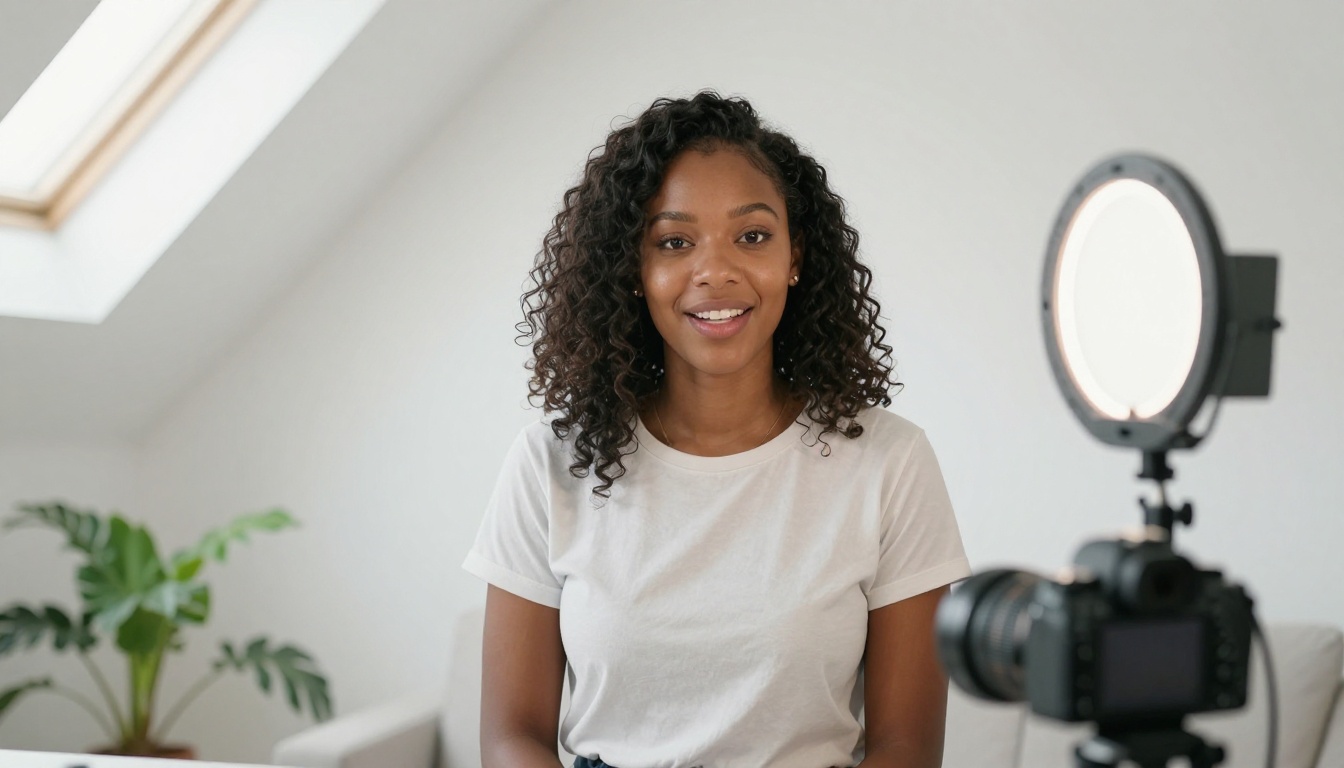
Different scenarios call for different models. Here is a direct comparison across the main use cases to help you pick without trial and error:
| Use Case | Recommended Model | Why |
|---|
| Social media clips | Lipsync Speed | Fast turnaround, clean output |
| Professional re-dubbing | Lipsync 2 Pro | Highest temporal consistency |
| Photo to talking video | P Video Avatar | Specifically designed for stills |
| Multi-language dubbing | Video Translate | 150+ language support built in |
| Natural avatar video | Omni Human 1.5 | Best secondary motion generation |
| Fast speech content | Kling Lip Sync | Strong on rapid phoneme sequences |
| High-detail portrait | Fabric 1.0 | Preserves skin texture fidelity |
| Emotional speech | React 1 | Generates micro-expression response |
💡 Not sure where to start? Try Omni Human 1.5 first. It has the broadest quality envelope of the free models and works well across most content types without needing special source material.
Lipsync Quality Checklist
Once you have generated a lipsync video, run through this checklist before publishing. Catching these issues takes two minutes and prevents embarrassing results from going live.
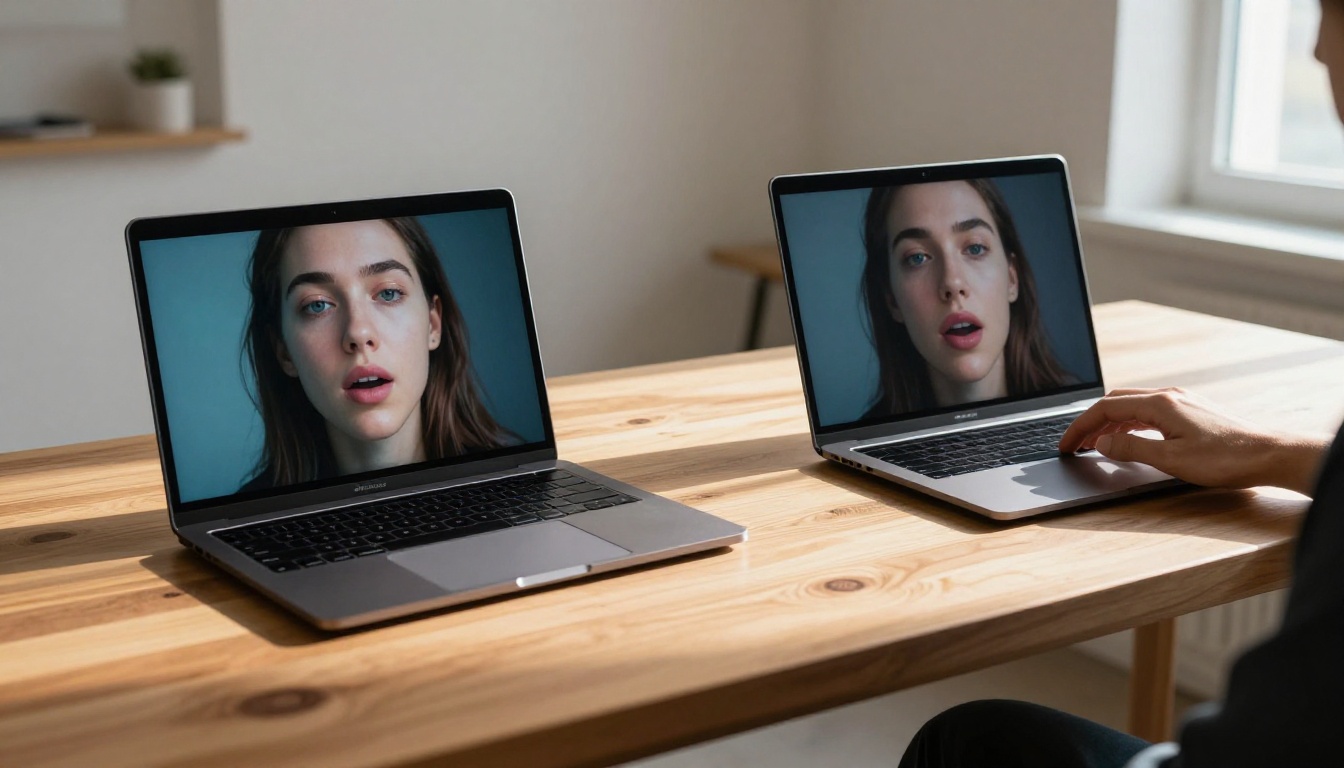
Following this checklist will catch the most common failure modes before your audience does.
Create Your First Lipsync Video Now
PicassoIA hosts all twelve lipsync models from this article at picassoia.com/en/all-models, alongside more than 500 other AI models spanning image generation, video production, voice synthesis, and beyond.
The barrier to producing professional lipsync video has effectively disappeared. The same quality that required expensive post-production suites just two years ago is now accessible in a browser tab for free. Start with Omni Human 1.5 for the most natural-looking results, reach for Lipsync 2 Pro when precision matters most, and when you are ready to go multilingual, Video Translate handles more than 150 languages without any additional setup.
Every model runs right now on PicassoIA. No downloads, no installations, no expensive subscriptions required to test what these tools produce with your content. Pick a photo, record some audio, and see what they can do.


