You took the shot. The composition is perfect, the moment captured exactly right. But when you zoom in, the pixels dissolve into mush. The resolution isn't there. That's the exact problem a free AI upscaler for 4K photos solves, and it solves it in a way that would have seemed impossible five years ago.
Today's AI super resolution models don't just stretch pixels. They predict new detail, reconstruct texture, and fill in edges with learned precision. A 1-megapixel phone photo becomes a usable 4K file. A grainy scan from the 1990s gains real depth and clarity. Old family portraits get their detail back. And the best part: you don't need to pay for any of it.
The free AI upscalers available online in 2027 are genuinely powerful. Knowing which one to use, and when, is what separates a result that looks naturally sharp from one that looks like an oversharpened mess.
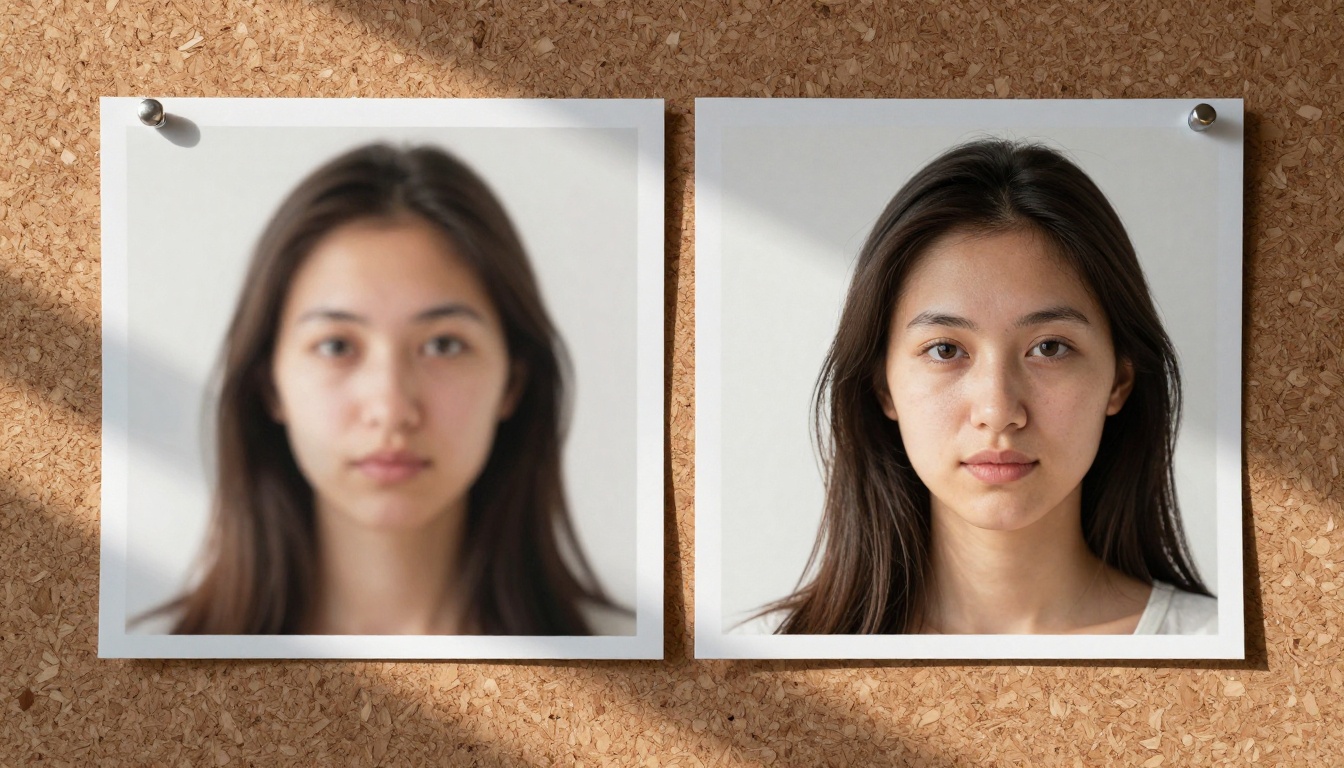
What AI Upscaling Actually Does
Most people assume upscaling is just making an image bigger. That assumption leads to disappointing results because it misses what AI actually changes about the process.
Resize vs. Upscale: Not the Same Thing
When you resize an image in any standard editor, you're telling the software to create new pixels by sampling and blending colors around existing ones. It's interpolation. The result is a larger image that's consistently blurrier than the original. You've added size but removed sharpness.
AI upscaling works on a completely different principle. Models like Real-ESRGAN were trained on massive datasets of matched high and low-resolution image pairs. Through that training, the model learned what textures, surfaces, and structures are supposed to look like at 4K resolution. When it sees a blurry portrait, it doesn't average the existing pixels. It reconstructs hair strands, skin pores, fabric weave, and architectural lines based on what it knows those elements look like in high detail.
The output isn't an approximation of higher resolution. It's a photorealistic reconstruction.
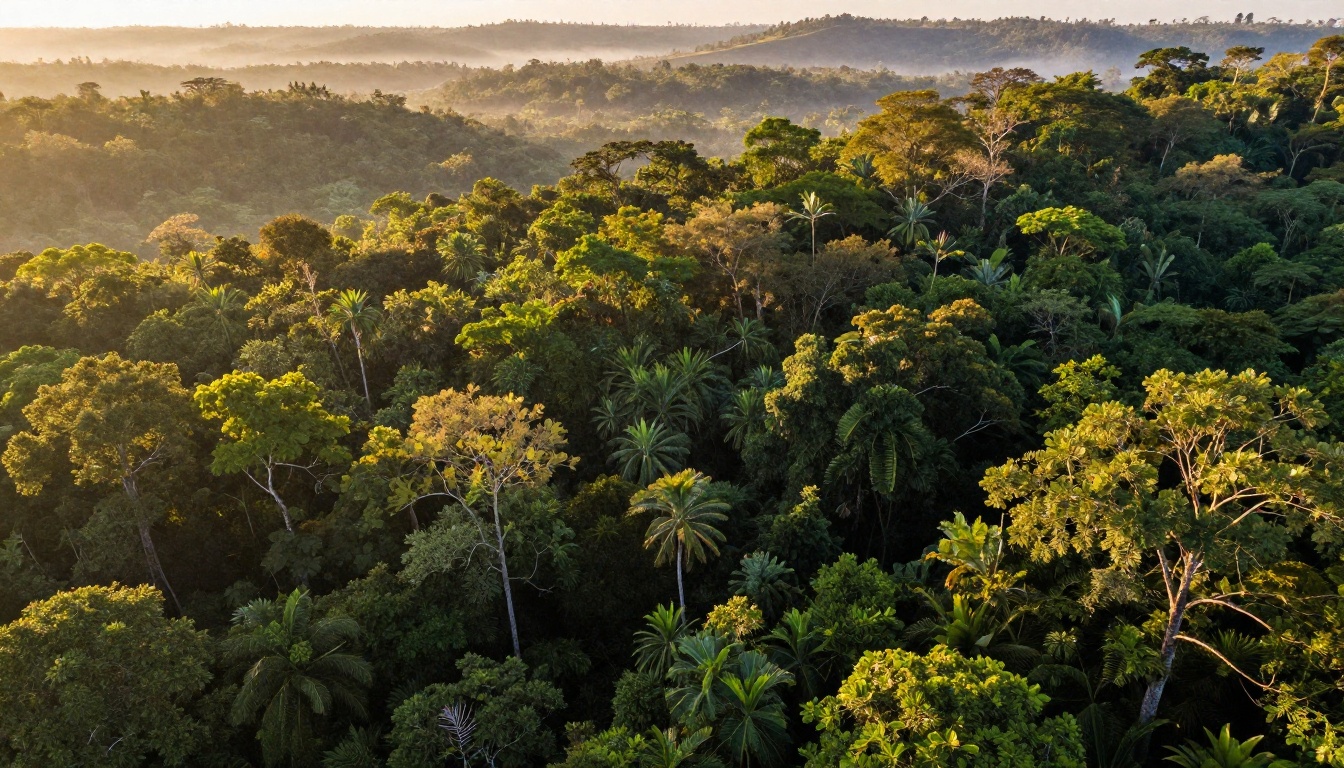
Why AI Beats Traditional Methods
Bicubic and Lanczos interpolation have been the standard upscaling algorithms for decades. They're fast, predictable, and hit their quality ceiling at around 2x. Beyond that, the math simply doesn't have enough information to work with, and sharpness degrades quickly.
AI models have no such ceiling because they're not performing math on existing pixels. They're generating new pixels based on learned context. The practical difference is significant:
- A 1MP phone photo becomes a usable 4K file
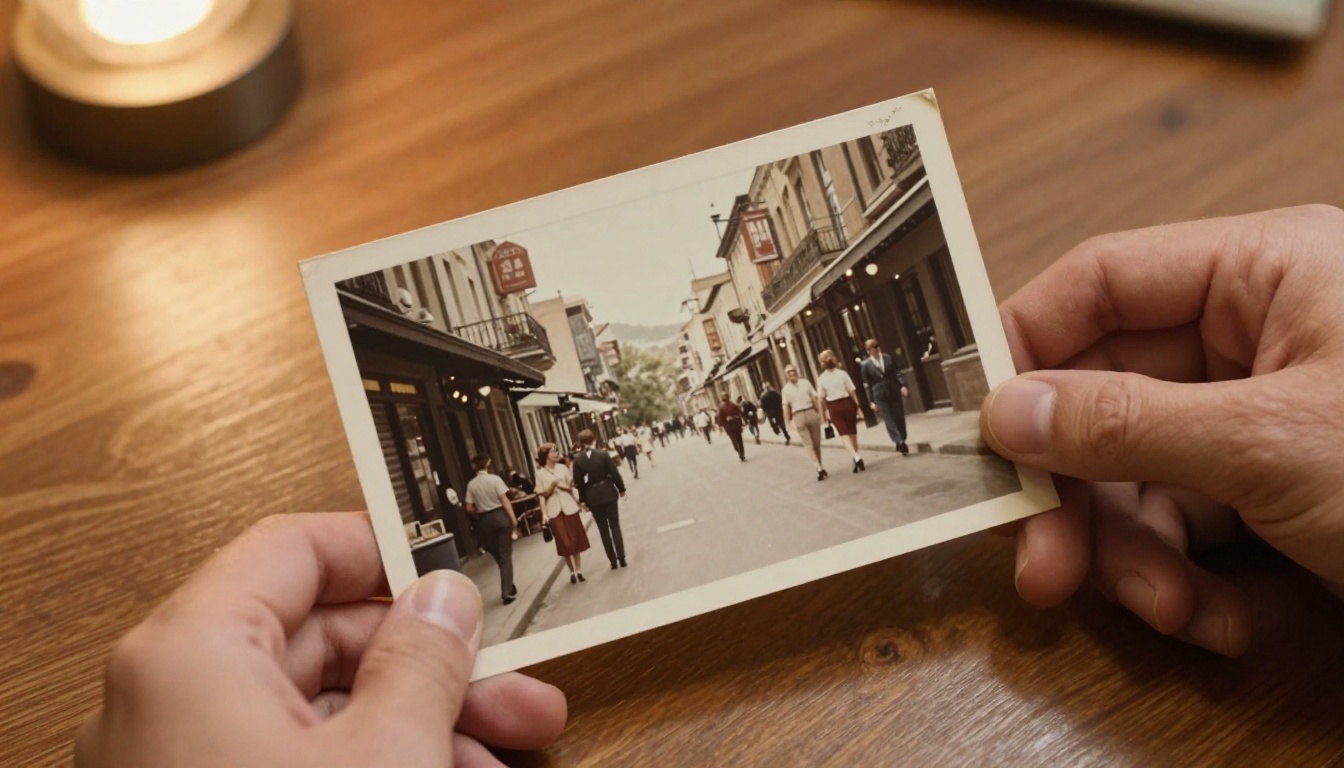
- Scanned film prints from the 1960s-1980s gain real texture and depth
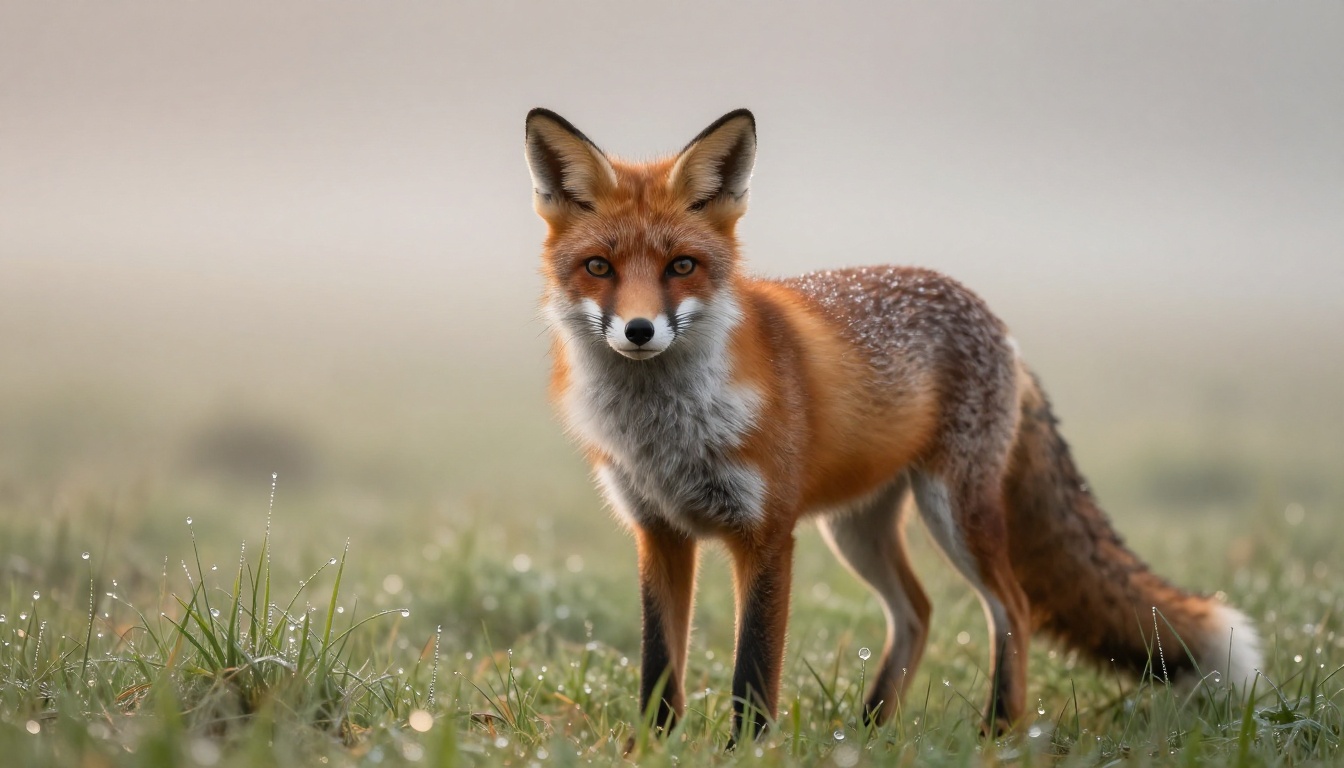
- Wildlife shots taken with entry-level gear look like they were captured with professional telephoto lenses
- Screenshot-quality images become print-ready for large format output
💡 The sweet spot for AI upscaling is 2x to 4x. Beyond that, even AI models are generating detail that didn't exist in the source, and results begin to look artificial. For maximum scale, Topaz Image Upscale is the exception, built specifically for 6x output.
7 Free AI Upscalers for 4K Photos
All seven of these models are available on PicassoIA's super-resolution collection. Each solves a different problem. None require downloads, no subscriptions to test, no watermarks on output.
Real-ESRGAN: Sharp Results on Any Photo
Real-ESRGAN is the most widely deployed open-source upscaler available. It was designed specifically for real-world image degradation, meaning blurring from camera shake, compression artifacts from heavy JPEG encoding, and general noise all get addressed alongside the upscaling.
What makes Real-ESRGAN stand out is its range. Landscapes, portraits, street photography, architectural shots, old scanned prints: it handles all of them well. The 4x output consistently retains edge definition and brings out texture that was compressed away in the original.
Best for: General photography, mixed content, old scanned photos, social media images
Google Upscaler: Clean 4x Without Fuss
Google Upscaler takes a cleaner, more conservative approach to super resolution. Where some models add visible sharpening that gives images an over-processed look, Google's model prioritizes naturalness. The final image looks like it was captured at higher resolution, not sharpened in post.
For professional photography where the goal is a result that looks completely unprocessed, this is the right model. Product photographers and architectural shooters particularly benefit from its restrained approach to added detail.
Best for: Product photography, architectural images, professional prints where subtlety matters
Crystal Upscaler: Built for Portraits
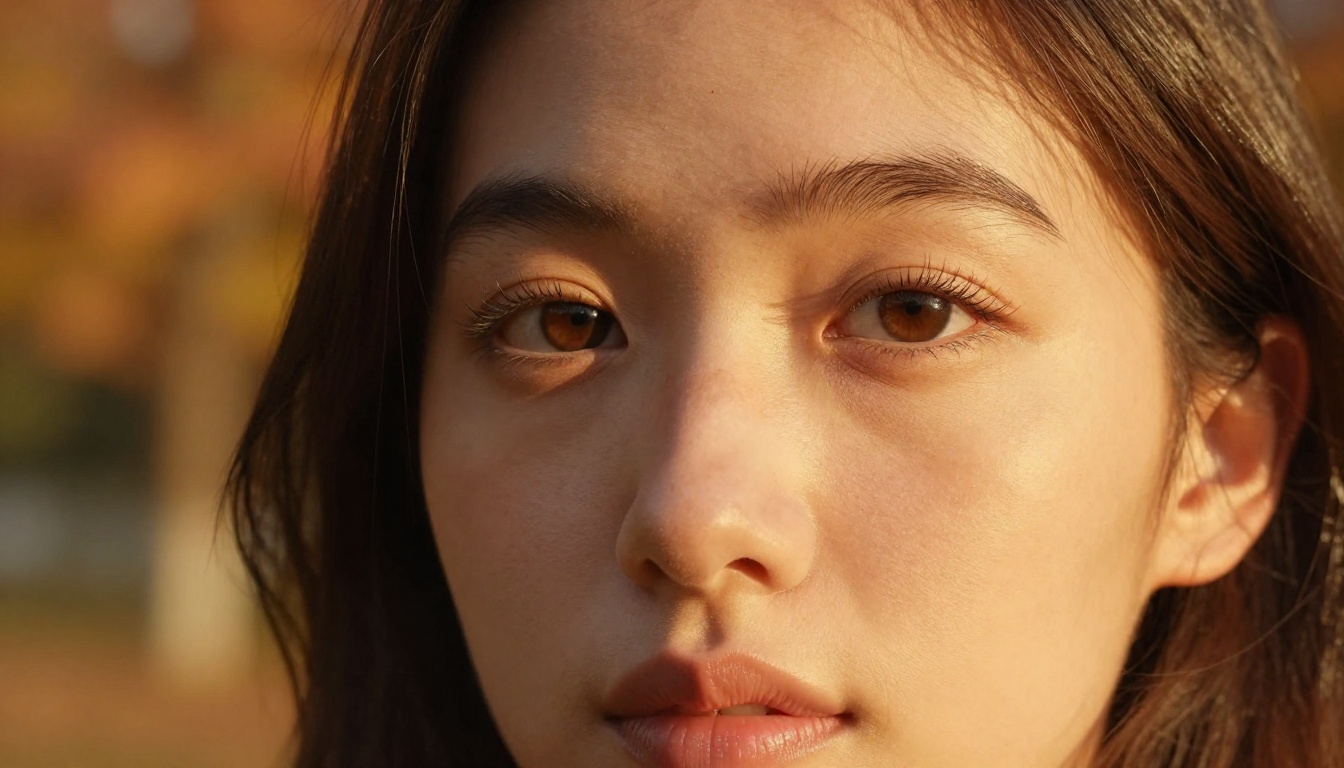
Crystal Upscaler was specifically trained on portrait data. Feed it a face and it reconstructs eye clarity, individual hair strands, skin pore texture, and lip detail at a level of precision that general-purpose models can't consistently match.
The 4x portrait results are genuinely impressive. Fine features that were soft and indistinct in the original come back defined and natural-looking. If you're upscaling headshots, fashion photography, or wedding portraits at any scale, this is the model to use first.
Best for: Portraits, headshots, fashion photography, any image with faces as the primary subject
Topaz Image Upscale: Up to 6x Detail
Topaz Image Upscale is in a different category because it goes beyond the standard 4x ceiling. With 6x upscaling, it's the tool of choice when you need to bring a small image to truly large output: billboard printing, large canvas prints, archival restoration of small originals.
Topaz Labs has been building professional photo enhancement software for over a decade. That depth of experience is visible in how the model handles micro-detail at extreme magnification. Fine textures, thin edges, and complex surfaces all hold up at 6x in ways that other models can't maintain.
Best for: Large format printing, archival restoration, wildlife photography at maximum crop
Recraft Crisp Upscale: Fast and Precise
Recraft Crisp Upscale lives up to its name. It produces sharp, high-contrast results quickly. Edges come out clean, defined, and precise. For images where crisp edge rendering matters more than smooth tonal gradients, this model consistently performs.
Architecture photographers, product photographers shooting against white backgrounds, and anyone who needs hard-edged subjects to look tack-sharp will find Recraft Crisp a reliable choice.
Best for: Architecture, product shots, images with hard geometric edges
Recraft Creative Upscale: Adds Texture and Depth
Recraft Creative Upscale works differently from its sibling. Rather than just sharpening existing information, it actively adds texture and surface depth to the image. Fabric gains weave structure, skin gains natural pore texture, grass gains individual blades, water gains ripple detail.
The results feel more alive than standard upscaling output. Where most models make images look sharper, Recraft Creative makes them look richer. It's the right pick when you want the final image to feel immersive, not just enlarged.
Best for: Nature photography, fashion, texture-rich scenes, artistic portrait work
Bria Increase Resolution: Reliable 4x Output
Bria Increase Resolution focuses on consistent, commercial-grade upscaling up to 4x. It handles a wide range of content types reliably and is particularly strong at preserving the original color accuracy and tonal balance while adding resolution. No dramatic sharpening, no texture invention: just clean 4x output that holds the original's character.
For professional workflows where predictable, consistent output matters more than dramatic enhancement, Bria is a solid pick for batch upscaling work.
Best for: Commercial photography, e-commerce product images, consistent batch processing workflows
How to Use Real-ESRGAN on PicassoIA
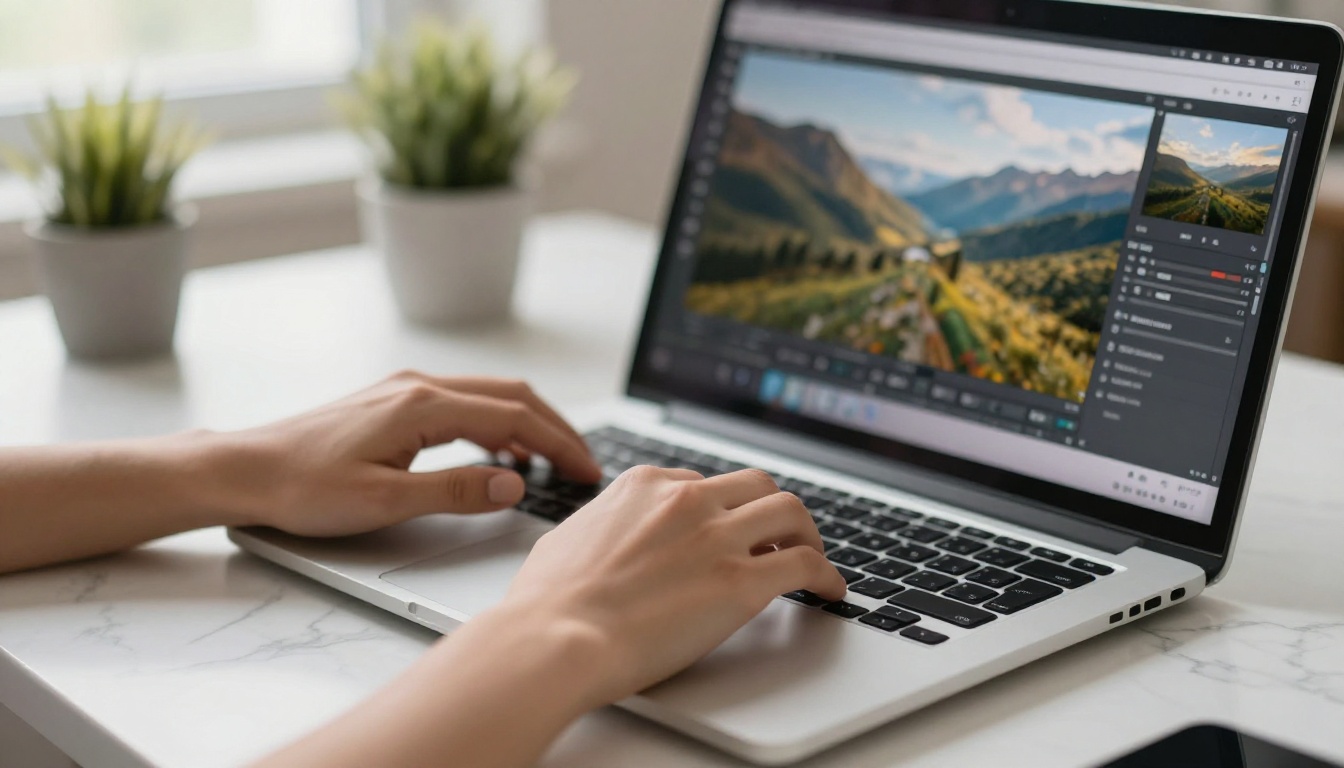
Since Real-ESRGAN is the most versatile free AI upscaler for 4K photos on the platform, here's exactly how to run it.
Step-by-Step on PicassoIA
Step 1: Open the model page
Navigate to the Real-ESRGAN page on PicassoIA. No account is required to run the model.
Step 2: Upload your photo
Click the upload zone and select your image. JPEG, PNG, and WebP are all accepted. There's no restrictive file size limit for standard camera exports.
Step 3: Set the scale factor
The model offers 2x and 4x upscaling. For most use cases, 4x is the right choice. If your source image is already 1080p or better, 2x is often enough to reach 4K output.
Step 4: Toggle face enhancement
If your photo contains people, enable face enhancement. This applies a second pass of AI refinement specifically to facial regions, recovering eye sharpness, skin detail, and hair definition beyond what the main upscaling pass achieves alone.
Step 5: Run and download
Click generate. Processing typically takes 10 to 30 seconds depending on file size. The result is a high-resolution PNG file with no watermark and no premium tier required.
💡 For old scanned photos with visible grain and noise: Real-ESRGAN's built-in noise reduction handles both in a single pass. You don't need to pre-process or denoise before upscaling. The model addresses compression artifacts and natural film grain at the same time as it adds resolution.
Which Upscaler Should You Use?
Here's a direct comparison to help you pick the right tool faster.
Quick decision rules: Real-ESRGAN for most photos, Crystal Upscaler for portraits, Topaz when you need 5x or 6x, Recraft Creative when texture depth matters most.
4 Mistakes That Ruin Upscaled Photos
AI upscaling is powerful, but certain inputs will consistently produce bad results regardless of which model you choose.
1. Starting with heavily compressed source files
Heavy JPEG compression creates blocking artifacts, color banding, and smeared edges. AI upscalers frequently amplify these rather than fix them, because the model reads compression artifacts as real image information. When possible, upscale from the highest quality source available: RAW exports, original camera files, or uncompressed PNG.
2. Running an already-upscaled image through AI
If an image has already been enlarged once using traditional interpolation, the AI sees that blurred, interpolated version and treats it as the source. The result is consistently soft and waxy. Always go back to the original file before upscaling.
3. Using the wrong model for the content type
A general landscape model applied to a close-up portrait sharpens rock-like textures where skin should be smooth. Matching the model to the content type makes a visible difference. Crystal Upscaler for faces, Recraft Crisp Upscale for hard geometry, Real-ESRGAN for everything else.
4. Upscaling too far in a single pass
The believable ceiling for most AI upscalers is 4x. Past that, models are inventing detail that didn't exist in the source image, and the results start to look artificial. For anything requiring 5x or 6x, use Topaz Image Upscale, which was trained specifically for large-scale output.
💡 Always do a 100% crop comparison between your original and the upscaled result before using the final file. What looks sharp at thumbnail size can still reveal artifacts at full pixel view. A few seconds of checking saves a lot of disappointment later.
Ready to See the Difference?
All seven models covered here are free to try on PicassoIA, with no account required and no watermarks on output.
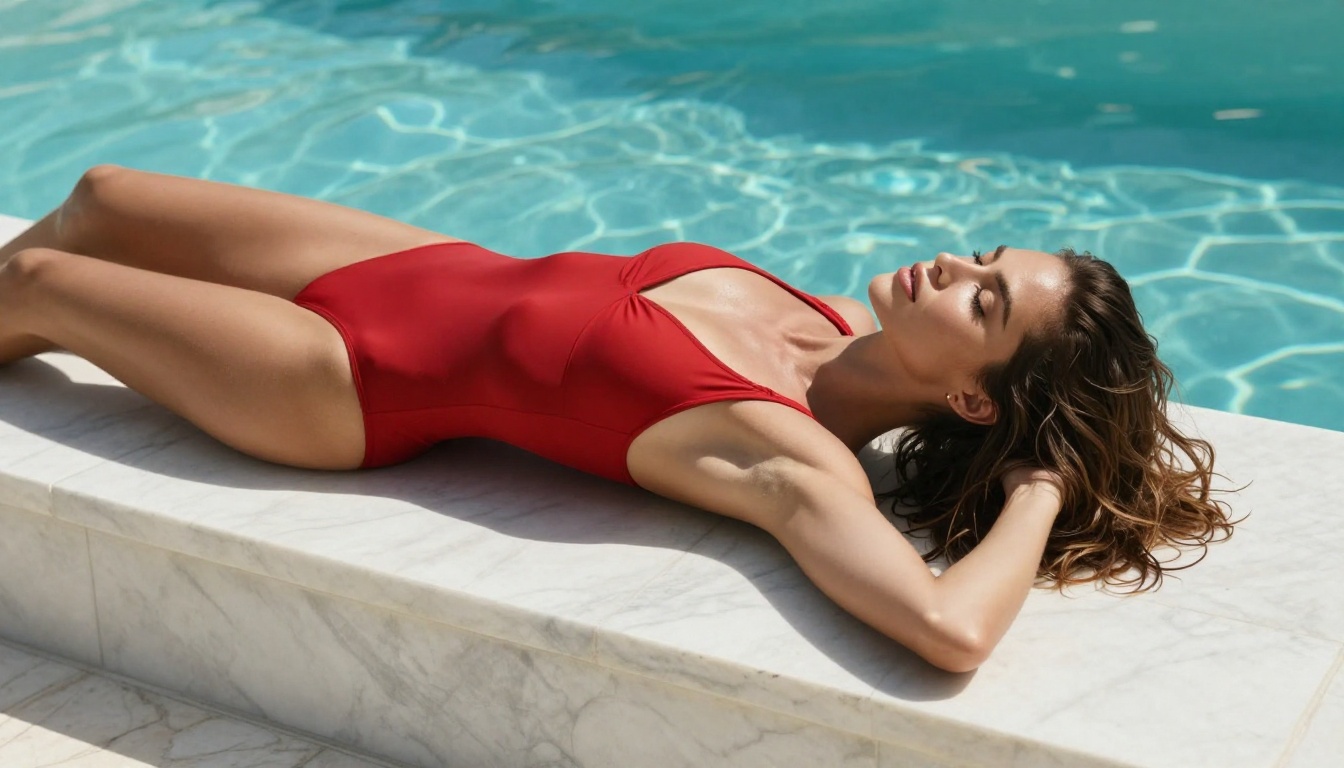
Whether you're restoring old family photos with Real-ESRGAN, sharpening portraits with Crystal Upscaler, bringing a small original to large-format size with Topaz Image Upscale, or adding texture depth with Recraft Creative Upscale, the tools are immediately available and ready to run.
The best way to understand what AI upscaling can actually do is to run an image you already have. Find a photo you've always been disappointed with because the resolution wasn't there. Upload it, try two or three of the models above, and compare results at 100% zoom.
The gap between a blurry, unusable photo and a sharp, print-ready 4K file is now a single click away. Start with Real-ESRGAN on PicassoIA and go from there.


