Your 4K display deserves better than blurry photos. You've probably been there: cropping a shot too tight on your phone, downloading an old image that turned out tiny, or scanning a physical print that lost all its detail. The result is a photo you can't use, resize, or print without it looking like a pixelated mess.
That's where a free AI upscaler for 4K photos steps in. Not the old-school interpolation tools that just stretched pixels and blurred edges. Actual AI models trained on millions of images that can infer, reconstruct, and add detail that wasn't visible before.
This article looks at the best free options available right now, what makes each one different, and how to get 4K-quality results without paying a subscription.
Why Your Photos Lose Quality
The resolution math explained
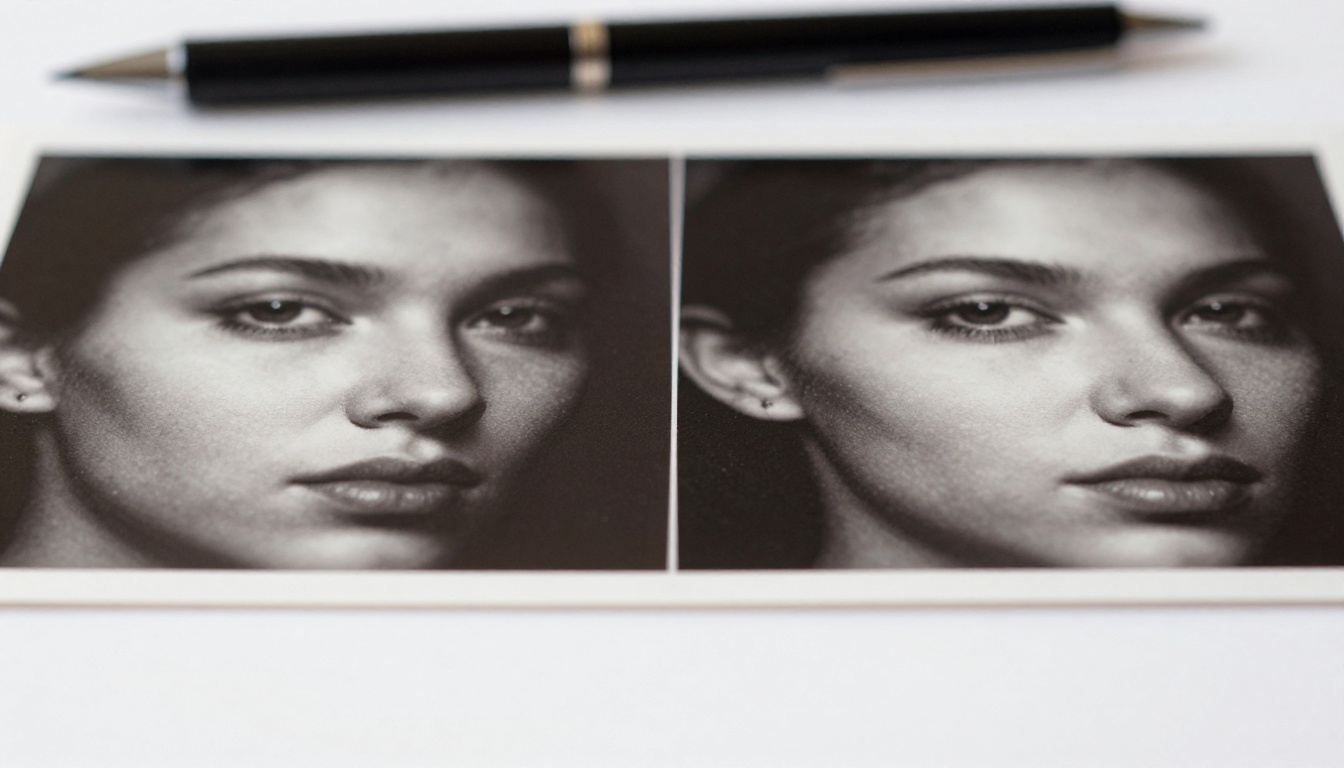
Resolution is just pixel count. A 1080p image is 1920x1080 pixels, about 2 megapixels. A 4K image is 3840x2160, about 8.3 megapixels. When you try to display a 2MP image on a 4K screen at full size, the display has to invent pixels it doesn't have. That's interpolation, and it produces blur.
Traditional tools used mathematical formulas to estimate those missing pixels: bicubic interpolation, bilinear scaling, lanczos resampling. They were fast and simple, but the results looked soft, washed-out, or artificially sharpened with visible halos around high-contrast edges.
The bigger the difference between your source resolution and your target size, the worse the output. Trying to go from a 640x480 image to 4K with traditional methods produces something that looks worse than the original at actual display size.
3 common causes of blurry photos
- Old smartphone shots taken before cameras hit 12MP standards
- Crops and zooms that discard most of the original pixels
- Scanned prints where scanner resolution was limited to 300 DPI
- Downloaded images saved at 72 DPI screen resolution from older websites
- Compressed files that lost detail through repeated saves in lossy formats
- Screenshot sources taken at non-native display resolutions
Each of these leaves you with a photo that looks fine as a thumbnail but falls apart when you print it, put it on a 4K monitor, or drop it into a design project at full size.

How AI Upscaling Works
Neural networks vs. traditional methods
The difference between traditional and AI upscaling is training data. An AI upscaler is a neural network that has processed millions of image pairs: low-resolution inputs alongside their high-resolution originals. Through that training, the model learns what photographic detail is supposed to look like across different content types.
When you feed it a blurry photo, it doesn't stretch pixels. It recognizes patterns: skin texture, fabric weave, tree bark, architectural edges, water reflections. Then it reconstructs plausible high-frequency detail based on what it has learned from millions of real images.
The result isn't just a bigger image. It's a more detailed one, with recovered texture and sharper edges that simply weren't in the original file.
Super resolution in plain English
Super resolution is the technical name for this process. The AI adds information that wasn't in the original file. That sounds impossible, but it works because natural images follow consistent statistical patterns. Skin has pores. Fabric has weave. Leaves have veins. Stone has grain. The model has seen enough examples of each to fill them in convincingly.
The practical result: a photo can go from 720p to genuine 4K-class sharpness, with recovered texture, defined edges, and no blurry halos around high-contrast boundaries.
💡 Worth noting: Not all super resolution models are equal. Models trained specifically on faces perform better on portraits. Models trained on natural scenes do better on landscapes and architecture. Matching the right model to your content type makes a meaningful difference in output quality.
What sets AI apart from classic sharpening
Classic sharpening tools (unsharp mask, high-pass filters) increase local contrast to create the illusion of sharpness. They don't add new information. AI photo upscaling actually reconstructs missing detail. The sharpening approach creates halos and noise at high settings. AI super resolution produces cleaner, more natural results that hold up under close inspection at 4K display sizes.
This distinction matters for printing. You can print an AI-upscaled image at large format and it looks genuinely sharp. A traditionally sharpened version will show artifacts at the same size.
Picasso IA hosts seven dedicated super resolution models, all accessible without a paid subscription. Here's what each one does and when to use it.
Real-ESRGAN
Real-ESRGAN is one of the most widely used open-source AI photo upscalers available. Originally developed for illustration content, it was retrained on real-world photographic material. It handles general photos well, with particular strength on textures like fabric, foliage, stone surfaces, and architectural details.
Best for: General photography, textures, nature, and mixed content where you don't need model-specific optimization.
Google Upscaler
Google Upscaler delivers consistent 4x upscaling without visible artifacts. Backed by Google's super resolution research, it produces clean, natural-looking results that stay faithful to the original's color balance. It's especially effective on photos with dense fine detail: cityscapes, crowd shots, product photography, and architecture where you need precision without color drift.
Best for: Any image where color accuracy and tonal faithfulness are priorities alongside sharpness.
Topaz Image Upscale
Topaz Image Upscale goes up to 6x magnification, the highest available on the platform. Topaz Labs has been a benchmark name in professional photo sharpening for years, and this model brings that quality to a free browser-based workflow. It's the right choice when you need maximum output resolution for large-format printing, billboard-sized output, or ultra-high-resolution display.
Best for: Large-format print preparation, maximum resolution output, any use case where 4x isn't enough.
Bria Increase Resolution
Bria Increase Resolution upscales up to 4x with a focus on clean, artifact-free output. It's particularly good at preserving original color grading and tonal balance, which makes it ideal for images where color accuracy is non-negotiable: product shots, fashion photography, real estate images, and editorial content.
Best for: E-commerce products, fashion, real estate, and any commercial photography where color fidelity matters.
Crystal Upscaler
Crystal Upscaler is built specifically for portrait upscaling. It understands facial structure and skin texture, recovering fine detail in eyes, individual hair strands, and skin at a level that general-purpose upscalers consistently miss. For headshots, fashion portraits, dating profile photos, or any image where faces are the primary subject, this model delivers results that are noticeably better than alternatives.
Best for: Portraits, headshots, fashion photography, any photo where the face is the focus.
Recraft Crisp Upscale
Recraft Crisp Upscale prioritizes sharpness and edge clarity above all else. It produces upscaled images with defined, precise outlines and minimal noise. It works well on architectural photography, product images with hard edges, technical drawings, logos saved at low resolution, and any shot where structural clarity is the priority over organic texture.
Best for: Architecture, products with hard edges, graphic content, logos, and technical imagery.
Recraft Creative Upscale
Recraft Creative Upscale takes a different approach. Instead of strict faithful upscaling, it adds depth and fine detail by creatively interpreting the original content. The output has more naturalistic, vivid character in complex scenes. It may alter the original slightly more than a straight upscaler, but the visual result is often more striking and polished.
Best for: Creative photography, artistic shots, and images where a more vivid, interpreted output is welcome.
Before and After: Real Results
Portrait upscaling results
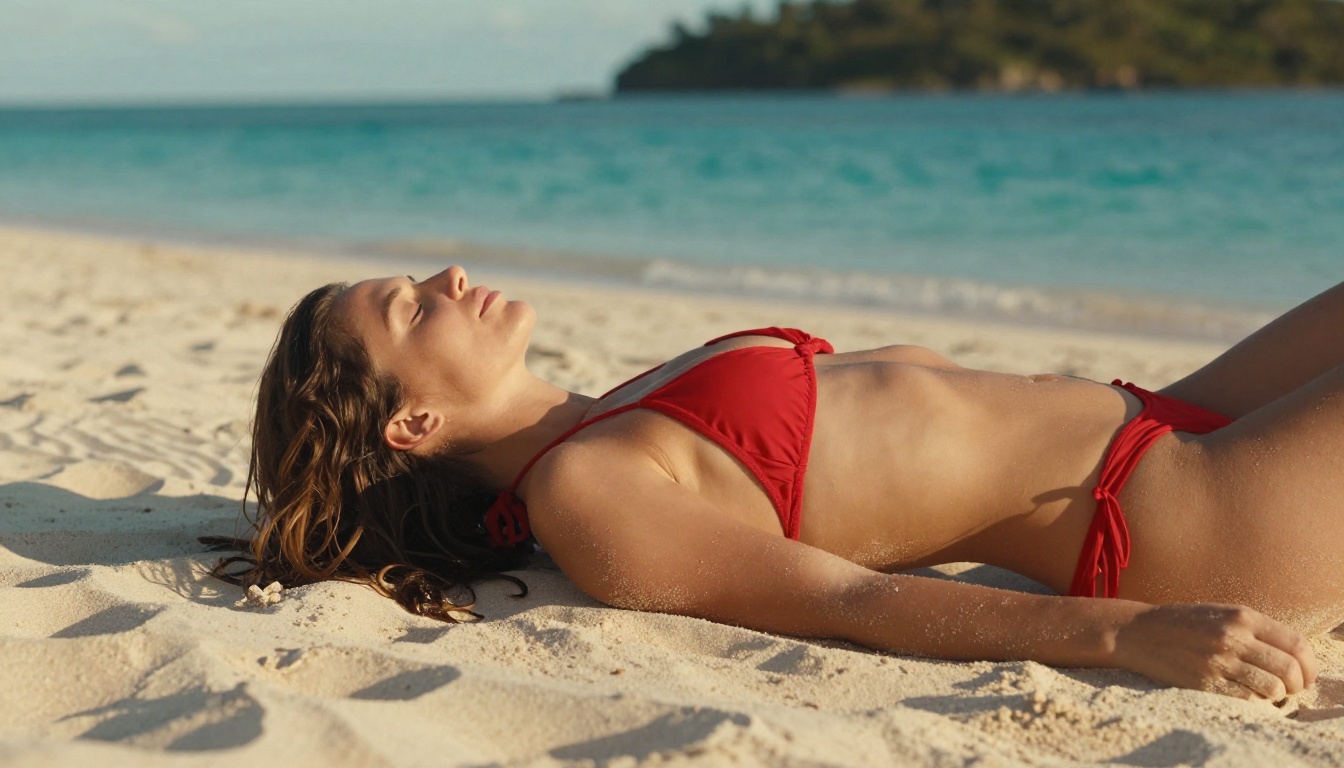
Portrait photos are where the gap between AI upscaling and traditional methods is most obvious. A low-resolution face upscaled with bicubic interpolation shows blurry skin, smeared eyelashes, and undefined edges around hair. Run the same photo through Crystal Upscaler and the output recovers individual hair strands, sharpens the catchlights in the eyes, and restores skin pore texture without looking plastic or over-processed.
The improvement isn't subtle. It's the difference between a photo you'd share publicly and one you'd immediately delete from your camera roll.
Landscape and nature photos
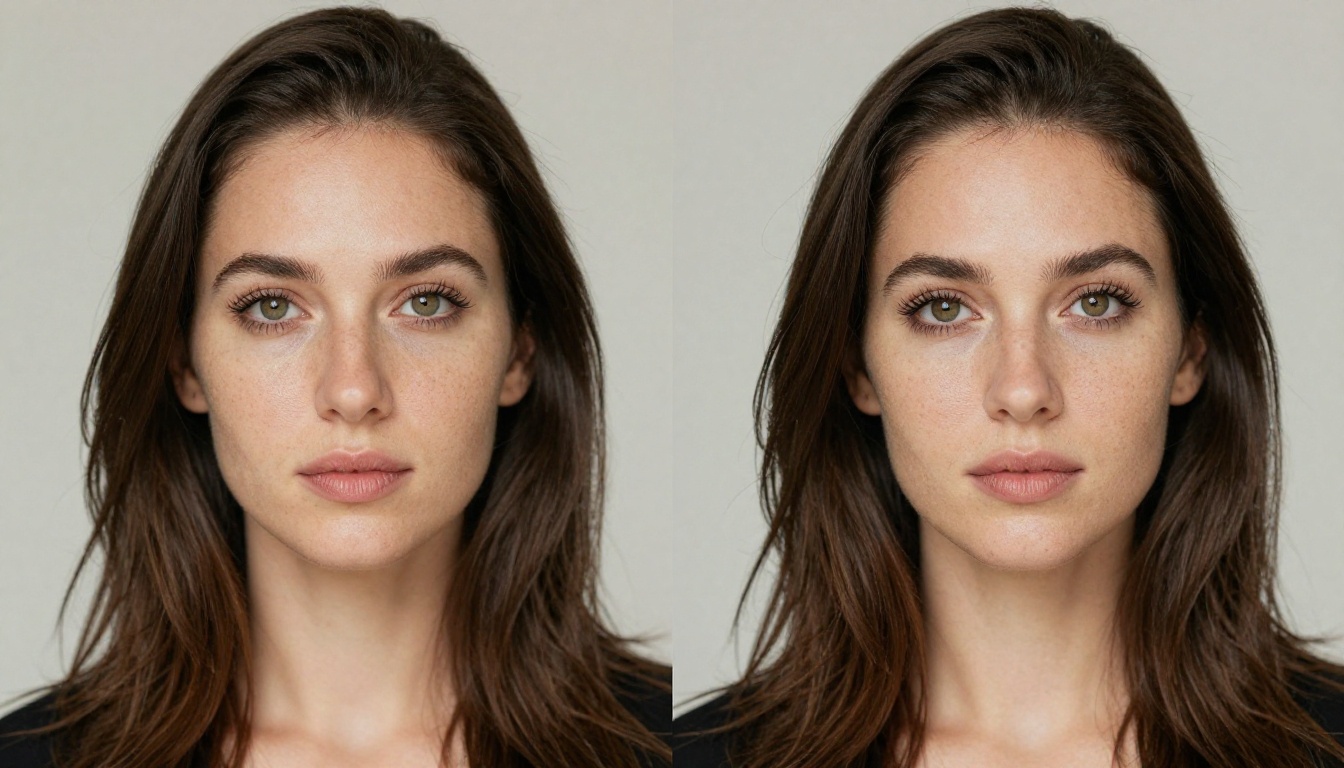
Nature photography benefits enormously from 4K photo upscaling. The aerial drone shot taken on an older unit with a smaller sensor. The mountain landscape compressed to fit a blog post. The beach photo cropped aggressively for Instagram dimensions. These all lose critical spatial detail in ways that only become apparent when you try to use them at full resolution.
Google Upscaler and Real-ESRGAN both excel on natural content. They recover leaf vein texture in foliage, wave structure in water, and rock face grain in mountain shots. The output holds up at 4K print sizes, which is the real test.
💡 Pro tip: Run landscape photos through Topaz Image Upscale at 6x if you're preparing for large-format printing. It's consistently the strongest option for maximum output resolution and holds detail at very large print sizes.
How to Upscale a Photo to 4K
Step-by-step on Picasso IA
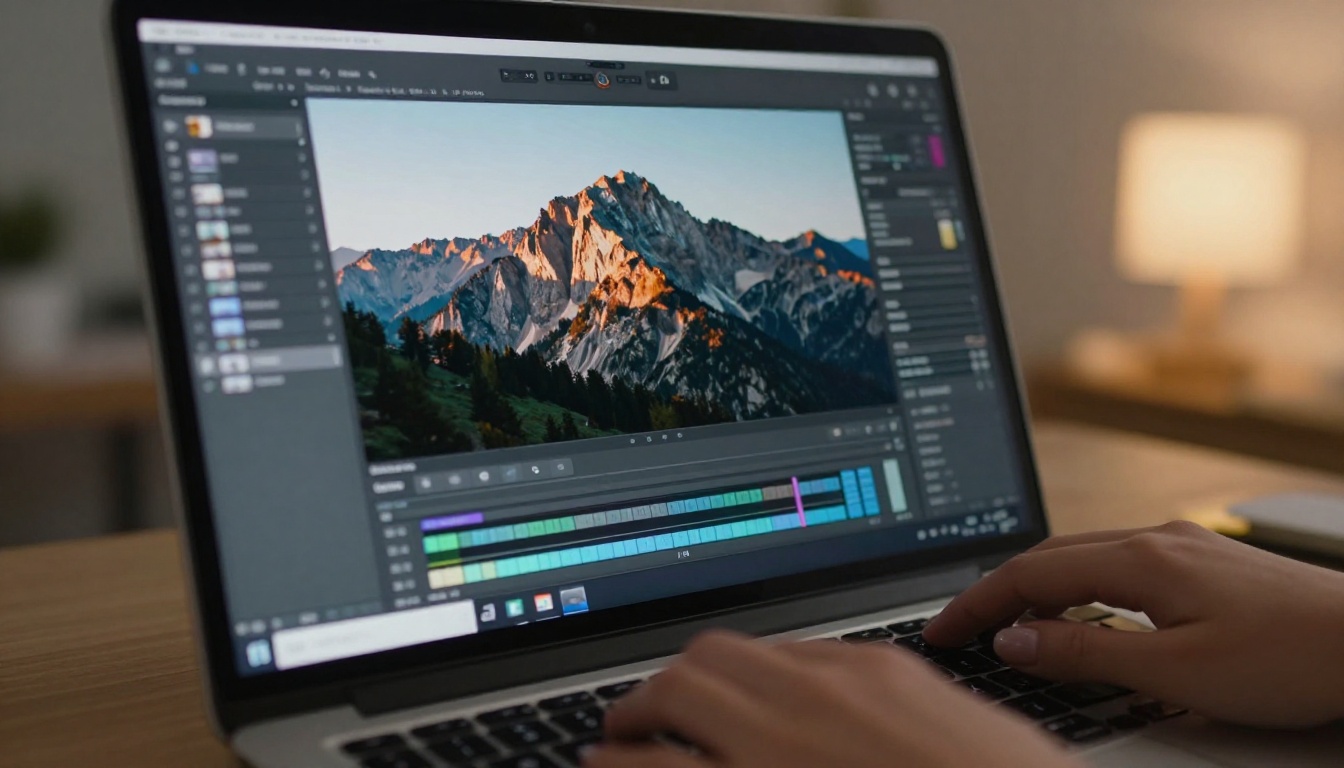
Getting from a blurry low-res image to a sharp 4K photo takes less than two minutes from start to download:
-
Pick your model. Visit the Super Resolution collection and select the model that fits your content type: Crystal Upscaler for portraits, Google Upscaler for landscapes, Real-ESRGAN for general photography.
-
Upload your image. Drag and drop your file directly into the interface. Most common formats are supported: JPG, PNG, WEBP, TIFF.
-
Set your scale. Most models offer 2x and 4x upscaling. Topaz Image Upscale goes up to 6x for maximum output resolution.
-
Run the model. Processing takes 10-30 seconds depending on image size and scale factor. You'll see a progress indicator while the AI works.
-
Download the result. The upscaled image downloads directly to your device. No watermark, no account required for standard use, no forced subscription to access basic functionality.
That's the full workflow. No desktop software to install, no subscription required to try it, no queue or processing credits for standard use cases.
💡 Practical note: For very large source images at 6x magnification, crop to the area you actually need before upscaling. It speeds up processing and produces a more targeted, higher-quality result without wasting compute on background areas.
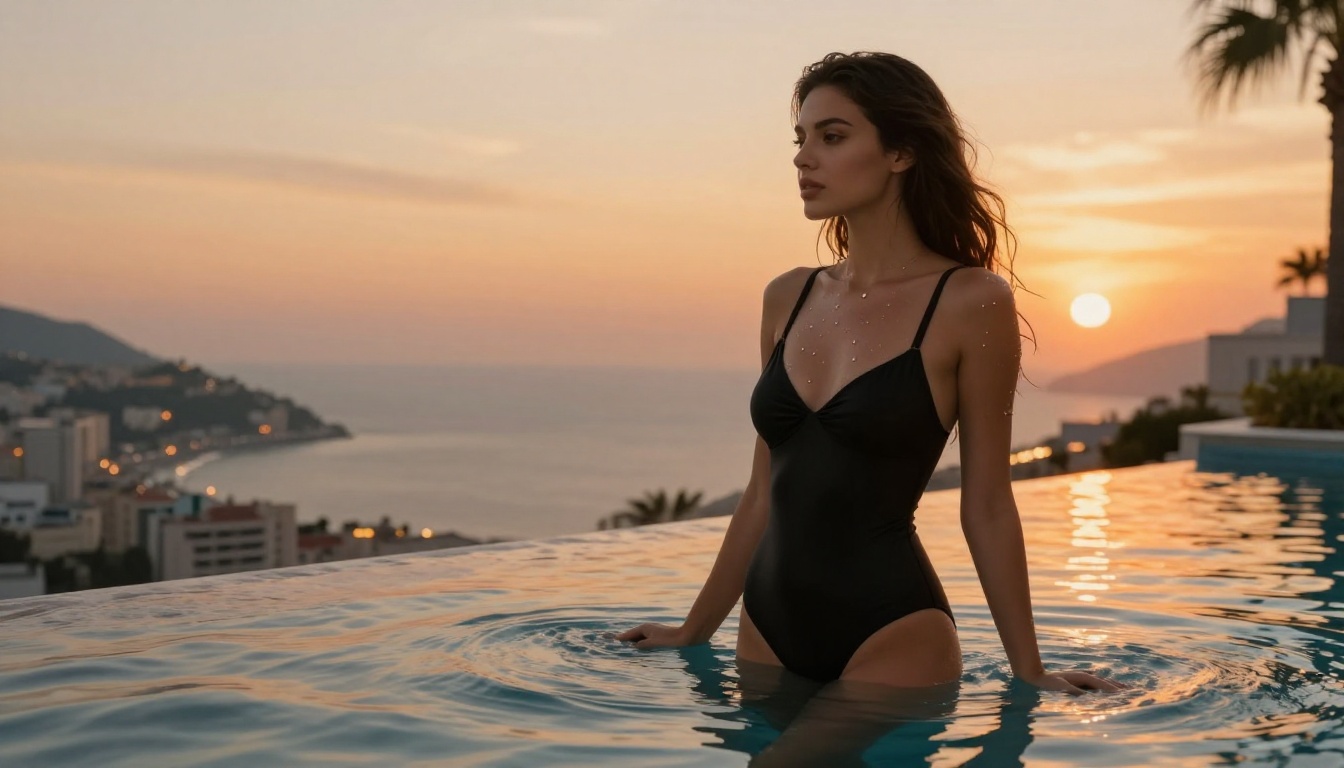
No single model wins every category. The best approach is to match your content type to the model designed for it. For most people, starting with Real-ESRGAN as a general baseline and then comparing with Crystal Upscaler on portrait work covers the majority of use cases.
When in doubt, run the same image through two or three models and compare at 100% zoom. The difference is usually obvious, and the extra minute spent comparing pays off in the final output quality.
Beyond Upscaling
When to restore first
Upscaling works best on photos that are simply low resolution but otherwise clean. For photos that are also damaged, noisy, or heavily compressed, running a restoration pass before upscaling produces noticeably better results.
A JPEG saved at low quality has visible compression artifacts: blocky patches, color banding, smeared texture. Running that directly through an AI upscaler will enlarge those artifacts too. The better workflow is restoration first to remove artifacts, then upscaling the cleaned image for maximum quality output.
Picasso IA includes AI restoration tools that strip compression noise, fix color artifacts, and recover detail in degraded images. Using restoration and upscaling in sequence produces results that beat either method alone, particularly for very old photos, heavily compressed social media saves, or images that have been re-saved multiple times.
More tools on the platform
The super resolution models sit inside a broader set of AI tools. From the same platform you can access:
- Background Removal: Instant, clean background removal for product and portrait shots
- Image Inpainting: Fill missing areas, remove unwanted objects, or fix specific damaged sections
- Face Swap AI: Swap faces realistically across any photo
- Image Outpainting: Expand the canvas outward and fill new areas intelligently
- Text to Image: Generate entirely new photorealistic photos from text descriptions (91 models available)
- AI Video Upscaling: The same super resolution logic applied to video frames for sharper footage
These tools work well together. Restore an old photo, upscale it to 4K, fix a specific damaged corner with inpainting, and generate a matching background if needed. All from the same interface, all without switching between different apps or subscriptions.
Your Photos Can Look This Sharp
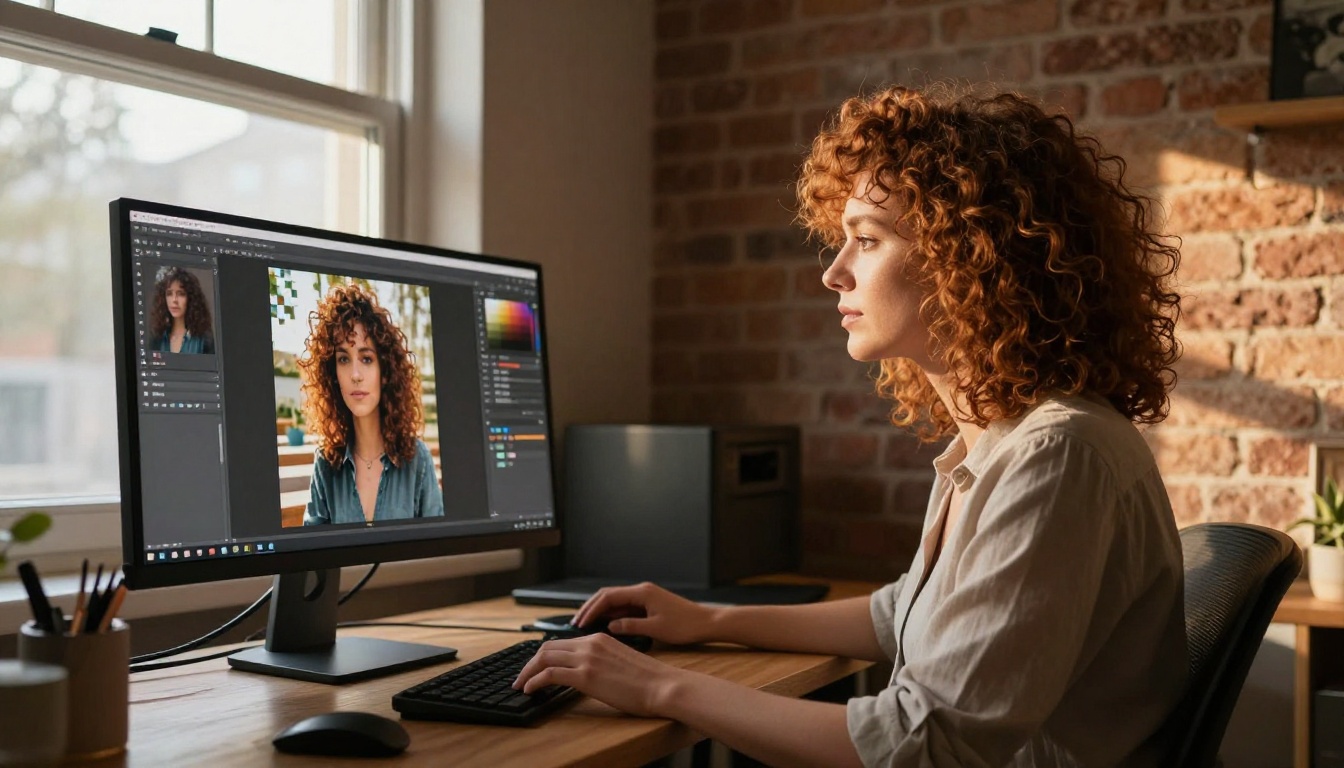
Every blurry, undersized, or heavily compressed photo in your collection has a second chance. The free AI upscaler for 4K photos tools on Picasso IA give you access to professional-grade super resolution with no software to install and no payment wall blocking the basic workflow.
Whether you're rescuing an old family portrait that exists only as a low-resolution scan, preparing product shots for large-format print, or just making sure your images hold up properly on a 4K display, the models are there and ready. Seven dedicated AI image upscaler options, each optimized for a different content type, all free to try without a subscription.
Pick the model that matches your use case from the comparison table, upload a photo you've been meaning to fix, and see what proper 4K photo upscaling actually produces. The comparison between what you started with and what comes out the other side is usually striking enough to make you wonder why you waited this long.
Start upscaling at Picasso IA and bring your photos to 4K quality in seconds.


