The promise of free AI video generation sounded simple enough: type a prompt, get a video. But most free tools have a catch. Some slap watermarks on every export. Others block entire categories of creative prompts, force you into a daily cap of two generations, or gate the best resolutions behind a subscription wall. If you have spent time searching for free AI video generators without content restrictions, you already know the frustration. This article cuts through the noise and lists what actually delivers in 2027, where to find the models, and how to get the most out of them.
What "No Restrictions" Really Means
The word "free" in AI tools can mean a dozen different things. Most platforms use it as a hook: free to sign up, but not free to actually use at scale. And "no content restrictions" is even murkier. Before comparing tools, it helps to define what you are actually looking for.
There are four types of restrictions that hit creators hardest:
- Watermarks: Forced branding on every video output. Acceptable for testing, unusable for publishing.
- Generation caps: Daily or monthly limits on how many videos you can create. Some tools offer as few as three generations per day on free plans.
- Content filters: Keyword blockers or visual style blockers that reject prompts without explanation. A tool that refuses "woman in swimwear" or "dramatic fight scene" is limiting creative work, not protecting it.
- Resolution locks: Free tiers capped at 480p or lower, with 720p and 1080p locked behind paid plans.
A truly unrestricted free tool removes all four. That combination is rare, but it exists on platforms willing to back their open-access claim with actual model capacity.
💡 Reality check: Even the most open platforms maintain basic safety filters to prevent illegal content. "No content restrictions" in practice means no aggressive creative filtering, no watermarks, and no hard generation caps that stop your workflow cold.
The Best Free Options Right Now
Not every tool on this list scores perfectly on all four criteria above. But each one offers a meaningfully better experience than the typical freemium gatekeeping. The tools below are all accessible from PicassoIA, so you do not need multiple accounts or payment details scattered across five different services.
Seedance 2.5 Lite
Seedance 2.5 Lite is one of the most accessible unrestricted video generators available right now. Developed specifically for PicassoIA's free-access tier, it generates videos up to 10 seconds long from a text prompt with no daily cap on generations. The output quality holds solid at 720p, motion is smooth and consistent, and the model handles a wide variety of scenes from outdoor landscapes to indoor portraits without triggering the kind of overzealous content filters that plague competing free tools.
Strengths:
- Up to 10 seconds per clip
- No hard daily generation cap
- Supports both text-to-video and image-to-video input
- Clean output with no watermark overlay
Limitations:
- Generation speed is slower than paid-tier models during peak usage
- Complex multi-character scenes with specific choreography sometimes lose spatial coherence
This is the first model to test when starting with free AI video generation. The combination of length, resolution, and zero restrictions makes it the practical default.
PicassoIA Video
PicassoIA Video is the platform's own unlimited text-to-video model, designed to give creators a reliable baseline tool with no usage walls. It supports both text prompts and image inputs, making it flexible for workflows where you want to animate a still photograph or a previously generated image into a short clip. Generation is fast compared to heavier open-source models, and the output arrives without any branding overlay.
This model sits at the core of PicassoIA's unlimited generations promise. For creators who need volume without budget, it serves as the primary workhorse for high-frequency iteration.
💡 Tip: Pair PicassoIA Video with a generated source image from the platform's text-to-image tools for better visual consistency across a project. Starting from a controlled image gives you far more predictable motion output.
Ray Flash 2 720p
Luma's Ray Flash 2 720p delivers 720p output with fast generation times and strong cinematic motion. Its free access tier on PicassoIA is generous enough for regular creative use. The model handles establishing shots and slow-pan landscape sequences particularly well, and the motion physics feel natural rather than the jittery artifacts common in cheaper models.
If your content leans toward travel, nature, architecture, or dramatic wide-angle scenes, Ray Flash 2 720p produces results that hold up to casual broadcast standards. For a free model, the output requires surprisingly little post-processing before it is publishable.

Wan 2.1 Models
The Wan family from WaveSpeedAI covers multiple use cases within the free tier, with separate models optimized for text input versus image input and for different resolution targets:
Wan models are particularly good at following camera motion descriptions in prompts. Write "camera slowly pans right across a mountain ridge at sunset" and Wan interprets that more literally than most other free models. This makes them well-suited for storyboarded video projects where shot consistency matters across multiple clips.
Animatediff and Open-Source Classics
Animatediff Prompt Travel and Damo Text to Video represent the older generation of free models, but they still produce usable results for specific creative styles. Animatediff excels at stylized motion with a distinctive painterly aesthetic. Damo is efficient for very short two-to-four second clips.
These models matter for two reasons: they are completely open in terms of content permissiveness, and they can produce stylized outputs that newer photorealistic models cannot replicate. If you want something that looks hand-crafted rather than photorealistic, these are the tools to reach for.
How to Use PicassoIA for Unrestricted Video
PicassoIA hosts an extensive library of text-to-video models accessible without a subscription wall. The workflow below works for any of the free models listed above and scales up cleanly once you are ready to use higher-capability paid models.
Step 1: Choose Your Starting Model
Go to picassoia.com/en/all-models and filter by Text to Video or Image to Video. For a first run, start with Seedance 2.5 Lite or PicassoIA Video. Both are free with no cap and produce clean results on a first attempt.
Step 2: Write a Scene-Level Prompt
The quality gap between a weak and strong prompt is larger in video generation than in image generation, because motion adds an extra layer of unpredictability. Follow this structure for every prompt you write:
- Subject: Who or what is in the scene
- Action: What is happening, described dynamically
- Environment: Where it takes place with specific details
- Camera movement: How the shot moves and from what angle
- Lighting and mood: What the atmosphere feels like
Weak prompt: "A woman walking on the beach"
Strong prompt: "A woman in a white linen dress walking slowly along a deserted beach at golden hour, camera tracks her from the side at a low angle, warm amber sunlight casting long shadows on wet sand, gentle waves audible in the distance, soft wind movement in her dress"
The second prompt produces a result you can actually use with minimal iteration.
Step 3: Iterate Quickly
Do not spend twenty minutes perfecting a prompt before generating. Generate quickly, review the output, note what worked and what did not, then revise one element at a time. PicassoIA's free unlimited models make fast iteration possible at zero cost. Three quick generations will teach you more about a model's behavior than an hour of prompt engineering in isolation.
Step 4: Post-Process Before Publishing
A raw AI video clip is rarely publishable without at least one pass of editing. PicassoIA includes post-processing tools that work directly on generated outputs:
- Real ESRGAN Video: Upscales 480p footage to 4K with detail preservation well above simple interpolation.
- Autocaption: Adds styled subtitle overlays, which is essential for social media where viewers watch without sound.
- P Video Edit: Edits video content using a text prompt after generation, so you can adjust scene elements without regenerating from scratch.
- Video to SFX v1.5: Analyzes your clip and generates contextually accurate sound effects automatically.
This post-generation workflow is where most creators skip steps. The initial generation is often 80% of the way there. The last 20% comes from these editing passes.
Image-to-Video vs Text-to-Video
Both approaches produce video from AI, but they serve different purposes and suit different workflows.
Text-to-video starts from nothing. You write a description and the model constructs both the visual content and the motion from scratch. This gives you maximum creative flexibility but less control over specific visual details.
Image-to-video starts from a photograph or generated still image. The model interprets the image and adds motion to it. This is far more controllable when you need a specific face, location, product, or object to appear in the video exactly as intended.
| Text-to-Video | Image-to-Video |
|---|
| Starting material | None | A source image |
| Creative flexibility | Very high | High |
| Output consistency | Variable | More predictable |
| Best for | New scenes from scratch | Animating specific visuals |
| Recommended free model | Seedance 2.5 Lite | Wan 2.1 I2V 720p |
For most professional projects, the optimal workflow is: generate a source image first, then animate it. This combination gives you the visual specificity of image-to-video with the creative range of a strong text prompt feeding the image generation step.
Additional models supporting image-to-video on PicassoIA include P Video and Wan 2.5 I2V Fast.
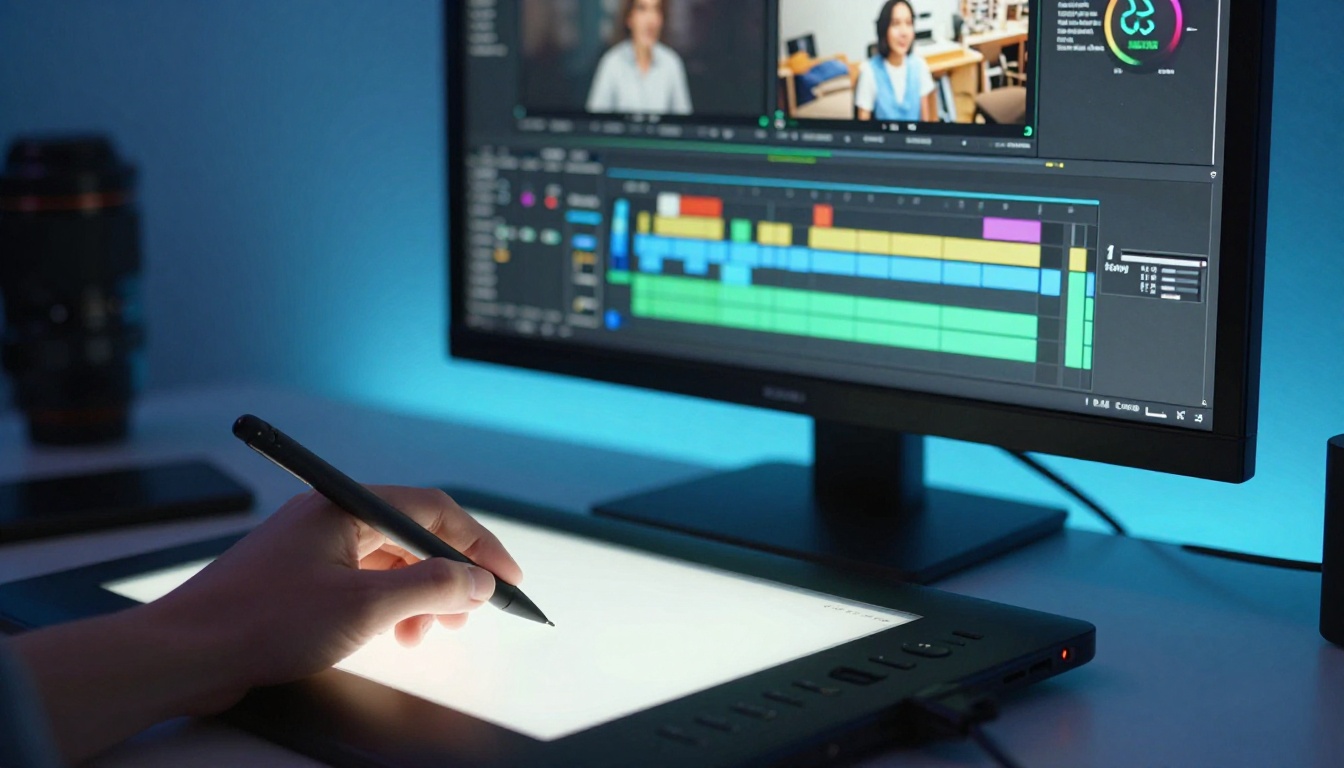
Generating a video is step one. Editing is where the final product takes shape. Beyond the core generation models, PicassoIA includes a set of editing tools built specifically for post-processing AI-generated footage.
Video Remove Background works without a green screen, segmenting the subject in motion video and removing the background frame by frame. This is powerful for composite edits where you want to place a generated character or subject into a different environment.
Real ESRGAN Video is the go-to upscaling model for AI-generated footage. It preserves fine detail better than bicubic interpolation and handles the slightly soft edges common in AI video output. Generate at 480p for speed during experimentation, then upscale the final version before publishing.
Autocaption automates caption sync. For social media video where the majority of views happen with the sound off, captions are not optional. This tool handles the synchronization accurately enough for most content types without manual adjustment.
P Video Edit accepts a text instruction to modify an existing video. Want to change the background color, remove an object, or shift the mood of a scene? Write the instruction and the model applies it to the clip. This is the fastest way to fix a generation that is 90% right but has one element that needs adjusting.

3 Mistakes That Waste Your Time
Most creators new to free AI video tools make the same errors. Avoiding these three saves hours.
1. Using vague prompts and blaming the model
Every AI video model is only as good as its input description. A two-word prompt produces mediocre results regardless of the model's underlying capability. Write detailed, scene-specific prompts. Describe the camera position, the lighting direction, the motion arc, and the emotional tone. You will see an immediate quality jump on the very next generation.
2. Trying to find one tool that does everything
No single model is best for all video types. Seedance 2.5 Lite is better for longer clips with complex scenes. Wan 2.1 T2V 720p is better for camera-controlled cinematic sequences. Animatediff Prompt Travel is better for stylized content that does not need photorealism. Build a small toolkit of two or three models and switch based on the specific task in front of you.
3. Skipping post-processing entirely
A raw AI video clip is rarely publishable in its generated state. Adding captions, upscaling the resolution, and layering in synchronized sound effects takes less than ten minutes and dramatically improves perceived quality. Use P Video Edit for content adjustments and Real ESRGAN Video for resolution enhancement before any clip goes live.
💡 Production tip: Generate at 480p during your experimentation and iteration phases, then switch to 720p only for your final approved output. This cuts generation time by roughly half during the phases where you are making creative decisions, not final renders.
More Models Worth Knowing
Beyond the core free tools, PicassoIA's video library extends into higher-capability models worth knowing as your projects grow in ambition.
Seedance 2.5 by ByteDance generates cinematic clips up to 30 seconds long, which opens up storytelling possibilities that shorter models cannot support. Veo 3 Fast from Google adds native synchronized audio to generated video, removing the separate step of sourcing or generating a soundtrack. Kling v2.0 produces 720p footage with strong motion consistency across complex scenes.
For experimental content, LTX Video from Lightricks is a real-time generation model that produces results almost instantly, making it exceptional for live iteration sessions. Stable Diffusion Videos creates interpolated motion between Stable Diffusion frames with a distinctive aesthetic that suits certain artistic and motion graphics projects.
For audio-driven animation, Audio to Video takes a still image and a sound file and generates motion that syncs with the audio waveform. This is a niche but powerful capability for music video and podcast clip production.
Speed vs Quality: A Practical Breakdown
Every free AI video tool makes a tradeoff between generation speed and output quality. Understanding this prevents the frustration of using the wrong model for the wrong phase of a project.
Match the model to the phase of work. Use fast models for iteration, higher-quality models for final renders. This alone can cut your total generation time on a project by more than half.
Start Creating on PicassoIA
If you have been working with tools that watermark everything, cap you at three generations a day, or refuse entire categories of creative prompts, PicassoIA is worth a serious test. The platform hosts over 87 text-to-video models accessible from a single account, with a genuinely useful free tier rather than a token teaser.
A practical starting workflow for new users that produces publishable results from the first session:
- Generate your source images using PicassoIA's text-to-image tools for visual consistency
- Animate them with Seedance 2.5 Lite or Wan 2.1 I2V 720p
- Refine the output using P Video Edit if any element needs adjustment
- Upscale with Real ESRGAN Video before the clip goes anywhere public
The entire workflow runs inside one platform. No account juggling, no watermark removal workarounds, no cap anxiety cutting your session short halfway through a batch.
Every model in this article is live at picassoia.com/en/all-models. Pick one, write a detailed scene-level prompt, and run your first generation. The barrier to producing professional-looking video content has never been lower, and the tools worth your time are the ones that remove restrictions rather than stacking them on top of the work you are trying to do.


