Free Trials for Uncensored AI Art Tools: Which Platforms Actually Deliver
Not all free trials for uncensored AI art tools are equal. Some give you 10 credits and then vanish behind a paywall. Others offer truly unlimited generations. This article breaks down exactly what each major platform delivers, which models handle adult and unrestricted content without filters, how upscaling works after generation, and where you can start creating photorealistic images right now without spending a cent.
If you have spent any time searching for free trials for uncensored AI art tools, you already know the frustration. Platforms promise "free access," you sign up, generate two images, and then hit a wall. Credits gone. Subscription required. The actual uncensored features? Locked behind the highest tier.
This article cuts through that noise. We looked at what the leading platforms actually offer on their free plans, which AI models handle unrestricted and adult content without content filters, how upscaling your outputs works, and where you can keep generating without constantly worrying about running out of credits.
What "Uncensored" Actually Means
The word "uncensored" gets thrown around loosely in AI art circles. It does not mean anything goes. It means the model generates images without a blanket content safety filter blocking every suggestive output.
Most mainstream AI image generators, including the major consumer-facing ones, apply aggressive NSFW filters. They flag anything from a swimsuit to an artistic nude as inappropriate. This frustrates artists, photographers, and adult content creators who have legitimate creative or commercial reasons for generating this type of imagery.
Uncensored models skip or significantly reduce these filters. They can generate:
Glamour and bikini photography
Implied nudity and artistic nude compositions
Suggestive editorial content
Fashion and beauty content that mainstream filters reject
💡 The distinction that matters: Non-explicit NSFW (bikinis, glamour, artistic nudity) is very different from explicit pornographic content. The best platforms draw this line and enforce it with age verification rather than blanket bans.
Why Platforms Use Content Filters
Understanding why filters exist helps you find platforms that calibrate them properly. The main reasons are:
Legal liability in jurisdictions with strict content laws
App store compliance for mobile apps
Advertiser pressure on platforms running display ads
Training data concerns — some base models were not trained on adult content and produce poor results anyway
Platforms that specialize in creative and adult AI art have solved these problems through dedicated infrastructure, age verification, and using base models that were specifically trained on diverse content sets.
What You Lose With Heavy Filtering
When a platform over-filters, you lose more than just NSFW outputs. Standard portrait prompts get flagged. Swimwear fashion shots trigger warnings. Artistic references to the human form get rejected. The creative ceiling drops sharply, even for users with entirely safe-for-work intentions.
The Real Value of Free Trials
A free trial for an AI art tool has genuine value only if it lets you test the features you actually need. For uncensored generation, that means the free tier must include access to the unrestricted models, not just the filtered ones.
Here is how the common free trial structures break down:
Trial Type
What You Get
Catch
Credit-based (limited)
10–50 image generations
Refills only with subscription
Credit-based (daily)
5–20 credits that reset daily
Slow for bulk work
Time-limited trial
Full access for 3–7 days
Requires credit card
Freemium unlimited
Specific models free forever
Premium models locked
No trial
Paid only from day one
Common on specialist platforms
Credits vs. Unlimited Access
The biggest distinction to understand is credits versus unlimited generation. Credit-based systems give you a defined number of image generations per month or per day. Once spent, you wait or pay. Unlimited systems let you generate as many images as you want, sometimes with a queue behind subscription users.
For testing uncensored AI art tools, you want at least enough credits to:
Try 3–5 different models on the same prompt to compare quality
Test NSFW outputs at different resolution levels
Experiment with prompt modifications and negative prompts
Generate multiple aspect ratios for your workflow
💡 Credit tip: Many platforms give bonus credits for completing profile setup, verifying email, or following their social accounts. Always do these steps before your first generation session.
What "Free Forever" Actually Means
Some platforms advertise "free forever" access. Read the fine print. This often means:
Access to older or lower-quality models only
Watermarked outputs
Slower generation queues
No commercial licensing on free outputs
Social sharing required to keep generating
None of these are dealbreakers if you are testing the technology. They become problems when you want to use the output professionally.
Top Models for Unrestricted AI Art
When it comes to generating high-quality uncensored and NSFW-capable images, the model you use matters as much as the platform hosting it. Different models have very different creative strengths, speed profiles, and content tolerance levels.
Seedream 4.5: The Current Standard
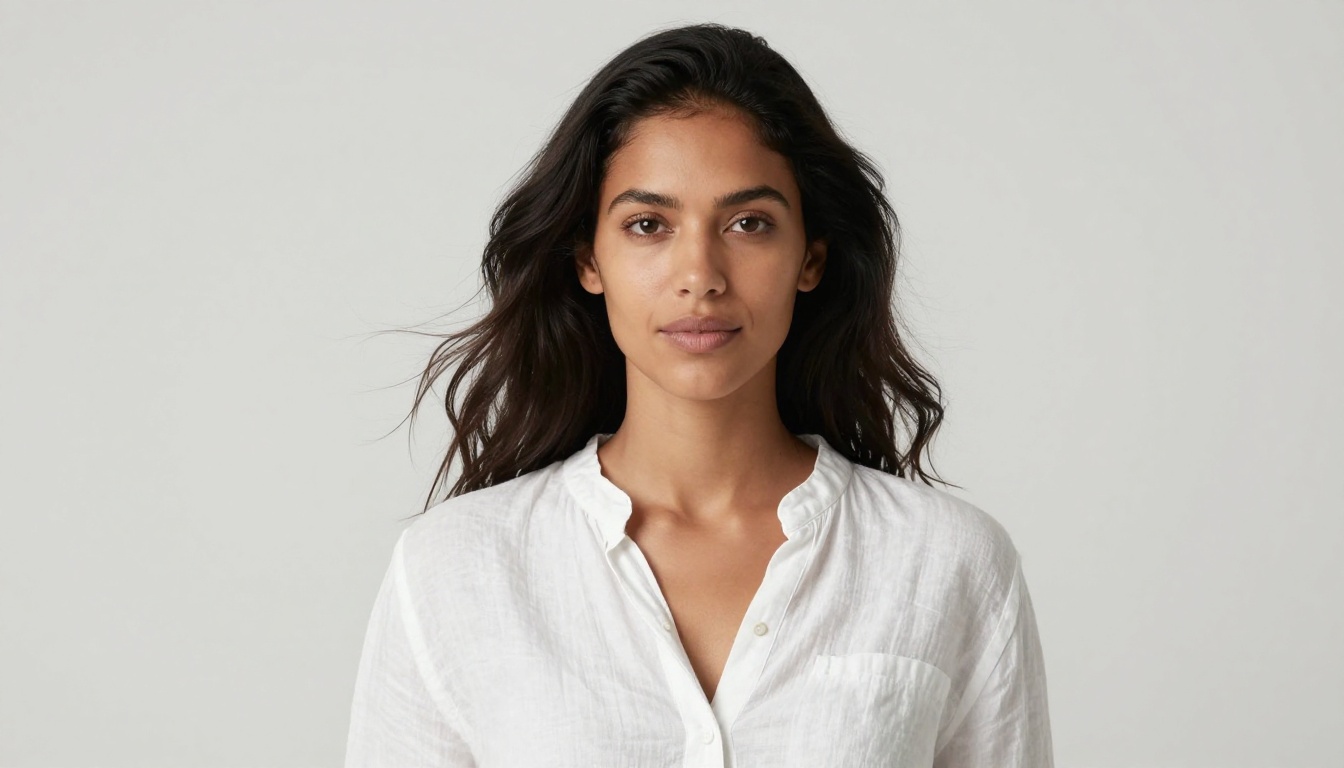
Seedream 4.5 sits at the top of the pile for unrestricted photorealistic generation right now. Developed by ByteDance and available on PicassoIA, it handles portrait photography, fashion shoots, glamour content, and artistic compositions with exceptional fidelity.
What makes Seedream 4.5 stand out:
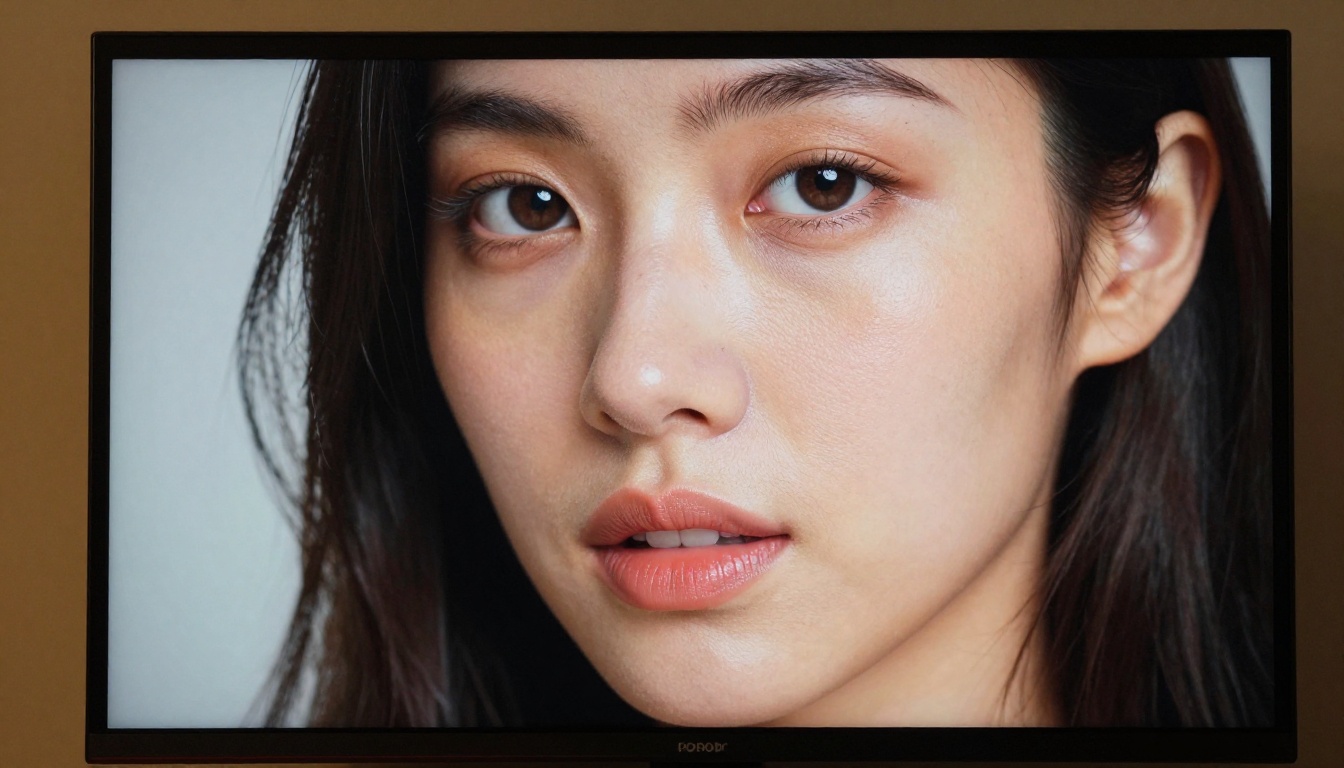
Skin texture rendering is noticeably more realistic than competing models
Lighting comprehension — it understands prompts like "rim lighting" and "volumetric soft box" and actually executes them
Composition awareness — describe a shot framing and it delivers without needing ControlNet
Speed — generation times are fast enough for iterative creative work
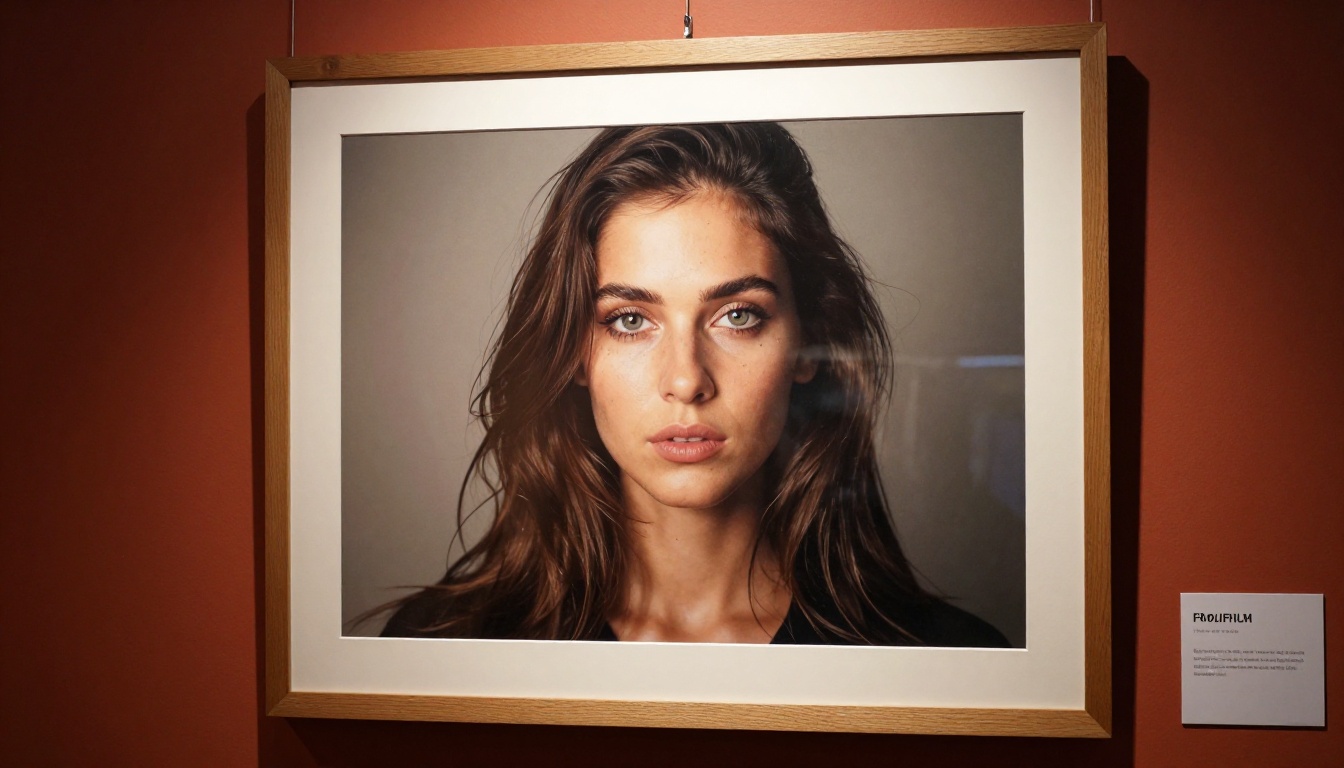
For anyone working with portrait-heavy content, this is the model to start with. The outputs from Seedream 4.5 look genuinely photographic, not synthetic.
💡 Important note: Do NOT use Seedream 5 Lite for NSFW content. That version includes aggressive content filtering that blocks most adult outputs. Stick with Seedream 4.5 for unrestricted work.
Flux Dev: Precision and Prompt Adherence
Flux Dev by Black Forest Labs is built for users who want precise prompt adherence. If Seedream 4.5 is a talented photographer who improvises, Flux Dev is the one who executes your brief exactly.
Flux Dev excels when you:
Need specific compositional elements reliably reproduced
Are doing iterative prompt refinement across many generations
Want tight consistency across a series of images
It generates slightly slower than Seedream but the precision trade-off is worth it for structured creative projects.
PicassoIA Image Editor Pro: Unlimited Generations
PicassoIA Image Editor Pro is the platform's flagship unlimited generation tool. Unlike credit-based models, it does not count generations. You can run as many images as you want within a session.
This is the feature that makes PicassoIA genuinely different from most competitors. For testing, iterating, and producing volume, unlimited generation removes the artificial ceiling that turns most free trials into marketing exercises.
The Image Editor Pro also supports:
Inpainting: Fill, fix, or replace specific areas of an image while keeping the rest
Outpainting: Expand the canvas beyond the original image borders
Object replacement: Swap specific objects in an image using text prompts
AI Image Restoration: Fix blur, noise, and degradation in older or low-quality source images
These editing capabilities mean you are not just generating from scratch. You can take a near-perfect output and fix the one detail that is not right, without regenerating the entire image.
Comparing Model Quality at a Glance
Model
Best For
Speed
NSFW Support
Notes
Seedream 4.5
Portraits, glamour, fashion
Fast
Yes
Top recommendation
Flux Dev
Precise prompt adherence
Medium
Yes
Great for series work
Seedream 5 Lite
SFW content only
Very fast
No
Skip for adult content
PicassoIA Image Editor Pro
Unlimited editing
Fast
Yes
No generation limits
How to Use Seedream 4.5 on PicassoIA
PicassoIA makes accessing Seedream 4.5 straightforward. Here is the process from account creation to first generation.
Step 1: Create Your Account
Go to picassoia.com and register. The signup takes under two minutes. After email verification, you receive your initial credits automatically. No credit card required for the free tier.
Step 2: Navigate to the Model
Open the text-to-image section and find Seedream 4.5 in the model library. It appears near the top of recommended models given its performance ranking.
Step 3: Write a Detailed Prompt
Seedream 4.5 responds well to detailed, structured prompts. Use this format as a starting point:
Example: "Close portrait of a woman with olive skin, soft natural curls, seated near a window with morning side-lighting, shot on 85mm f/1.8, warm film tones, photorealistic"
Step 4: Set Parameters
Aspect ratio: 16:9 for widescreen, 1:1 for social, 9:16 for portrait orientation
Guidance scale: Higher values follow your prompt more literally (7–9 is a good starting range)
Steps: 30–50 for quality outputs; lower values are faster but rougher
Step 5: Generate and Iterate
Run your first generation, evaluate the output, and adjust. The most productive workflow is to change one variable per iteration so you can track what each adjustment does to the output.
💡 Speed tip: Generate at lower resolution first for prompt testing, then switch to full resolution once your prompt is dialed in. You use fewer credits during the testing phase.
Upscaling Your AI Art
Generation quality is only part of the equation. If you are producing work for print, large-format display, or high-resolution digital use, you need to upscale beyond the native generation resolution. This is where the super-resolution tools on PicassoIA come in.
Why Upscaling Matters
AI image generators produce outputs at relatively modest native resolutions, typically 512x512 to 1024x1024 pixels at the source. For web thumbnails this is fine. For anything larger, you need upscaling to avoid visible pixelation, soft edges, and loss of detail.
The good news: AI-based upscalers do far more than standard bicubic interpolation. They intelligently reconstruct detail, sharpen edges, and add texture that was not in the original output.
Top Upscaling Models on PicassoIA
Clarity Pro Upscaler is the first choice for photorealistic portraits and glamour photography. It adds fine detail like skin texture and hair strands during the upscale process, not just size.
Image Upscale by Topaz handles up to 6x enlargement without quality loss. If you are preparing images for large-format print or commercial use, this is the tool. Topaz Labs has been the professional photography upscaling standard for years, and their AI model reflects that expertise.
Crystal Upscaler is specifically optimized for portrait upscaling. It preserves facial structure while adding detail, making it ideal for close-up work where skin texture and eye clarity matter most.
Google Upscaler provides reliable 4x enlargement with minimal artifacts. Its strength is consistency, if you are upscaling large batches of images and want predictable results every time.
Real ESRGAN is the open-source classic. Available free on PicassoIA, it offers 4x upscaling with good general performance across all image types.
P Image Upscale from PrunaAI is the speed champion of the upscaling tools. It produces sharp results in under one second, making it the right choice when you need to upscale a large batch quickly.
Recraft Crisp Upscale lives up to its name. It sharpens soft edges and recovers detail that other upscalers leave muddy. Particularly good on AI-generated images that have that characteristic slight softness.
Recraft Creative Upscale adds genuine detail rather than just interpolating existing pixels. It can add depth and texture to areas of the image that were originally flat or low-detail. The results can be transformative on midground and background areas.
Increase Resolution by Bria offers straightforward 4x upscaling with clean, professional results. Good for commercial work where you need reliable quality without surprises.
The Right Upscaler for Your Use Case
Use Case
Recommended Upscaler
Portrait close-ups
Crystal Upscaler
Large-format print
Image Upscale (Topaz)
Fast batch upscaling
P Image Upscale
Sharpening soft AI outputs
Recraft Crisp Upscale
General photography
Google Upscaler
Free option
Real ESRGAN
Getting More From Every Free Credit
Even if you are on a limited free tier, you can stretch your credits further with these production habits.
Batch Your Prompt Testing
Before committing to high-step, high-resolution generation, test your prompt at:
20 steps at 512px to check composition and subject matter
30 steps at 768px to check lighting and detail
Full quality only when the prompt is confirmed working
This three-phase approach uses roughly one-third of the credits a "generate at full quality every time" approach would burn.
Use Negative Prompts
Negative prompts tell the model what to avoid. They dramatically improve output quality without costing extra credits. Common negatives for portrait work:
blurry, out of focus, soft, low resolution, pixelated
extra limbs, distorted hands, deformed fingers
watermark, text overlay, logo, signature
cartoon, illustration, painting, drawing, anime
Upscale Instead of Regenerating
If an image is 90% right but needs more resolution detail, upscale it instead of regenerating from scratch. Upscaling costs fewer credits than a full generation, and the Crystal Upscaler or Clarity Pro Upscaler can recover significant quality in one step.
Use Inpainting for Fixes
If an otherwise great image has one problem area, like distorted hands or a background element you don't want, use inpainting to fix just that section. This is far more credit-efficient than regenerating the entire image.
What to Look for When Choosing a Platform
Not every platform advertising uncensored AI art is worth your time. Here is a checklist for evaluating any new tool before you sign up.
The Checklist
Free tier includes the actual uncensored models — not just filtered ones
Age verification exists — indicates the platform is serious about adult content
Daily or rolling credits — not one-time credits that expire in 7 days
Output commercial licensing — check if free outputs can be used commercially
No mandatory watermarks — or an easy way to remove them
Upscaling tools available — ideally included in the free or low-cost plan
Active model library — new models added regularly, not a stagnant list
Prompt flexibility — no soft keyword blocking that kills legitimate prompts
Red Flags to Avoid
Some platforms use "uncensored" in their marketing but deliver a filtered experience in practice. Watch for:
Trial credits that expire in 24–48 hours (not enough time to properly test)
NSFW toggle that reverts to filtered after each session
No documentation on which models support adult content
Poor output quality even at maximum settings
Your First Unrestricted Image Starts Here
The best way to understand what free trials for uncensored AI art tools can actually do is to create something. Not read about it, not watch a demo. Actually generate.
Sign up and complete your profile to collect any bonus credits
Open Seedream 4.5 and run a portrait prompt you care about
Take the output and upscale it with Crystal Upscaler to see the quality jump
Try the same prompt with Flux Dev and compare the results
If there is a detail to fix, use inpainting rather than regenerating
That five-step session will give you a real picture of what these tools can do, far more than any review article could convey.
The full library of 91+ text-to-image models, upscalers, visual effects tools, and editing capabilities is available at picassoia.com/en/all-models. The range is wide enough that whatever your creative direction, there is a model that fits it.
Free trials for uncensored AI art tools are only worth the time if the platform actually delivers on the access it promises. Start with the right model, work your prompt carefully, upscale the results, and the quality ceiling on AI art generation is higher than most people realize until they try it themselves.