Generate imagesLarge Language ModelsVisual Effects
Gemini API Image Understanding: Image Input and Image to Text in Python
Send a photo to the Gemini API from Python and get text back. This article shows inline bytes, the Files API, and multi-image prompts, then turns the same call into captions, receipt OCR, and bounding boxes, with token math, size limits, and fixes for common errors.
You have a photo and you need words. A product shot that needs alt text, a receipt that needs a total, a shelf that needs a count. The Gemini API accepts the image as part of the prompt and sends text back, so the whole job fits in one Python call of about ten lines. This article follows the order in which problems actually show up: setup, three ways to send an image, prompts that return usable text, token costs, and the mistakes that burn requests.
One change matters for the code below. Google's current docs show image input through the Interactions API (client.interactions.create) and label the older generateContent method as legacy, while confirming that it stays fully supported. Both versions appear here, so you can paste whichever one matches your project.
What Image Input Actually Does
Gemini models are multimodal, which means a single request can hold text parts and image parts side by side. You send a photo plus an instruction, and the model answers in text. There is no separate vision endpoint, no preprocessing step, and no OCR library to install first. The image is just another part of the prompt.
Image to Text in One Request
The same call pattern handles very different jobs, depending on the instruction you attach:
Captioning: one sentence for a social post or a page description.
Alt text: short, literal descriptions for accessibility.
Visual questions: "How many chairs are at the table?" or "Is the label facing forward?"
OCR: text pulled from receipts, signs, forms, and handwritten notes.
Detection: labeled bounding boxes returned as JSON.
Comparison: differences between two or more images.
💡 Treat the instruction as the product. The model is the same in every case. The prompt decides whether you get a poem about a photo or a clean JSON total.
Models That Accept Images
Google's models page lists these current IDs, all with image input:
Lineups move fast, so check the models page before you pin an ID in production. For image work, a Flash model is the sensible default. Move to a Pro model only when answers on dense scans or tricky scenes come back wrong.
Set Up Your Python Environment
Two minutes of setup now saves an afternoon of confusing import errors later.
Install the SDK
The official package is google-genai. The examples below also use Pydantic for structured output and Pillow for drawing boxes.
pip install -U google-genai pydantic pillow
Do not mix it up with the older google-generativeai package. The new one imports as from google import genai, and every snippet here assumes it.
Create the Client
Generate a credential in Google AI Studio, store it in the environment variable name that Google's setup page specifies, and keep it out of source control. The client reads it automatically:
from google import genai

client = genai.Client()
No arguments, no hardcoded secrets in the script. Every example that follows reuses this client.
Send an Image Three Ways
Pick the method by file size and reuse, not by habit.
Inline Bytes for Small Files
Inline data is the shortest path. You read the file, encode it, and send it with the prompt. The current Interactions API version looks like this:
import base64
from pathlib import Path

image_bytes = Path("street-market.jpg").read_bytes()

interaction = client.interactions.create(
    model="gemini-3.8-flash",
    input=[
        {"type": "text", "text": "Caption this image in one sentence."},
        {
            "type": "image",
            "data": base64.b64encode(image_bytes).decode("utf-8"),
            "mime_type": "image/jpeg",
        },
    ],
)

print(interaction.output_text)
The legacy generateContent version is still valid and slightly shorter, because the SDK handles the encoding:
from google.genai import types

response = client.models.generate_content(
    model="gemini-3.8-flash",
    contents=[
        types.Part.from_bytes(data=image_bytes, mime_type="image/jpeg"),
        "Caption this image in one sentence.",
    ],
)

print(response.text)
Inline data limits the total request (prompt text, system instructions, and image bytes together) to 20 MB. A single phone photo fits easily. A batch of full-resolution scans does not.
Files API for Larger Images
When the request would pass 20 MB, or when you want to ask several questions about one image, upload it once and reference it by URI:
uploaded = client.files.upload(file="mountain-lake-print.jpg")

interaction = client.interactions.create(
    model="gemini-3.8-flash",
    input=[
        {"type": "text", "text": "Describe the scene and list any visible text."},
        {
            "type": "image",
            "uri": uploaded.uri,
            "mime_type": uploaded.mime_type,
        },
    ],
)

print(interaction.output_text)
Uploaded files are stored temporarily, so treat the Files API as a delivery mechanism rather than an archive. Keep your originals.
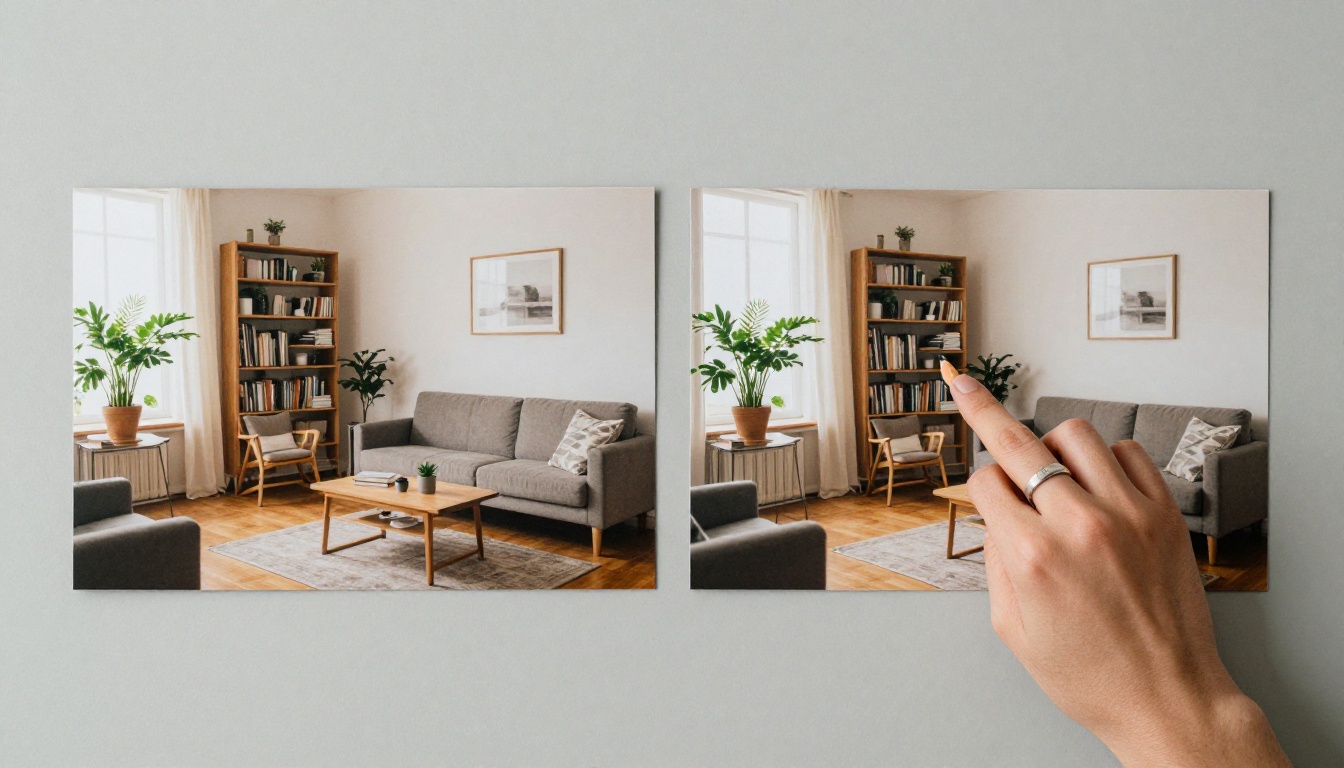
Multiple Images in One Prompt
Add more image parts to the same input list. Google's docs allow up to 3,600 image files in one request.
before = client.files.upload(file="living-room-before.jpg")
after = client.files.upload(file="living-room-after.jpg")

interaction = client.interactions.create(
    model="gemini-3.8-flash",
    input=[
        {
            "type": "text",
            "text": "The first image is BEFORE and the second is AFTER. "
                    "What is different between them?",
        },
        {"type": "image", "uri": before.uri, "mime_type": before.mime_type},
        {"type": "image", "uri": after.uri, "mime_type": after.mime_type},
    ],
)

print(interaction.output_text)
Say which image is which in the text. The model sees an ordered list, and a plain "compare these" leaves it guessing about roles.
Prompts That Turn Photos Into Text
The call never changes. Only the instruction does.
Goal
Prompt pattern
Output shape
Caption
"Caption this image in one sentence."
Plain text
Alt text
"Write alt text under 125 characters. Describe only what is visible."
Plain text
Visual question
"How many red crates are on the left shelf?"
Short answer
Extraction
"Extract merchant, date, and total."
JSON via schema
Detection
"Detect all of the prominent items in the image."
JSON via schema
Captions and Alt Text
The biggest quality gain comes from constraints. "Describe this image" returns a paragraph. "Write alt text under 125 characters, no opening phrase like 'image of'" returns something you can publish.
prompt = (
    "Write alt text for this photo in under 125 characters. "
    "Describe only what is visible. Do not start with 'image of'."
)
Run that over a folder of photos with a simple loop and you have a first draft of every missing alt attribute on a site. A human still reads the drafts, because a model can misjudge what matters in a scene.
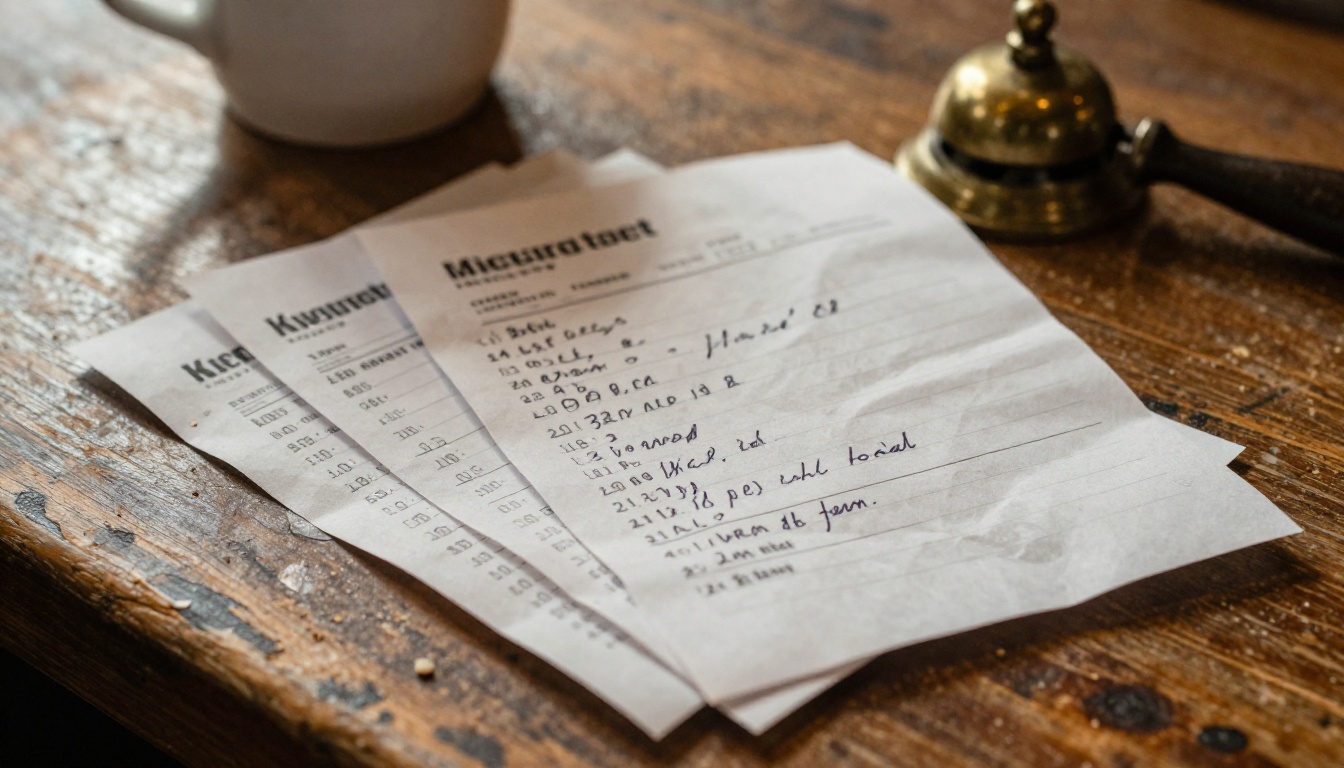
OCR and Receipts
Receipts are a good test because they mix printed text, numbers, and creases. Ask for structured output instead of prose. Define the shape with Pydantic and pass its JSON schema through response_format:
from pydantic import BaseModel

class LineItem(BaseModel):
    name: str
    price: float

class Receipt(BaseModel):
    merchant: str
    date: str
    items: list[LineItem]
    total: float

receipt = client.files.upload(file="receipt.jpg")

interaction = client.interactions.create(
    model="gemini-3.8-flash",
    input=[
        {
            "type": "text",
            "text": "Extract the merchant, date, line items, and total.",
        },
        {"type": "image", "uri": receipt.uri, "mime_type": receipt.mime_type},
    ],
    response_format={
        "type": "text",
        "mime_type": "application/json",
        "schema": Receipt.model_json_schema(),
    },
)

data = Receipt.model_validate_json(interaction.output_text)
print(data.merchant, data.total)
If the model returns something that does not fit the schema, model_validate_json raises an error right there instead of letting bad data slide into your database.
Object Detection With Boxes
Gemini can return bounding boxes as [ymin, xmin, ymax, xmax], normalized to a 0 to 1000 scale. Ask for them with a schema, then convert to pixels and draw:
from PIL import Image, ImageDraw
from pydantic import BaseModel, Field

class Box(BaseModel):
    box_2d: list[int] = Field(
        description="[ymin, xmin, ymax, xmax] normalized to 0-1000."
    )
    label: str

class Boxes(BaseModel):
    boxes: list[Box]

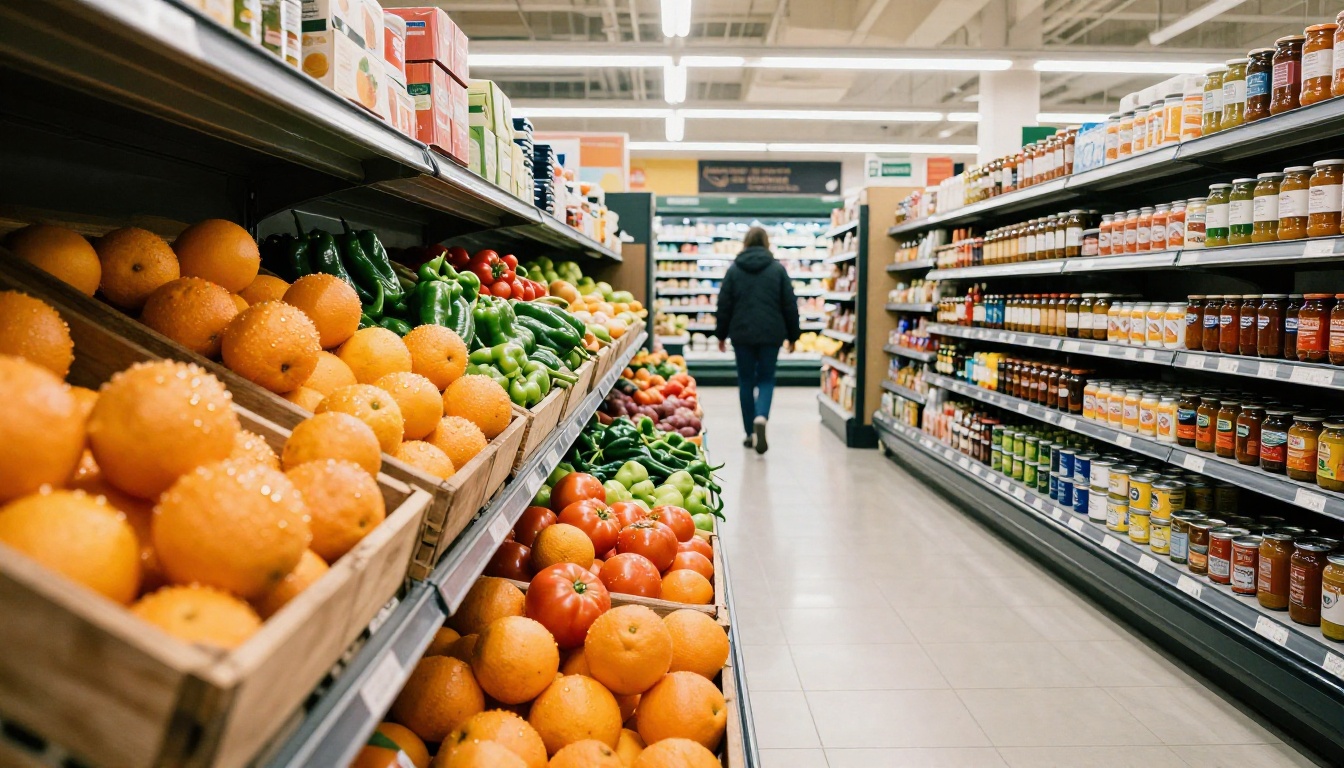
aisle = client.files.upload(file="grocery-aisle.jpg")

interaction = client.interactions.create(
    model="gemini-3.8-flash",
    input=[
        {"type": "text", "text": "Detect all of the prominent items in the image."},
        {"type": "image", "uri": aisle.uri, "mime_type": aisle.mime_type},
    ],
    response_format={
        "type": "text",
        "mime_type": "application/json",
        "schema": Boxes.model_json_schema(),
    },
)

result = Boxes.model_validate_json(interaction.output_text)

image = Image.open("grocery-aisle.jpg")
width, height = image.size
draw = ImageDraw.Draw(image)

for item in result.boxes:
    ymin, xmin, ymax, xmax = item.box_2d
    left, top = xmin / 1000 * width, ymin / 1000 * height
    right, bottom = xmax / 1000 * width, ymax / 1000 * height
    draw.rectangle((left, top, right, bottom), outline="red", width=4)
    draw.text((left + 6, top + 6), item.label, fill="red")

image.save("grocery-aisle-boxes.jpg")
Segmentation follows the same pattern. The schema adds a mask field holding polygon points, also normalized to 0 to 1000. Google recommends setting the thinking level to minimal for segmentation, since extended reasoning adds latency without improving the polygons.
Limits, Tokens, and Costs
Images are billed as tokens, and the count depends on size. Knowing the rule lets you predict a bill before the batch runs.
How Images Count as Tokens
Image situation
Token cost
Both dimensions 384 px or smaller
258 tokens
Larger image
Tiled into 768 x 768 px tiles, 258 tokens per tile
Example: an image that splits into four tiles
4 x 258 = 1,032 tokens
The docs also describe a media_resolution setting that caps the maximum number of tokens allocated to each input image. Lower it for bulk captioning where fine detail is irrelevant. Raise it when small print or distant objects matter. Check the current reference for how your SDK version spells the option.
Pricing differs by model, so read Google's pricing page for numbers. The lever you control is the token count, and sending a smaller copy of the file is the cheapest way to pull it down.
Format and Size Limits
Limit
Value
Supported formats
PNG, JPEG, WEBP, HEIC, HEIF
Images per request
Up to 3,600 files
Inline request size
20 MB total (text, instructions, and bytes)
Bounding box scale
0 to 1000, order [ymin, xmin, ymax, xmax]
💡 If a job sends many images with a long prompt, count the inline total before you hit the 20 MB wall. Switching to the Files API mid-project is easy, but doing it early avoids a flaky failure at 2 a.m.
Three Mistakes That Waste Calls
Most failed requests come from the same short list.
Wrong MIME Type
The mime_type must match the real file. Labeling a PNG as image/jpeg or passing an unsupported format produces errors or poor results. Let Python decide instead of typing strings by hand:
Some systems do not know the HEIC type, so add a small manual mapping if you accept iPhone originals.
Boxes in the Wrong Place
If drawn rectangles land in odd spots, check two things. First, the order is [ymin, xmin, ymax, xmax], with the vertical value first. Many people read it as x then y. Second, the numbers sit on a 0 to 1000 scale, not in pixels. Divide by 1000, then multiply by the real width or height.
Free Text Where JSON Belongs
Writing "return JSON" in the prompt works until the model wraps the answer in a code fence or adds a friendly sentence. Pass a schema through response_format and parse with model_validate_json. The contract then lives in code, where a bad response fails loudly and a good one arrives typed.
Try Gemini 3.5 Flash Without Code
Before writing Python, test the prompt in a browser. Gemini 3.5 Flash runs on Picasso IA and takes images directly, so you can tune an instruction in seconds and paste it into your script afterward.
Attach your photos in the Images field. The model accepts up to 10 images per run, each up to 7 MB.
Type the instruction in the Prompt field, worded exactly as you plan to send it from Python.
Optionally fill System Instruction to fix the role, such as "You write alt text under 125 characters."
Choose a Thinking Level of none, low, or high. Leave it on none for captions and raise it for dense reasoning.
Set Temperature low for extraction and OCR, higher for creative captions.
Run it, compare the answer to what you wanted, and adjust the wording before copying it into code.
Field
What it does
Starting value
Prompt
The instruction sent with the images
Your exact production wording
Images
Up to 10 files, 7 MB each
One image while testing
System Instruction
Sets the model's role
One short sentence
Thinking Level
none, low, or high
none
Temperature
Randomness from 0 to 2
0.2 for OCR, 1 for captions
Max Output Tokens
Caps answer length
Default is fine
The limits on Picasso IA differ from the raw API limits above, so treat the page as a prompt lab and the API as the production path. For a second opinion on a hard image, run the same prompt through Gemini 3.1 Pro, Qwen3.7-Plus, which interprets images as well as text, or Granite Vision 4.1 4B, which is built for charts and tables.
Create Your Own Test Images
You do not need a folder of real photos to start. Generate a messy desk, a grocery shelf, a rainy street, or a crumpled receipt with PicassoIA Image or Seedream 4.5, then feed each result to Gemini 3.5 Flash and see what it reads back.
Try three experiments this week. Ask for alt text on five generated photos. Ask for a bounding box around one object in a busy scene. Ask for a JSON total from a receipt image. Each takes minutes, and together they show where the model is sharp and where your prompt needs tightening.
Open Picasso IA, create your first test image, and run your own prompt. Browse every available model at picassoia.com/en/all-models and pair an image generator with a vision model to build your own image to text workflow.