You typed "Veo API pricing" into a search bar because you want one number: what does a single AI video clip cost? The short answer is that Google bills Veo by the second of generated footage, the price swings by a factor of eight depending on the tier you pick, and there is no free tier for Veo 3.1 on the Gemini API. That last point surprises a lot of people, so this article walks through the numbers, the access steps, the quality settings, and the limits that can stall a project.
💡 Quick take: Veo 3.1 Lite is the cheapest official tier, Veo 3.1 Fast sits in the middle, and Veo 3.1 Standard is the premium option. Prices below are the per-second rates reported across several pricing trackers in late 2026. Google changes video pricing without much warning, so treat them as a planning baseline and confirm on Google's own pricing page before you commit a budget.

How Veo API Billing Works
Veo is Google's text-to-video and image-to-video model family. Version 3.1 generates short clips with native synchronized audio, meaning dialogue, ambient sound, and effects arrive baked into the same file. Developers reach it through the Gemini API or through Vertex AI on Google Cloud.
The billing model is simple on paper: you pay per second of video that is generated. A request for an eight-second clip is charged for eight seconds. Prompt length does not change the price, and the audio track is not billed as a separate line item. What does change the price is the model tier and the output resolution.
Per-Second Rates by Tier
These are the figures reported for the Gemini API:
| Model tier | 720p | 1080p | 4K |
|---|
| Veo 3.1 Standard | $0.40 / sec | $0.40 / sec | $0.60 / sec |
| Veo 3.1 Fast | $0.10 / sec | $0.12 / sec | $0.30 / sec |
| Veo 3.1 Lite | $0.05 / sec | $0.08 / sec | Not offered |
A few things stand out. Standard charges the same for 720p and 1080p, so there is no reason to drop to 720p on that tier unless you need faster iteration. Fast became noticeably cheaper earlier this year after a price cut, which makes it the default recommendation for most production work. Lite, the newest option, undercuts everything and was positioned as a direct answer to cheaper rivals.
Cost per Clip in Real Money
Per-second prices feel abstract until you multiply them. Here is what a standard eight-second clip costs:
| Tier and resolution | Cost for one 8-second clip |
|---|
| Lite, 720p | $0.40 |
| Lite, 1080p | $0.64 |
| Fast, 720p | $0.80 |
| Fast, 1080p | $0.96 |
| Standard, 720p or 1080p | $3.20 |
| Fast, 4K | $2.40 |
| Standard, 4K | $4.80 |
If you generate 100 clips while hunting for the right shot, the spread is dramatic: roughly $40 on Lite at 720p, $80 on Fast at 720p, and $320 on Standard. And remember that nobody keeps the first take. Most creators discard three or four attempts for every clip they publish, so the real cost per usable clip is a multiple of the sticker price.
Is There a Free Tier?
Not for Veo 3.1 on the Gemini API. The pricing table for the model marks the free tier as unavailable, which means every request that produces video is billed from the first second. This trips up newcomers who remember that Gemini text models have generous free quotas and assume video follows the same pattern.

Where Free Access Does Exist
Google has run limited trial offers in the past, mostly through consumer products rather than the developer API. New Google Cloud accounts have also received promotional credits that can be spent on Vertex AI, which indirectly pays for Veo generations until the credit runs out. These offers change, vary by country, and often expire, so do not build a plan around them.
Why "Free Veo API" Searches Mislead
Search results for free Veo access are crowded with reseller sites, wrapper tools, and "unlimited" claims. Some are legitimate platforms that absorb the cost. Others are thin front ends that run out of credits after two clips. Before you paste a credit card or an access credential into an unfamiliar site, check who actually operates the service and what happens when the free allowance ends.
💡 Practical rule: If a site promises unlimited Veo 3.1 at 4K for nothing, ask where the compute bill goes. Somebody is paying Google $0.40 to $0.60 per second.
Getting API Access Step by Step
Access works the same way for most Google AI services, with a billing requirement layered on top for video.
- Create a Google account project. Sign in to Google AI Studio or the Google Cloud console and start a project.
- Attach billing. Because there is no free tier for Veo 3.1, a billing account must be linked before video requests succeed.
- Generate an API key. In AI Studio you can create one in a couple of clicks. On Vertex AI you authenticate with a service account instead.
- Call the video endpoint. Video generation is asynchronous. You submit a request, receive an operation ID, and poll until the file is ready.
- Download the result. Generated files are stored temporarily on Google's side, so save them right away.

Keep Your Credentials Safe
A leaked API credential tied to a paid video model is expensive. A stolen token can burn through hundreds of dollars overnight. Store it in an environment variable, never in client-side code, restrict it to the specific API in the console, and set a budget alert. Two minutes of setup protects you from a nasty invoice.
Gemini API or Vertex AI?
The Gemini API suits solo developers, prototypes, and small apps. Vertex AI fits teams that need enterprise controls such as identity management, regional data handling, and committed-use pricing. Per-second rates can differ slightly between the two, and Vertex sometimes gets features first, so check both tables if your volume is high.
Video Quality and What It Costs
Resolution is the second lever on your bill. Veo 3.1 outputs 720p and 1080p by default and offers 4K on the higher tiers, with 24 frames per second and clip lengths in the range of four to eight seconds.
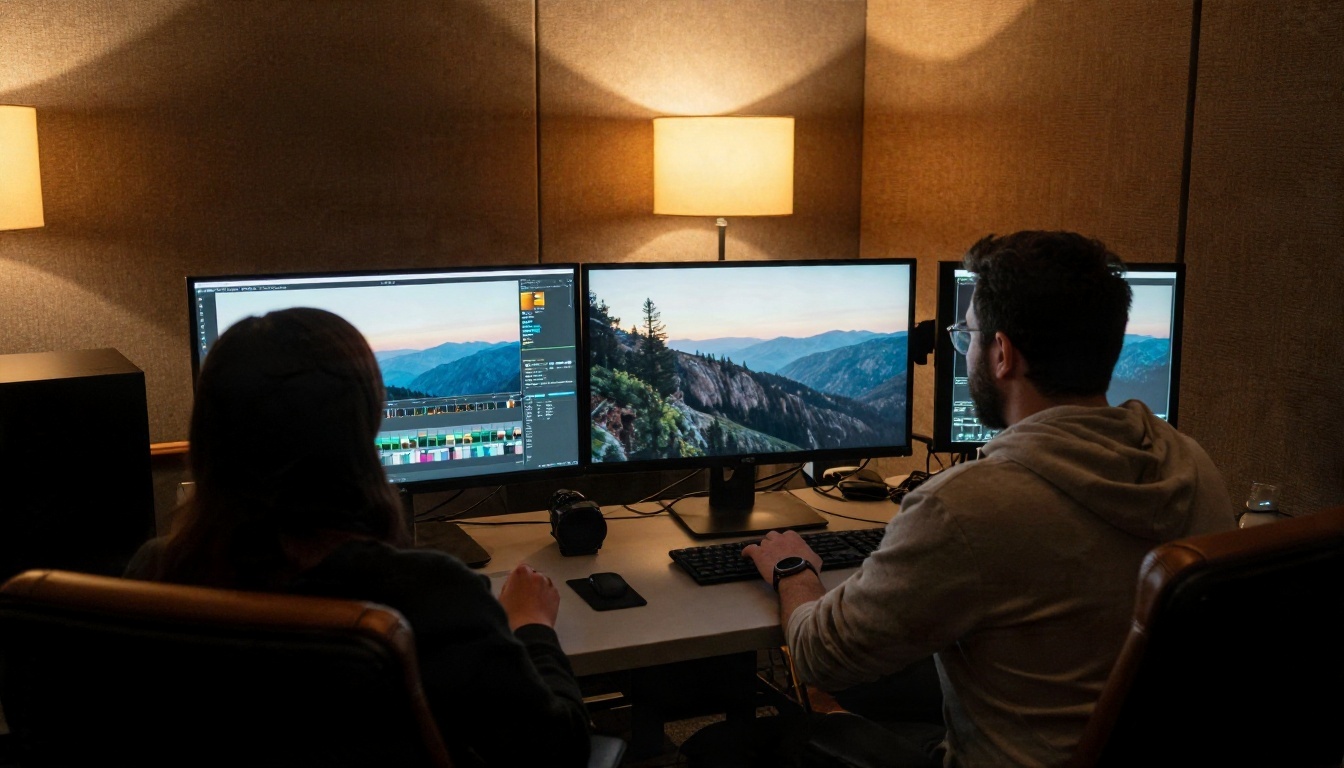
720p: The Draft Resolution
For social previews, storyboards, and prompt testing, 720p is enough. On Fast and Lite it is also the cheapest setting. A smart workflow is to iterate on prompts at 720p, then rerun only the winning prompt at higher resolution.
1080p: The Publishing Standard
Most web, YouTube, and ad placements are satisfied by 1080p. The extra cost over 720p on Fast is only two cents per second, a small premium for noticeably crisper edges, finer textures, and cleaner motion in hair, fabric, and water.
4K: Only When You Need It
Fast at 4K costs three times the 720p rate, and Standard at 4K reaches $0.60 per second. That price makes sense for large-screen delivery or heavy cropping in post. For a phone-first campaign it is wasted money. A good alternative is to generate at 1080p and run an upscaler afterwards, which usually costs far less than native 4K generation.
💡 Budget tip: Judge motion and composition at the cheapest setting. Pay for resolution only on a clip you already know you will use.
Limits That Can Stall Your Project
Pricing is only half of the planning problem. Rate limits and quotas decide how fast you can actually produce.
Rate Limits and Quotas
New accounts begin with low requests-per-minute and requests-per-day ceilings. Higher quota usually depends on your billing history and spend tier, and an increase can take time to approve. If you plan a batch of several hundred clips, request a quota raise early rather than discovering the ceiling mid-project.
Clip Length and Format Limits
Each generation is short. Eight seconds is the practical maximum for a single request, so longer stories need multiple clips stitched together in an editor. Character consistency across clips takes care: reuse the same reference images and descriptive phrases to keep faces and outfits stable.
Generation Time and Failures
Video requests are asynchronous and can take anywhere from under a minute to several minutes, depending on tier and load. Plan for retries. Safety filters may also reject prompts that touch on public figures, minors, or sensitive material, and a rejected request may still consume part of your quota even when it returns no video.
Choosing the Right Tier
The cheapest tier is not always the best value, and the priciest is rarely necessary. This breakdown matches common projects to a sensible tier:
| Project type | Suggested tier | Why |
|---|
| Prompt testing and storyboards | Lite at 720p | Lowest cost per attempt |
| Social media posts and short ads | Fast at 1080p | Good quality, predictable bill |
| Product demos and client work | Fast or Standard at 1080p | Cleaner detail where it matters |
| Cinema screens or heavy cropping | Standard at 4K | Maximum fidelity |

A Sample Monthly Budget
Say a small studio publishes 20 finished videos a month, each built from three eight-second shots, with four attempts per shot. That is 240 generations, or 1,920 seconds of footage. On Fast at 1080p that costs about $230. On Lite at 1080p it falls to roughly $154. On Standard it climbs past $750. The gap between tiers is big enough to justify a short test of each before you pick one.
Hidden Costs to Remember
- Rejected and discarded takes that you still pay for.
- Upscaling and editing software if you stitch clips together.
- Storage and bandwidth for large 1080p and 4K files.
- Engineering time to build polling, retry, and error handling around an asynchronous API.
Run Veo on PicassoIA Instead
If you want Veo output without setting up billing, quotas, and polling code, PicassoIA hosts several Veo models behind a simple prompt box. You write a prompt, choose your settings, and download the clip. That makes it a practical fit for creators who care about the video rather than the infrastructure.
Three Veo options are available:
- Veo 3.1 for the highest quality 1080p output with native audio.
- Veo 3.1 Fast for quicker generations at a friendlier price point.
- Veo 3.1 Lite for cheap experiments and high-volume testing.
The older Veo 3 Fast is also there if you want to compare generations.

How to Use Veo 3.1 on PicassoIA
- Open the model page. Go to Veo 3.1 and sign in.
- Write a cinematic prompt. Describe the subject, the action in chronological order, the camera move, and the sound. For example: "A barista pours steamed milk into a ceramic cup, slow push-in, morning window light, soft cafe ambience and the hiss of the steamer."
- Add a reference image if you have one. Starting from a photo gives you tighter control over composition and character look.
- Pick duration and resolution. Use the shorter, lower-resolution option while testing the prompt.
- Generate and review. Check motion, lighting, and audio. If something is off, change one element of the prompt at a time.
- Rerun your best prompt at full quality. Then download the clip and cut it into your edit.
💡 Parameter tip: Put the camera instruction early in the prompt and keep it to one move. "Slow dolly-in" works better than a stack of three moves in five seconds.
Prompt Habits That Save Credits
Specific prompts waste fewer attempts. Name the lens feel, the light direction, and the surface textures you want. State what should not appear when a clip keeps adding unwanted elements. And describe sound explicitly, because Veo generates audio and rewards clear direction such as footsteps on gravel or distant traffic.
Alternatives Worth Testing
Veo is excellent, but it is not the only strong video model, and a different one may cost less for your use case. These are all available on PicassoIA:
- Seedance 2.5 Lite generates up to 10 seconds per clip and is positioned as a free and unlimited option, good for volume work.
- Seedance 2.5 pushes clip length to 30 seconds for longer scenes.
- Wan 3 Prime produces 1080p video from text with a cinematic look.
- Kling v1.5 Pro delivers dependable 1080p motion for product and lifestyle shots.
When to Switch Models
Use Veo when native audio and realistic physics matter most. Switch to Seedance for longer scenes or high-volume drafts. Pick Wan or Kling when you want a different visual feel to compare against Veo's look. Running the same prompt through two or three models for a short test is often the cheapest way to find the best match.
Practical Ways to Cut Your Bill

- Draft cheap, finish expensive. Test on Lite or Fast at 720p, then upgrade only winners.
- Write shorter clips. Four to six seconds is often enough for a social shot and costs half as much as eight.
- Reuse reference images. Consistent inputs reduce the number of rerolls.
- Set budget alerts. Cloud billing tools can email you or cap spend before a runaway script drains an account.
- Batch thoughtfully. Queue prompts you have already tested rather than firing blind variations.
- Check prices monthly. Video rates have moved more than once this year, usually downward.
Start Creating Your Own Videos
Veo API pricing comes down to three choices: tier, resolution, and how many attempts you need before a clip is usable. Official access means billing setup, an API credential, and quota management, with no free tier to ease you in. If you would rather spend that time on the footage itself, open Veo 3.1, Veo 3.1 Fast, or Veo 3.1 Lite on PicassoIA, write a prompt, and see what your idea looks like in motion. Try one scene across two models, compare the results, and keep the one that fits your budget and your style. The full catalog is at picassoia.com/en/all-models.


