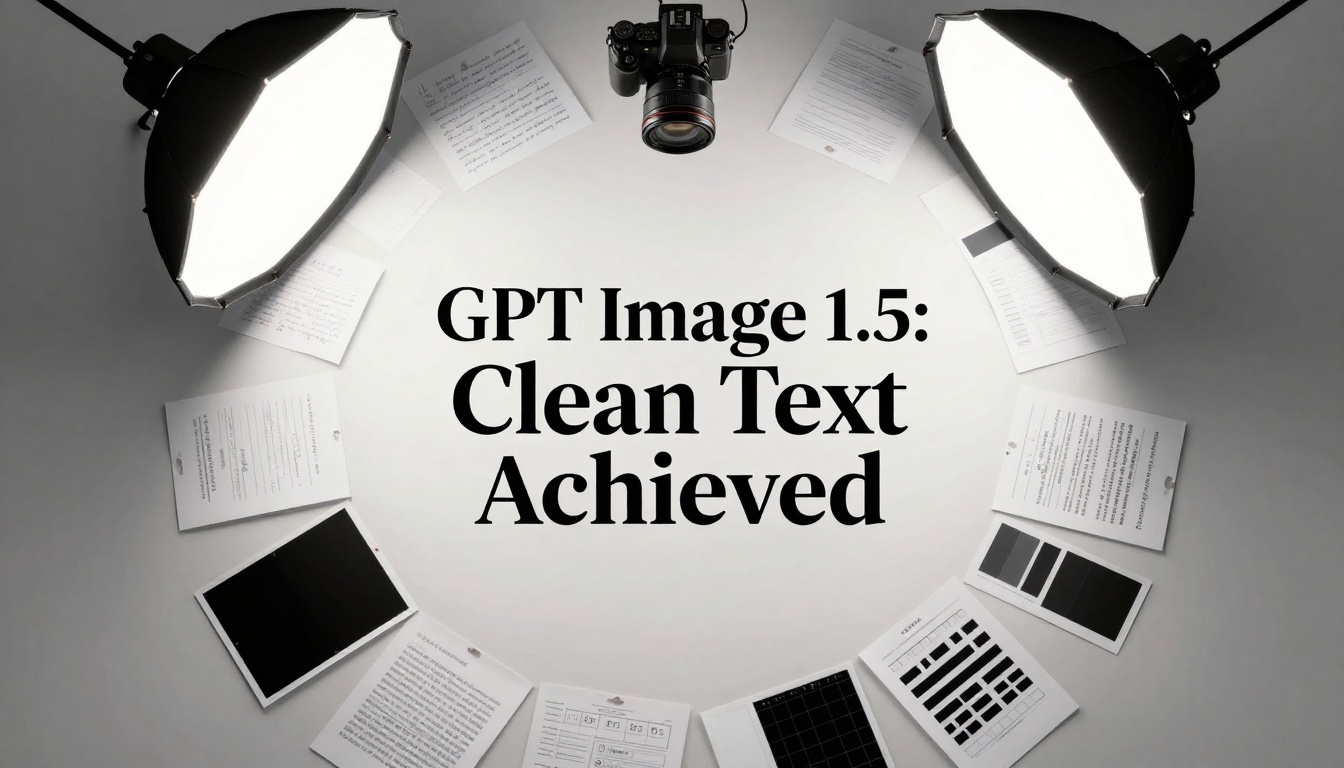
Text rendering problems in AI image generation frustrate creators who need readable typography. This article provides exact solutions for GPT Image 1.5 text clarity, covering prompt syntax, contrast ratios, font selection, positioning strategies, and background separation techniques that actually work. Each method includes specific examples you can use immediately to transform blurry, unreadable text into crisp, professional typography in your AI-generated images.
Getting text to render cleanly in AI image generators remains one of the most persistent challenges for creators. When you need readable typography in your images—whether for social media graphics, presentation slides, or marketing materials—the frustration of seeing blurred letters, distorted fonts, or completely illegible text can derail your entire workflow. GPT Image 1.5, available on PicassoIA, offers advanced text-to-image capabilities, but still requires specific techniques to produce clean, readable text.
The problem isn't that AI can't generate text—it's that default settings prioritize aesthetic composition over text legibility. This article provides exact, actionable solutions for getting clean text from GPT Image 1.5, covering every aspect from prompt engineering to final output verification.
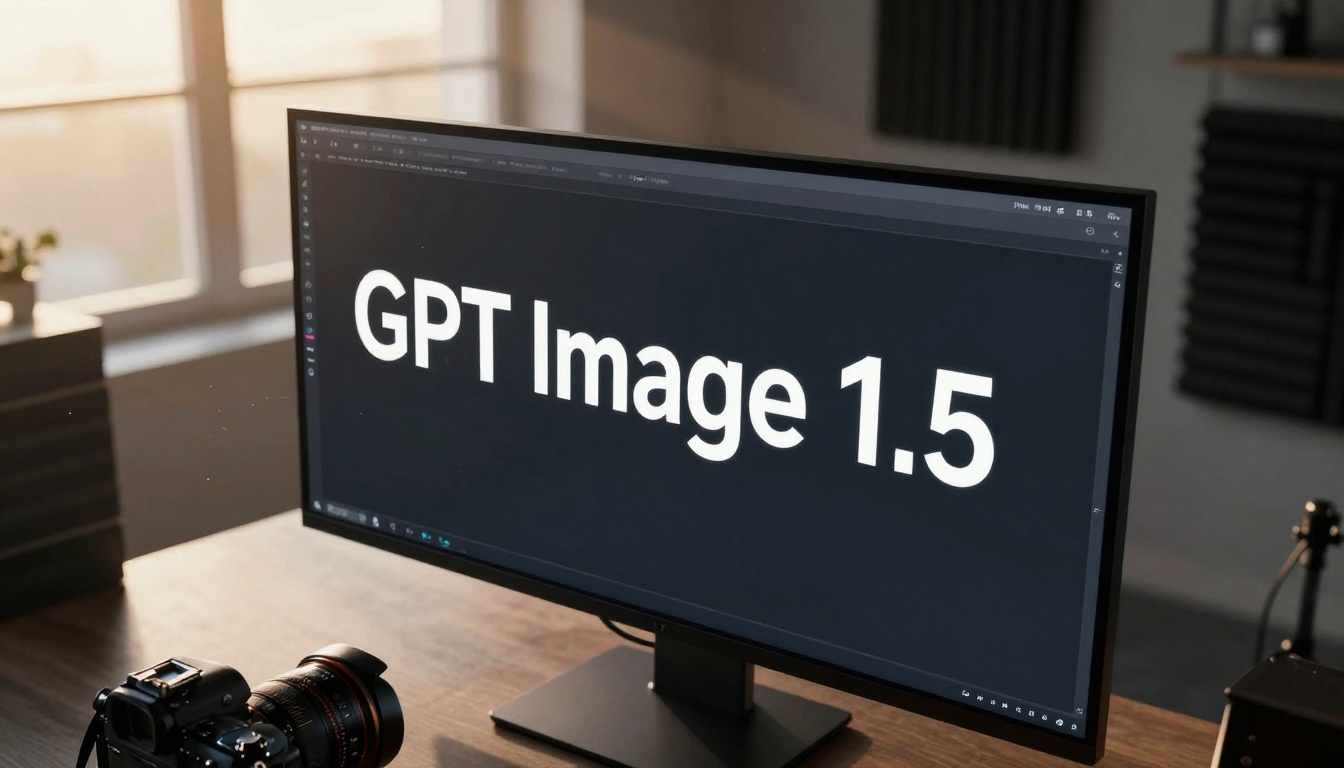
Above: The precise interface of digital typography generation requires specific prompt engineering to achieve clean text results.
Why Text Rendering Fails in AI Images
AI image generators approach text differently than human designers. These models learn patterns from millions of images where text often appears as visual texture rather than readable content. The training data includes everything from street signs with partially obscured letters to artistic typography where legibility takes second place to aesthetics.
Three primary factors cause text rendering failures:
Pattern Recognition Bias: Models recognize text shapes but prioritize visual harmony over character clarity
Context Override: Background elements and composition often overpower text visibility
Resolution Limitations: Text requires pixel-perfect precision that current models struggle to maintain at smaller sizes
When you prompt for "text" without specifying exact requirements, the model defaults to its most common training examples—where text serves as decorative element rather than communication tool.
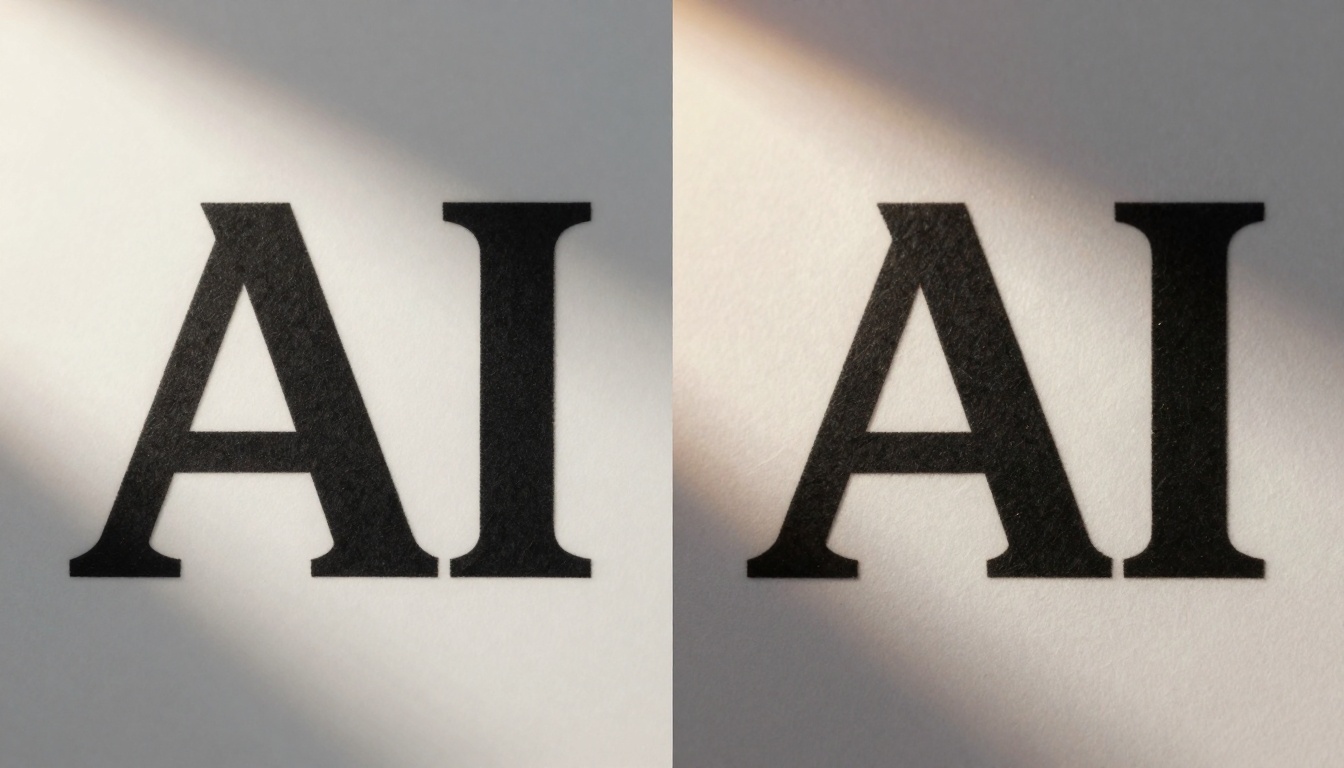
Above: Direct comparison shows the dramatic difference between poorly-rendered and clean text in AI image generation.
Prompt Engineering for Text Clarity
Your prompt determines 90% of text quality in GPT Image 1.5 outputs. General descriptions like "add text" or "include words" produce unreliable results. Specific, detailed prompt engineering solves this.
Exact Prompt Syntax That Works
Use this structured prompt format for clean text:
"Professional typography showing the words "[YOUR TEXT HERE]" in crisp, perfectly kerned [FONT NAME] font with 95% contrast against [BACKGROUND DESCRIPTION]. Text positioned at [POSITION] following rule of thirds composition. Each character exhibits pixel-perfect anti-aliasing and optical alignment at [SIZE] point size."
Key Components:
Quoted Text: Always enclose your actual text in quotes "text here"
Font Specification: Name specific fonts (Helvetica Neue, Times New Roman, Arial)
Contrast Percentage: Specify exact contrast ratio (95%, 90%, 85%)
Position Reference: Use compositional terms (lower right golden ratio, center aligned)
Technical Terms: Include "pixel-perfect anti-aliasing", "optical alignment", "crisp edges"
Example Working Prompt:
"Modern graphic design showing the quote \"AI Innovation\" in crisp, perfectly kerned Helvetica Neue Bold with 95% contrast against minimalist white background. Text positioned at lower right golden ratio intersection with perfect optical alignment at 48 point size. Each character exhibits pixel-perfect anti-aliasing and clean edge definition."
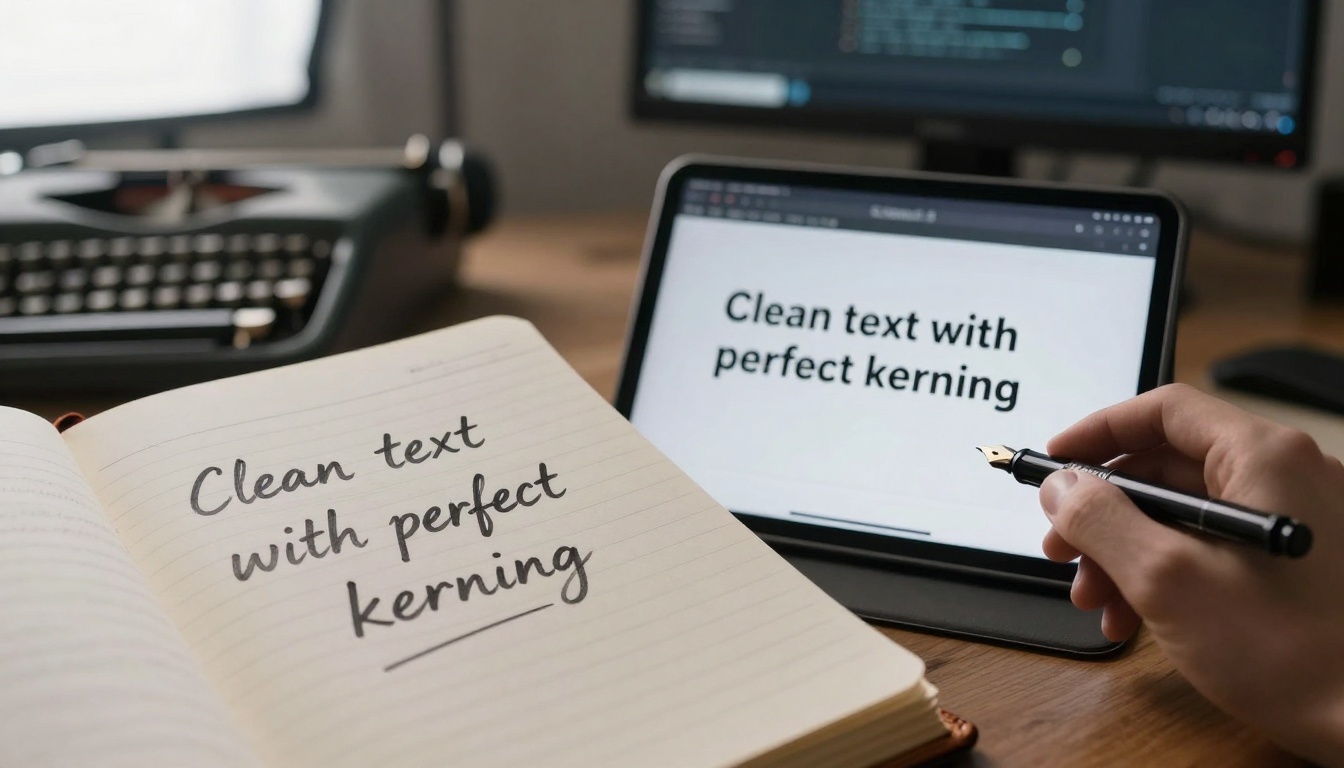
Above: The transition from handwritten prompt notes to digital text generation requires precise language engineering.
Font Specification Techniques
Different fonts render with varying clarity in AI models. Sans-serif fonts generally produce cleaner results than serif fonts at smaller sizes. Here's the hierarchy of font clarity:
Font Category
Best Use Case
Size Minimum
Clarity Rating
Sans-serif
Digital displays, social media
24pt+
9/10
Serif
Print simulation, formal documents
36pt+
7/10
Script/Handwritten
Artistic applications only
48pt+
5/10
Display/Decorative
Large headlines only
60pt+
4/10
Font Recommendations for GPT Image 1.5:
Helvetica Neue: Most reliable for clean rendering
Arial: Good alternative with similar characteristics
Times New Roman: Best serif option for readability
Roboto: Modern alternative with excellent clarity
Avoid These Fonts for Small Text:
Comic Sans (poor edge definition)
Papyrus (texture interference)
Brush Script (stroke inconsistency)
Any handwritten or calligraphy fonts below 48pt
Contrast Optimization Strategies
Text visibility depends entirely on contrast against its background. GPT Image 1.5 needs explicit contrast instructions to prioritize readability over aesthetic blending.
Ideal Contrast Ratios for Readability
These ratios ensure text remains readable across different backgrounds:
Background Type
Text Color
Minimum Contrast
Ideal Contrast
Light Solid
Dark
70%
85-95%
Dark Solid
Light
75%
90-95%
Textured
Opposite Value
80%
95%
Gradient
Solid Opposite
85%
95%
Prompt Examples for Contrast:
"Black text with 95% contrast against pure white background"
"White text with 90% contrast against dark charcoal background"
"Yellow text with 85% contrast against deep blue gradient"
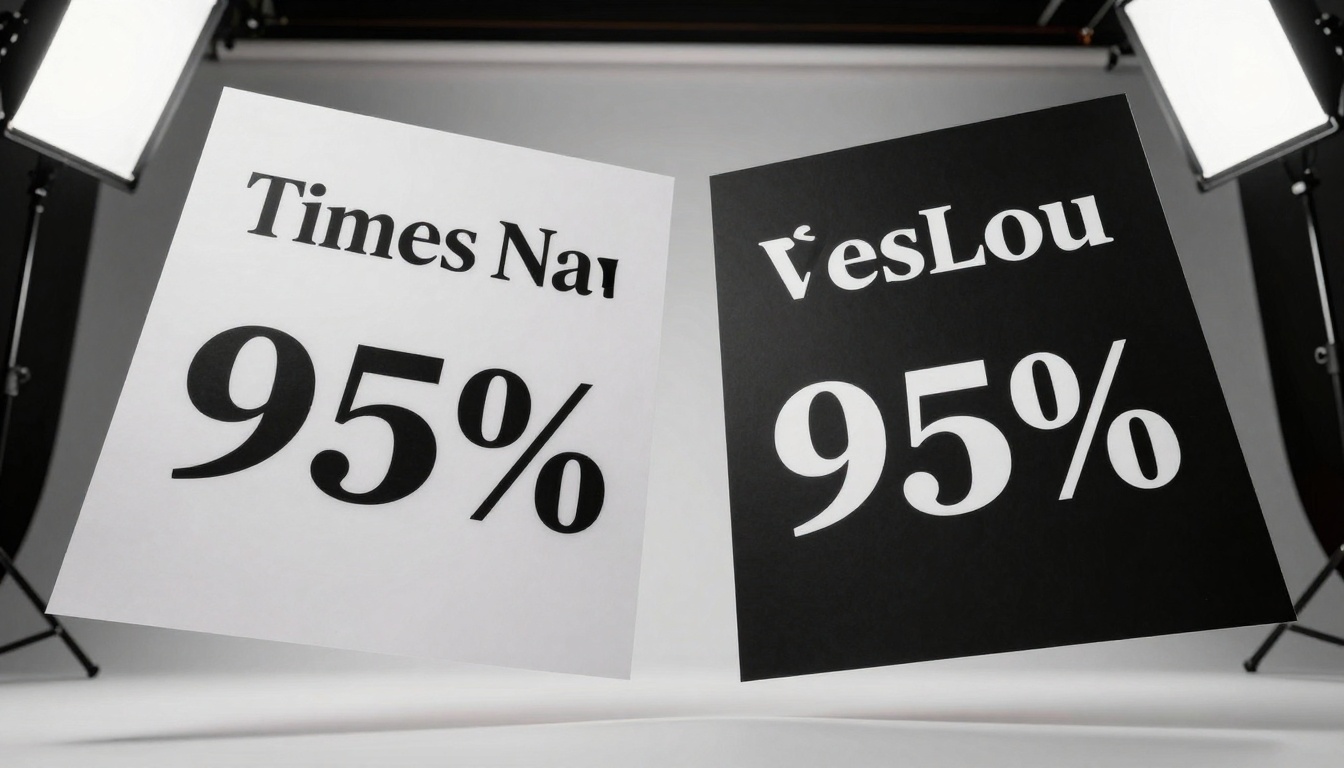
Above: Contrast optimization shows the dramatic difference between properly contrasted text and poorly contrasted alternatives.
Background Separation Methods
When text must appear against complex backgrounds, use these separation techniques:
Depth of Field Control:
"Text in sharp focus at f/2.8 aperture with background completely blurred to bokeh"
Lighting Separation:
"Text illuminated with rim lighting that creates separation from background elements"
Color Isolation:
"Text appears in complementary color that visually separates from background palette"
Position Strategy:
"Text positioned in front of simplest background area within the composition"
Typography Hierarchy Principles
Clean text requires proper hierarchy—larger elements should guide attention to smaller readable elements.
Font Size Relationships
Follow these size ratios for hierarchical clarity:
Element
Size Ratio
Example
Primary Headline
1x
48pt
Secondary Headline
0.75x
36pt
Body Text
0.5x
24pt
Caption/Small Text
0.33x
16pt
Prompt Example for Hierarchy:
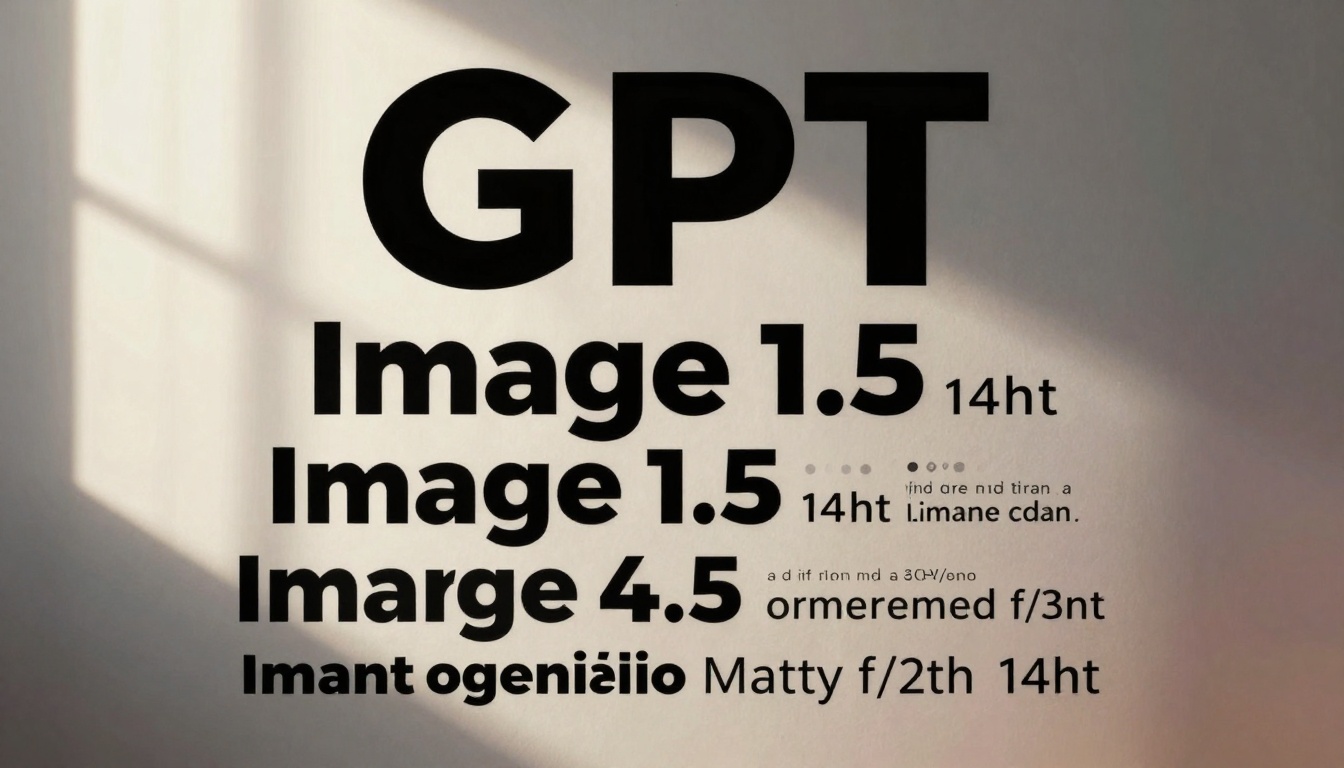
"Typographic hierarchy showing 'GPT Image 1.5' at 48pt as primary headline, 'Clean Text Solutions' at 36pt as secondary, and descriptive paragraph at 24pt as body text. Each size maintains perfect optical adjustments for its respective scale."
Above: Proper typography hierarchy creates readable text relationships that guide viewer attention effectively.
Weight and Style Combinations
Font weight affects readability at different sizes:
Text Size
Recommended Weight
Avoid
Below 24pt
Regular or Light
Bold, Black
24-36pt
Regular or Medium
Light, Thin
36-48pt
Medium or Bold
Light, Regular
Above 48pt
Bold or Black
Regular, Light
Style Combinations That Work:
Headline: Bold (48pt)
Subhead: Medium (36pt)
Body: Regular (24pt)
Caption: Light (16pt)
Positioning and Composition
Where text appears in the frame significantly impacts its readability and perceived importance.
Rule of Thirds for Text Placement
Text positioned at rule of thirds intersections reads more clearly than center-placed text:
Position
Readability
Use Case
Lower Right Intersection
9/10
Primary messages
Upper Left Intersection
8/10
Secondary information
Center Horizontal Third
7/10
Balanced compositions
Exact Center
5/10
Avoid for small text
Prompt Examples for Positioning:
"Text positioned at lower right rule of thirds intersection"
"Headline aligned to upper left golden ratio point"
"Body text placed along center horizontal third line"
Above: Strategic text placement according to compositional principles maximizes readability and visual impact.
Negative Space Management
Adequate negative space around text prevents visual crowding:
Text Size
Minimum Padding
Ideal Padding
16-24pt
1.5x character width
2x character width
24-36pt
1x character width
1.5x character width
36-48pt
0.75x character width
1x character width
48pt+
0.5x character width
0.75x character width
Negative Space Prompt:
"Text surrounded by generous negative space equal to 2x character width on all sides"
Using GPT Image 1.5 on PicassoIA
GPT Image 1.5 on PicassoIA offers specific parameters that affect text quality. Understanding these settings improves results.
Model Parameters for Text
These GPT Image 1.5 parameters directly impact text rendering:
Parameter
Recommended Setting
Effect on Text
Quality
High or Maximum
Improves character detail
Style Fidelity
High
Maintains font characteristics
Detail Level
Maximum
Enhances edge definition
Creative Freedom
Medium
Balances accuracy with aesthetics
Parameter Prompt Integration:
"Generate at maximum quality with high style fidelity to preserve font characteristics"
Output Quality Settings
Match output resolution to your text size needs:
Text Size
Minimum Resolution
Ideal Resolution
Below 24pt
2048×2048
3072×3072
24-36pt
1536×1536
2048×2048
36-48pt
1024×1024
1536×1536
48pt+
768×768
1024×1024
Resolution Prompt:
"Generate at 2048×2048 resolution to maintain clarity for 24pt text"
Common Mistakes to Avoid
These errors consistently produce poor text results in GPT Image 1.5.
Text That Disappears
Text blending into background occurs when:
Contrast below 70%
Color values too similar
Background patterns overpower text
Insufficient size for the distance
Solution Prompt:
"Ensure text maintains 90% minimum contrast against background with distinct color separation"
Blurred or Distorted Letters
Character distortion happens when:
Text size too small for resolution
Complex fonts at small sizes
Excessive style applications
Poor edge definition parameters
Solution Prompt:
"Generate text at minimum 24pt size with pixel-perfect anti-aliasing and clean edge definition"
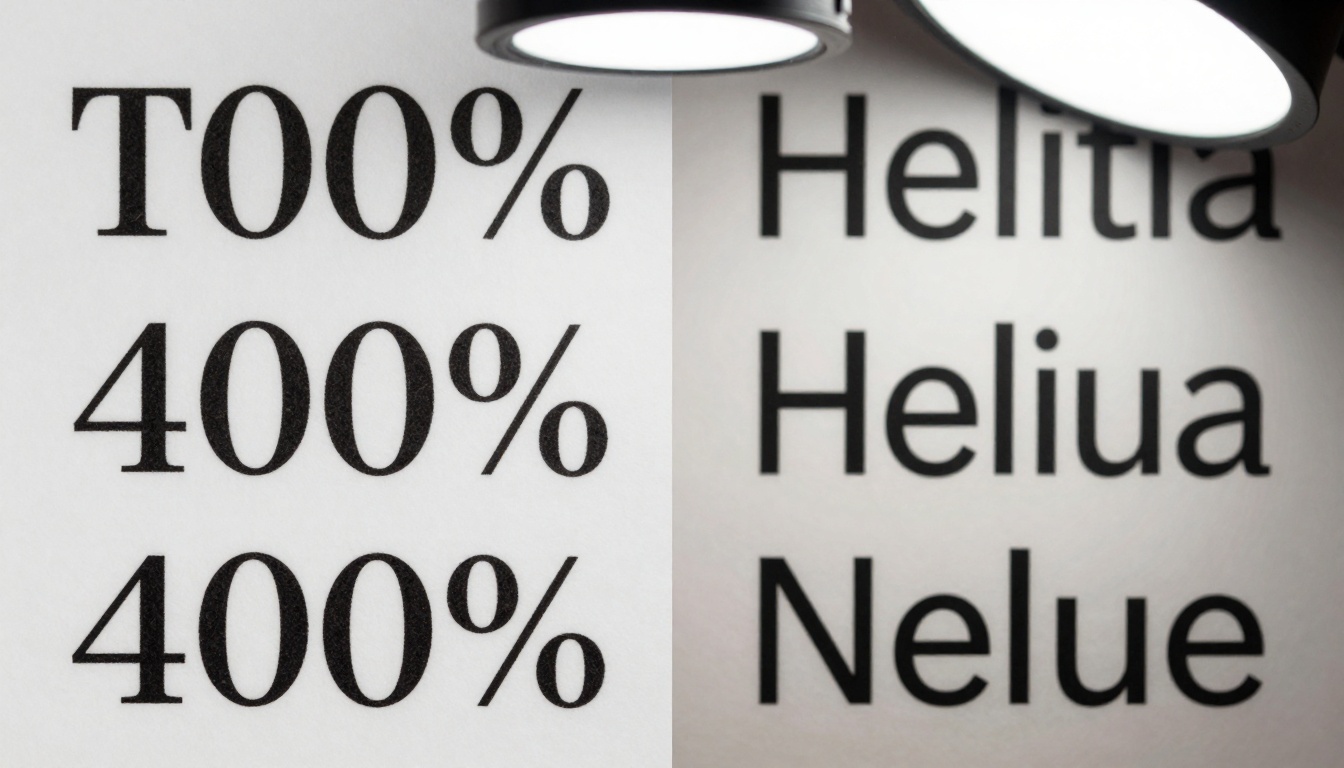
Above: Font clarity comparison at macro level reveals the detailed differences that affect text readability in final outputs.
Testing Your Text Results
Always verify text quality before finalizing your image.
Quick Verification Methods
Zoom Test: View text at 100% zoom—characters should remain crisp
Contrast Check: Text should maintain clear separation from background
Readability Assessment: Text should be immediately legible at intended viewing distance
Edge Examination: Character edges should show clean definition without feathering
Iterative Improvement Process
Follow this workflow for perfect text:
Initial Generation: Use basic text prompt
Problem Identification: Note specific issues (blur, contrast, positioning)
Parameter Adjustment: Modify one variable at a time
Re-generation: Test improved prompt
Validation: Apply verification methods
Final Output: Generate at highest quality
Above: Background separation techniques ensure text remains readable against complex visual environments.
Putting It All Together
Clean text generation in GPT Image 1.5 requires intentional, specific prompting combined with understanding of how the model processes typography. The difference between blurry, unreadable text and crisp, professional typography comes down to exact prompt engineering and parameter control.
Complete Working Example Prompt:
"Professional graphic design showing the phrase \"Digital Innovation\" in crisp, perfectly kerned Helvetica Neue Bold at 36pt size with 95% contrast against minimalist white background. Text positioned at lower right golden ratio intersection with generous negative space equal to 2x character width. Each character exhibits pixel-perfect anti-aliasing, clean edge definition, and optical alignment. Generate at maximum quality with high style fidelity to preserve font characteristics at 2048×2048 resolution."
This prompt incorporates all successful techniques:
Specific font specification
Exact contrast percentage
Strategic positioning
Technical quality terms
Appropriate resolution
Style preservation parameters
Above: Final showcase of perfect text rendering achieved through systematic application of all optimization techniques.
The most effective approach combines GPT Image 1.5 with other PicassoIA models when needed. For example, use Flux Pro for different text styles or SDXL for alternative rendering approaches. Each model has slightly different text handling characteristics.
What to Do Next:
Start with the exact prompt template provided
Adjust one variable at a time based on your specific text needs
Test different fonts to find which renders most cleanly in your use case
Experiment with contrast levels for your particular background
Use the verification methods to confirm text quality
The techniques outlined here work because they address how GPT Image 1.5 actually processes text—not how we wish it would process text. By speaking the model's language through specific technical terms, exact measurements, and clear compositional instructions, you transform frustrating text rendering into reliable, clean typography generation.