GPT Image 2 dropped quietly, but its impact on AI-powered visual creation has been anything but subtle. OpenAI's latest image generation model represents the sharpest jump in quality the company has shipped since the original DALL-E, and if you've been using any image generator before, you'll notice the difference immediately. The improvements hit the three areas that have historically held back AI imagery: text rendering, photorealism, and prompt fidelity. All three are fixed now, and the practical implications are substantial.
What GPT Image 2 Actually Is
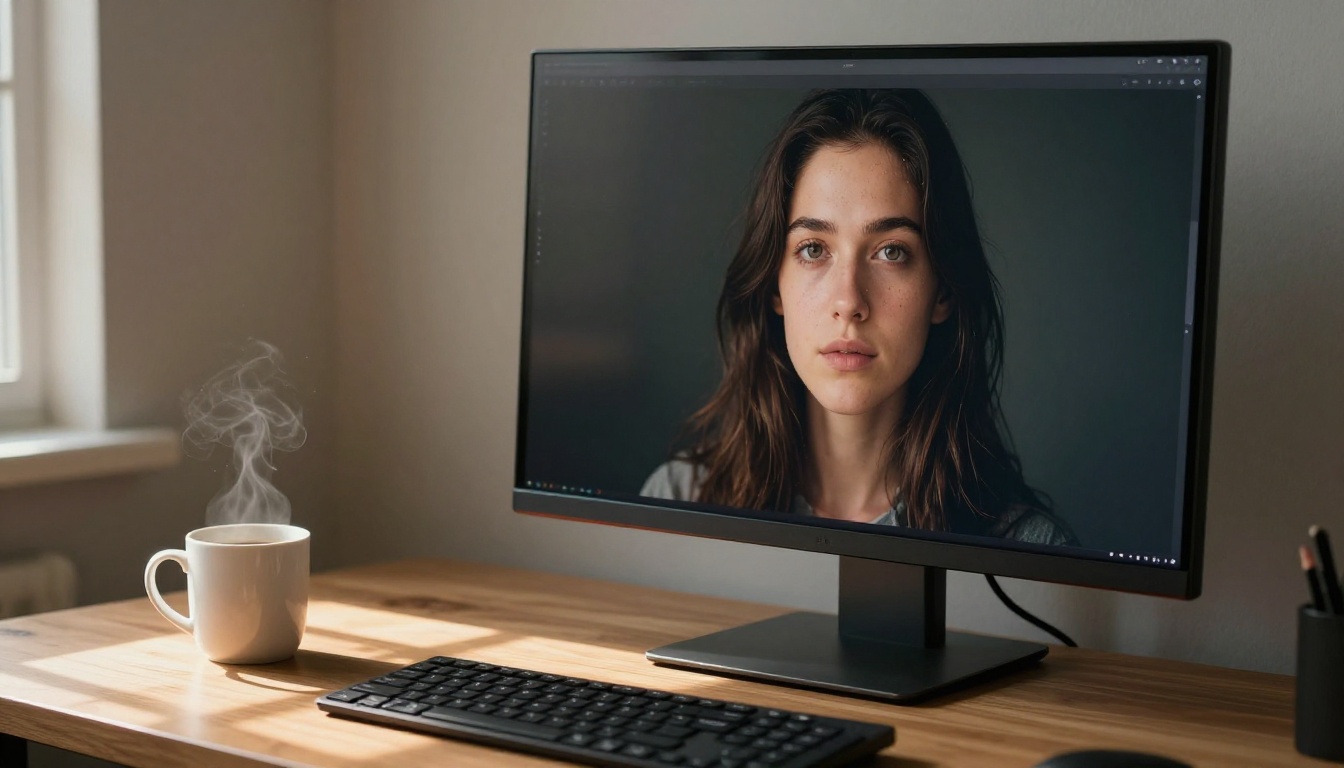
GPT Image 2 is OpenAI's second-generation standalone image synthesis model, built to produce photorealistic images from natural language prompts. It operates differently from the image capabilities baked into GPT-4o: this is a purpose-built visual model, not a vision module attached to a language backbone.
The model accepts text prompts and returns high-resolution images across a range of aspect ratios. It supports editing workflows including inpainting (filling in areas of an image), outpainting (expanding the canvas beyond original boundaries), and object replacement, making it far more than a simple text-to-image tool. Think of it as a complete image creation and manipulation system accessed through plain language.
From GPT Image 1 to GPT Image 2
The original GPT Image 1 was already competitive with Midjourney and Stable Diffusion at launch. But it had well-documented weaknesses: text rendering was unreliable, photorealism broke down on complex scenes with multiple subjects, and prompt adherence was inconsistent for anything beyond simple compositions.
GPT Image 2 addresses all three with architectural improvements that show up immediately in outputs. This isn't a minor patch. The model was retrained on a substantially larger and more curated dataset, with specific focus on legible typography, consistent human anatomy, and compositional fidelity. The practical result is that outputs you'd previously spend 20 attempts to get right now arrive in the first or second generation.
The native multimodal architecture
Unlike its predecessor, GPT Image 2 uses a deeply integrated vision-language architecture rather than treating image and text as separate pipelines. This means the model interprets your prompt at a semantic level, not just matching surface keywords to a latent image space.
When you write "a confident woman at a café in afternoon light," the model processes mood, time of day, atmospheric context, and implied compositional choices simultaneously. That holistic interpretation is why complex, layered prompts now produce coherent results instead of fragmented outputs where some elements from the prompt appear and others vanish entirely.
The New Features That Matter
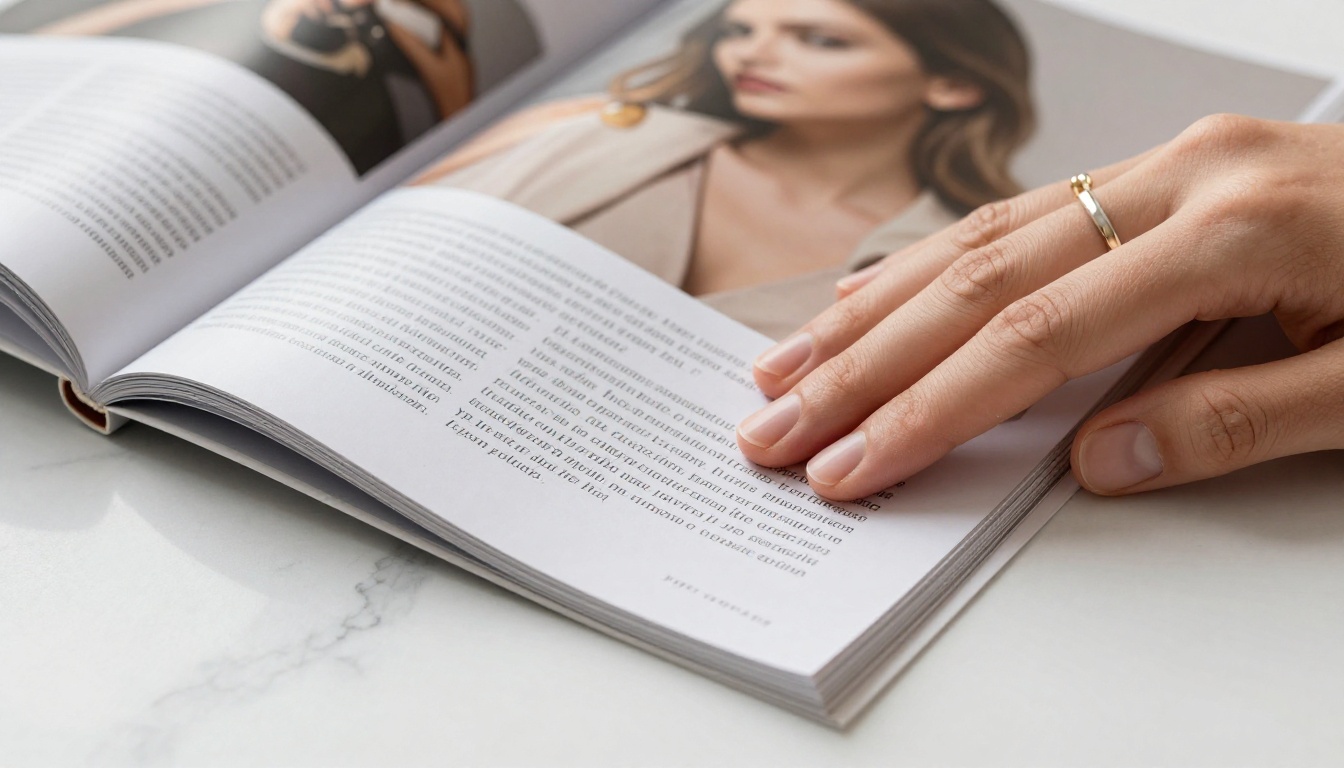
Three features stand out as genuinely new compared to the previous generation. Each one solves a problem that has frustrated image AI users for years and unlocks workflows that were simply not viable before.
Text that reads like a human wrote it
Every image generator before GPT Image 2 has had some version of the same failure: text in generated images looks garbled. Signs with scrambled letters. Menus that blur into visual noise. T-shirts with typographic characters that defy any known alphabet.
GPT Image 2 solves this. The model renders legible text natively, meaning you can specify words or phrases in your prompt and they will appear correctly in the output. This opens an enormous range of commercial and creative use cases: product mockups with real brand names, social media graphics with readable headlines, branded imagery where typography is part of the composition, and editorial illustration where words carry meaning.
Tip: Keep requested text short and specific. Prompts like "a storefront sign reading OPEN" work better than long paragraphs. The model handles 1-4 words with near-perfect accuracy and performs well up to short sentences of 8-10 words.
Photorealism at a new level
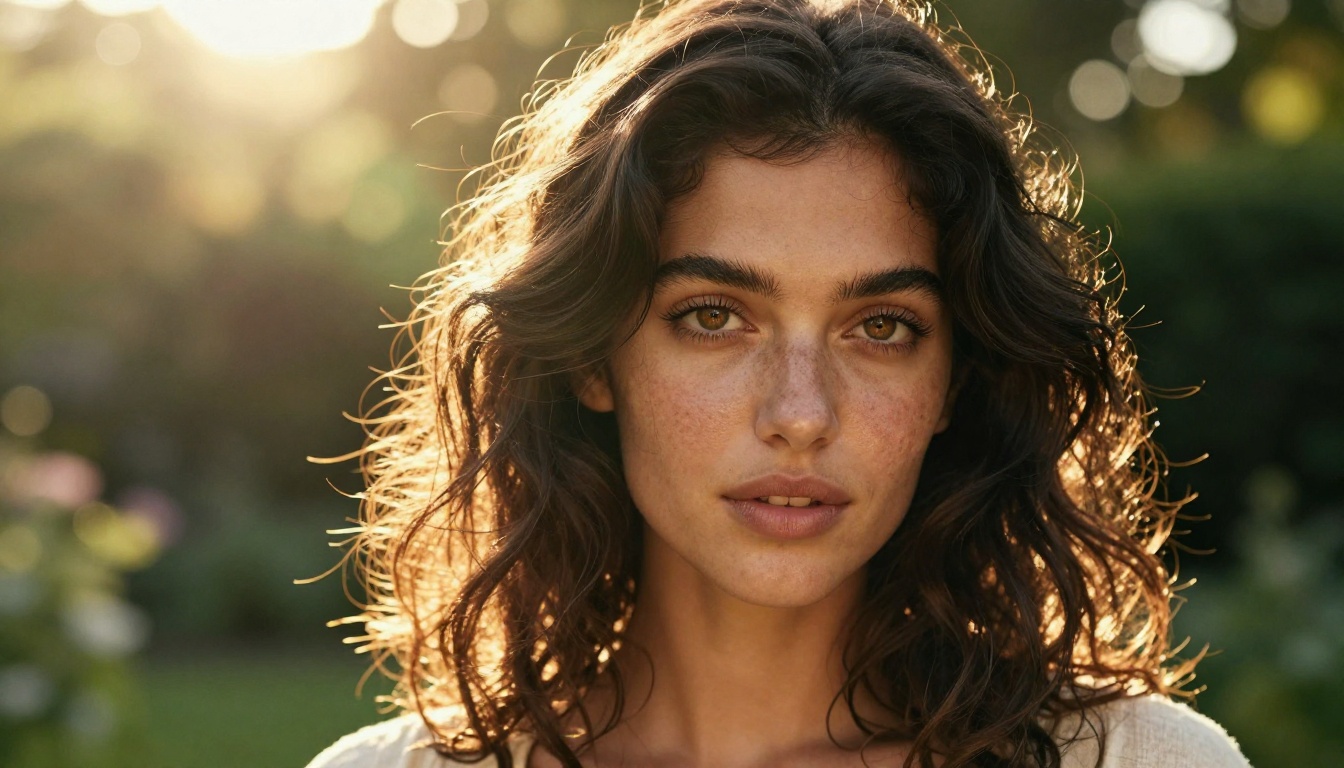
The photorealism improvements in GPT Image 2 are most obvious in portraits and close-up photography. Skin texture, hair detail, and lighting response are rendered at a fidelity that genuinely passes a quick visual inspection as a photograph. Irises show realistic color variation. Hair strands catch light individually. Skin shows micro-detail including pores and fine texture, rather than the smoothed, plastic-looking surfaces common in earlier models.
This doesn't mean the model produces perfect outputs every time. Complex scenes with multiple human subjects still occasionally produce minor inconsistencies. But for single-subject portraits, product photography, and landscape shots, the quality ceiling is dramatically higher than in GPT Image 1.
The model also handles lighting with much greater accuracy. Specify "late afternoon golden hour from the left" and the shadows, highlights, color temperature, and specular reflections across all elements of the scene will respond correctly. Lighting is no longer a checkbox in the output; it's an active compositional element the model actually controls.
Prompt following that actually delivers
The third major improvement is less visible but equally impactful: GPT Image 2 is significantly more accurate at interpreting and executing complex, multi-clause prompts.
Previous models would often latch onto one or two dominant words in a prompt and ignore the rest. You'd ask for a woman in a red coat walking on a cobblestone street in rain and get back a woman standing somewhere indoors in ordinary clothing. GPT Image 2 processes the full prompt hierarchically, assigning weight to modifiers, scene context, and stylistic instructions more faithfully. Longer, more descriptive prompts consistently produce better results rather than occasionally confusing the model.
How It Stacks Up Against the Competition

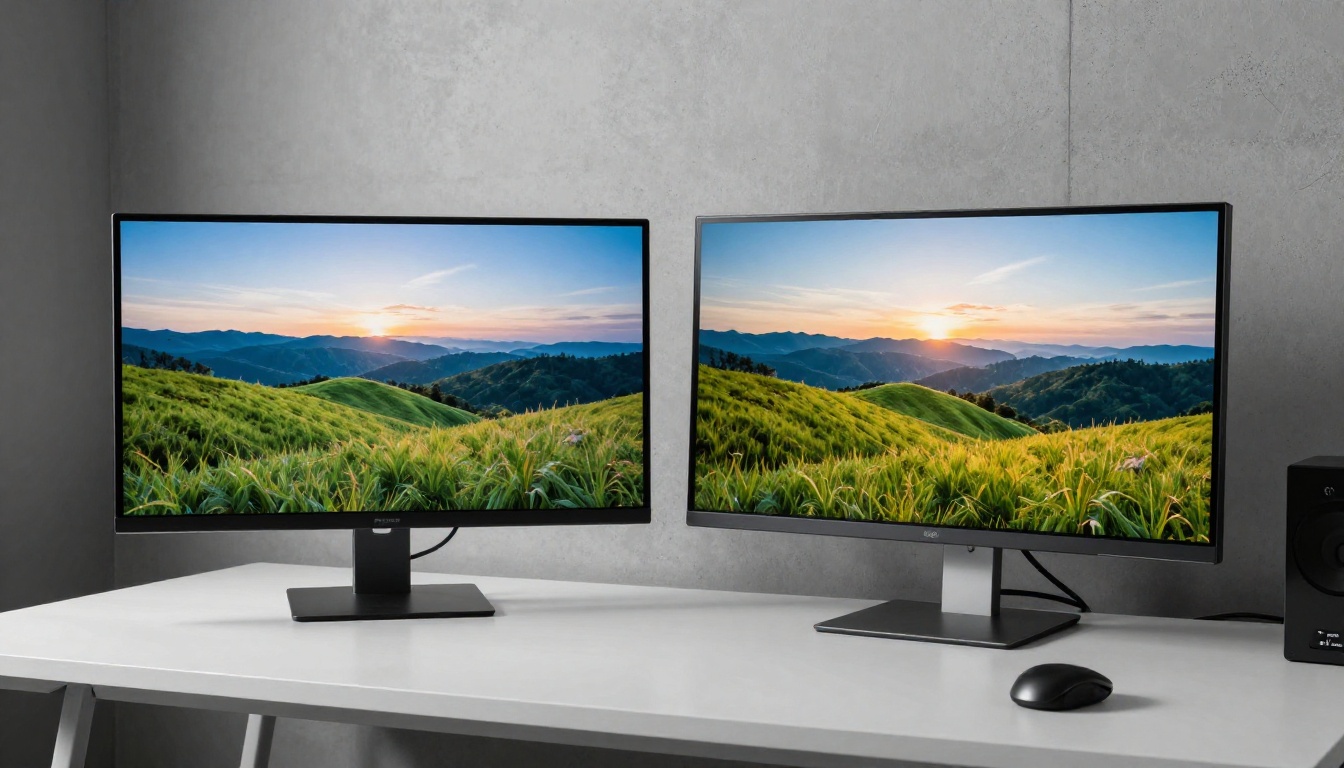
GPT Image 2 enters a competitive field. Flux models, Stable Diffusion, and others have strong communities and established workflows. Here's how it compares on the dimensions that matter most to working creators.
| Feature | GPT Image 2 | Flux Kontext Fast | Flux Redux Dev |
|---|
| Text rendering | Excellent | Good | Fair |
| Portrait photorealism | Excellent | Very Good | Very Good |
| Prompt accuracy | Excellent | Good | Good |
| Image editing (inpaint/outpaint) | Yes | Yes | Limited |
| Speed | Fast | Very Fast | Fast |
| Style variety | Moderate | High | High |
| Native text in output | Yes | Partial | Partial |
GPT Image 2 vs Flux Kontext Fast
Flux Kontext Fast is one of the fastest image editing models available and excels at photo manipulation workflows. If you're working with existing images and need to modify specific elements quickly, Flux Kontext Fast has a speed and iteration advantage that's real and useful.
GPT Image 2 has the edge for generating images from scratch, especially when photorealism and prompt accuracy are priorities. For native text rendering, the comparison isn't close: GPT Image 2 handles it reliably, while Flux Kontext Fast treats text as an add-on.
Picking the right tool for the job
- Use GPT Image 2 for: photorealistic portraits, product shots, images with readable text, marketing visuals requiring specific compositions, editorial imagery
- Use Flux Kontext Fast for: rapid photo editing, quick style transfers, iterative variation workflows, speed-critical projects
- Use Flux Redux Dev for: generating image variations from a reference, creative style exploration, building image series with consistent visual DNA
The good news is you don't have to choose just one. On PicassoIA, all three are available in the same interface, so switching between them based on the task takes seconds.
How to Use GPT Image 2 on PicassoIA

PicassoIA gives you direct access to GPT Image 2 without needing an OpenAI API account or any technical setup. Here's the exact process from opening the page to your first output.
Step 1: Open the model page
Navigate to GPT Image 2 on PicassoIA. You'll see the prompt input field, aspect ratio selector, and optional advanced parameters. No API key setup, no CLI, no account configuration beyond creating your PicassoIA account.
Step 2: Write your prompt
Type your prompt in the input field. Be descriptive and specific. Every meaningful detail you add gives the model more signal to work with. Include:
- Subject: who or what is in the image, with specific physical details
- Setting: location, environment, architectural context, time of day
- Lighting: direction, quality (soft, harsh), color temperature (golden hour, overcast, midday sun)
- Camera angle: close-up, wide shot, aerial, low angle, eye level
- Lens and depth: focal length, aperture for depth of field feel
- Texture and atmosphere: film grain, material finishes, mood
Example prompt: "A woman in a cream linen jacket sitting at a sunlit terrace café in Paris, natural morning light from the left creating soft shadows, 85mm portrait lens, shallow depth of field with bokeh street scene in background, visible skin texture and fine hair detail, Kodak Portra 400 film grain, photorealistic RAW 8K"
Step 3: Dial in the parameters
GPT Image 2 on PicassoIA offers key controls that shape the output significantly:
| Parameter | What it does | Recommended starting point |
|---|
| Aspect Ratio | Sets image dimensions | 16:9 for landscape, 1:1 for social, 9:16 for stories/reels |
| Quality | Controls render detail level | High for final outputs, Standard for drafts |
| Number of images | Generates multiple variations | 3-4 for initial exploration of a new prompt |
Step 4: Download and use your image
Once the image generates (typically 10-25 seconds depending on settings), click download. The output is a high-resolution image ready for direct use in presentations, social posts, websites, ad platforms, or print. No post-processing required for most use cases.
Tip: Generate 3-4 variations of your first prompt before refining the wording. Different random seeds produce meaningfully different interpretations, and you'll often find one that matches your vision better than expected from the first pass.
Prompts That Actually Work
The gap between a mediocre and a stunning GPT Image 2 output almost always comes down to prompt quality. The model responds well to specific, layered descriptions. Vague prompts produce generic, forgettable results.
The anatomy of a strong prompt
Think of your prompt as a brief to a photographer. You wouldn't hand a photographer a one-word assignment. You'd describe the subject, the location, the light, the angle, the mood, and the style. Apply that same specificity to text-to-image prompts.
Structure to follow: [Subject with physical details] [Environment and setting] [Lighting direction and quality] [Camera angle and lens] [Texture and atmosphere] [Style reference]
Weak prompt: "A woman in a café"
Strong prompt: "A woman with shoulder-length dark hair reading a paperback book at a small round table in a quiet French café, warm morning light from a large window to her right, 50mm f/1.8, shallow depth of field, soft bokeh street scene in background, paper texture visible on book pages, skin pore detail, Kodak Portra 400 film grain, photorealistic"
The strong version gives the model subject, setting, lighting, lens, depth of field, texture, and style information. Each clause narrows the output space toward what you actually want.
5 ready-to-use prompt templates
1. Portrait photography
"Close-up portrait of [person description] in [setting], [lighting direction] from the [left/right], 85mm f/1.8 lens, shallow depth of field with bokeh background, visible skin texture and fine hair detail, photorealistic, Kodak Portra 400 film grain, RAW 8K"
2. Product shot
"Professional product photograph of [product description] on [surface material], [overhead/side/45-degree] angle, soft diffused studio lighting with even shadows, [white/dark/marble] background, 50mm lens, commercial photography, high detail"
3. Landscape
"Wide-angle landscape photograph of [location description], [time of day], volumetric [golden hour/morning/blue hour] light, 24mm f/8, deep depth of field, natural color tones, no saturation boost, RAW 8K, photorealistic"
4. Interior
"Interior photograph of a [room type] with [key design features], natural light from [window direction], 35mm wide-angle lens, architectural photography style, [warm/cool] tones, wood and fabric textures visible, clean composition"
5. Image with text (GPT Image 2 specialty)
"A [object: store window/product label/billboard] with the text [your exact text] written in [clean sans-serif/handwritten script/bold display font], [setting description], [lighting], photorealistic, high detail, sharp typography"
Where GPT Image 2 Fits in Real Work

The photorealism and prompt accuracy improvements in GPT Image 2 translate directly into specific professional workflows. Three areas in particular are seeing the fastest real-world adoption.
Marketing and ad creatives
Campaign imagery is one of the clearest immediate use cases. Art directors are using GPT Image 2 to generate hero images for digital ads, A/B test different visual concepts without scheduling a photoshoot, and produce seasonal or campaign-specific imagery on demand.
The native text rendering capability is particularly valuable for concept ads where headline copy appears over the image. That's a workflow that previously required a graphic designer to composite text over a generated background in a separate tool. Now it happens in a single prompt, in one generation step.
Combined with PicassoIA's background removal and super resolution tools, the output-to-ready-to-use pipeline compresses from days to minutes.
Social media content
Instagram, LinkedIn, and Pinterest feeds heavily favor photorealistic, aspirational imagery. GPT Image 2 generates that content at scale without requiring a brand to maintain a stock photography subscription or schedule recurring photoshoots for every campaign.
For brands that need consistent visual identity across posts, the model's improved prompt adherence means you can describe a recurring aesthetic precisely, such as warm morning tones, specific framing style, consistent lighting character, and reproduce it reliably across dozens of different images without starting from scratch each time.
Product mockups and e-commerce
Showing a product in lifestyle context traditionally required physical product photography. GPT Image 2 can place product descriptions into believable photorealistic scenes with correct lighting, shadow behavior, and surface interaction. The text rendering capability handles packaging labels and brand names on products, which was a hard stop for previous image models in this workflow.
For early-stage brands that haven't yet manufactured their physical product, this means generating convincing visual assets for investor decks, presale campaigns, and concept validation before a single unit exists.
Start Creating Right Now

GPT Image 2 is one of those tools where the fastest way to understand it is to drop something into the prompt box and see what comes back. The improvements over previous-generation models show up in the first output, not after weeks of learning the system.
GPT Image 2 is available directly on PicassoIA alongside over 90 other text-to-image models. If you want to compare outputs across models, you can run the same prompt through Flux Kontext Fast and Flux Redux Dev in minutes and see the difference first-hand.
Once you have images you're happy with, PicassoIA's super resolution tools can upscale them to print-ready dimensions, and the background removal feature strips backgrounds for clean composites in one click. The whole workflow from idea to production-ready visual asset sits inside a single platform.
Pick one of the prompt templates from this article, swap in your own subject and setting, and see what GPT Image 2 produces. The first image you generate won't be your last.


