The world of AI image generation has evolved rapidly, but many platforms impose strict content filters that limit creative expression. GPT Images 1.5 on PicassoIA takes a different approach, offering creators the freedom to generate artistic content without excessive restrictions. This makes it a valuable tool for photographers, digital artists, fashion designers, and anyone working with mature or provocative themes.
Whether you're creating fashion photography, artistic portraits, fantasy characters, or conceptual art, GPT Images 1.5 provides the flexibility and control needed to bring your vision to life. The model supports various quality settings, background options, and aspect ratios, giving you professional-grade results without the limitations found on other platforms.
Why Choose GPT Images 1.5 for Creative Projects
Traditional AI image generators often struggle with artistic freedom. They impose heavy moderation that can block legitimate creative work, forcing artists to work around vague content policies. GPT Images 1.5 addresses this problem by offering more balanced content moderation that respects artistic intent.
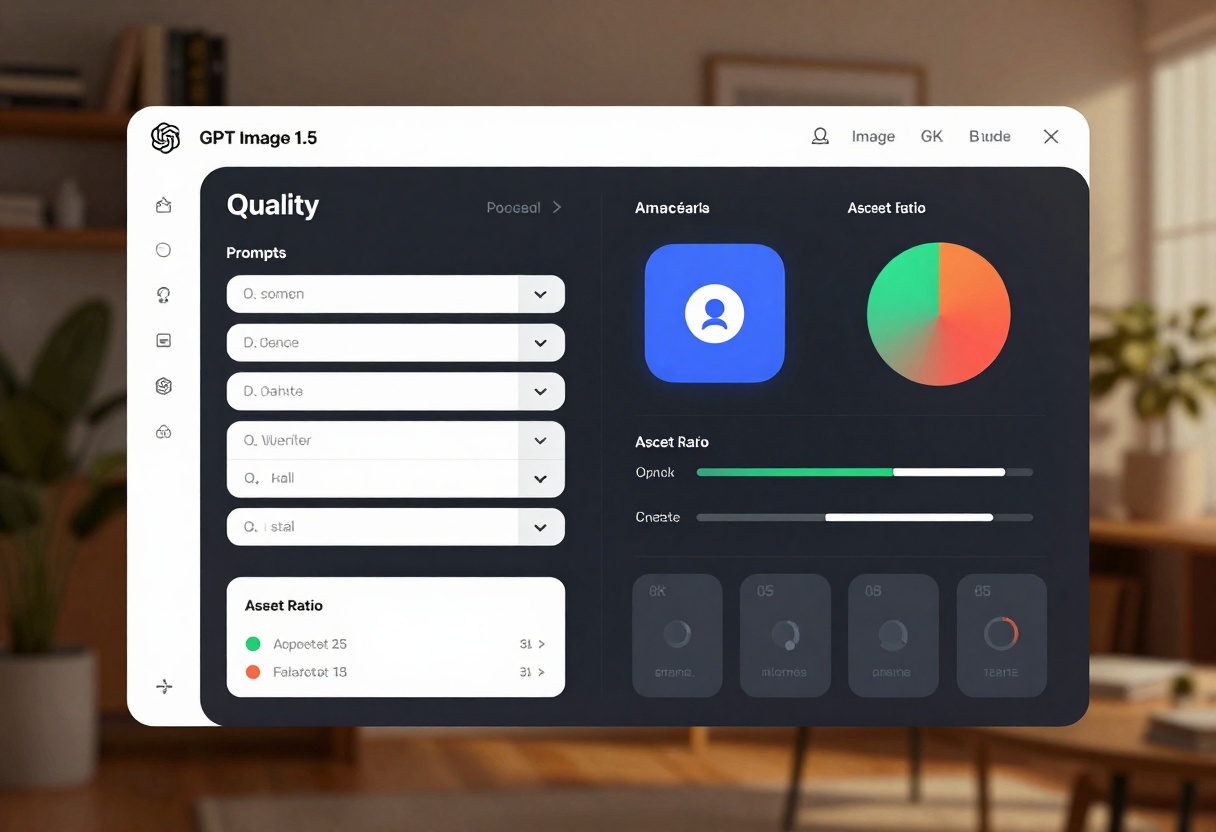
The model excels in several key areas:
Artistic flexibility means you can explore mature themes without constant rejections. Fashion photographers can create editorial content, digital artists can develop character designs with realistic anatomy, and concept artists can push creative boundaries. The system recognizes the difference between artistic expression and inappropriate content.
Professional quality controls let you adjust output settings to match your project requirements. Choose from low, medium, high, or auto quality depending on your needs and budget. The model processes requests quickly while maintaining high visual fidelity, making it practical for both quick sketches and polished final pieces.
Background transparency options give you clean cutouts for graphic design work. Set backgrounds to transparent when you need PNG files for compositing, or keep them opaque for standalone images. The auto setting intelligently decides based on your prompt.
Getting Better Results with Prompts
Writing effective prompts makes the difference between mediocre outputs and stunning visuals. GPT Images 1.5 responds well to specific, detailed descriptions that clearly communicate your vision.
Start with the subject and setting. Instead of "a woman," try "a woman in her late twenties with auburn hair, wearing a flowing red silk dress, standing in a minimalist studio." The more context you provide, the more accurately the model interprets your intent.
Add style descriptors that match your desired aesthetic. Terms like "fashion photography," "editorial style," "dramatic lighting," or "soft natural light" help guide the visual treatment. If you want a specific mood, include words like "elegant," "powerful," "mysterious," or "joyful."
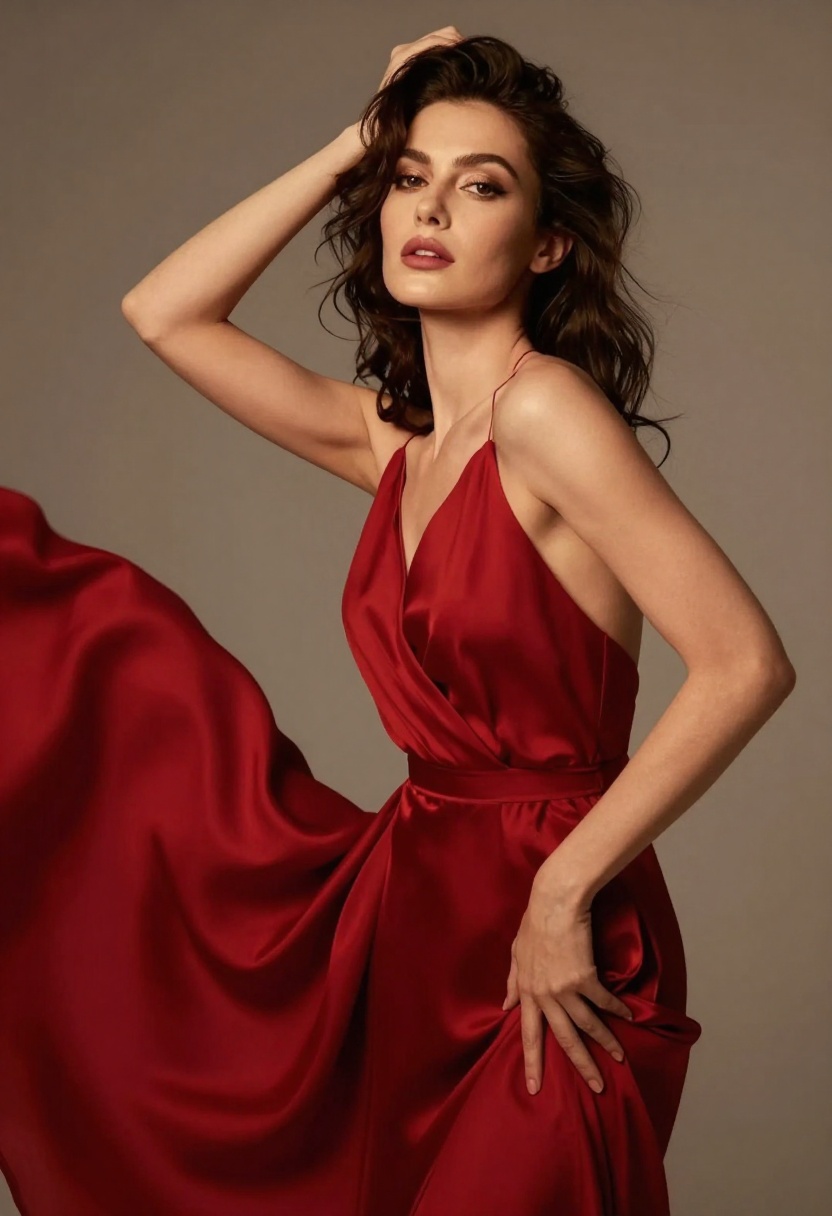
Technical photography terms improve composition quality. Mention "shallow depth of field" for background blur, "golden hour lighting" for warm tones, or "rim lighting" for dramatic edge highlights. These terms help the model understand the technical qualities you're seeking.
Avoid vague or overly generic prompts. "Beautiful woman" produces predictable stock-photo results. "Editorial fashion portrait of a confident model in designer clothing, professional studio lighting, magazine cover quality" gives the model clear direction and produces more interesting outputs.
Quality Settings and Output Options
GPT Images 1.5 offers four quality levels that balance visual fidelity with generation speed. Understanding these options helps you choose the right setting for each project.
Low quality generates images quickly and costs less per generation. This setting works well for initial concept exploration, rough drafts, or projects where speed matters more than perfection. The results still look good but may show minor artifacts or less refined details.
Medium quality provides a balanced option suitable for most professional work. Generation takes slightly longer but produces cleaner results with better detail rendering. This setting handles complex prompts effectively while maintaining reasonable processing times.
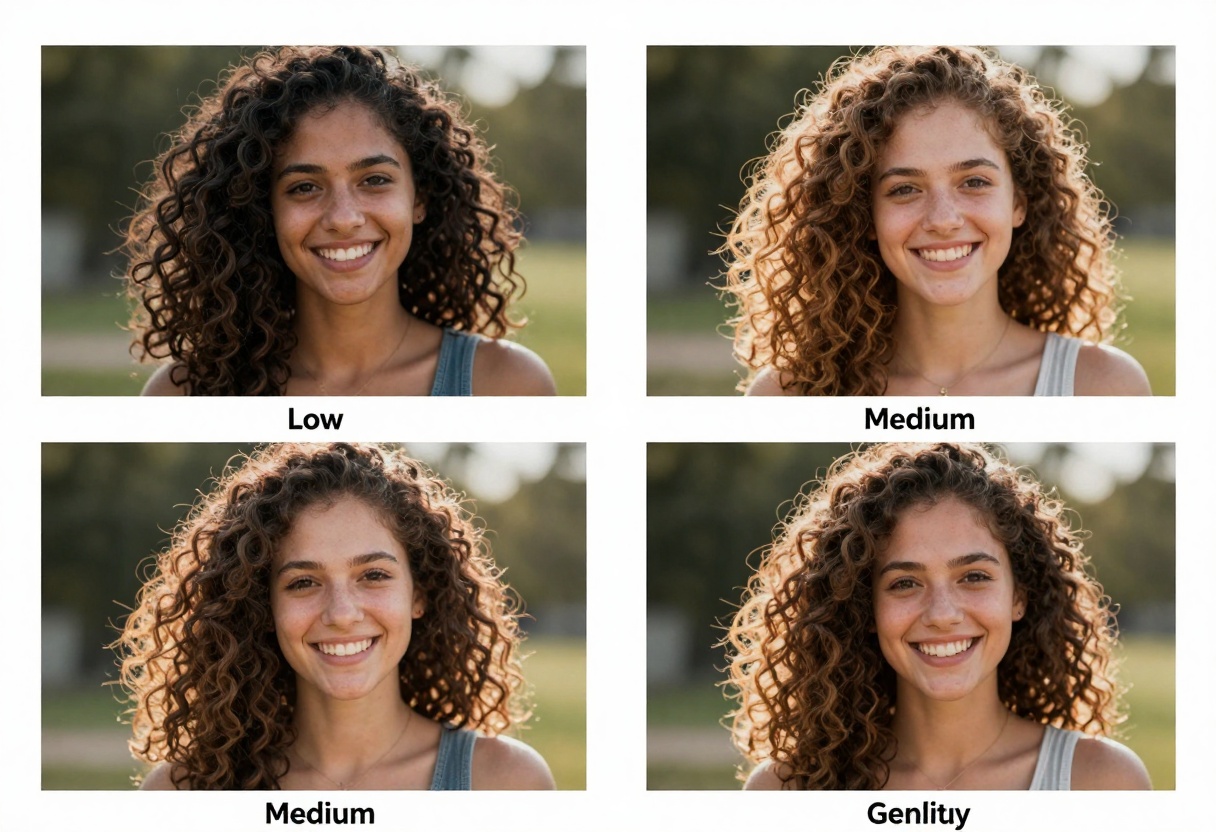
High quality maximizes visual fidelity for final deliverables. The model spends more computational resources on rendering fine details, subtle textures, and accurate lighting. Use this setting when image quality directly impacts your project's success.
Auto quality lets the system choose based on your prompt complexity. Simple requests might run at medium quality, while complex scenes with multiple elements automatically get high quality treatment. This option simplifies decision-making when you're uncertain which setting to use.
Working with Aspect Ratios
Choosing the right aspect ratio affects composition and ensures your images work well in their intended context. GPT Images 1.5 supports three standard ratios that cover most use cases.
Square format (1:1) works perfectly for social media posts, profile pictures, and designs that need equal width and height. Instagram posts, avatar images, and square product shots all benefit from this balanced format.
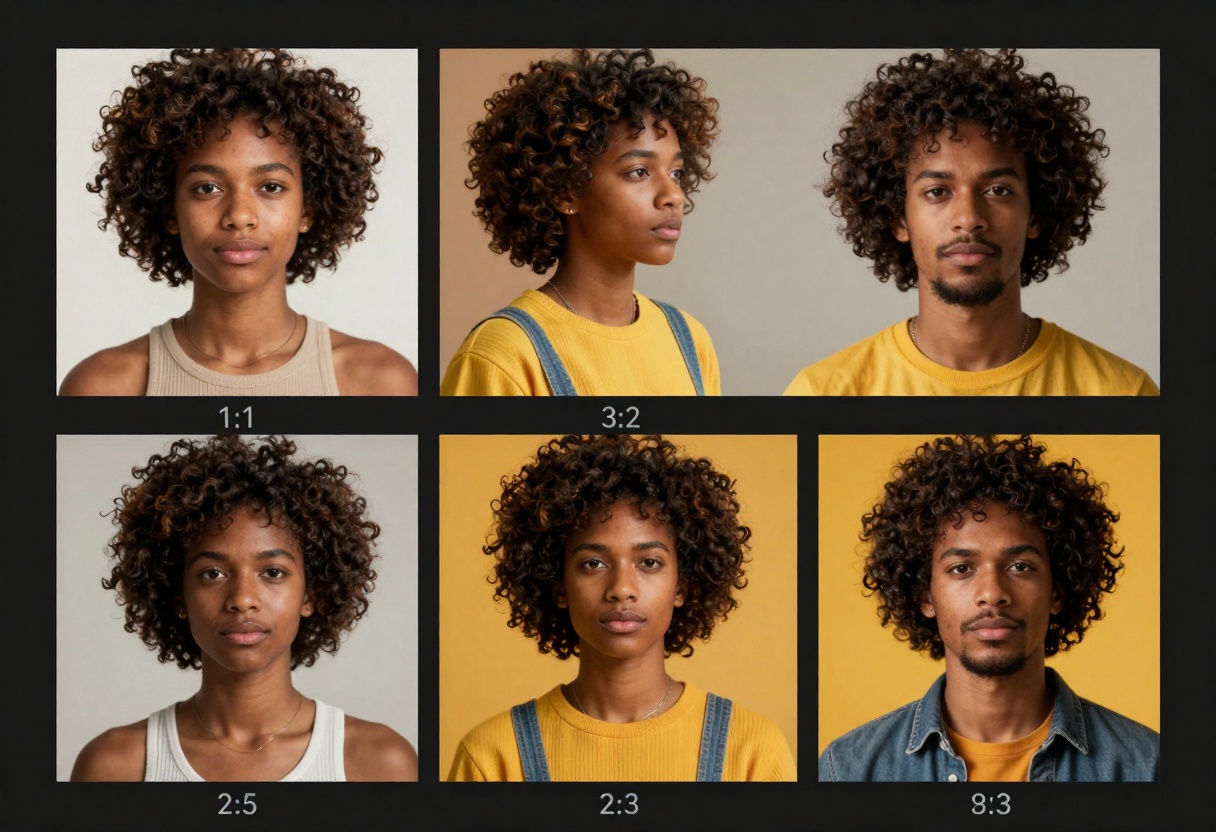
Landscape orientation (3:2) suits website headers, blog featured images, and horizontal compositions. This classic photography ratio provides good balance between width and height, making it versatile for various design applications.
Portrait orientation (2:3) excels for full-body shots, phone wallpapers, and vertical social media content. Fashion photography, character designs, and tall compositions naturally fit this format.
Consider your final use case when selecting ratios. Website banners need landscape, Instagram stories need portrait, and flexible content might work best in square format.
Background Control and Transparency
Background settings determine whether your generated images include environmental context or focus purely on the subject. GPT Images 1.5 gives you three options that serve different purposes.
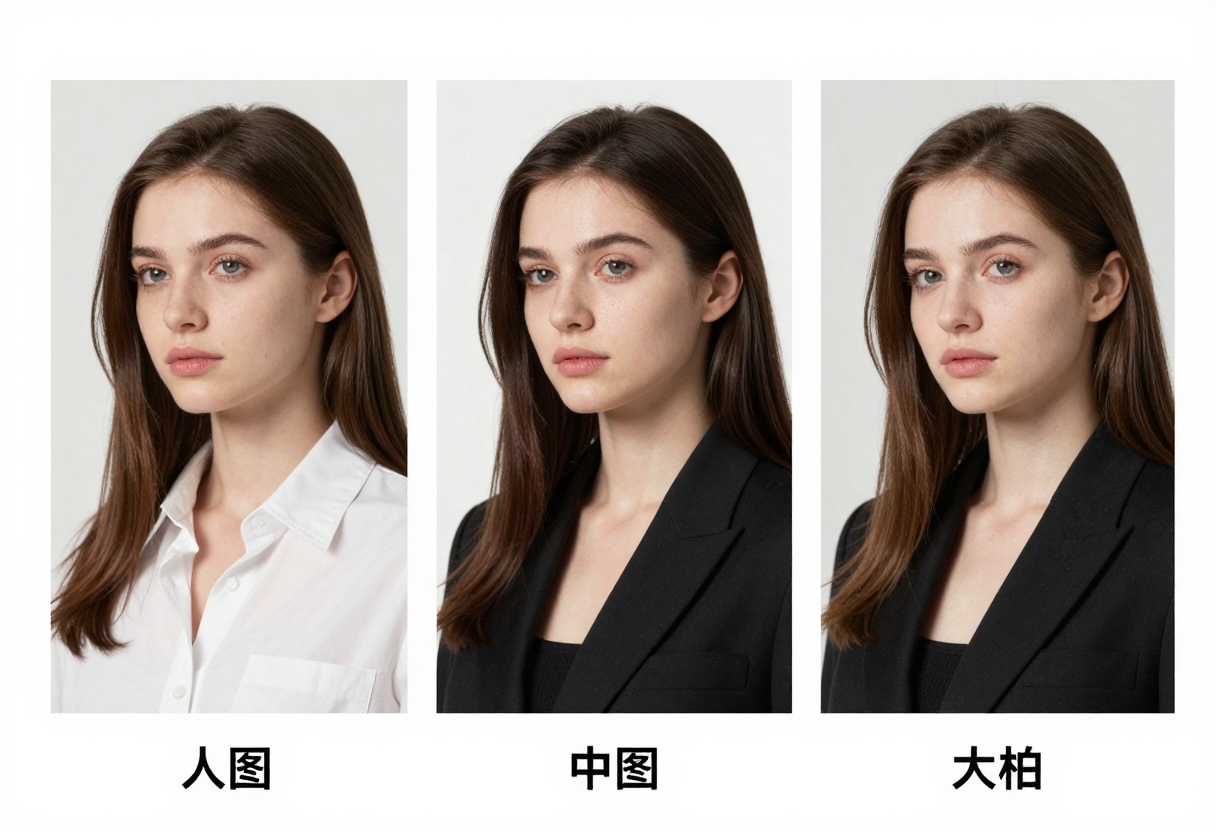
Transparent backgrounds create PNG files with alpha channels, perfect for graphic design work. The subject appears cleanly isolated without any background elements, ready for compositing into other designs. Fashion product shots, character sprites, and design elements all benefit from transparency.
Opaque backgrounds include environmental context based on your prompt. The model generates complete scenes with appropriate settings, lighting, and atmospheric elements. This option works well for standalone images that don't need further editing.
Auto mode analyzes your prompt and chooses the most appropriate background treatment. Simple subject descriptions often get transparent backgrounds, while prompts mentioning specific locations or environments get opaque backgrounds with full scene rendering.
Using Reference Images for Style Control
GPT Images 1.5 accepts input images that guide the generation process. This feature lets you maintain consistent visual styles across multiple generations or create variations on existing concepts.
Upload reference photos when you want the model to match specific visual characteristics. Fashion brands can maintain consistent aesthetics across campaigns, character designers can generate multiple poses of the same character, and photographers can explore variations on existing compositions.
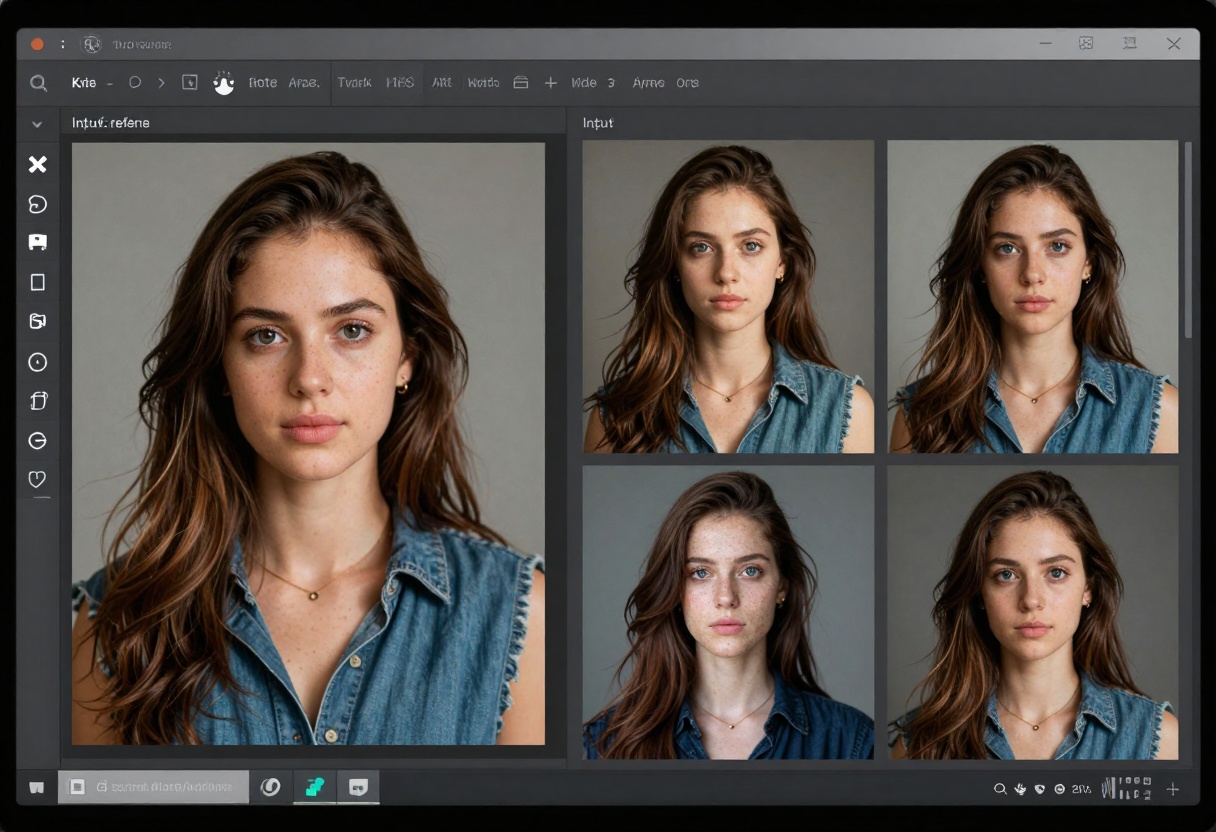
Input fidelity controls determine how closely the model follows your reference images. Low fidelity takes loose inspiration while allowing creative interpretation. High fidelity matches reference characteristics more precisely, particularly useful for maintaining facial features or specific styling elements.
Multiple input images can provide different types of guidance. One image might establish the overall composition while another defines the lighting treatment. The model blends these influences to create outputs that incorporate elements from all references.
Creating Fashion and Editorial Content
Fashion photography demands sophisticated understanding of lighting, posing, and styling. GPT Images 1.5 handles these requirements well, producing editorial-quality images suitable for professional portfolios and marketing materials.
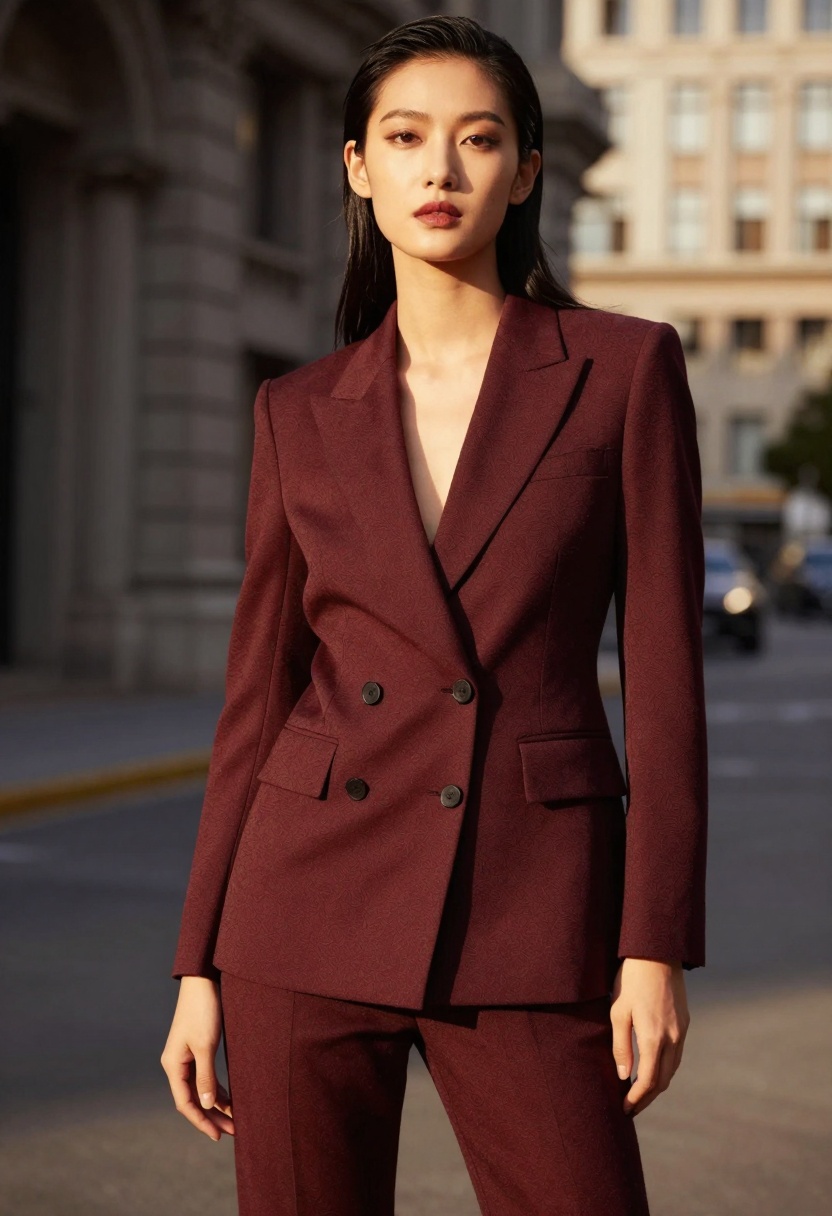
Start by describing the clothing in detail. Instead of "dress," specify "flowing red silk evening gown with dramatic train" or "tailored black blazer with structured shoulders." Material descriptions help the model render fabric textures accurately.
Include posing direction in your prompts. Terms like "confident stance," "dynamic movement," "elegant pose," or "editorial fashion pose" guide body language and composition. Specific poses like "hands on hips" or "looking over shoulder" provide even more control.
Location and lighting set the mood. "Urban rooftop at sunset," "minimalist white studio," or "natural outdoor setting" establish context. Combine these with lighting descriptions like "soft natural light," "dramatic rim lighting," or "golden hour glow" for professional results.
Fashion photography often requires multiple generations to explore different concepts. The fast generation speed of GPT Images 1.5 makes it practical to iterate quickly, testing various styling, lighting, and composition options before committing to final selections.
Fantasy and Concept Art Applications
Digital artists and concept designers use GPT Images 1.5 to develop characters, creatures, and imaginative scenes. The model handles fantasy elements effectively while maintaining visual coherence.
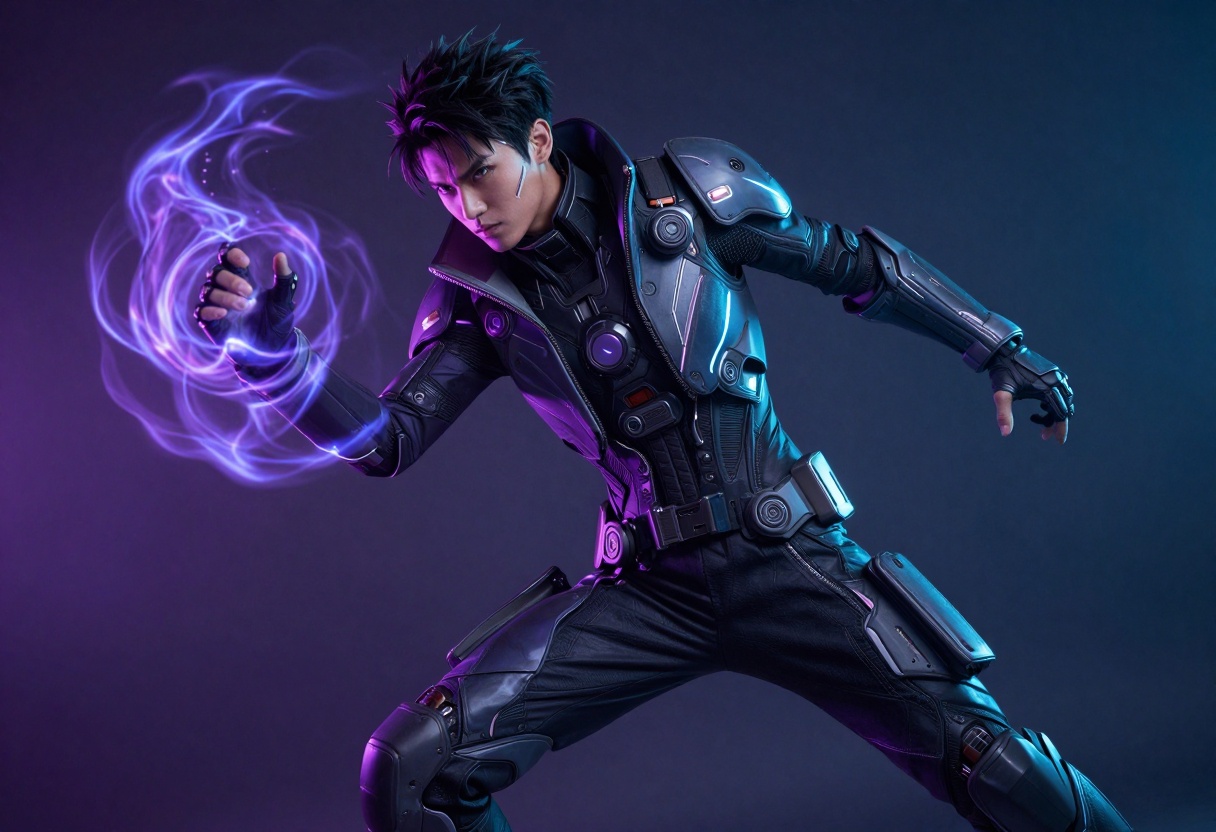
Character design prompts should establish clear visual elements. Describe physical features, clothing, accessories, and any magical or fantastical attributes. "Ethereal forest guardian with flowing green robes, luminescent markings on skin, surrounded by floating leaves" gives the model concrete details to work with.
Environmental storytelling adds depth to concept art. Include background elements that support your character or scene. "Ancient ruins overgrown with mystical vines," "crystalline cave with bioluminescent fungi," or "floating islands in twilight sky" create atmospheric settings.
Lighting effects make fantasy scenes feel magical. Terms like "ethereal glow," "mystical aura," "magical energy effects," or "dramatic volumetric lighting" enhance the otherworldly quality. Particle effects, energy trails, and light sources all contribute to the fantasy aesthetic.
Color palettes significantly impact mood. Specify color schemes when you have strong preferences. "Purple and blue color scheme," "warm golden tones," or "cool silver and teal palette" guide the overall color treatment.
GPT Images 1.5 supports three common image formats, each with specific advantages for different use cases.
PNG format preserves maximum quality with lossless compression. File sizes are larger but image quality remains pristine. This format supports transparency, making it essential when you need transparent backgrounds for graphic design work.
JPEG format creates smaller files through lossy compression. Quality remains high while file sizes stay manageable for web use. Choose JPEG when transparency isn't needed and efficient file sizes matter.
WebP format offers modern compression that balances quality and file size. Smaller than JPEG with comparable visual quality, WebP works well for web applications. Browser support has improved significantly, making it a practical choice for most projects.
Compression level settings (0-100%) let you fine-tune the quality-versus-filesize tradeoff. Higher compression creates smaller files but may introduce subtle artifacts. The default 90% compression provides a good balance for most applications.
How to Use GPT Images 1.5 on PicassoIA
Ready to start creating? Follow this step-by-step tutorial to generate your first image with GPT Images 1.5.
Step 1: Access the Model Page
Visit the GPT Image 1.5 model page on PicassoIA. The interface presents all available parameters in an organized dashboard.
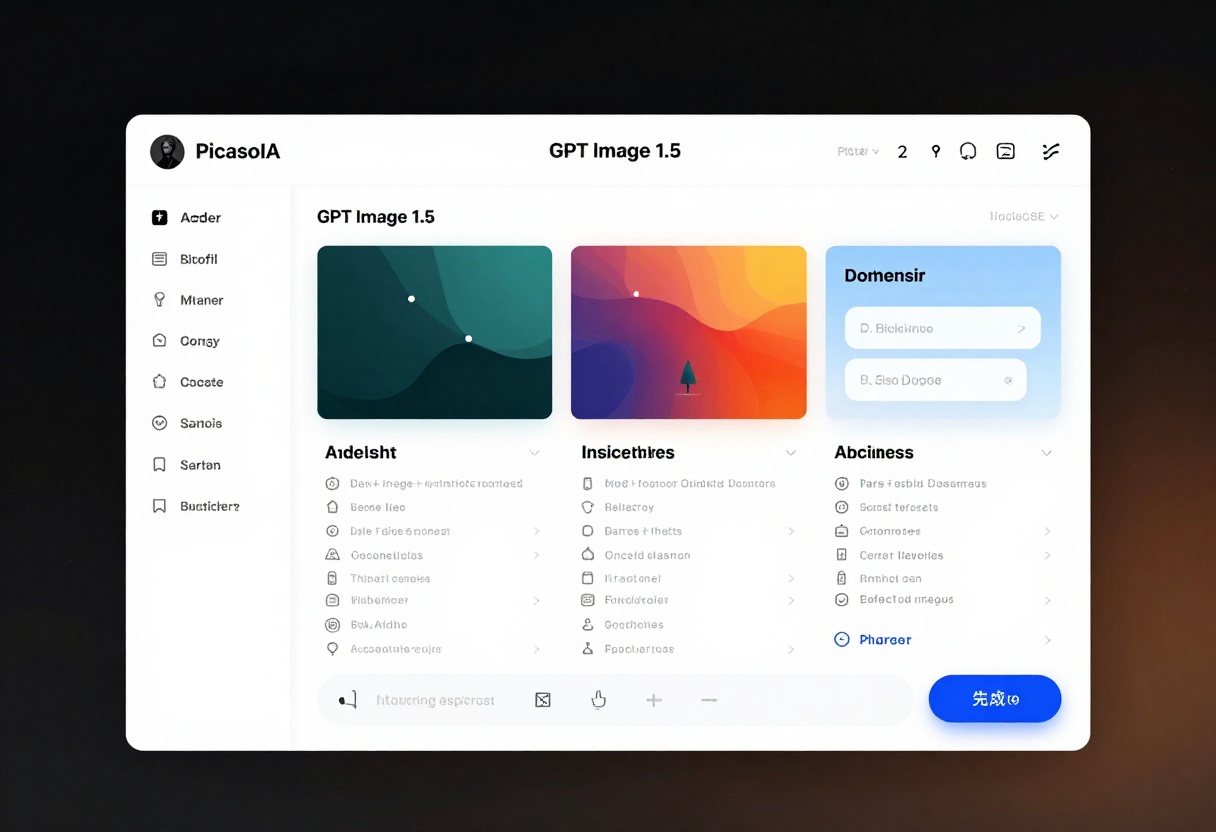
Step 2: Write Your Prompt
The prompt field requires a text description of your desired image. Be specific and detailed. Include subject, setting, lighting, mood, and style descriptors.
Example prompts:
- "Editorial fashion portrait of confident model in flowing designer dress, professional studio lighting, magazine quality, dramatic poses"
- "Fantasy character with mystical energy effects, ethereal beauty, enchanted forest background, cinematic lighting, photorealistic rendering"
- "Artistic portrait with dramatic lighting, soft focus background, warm color grading, professional photography style"
Step 3: Configure Quality Settings
Choose your preferred quality level based on project requirements:
- Low - Fast generation, good for drafts
- Medium - Balanced quality and speed
- High - Maximum fidelity for finals
- Auto - System chooses based on complexity
Step 4: Select Aspect Ratio
Pick the format that matches your intended use:
- 1:1 - Square format for social media
- 3:2 - Landscape for web headers
- 2:3 - Portrait for vertical content
Step 5: Set Background Options
Decide whether you need transparency:
- Auto - System decides based on prompt
- Transparent - PNG with alpha channel
- Opaque - Full scene with background
Step 6: Optional Advanced Settings
Adjust additional parameters if needed:
Number of images - Generate 1-10 variations per request for exploring different interpretations.
Output format - Choose PNG for maximum quality, JPEG for smaller files, or WebP for modern compression.
Output compression - Adjust from 0-100% to balance quality versus file size.
Input images - Upload reference photos to guide style or composition.
Input fidelity - Set low for loose inspiration or high for precise matching.
Moderation level - Choose auto for balanced filtering or low for minimal restrictions.
Step 7: Generate and Download
Click the generate button to start processing. Generation typically completes within seconds for low quality, up to a minute for high quality outputs.
Once generation finishes, preview your result and download the file. If you're not satisfied, adjust your prompt or settings and generate again. The fast processing makes iteration practical.
Best Practices for NSFW Content
Creating mature content responsibly requires understanding both technical and ethical considerations. GPT Images 1.5 provides creative freedom, but smart creators use that freedom thoughtfully.
Focus on artistic merit rather than gratuitous content. Fashion photography, figure studies, and artistic portraits all serve legitimate creative purposes. Frame your work professionally and consider the context where it will be used.
Be specific in prompts to get the results you want without generating inappropriate content. Describe poses, clothing, lighting, and composition clearly. Vague prompts often produce unpredictable results that may not match your intent.
Respect platform guidelines even when using less restrictive models. PicassoIA allows artistic freedom but still maintains reasonable standards. Creating content for legitimate artistic, educational, or commercial purposes protects both you and the platform.
Consider your audience and distribution channels. Content appropriate for an art portfolio might not suit a general audience website. Match your creative choices to the context where work will be viewed.
Alternative Models for Unrestricted Creation
While GPT Images 1.5 offers balanced moderation, PicassoIA hosts other models that provide even more creative freedom. These open-source alternatives don't impose heavy content restrictions.
p-image-edit
p-image-edit excels at transforming and editing existing images. Upload photos and use text prompts to modify specific elements, adjust styling, or create artistic variations. The fast processing (~1 second) makes it practical for iterative editing workflows.
wan-2.2-image
wan-2.2-image generates highly realistic images from text descriptions. This model produces cinematic quality outputs with photorealistic rendering. It handles complex scenes effectively and doesn't impose restrictive content filters.
Wan 2.2 I2V Fast
Wan 2.2 I2V Fast converts static images into dynamic videos. Take your generated still images and bring them to life with smooth animations. This creates engaging content for social media or portfolio presentations.
These models share a common advantage: they're open-source projects that prioritize creative freedom. When mainstream platforms reject your artistic vision, these alternatives provide the tools you need without excessive gatekeeping.
Privacy and Content Ownership
Creating sensitive content raises legitimate questions about privacy and ownership. Understanding how PicassoIA handles your data helps you make informed decisions.
Generated images belong to you. PicassoIA doesn't claim ownership of outputs you create, giving you full rights to use, modify, and distribute your work. This matters for commercial projects where clear ownership is essential.
Your prompts and generation history remain private. The platform doesn't publicly display your creative work unless you choose to share it. This privacy protection lets you explore ideas without worrying about public exposure.
Consider watermarking or copyright notices for valuable commercial work. While PicassoIA respects your ownership, adding your own protections ensures proper attribution when sharing images publicly.
Common Challenges and Solutions
Even powerful tools like GPT Images 1.5 occasionally produce unexpected results. Knowing how to troubleshoot common issues saves time and frustration.
Blurry or low-quality outputs usually indicate quality settings need adjustment. Switch from low to medium or high quality. If results still look soft, add technical descriptors like "sharp focus," "high detail," or "8k resolution" to your prompt.
Incorrect compositions happen when prompts lack sufficient detail. Add specific information about framing, perspective, and element placement. Instead of "a person in a room," try "close-up portrait of person, centered composition, rule of thirds framing."
Unwanted elements appearing in images suggest prompt ambiguity. Be more explicit about what should and shouldn't appear. Use negative prompting concepts by clearly stating what you want, leaving less room for misinterpretation.
Inconsistent results across generations occur because AI models include randomness by design. For more consistency, use reference images with high input fidelity. This gives the model concrete visual targets to match.
Content moderation rejections require prompt refinement. Rephrase requests using more artistic or technical language. Frame content in professional contexts like "figure study," "artistic portrait," or "fashion photography" rather than potentially problematic phrasing.
Why PicassoIA for NSFW Generation
Choosing the right platform matters when creating mature content. PicassoIA offers several advantages that make it a strong choice for artists and creators.
Open-source models mean you're not locked into proprietary systems with unpredictable policy changes. When mainstream platforms suddenly change content guidelines, open-source alternatives on PicassoIA continue providing reliable access.
Transparent policies help you understand what's allowed and what isn't. Rather than vague community standards that change without notice, PicassoIA maintains clear, consistent guidelines that respect artistic freedom.
Multiple model options give you alternatives when one model doesn't meet your needs. If GPT Images 1.5 proves too restrictive for a specific project, p-image-edit or wan-2.2-image might better suit your requirements.
Reasonable pricing makes experimentation practical. You can iterate through multiple concepts without breaking the budget, essential for creative exploration and client work that requires multiple revision rounds.
No account restrictions based on content type. Mainstream platforms sometimes ban accounts for creating mature content, even when following stated rules. PicassoIA takes a more balanced approach that distinguishes between artistic work and policy violations.
Getting Started Today
GPT Images 1.5 on PicassoIA provides the creative freedom and technical control needed for professional image generation without excessive restrictions. Whether you're creating fashion photography, character designs, concept art, or artistic portraits, this model delivers quality results.
The combination of flexible quality settings, background controls, aspect ratio options, and reference image support makes GPT Images 1.5 versatile enough for virtually any creative project. Fast generation speeds enable practical iteration, while reasonable pricing keeps costs manageable.
Start experimenting with your first generations today. Visit the GPT Image 1.5 page on PicassoIA and begin exploring what's possible when AI image generation respects artistic freedom.
The future of creative work belongs to artists who embrace new tools while maintaining their unique vision. GPT Images 1.5 provides the technology, you provide the creativity that makes each image special.


