Everyone asks the same thing the moment a new OpenAI image model lands: can I use it without paying, and how many pictures will I get before the door closes? With GPT Images 2.0, the honest answer is "sort of, and it depends where you use it." Free ChatGPT accounts can generate images with it, but under a cap OpenAI does not publish. The API has no free tier at all. And a handful of third-party sites sell access with their own credit systems and their own rules.
This article sorts the noise into something you can act on. You will see what GPT Images 2.0 is good at, what it costs in each route, which prompts get the sharpest results, and how to run it on PicassoIA in a few clicks. If it is not the right fit for a job, there is also a short list of alternatives worth testing.
💡 Quick note on names: OpenAI's model is called GPT Image 2 in the API, while ChatGPT's feature is usually branded Images 2.0. People use "GPT Images 2.0" for both. Same engine, different wrapper.
What GPT Images 2.0 Actually Is
GPT Images 2.0 is OpenAI's second-generation image model built for following instructions closely. You describe a scene in plain language, and it returns an image that tries to respect every clause: the object, the pose, the lighting, the words on a sign, the background color. That obedience is the headline feature. Plenty of models make pretty pictures. Fewer make the picture you actually asked for.
Where it shines
- Instruction accuracy: multi-part prompts with five or six requirements usually land intact.
- Text inside images: signs, labels, menus and posters come out readable far more often than with older diffusion models.
- Editing with references: you can feed in one or more input images and ask for changes.
- Background control: transparent, opaque or automatic backgrounds, handy for stickers and product cutouts.
- Batch output: several variations in a single request when you are hunting for the right composition.
Where it still struggles
- Very long prompts can drift, and the model may quietly drop the last instruction.
- Hands, crowds and tiny background text are better than before but not perfect.
- Highly specific film looks (a precise stock, a precise lens) are interpreted loosely compared with how a photographer would read them.
How it differs from earlier GPT image models
If you used GPT Image 1 or GPT Image 1.5, the jump to version 2 is mostly about fidelity and obedience. Fine details such as skin texture, fabric weave and printed lettering hold up better, and the model handles larger output sizes. Lighter siblings like GPT Image 1 Mini exist for quick, cheaper drafts.
Is GPT Images 2.0 Free?
Short version: partly free in ChatGPT, not free in the API, and not free on most third-party sites once you pass a trial. Let us split it up.
Free inside ChatGPT
Reports indicate that free ChatGPT accounts can generate images with the new model, usually in a faster, lighter mode, and under a separate cap that OpenAI keeps vague. Paid plans get higher limits, and ChatGPT Plus (around $20 per month) adds the slower, more deliberate mode that plans a scene before drawing it.
What that means in practice:
- You can try it for free, but you cannot plan a project around it.
- The cap seems to work on a rolling window, so a few images can lock you out for hours.
- Older figures like "three images a day" from 2025 are outdated and should not be treated as current.
The API has no free tier
Developers hit a different wall. The API bills by tokens, and there is no ongoing free allowance. At best, a new developer account may start with a small credit, but that is a one-off, not a plan. If a site promises "free unlimited API access," check what they are actually charging in the background.
Third-party sites and credits
Plenty of sites resell GPT Image 2 with their own credits. Some give a handful of free generations at signup, others lock it behind a paid plan. These terms are set by each company, so what you get varies. Always check the credit cost per image before you start a batch.
💡 Rule of thumb: if a site says "free" and "unlimited" in the same sentence, look for a watermark, a resolution cap or a queue that takes 20 minutes.
Pricing and Limits Breakdown
Here is how the main routes compare as of late 2026, based on the figures reported across several sources. Treat third-party numbers as snapshots, since resellers change prices often.
| Route | Cost | Typical limits | Best for |
|---|
| ChatGPT Free | $0 | Undisclosed daily cap, lighter mode | Casual tests |
| ChatGPT Plus | About $20/month | Higher cap, deliberate mode | Regular personal use |
| OpenAI API (direct) | Token billing | Rate limits by account tier | Apps and automation |
| Third-party resellers | Roughly a few cents per image | Credit packs, plan locks | Occasional bulk runs |
| PicassoIA | Run it from the browser | Settings listed on the model page | Fast experiments and side by side comparisons |
Token billing in plain words
OpenAI charges roughly $8 per million input tokens (your prompt and any reference image) and about $30 per million output tokens (the generated image). You do not need to count tokens by hand. What matters is the result: a standard-quality square image tends to land in the range of a few cents, while higher quality and larger sizes cost noticeably more. Some resellers advertise per-image prices between about half a cent and eight cents depending on resolution, which tells you the spread is wide.
What drives the cost up
- Quality setting: high costs more than medium, which costs more than low.
- Resolution: a 4K output uses far more tokens than a 1024 square.
- Reference images: every input image adds to the prompt side.
- Batch size: ten variations cost roughly ten times one.
- Retries: vague prompts mean more reruns, and reruns are the hidden bill.
Daily caps and rate limits
Limits come in two flavors. Usage caps stop you after a number of images in a window. Rate limits slow you when you send too many requests per minute. ChatGPT mostly uses the first, the API mostly the second. If you hit either, drop the quality to medium for drafts and save the high setting for final renders.
Prompts That Actually Work
The model rewards prompts that read like a photographer's brief. Name the subject, the setting, the light, the lens and the mood, in that order. Below are four prompt patterns with scenes you can adapt.
Product shots
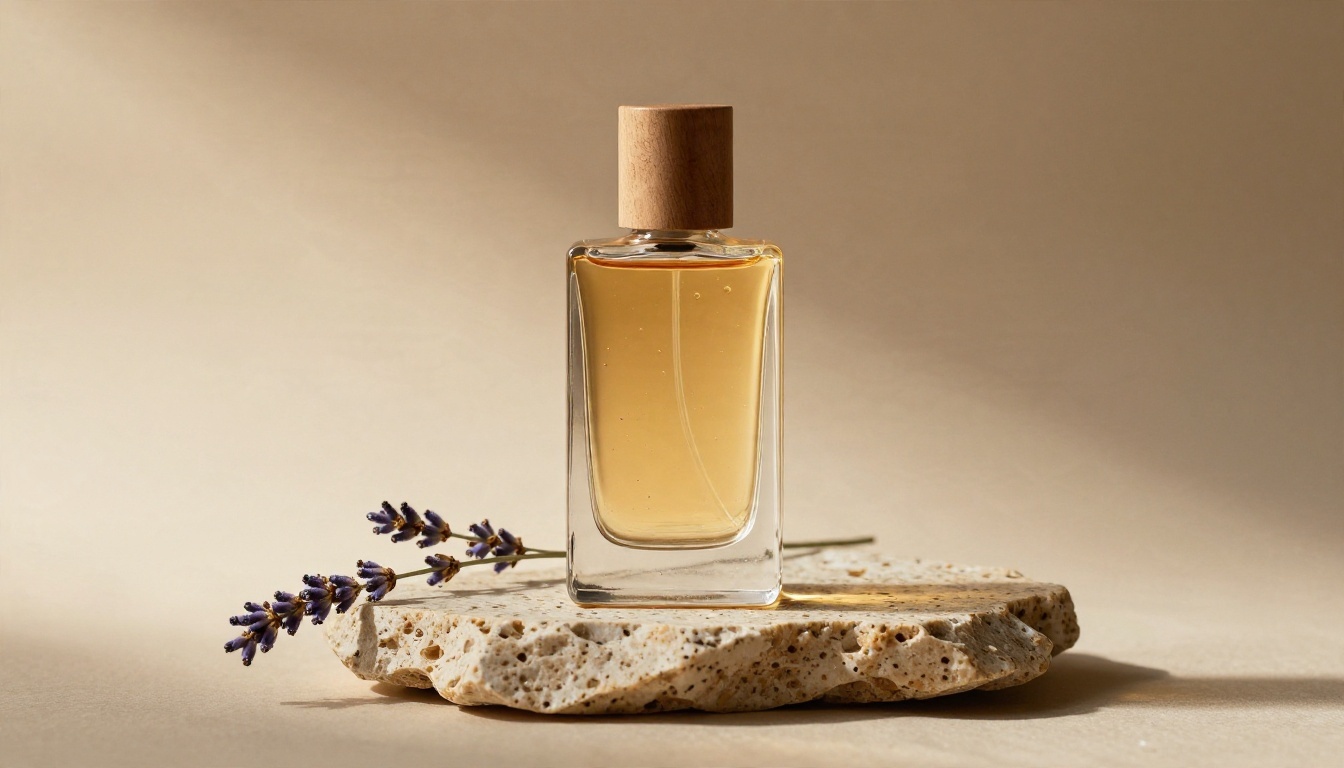
Scenes like this reward precise material words. Try:
A glass bottle of amber perfume on a rough travertine slab beside a sprig of dried lavender, soft box light from the left, long gentle shadow, warm beige paper backdrop, 100mm lens, low angle, sharp reflections on the glass, photorealistic.
Tip: mention the surface texture (travertine, linen, brushed steel). It anchors the whole frame.
Portraits
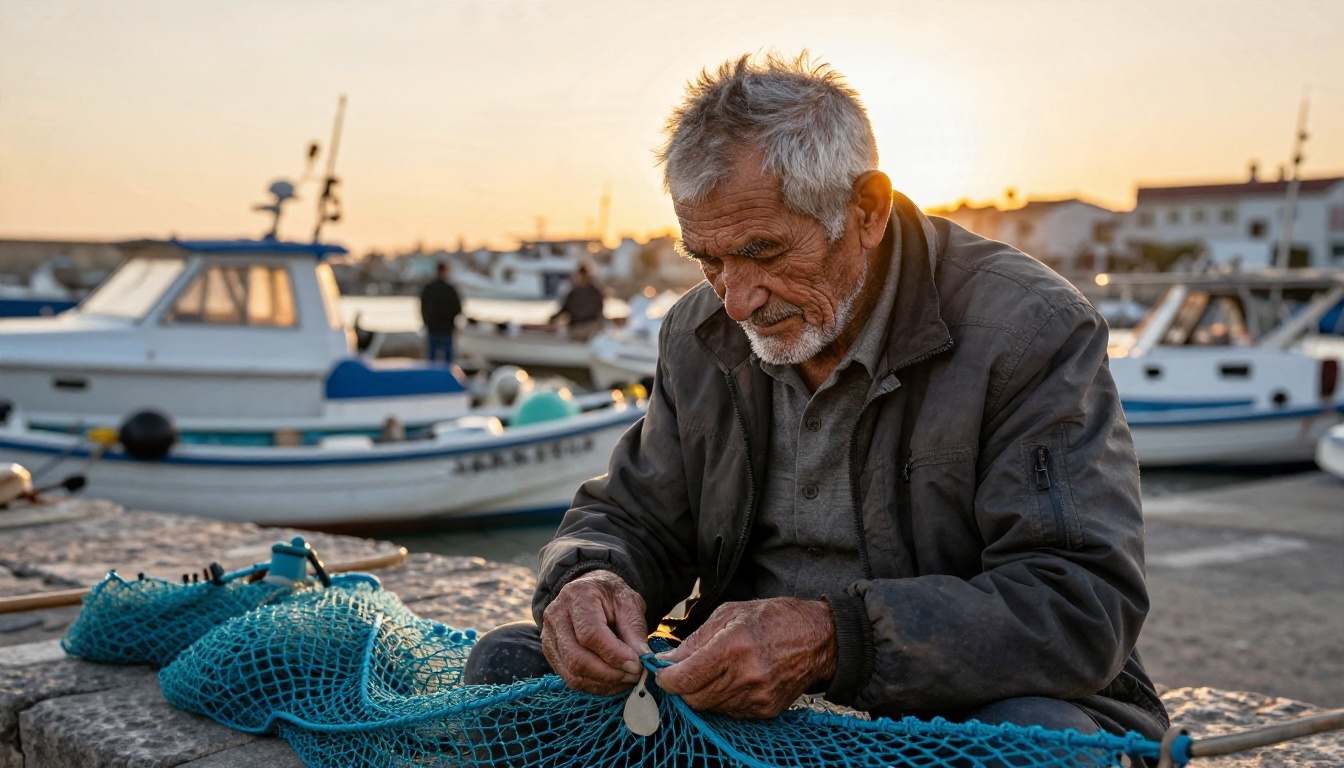
For people, describe age, expression and skin detail, then the light direction:
Candid portrait of an elderly fisherman with white stubble and deep wrinkles, mending a blue net on a stone harbor quay at golden hour, warm backlight from the right, boats softly blurred behind, 85mm lens, eye level, natural skin texture, film grain.
Tip: words like "candid" and "natural skin texture" push the output away from the over-smooth look.
Text inside images
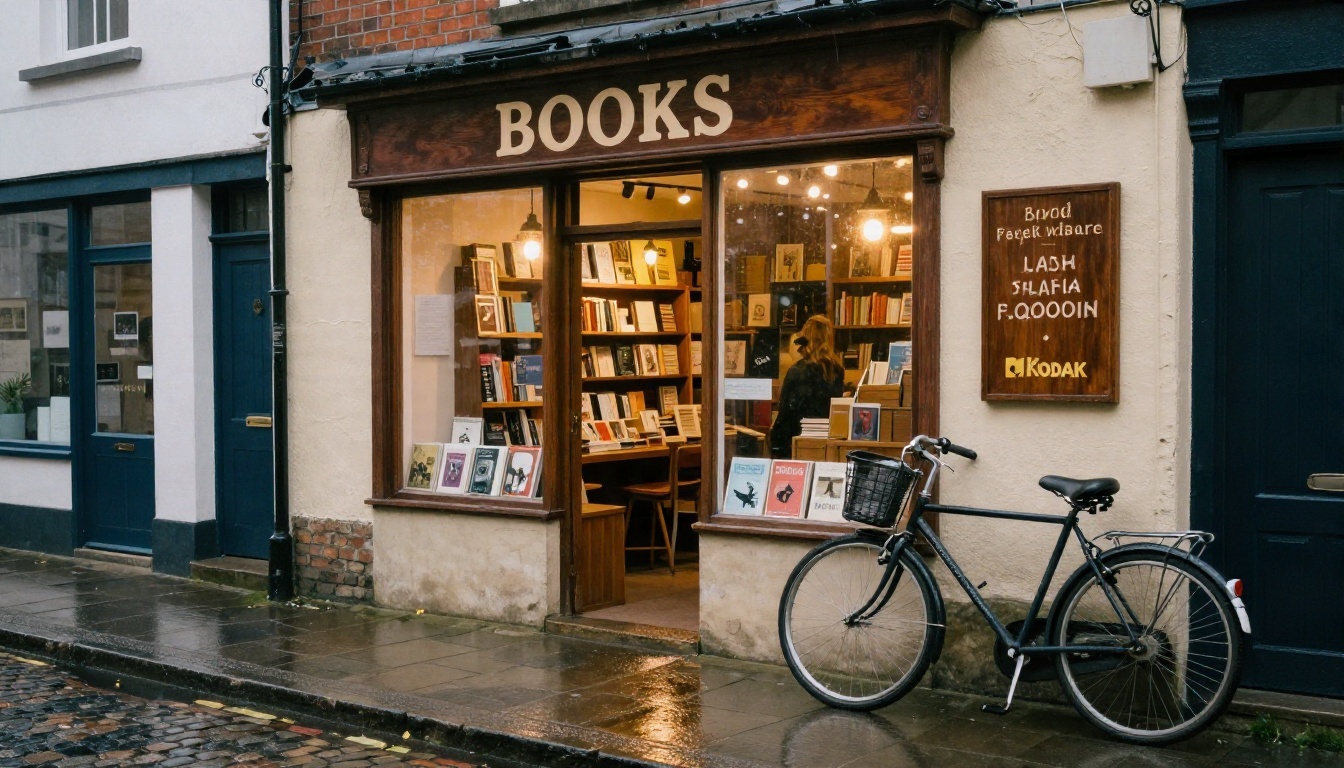
This is where the model pulls ahead of many rivals. Put the exact words in quotes and say where they go:
Evening street photo of a small independent bookshop, hand-painted wooden sign reading "BOOKS" above the door, warm lamplight on wet cobblestones, a bicycle leaning on the wall, 24mm lens, slightly low angle.
Tip: keep text short. One to three words is reliable, a full paragraph is a gamble.
Landscapes and aerials
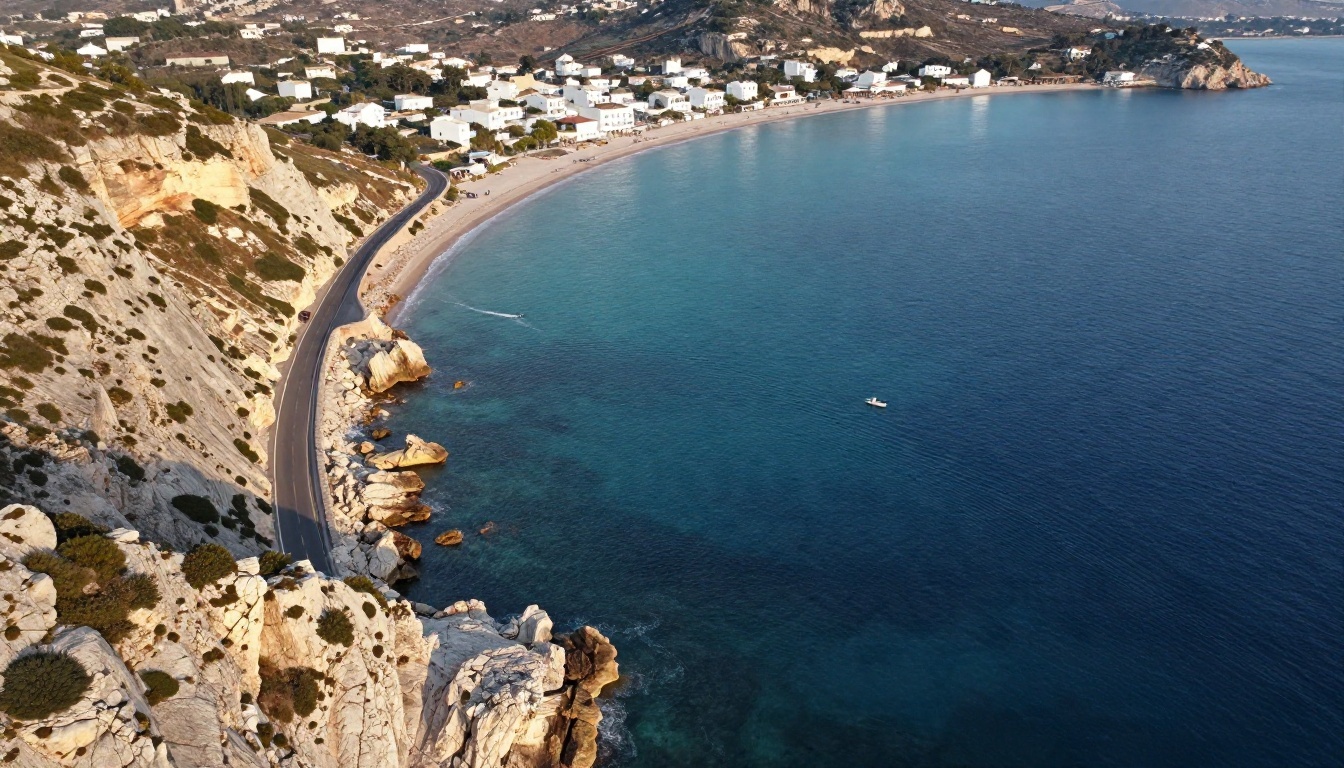
Wide scenes need a camera position to feel real:
Aerial drone photograph of a turquoise coastal bay, winding road along limestone cliffs, small white village, late afternoon sun from the left casting long shadows, sailboats leaving white wakes, soft haze, high angle.
Tip: state the time of day. "Late afternoon" and "blue hour" change the entire color palette.
A reusable prompt formula
| Slot | What to write | Example |
|---|
| Subject | Who or what, doing what | "a baker dusting flour over dough" |
| Setting | Place and props | "rustic kitchen, copper pans behind" |
| Light | Direction and quality | "window light from the left, soft" |
| Camera | Lens and angle | "50mm, eye level" |
| Texture | Surfaces and grain | "flour dust, wood grain, film grain" |
| Constraint | What to avoid | "no text, no logos" |
How to Use GPT Image 2 on PicassoIA
You can run the model straight from the browser on its GPT Image 2 page, with no API key and no setup. The options are simple, which makes it a good place to test prompts before you commit credits anywhere else.
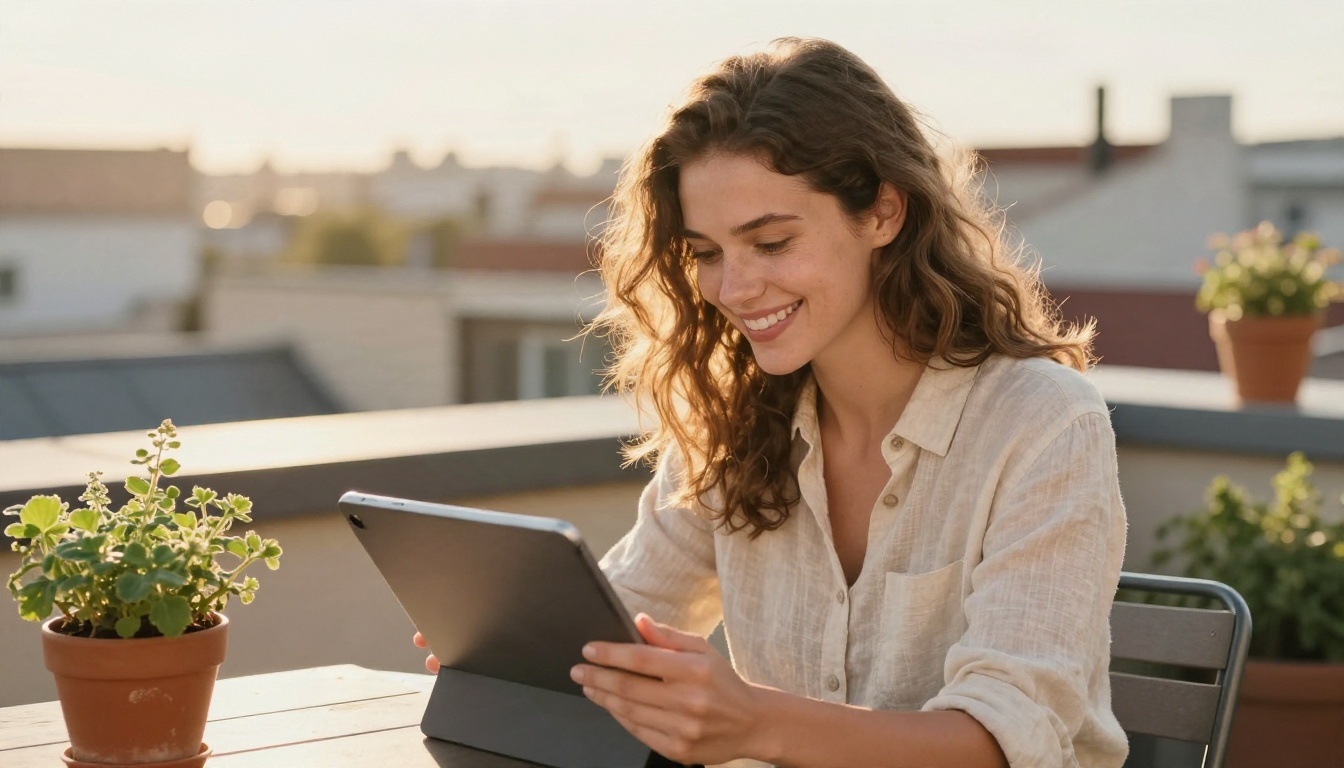
Step by step
- Open the model page: go to GPT Image 2 on PicassoIA.
- Write the prompt: use the formula above. Put any exact text in quotes.
- Pick the quality: choose low, medium, high or auto. Start on medium for drafts.
- Choose the aspect ratio: options include 1:1, 3:2, 2:3, 16:9 and 9:16, plus fixed sizes up to 4K.
- Set the background: transparent for stickers and cutouts, opaque for finished scenes, auto if you are unsure.
- Set the number of images: generate one to ten variations per request.
- Add reference images (optional): upload inputs when you want edits instead of a fresh image.
- Pick an output format: WebP is the default, PNG keeps transparency clean, JPEG is smallest.
- Generate and compare: keep the best, then rerun with one change at a time.
Parameter tips
- Quality: low and medium are fine for layout checks. Switch to high only when you are happy with the composition.
- Moderation: leave it on auto unless a harmless prompt keeps getting blocked.
- Compression: the default of 90 is a sensible balance between file size and detail.
- Batch size: three or four variations is the sweet spot. Ten is overkill unless you are exploring wildly different ideas.
💡 Workflow that saves time: draft at medium quality in 1:1, pick a winner, then rerun the same prompt at high quality in your final aspect ratio.
Alternatives Worth Testing
GPT Image 2 is strong at text and instruction accuracy, but it is not always the best choice. Photographic realism, speed and style range vary between models, and the quickest way to know is to run the same prompt through two or three of them.
| Model | Why try it | Link |
|---|
| GPT Image 2.5 Flare | Newer OpenAI variant aimed at fast generation | Open model |
| GPT Image 2.5 Sunburst | Newer OpenAI variant for generating and editing | Open model |
| GPT Image 1.5 | Reliable predecessor with transparency support | Open model |
| Seedream 5 Pro | Sharp 2K output with strong detail | Open model |
| Nano Banana Pro | High resolution results and handy editing | Open model |
| Imagen 4 Ultra | Fine detail and natural lighting | Open model |
| Flux 2 Klein 4B Base | Open and flexible base for styled looks | Open model |
When to pick which
Common Mistakes to Avoid
Most disappointing results trace back to the same handful of habits.
- Stacking too many demands. Ten requirements in one sentence invite the model to drop two. Split big scenes into a draft and an edit.
- Vague light. "Nice lighting" means nothing. "Window light from the left, soft shadows" means a lot.
- Long text blocks. Keep words short and quoted. Add longer copy in a design tool afterward.
- Starting on high quality. You will burn through caps and credits on prompts that were never ready.
- Ignoring the aspect ratio. Decide on the final format first. Cropping a square into a banner wastes the composition.
- Believing "unlimited" claims. Check the fine print on watermarks, queues and resolution limits.
- Changing five things per rerun. Change one variable at a time so you know what worked.
💡 Budget trick: write the prompt in a notes app first, read it aloud, and cut every word that does not change the picture. Shorter, sharper prompts cost fewer reruns.
Make Your Own Images Today
GPT Images 2.0 is not free in the way a marketing page might suggest, but it is cheap enough to use well if you plan your runs. Draft at medium quality, write prompts like a photographer's brief, keep text short and quoted, and lock the final format before you spend on high quality.
The fastest way to see what it can do for your own ideas is to run a few prompts side by side. Open GPT Image 2 on PicassoIA, paste one of the prompts above, change the subject to something you care about, and compare the result with GPT Image 2.5 Flare or Seedream 5 Pro. Ten minutes of testing will tell you more than any pricing table. And when you want even more options, browse every model at picassoia.com/en/all-models.


