You tap the toggle, type a prompt, wait for the progress ring to finish, and get a gray blurred tile or a polite refusal. Or worse, the Spicy option is simply gone. If Grok Imagine Spicy Mode is not working for you, you are far from alone, and in most cases the cause is one of five things: a moderation filter, a plan restriction, a stale app cache, a changed rule on xAI's side, or a prompt that trips a safety check. This article sorts them out, gives you fixes in the order worth trying, and shows what to use when the tool simply will not cooperate.
💡 Quick answer: Update the Grok app, fully close and reopen it, confirm you are on a paid tier, simplify the prompt toward glamour and styling instead of explicit wording, and if the blur keeps coming back, move the project to a model with a more flexible image workflow such as Seedream 4.5 on PicassoIA.
Why Spicy Mode Stops Working
Spicy Mode is a setting inside xAI's Grok app, tied to the Grok Imagine image and video generator. It relaxes some of the filters that apply to normal mode, but it never switched moderation off. That distinction explains most of the frustration. People expect an on and off switch, and what they actually have is a dial that xAI can turn at any time.

Moderation blur is not a bug
When Grok Imagine launched in August 2025, early testers noticed a pattern: the most explicit prompts came back as blurred images marked as moderated, while suggestive or semi-nude results sometimes slipped through. Reviewers described the filtering as inconsistent. That inconsistency is the root of the "it worked yesterday" complaint. A prompt that passed last week can be blocked today, and a similar prompt can pass while yours fails.
If your output arrives blurred, the system generated something and then flagged it. Retrying the identical prompt rarely helps, because the same words push the model toward the same flagged result.
Account and server problems
Not every failure is about content. Typical non-moderation causes include:
- A free account trying to use a feature that was rolled out to paid tiers first.
- A temporary server overload that produces timeouts, endless loading or generic error messages.
- A regional or age verification step that was never completed.
- An outdated app build that hides the toggle or fails to send the setting with your request.
A blurred result and a timeout look similar on a phone screen, but they need different fixes. A timeout means wait and retry. A blur means change the prompt or the tool.
Rules change without notice
Most public information about Spicy Mode dates from launch month. xAI has adjusted its safety systems since then, and any troubleshooting article, this one included, describes behavior that can shift. If something that used to work is now blocked, the likeliest explanation is a tightened filter rather than something you did wrong.
Fixes to Try First
Work through these in order. They take a few minutes in total, and each one removes a whole category of cause.

Update and restart
Install the newest version of the Grok app from your store, then force close it and reopen. On Android, the Google Play build is known to cache settings, so toggling Spicy Mode and then force closing the app is a common step that brings the option back. On iOS, swipe the app away from the switcher before reopening.
If you use the web version, hard refresh the page, sign out, sign back in, and test in a private window to rule out stale cookies or an extension interfering with the page.
Confirm your plan
Early coverage tied the feature to the paid SuperGrok and Premium+ tiers. If your subscription lapsed, was paused, or was bought on a different account than the one you are logged into, the toggle can vanish. Check the account name in settings, then check the billing status. Plans and names get renamed over time, so look at what your current plan actually includes instead of relying on what a forum post says.
Reset the toggle
Switch Spicy Mode off, close the app, reopen it, and switch it back on before you type anything. Then start a new chat or new generation session. An old session can carry the earlier setting and keep applying normal-mode filters to everything you send.
| Symptom | Likely cause | First thing to try |
|---|
| Spicy option not visible | Free plan, old app, cached settings | Update, force close, check plan |
| Output comes back blurred | Moderation flagged the result | Rewrite the prompt, soften wording |
| Prompt refused instantly | Input filter triggered | Remove explicit or restricted terms |
| Endless loading | Server load or network issue | Wait, switch from Wi-Fi to mobile data |
| Worked before, blocked now | Filter tightened by xAI | Adjust prompt or change tool |
Moderation and Limits Explained
What gets blurred
Generation tools like Grok Imagine usually run two checks: one on your prompt before generation and one on the output afterward. The first produces a refusal message. The second produces a blur or a placeholder. Both can fire even when Spicy Mode is on, because the mode loosens thresholds without removing them.
Content that involves real, identifiable people, minors or anything resembling them, or very explicit acts is the most likely to be blocked in any mode. Celebrity likenesses in particular drew heavy public criticism after launch, which is a strong reason the filters around real faces have tightened. If your prompt names a real person, expect blocks, and expect them to continue.
Some blocks have nothing to do with nudity. A prompt with an ambiguous word, a youthful descriptor, or a context that reads as violent can end in a blur even when you meant something harmless.
Why results vary
Generative systems are not deterministic. The same sentence can produce a safe image on one seed and a flagged image on another, and the output check runs on the picture, not on your intention. Add the fact that xAI updates its models and classifiers regularly, and you get a tool that feels random.
A few practical consequences:
- Retrying 10 times is wasted time if the prompt itself keeps steering toward flagged territory.
- Image to video is stricter than text to image in many tools, because motion adds risk. Expect more blocks there.
- Usage caps apply. Paid tiers have daily or hourly generation limits that can show up as a generic failure, and the exact numbers change, so check the in-app usage screen.
- Long, stacked prompts raise the chance that one word triggers the filter.
💡 If you can see a prompt count or quota indicator in the app, check it before assuming moderation is the culprit. Hitting a cap looks very much like a block.
Prompt Changes That Help
Describe the photo, not the act
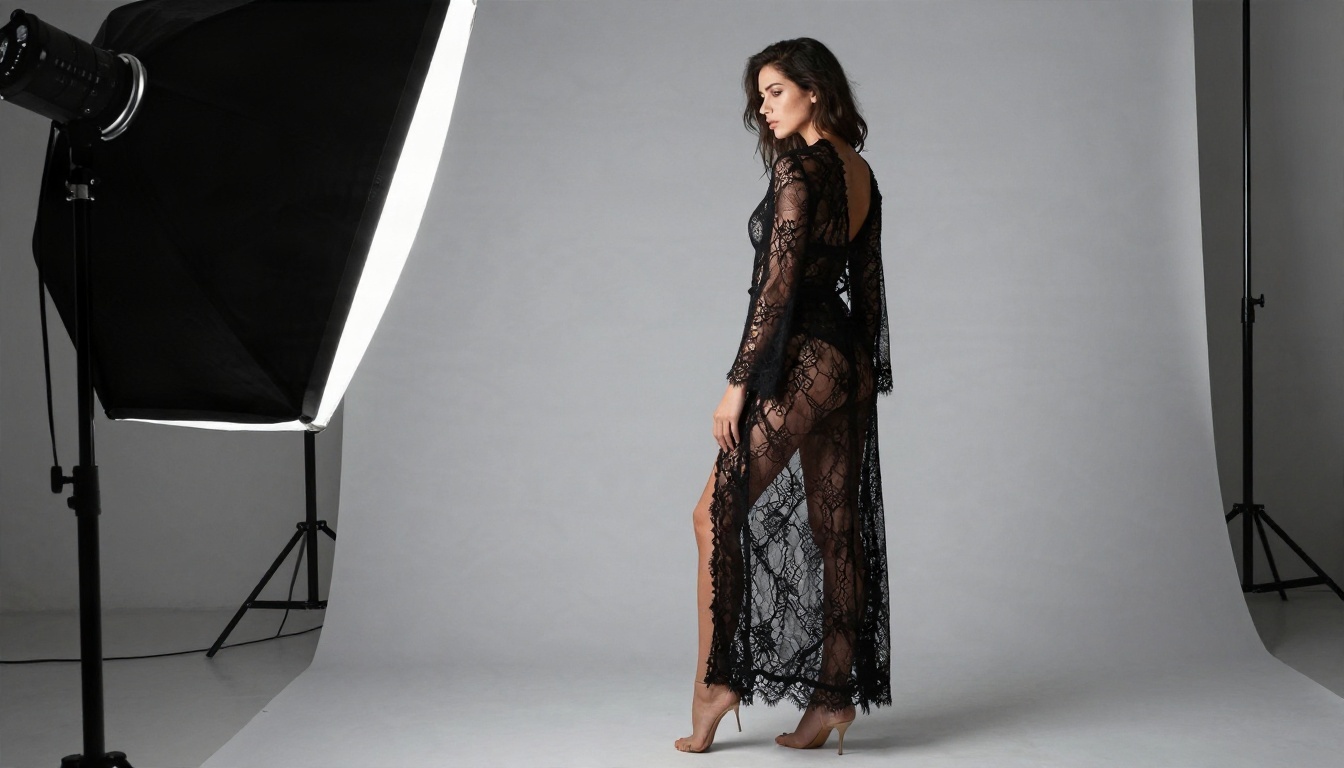
The most reliable adjustment is to write like a fashion photographer instead of a script. Replace blunt wording with styling, lighting and mood: silk robe, lace, swimwear, golden hour, soft window light, editorial pose. Models respond well to camera language such as "85mm lens, shallow depth of field, film grain," and this kind of phrasing also looks less suspicious to an input filter.
A prompt structure that works across most image and video tools:
- Subject and pose: who is in frame and what they are doing
- Wardrobe: fabric, color, cut
- Setting: room, beach, terrace, studio
- Light: direction and quality
- Camera: lens, angle, depth of field
Keep it short and specific
Under 80 words is plenty. Strip anything that is not contributing to the picture. Avoid ages, school or family settings, and any real person's name. For video, begin from a clean still image and ask for one simple motion, such as a slow camera push or hair moving in a breeze, instead of a long sequence of actions.
Alternatives That Work Today
When the filters keep winning, the quickest fix is a different tool. The lineup below focuses on tasteful, non-explicit glamour: swimwear, lingerie-style editorials, boudoir lighting and fashion portraits. Spicy Mode itself is a toggle in the Grok app, so it is not something PicassoIA offers, but the models here are strong at the same visual territory and let you iterate without the blur loop.

Seedream 4.5 first
Seedream 4.5 is the first model to try. It produces sharp, photorealistic people with believable skin texture, handles fabric like satin and lace convincingly, and renders up to 4K. It follows long, detailed prompts closely, so the photographer-style prompt structure above works especially well. For glamour, swimwear and editorial portraits, it gives you a finished picture on the first pass far more often than it gives you a blurred tile.
Image Editor Pro for unlimited runs
PicassoIA Image Editor Pro is the one to use when you want to experiment without counting generations. It offers unlimited generations, which matters when you are refining outfits, lighting and poses across many attempts. It also edits existing photos, so you can change wardrobe, background or mood on an image you already like instead of starting over.

Other models worth trying
Once you have a favorite look, these models give different flavors:
If you specifically want the Grok look in a normal generator, PicassoIA also hosts Grok Imagine Image 2, Grok Imagine Image Quality and Grok Imagine Video 1.5. These are standard image and video generators, so judge them on their own results and do not expect the Spicy toggle from the app.
| Tool | Best for | Strength | Limit to expect |
|---|
| Seedream 4.5 | Glamour and swimwear portraits | Skin and fabric realism, up to 4K | Prompts work best when specific |
| Image Editor Pro | Iteration and photo edits | Unlimited generations | Best with a clear edit goal |
| Z Image Turbo | Quick drafts | Speed | Less fine detail |
| Flux 2 Klein 9B LoRA | Styled looks | LoRA control | Needs clear style direction |
| Qwen Image 3 Pro | Clean portraits | Photorealism | Fewer stylistic extremes |
How to Get Similar Results on PicassoIA
This walkthrough uses Seedream 4.5 because it gives the closest match to what people want from Spicy Mode: glamorous, photorealistic, high-resolution people, without the waiting-then-blurring cycle.

Step by step
- Open the model page. Go to the Seedream 4.5 page on PicassoIA and sign in.
- Write a photographer-style prompt. For example: "A woman in a red one-piece swimsuit and sheer white shirt walking along a wet sand shoreline at sunrise, low golden backlight, 70mm lens, shallow depth of field, natural skin texture, fine film grain."
- Set a 16:9 aspect ratio for banners and wide scenes, or 3:4 for portrait-style posts.
- Pick the highest resolution option if you plan to print or crop.
- Generate, then compare. Make three or four variations and keep the one with the most natural skin and fabric detail.
- Refine in Image Editor Pro. Open the best result in PicassoIA Image Editor Pro to change the outfit, background or mood, and run as many variations as you like.
Parameter tips
- Lead with lighting. "Golden hour backlight" or "soft window light from the left" improves realism more than stacking adjectives.
- Name the lens. "85mm f/1.8" gives portrait-style compression and a soft background.
- Describe texture. Phrases like "visible pores, fine freckles, silk sheen, linen weave" push the model away from the plastic look.
- Avoid contradictions. Do not ask for "candid" and "studio flash" in one prompt.
- Iterate in small steps. Change one element per run, so you can tell what produced the improvement.
💡 Want motion? Take your best still and animate it with Wan 2.5 I2V Fast or Kling v3 Video. Ask for one gentle movement, such as a slow push in or wind through hair.
Start Creating Your Own Images
If Spicy Mode keeps failing, you do not have to keep fighting a toggle. Bring the same idea to a tool where you control the process: write a clean photographer-style prompt, run it in Seedream 4.5, refine it with unlimited generations in PicassoIA Image Editor Pro, and animate the winner if you want motion.

Most people get a usable result within a handful of tries, mainly because the prompt structure matters more than any single setting. Try one swimwear scene, one portrait and one editorial setup this week, compare them side by side, and keep a note of the prompts that worked. To pick from the whole catalog, browse every model on PicassoIA and test a few of them with the same prompt. The differences in skin, light and fabric show up quickly, and you will find the one that fits your style.


