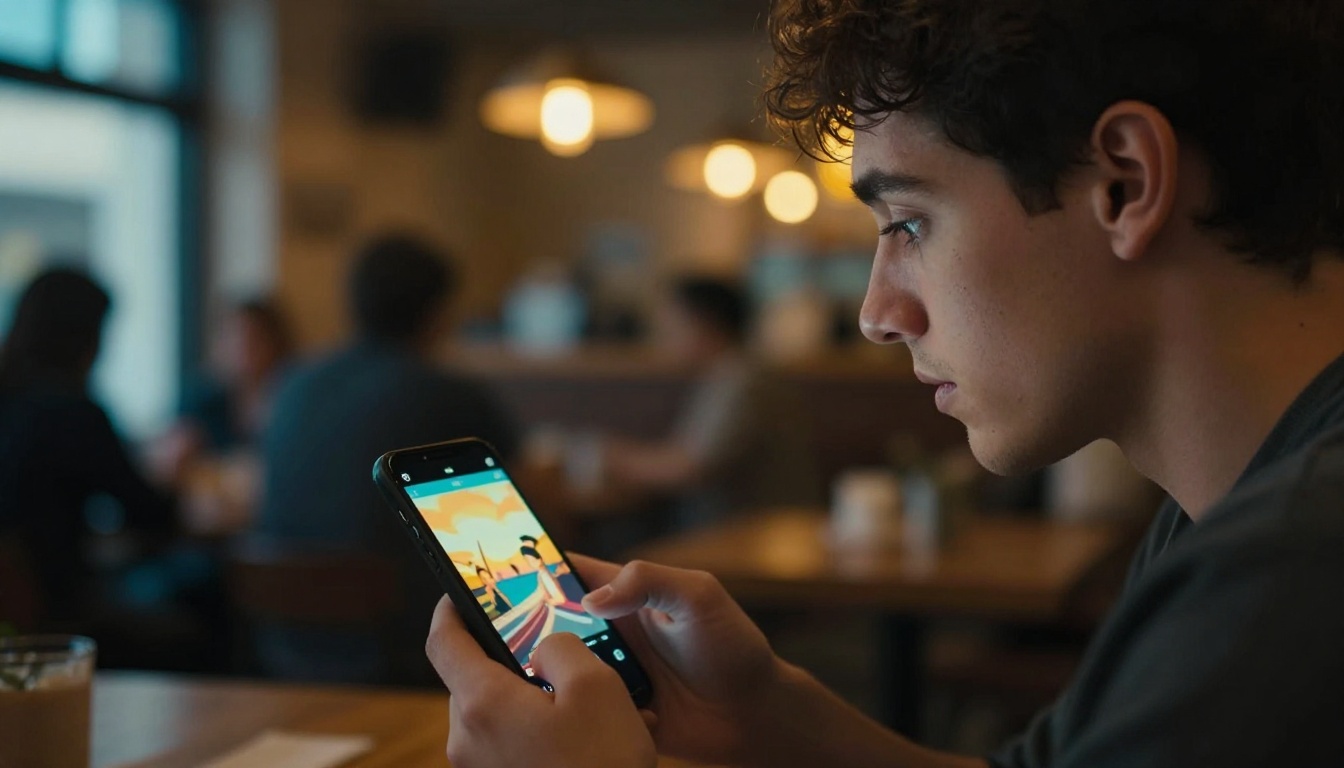
Still photos have always carried stories inside them. A frozen frame of ocean waves. A portrait taken at golden hour. A wedding shot from a decade ago. What if those images could move? Grok Imagine Video 1.5 from xAI does exactly that: it takes any static photograph and converts it into a short, cinematic motion clip, complete with synchronized native audio. The results are not the shaky, artifact-heavy animations you might expect from image-to-video models of a year ago. They are fluid, realistic, and fast.
What Grok Imagine Video 1.5 Actually Does
From static to moving in seconds
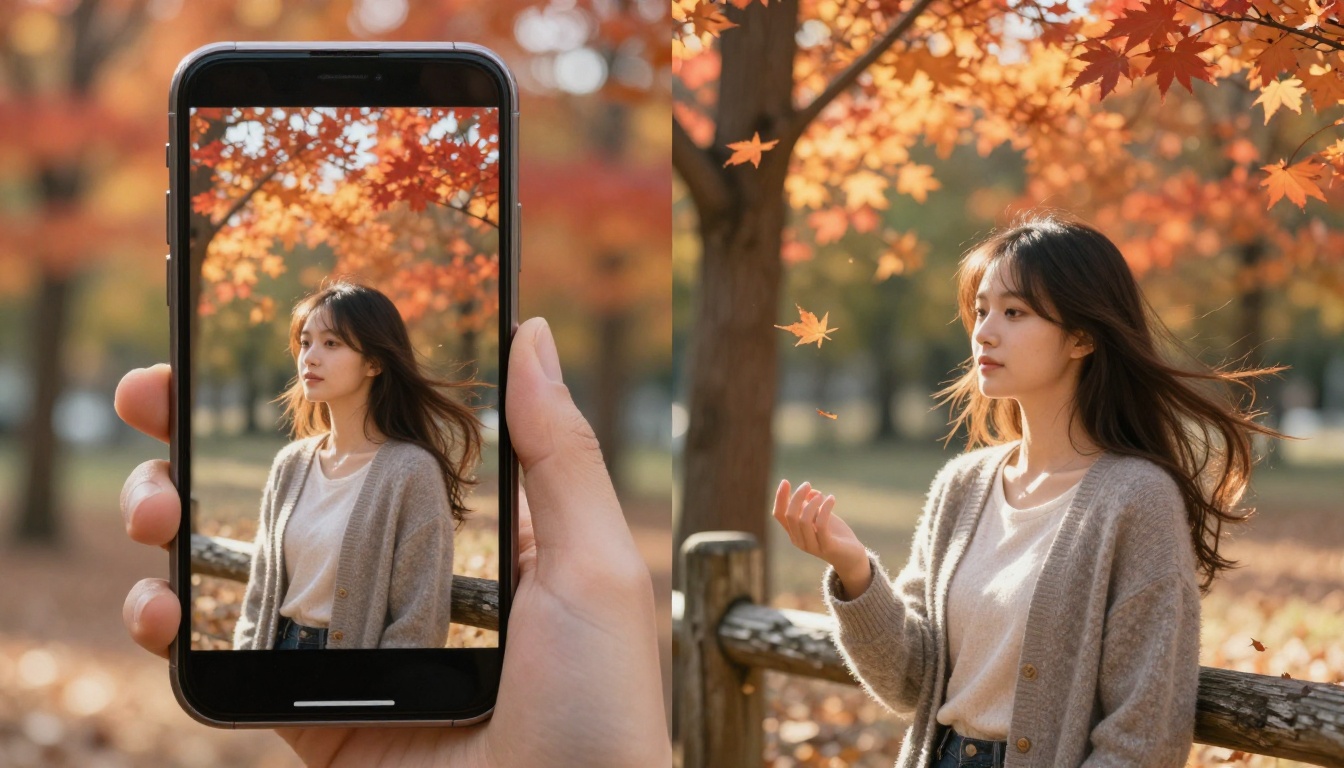
The model accepts a reference image and a text prompt describing how the scene should move. It processes both inputs simultaneously, using motion prediction to infer what physical elements in the photograph would realistically do if time started flowing again. Water would ripple. Hair would shift in a soft breeze. Clouds would drift across the sky. The output is a short video clip that preserves the composition and lighting of the original photograph while adding believable, naturalistic motion.
What separates version 1.5 from its predecessor is temporal coherence. Older image-to-video models often produced clips where objects warped or shifted unnaturally between frames. Version 1.5 maintains stable identity across the full duration, meaning faces stay consistent, textures hold their detail, and the overall scene feels like a real moving image rather than a hallucinated one.
Audio that syncs automatically
One detail that often gets overlooked: Grok Imagine Video 1.5 generates native synchronized audio alongside the video output. When the model animates ocean waves crashing on a beach photo, it also produces the sound of water. A photo of wind through wheat fields produces ambient rustling. A street scene produces traffic noise and distant voices.
This is a significant practical advantage. Most competing image-to-video models produce silent clips, which then require a separate audio pass or licensed music before they can be used on platforms like Instagram Reels, TikTok, or YouTube Shorts. With Grok Imagine Video 1.5, the clip arrives ready for upload.
Why Photo Animation Has Evolved
The old approach was slow and inconsistent
Not long ago, animating a still photograph meant either hiring a motion graphics artist or using basic tools like Ken Burns panning effects inside video editors. Neither approach produced genuine motion within the scene itself. You could zoom slowly into a landscape, but the waves would never actually crash. The trees would never sway.
When the first wave of AI image-to-video models appeared, they introduced real in-scene motion but came with heavy trade-offs: facial distortion on portraits, unstable backgrounds, limited resolution caps, and no audio output. Users would get a 3-second clip that looked more like a visual glitch than a cinematic moment.
What version 1.5 improved
The 1.5 update focused on three core areas: motion fidelity, output resolution, and audio generation. Motion fidelity improvements mean that fine details like individual hair strands, fabric texture, and foliage all move with appropriate physical behavior. Resolution improvements mean the output holds up when played full-screen on modern displays. The addition of native audio makes every clip immediately shareable without additional post-production work.
The practical result is that content creators can now take a single photograph, describe the motion they want, and receive a shareable video clip in under a minute.
How It Compares to Other I2V Models
The image-to-video category has grown rapidly. Here is how Grok Imagine Video 1.5 sits relative to some of the most-used alternatives available today on PicassoIA:
💡 If native audio matters for your workflow, Grok Imagine Video 1.5 and Seedance 2.5 are currently the strongest image-to-video options for clips with sound built in.
The primary trade-off for Grok Imagine Video 1.5 versus models like Wan 2.7 I2V or Kling v2.6 is the resolution ceiling. At 720p, it is not the right choice for 4K cinema or billboard work. For social media clips, web content, and personal creative projects, 720p is more than sufficient.
How to Use Grok Imagine Video 1.5 on PicassoIA
Grok Imagine Video 1.5 is available directly through PicassoIA with no local installation required.
Step-by-step walkthrough
- Open Grok Imagine Video 1.5 on PicassoIA.
- Upload your source image. Supported formats include JPEG, PNG, and WebP. The model works best with photos that have a clear subject and recognizable environmental context.
- Write a motion prompt. Describe what should move and how. Example: "gentle ocean waves rolling in, seagulls drifting overhead, soft morning wind stirring the foreground grass."
- Submit the request. Generation typically completes in 30 to 60 seconds depending on server load.
- Preview and download. The output is a short video clip with native audio already embedded.
Tips for better results
- Be specific about motion direction: Saying "waves moving left to right" produces better results than just "waves moving."
- Mention lighting changes when relevant: Phrases like "sun breaking through clouds from upper left" help the model add realistic atmospheric motion.
- Use high-contrast source photos: Low-resolution or heavily compressed images tend to produce blurrier motion outputs. Start with the sharpest version of your photo.
- Describe secondary motion elements: If your main subject is a portrait, mention what the background should do. "Soft bokeh background with leaves falling gently" gives the model more context to work with.
- Avoid overly busy scenes: Photos with dozens of overlapping detailed subjects are harder to animate coherently. The model performs best when there is a clear focal point.

5 Real Use Cases Worth Knowing
Social media content
Short-form video platforms reward originality, and animated photographs stand out in a scroll-heavy feed. A travel photographer can take their best landscape shot from a trip and turn it into a 5-second atmospheric clip. The native audio means the clip is immediately post-ready without sourcing background music. Creators who maintain consistent visual aesthetics will find it particularly useful because the animated clip retains the color grading and composition of the original photograph.
Reviving family memories
Old photographs have enormous emotional value but little visual dynamism. Animating a scan of a grandparent's wedding photo or a childhood birthday shot gives the image a new dimension without altering its historical character. Grok Imagine Video 1.5 handles black-and-white source images alongside color ones, though prompts that specify realistic atmospheric motion tend to yield better results than those requesting dramatic action.
Product and brand videos
Photographers who shoot for e-commerce clients can add value by delivering animated versions of their shots. A lifestyle photograph of a product in an outdoor setting, animated to show gentle environmental motion, plays significantly better in paid social ad placements than a static image. The model does not alter the product itself but adds naturalistic motion to the surrounding scene, making the ad feel alive without requiring a full video shoot.
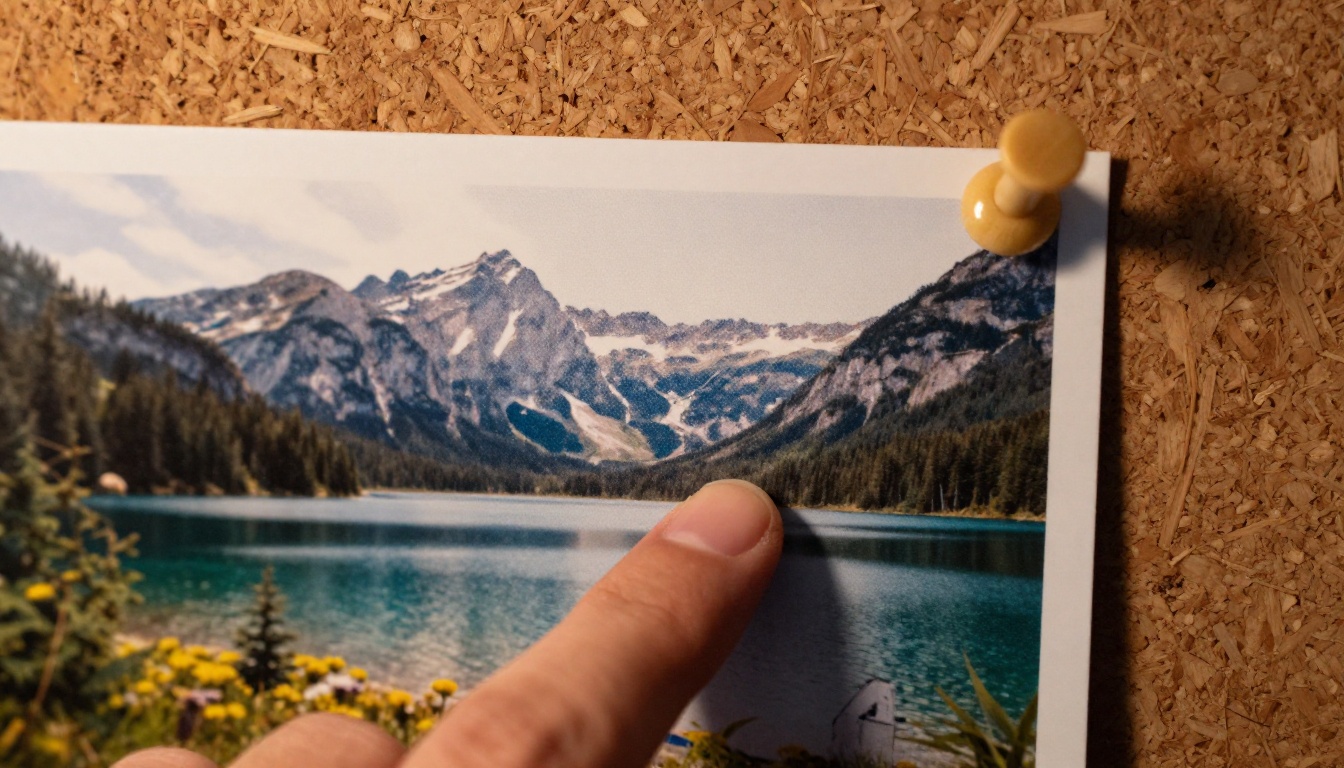
Educational and documentary content
Historians, educators, and documentary producers regularly work with archival photographs. Animating those stills, even subtly, makes them far more watchable when embedded in video presentations or online courses. A photo of a 1940s street market with subtle crowd motion and ambient sound becomes dramatically more immersive than the same image displayed statically on screen.
Personal creative projects
Beyond professional applications, there is a growing community of creators using photo animation purely for artistic expression. Animating your own photography to create looping visual pieces, generating atmospheric background clips for music releases, or building short cinematic sequences from a set of related photographs are all legitimate creative uses that Grok Imagine Video 1.5 handles well.
Other Image-to-Video Models Worth Trying
Grok Imagine Video 1.5 is one option in a growing library of image-to-video models on PicassoIA. Depending on your specific needs, these are worth considering:
Wan 2.7 I2V handles high-resolution nature scenes particularly well and supports output up to 1080p. If maximum resolution is the priority over native audio, this model is a strong alternative.
Kling v2.6 is built around cinematic motion quality. It is the better choice for portrait animations where facial stability and fine skin texture preservation are critical.
Kling v3 Video takes the cinematic approach further with motion control features that let you specify camera movements like slow dolly-ins or lateral tracking shots on top of the base image animation.
Grok Imagine R2V is the companion model from the same xAI family, focused on reference-based video where maintaining a specific character or subject identity across the animation is the priority.
P Video Animate is the best option for users who want unlimited free photo animation without credit constraints, though it trades off some motion quality compared to premium models.
Ray 3.2 from Luma brings HDR output capabilities to the image-to-video format, making it a strong pick for photos that were originally shot in RAW and retain wide dynamic range.
LTX 2 Pro offers 4K output for scenarios where the animated clip will be displayed on large screens or used in professional video production contexts.
The full catalog of video models, including all image-to-video options, is available at picassoia.com/en/all-models.
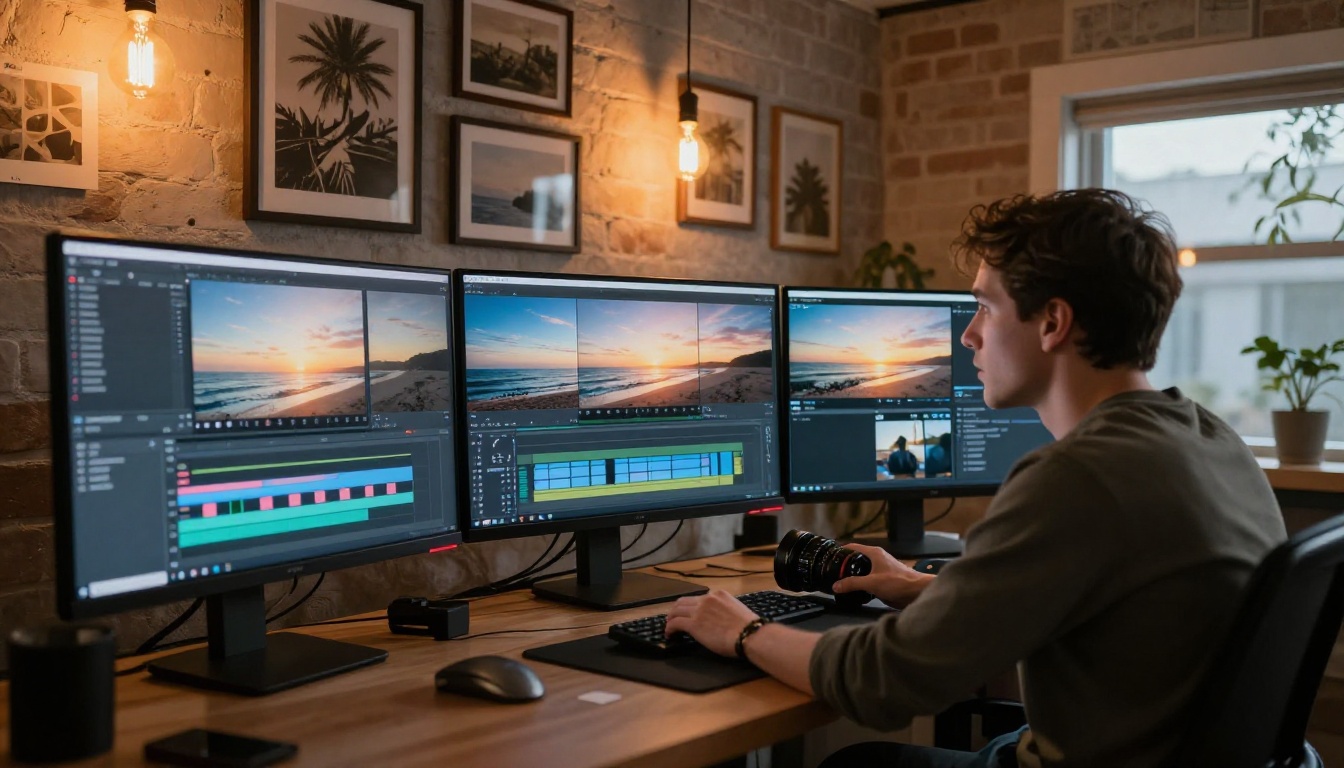
Picking the Right Photo for Animation
Not every photograph animates equally well. Understanding what the model responds to best can save time and significantly improve the quality of outputs.
What works well
- Landscape and nature photography: Oceans, forests, clouds, and fields all have inherent physical motion that the model can predict accurately from the visual content alone.
- Environmental portraits: A person photographed in a natural outdoor setting with a visible background gives the model both a focal subject and an environment to animate simultaneously.
- Architecture in context: A building photograph with surrounding trees, water, or sky gives the model plenty of secondary elements to animate without touching the structure itself.
- Night scenes with light sources: City lights, candles, or fire within a photograph give the model natural animation cues for subtle flickering and atmospheric light behavior.
What to avoid
- Heavily processed composites: Photos that are already heavily layered or digitally edited tend to produce artifacts because the model tries to infer physical depth from a flat manipulated surface.
- Extreme close-ups with no environmental context: A headshot cropped tightly with nothing in the background gives the model very little to animate besides subtle breathing and minor micro-expressions.
- Low-resolution or heavily compressed images: Starting with a small, heavily compressed JPEG will not produce a clean 720p output. Always use the highest-quality version of your photograph.
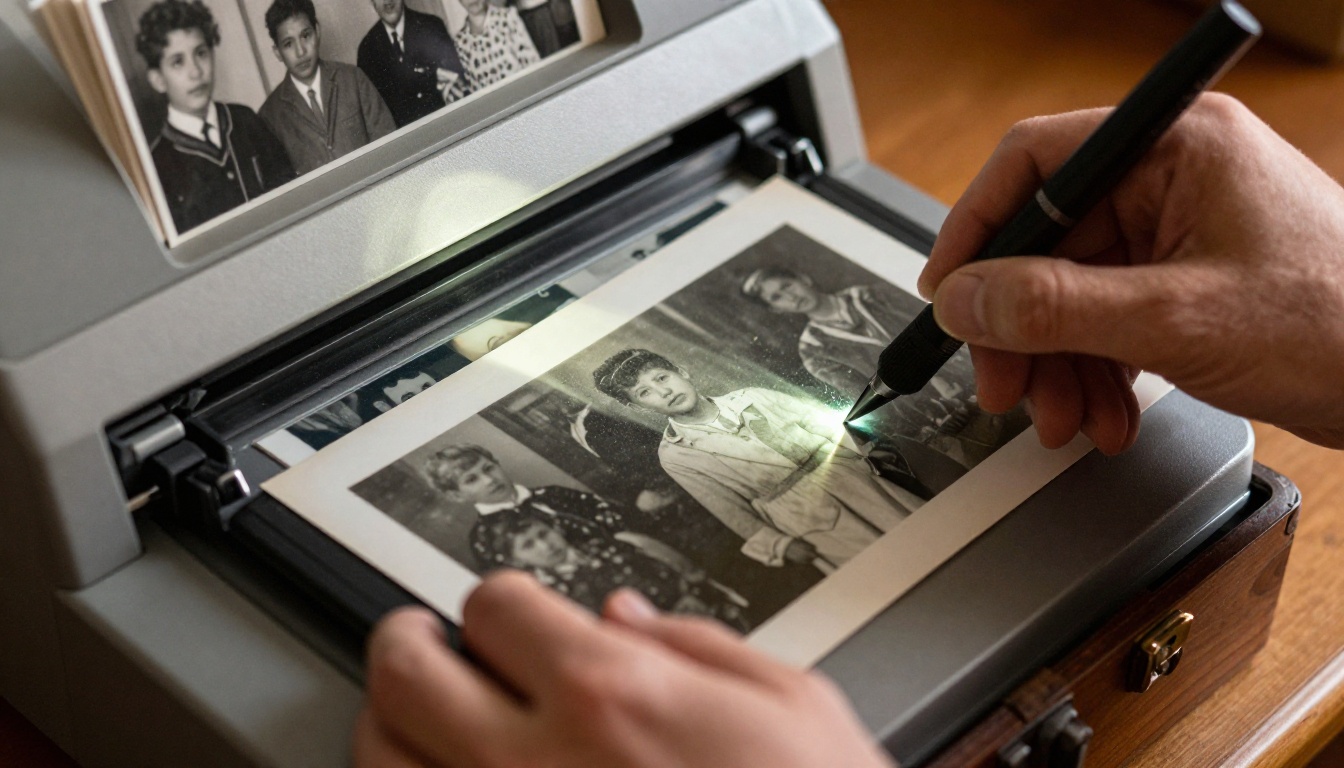
The Audio Advantage
It is worth dwelling on the audio generation capability because it has practical implications that are not obvious at first glance.
When platforms like TikTok or Instagram rank content for distribution, video posts with original audio consistently outperform those with no audio or with dubbed music applied in post-production. The algorithm rewards clips that feel native to the medium.
Grok Imagine Video 1.5 generates audio that is contextually matched to the scene in the photograph. A photo of a crowded market produces ambient crowd noise and vendor sounds. A winter landscape produces wind and the quiet texture of snow. A waterfall photo produces the rushing water sound. This is not background music dropped over a silent clip: it is generated audio that responds directly to the visual content of each specific photograph.
For anyone producing content at volume, this removes one entire step from the workflow. You no longer need to open a separate audio editor, source a licensed track, sync it to the clip, export, and re-upload. The video and audio arrive together, ready to publish.
Prompt Writing That Actually Works
The text prompt you write alongside your source image is the most significant variable in determining output quality. These patterns consistently produce better results:
Lead with the primary motion: Start your prompt with the most important moving element. "Ocean waves rolling gently toward shore" is better than "A calm beach scene with some waves."
Specify the camera behavior: Adding a camera description changes the emotional feel dramatically. "Slow dolly-in toward the subject while the background remains still" versus "Static camera, all motion occurring within the scene."
Set the atmosphere: Words like "soft morning mist rising," "late afternoon golden hour with long shadows shifting," or "overcast diffused light with distant rain approaching" help the model match the tonal mood of the original photograph.
Describe motion arcing across time: For a 5-second clip, you can describe what happens at the beginning and the end. "Begins with still water, a single ripple expands outward by the second second, by the final frame the surface is gently animated with small overlapping waves."
💡 The best prompts read like a cinematographer's shot note, not a product description. Write for motion and atmosphere rather than for what the image already contains.
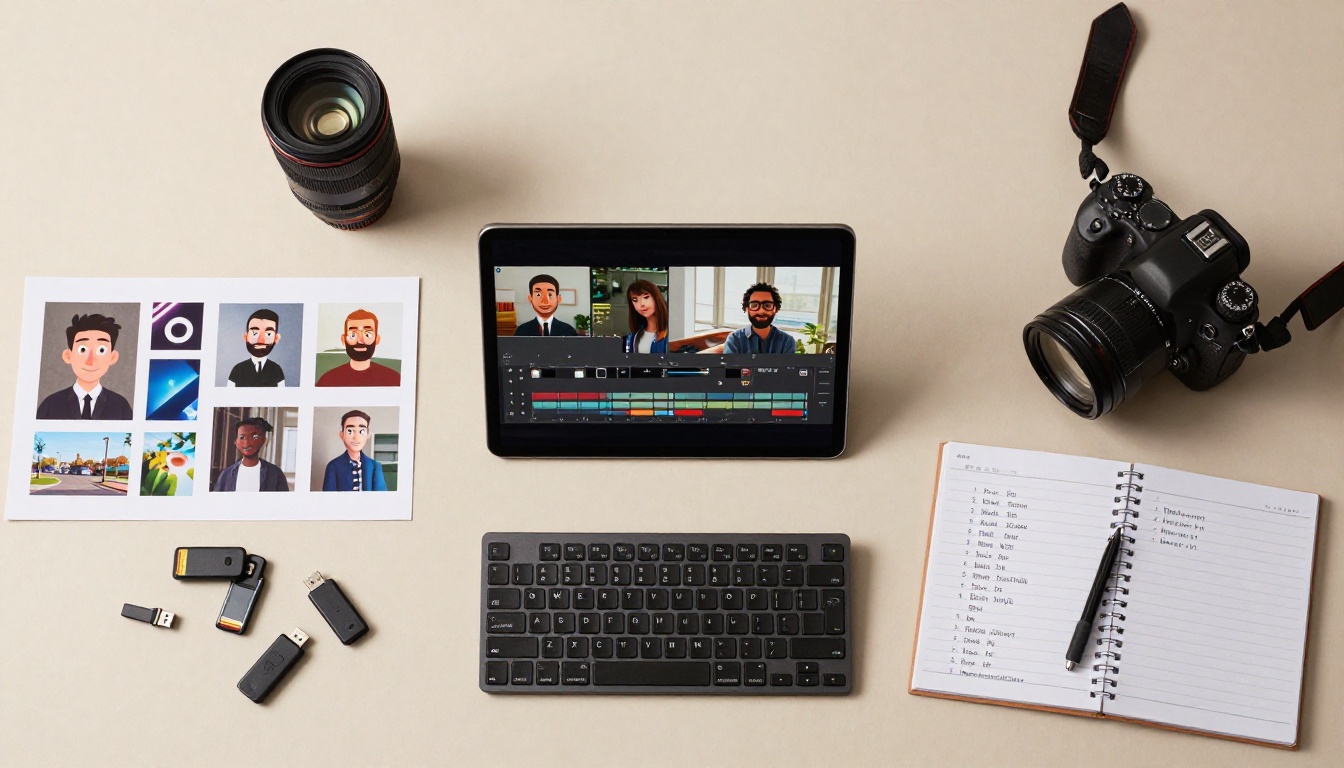
What Comes After the Clip
Once you have your animated clip from Grok Imagine Video 1.5, PicassoIA's broader video toolkit becomes relevant. If you want to build longer sequences from multiple animated stills, models like Wan 2.7 I2V or Seedance 2.5 can help you add more clips to your sequence at higher resolutions.
If you need to add a voiceover or spoken narration to your animated clip, the text-to-speech tools on PicassoIA can generate professional voice audio that you can layer over your video in any standard editor. If your original photo needs cleanup or restoration before you animate it, the AI Image Restoration and Super Resolution tools on the platform can upscale and repair low-quality originals before they go into the video generation step.
The workflow is designed to be modular. You can start with a single photograph and a single tool, then build outward from there depending on what the project requires.
Start Animating Your Photos Today
There has never been a better time to start working with photo animation. The barrier is low, the turnaround is fast, and the output quality is genuinely useful for real-world publishing.
Grok Imagine Video 1.5 is ready for your first image on PicassoIA right now. Pick a photograph from your camera roll, a product shot from a recent project, or an old family scan, write a motion prompt, and see what the model does with it in under a minute.
If you want to experiment with alternatives alongside it, models like Wan 2.7 I2V, Kling v3 Video, and P Video Animate are all available in the same workspace with no extra setup required. The full library of models is at picassoia.com/en/all-models.
Still photos have always contained motion waiting to be seen. Now the tools exist to let it out.