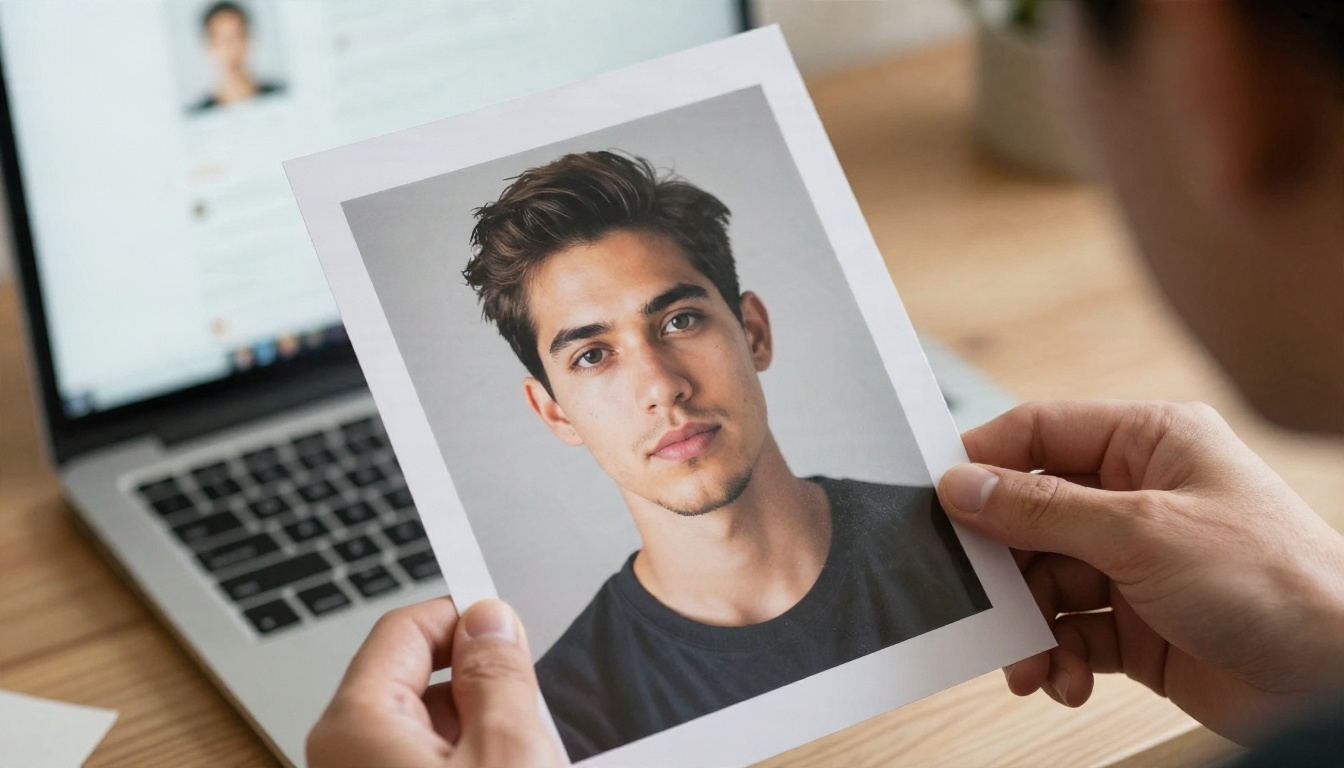
You have one good portrait and a script, and you want the face in that photo to talk, smile and react like a person on camera. That is the promise behind HeyGen Expressive Photo Avatar, and it is a tempting one. No filming day, no studio, no retakes. The catch is that "free" and "expressive" rarely sit in the same sentence for long. This article sorts out what the feature does, what a free account can realistically try, where it runs out of road, and which alternatives let you animate a photo right now.
💡 Quick answer: HeyGen Expressive Photo Avatar turns a still portrait into a speaking, emoting video. Free accounts get a small taste of HeyGen's premium avatar tools, but heavy or repeated use needs a paid plan. If you want to animate photos without hitting that wall, several alternatives are available on PicassoIA, covered below.
What It Actually Is
Photo in, talking video out
A photo avatar starts with a single still image of a person. You add a script (which the tool voices) or an audio file, and the system generates a video in which that face speaks, blinks, tilts and gestures. Earlier photo avatars often looked like a mask: lips moved, everything else stayed frozen. The newer generation tries to animate the whole head, the shoulders, and sometimes the hands.

Where "expressive" comes in
The "expressive" part is about emotion and motion that follow the voice. A calm line gets a calm face. An excited line raises the eyebrows, widens the smile and adds head movement. In HeyGen's lineup, this sits on top of its Avatar IV engine, which is built for exactly that kind of motion from one image. The more custom motion you ask for, the more credits it burns on paid plans.

What you need to bring
Three things decide the result before any button is pressed:
- A sharp front-facing photo with visible eyes and a closed or lightly open mouth.
- A script or audio under the tool's length limit.
- A clear goal, such as a product intro, a lesson or a social clip.
Free Options and Real Limits
What the free plan includes
Based on what HeyGen's pricing and several third-party reviews describe at the time of writing, a free account typically gets:
| Free plan item | What is reported |
|---|
| Videos per month | Up to 3 |
| Video length | Around 1 minute each |
| Photo avatars | Up to 3 |
| Premium tools (Avatar IV, Video Agent, lip-sync translation) | Limited trial access |
| Paid-only extras | Custom Expressive Motion and unlimited photo avatars |
That is enough to test one idea properly. It is not enough to run a weekly series.
Where the numbers disagree
Here is the honest part: sources do not agree. Some reviews say free exports are 720p with a watermark. Others list up to 1080p. Some say the free tier has no credits at all, while others describe a video count that stands in for credits. Quotas can also shift by region or by when you created the account.
💡 Tip: Treat any blog number, including the ones in this article, as a starting point. Open your own account's usage screen before you plan a project around a limit.
Credit cost on paid plans
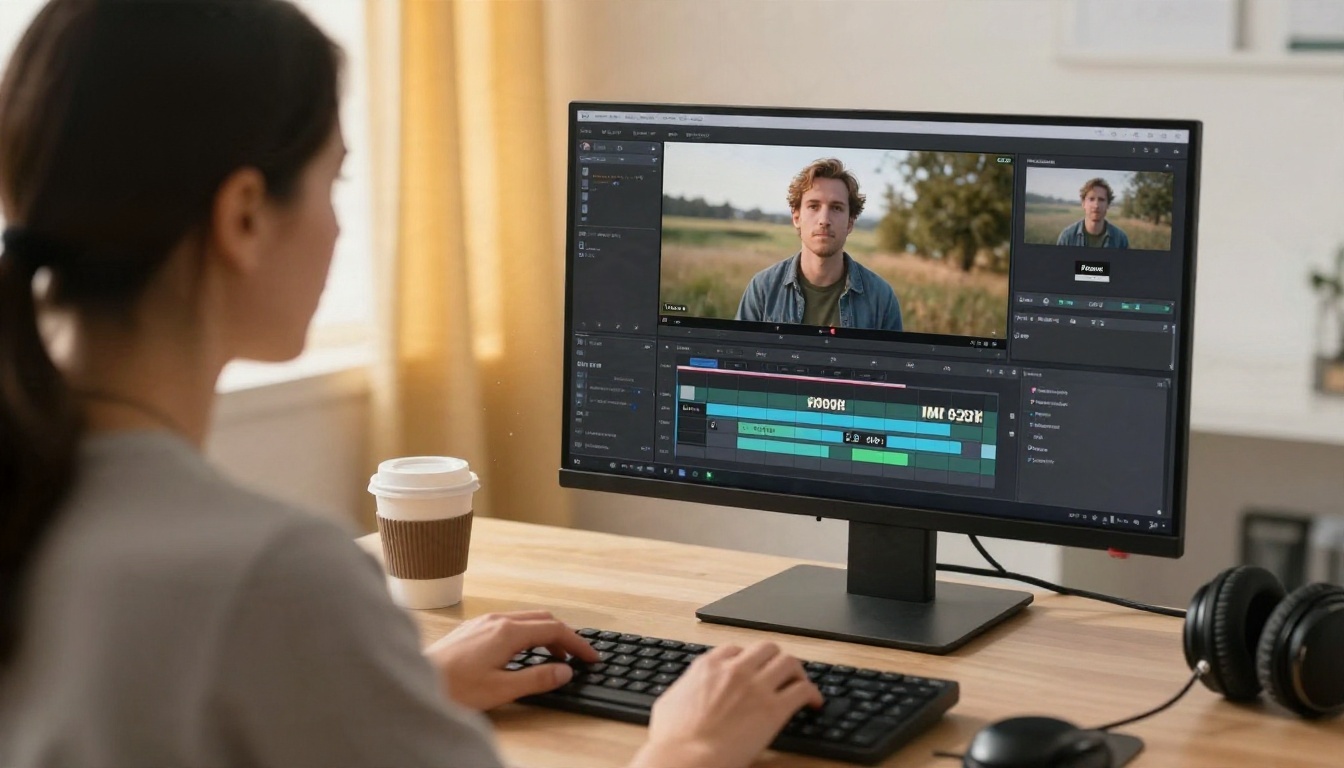
On paid plans, custom expressive motion is listed as an extra charge of roughly 40 credits per minute on top of the base Avatar IV cost. I found no sign that free accounts can use it beyond a trial taste. If you expect to generate dozens of clips, run the math on credits per minute before you commit, because the extra motion cost adds up quickly.
Examples Worth Studying
The talking creator
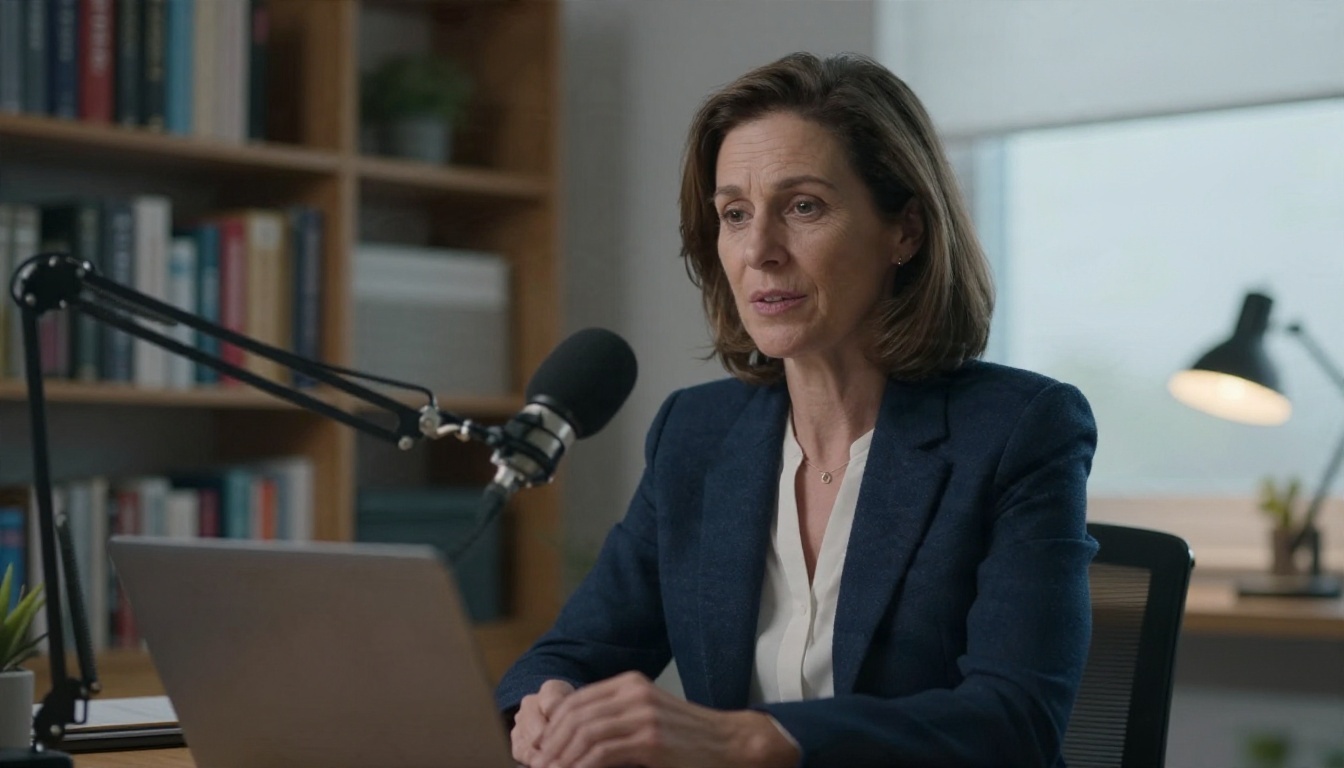
The most common use is the solo creator who does not want to be on camera every day. One clean portrait, a script written in ten minutes, and a vertical clip is ready for a short-form feed. The strongest examples share a pattern: a plain background, even light, and a face that sits slightly off-center so there is room for motion.
The business presenter
Training teams and small companies use photo avatars for onboarding explainers, product walkthroughs and internal updates. A professional headshot of a real employee, voiced in a consistent tone, keeps a series looking uniform. Here, restraint wins. Subtle head movement and steady eye contact read as trustworthy, while exaggerated emotion reads as uncanny.
Older faces and low light
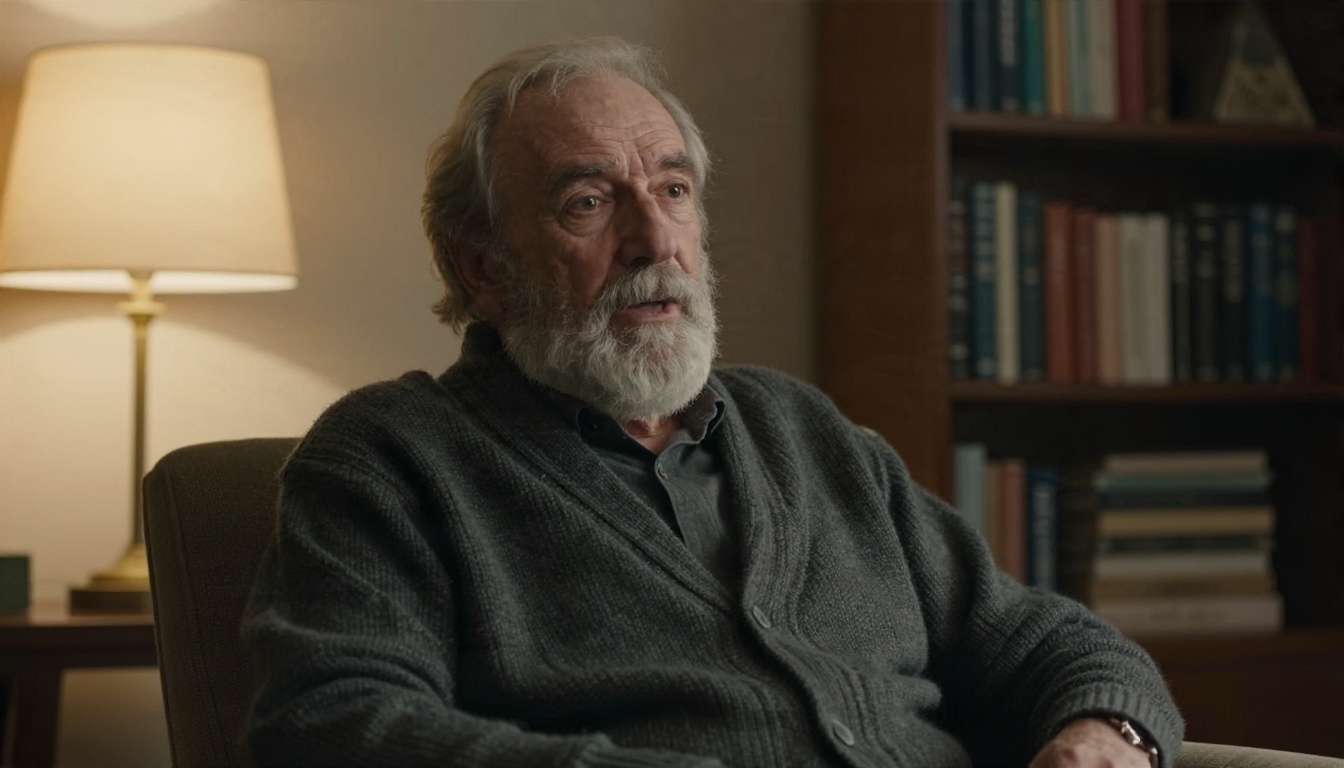
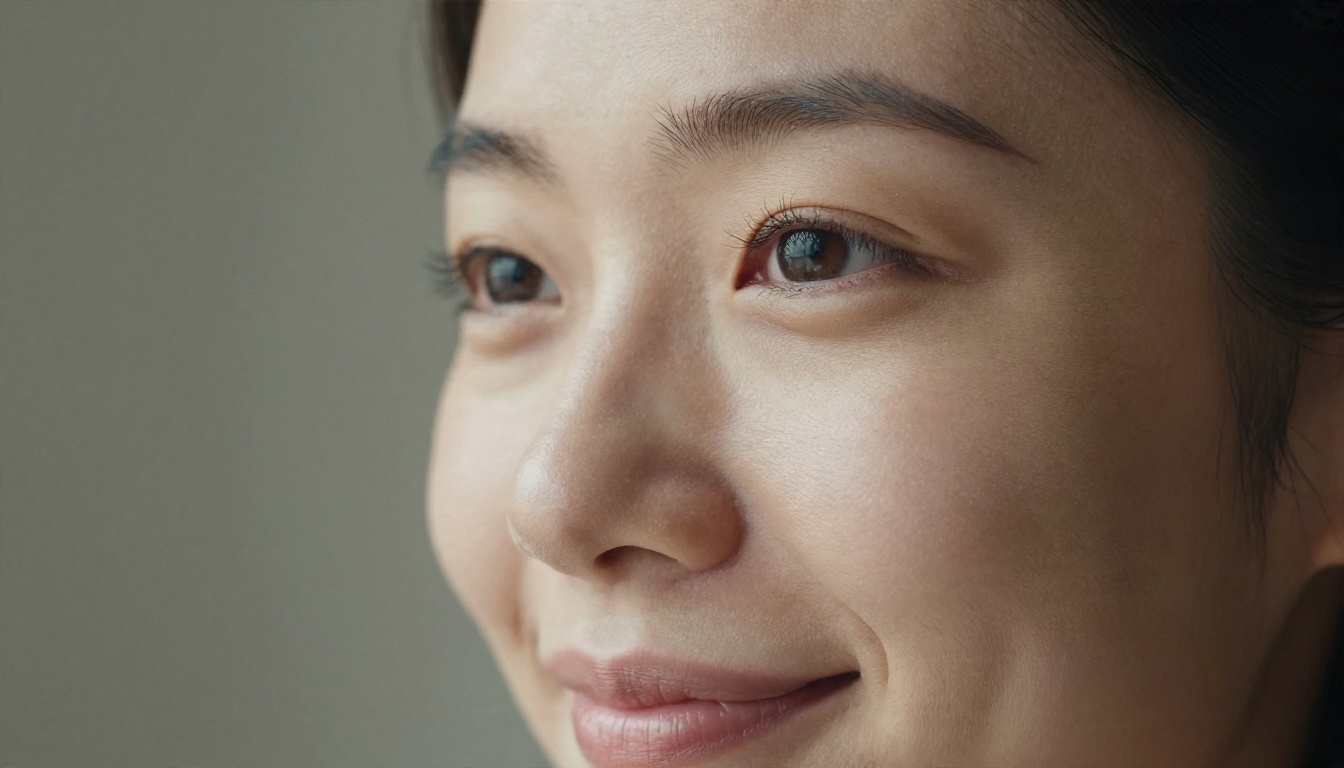
Photo avatars struggle most with unusual lighting and deep facial detail. A portrait with warm lamp light and strong skin texture can come out with smoothed skin, shifted color or slightly off teeth when the mouth opens. If your photo looks like the one below, expect to try two or three generations before you get one you would publish.
Where It Falls Short
Photo quality decides everything
No avatar tool rescues a bad photo. Low resolution, a tilted head, sunglasses, a hand across the chin or harsh side shadows all produce artifacts. The face looks great in frame one and drifts by second ten.
Use this checklist before you upload:
- Face fills at least a third of the frame.
- Eyes open, looking toward the camera.
- Soft, even light with no hard shadows across the nose.
- Mouth closed or relaxed.
- Plain, uncluttered background.
Audio length and cost
Every platform caps how long one clip can run, and longer clips cost more. Plan scripts in short scenes of 20 to 40 seconds, then cut them together. It is easier to fix one weak scene than to regenerate a whole three-minute take.
Script discipline helps more than settings
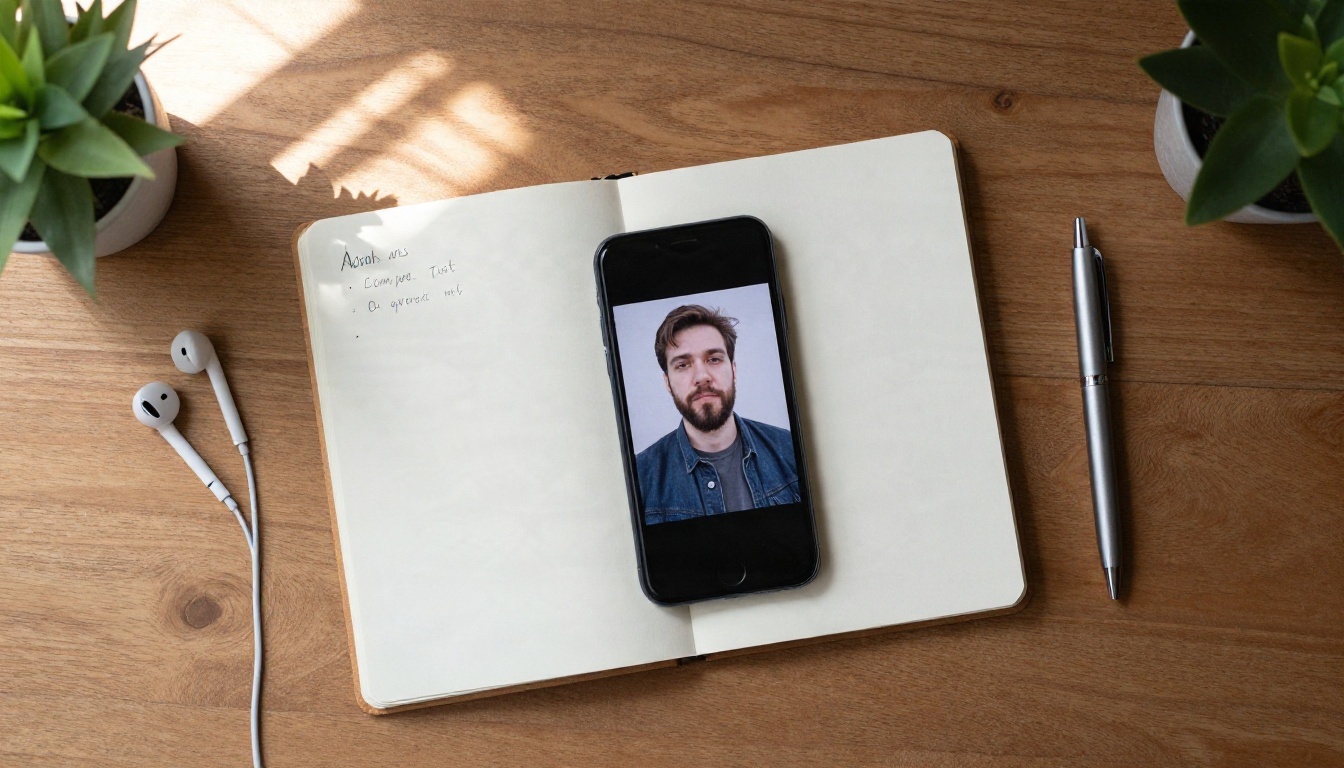
Short sentences produce cleaner lip movement than long, winding ones. Write for the ear. Plan your points in a notebook first, then trim.
Alternatives You Can Use Today
HeyGen Expressive Photo Avatar is not on PicassoIA, so you will not find it in the model list there. It is a separate feature with its own pricing and limits. For similar results today, these models on PicassoIA animate a photo or produce a talking presenter:
Omni Human 1.5
Omni Human 1.5 is the closest match to the photo-avatar idea. You upload one portrait and one audio clip, and it returns a lip-synced video with natural facial motion, lighting and skin texture. It accepts audio in English, Spanish, Japanese, Korean, Chinese and Indonesian, takes an optional text prompt for camera and movement, and offers a fast mode when speed matters more than fine detail. The earlier Omni Human is also available.
Fabric 1.0 and Kling Avatar v2
Fabric 1.0 is built to make a photo talk from audio, which suits quick social clips and simple explainers. Kling Avatar v2 animates a face into video and is a good second opinion when the first model misreads your photo. P Video Avatar is another talking-avatar option in the lipsync category.
Avatar IV and Avatar V
If you specifically like HeyGen's presenter look, PicassoIA also lists Avatar IV and Avatar V. These are different models from Expressive Photo Avatar. They work from a selected avatar and a typed script rather than from your own uploaded photo. Avatar IV offers voice emotion settings (Excited, Friendly, Serious, Soothing, Broadcaster), adjustable speed from 0.5x to 1.5x, three display styles and automatic captions.
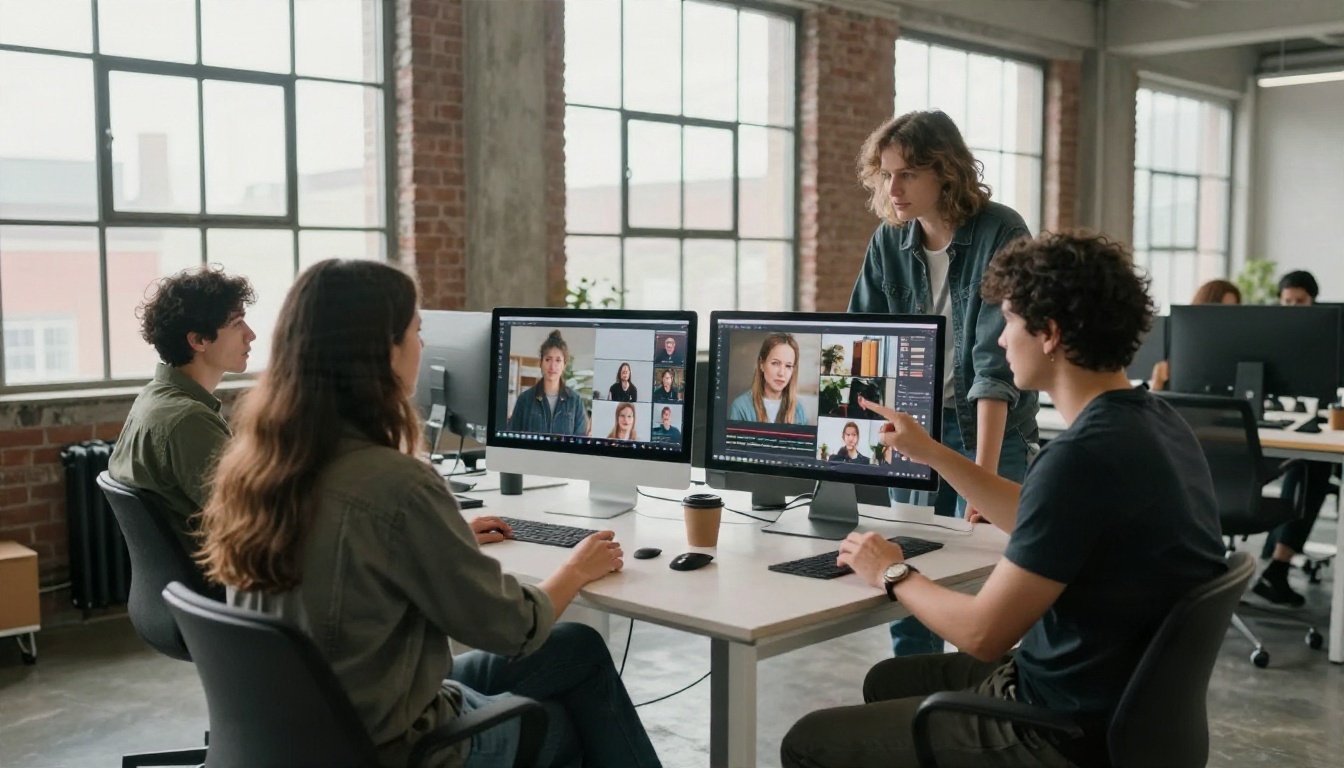
Side-by-side comparison
| Option | Input | Best for |
|---|
| Omni Human 1.5 | Your photo + audio | Photo avatars with realistic motion |
| Fabric 1.0 | Your photo + audio | Fast talking-photo clips |
| Kling Avatar v2 | Face image + audio | Alternate take on a tricky photo |
| P Video Avatar | Image + audio | Simple talking presenters |
| Avatar IV | Stock avatar + script | Scripted presenter videos with voice emotion |
How to Get Similar Results on PicassoIA
The workflow below uses Omni Human 1.5, the closest match to a photo avatar. It needs two required inputs: an image and an audio file.
Step 1: Choose the photo
Pick a portrait that passes the checklist above. If you do not have one, you can generate a clean, front-facing portrait first with a text-to-image model such as Qwen Image 3. Ask for even daylight, a plain background and a relaxed expression. Only use faces you have the right to animate.
Step 2: Prepare the audio
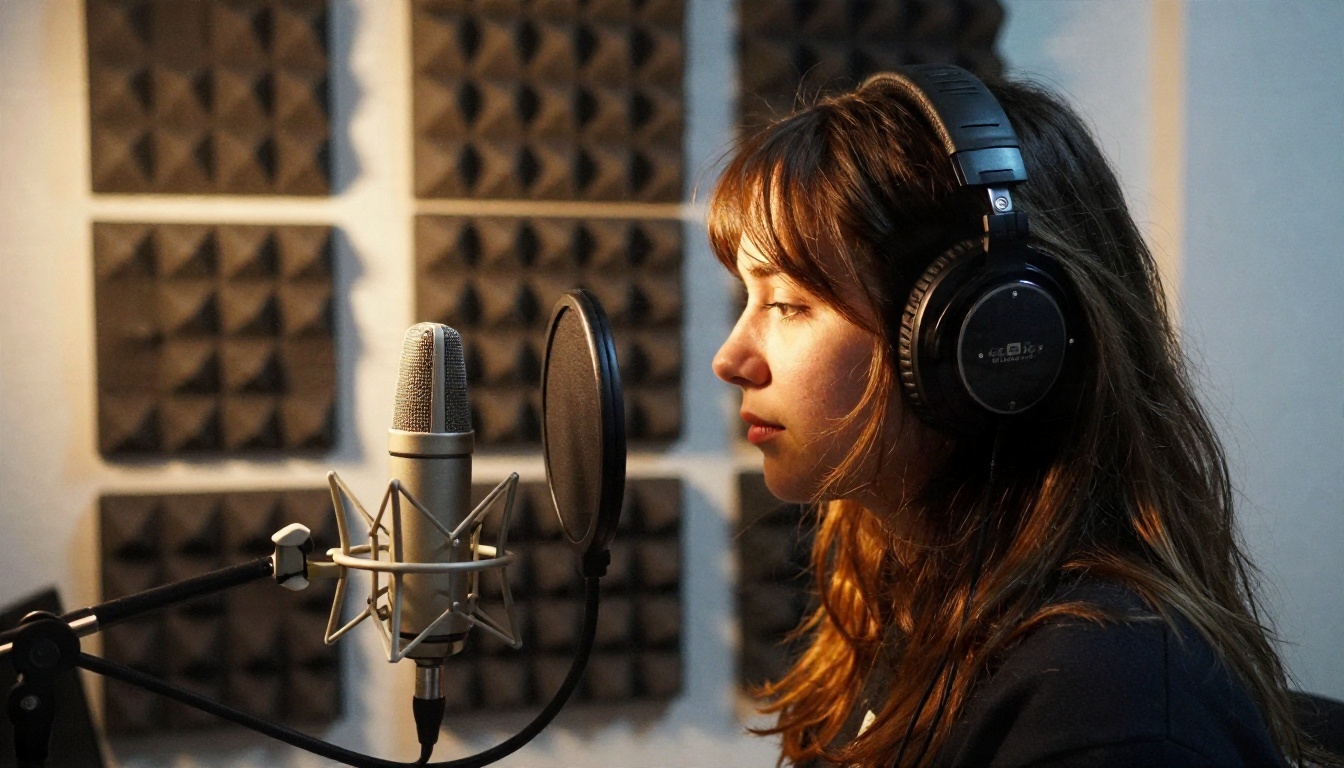
Record your voiceover in a quiet room, or use any audio file you already have. Omni Human 1.5 requires audio shorter than 35 seconds. A longer file makes the generation fail, so split long scripts into several clips and join the results in an editor afterward.
Step 3: Set the options
Open the model page, upload the image and the audio, and then decide on the optional fields:
- Prompt: Describe the camera and motion you want, for example "medium close-up, steady camera, calm nod at the end of each sentence". Keep it short and concrete.
- Fast mode: Leave it off for final output and turn it on for quick tests. It trades some effects for speed.
- Seed: Set a number when you find a result you like, so you can repeat it with small changes.
Step 4: Run, review and iterate
Generate the clip and watch it twice: once for lips and eyes, once for the hands and shoulders. If the face drifts, change the photo before changing anything else. If the motion feels flat, add a motion line to the prompt. Run a fast-mode test first, then a final pass.
💡 Pro tip: Keep the same photo, seed and prompt across a series. That is what makes five clips look like they belong to one presenter.
Which Option Fits You
Choose by situation rather than by hype:
- You want to test the idea once: Try HeyGen's free plan and see how your photo behaves. Three short videos is plenty for that.
- You want a repeatable series without credit math: Use a photo-to-video model such as Omni Human 1.5 on PicassoIA, where you control the photo, the audio and the seed.
- You want a polished stock presenter and a typed script: Look at Avatar IV, which fits scripted corporate-style videos.
- You need dubbing for existing footage: The lipsync category also includes Lipsync 2 Pro and Kling Lip Sync, which match mouth movement to new audio in a video you already have.
Mistakes that waste time
- Uploading a group photo and expecting the right face to be picked.
- Using a photo with sunglasses, a mask or a hand over the mouth.
- Writing a 90-second script for a tool with a 35-second audio cap.
- Judging a model from one generation instead of three.
Try It With Your Own Photo
The best way to judge any photo avatar is to run your own portrait through it. Pick one clean photo, record a 20-second line, and test it with Omni Human 1.5, then try the same inputs on Fabric 1.0 and Kling Avatar v2. Five minutes of side-by-side testing will tell you more than any review. When you want to see what else is available, browse every model at picassoia.com/en/all-models and start creating your own talking portraits today.


