You have one good portrait, a script that is ready to go, and no desire to stand in front of a camera. That is exactly the moment people search for HeyGen talking photo. The pitch is simple: upload a still picture, add a voice, and watch the face speak. The catch is that the free plan is tight, credits drain faster than most people expect, and a handful of alternatives now do the same job with fewer strings attached.
This article lays out what the feature does, what real examples look like, where the limits sit, what you pay, and which tools you can use today if you would rather not subscribe.
💡 Quick answer: HeyGen's free plan gives you a small monthly allowance of short, watermarked videos. Paid plans start around $29 a month. If you only need a photo to talk for 5 to 30 seconds, the alternatives below are usually the cheaper route.
What HeyGen Talking Photo Actually Does
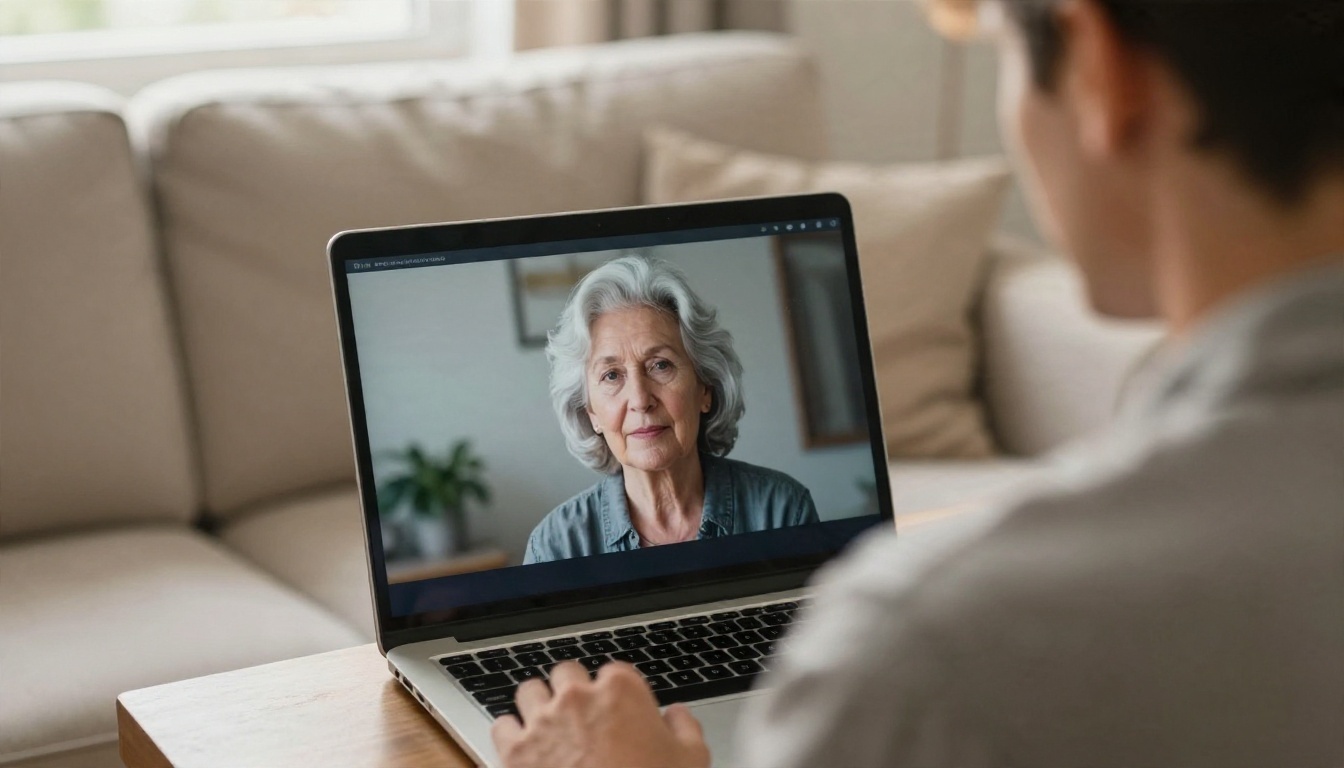
HeyGen is an AI video platform best known for presenter-style avatars. The talking photo idea sits inside that platform: you give it a single image of a person, then give it speech, either typed text that gets converted to a voice or an audio file you recorded. The system animates the mouth, jaw, eyes and slight head movement so the portrait appears to deliver the lines.
It is not a deepfake studio and it is not a video editor. Think of it as a very fast way to turn a still headshot into a short spoken clip.
The basic workflow
Almost every talking photo tool follows the same four steps:
- Upload a portrait. A clear, front-facing photo works best.
- Add a voice. Type a script and pick a synthetic voice, or upload your own recording.
- Pick output settings. Aspect ratio, resolution and sometimes captions.
- Render and download. Short clips usually finish in a few minutes.
The differences between tools come from how natural the motion looks, how long the clip can run, which languages the voices support, and how many renders you get before the paywall appears.
Where the avatar engines fit
HeyGen has released several generations of avatar engines, and the engine you use changes both the look and the credit cost. According to recent pricing breakdowns, the free plan includes access to the Avatar IV engine, while the newest engines are metered much more heavily. That detail matters later when we talk about credits.
💡 Worth knowing: HeyGen's web app and its talking photo feature are separate from the HeyGen models hosted on PicassoIA. The feature itself is not a model you can run on PicassoIA, so this article treats it as a product to compare against.
Real Examples Worth Copying
The best talking photo clips are boring in the right way. They are short, they have a clear purpose, and the face does not try to do too much.
Teachers and explainers
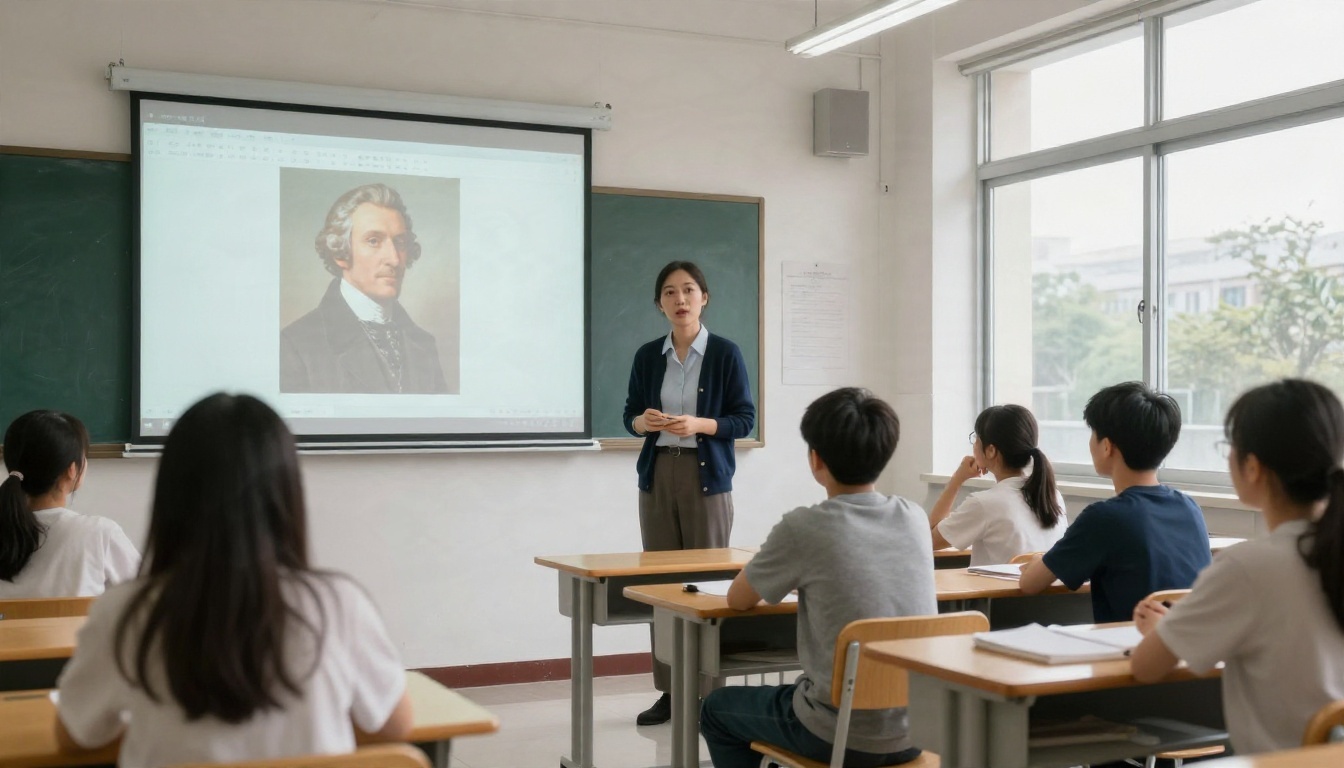
A teacher can take a portrait of a historical figure and have it deliver a 20-second introduction to the lesson. Students pay attention to a face that moves, even when the content is a plain paragraph read aloud. The trick is to keep the script short and the audio clean.
Small business greetings
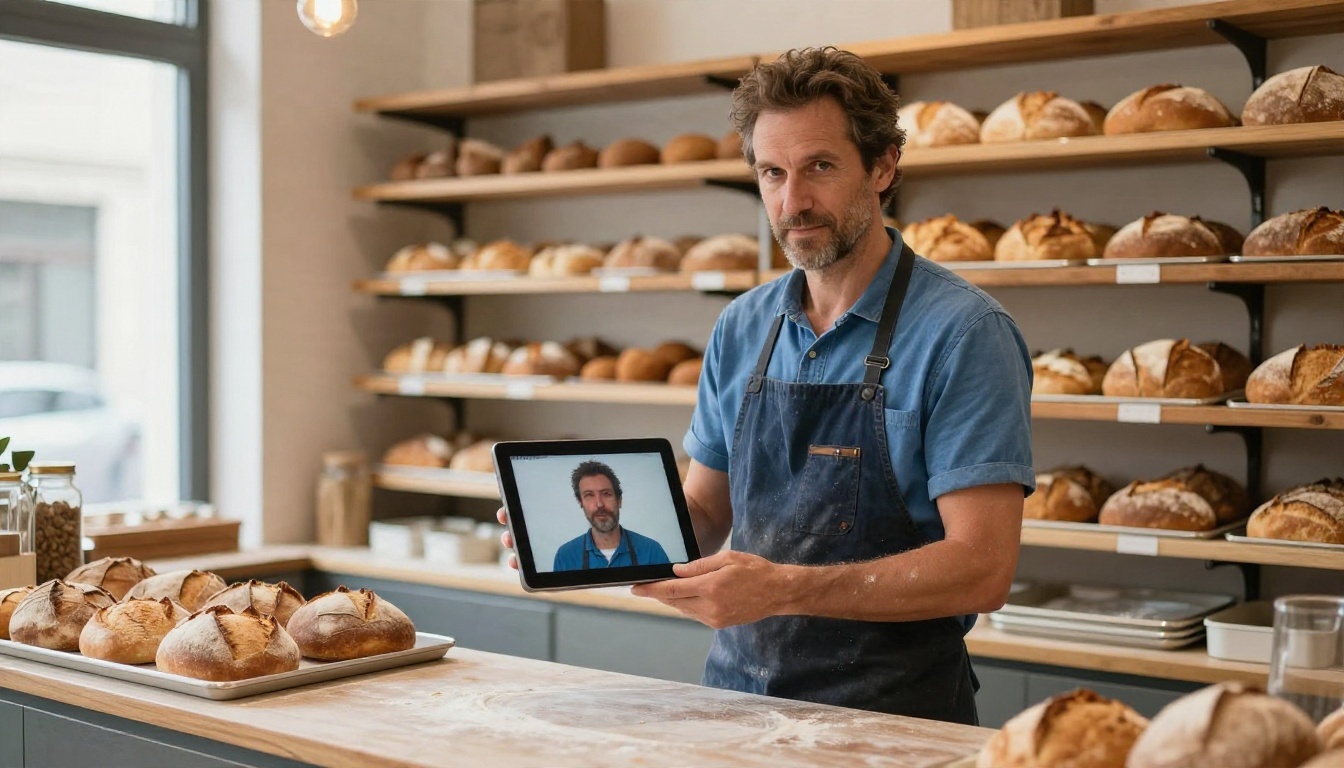
A bakery owner, a dentist or a local contractor can record a welcome message once and reuse it on a website, in an email signature or in a social post. A talking photo gives you a friendly greeting without scheduling a shoot.
Common formats that work well:
- Welcome message on a homepage, 10 to 20 seconds.
- Product tip for a social post, vertical 9:16.
- Appointment reminder sent as a short clip.
- Multilingual greeting using the same face with a different voice track.
Family and memory clips
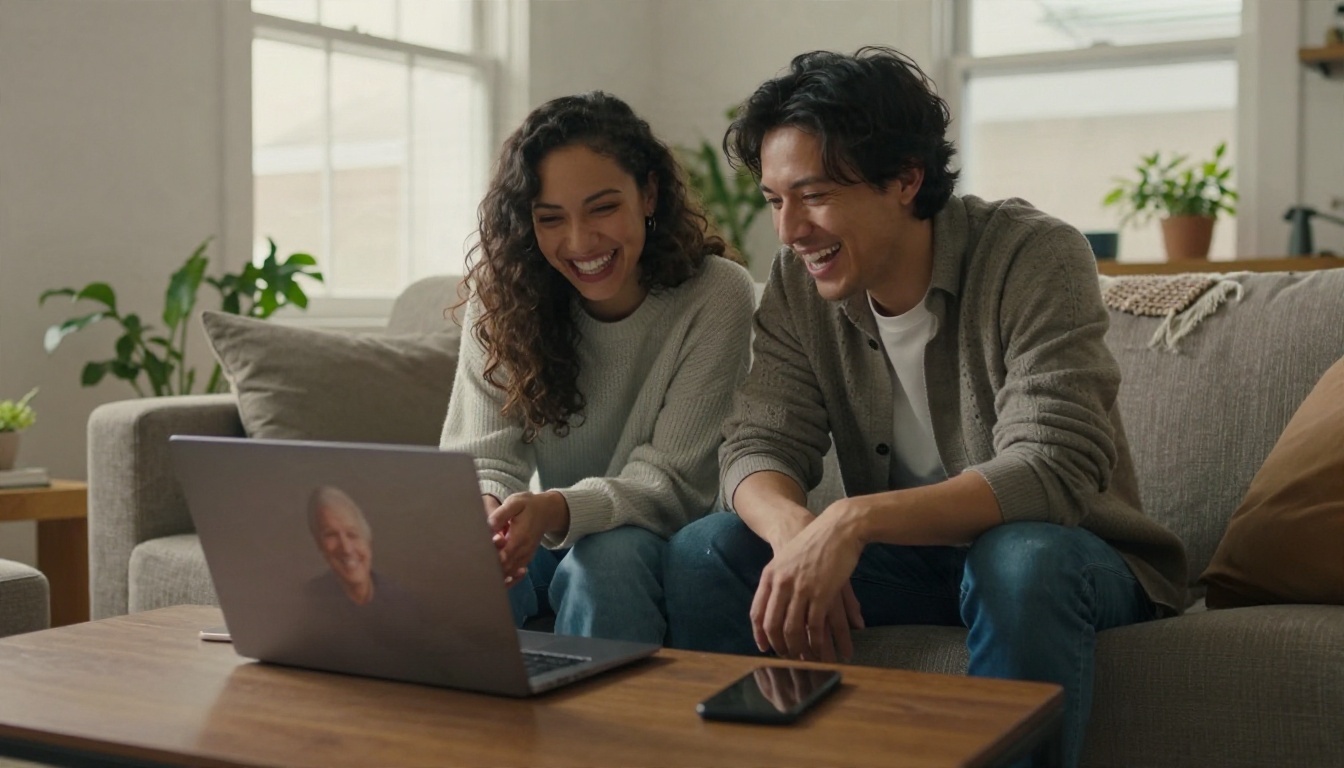
This is the use that spreads fastest. People animate an old photo of a grandparent and pair it with a recorded line, a birthday wish, or a story read aloud. The results can be touching, and they are also where quality problems show most, because old photos tend to be soft, scratched or low resolution.
💡 Tip: Only animate photos of people you have permission to use, or of yourself. Always label synthetic clips as AI generated when you share them publicly.
Free Plan Limits in Plain Terms
Pricing pages change often, and third-party blogs disagree on the details, so treat every number here as a snapshot and confirm it on HeyGen's own pricing page before you commit.
What the free tier gives you
Based on the most consistent sources, the free plan includes:
- Around 3 videos per month
- Up to 1 minute per video
- Access to the Avatar IV engine
- A visible watermark on exports
- Standard processing speed
Reports on how many custom photo avatars you can keep on the free plan vary, from one slot to as many as three. That inconsistency is a good reminder to test the free plan with a single clip before building a workflow around it.
Where free runs out
The free tier works for a test run, and it fails for anything resembling regular use. Three things tend to push people off it:
| Limit | Why it hurts |
|---|
| Watermark | A logo across your clip looks unprofessional for business use |
| Monthly clip cap | Three clips disappear quickly once you start iterating |
| Resolution and speed | Free exports are lower priority and capped below the 1080p you get on paid plans |
Iteration is the real cost. A first render rarely looks perfect, so if you need two or three attempts per finished clip, a three-video allowance gives you one usable result per month.
Pricing and Credits Breakdown
HeyGen uses a mix of monthly plans and credits. The plan sets what features you get, and credits decide how much footage you can render.
Plan snapshot
| Plan | Typical price | What you get |
|---|
| Free | $0 | About 3 videos per month, up to 1 minute each, watermark |
| Creator | About $29 per month, about $24 per month billed yearly | Roughly 600 credits per month, 1080p export, watermark removed, up to 30 minutes per video, voice cloning |
| Pro | From about $49 per month | More credits and team-friendly features |
| Business | About $149 per month | Larger allowance and collaboration tools |
| Enterprise | Custom | Negotiated terms |
Some sources list an entry plan closer to $48 a month, and others cite older credit systems, so there is real disagreement online. The safest reading is that Creator at roughly $29 is the plan most talking photo users land on.
Cost per finished clip
Credits are consumed at different rates depending on the engine. Recent reports put the range from around 4 credits per minute for older, lighter avatar looks up to roughly 48 credits per minute for the newest Avatar V engine. That is a twelvefold difference.
A rough example with a 600 credit month:
- At 4 credits per minute, you could render far more than an hour of footage.
- At 48 credits per minute, the same allowance gives you about 12 minutes.
For a creator making 30-second talking photo clips, 12 minutes is about 24 clips before retakes. If half your renders need a redo, that falls to roughly a dozen finished videos. That is fine for a business making a few greetings a month, and tight for anyone producing daily content.
💡 Rule of thumb: Budget two renders per finished clip. If the plan does not cover that comfortably, look at alternatives.
Free Alternatives That Work Today
If you want to animate a portrait without a subscription, several models do the core job: image in, voice in, speaking video out. All the models below are on PicassoIA, so you can compare them side by side without juggling accounts.
Omni Human for short clips
Omni Human takes one photo and one audio file, then animates the face to match the speech. It adds subtle head motion and expression, and it produces its sharpest output when the audio runs 15 seconds or less. For longer speeches, split the audio into 15-second chunks and render each one.
Kling Avatar v2 for flexible faces
Kling Avatar v2 accepts a photo and an audio file (MP3, WAV, M4A or AAC, up to 5MB). It works with real faces, cartoon characters, animals and stylized art. You can choose Standard mode for speed or Pro mode for higher fidelity, and add a text prompt to steer emotion, gestures and camera movement.
P Video Avatar for typed scripts
P Video Avatar is the closest match to the HeyGen talking photo workflow, because you can type a script instead of recording audio. It offers 30 plus voices across 10 languages and renders at 720p or 1080p. You can also upload your own audio if you prefer.
💡 Not the same thing: Avatar V is HeyGen's own engine, available on PicassoIA, but it works from an avatar ID and a voice ID rather than a photo upload. For turning one photograph into a speaking video, the three models above are the better fit. HeyGen's Lipsync Precision and Lipsync Speed models are built for dubbing existing videos instead.
Quick comparison
| Model | Input | Best for | Notable detail |
|---|
| Omni Human | Photo + audio | Short, natural clips | Sharpest under 15 seconds |
| Kling Avatar v2 | Photo + audio + optional prompt | Faces of any style | Standard and Pro modes |
| P Video Avatar | Photo + typed script or audio | Script to video | 30+ voices, 10 languages |
| Avatar V | Avatar ID + voice ID + text | Presenter videos | Up to 4K, optional captions |
How to Get Similar Results on PicassoIA
P Video Avatar is the easiest starting point if you want the same type-a-script experience as a talking photo tool. Here is the process from photo to finished clip.
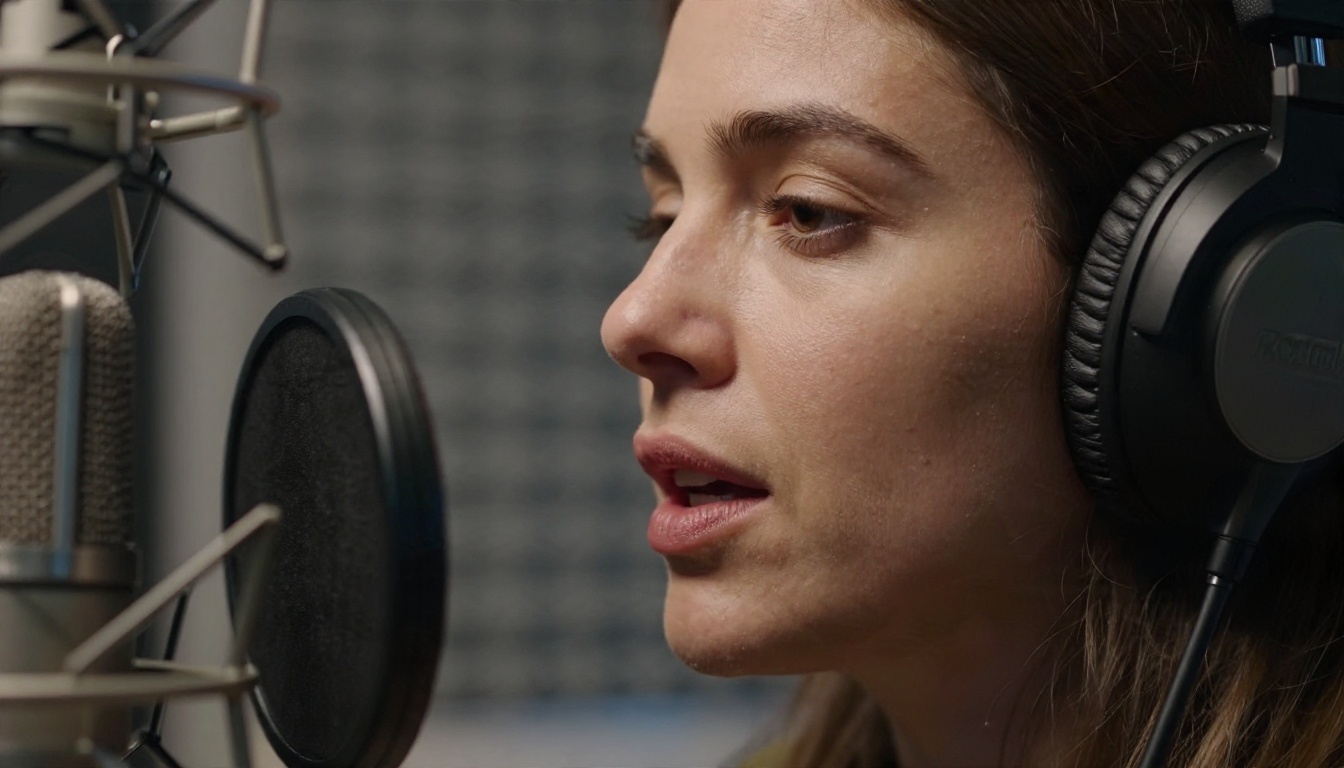
Pick a strong source photo
The portrait decides about 80 percent of the result. Choose an image with:
- A front-facing or slight three-quarter angle
- Sharp eyes and a visible mouth, with no hand or microphone covering the lips
- Even lighting with no heavy shadow across half the face
- A neutral or gentle smile, because extreme expressions distort when the mouth moves
Upload the image in the Image field. It accepts jpg, jpeg, png and webp files.
Write the script and choose a voice
- Type the exact words into Voice Script. Keep it to a few sentences for your first test.
- Choose a Voice from the list and set Voice Language to match your script.
- Use Voice Prompt for delivery notes such as "calm and friendly" or "upbeat, a bit faster". These instructions are not spoken aloud.
- If you already have a recording, upload it in Audio instead. When audio is provided, it replaces the script and voice settings.
Tune the prompt and render
- Leave Video Prompt at its default, "The person is talking", for your first render. Then add small details, such as "slight head nod, soft smile", on later attempts.
- Start at 720p, which is the default, and move to 1080p only after you like the motion.
- Set a Seed if you want to repeat a result you liked while changing a single variable.
💡 Pro workflow: Render a 5-second test line first. If the lips and head motion look right, send the full script. You save time and avoid wasting a long render on a bad source photo.
If your audio is already recorded and you want a different motion style, try the same photo in Omni Human or Kling Avatar v2 and compare the results.
Mistakes That Ruin Talking Photos
Most disappointing results trace back to the same handful of problems.
| Mistake | What happens | Fix |
|---|
| Low-resolution photo | Soft, wobbly mouth and smeared teeth | Upscale or use a sharper original |
| Face turned sideways | Lip motion looks off | Pick a near front-facing shot |
| Long audio in one go | Quality drifts after about 15 seconds on some models | Split audio into short chunks |
| Noisy audio | Mouth shapes mismatch the speech | Record in a quiet room |
| Over-the-top script | Expressions look unnatural | Write the way you speak |
| Skipping a test render | You burn credits on a bad take | Always test 5 seconds first |
Other limits to keep in mind:
- Body motion is minimal. Talking photo tools animate the face and a little shoulder movement, not full gestures.
- Background stays almost still. Do not expect the scene to come alive.
- Voices can sound synthetic on long passages, so keep clips short or use your own recording.
- Consent matters. Animating a real person's face without permission can cause real harm and may break platform rules or local law.
💡 Fix a bad photo first: If your source portrait is small or blurry, run it through a super resolution model before animating it. A sharper face gives the lip sync more detail to work with.
Try Your Own Talking Photo Today
HeyGen talking photo is a solid product, but its free plan is mostly a trial, and the paid plans make sense only if you produce clips regularly. If you just need a face to speak for a few seconds, the alternatives above give you the same core result without a monthly bill.
Pick one portrait, write three sentences, and run a 5-second test in P Video Avatar. Then try the same photo with Omni Human and Kling Avatar v2 to see which motion style fits your face. You can generate the portrait itself on Picasso IA too, then animate it in the same place. Browse every available model at picassoia.com/en/all-models and start experimenting with your own images today.


