Every photo has a resolution ceiling. Once captured, a low-resolution image stays low-resolution, or at least that was the rule before AI upscalers arrived. Today, tools powered by deep learning can take a blurry, pixelated, or compressed image and reconstruct it with detail that was never in the original file. The results are often indistinguishable from a natively high-resolution shot.
This article breaks down exactly how AI upscalers work, why they produce sharper results than any traditional method, and which tools produce the best output for different types of photos.
What an AI Upscaler Actually Does
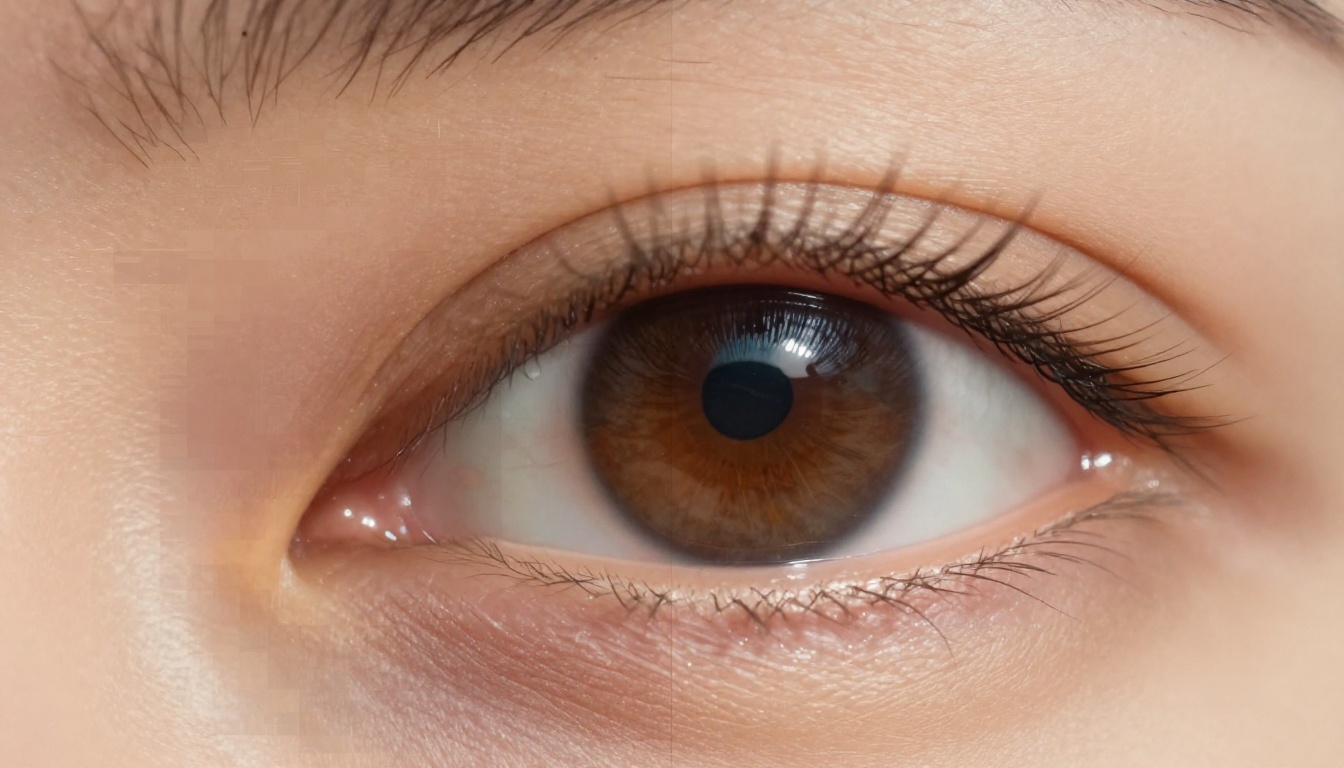
Most people assume upscaling just means making an image bigger. That is partially true, but it misses the point entirely.
When you scale an image using traditional software, like bicubic interpolation in Photoshop, the algorithm guesses what color each new pixel should be based on the average of its neighbors. It is essentially smearing existing information across a larger canvas. The result looks bigger but not sharper. In many cases, it looks noticeably worse than the original, with soft edges, color bleeding, and a washed-out quality that no amount of sharpening filter can fix.
AI upscalers take a fundamentally different approach, one that does not rely on averaging or interpolation at all.
Pixels vs. Details
A traditional upscaler sees pixels. An AI upscaler sees content. The difference is enormous.
When a neural network processes your low-resolution image, it is not just interpolating color values. It is recognizing what is in the image and using that knowledge to reconstruct plausible detail. It knows that the blurry area near someone's eye should contain eyelashes. It knows that a rough stone wall should have fine texture variations, not a smooth gradient. It recognizes fabric patterns and reconstructs their weave, identifies foliage and restores the individual edges of leaves.
This recognition-to-reconstruction process is what makes AI upscaling so effective. The sharpness is not stretched from existing pixels. It is inferred from the model's knowledge of how real-world subjects look at high resolution.
The Old Way vs. The AI Way
| Method | How It Works | Result |
|---|
| Bicubic Interpolation | Averages neighboring pixel values | Soft, blurry enlargement |
| Lanczos Resampling | Applies a sinc function filter | Slightly sharper, still soft |
| Nearest Neighbor | Copies the closest pixel value | Blocky, pixelated edges |
| AI Super Resolution | Reconstructs detail using neural networks | Sharp, textured, photorealistic |
The gap between the old way and the AI way is not subtle. It is the difference between a photo that looks enlarged and one that looks like it was always high-resolution.
The Neural Network Behind the Magic
The architecture powering most modern AI upscalers is called a Generative Adversarial Network (GAN) or, more recently, a diffusion-based super-resolution model. Both approaches train on massive datasets of paired images: the same photo at low resolution and high resolution, so the model can map from one to the other.
During training, the model absorbs patterns from millions of image pairs. It builds an internal representation of what high-resolution detail should look like in different contexts: skin at 100% crop, grass in sunlight, fabric under studio lighting, water in motion. That representation becomes the basis for every upscaling decision it makes on a new image.
How Models Develop Detail Recognition
The training process is adversarial in the GAN approach. One network (the generator) produces the upscaled image. Another (the discriminator) tries to tell whether the result is real or generated. The generator improves by trying to fool the discriminator. The discriminator improves by catching the generator's mistakes.
This adversarial dynamic pushes the generator to produce output that is not just mathematically close to the target, but visually indistinguishable from a real high-resolution photograph. After thousands of training iterations across millions of images, the generator develops an intuitive sense of photorealistic detail. It does not just copy patterns. It generates plausible texture that belongs in the scene.
💡 What this means for your photos: The AI is not working from your pixels alone. It draws on patterns absorbed from millions of real photographs to fill in what should be there, making reconstruction surprisingly accurate even from very low-quality sources.
What Gets Reconstructed
AI upscalers can recover or synthesize several types of lost information:
- Edge sharpness: Crisp lines on architecture, individual hair strands, fabric weave clarity
- Skin texture: Pores, subtle tonal variation, fine wrinkles, natural highlights
- Surface detail: Grass blades, wood grain, stone texture, metal reflections
- Color fidelity: Noise reduction without color smearing or desaturation
- Compression artifacts: Removal of JPEG blocking, banding, and ringing
Not all upscalers handle every category equally well, which is why model selection matters significantly depending on your subject matter.
4 Types of Photos That Benefit Most
AI upscaling is not universally beneficial for every image type. These four categories consistently produce the most dramatic improvements, and they cover the vast majority of real-world use cases.
1. Portrait Photography
Human faces respond exceptionally well to AI upscaling. Neural networks trained on portrait data reconstruct skin texture, eye detail, and hair strands with remarkable accuracy. A blurry face from a distant or low-light shot can often be restored to a level that appears professionally sharp. The detail recovery in eyes is particularly striking: where the original may show a blurry, undefined iris, the upscaled version often reveals clear color patterning and sharp eyelash separation.
2. Landscape and Nature Photography
Foliage, water, rock textures, and sky gradations are all patterns that AI models have seen in abundance during training. Upscaling a compressed landscape shot typically recovers fine detail in tree canopies, cloud formations, water reflections, and distant mountain ridges. These recoveries are especially valuable for photographers who shot in JPEG under storage constraints and later need a high-resolution output for print.
3. Old or Damaged Photos
Scanned film prints, faded polaroids, and old JPEG files with heavy compression all benefit enormously from AI upscaling. The models combine resolution increase with artifact removal, effectively restoring both detail and tonal integrity simultaneously. A family photo from the 1980s that looked barely usable as a scan can often be returned to a state that is suitable for large-format printing.
4. Product and Commercial Photography
Small products photographed without macro lenses often lack the resolution needed for large-format display, e-commerce zoom features, or catalog printing. AI upscaling can recover the fine engraving on a watch face, the stitching detail on leather goods, or the circuit traces on electronics, creating a commercially usable high-resolution asset from a standard product shot.
💡 Tip: Photos with strong, directional natural lighting tend to upscale better than flat, evenly-lit shots. Directional light creates texture-revealing shadows that give the AI more information to reconstruct from.
Real ESRGAN vs. Other Upscaling Models
The super-resolution model you choose has a massive impact on your final results. Different models are trained on different data and optimized for different output characteristics. Here is a breakdown of the main options available on PicassoIA, each serving a distinct upscaling need.
Crisp vs. Creative Upscaling
There are two core philosophies in AI upscaling, and understanding the difference prevents a lot of frustration.
Crisp upscaling prioritizes fidelity. The goal is a clean, sharp result that stays true to the original image. Every detail recovered should plausibly have existed in the original scene. Nothing is invented or exaggerated. This is the correct choice for photographs of real people, places, and objects where accuracy matters.
Creative upscaling takes liberties. The model adds texture and detail that may not have existed in the original, creating a richer, more stylized result. This produces impressive output on artwork, AI-generated images, and stylized photography, but can feel over-processed on documentary or journalistic photos where realism is essential.
On PicassoIA, both philosophies are represented by dedicated models:
- Recraft Crisp Upscale: Clean, faithful improvement. Best for portraits, product shots, and any situation where accuracy matters more than artistic effect.
- Recraft Creative Upscale: Adds stylized texture and depth. Better for artistic, illustrated, or AI-generated source images where added detail is welcome.
Which One to Pick
How to Use Super Resolution on PicassoIA
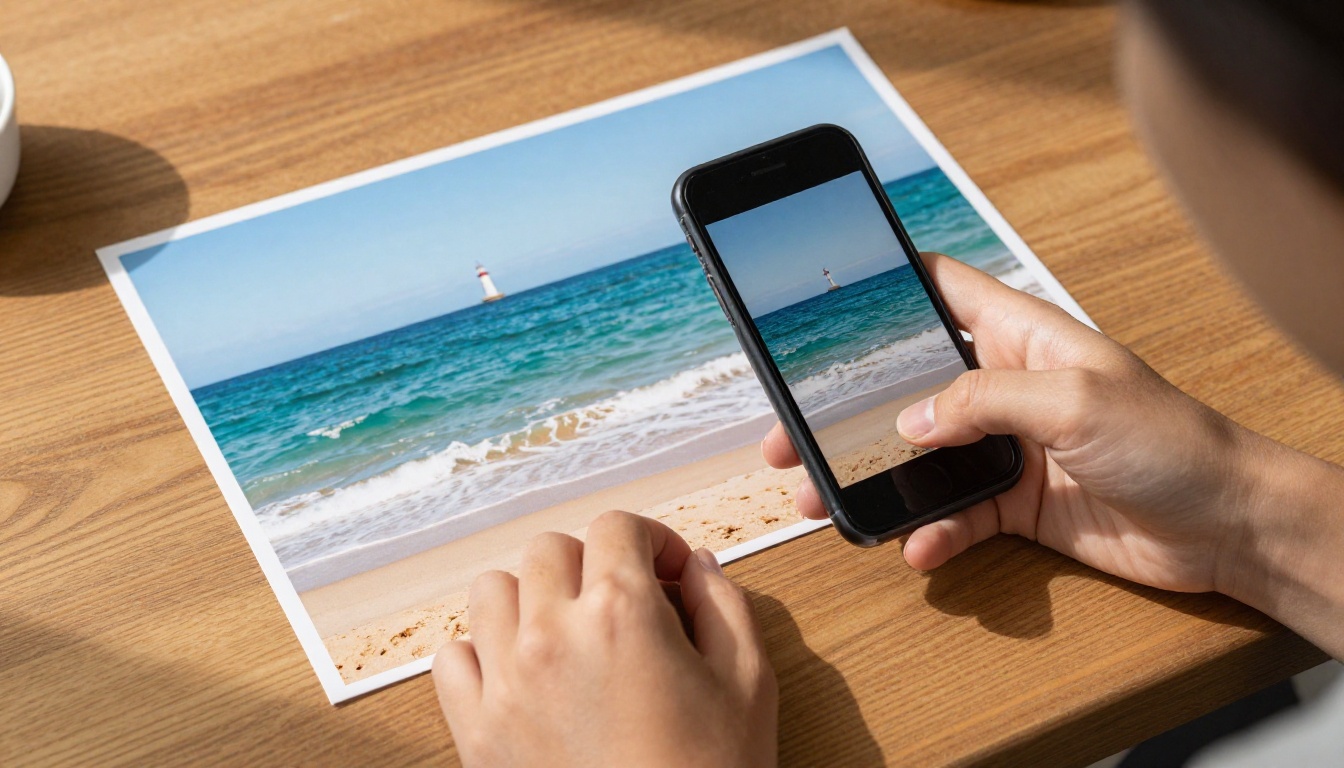
PicassoIA gives you access to all the models above in a single platform. No API keys, no local GPU setup, no software to install. Here is how to get sharp results in minutes.
Step-by-Step with Real ESRGAN
Real ESRGAN is the most versatile starting point for most users. It handles a wide range of input quality levels, from mildly soft photos to heavily compressed JPEGs, and produces naturally sharp results without over-sharpening or introducing fabricated texture.
- Go to the Real ESRGAN model page on PicassoIA
- Upload your low-resolution or compressed image
- Select your upscale factor: 2x for modest improvement, 4x for significant resolution increase
- Toggle the Face Refinement option if your image includes people
- Click Generate and wait for the model to process
- Download the high-resolution output directly from the result panel
The whole process typically takes under 30 seconds per image. The output is a clean 4x upscaled version with reconstructed texture, removed JPEG artifacts, and sharper edges throughout.
💡 Pro tip: For the best results with Real ESRGAN, start with the highest-quality version of your original image. Even minor improvements in the source file, such as using a PNG instead of a compressed JPEG, make a measurable difference in the upscaled output.
When to Use Crystal Upscaler
If your image is primarily a portrait or contains close-up face detail, Crystal Upscaler will typically outperform Real ESRGAN by a significant margin.
Crystal Upscaler uses a face-aware refinement pass that produces more realistic skin pore detail, sharper eye rendering, and smoother tonal gradients across facial areas. It is specifically trained on the challenges of portrait upscaling: the fine interplay between shadow and highlight on skin, the complex geometry of eyes and lips, and the delicate graduation between hair strands.
Use Crystal Upscaler when:
- Your subject is a person, especially in a close-up composition
- The original image is a portrait, headshot, or beauty photo
- Skin texture fidelity is critical to the final use case
- You are upscaling for print where fine detail will be examined closely
Use Topaz Image Upscale when you need to go beyond 4x, reaching up to 6x enlargement, for large-format printing, billboard-scale output, or commercial display where maximum pixel count is required.
Why Photos Still Look Blurry After Upscaling
AI upscaling is not a silver bullet, and it pays to go in with accurate expectations. There are situations where even the best model will struggle to produce a satisfying result. Knowing the limits lets you choose the right workflow from the start.
The Source Quality Problem
AI upscalers reconstruct missing detail, but they cannot reconstruct detail that was never captured in the first place. A heavily motion-blurred photo will remain motion-blurred after upscaling. A shot taken in near-darkness with no recoverable texture will not suddenly develop detail. An extremely small thumbnail, say 50 by 50 pixels, will produce speculative results at 4x that may look sharp but will bear little resemblance to the original scene's actual detail.
The model can sharpen what was soft due to compression or resolution limitations. It cannot create accurate detail from noise, motion blur, or severely underexposed shadows.
Over-Sharpening Artifacts
Some models, particularly those with aggressive creative reconstruction, will introduce texture that does not belong in the image. This is most visible on:
- Smooth skin areas: Where plastic-looking over-texture appears instead of natural pore variation
- High-contrast edges: Where haloing or ringing artifacts create an unnatural glow around sharp boundaries
- Flat backgrounds: Where the model invents grain or texture in areas that should be clean
If you notice these artifacts, switching to Recraft Crisp Upscale or reducing the upscale factor from 4x to 2x usually resolves the issue without sacrificing the meaningful sharpness gains.
💡 Rule of thumb: For photographs of real people and places, prioritize fidelity models. Save the creative upscaling approach for artwork, AI-generated images, or content where stylized output is acceptable.
Common Mistakes That Kill Results

These are the most frequent errors people make when upscaling photos, and every one of them is avoidable with the right approach.
Upscaling an already-upscaled image
If your source file was previously enlarged by traditional software, AI upscaling it again compounds the interpolation artifacts rather than removing them. The AI receives a soft, smeared input and produces a soft, smeared output with added texture that does not belong. Always start from the original capture when possible.
Pushing the upscale factor too high for the source size
A 6x enlargement from a very small source image puts enormous demand on the model. The further from the original resolution you go, the more the model is speculating rather than reconstructing. For small source images, start with 2x, evaluate the result, and only push further if the output holds up.
Ignoring noise before upscaling
Heavy grain or digital noise in the source image gets upscaled alongside the legitimate detail. Running a light noise reduction pass before upscaling frequently produces a cleaner result. Bria Increase Resolution handles moderate noise internally, but for severely noisy source images, pre-processing gives the AI a cleaner signal to work from.
Using a compressed JPEG when a better source exists
JPEG images with heavy compression carry blocking artifacts that AI upscalers amplify. If you have access to the RAW file, a TIFF, or even a higher-quality JPEG export from the original, use that as your source. The difference in output quality is often substantial.
Choosing the wrong model for the content type
A landscape put through Crystal Upscaler (which is optimized for human faces) may produce odd, over-smoothed results in foliage and architecture. Matching the model to the content category is one of the highest-leverage decisions you can make in the upscaling workflow.
The Real-World Impact on Photography Workflows
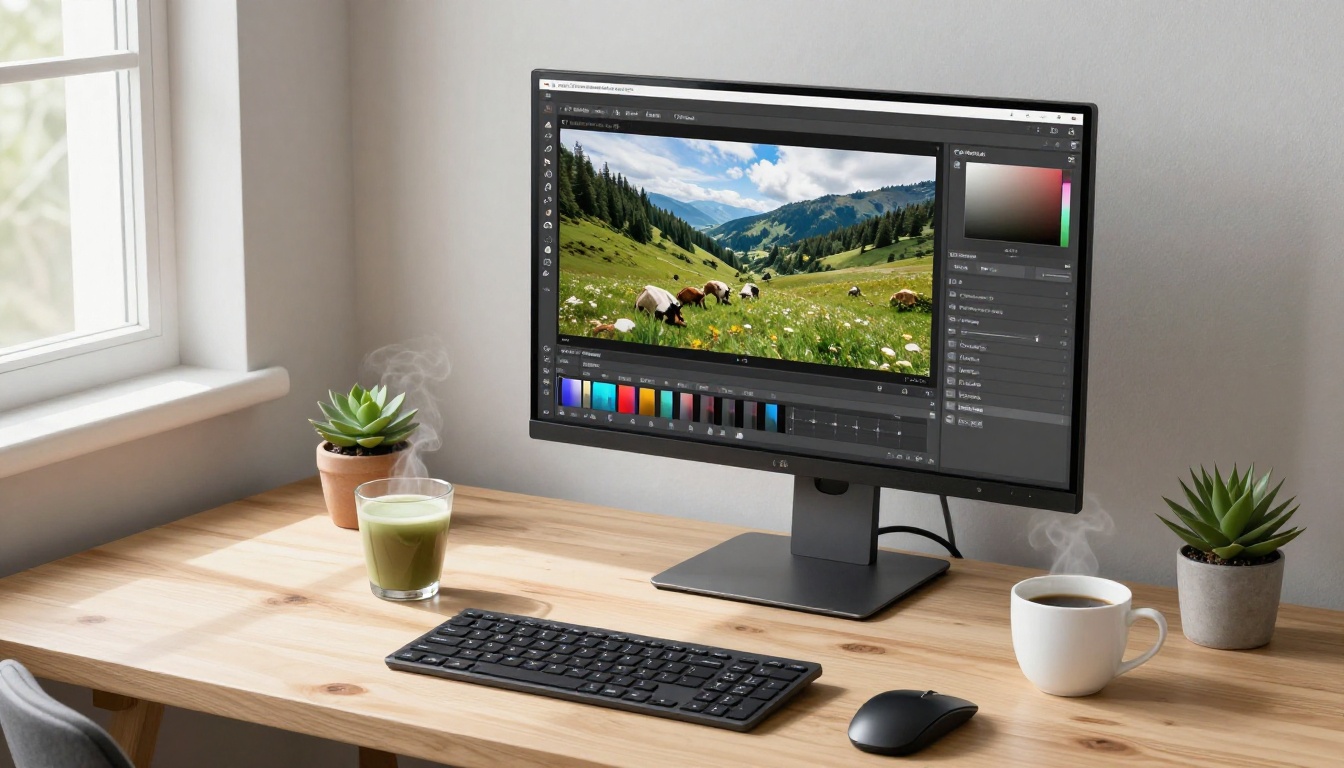
AI upscaling is not just a rescue tool for bad photos. It is actively reshaping how photographers, content creators, and commercial teams think about resolution at every stage of their work.
Shooting with smaller files
Some photographers now shoot in JPEG or at reduced resolution when storage or bandwidth is limited, with the knowledge that AI upscaling can recover the quality during post-processing. This is particularly practical for event photography, travel shooting, and documentary work where shooting volume is high and culling happens later.
Archival restoration
Families and institutions holding collections of old printed photographs can scan at standard resolution and recover significant quality through AI upscaling. Combined with the AI Image Restoration tools on PicassoIA, it is possible to return severely degraded photographs, including prints affected by fading, yellowing, and physical damage, to a printable, displayable quality.
Social-to-print pipeline
Images that were only ever intended for Instagram or web use can be upscaled to meet the resolution requirements for large-format printing without a reshoot. A 1080px Instagram photo can reach 4320px through a clean 4x pass, making it usable for standard print formats.
Commercial licensing
Stock photographers can use AI upscaling to submit higher-resolution versions of older images that would otherwise not meet minimum size requirements for premium licensing tiers. A catalog image from five years ago at 12 megapixels can become a 48-megapixel submission through a clean Google Upscaler pass.
💡 For content creators: If you generate images using AI text-to-image tools and need a larger output than the model's default resolution provides, upscaling is the standard workflow for reaching print-ready resolution without regenerating from scratch.
Old Photos, New Clarity
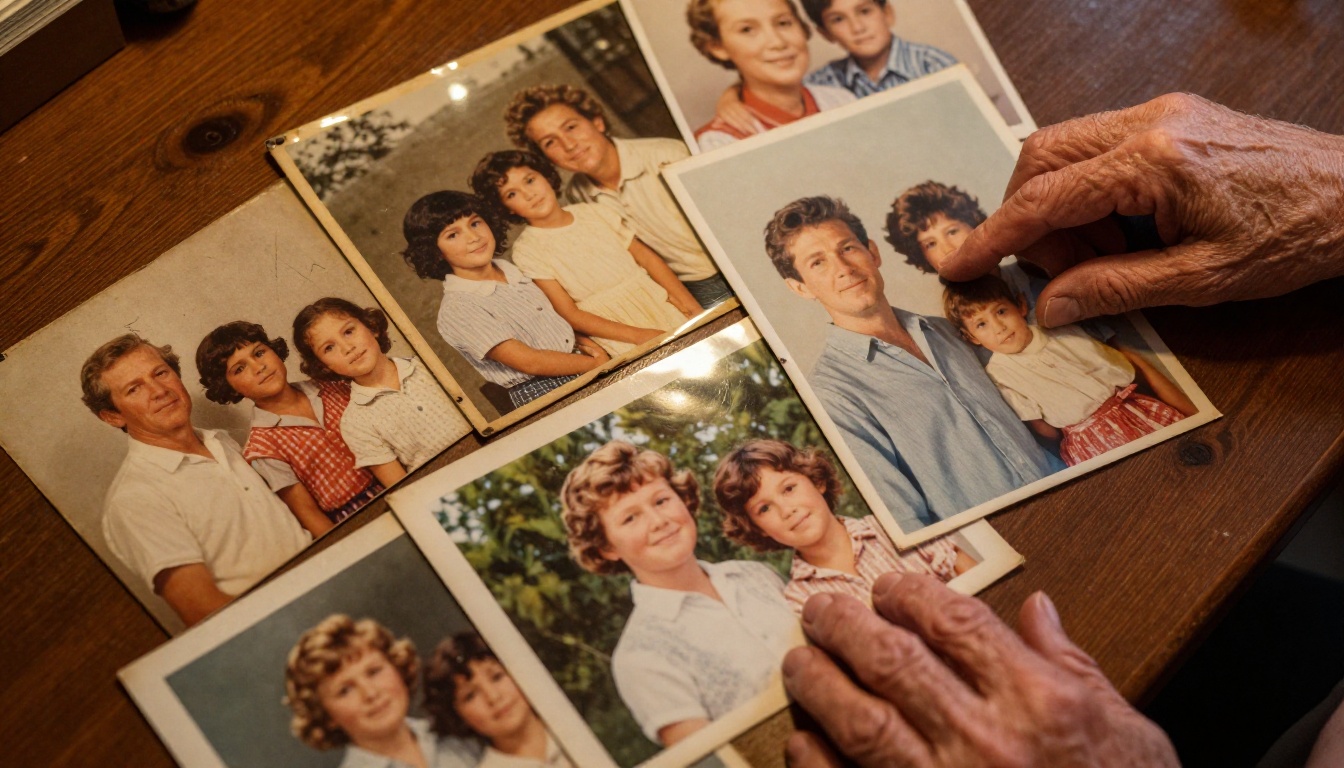
One of the most meaningful applications of AI upscaling is the restoration of old family photographs. A photo taken on a disposable camera in the 1980s, yellowed and scanned at modest resolution, can be brought back to life with modern super-resolution tools in a way that would have been impossible even five years ago.
Real ESRGAN and Google Upscaler both handle the specific challenges of old photographs well: irregular film grain that must be smoothed without destroying detail, color degradation that shifts the tonal balance, physical scratches that read as high-contrast noise, and the soft focus that was common in consumer photography before reliable autofocus arrived.
The result is not a perfect recovery. The AI is reconstructing plausible detail, not recovering lost pixels. But in most cases, the difference between a barely legible scan and a clear, printable photograph is significant enough to matter deeply to the people who care about those images.
For anyone with old photo albums, a scanner, and access to PicassoIA, the process takes minutes. The emotional return can last a lifetime.
See It for Yourself
The technology behind AI upscaling is impressive to read about, but it only becomes real when you run your own photo through it. The difference between a pixelated source image and a 4K AI-upscaled output is something you have to see directly to fully appreciate.
PicassoIA gives you free access to seven different super-resolution models in one place: Real ESRGAN for general photography, Crystal Upscaler for portraits, Topaz Image Upscale for maximum enlargement, Bria Increase Resolution for commercial precision, and both Recraft Crisp and Recraft Creative for faithful or stylized output. All of them are available without any setup, directly in your browser.
Pull up your lowest-quality photo. Run it through the model that fits the content type. The results are usually better than you expect, and they are ready to download in under a minute.


