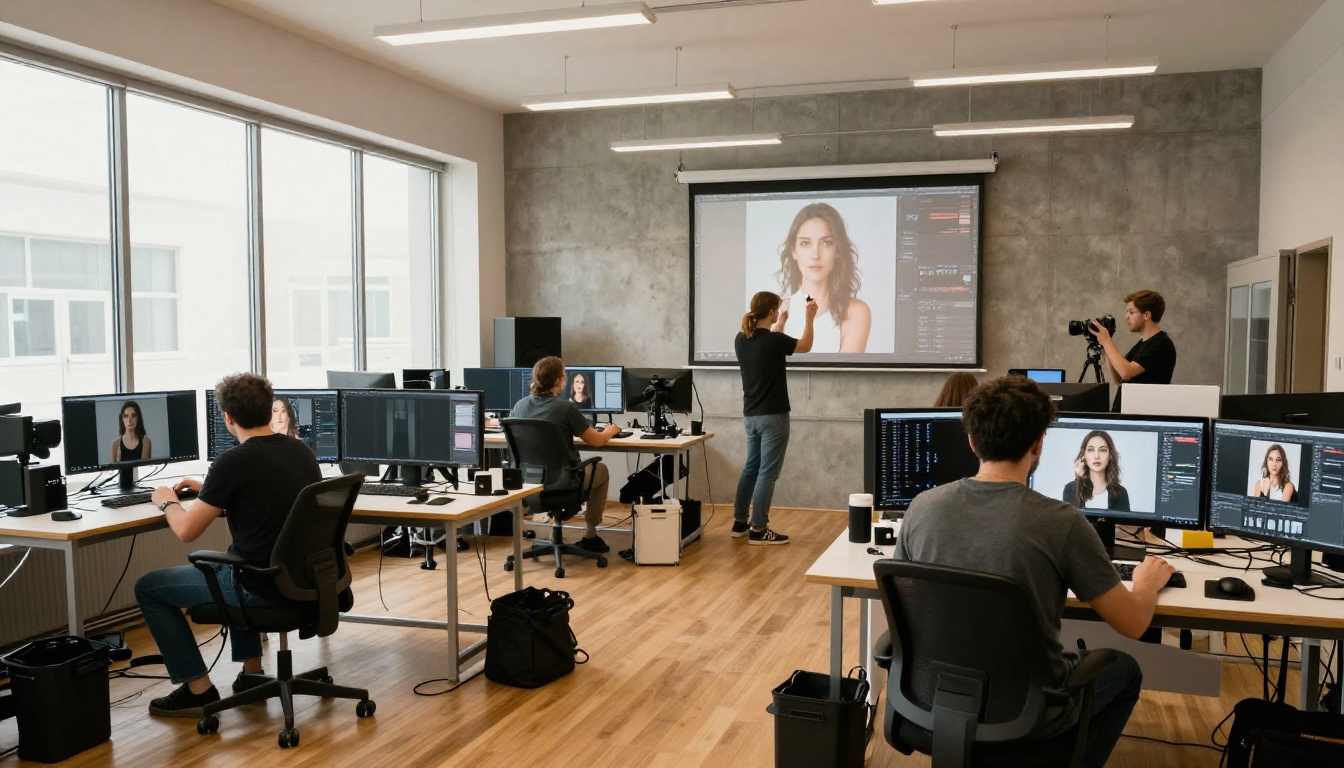
GPT Image 1.5 is not a traditional photo retouching tool. Yet photographers, social media creators, and studio professionals have been feeding it portraits, asking it to fix skin, adjust lighting, and clean up backgrounds. The results are surprising, and the implications for AI-powered image editing are significant.
This article breaks down exactly how GPT Image 1.5 processes photo retouching tasks, what it does well, where it struggles, and how platforms like PicassoIA offer specialized tools that go further when precision matters most.
What GPT Image 1.5 Actually Is
GPT Image 1.5 is OpenAI's flagship image generation and editing model, introduced as a successor to GPT Image 1. Unlike dedicated retouching software, it is a multimodal generative model trained to understand and produce images through natural language instructions.
Not a Traditional Retouching App
Lightroom, Capture One, and tools like Portrait Pro are built from the ground up with skin retouching in mind. They use frequency separation, luminosity masks, and trained skin-detection algorithms. GPT Image 1.5 does none of that at an architectural level. Instead, it uses language understanding to interpret your instruction and then re-renders the affected portion of the image.
This is a fundamentally different approach, and it produces fundamentally different results.
The Multimodal Difference
When you tell GPT Image 1.5 to "smooth the skin on this portrait," it does not apply a filter. It reads the scene contextually, identifies the subject, and generates a revised version of the image with smoother skin textures. The retouching is baked into the regenerated pixels, not layered on top of them.
This means the output is often visually seamless. But it also means GPT Image 1.5 is generating, not adjusting, which introduces risks around identity preservation that traditional tools avoid entirely. A manual retoucher working in Photoshop never changes the bone structure of a face. A generative model can drift if you push it hard enough.
Skin Smoothing and Blemish Removal
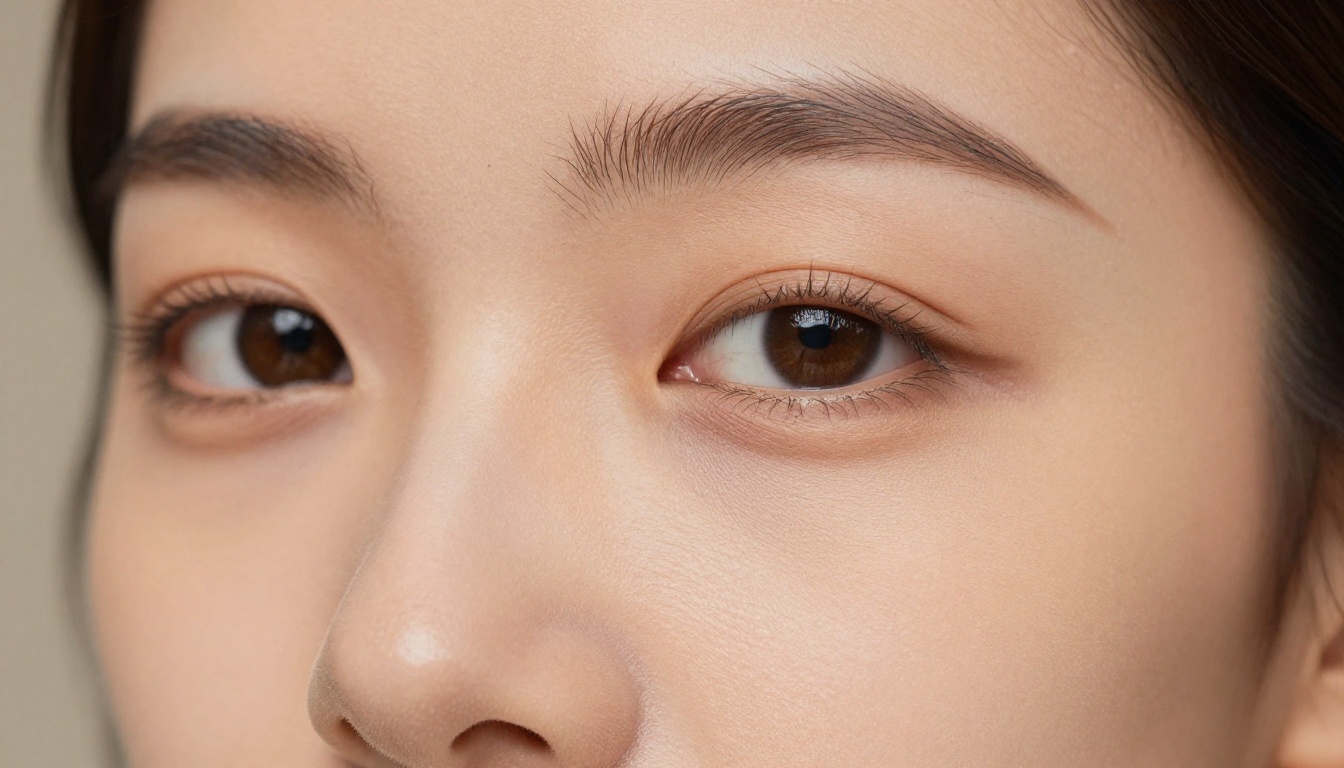
This is where most users focus first, and for good reason. Portrait retouching lives and dies on skin quality.
How the Model Reads Skin Texture
GPT Image 1.5 has been trained on an enormous dataset of human faces and portraits. It understands what "natural skin" and "retouched skin" look like as aesthetic categories. When you prompt it to reduce blemishes or soften texture, it draws on those learned distributions to produce a result that matches the expected aesthetic.
The model is remarkably capable at:
- Removing visible pimples and temporary blemishes without disturbing the surrounding skin zone
- Softening harsh texture in areas like the forehead, nose bridge, and cheekbones
- Evening out skin tone across different lighting zones in the same portrait
- Preserving natural skin character like freckles and beauty marks, when explicitly instructed
💡 The more specific your prompt, the better the result. "Smooth the skin slightly while keeping natural pores and freckles" produces far better output than just "retouch skin."
Where It Succeeds
For simple portraits with even lighting and a single subject, GPT Image 1.5 performs impressively. Blemishes disappear cleanly. Skin tones even out. The result looks like it was handled by a competent retoucher working at pace.
It is especially strong on close-cropped face shots where there is little background complexity. The model focuses attention on the face, applies the changes, and the reconstruction is coherent.
| Retouching Task | GPT Image 1.5 Performance |
|---|
| Blemish removal (single subject) | Excellent |
| Skin tone evening | Very Good |
| Pore softening (light) | Very Good |
| Pore smoothing (heavy) | Fair |
| Dark circles and eye bags | Good |
| Wrinkle reduction | Fair |
| Scar removal | Moderate |
| Fine line softening | Good |
Where It Falls Short
Heavy retouching on complex lighting situations is where GPT Image 1.5 starts to show its seams. When shadows and highlights create dramatic zones on the face, the model sometimes regenerates those areas with slightly inconsistent textures, creating subtle but visible discontinuities.
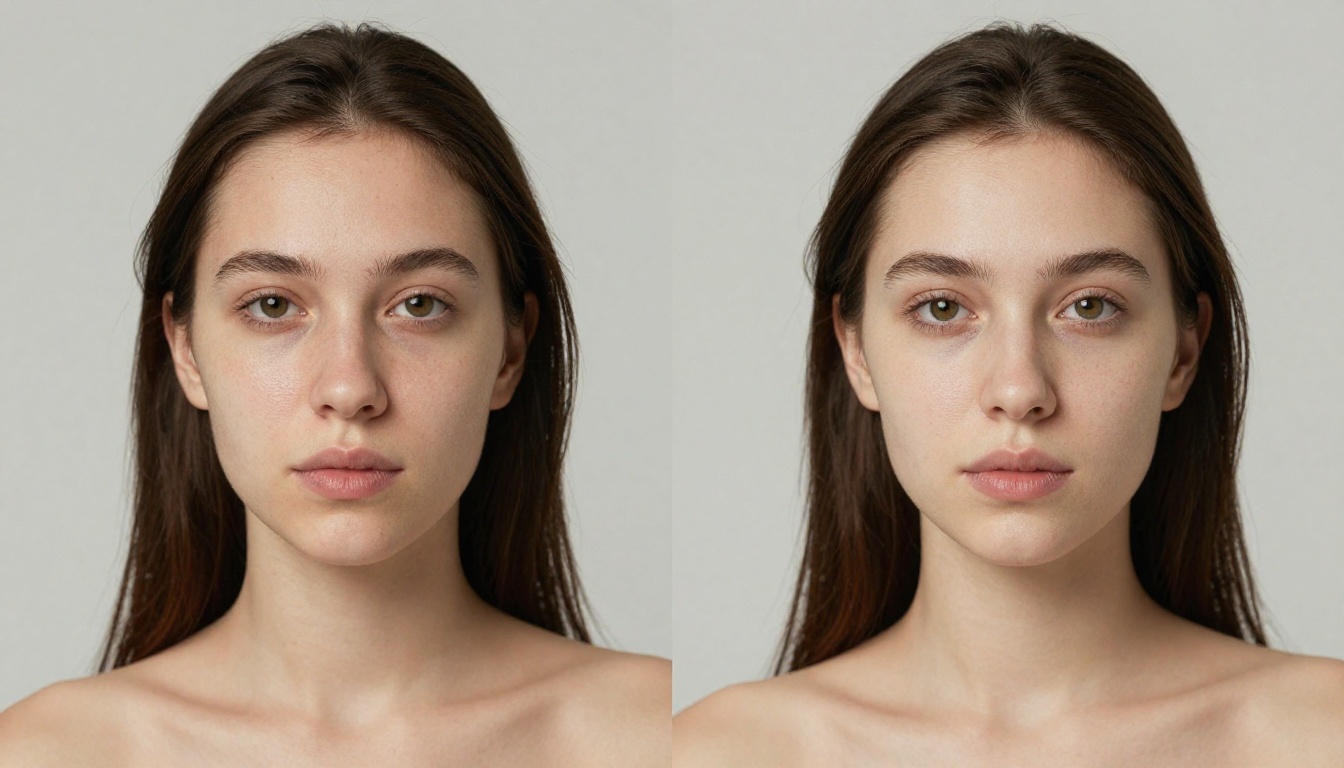
Subtle identity shifts are also a real concern. Aggressive prompts like "make the skin perfect" can cause the model to drift from the original subject's facial structure. Features shift imperceptibly at first, then more visibly with repeated passes. This is not a flaw in a generative context, but it is a serious limitation for retouching real portraits where likeness is non-negotiable.
Lighting and Exposure Correction
Beyond skin work, photographers frequently need to fix lighting issues from the shoot itself. Blown highlights, underexposed shadows, harsh flash falloff. These are areas where GPT Image 1.5 shows both promise and clear limits.
How the Model Reads the Scene
GPT Image 1.5 can detect major lighting issues with reasonable accuracy. Tell it "the subject's face is too dark compared to the background" and it will raise exposure on the subject while attempting to preserve the background tones. Tell it "reduce the harsh shadow under the chin" and it will soften that specific area.
The model's spatial awareness is genuinely impressive here. Because it is a language-vision model, it maps your text descriptions to spatial regions in the image. "Upper left corner," "the subject's right cheek," "the background behind her hair" are all zones it can target and adjust independently.
Selective Adjustments
Selective lighting adjustments work best when the subject is well-separated from the background. Portrait-style images with soft backgrounds give the model clear signals about what to prioritize. Environmental portraits with complex backgrounds are much harder to work with.
💡 Use reference words for specific regions: "brighten the face," "darken the background," "soften the light on the left side of her face." Spatial and directional language gives GPT Image 1.5 much clearer instructions than vague terms like "fix the lighting."
Background Editing and Cleanup
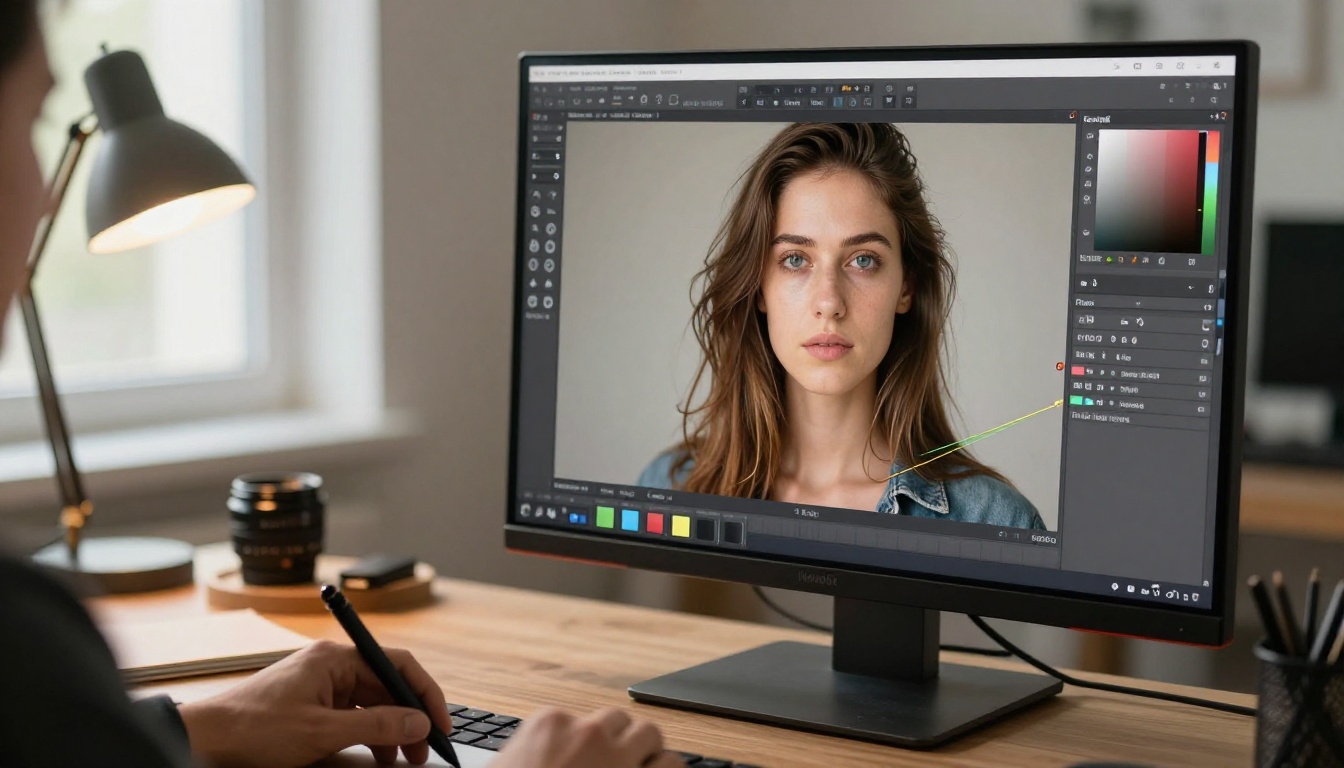
One of the most popular uses of GPT Image 1.5 in photo contexts is background manipulation. Removing distracting elements, swapping out backgrounds, or simply cleaning up the area behind the subject.
Removing Distractions
GPT Image 1.5 handles background cleanup well in most situations. Stray objects, visible power lines, unwanted bystanders on the edges of frame: these are tasks the model approaches confidently. The fill logic is coherent, drawing on the surrounding context to reconstruct what "should" be there.
For portraits with simple, uniform backgrounds (solid colors, blurred studio backdrops, plain skies), this is particularly clean. The model does not struggle with the semantic gap between "remove that trash can" and figuring out what to fill in behind the subject.
Subject Isolation
When the task requires sharp isolation of the subject from the background, GPT Image 1.5 is useful but not surgical. For complex hair (curly, flyaway strands, backlit translucent fibers), the boundary between subject and background can get messy during regeneration.
This is where a dedicated tool adds serious value. If you need precise subject isolation for compositing, cutouts, or product photography, a specialist background removal model will outperform GPT Image 1.5 consistently.
Color Grading and Tone Matching
Color is where photographers get particular. The warm tones of a golden hour session, the cool desaturated look of editorial work, the rich film emulation that defines a brand's aesthetic. These are not simple edits, and they require precision that generative models approach differently than traditional grading tools.
Skin Tone Accuracy
GPT Image 1.5 does a respectable job of adjusting color when directed by language. "Warm up the skin tones," "add a slight orange grade to the highlights," "make the portrait feel cooler and more moody" all produce perceptible and generally coherent results. The model has internalized these aesthetic categories across a vast training corpus.
Where it struggles is in exact skin tone matching across multiple images. If you are building a consistent look for a photo series, GPT Image 1.5 will produce variation across images. It is not referencing a fixed color profile. Each output is generated independently based on the prompt description, not anchored to a reference frame.
Color Profile Consistency
For single-image casual retouching, this is fine. For professional deliverables that need color consistency across a shoot, you need grading software with actual LUT support and histogram-level control. GPT Image 1.5 is a creative tool, not a color management system.
💡 When you need to match colors across multiple portraits, describe the target look in specific terms: "warm amber highlights, desaturated greens, lifted blacks" will give you a more repeatable result than "add warmth."
Real-World Portrait Scenarios
The practical impact of GPT Image 1.5's retouching approach varies significantly depending on what kind of photography you are working with.
Wedding and Event Photography
Wedding photographers shooting in high volume have different retouching needs than studio portrait photographers. When a single wedding generates 600 deliverable photos, even a quick blemish removal pass on each image represents significant time saved. GPT Image 1.5 offers a way to automate the rough pass, running portraits through batch prompts that address the most common issues: skin softening, minor exposure corrections, and light background cleanup.
The caveat is consistency. Each image gets processed independently, which means slight variations in color rendition and skin tone treatment across the set. For a casual social media delivery, this is acceptable. For a print album where the couple will see every image side by side, the lack of color profile locking is visible and problematic.
Commercial and Product Photography
For e-commerce and commercial applications, photo retouching focuses on different concerns: background purity, product sharpness, and color accuracy. GPT Image 1.5 can assist with background cleanup and simple product shadow work, but its accuracy on product colors is unreliable. A red jacket can drift orange. A navy blue garment can shift toward purple or indigo in a regenerated frame.
For commercial work, specialist tools with explicit color reference support are the safer option. What GPT Image 1.5 can do is assist with rough concept cleanup before the final precision pass.
Social Media Content Creation
This is where GPT Image 1.5 genuinely earns its place. Content creators shooting portraits for Instagram, LinkedIn, or brand content often have no retouching software skills. The promise of "type what you want and get a polished result" is exactly what this audience needs.
For one to two hero images per post, GPT Image 1.5 delivers quality that reads as professionally retouched at social media resolutions.
💡 Speed matters in social content: GPT Image 1.5 can take a portrait from raw to retouched in under 30 seconds with the right prompt. That is faster than opening any traditional retouching application.
It is worth being direct about what GPT Image 1.5 is competing against when positioned as a retouching tool.
| Capability | GPT Image 1.5 | Specialist Retouching Tool |
|---|
| Speed | Very Fast | Slow to Moderate |
| Skin Blemish Removal | Good | Excellent |
| Identity Preservation | Fair (risk of drift) | Excellent |
| Lighting Correction | Good (soft adjustments) | Excellent (precise) |
| Color Profile Consistency | Poor across multiple images | Excellent |
| Background Cleanup | Good | Excellent (specialized) |
| Price | Per-token cost | Subscription |
| Learning Curve | Near zero | Moderate to High |
GPT Image 1.5 wins on speed and accessibility. It loses on precision and consistency. If you are a content creator who needs a quick retouch for social media, it will often do the job in seconds with zero tool knowledge required. If you are a professional photographer delivering prints to clients or building a catalog with consistent skin tones, you need more control than a language model can reliably offer.
The honest use case breakdown: GPT Image 1.5 is at its best when it is part of a pipeline, not the entire pipeline. Use it to rough in the retouch, then refine with precision tools where it counts.
How PicassoIA Handles the Gap
Where GPT Image 1.5 leaves room for improvement, PicassoIA offers a suite of specialist models built for the exact tasks that generative models struggle with. These are not general-purpose tools. They are purpose-built for image quality, detail recovery, and precision editing.
Upscaling for Detail Recovery
One of the first places photographers go after retouching is upscaling. Retouched images often need resolution recovery, particularly if the original was a compressed JPEG or shot at lower resolution. The retouching pass from GPT Image 1.5 can also introduce a slight softening of fine detail that needs to be restored.
PicassoIA's Clarity Pro Upscaler is built specifically for photorealistic upscaling. It does not just interpolate pixels. It reconstructs fine skin texture, hair detail, fabric weave, and environmental texture at a level that general upscalers cannot match. The result is a retouched portrait that holds up at print sizes without the soft, painterly look that cheaper upscalers produce.
For portraits specifically, Crystal Upscaler offers face-optimized 4x upscaling that prioritizes skin and eye detail. Hair strands, catchlights, pore texture: all recovered in a single pass.
If speed is the priority, P Image Upscale delivers sharp results in approximately one second, making it ideal for batch workflows where you need to process dozens of retouched portraits quickly.
For maximum output resolution, Topaz Image Upscale allows up to 6x enlargement, which is the tool of choice when a portrait needs to go to a large-format print or billboard.
💡 Workflow tip: Use GPT Image 1.5 for your retouching pass, then run the result through a PicassoIA upscaler to recover full resolution and add back fine detail that the generative retouch may have softened.
Background Removal at the Edge Level
For portrait compositing and product photography, background removal needs to be pixel-accurate at the edge of the hair, around the shoulders, between fingers. GPT Image 1.5 cannot reliably deliver that level of precision.
PicassoIA's Remove Background model handles this task with surgical accuracy, producing clean cutouts even on complex hair and translucent fabrics. The result is a subject isolated on a transparent background, ready for compositing into any new scene without fringe artifacts or blurred edge zones.
Super Resolution for Print Work
The Real ESRGAN model on PicassoIA offers free 4x upscaling with a focus on preserving photographic realism. For retouched portraits destined for print, it adds back the fine grain and micro-texture that make a photograph feel authentic rather than digitally processed.
Google Upscaler provides another 4x option with particularly strong performance on faces and skin tones, making it a natural complement to portrait retouching work done through GPT Image 1.5.
The two-step workflow (GPT Image 1.5 for retouching, PicassoIA for resolution and precision cleanup) consistently produces results that outperform either tool used alone.
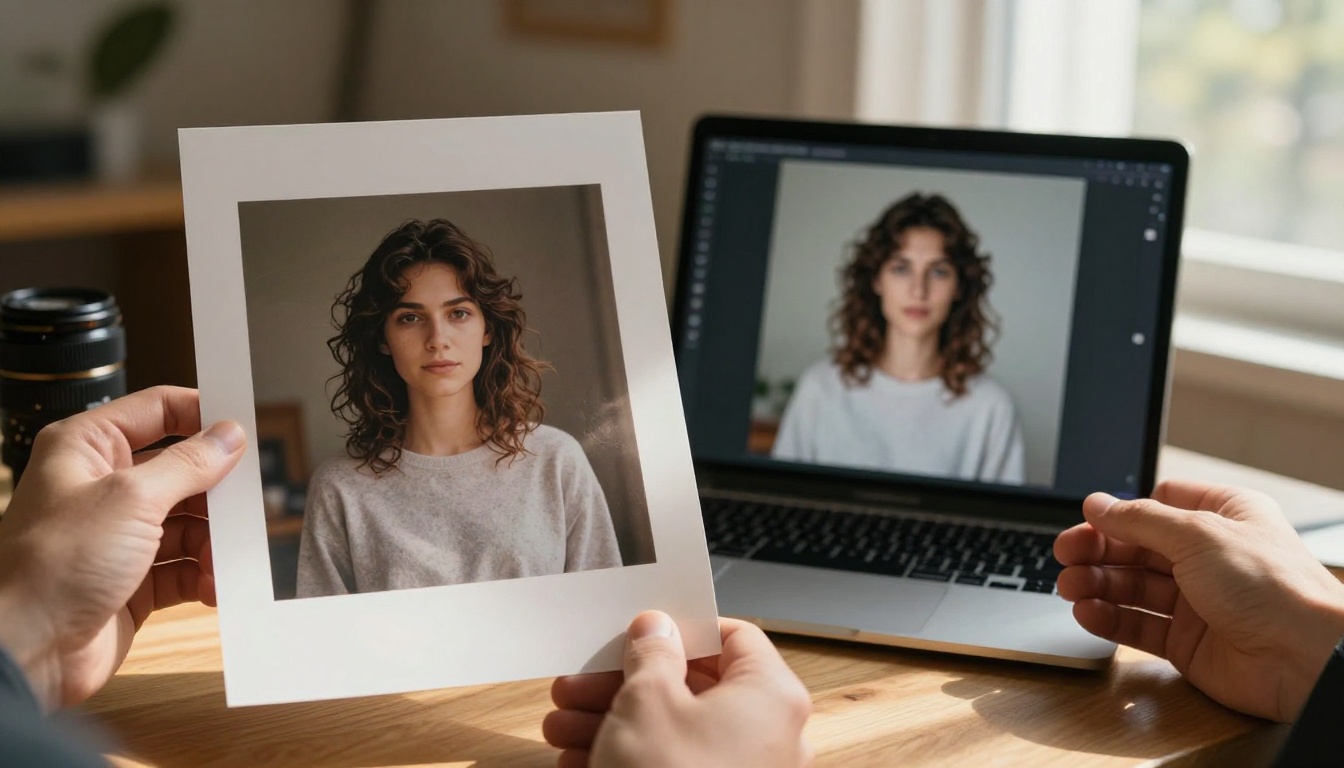
Start Retouching Your Photos on PicassoIA
If you want to see what AI photo retouching looks like in practice, PicassoIA gives you access to over 90 text-to-image models, dedicated super-resolution tools, and background removal technology, all in one platform. No software installation. No configuration. Just upload your image and start editing.
The Clarity Pro Upscaler alone is worth trying if you have ever been frustrated by soft upscaling on portrait work. Run a retouched portrait through it and compare the detail recovery against anything you have used before.
For background removal before compositing, the Remove Background tool produces clean edge-level cutouts that hold up at 100% zoom, even on complex hair and fine fabric edges.
Your next portrait project does not have to involve hours at a retouching station. Start with what AI can do fast, then layer in precision where it counts. PicassoIA has the specialist tools for every step of the process.